
All Bitrix24 On-Premise (self-hosted) users with an active commercial license can contact Bitrix24 Support directly from their account. To do this, add the support chatbot to Bitrix24 Messenger.
Connect the Bitrix24 Support chatbot
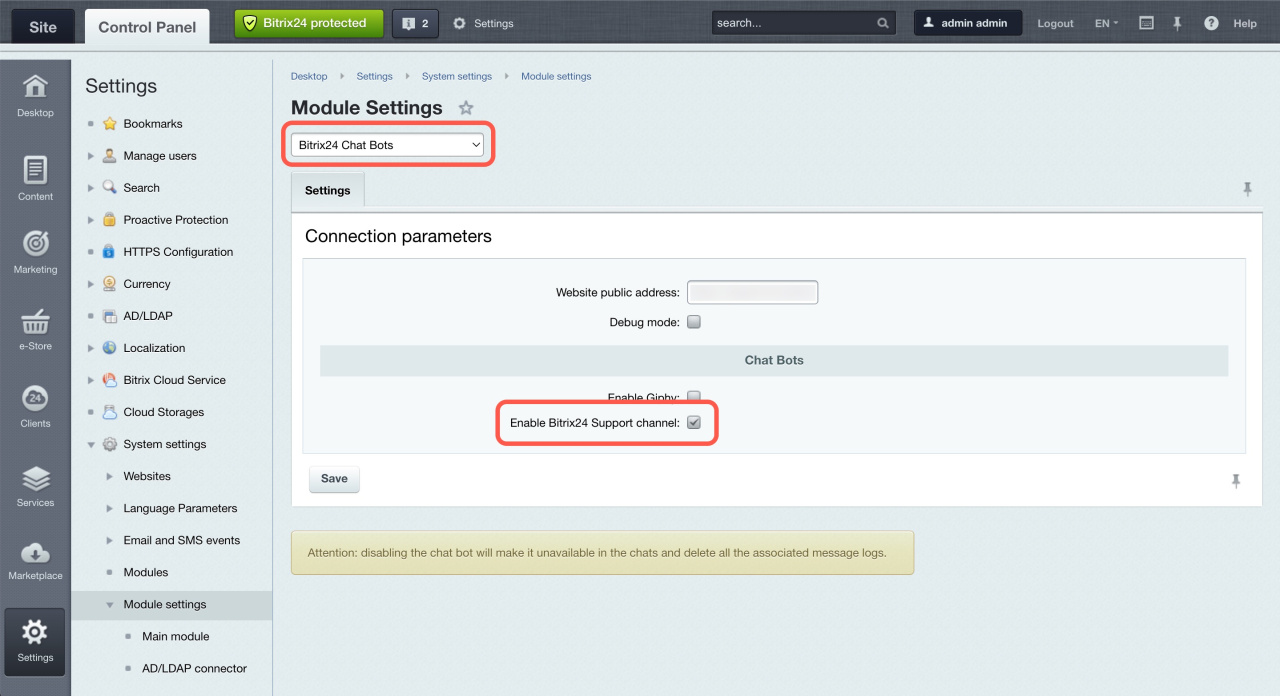
- Go to Control Panel > Settings > System Settings > Module Settings.
- Select Bitrix24 Chat Bots from the list.
- Activate Enable Bitrix24 Support channel.
If the chatbot does not connect automatically, it will appear as a regular bot. Open Messenger and activate Support for Bitrix24 On-premise editions.
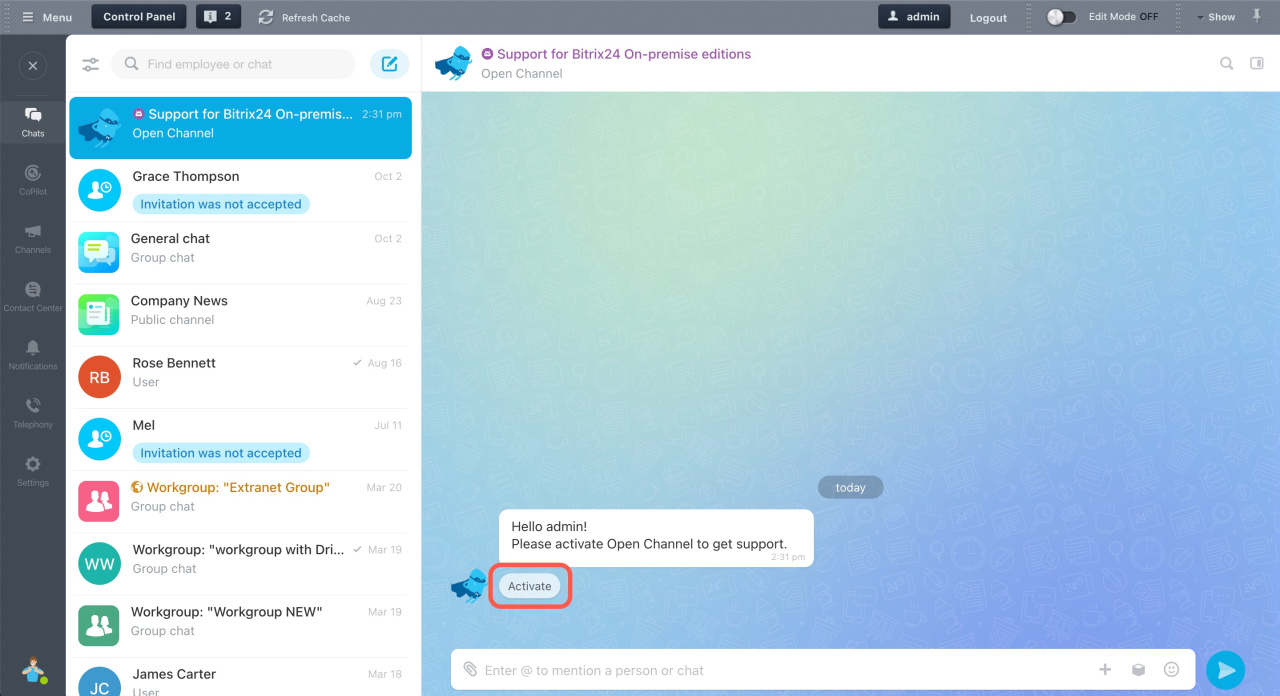
During activation, the system checks:
- Server availability.
- License status.
- Open channel configuration.
If there are issues, you will see them in the connection window.
Resolve connection issues
After setup, the chatbot appears in your chat list.
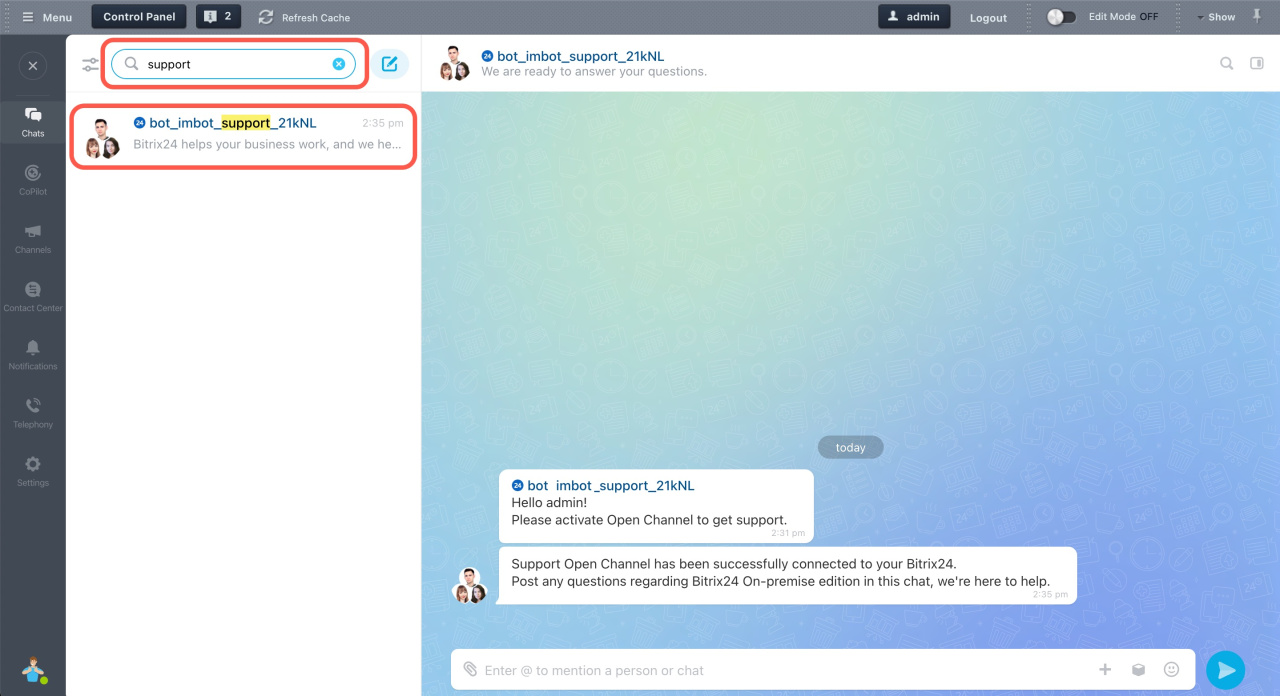
Fix connection issues
Most connection issues happen because of an incorrect address in the Bitrix24 Chat Bots module settings or server configuration. These issues should be handled by your system administrator.
Incorrect public site address specified
The address in the Website public address field is missing https:// or is not valid.
Public site address resolves to a local host
The address in the Website public address field points to a local resource that is not accessible from the internet. Your Bitrix24 account must be available externally to connect the Chat Bots module.
Network connectivity error
This can occur if the server or account is unavailable, requests time out, or there are SSL certificate issues.
This website's license is invalid
Your license has expired. Bitrix24 Support Chat works only with an active commercial license.
Message not delivered due to user restrictions
The administrator contacting support must be added to the Employees group and assigned to a department. Otherwise, messages cannot be delivered.
Bitrix24 Self-hosted administration: User groups
Bitrix24 On-Premise with an expired maintenance subscription
Issues covered by Bitrix24 On-Premise Support
1. Installation and configuration
Support includes:
- Guidance on installing the product (trial and paid versions)
- Recommendations for common installation issues
- General advice on choosing server software
- Help with hosting and migration from a local server to a remote one, including backup preparation and standard tools
Support does not include:
- Installing the product on a server
- Preparing or transferring backups
- Diagnosing server software on your PC or server
- Installing server software
2. Performance improvement
Support includes:
- General recommendations for improving performance
- Guidance on software configuration based on project settings
- Tips on using caching and load reduction tools
Support does not include:
- Configuring software on your server
- Load testing or diagnostics
- Code, module, or component optimization
3. Product updates
Support includes:
- Resolving license key issues during updates
- Help if an update was installed incorrectly
Support does not include:
- Fixing server connection or proxy issues
- Configuring the server for the update system
4. Product errors
Support includes:
- Fixing errors that occur during product use and recovery
- Guidance on identifying and resolving the cause of issues
- Diagnosing and fixing product errors
- Confirming whether an issue is a product error and resolving it during diagnostics or in future updates, depending on complexity
Support does not include:
- Fixing installation errors (see installation guidelines)
- Fixing database errors (only general recommendations are provided)
- Resolving server configuration issues that affect updates (only general recommendations are provided; support does not install updates)
- Diagnosing or fixing server software issues
5. Development
Support includes:
- General guidance on integrations
- Recommendations for using the API
- Collecting feedback and development requests (no guaranteed timelines)
Support does not include:
- General software development questions
- Implementing custom logic
- Diagnosing custom solutions or components
- Building custom modules or components
- Customizing scripts or software components
- Modifying code for custom needs (except bug fixes)
- Payment system integrations
6. Conceptual questions
Support includes:
- Guidance on features not covered in documentation
- Licensing and security recommendations
- Collecting feedback on the product and documentation
If your issue is not covered by Bitrix24 Support, contact a Bitrix24 partner for implementation.
Bitrix24 partners
Important notes
-
Only account administrators can contact Bitrix24 Support.
-
The Website public address must be accessible from the internet.
-
Use a valid SSL certificate issued by a trusted CA.
-
Your commercial subscription must be active.
-
If a Bitrix24 Support specialist cannot view your screenshots in the chat and you see the error "Unfortunately, this link has expired. Please use the link in your email again to continue working", it means read access to the
/pub/directory is restricted for unauthorized users.To fix this:
- Go to Control Panel > Content > Site Explorer > Files and folders.
- Make sure the All users (including unauthorized users) group has read permission for the
/pub/directory and all attached files.
If permissions were changed at the server level, contact your server administrator.