
Protect your data in your Bitrix24 account with two-step authentication. This adds an extra layer of security to the login process:
- Enter your login and password.
- Enter a one-time code from an authentication app. The code is valid for a short time and can only be used once.
Bitrix24 recommends enabling two-step authentication for all users.
Enable two-step authentication for all employees (admin)
An administrator must enable two-step authentication for their own account first, then enforce it for others.
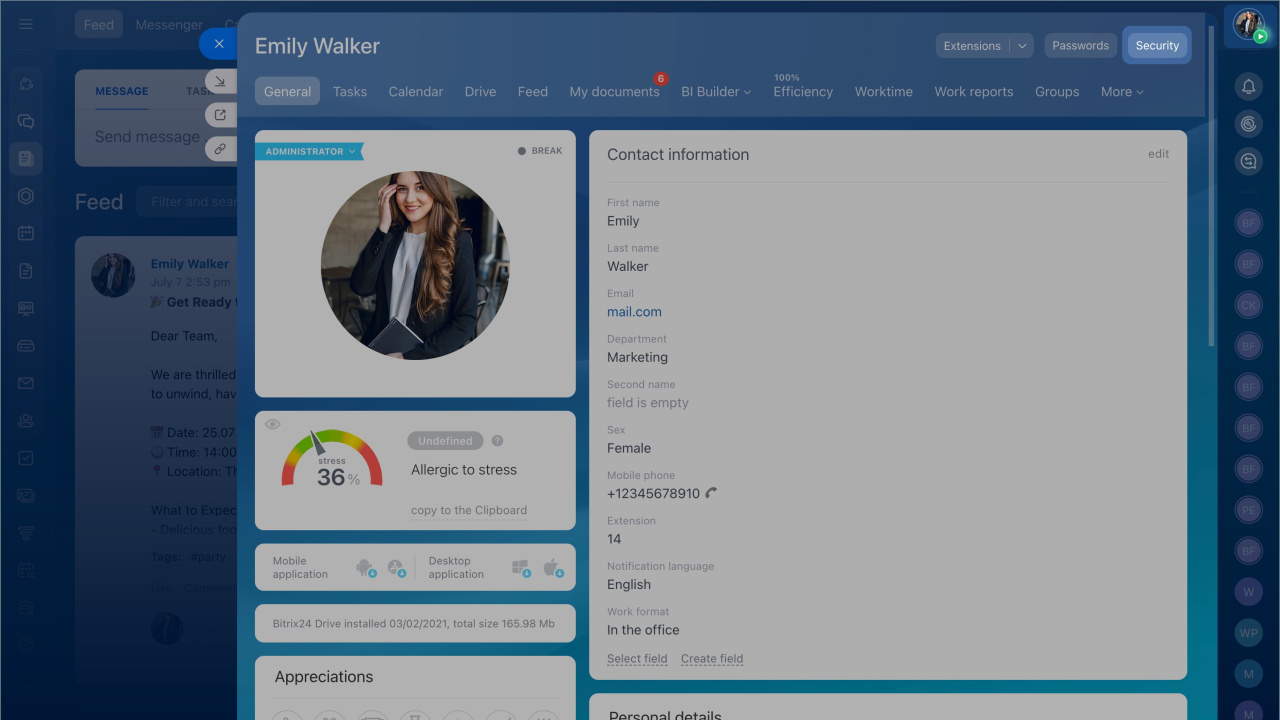
- Open your personal profile.
- Click the Security button > Enable.
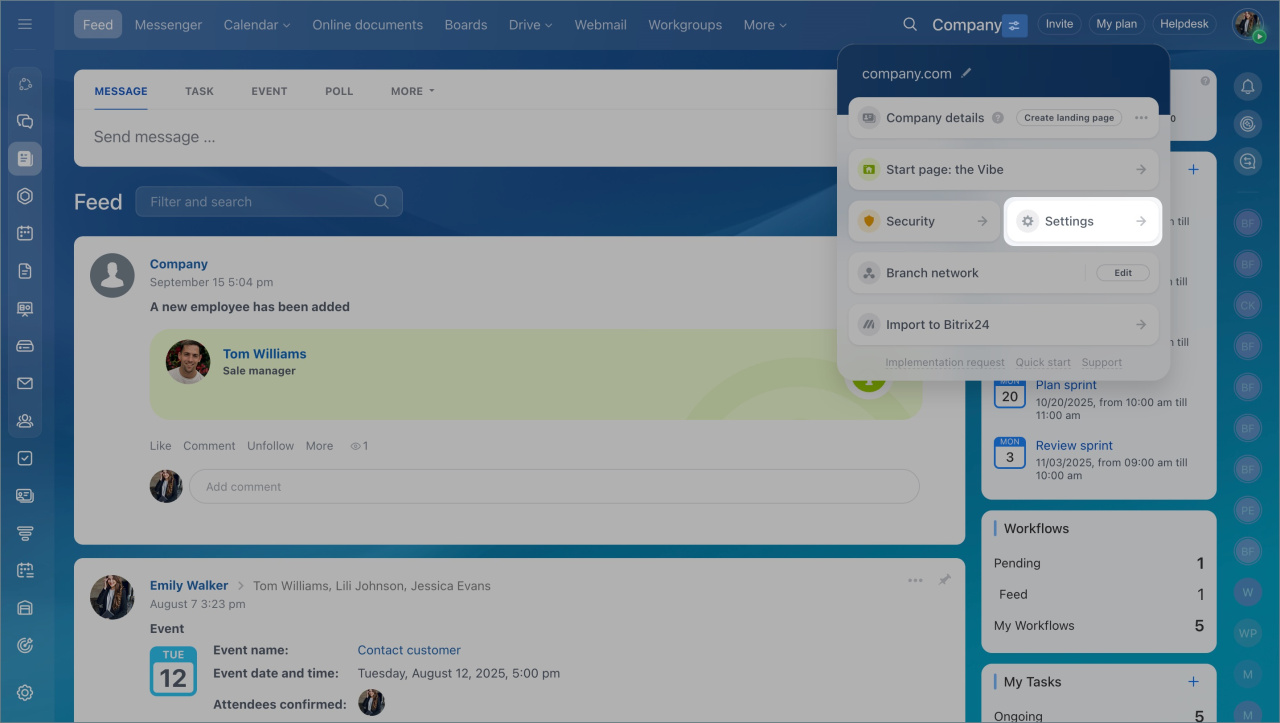
- Go to the account Settings.
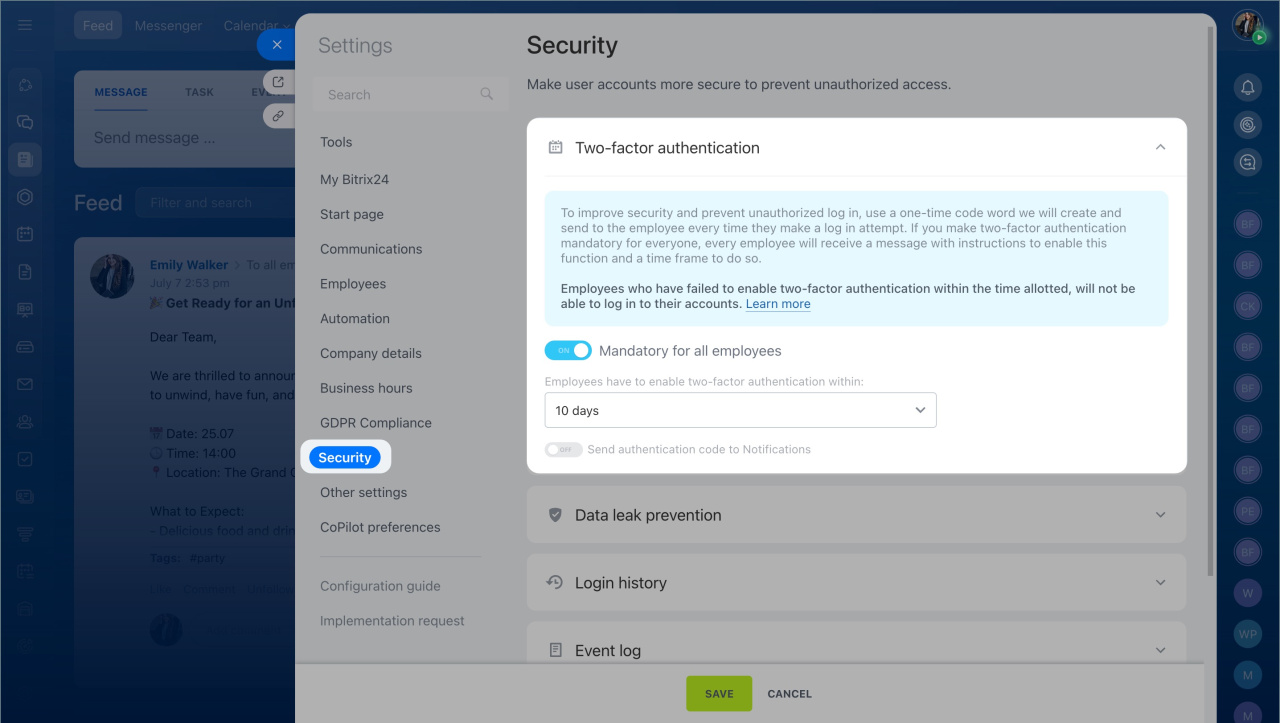
- Enable the Mandatory for all employees option in the Security tab > Two-factor authentication.
- Set the time during which users have to enable two-factor authentication.
- To ensure that employees are notified when someone tries to log in to their accounts, enable the Send authentication code to Notifications option. Save the settings.
Enable two-step authentication (employee)
- Open your profile and click Security > Enable. Make sure the time on your phone and computer is the same.
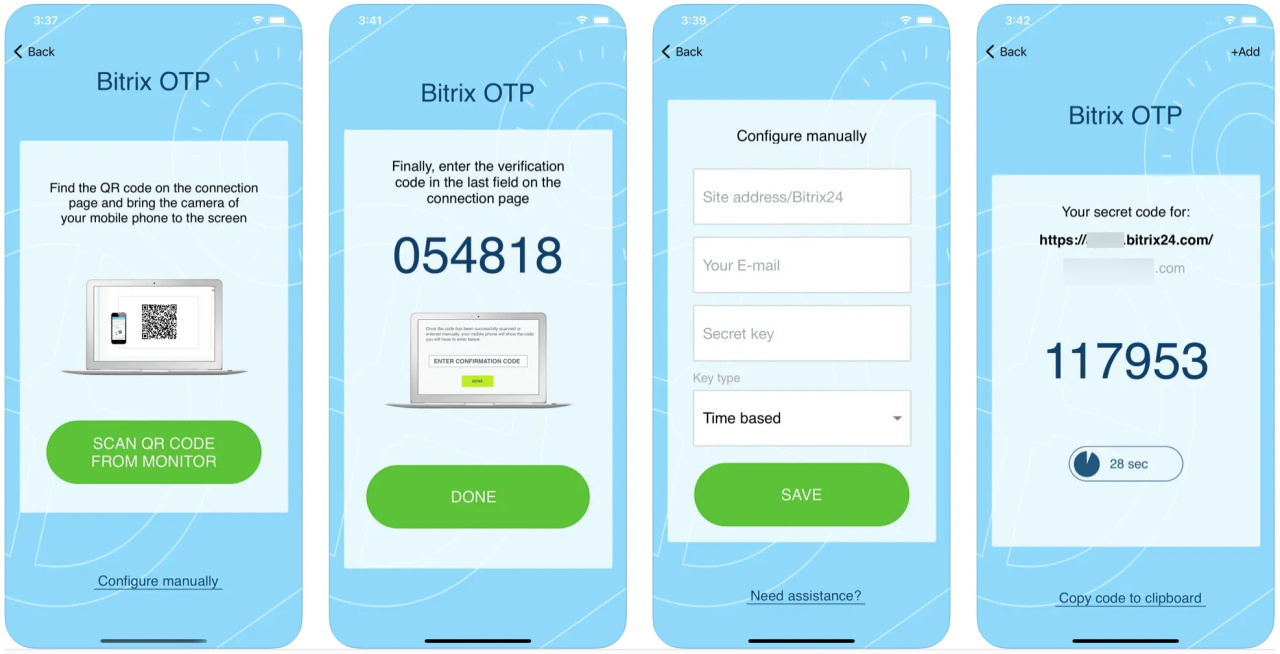
- Install the Bitrix24 OTP app from the App Store or Google Play. You can also use any app that supports time-based one-time passwords (TOTP).
- Open the app and scan the QR code, or enter the data manually.
- Enter the verification code and click Done.
After setup, you will enter your login, password, and a one-time code each time you sign in.
Recovery codes
Recovery codes let you access your account if you can’t use your authentication app—for example, if your phone is lost or out of battery.
- After enabling two-step authentication, open your profile.
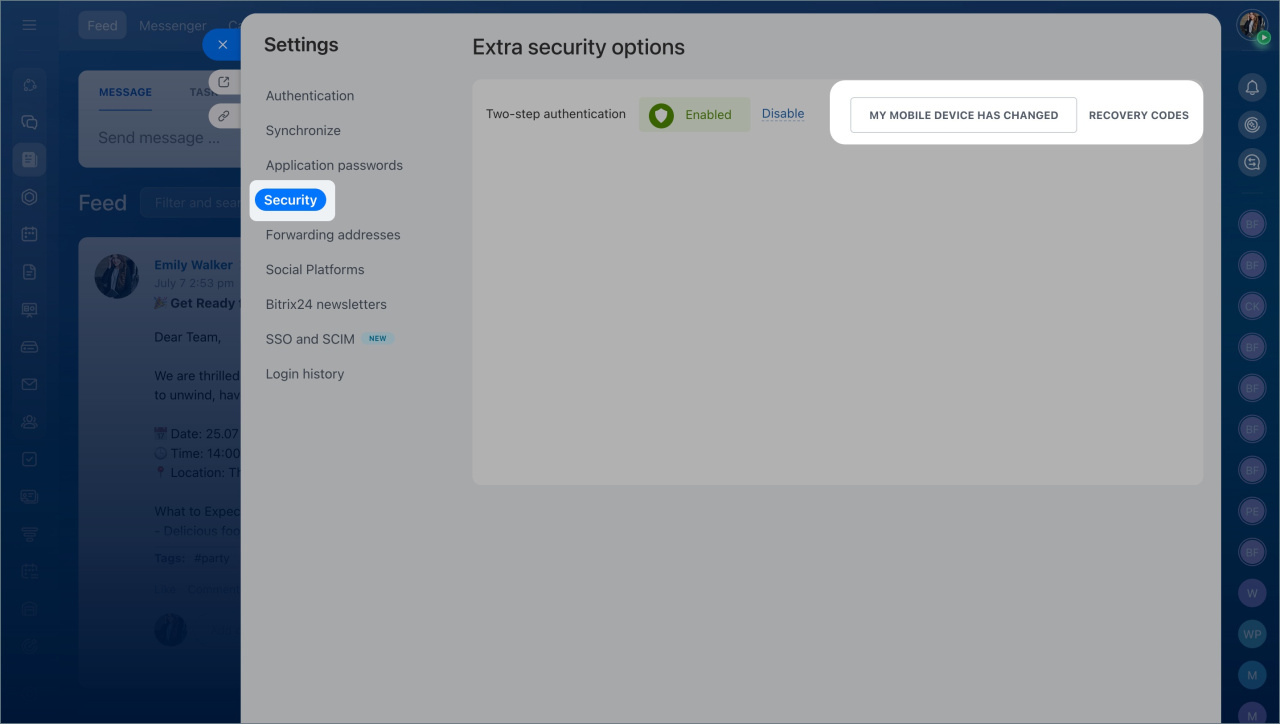
- Click Security > Recovery Codes.
- Save the codes or print them. Each code can be used once.
- If you change your phone, reinstall and set up the app again. Go to Security > My mobile device has changed.
Configure two-factor authentication on a new phone
- Two-step authentication protects your account with a password and a one-time code.
- You can use the Bitrix24 OTP app or any TOTP-compatible app.
- Admins should enable it for themselves first, then require it for all users.
- Users who don’t enable it within the set time won’t be able to sign in.