
Recurring tasks let you automate repeat work. Bitrix24 creates tasks on a schedule, so you don’t have to set them up manually each time.
Set up the task once. Add the title, description, assignee, and schedule. Bitrix24 will generate new tasks based on these settings. For example, an accountant can get a “Submit reports” task every month. A marketer can get a weekly reminder to review campaigns.
Recurring tasks are based on templates. You can update or pause a template at any time.
Bitrix24 plans and pricing
In this article:
Create a recurring task
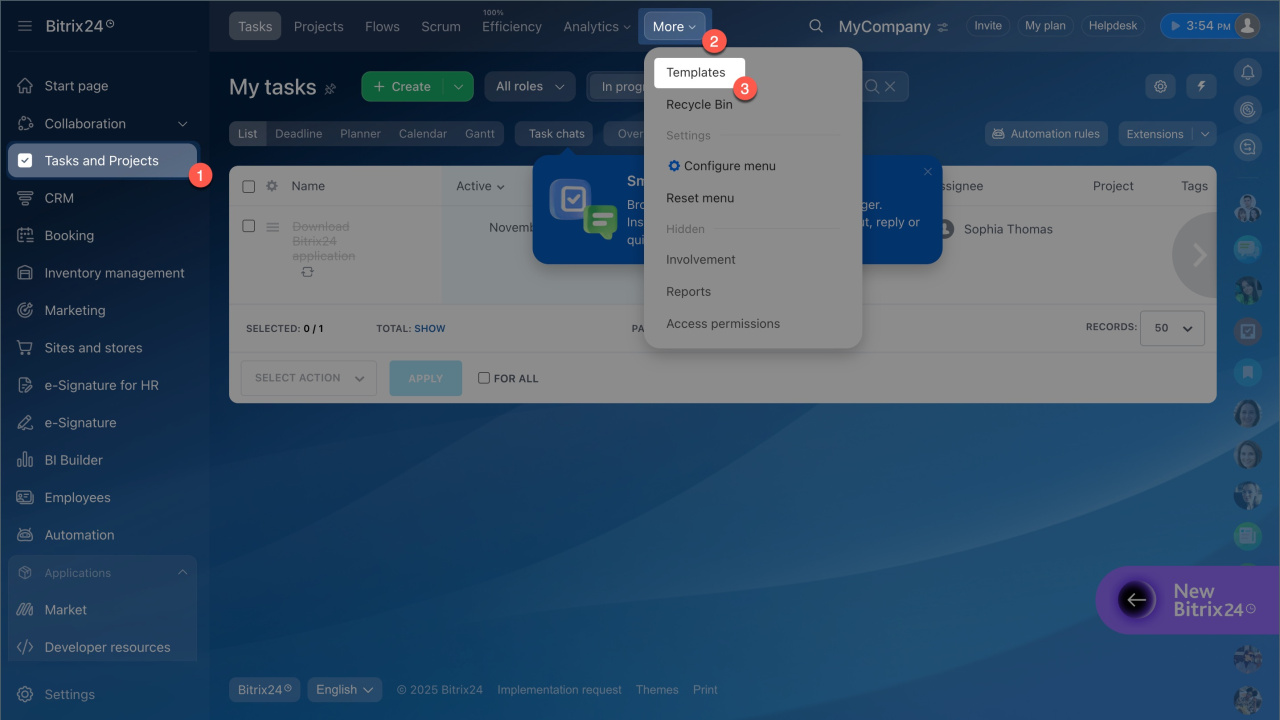
To make a task recurring, create or edit a template:
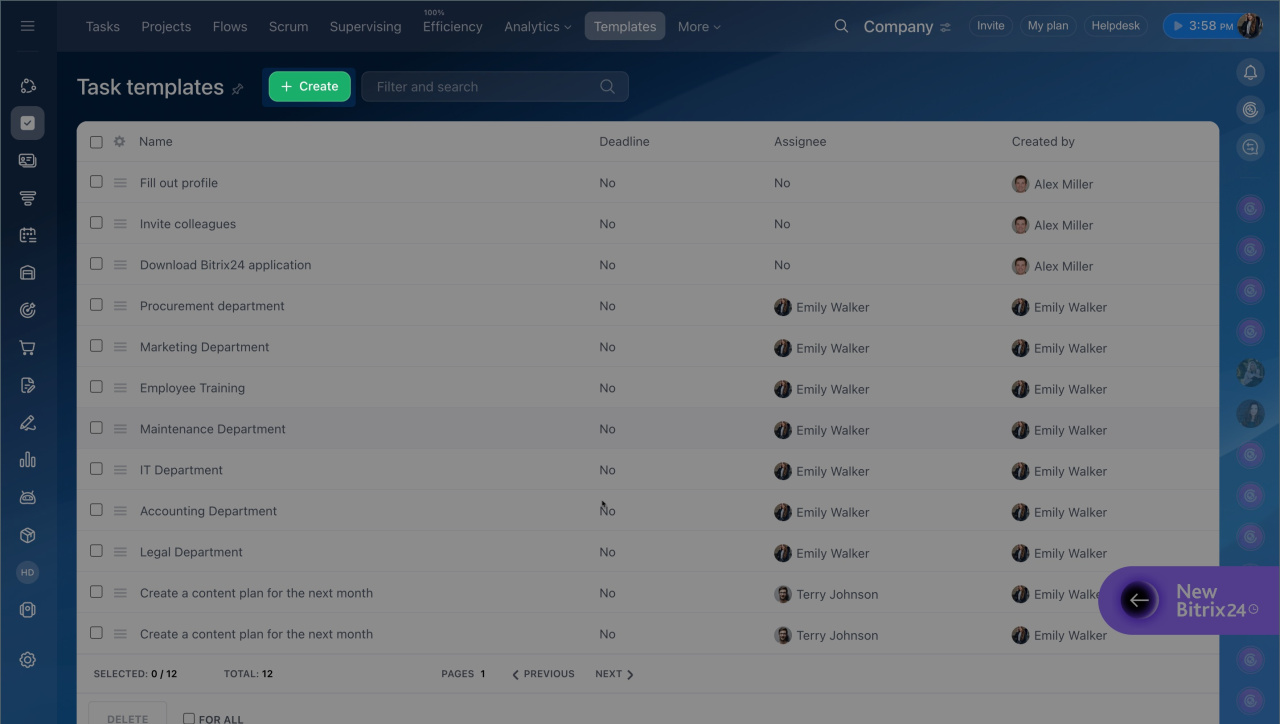
- Go to Tasks and Projects > Templates.
- Open an existing template or click Create.
- Fill in the main fields such as title, description, assignee, and deadline.
- Add optional items like files, checklists, or reminders.
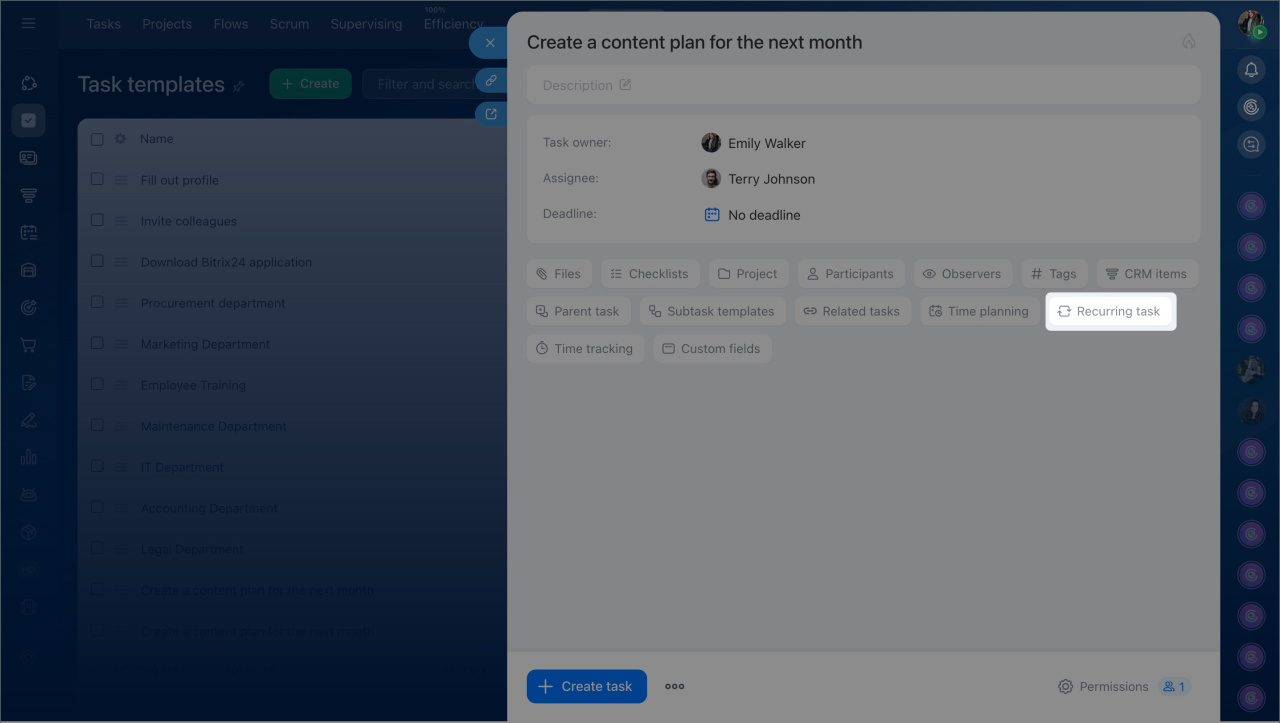
- Turn on Recurring task at the bottom of the form.
A block with recurrence settings will appear.
Set up task recurrence
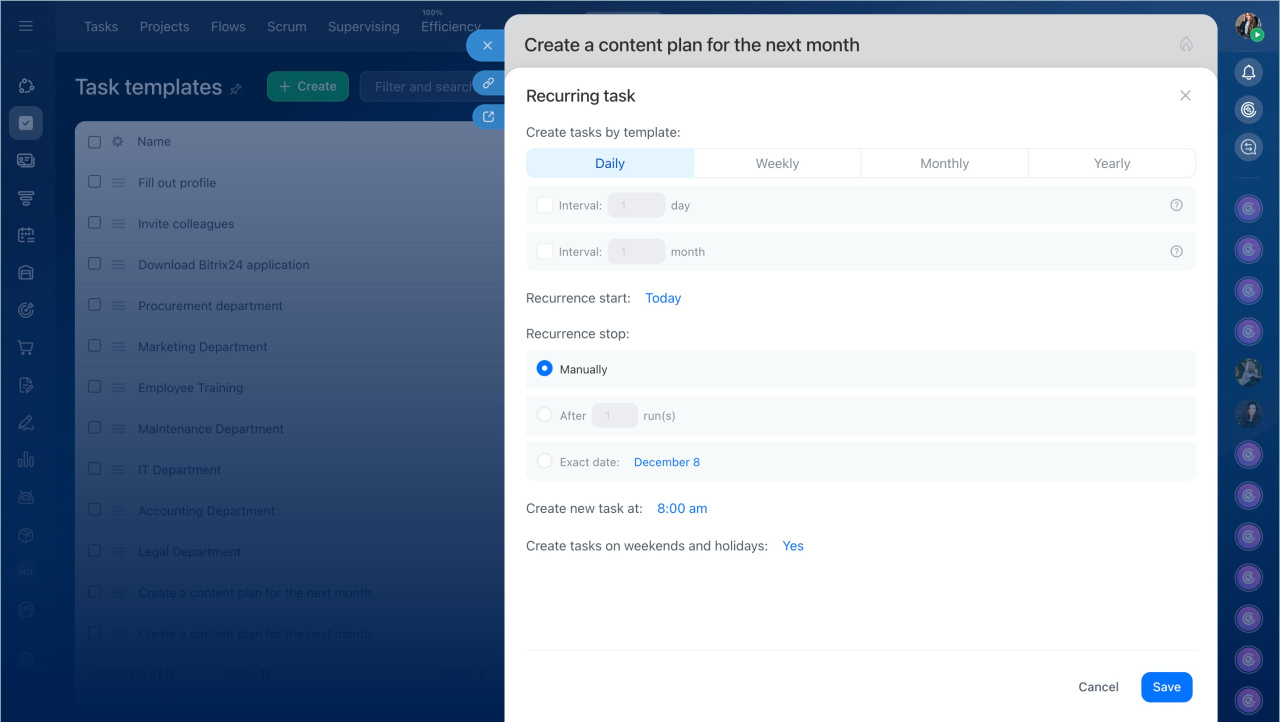
Use recurrence settings to control when and how Bitrix24 creates new tasks.
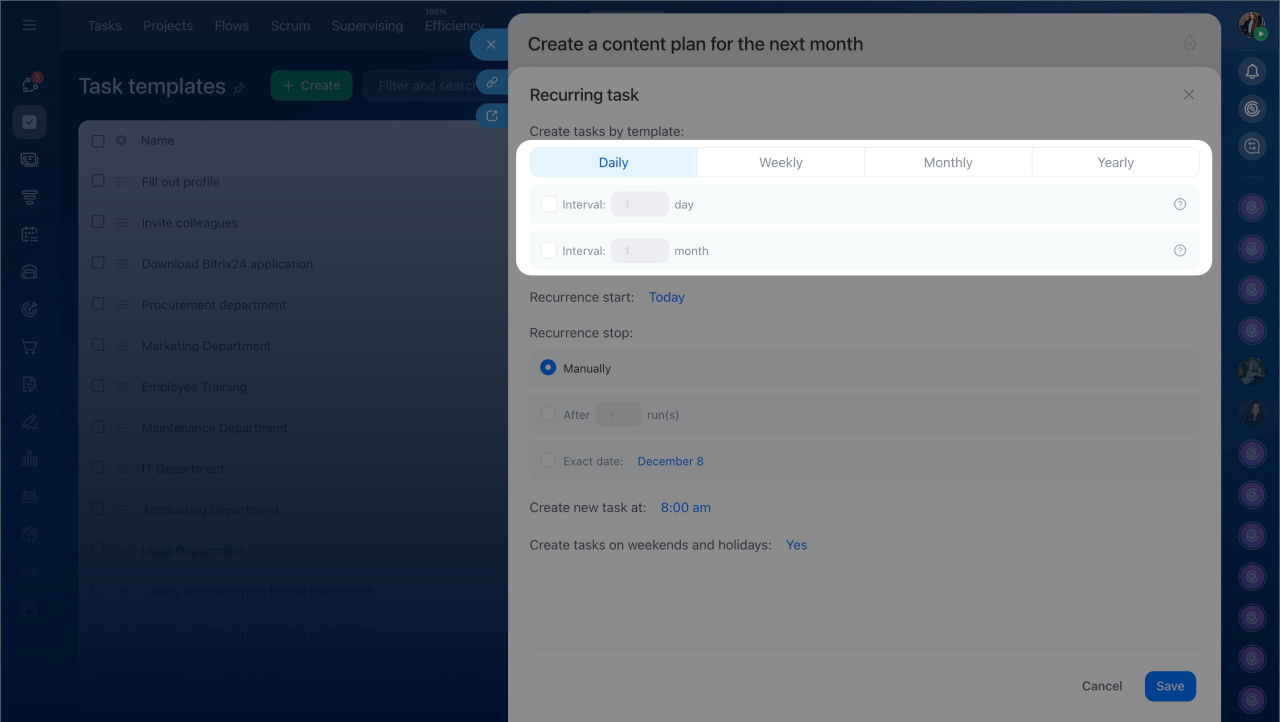
Create tasks by template
Choose how often Bitrix24 should create tasks:
- Daily: Use this for tasks you handle every day, such as reviewing reports or checking inventory.
- Weekly: Pick specific days of the week. For example, create a task every Tuesday or Friday.
- Monthly: Choose a date or a weekday, such as the 15th or the second Monday. This works well for reports or invoices.
- Yearly: Set a specific date or pattern for annual tasks like audits or renewals.
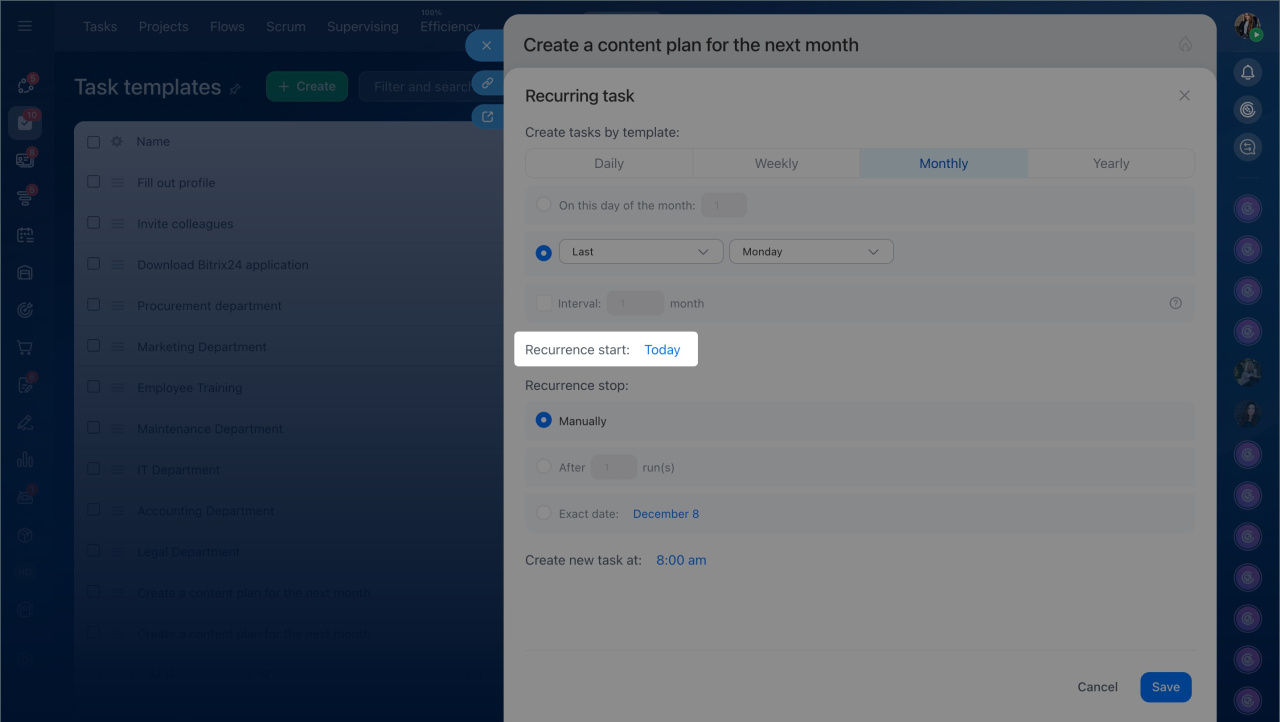
Recurrence start
Defines when Bitrix24 begins creating tasks. By default, tasks start right after you save the settings. You can select a different start date if needed.
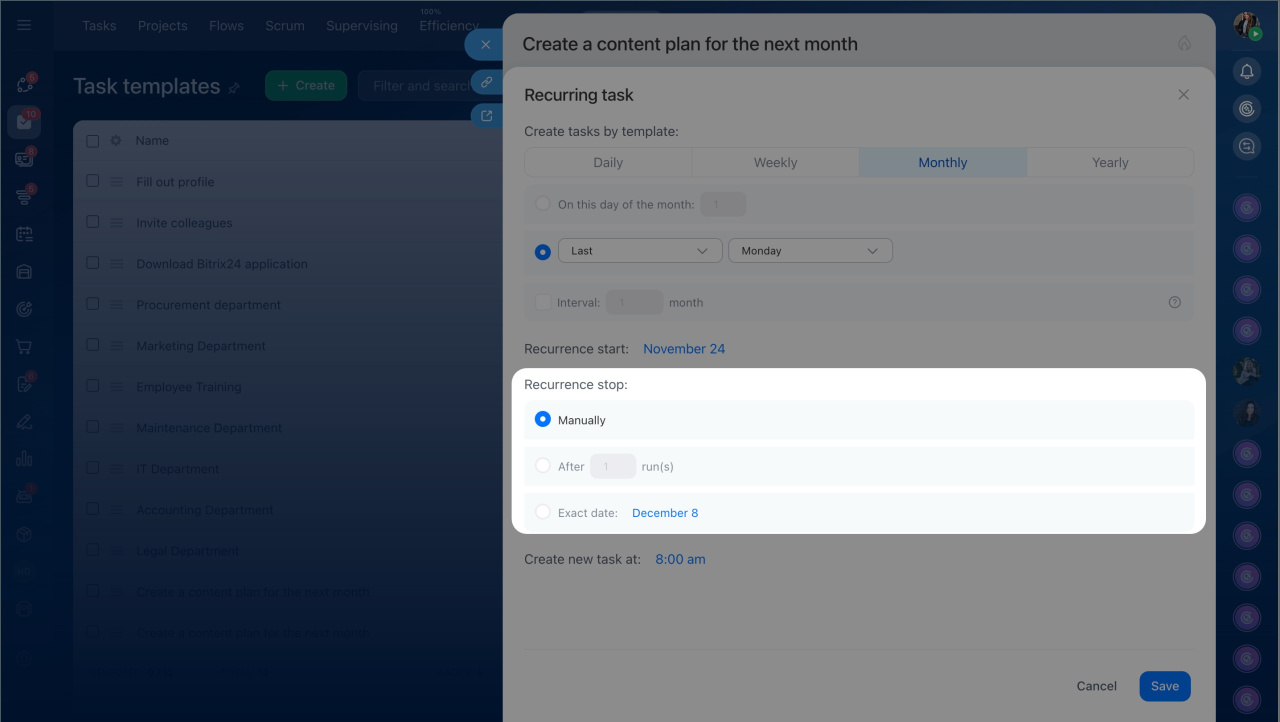
Recurrence stop
Controls when task creation ends. Choose one of these options:
- Exact date: Stop on a specific date.
- After ... runs: Stop after a set number of tasks.
- Manually: Keep creating tasks until you turn off recurrence.
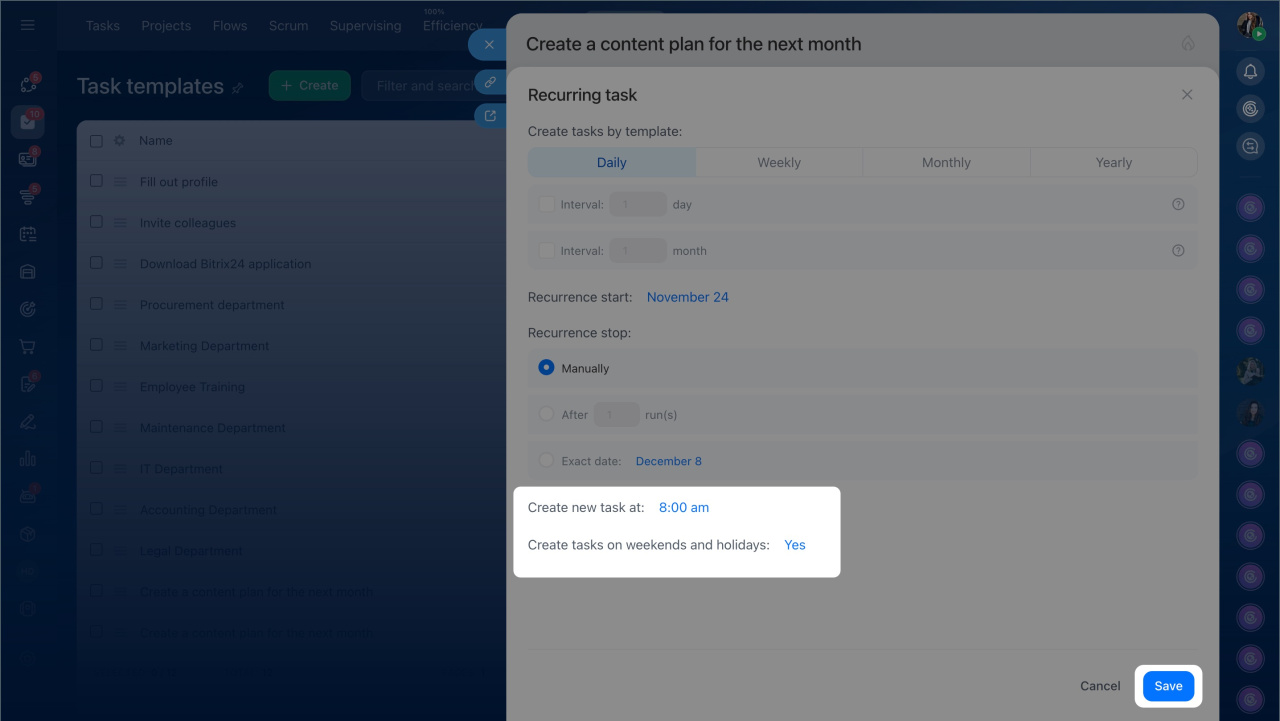
Create new task at
Choose when new tasks appear. By default, Bitrix24 creates tasks at the start of the workday based on your account settings.
Create tasks on weekends and holidays
Decide what happens if a task falls on a non-working day. By default, Bitrix24 creates the task on that day. To move it to the next workday, select No. This option is available only for the Daily recurrence period.
When you finish, click Save.
Edit or stop a recurring task
You can update or turn off recurrence at any time.
The following users can change recurrence settings:
- Template creator: The person who creates the template.
- Bitrix24 administrator: Has administrative rights to manage templates.
- Users with Full access to the template: Can view, edit, and manage the template fully.
Users with view-only access cannot edit the template. To allow editing, enable permissions to edit templates in the Tasks and Projects section for their department or others.
Tasks: Access permissions
To update or remove recurrence:
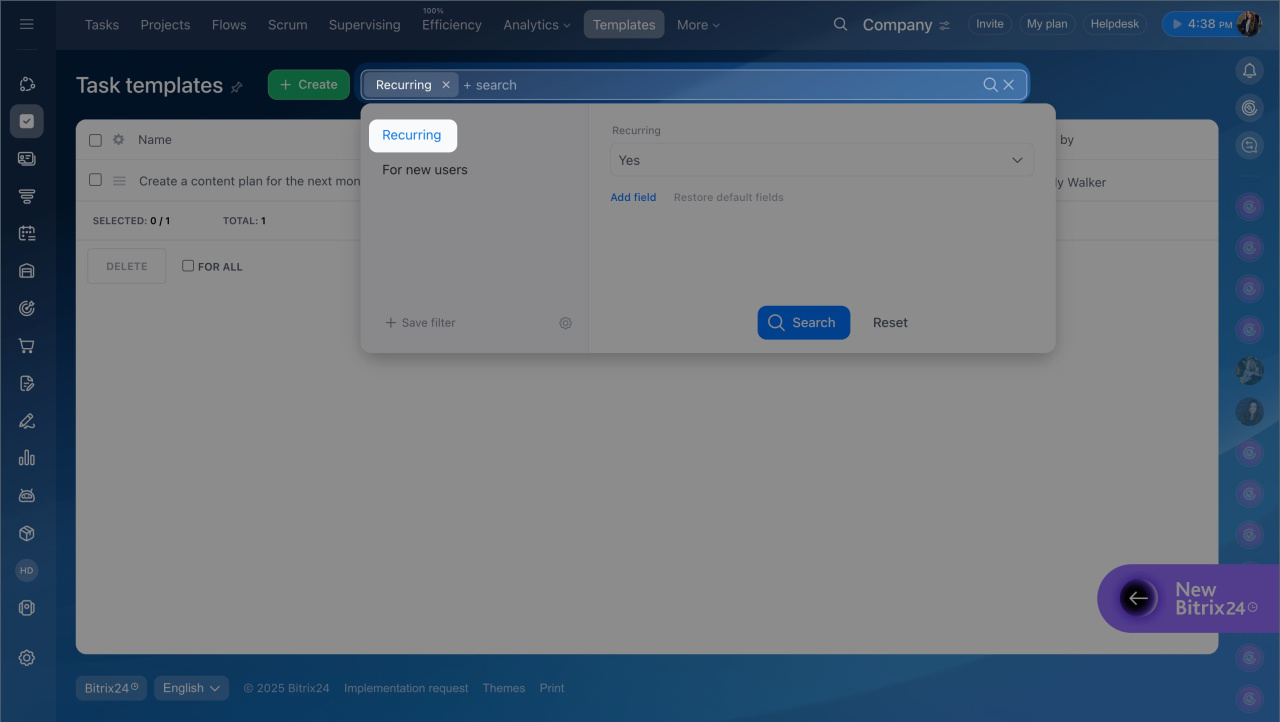
- Go to Tasks and Projects > Templates.
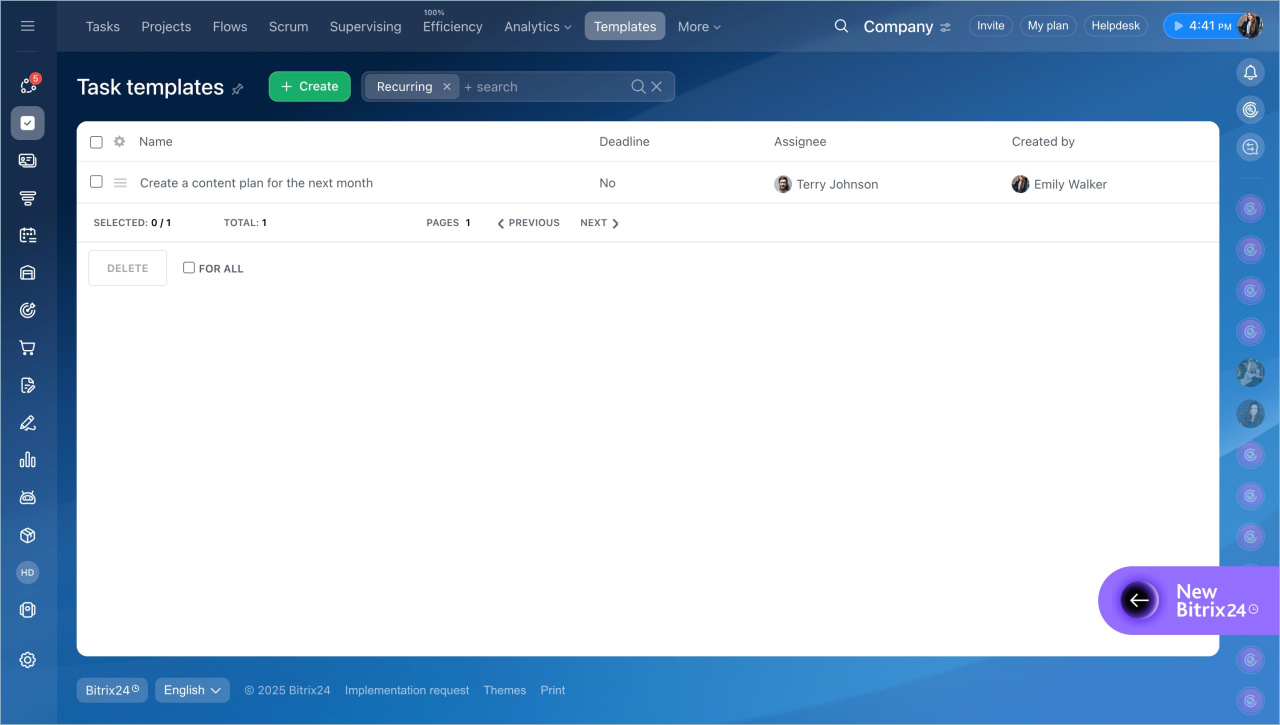
- Use the filter and select Recurring.
- Open the template you need.
- Click the recurrence rule to update the settings.
- To remove recurrence, click the Cross icon next to it.
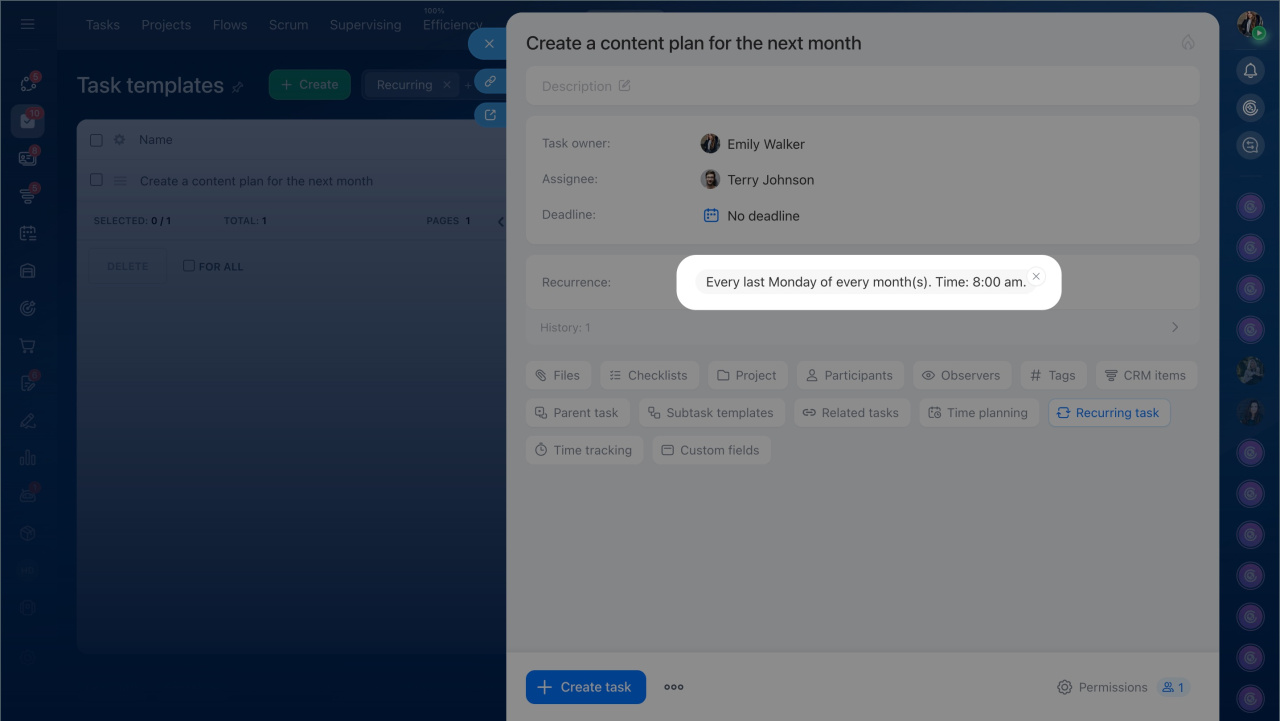
After you save changes, Bitrix24 will create new tasks using the updated settings. If you remove recurrence, Bitrix24 will stop creating new tasks.
Manage recurring tasks
After you set up a template, you can track recurring tasks and control access.
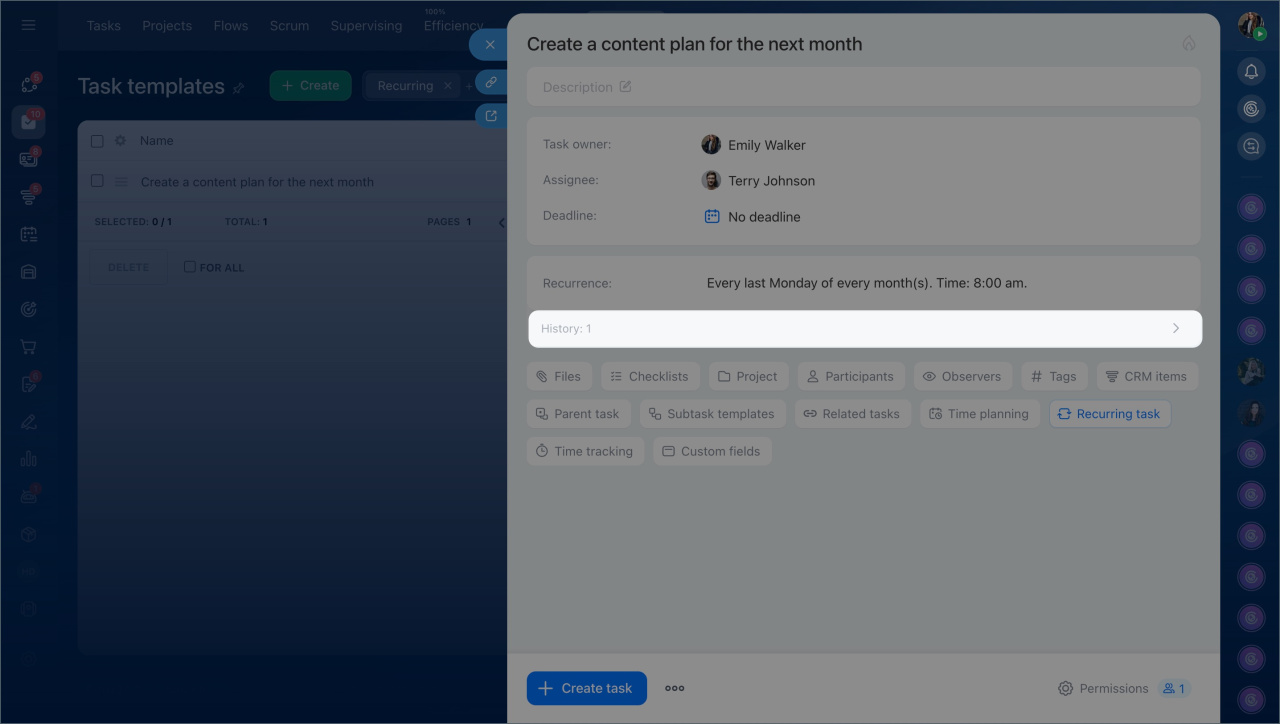
View task history
Open the History section to see all tasks created from the template. This helps you check when the last task was created and confirm that recurrence works as expected.
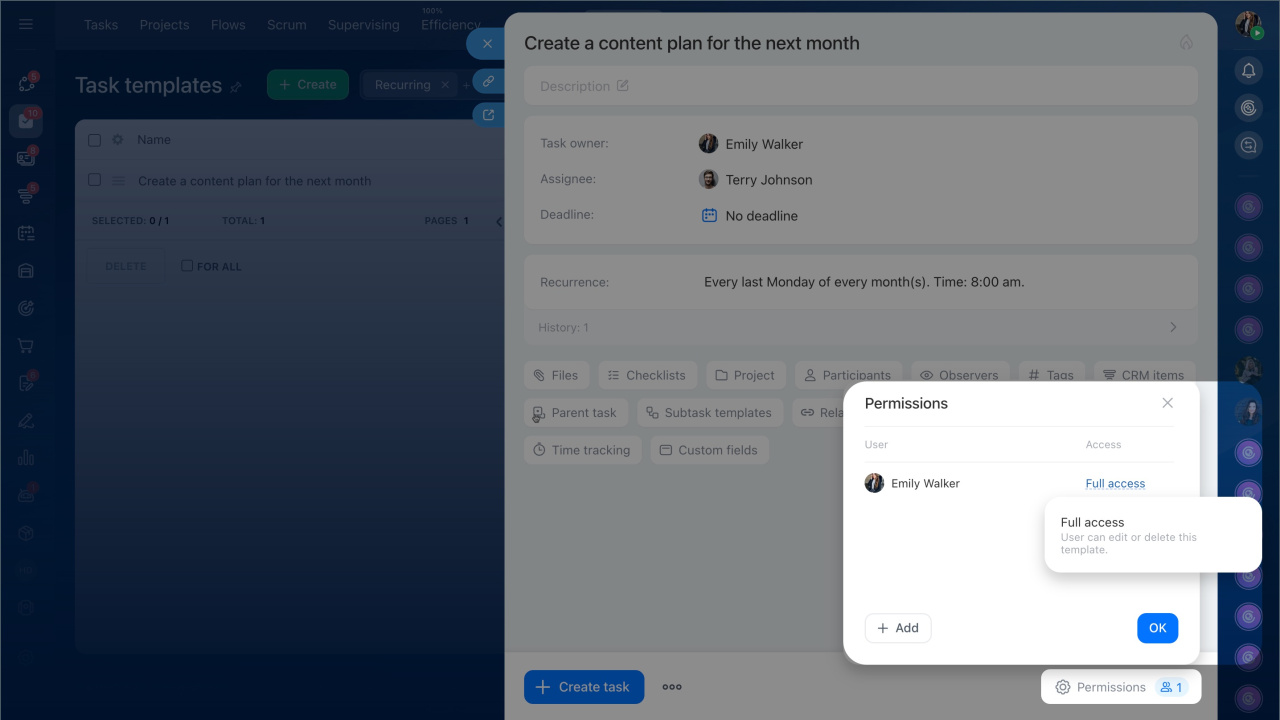
Manage access permissions
Control who can view, edit, or delete the template.
The following users can edit the template:
- Template creator: The person who creates the template.
- Bitrix24 administrator: Has administrative rights to manage templates.
- Users with full access to the template: Can view, edit, and manage the template fully.
- Users with permission to edit templates for their department or other departments: Can edit templates in the Tasks and Projects section.
Users with view-only access can open the template but cannot change it.
Task templates
In brief
- Recurring tasks create assignments automatically on a schedule: daily, weekly, monthly, or yearly.
- Tasks are based on a template, so you set them up once.
- You can define the start date, creation time, and end conditions.
- You can pause or update recurrence in the template. New tasks will follow the updated settings.
- The template stores a history of created tasks.
- Access permissions control who can view, edit, or delete the template.