New tasks in Bitrix24 are more than just fields and comments. They are a single workspace where everything happens—discussion, action, and results. The task chat is now the central place for communication and process coordination. Your team can make calls, share files, and make decisions without losing context or switching between different tools.
New task form
In this article:
- How to delete a task chat if you don’t need it
- Where to find old task comments
- How to move old comments into the chat
- How to write a long comment with images in the text
- How to find a task in the chat list
- Why task updates don’t appear under Notifications
- Find a task in the chat list
- Why I can’t delete a file from a task
- Why files appear twice in the task description and the Files section
- Why a document shared in the task chat doesn’t appear in the Files section
- Why mentioning a colleague in the chat doesn’t add them to the task
- How to copy a task link
- How to create a recurring task
- How to highlight part of the task description as a quote
- How to format text inside a task
- Why the task chat didn’t appear in the chat list
- Where to see the task's creation date
- How to mute the task chat
- How to enable "Require approval upon completion"
- How to prevent the assignee from changing the deadline
- Where to view the task history
- How to add results to a task
- When tasks are created from voice messages
- Why I can’t create a task using AI voice commands
- How to disable automatic task creation from voice messages
How to delete a task chat if you don’t need it
You can’t delete a task chat. It’s built into the task and is used for communication and tracking changes.
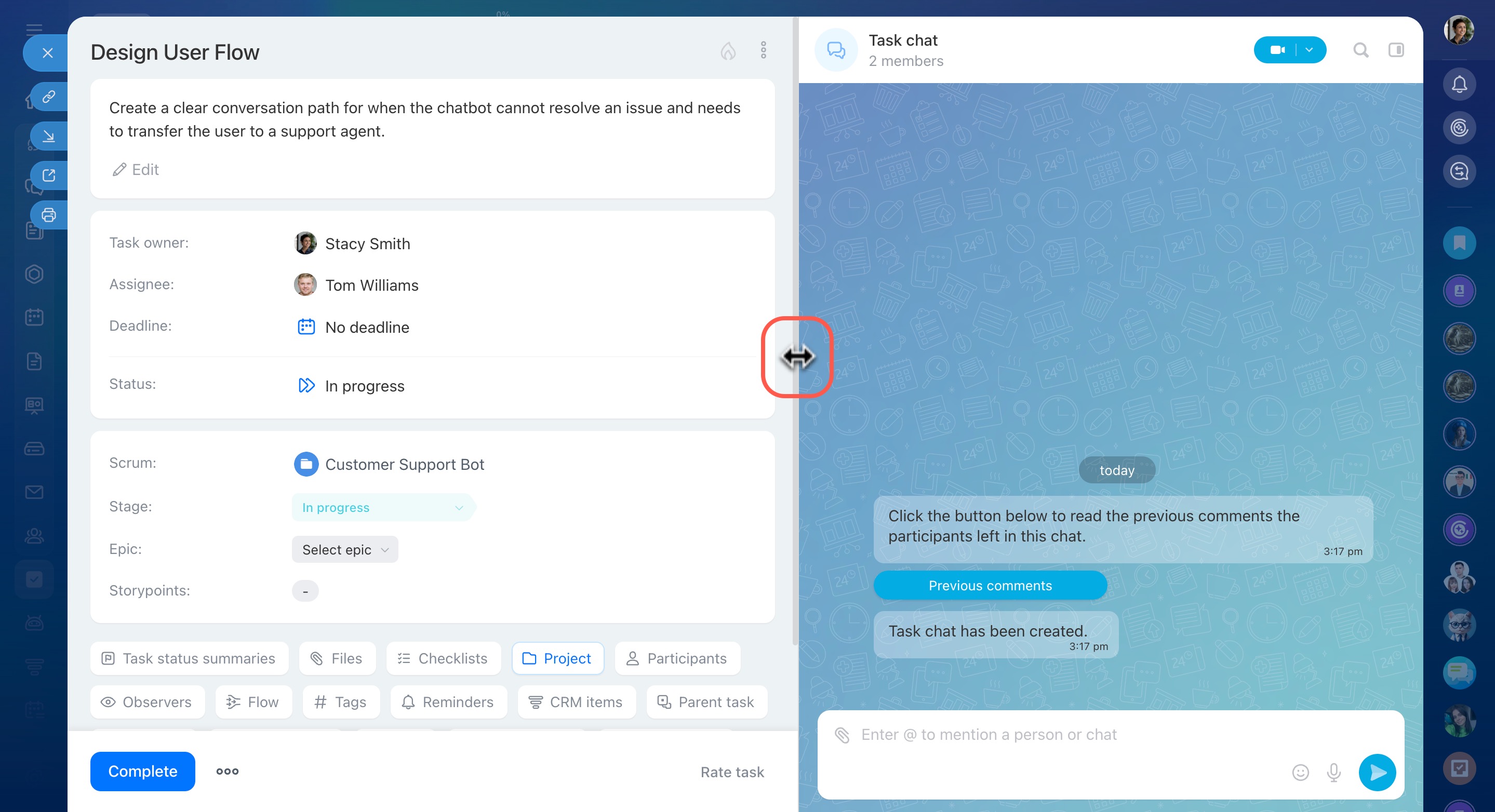
However, you can adjust the chat width. Just drag the divider between the panels. Your preferred width will be saved automatically for all tasks.
Where to find old task comments
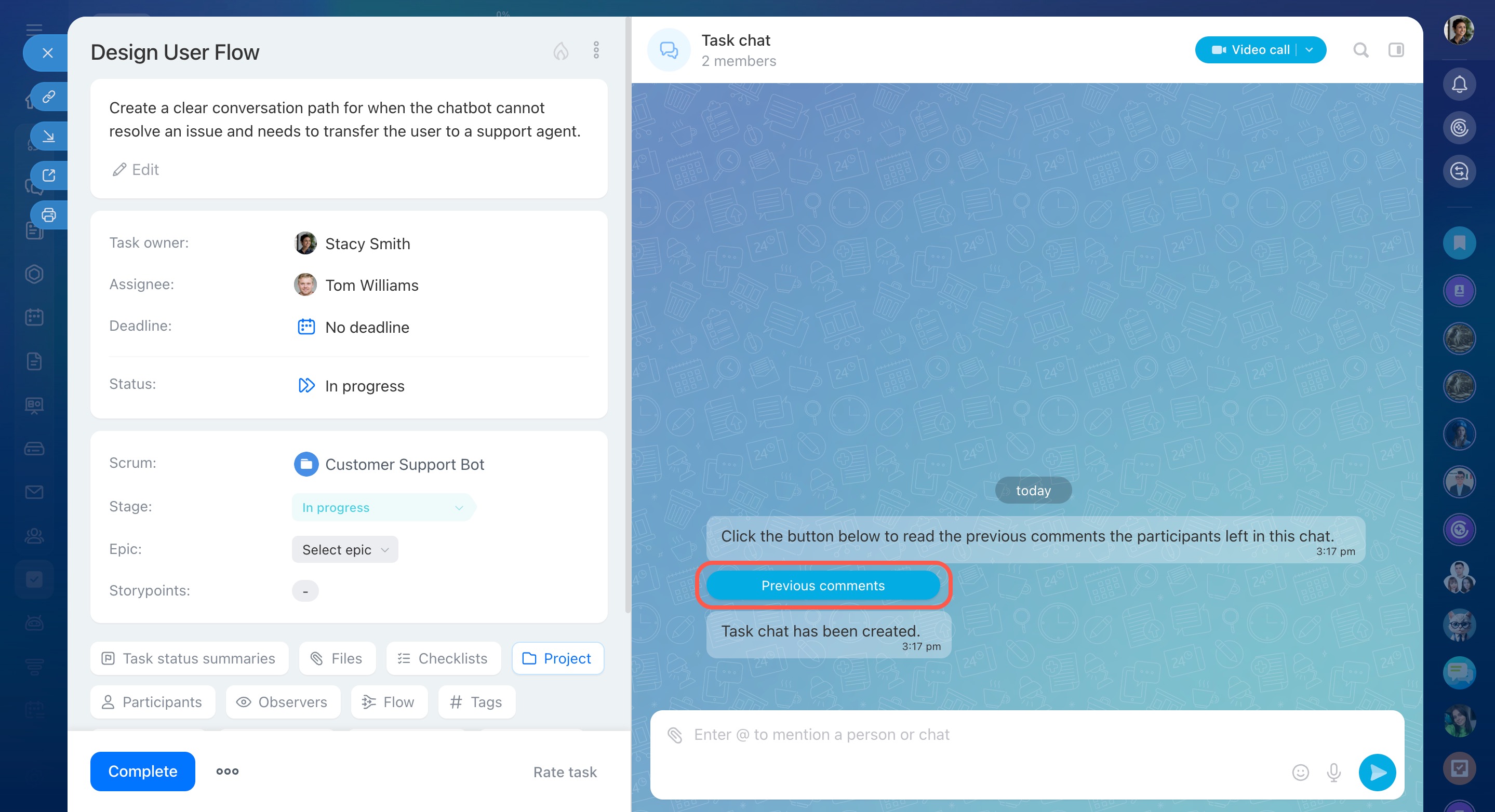
To view old comments, open the task and click Previous comments in the chat. These comments are read-only.
How to move old comments into the chat
To move information from old comments into the chat, copy the text you need and post it as a new message in the task chat.
How to write a long comment with images in the text
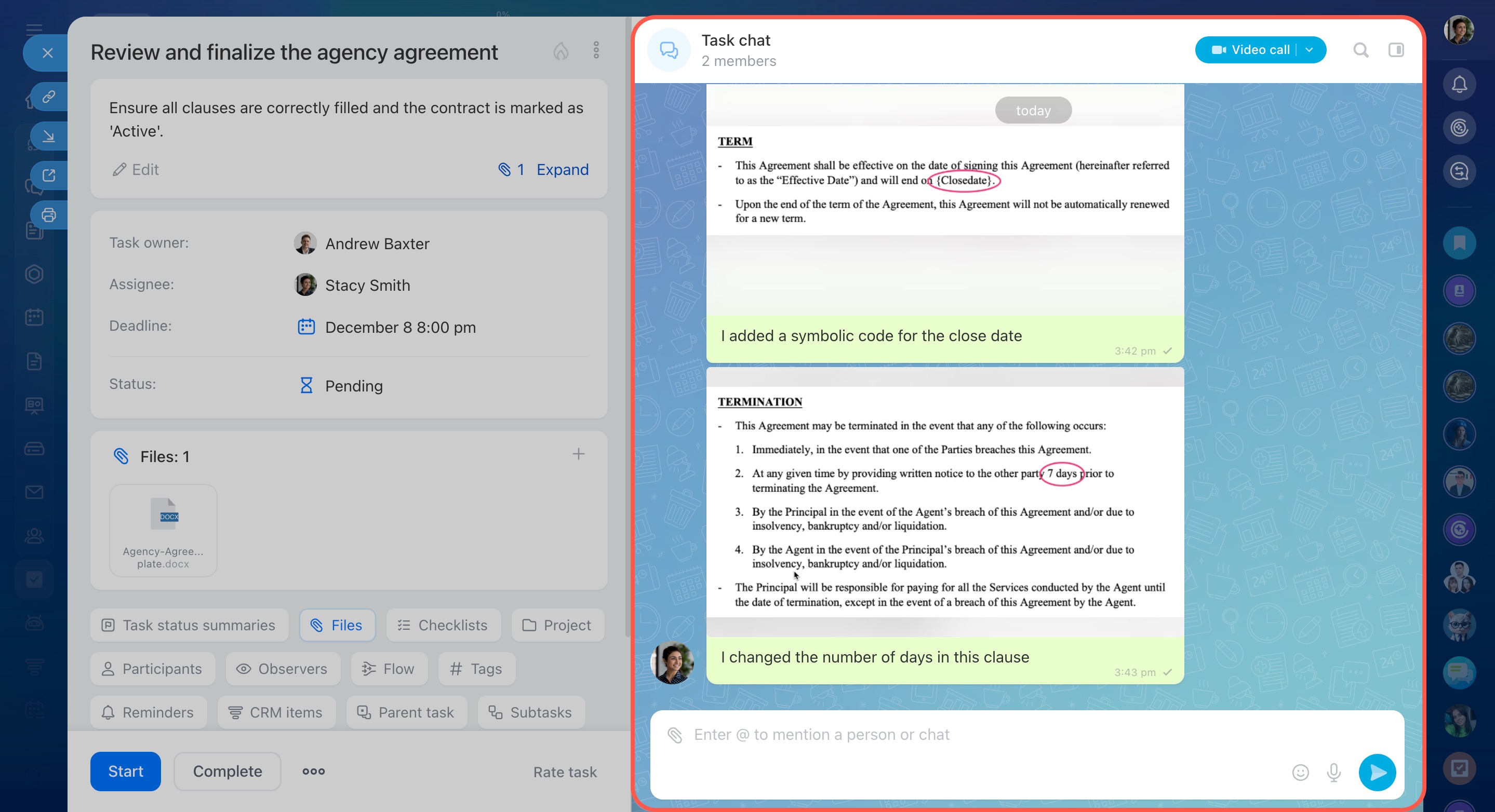
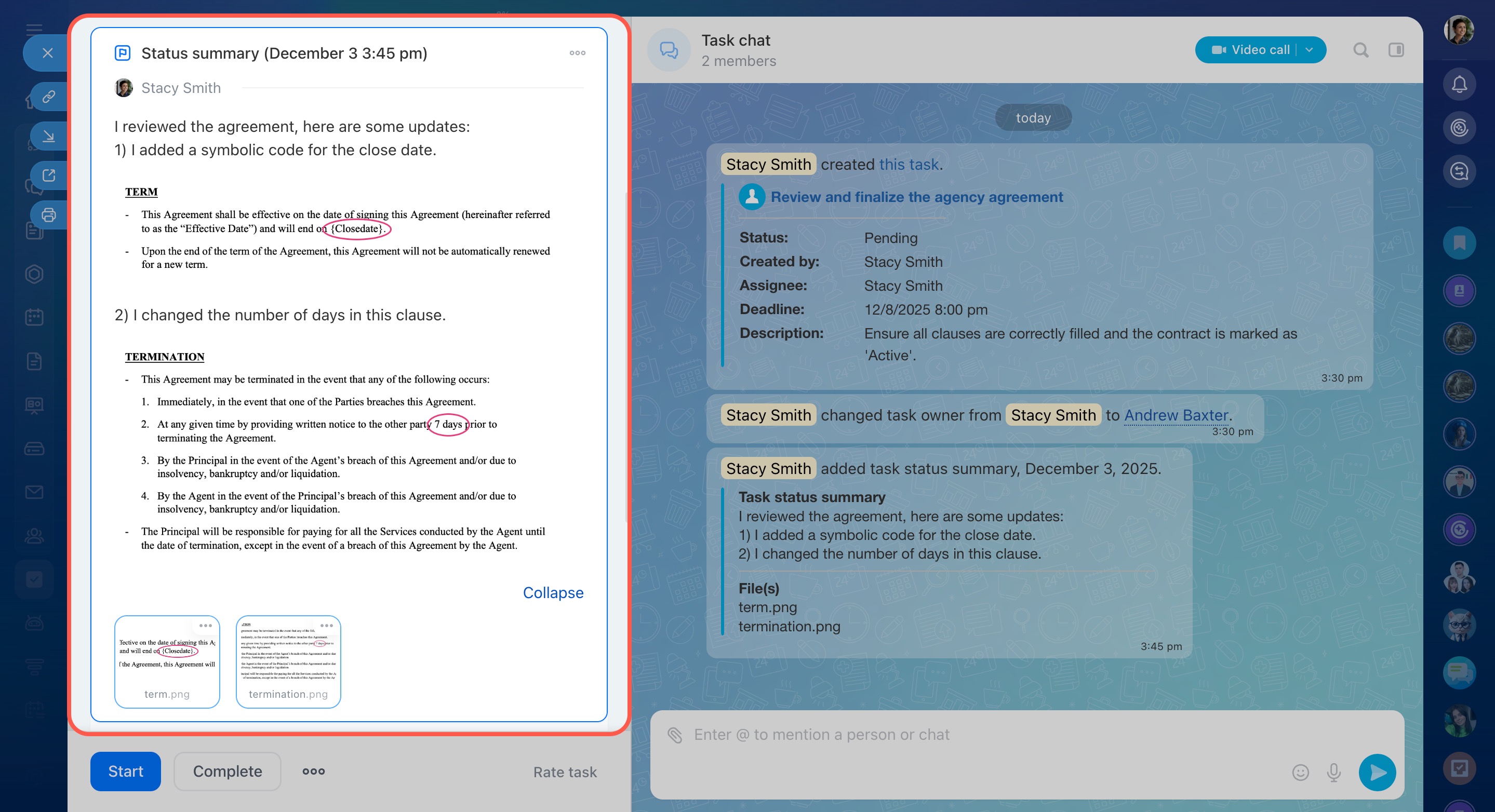
In new tasks, all discussions happen in the chat. You can write long messages, but images can only be attached as separate files—they can’t be embedded directly in the text yet.
To include images with a long comment, try one of these options:
- Split your text into multiple messages and attach images between them.
- Use the Task status summaries section, where images can be embedded directly in the text.
How to find a task in the chat list
Currently, you can’t search for tasks by name or use filters in task chats. These options are under development.
Why task updates don’t appear under Notifications
When a task is updated, notifications appear as follows:
- A new message and counter appear in the task chat.
- The Tasks and projects section shows a counter for new events.
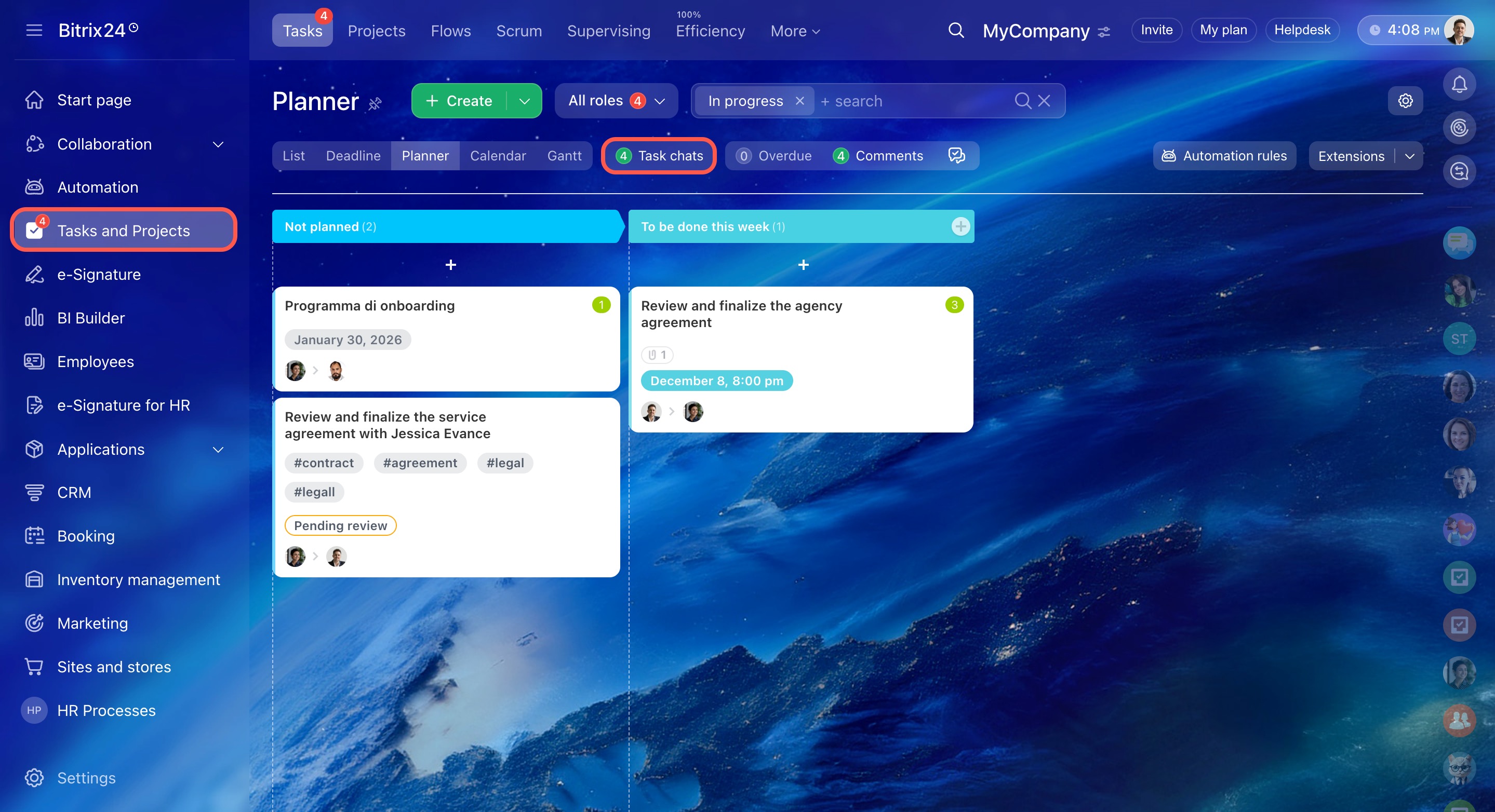
To see all updates, open the task chat list—it contains every task update.
Find a task in the chat list
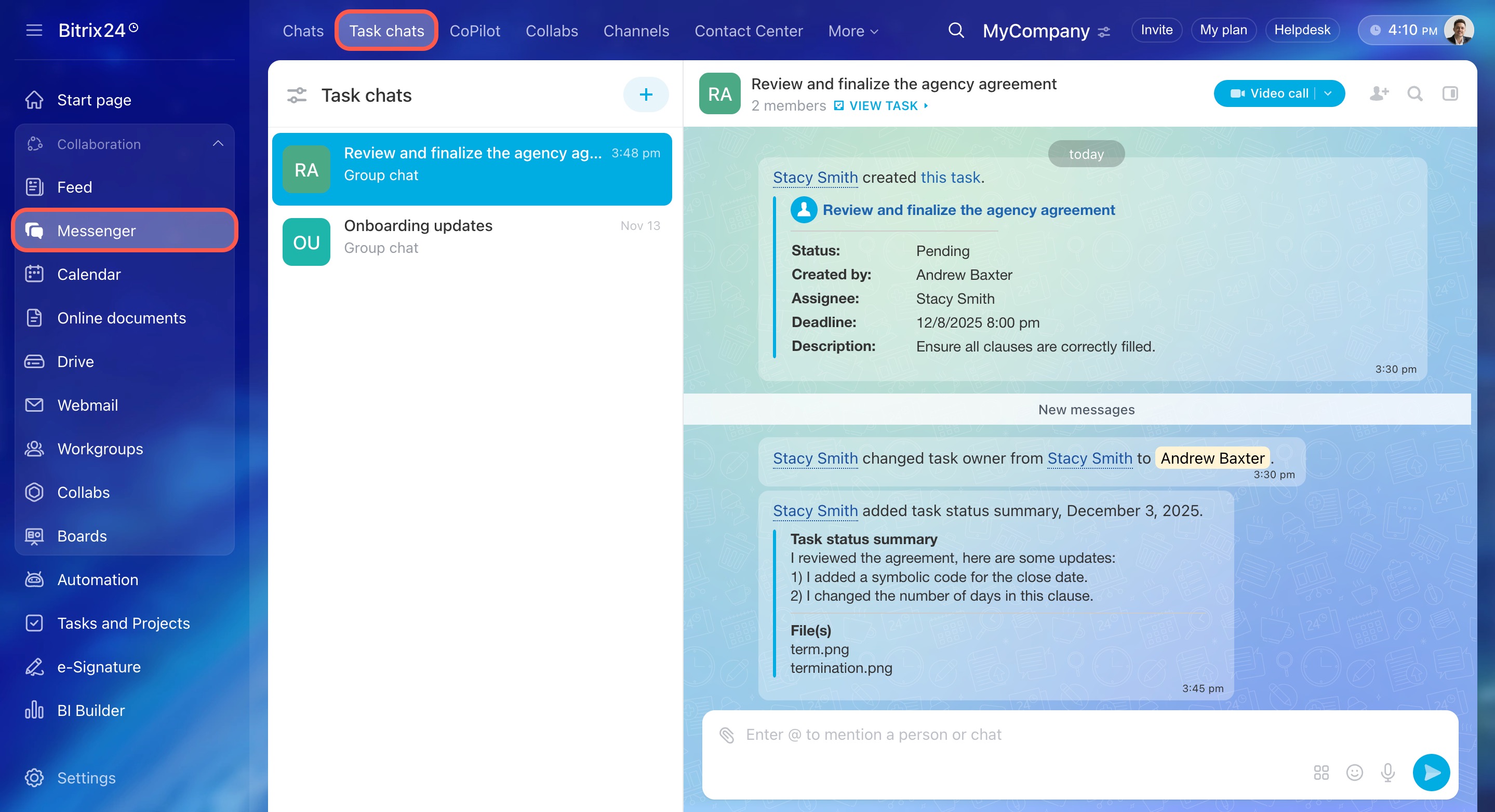
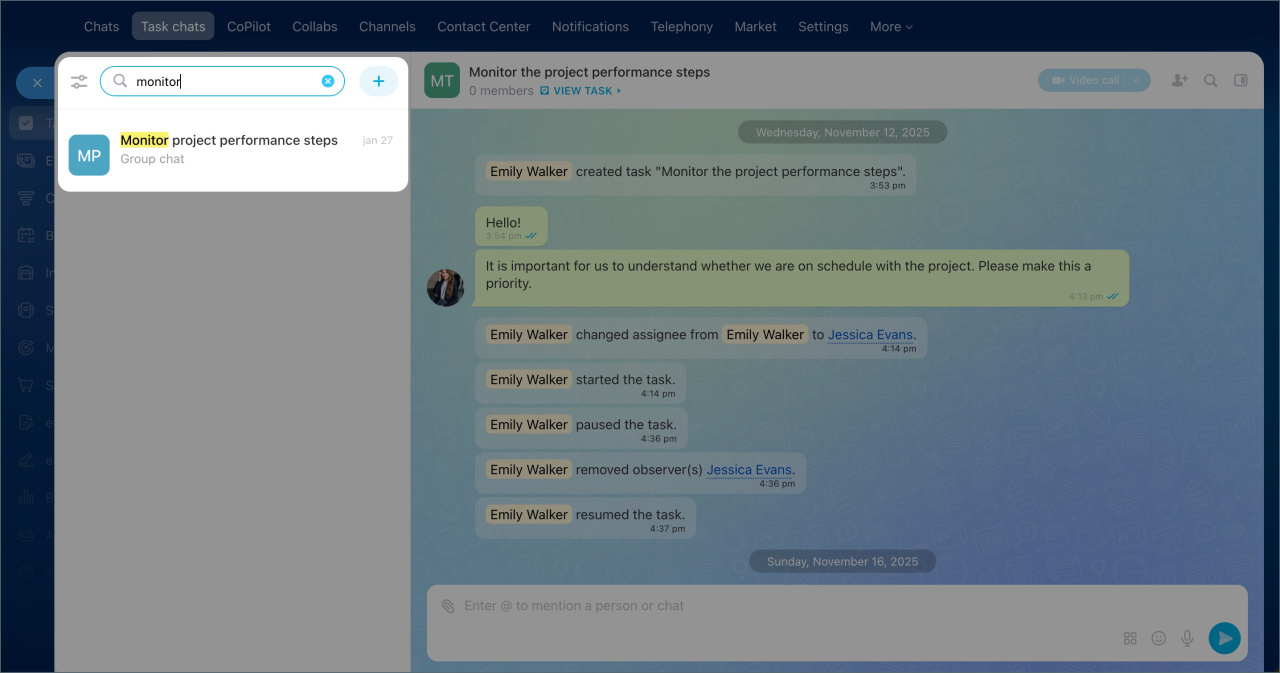
To find a task in the chat list, go to the Messenger section and select Task chats. Start typing the task name in the search bar above the chat list. A list of results will appear. Select the desired task chat from the results.
Why I can’t delete a file from a task
Only the person who uploaded a file can delete it. If your colleague uploaded the document, only they can remove it.
Why files appear twice in the task description and the Files section
Sometimes the same file shows up in both places. This happens because of the interface update.
Why a document shared in the task chat doesn’t appear in the Files section
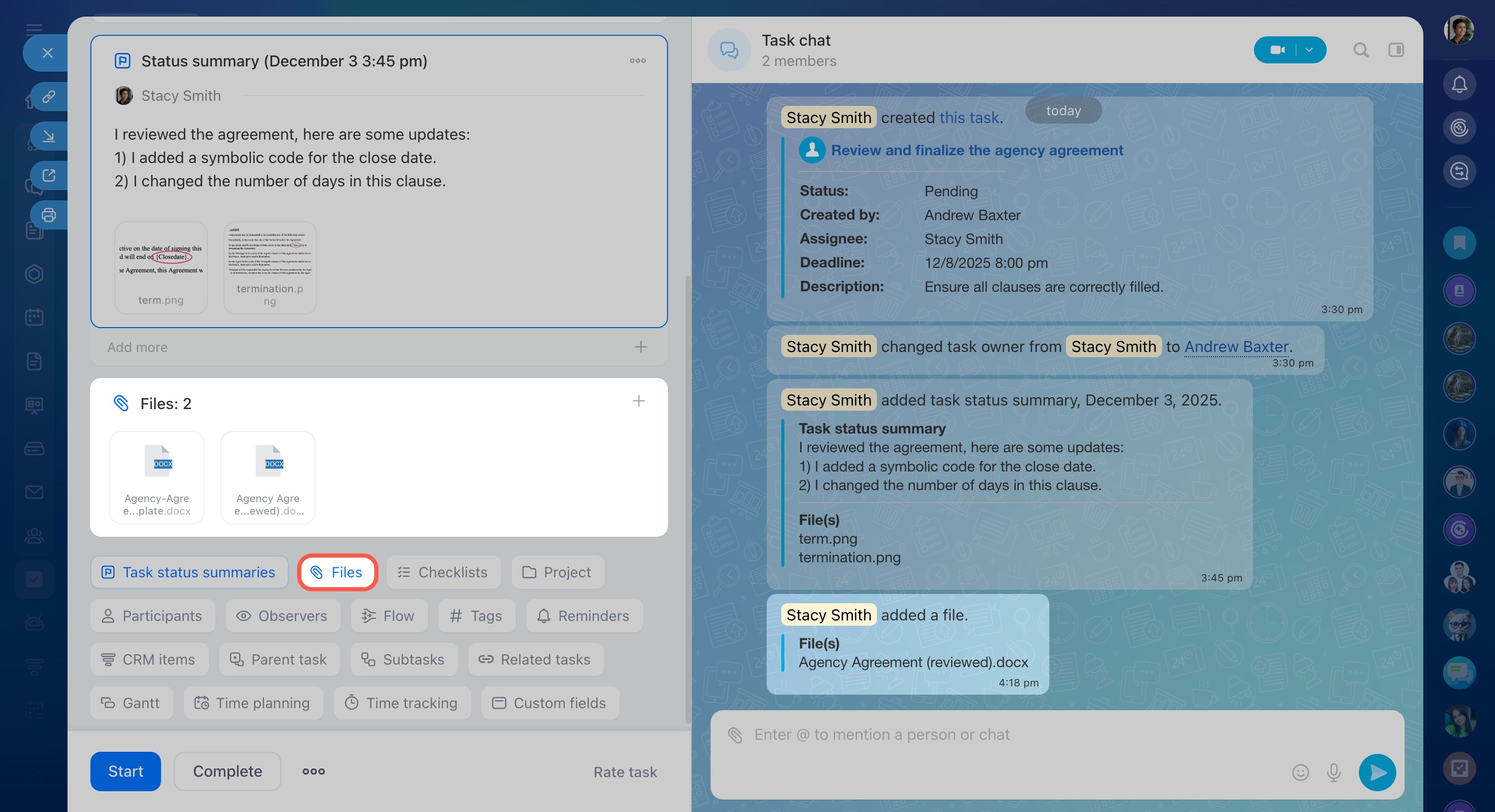
Files sent in the task chat are saved only in the chat. Only documents uploaded directly to the task form show up in the Files block.
To have a file in both the chat and the Files section, manually add it to the Files block.
Why mentioning a colleague in the chat doesn’t add them to the task
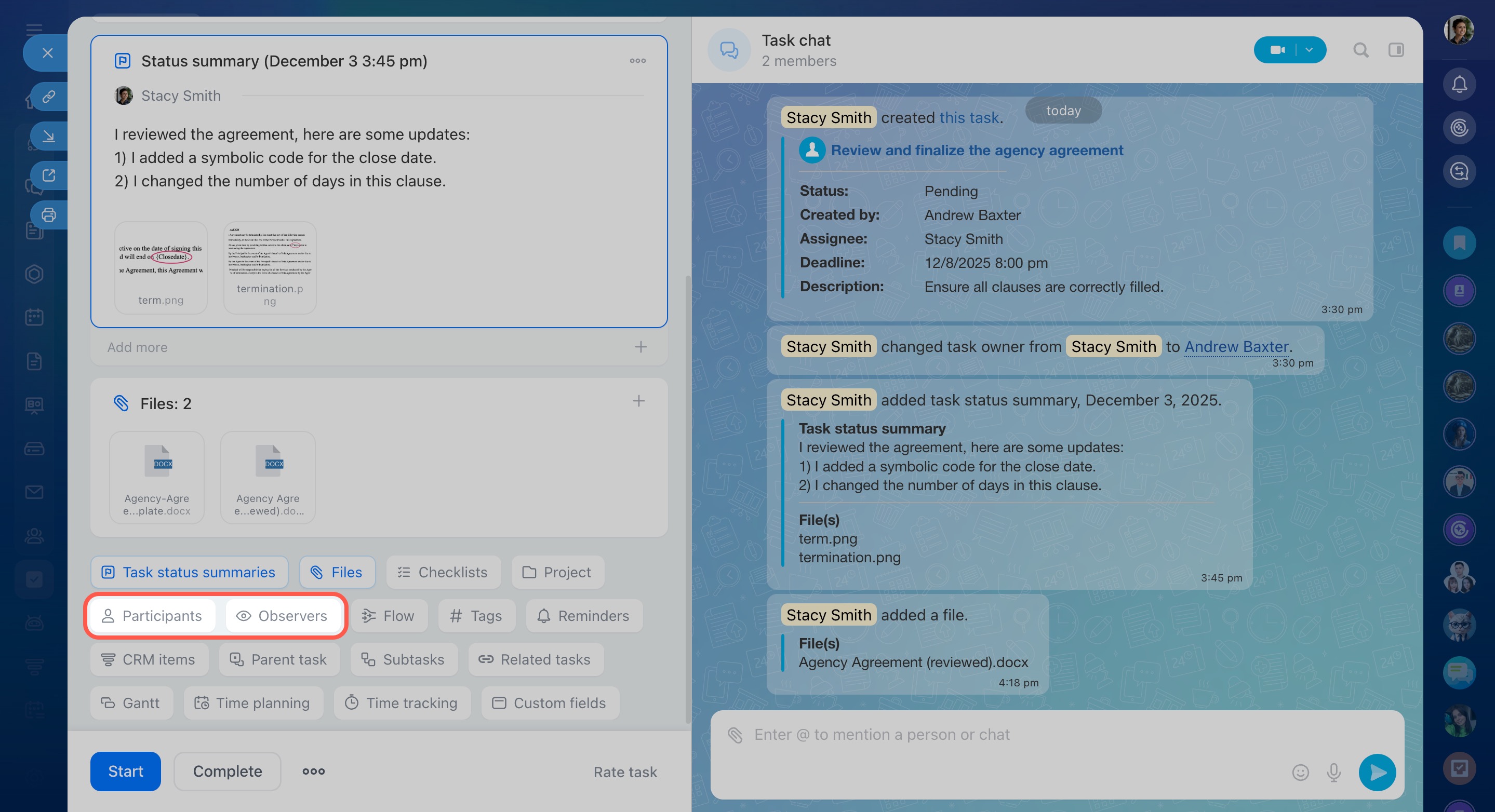
Mentioning someone in the chat does not automatically add them as a task participant. To include them, manually assign a role in the left section of the task form.
How to copy a task link
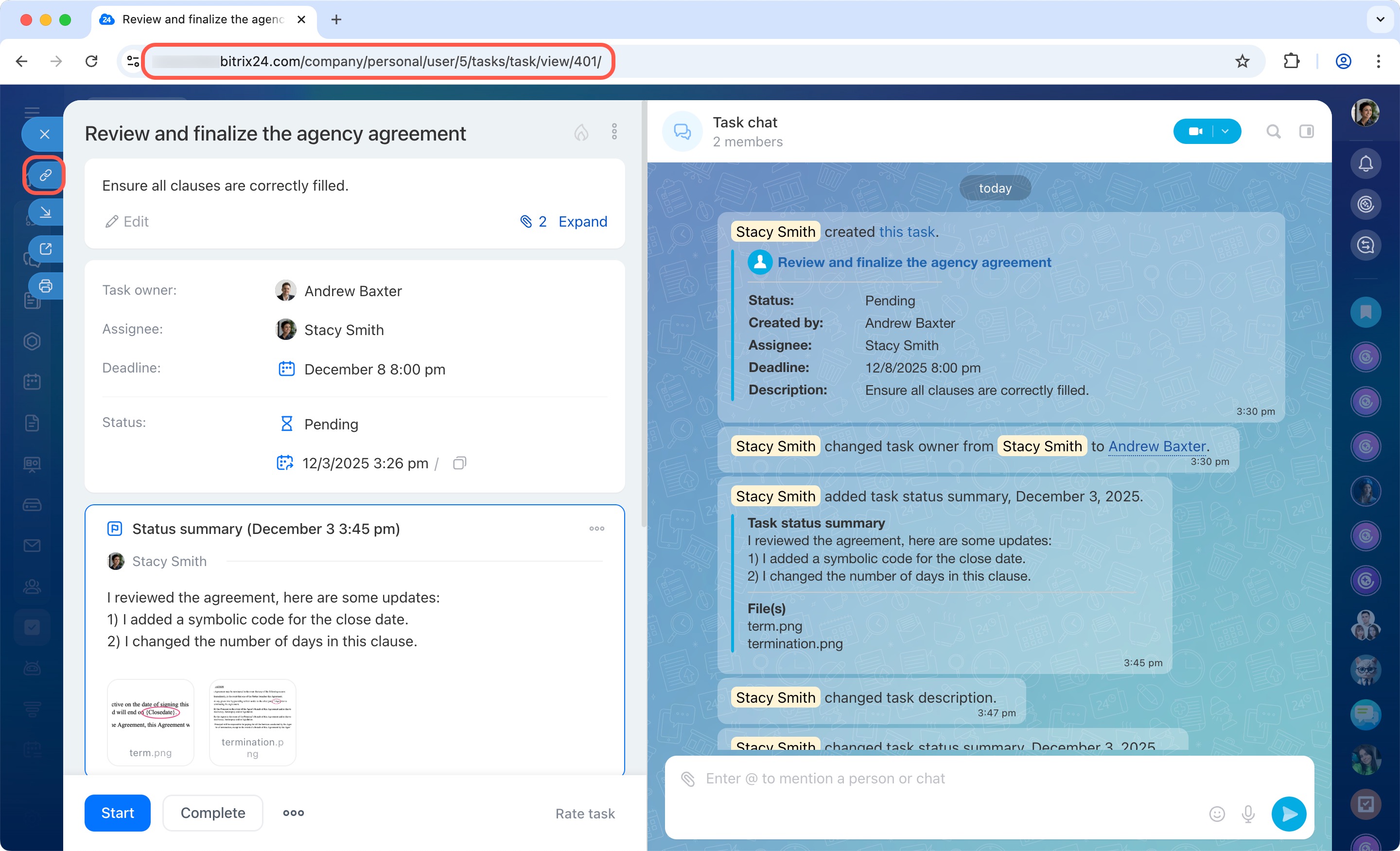
You can copy a task link in two ways:
- From your browser’s address bar.
- From the task form by clicking the Copy link icon.
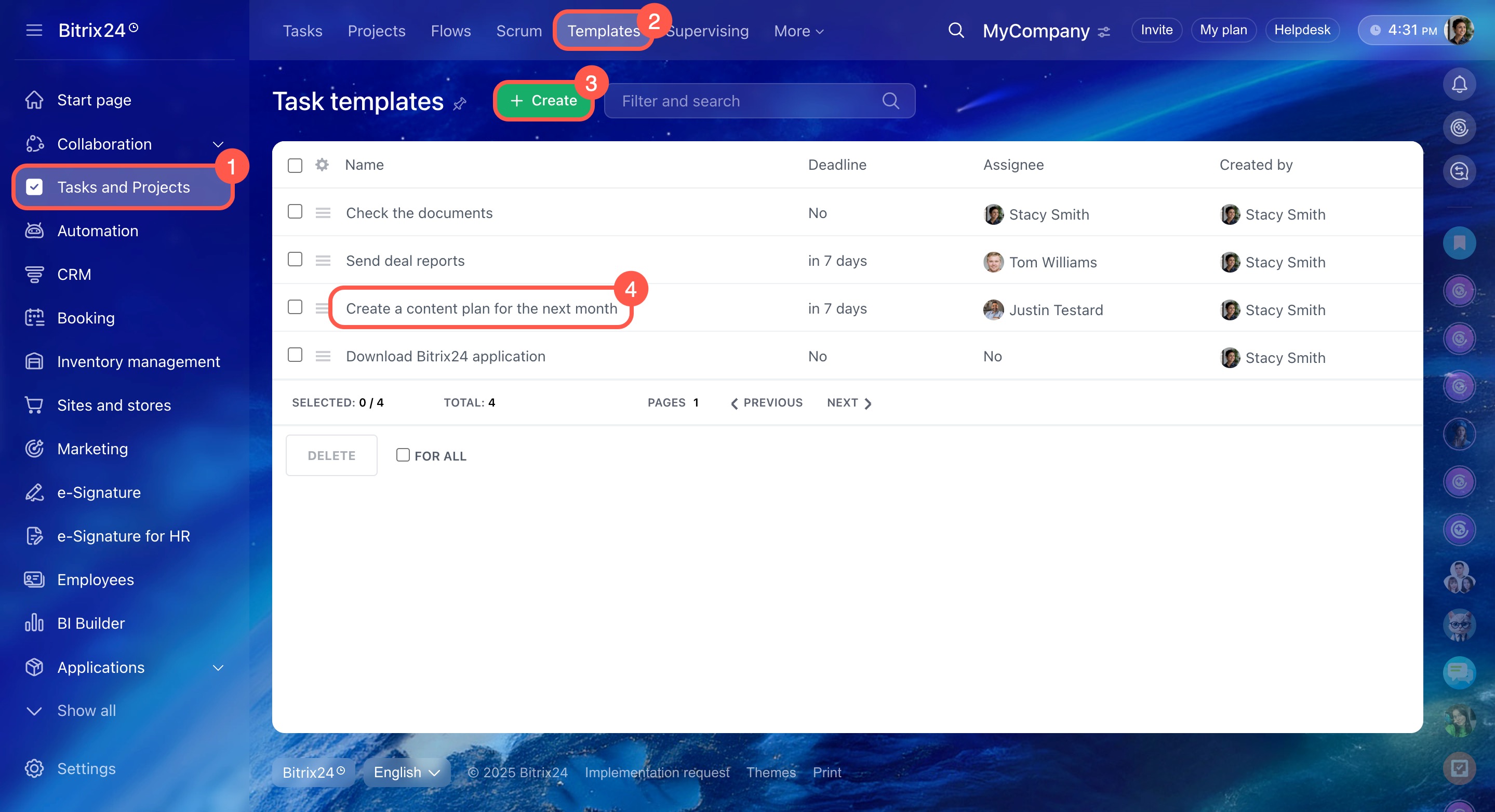
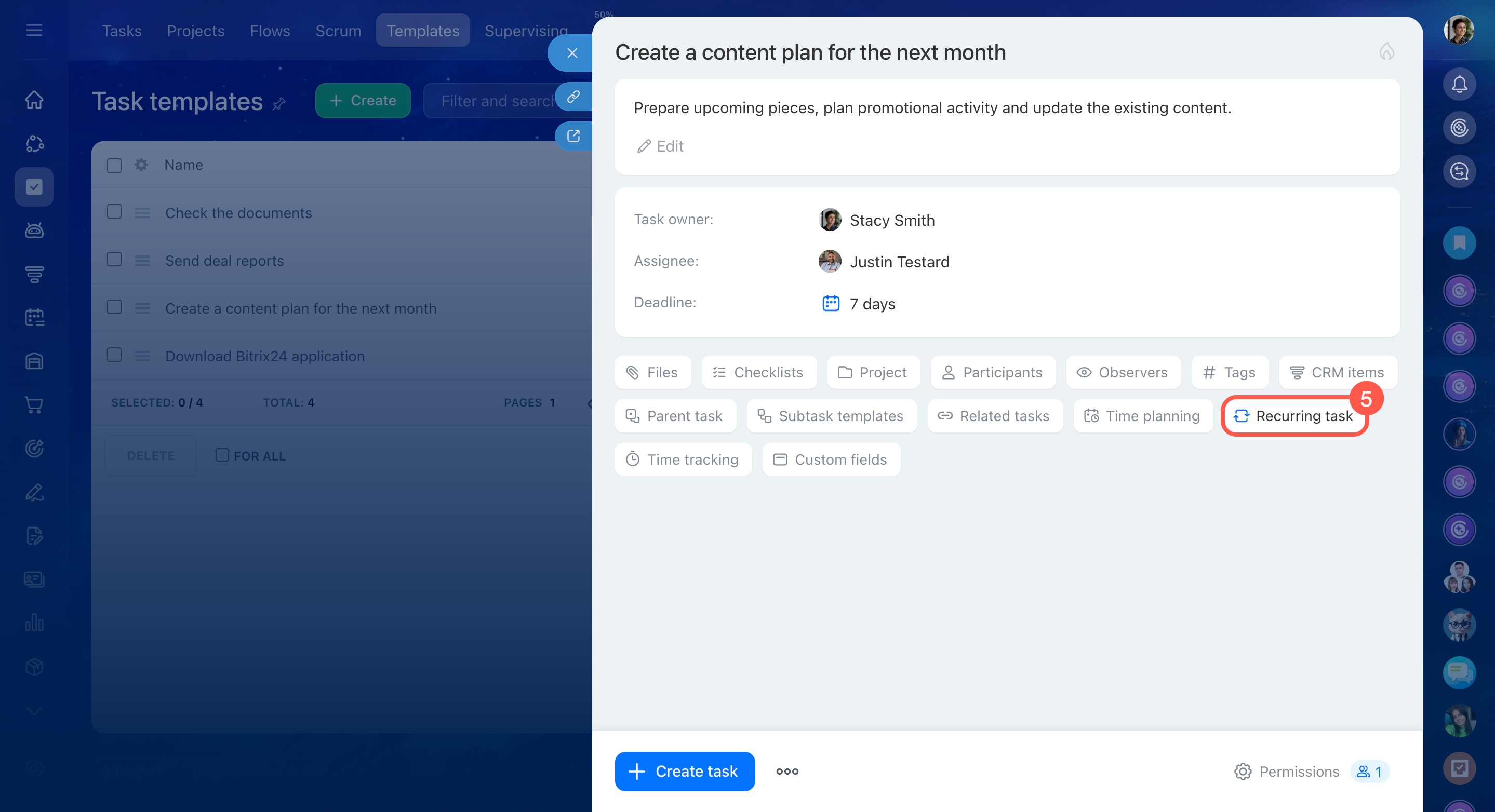
How to create a recurring task
Recurring tasks are based on templates.
- Go to Tasks and projects > Templates.
- Create a new template or open an existing one.
- Enable the Recurring task option and set up the schedule.
How to highlight part of the task description as a quote
Automatic quoting from the task description isn’t available yet. To highlight text, copy the desired fragment and paste it into the chat manually.
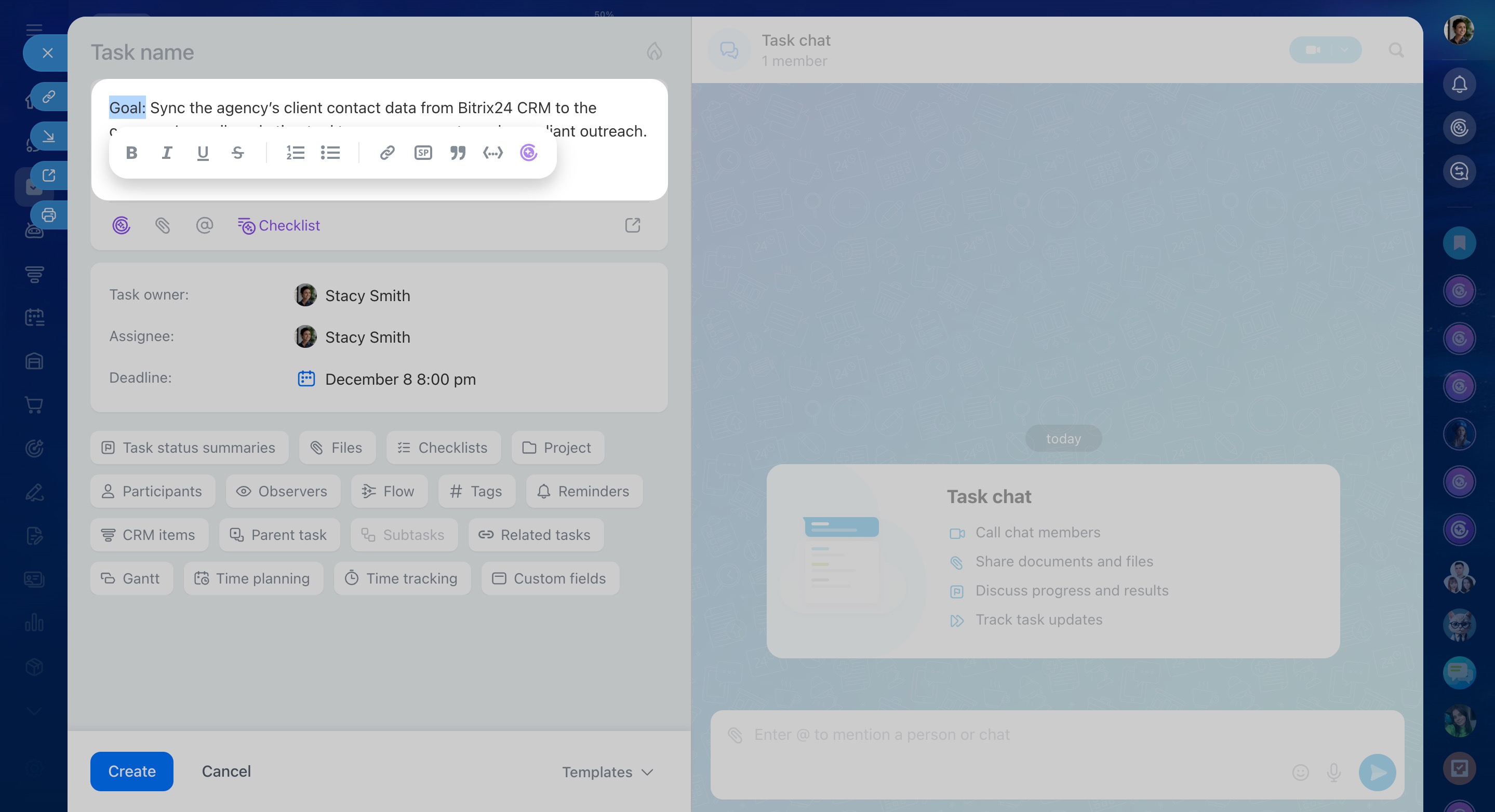
How to format text inside a task
In the visual editor, you can highlight text, create lists, and add links.
Select the text, and the formatting panel will appear.
Why the task chat didn’t appear in the chat list
A task chat appears when:
- You create a new task.
- You are added as a participant.
- There’s activity in the task, such as completing a checklist item.
If the chat doesn’t appear, perform any action in the task—it will then be created.
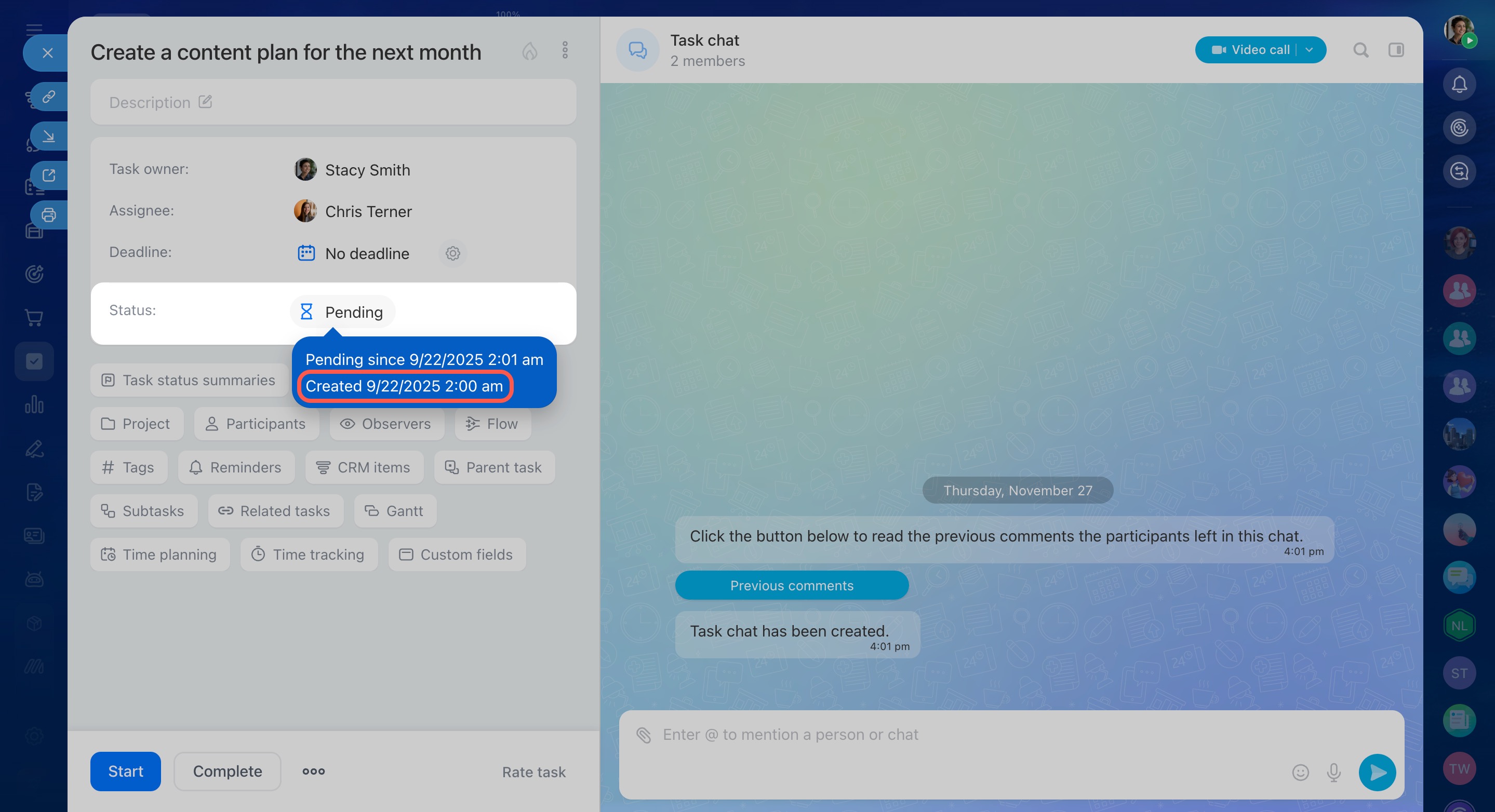
Where to see the task's creation date
Open the task form and hover over the task status. The creation date and time will be displayed.
How to mute the task chat
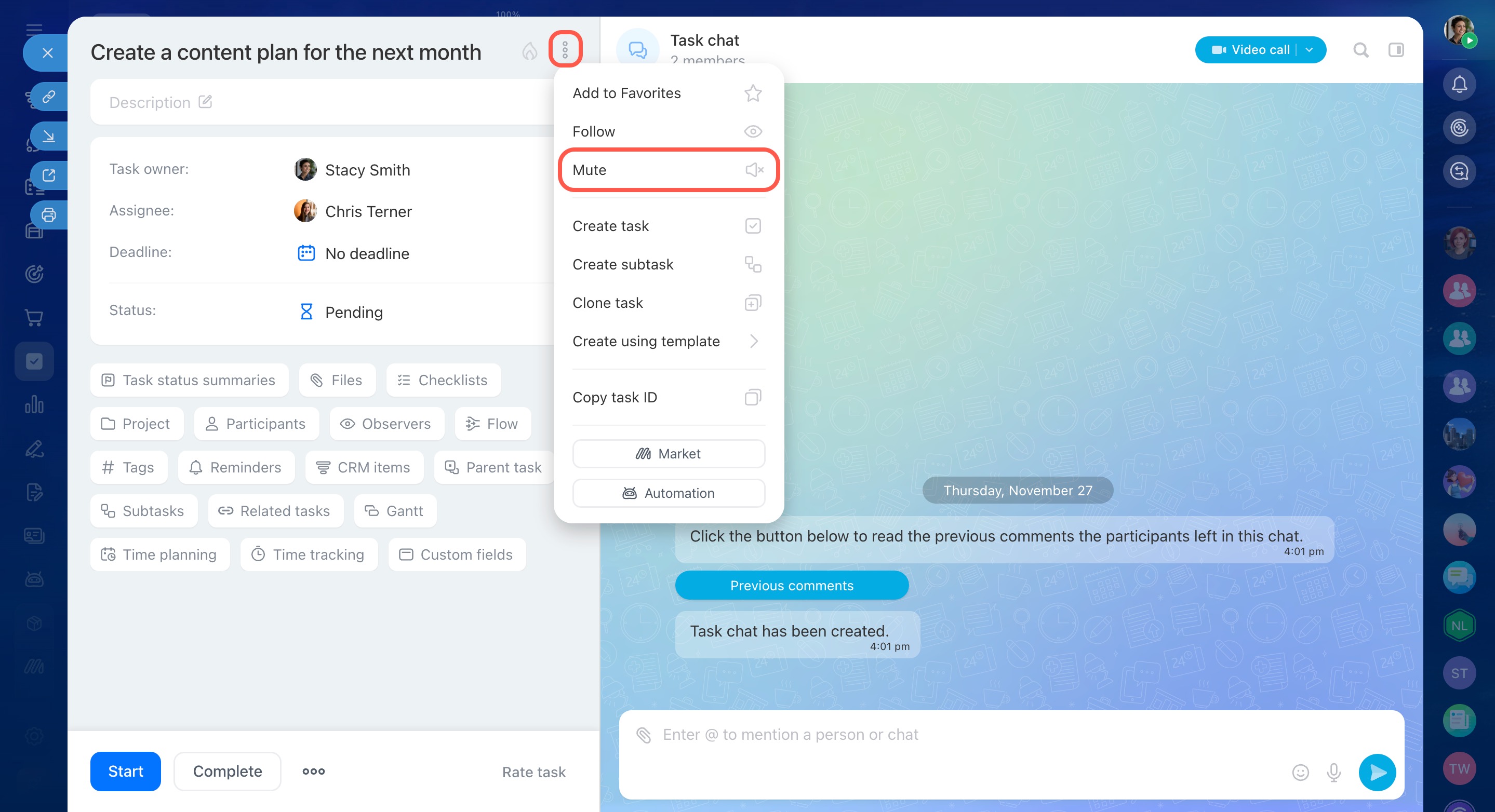
Task chat sounds follow the task’s notifications. If you turn off notifications for a task, its chat will also be muted.
To mute a task:
- Open the task.
- Click the icon
 next to the task name.
 - Select Mute.
How to enable "Require approval upon completion"
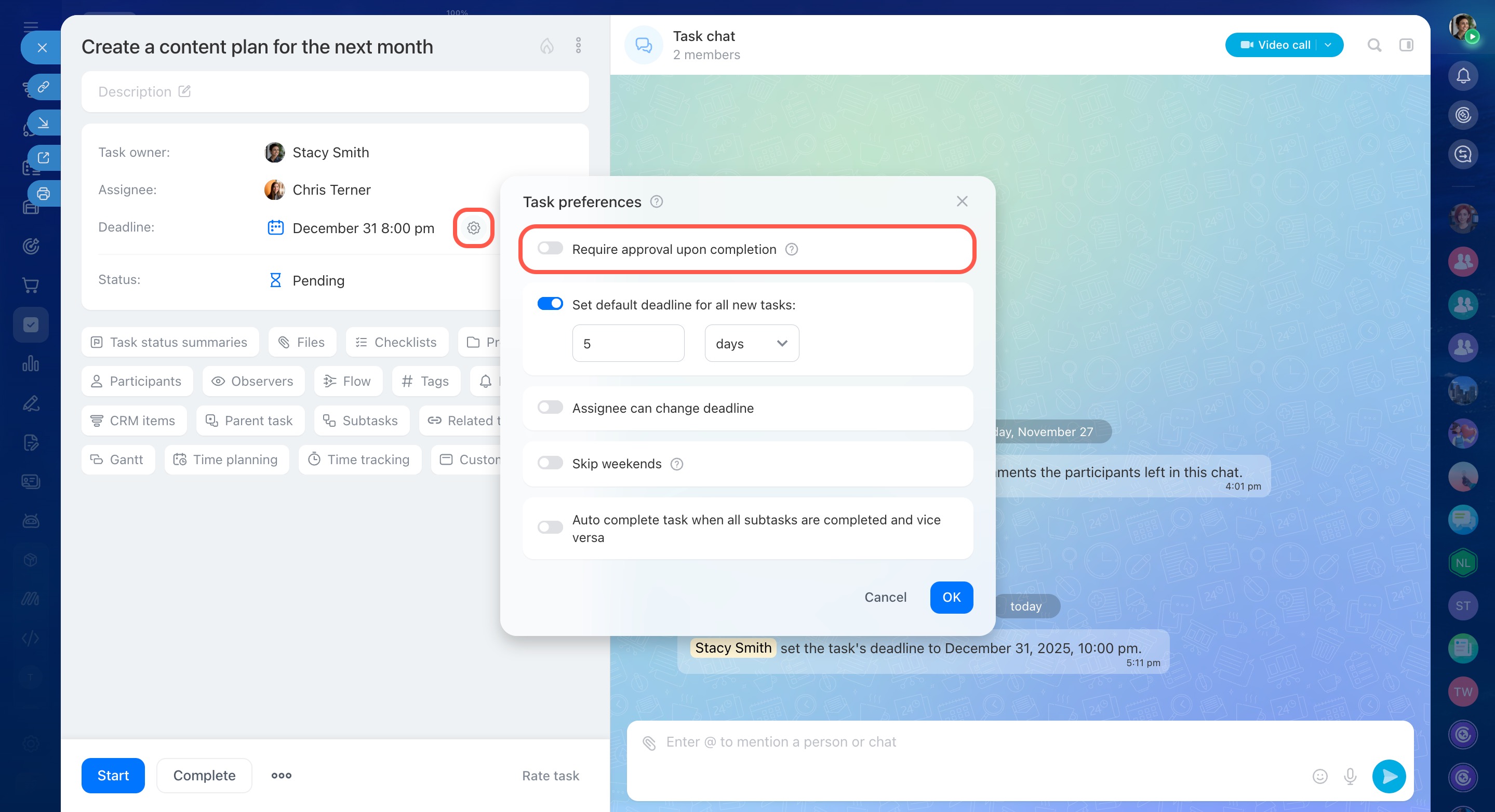
- Open the task.
- Click Settings (⚙️) next to the Deadline field.
- Enable the Require approval upon completion option.
How to prevent the assignee from changing the deadline
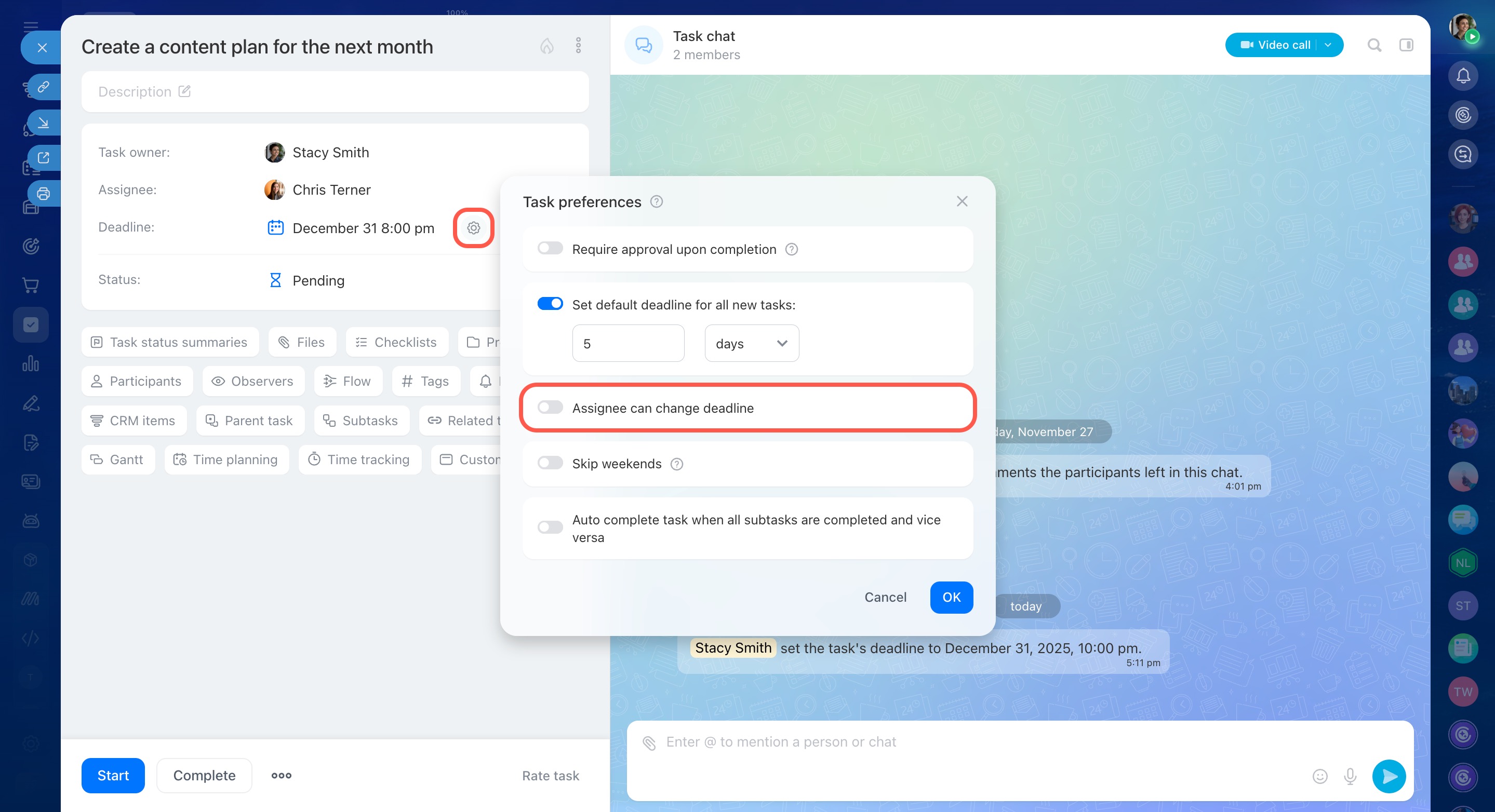
- Open the task.
- Click Settings (⚙️) next to the Deadline field.
- Disable the Assignee can change deadline option.
Where to view the task history
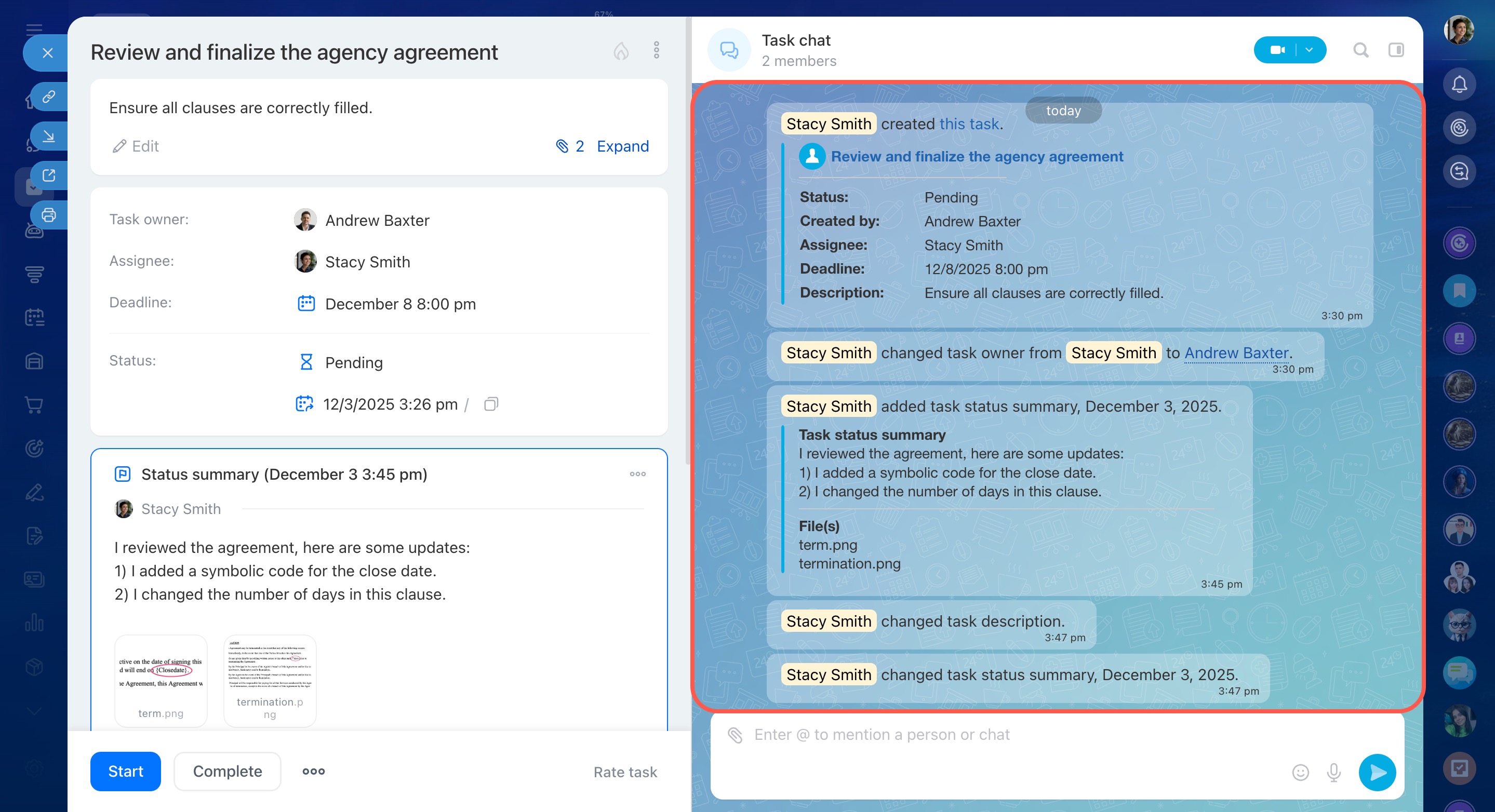
You can view a task’s history in two places:
- Task chat
- Task history section in the sidebar
These sections record key actions, such as deadline changes, checklist item completion, or status updates.
 History in the task chat
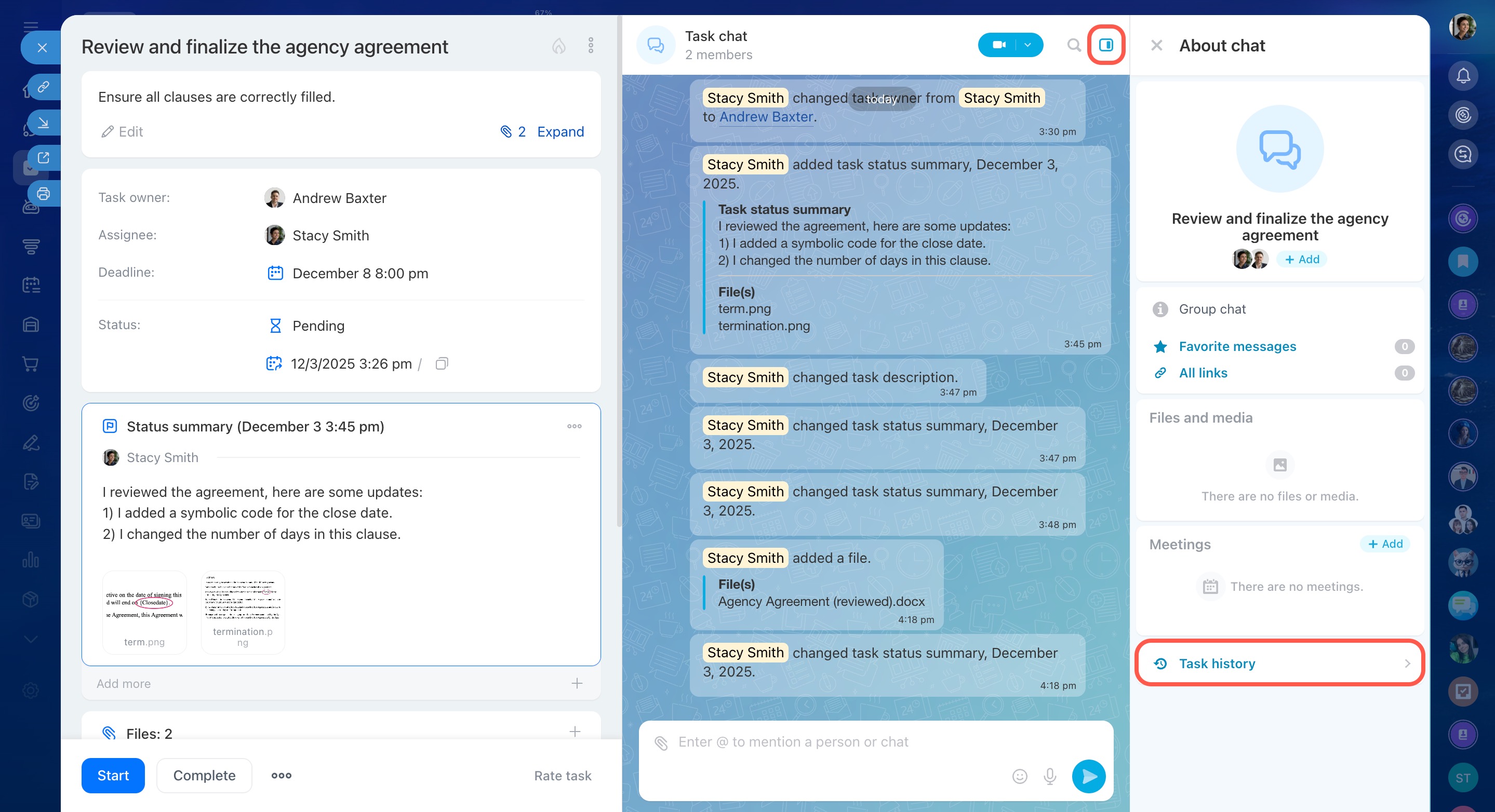 Task history in the chat sidebar
How to add results to a task
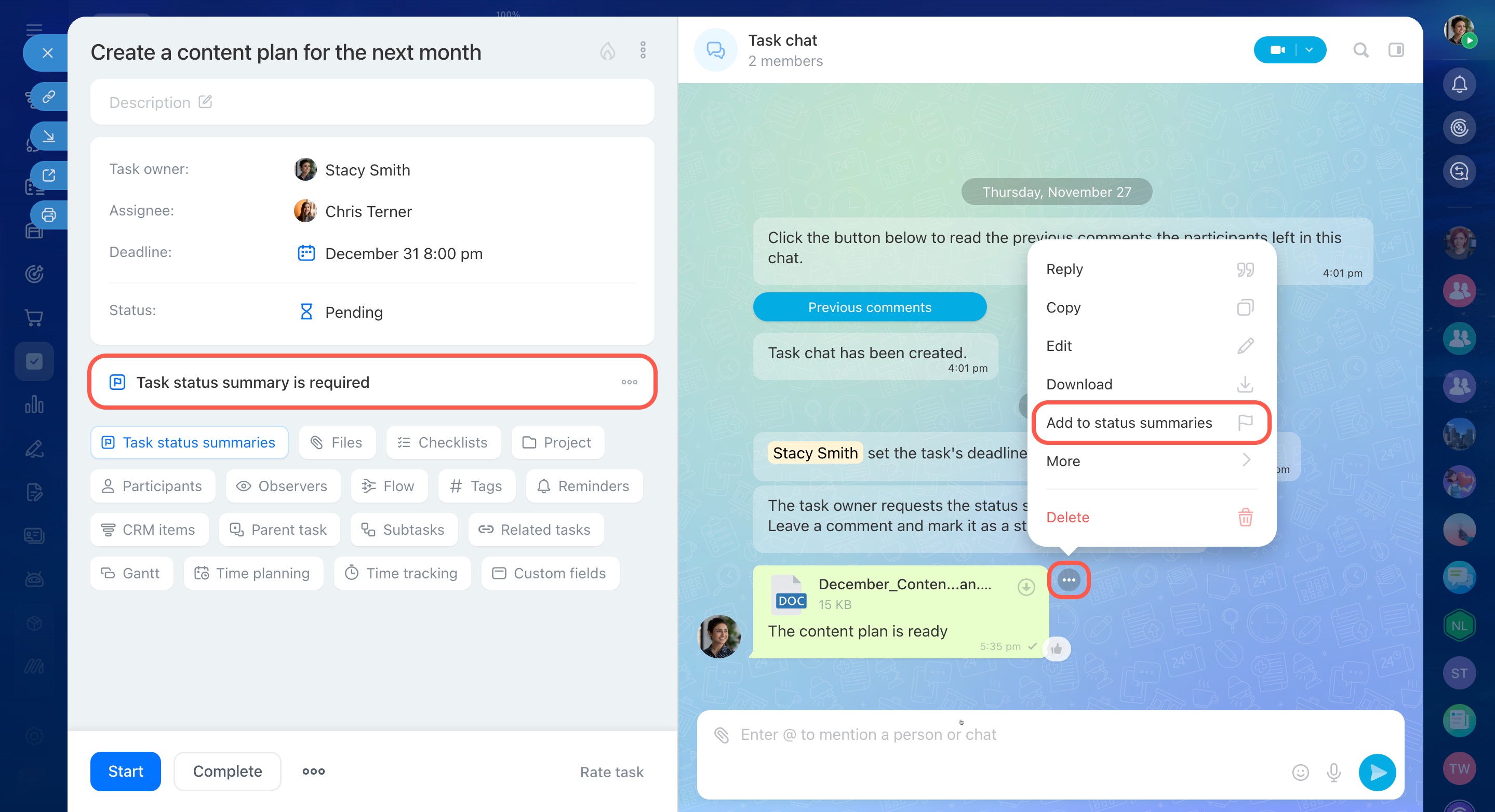
To specify a task result before completing it, you can do one of the following:
- Use the Task status summary is required block—add a description or attach a report file manually.
- In the task chat—send a message and mark it as a task status summary.
This helps you capture not just the final result but also important intermediate outcomes, like key stages or partial project results.
When tasks are created from voice messages
AI automatically creates a task if a voice message contains an assignment—for example, “Prepare a report on closed deals for the week.” If there’s no assignment, AI simply transcribes the message.
You can disable AI Audio Tasks in Bitrix24 settings. This lets you manually transcribe messages and decide whether to create a task based on the results.
Why I can’t create a task using AI voice commands
AI can create tasks from voice messages and video notes only if the Auto create tasks from audio messages and video notes option is enabled in Bitrix24 settings. If the account administrator has disabled this option, tasks won’t be created.
AI Audio and Video Tasks
How to disable automatic task creation from voice messages
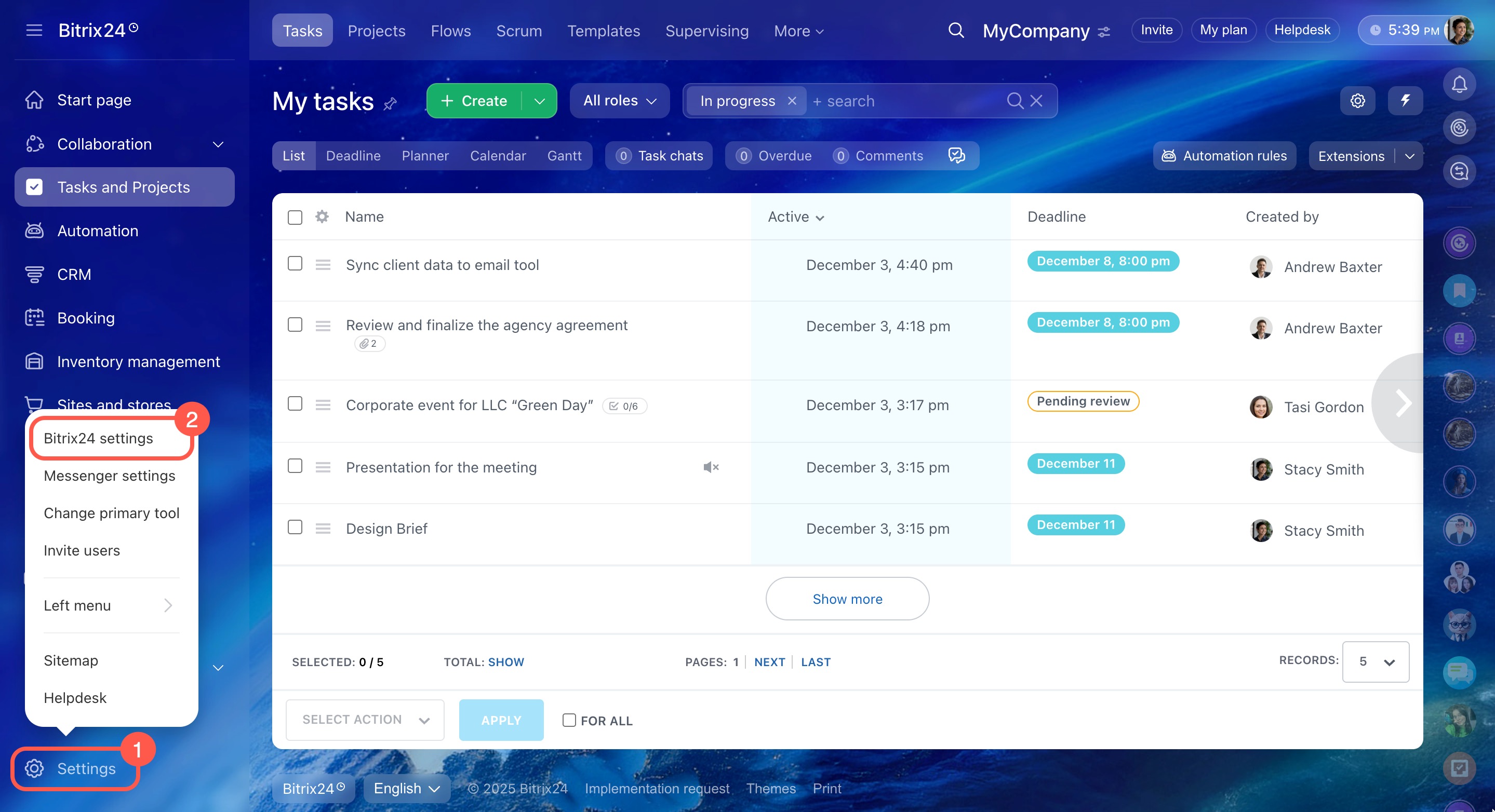
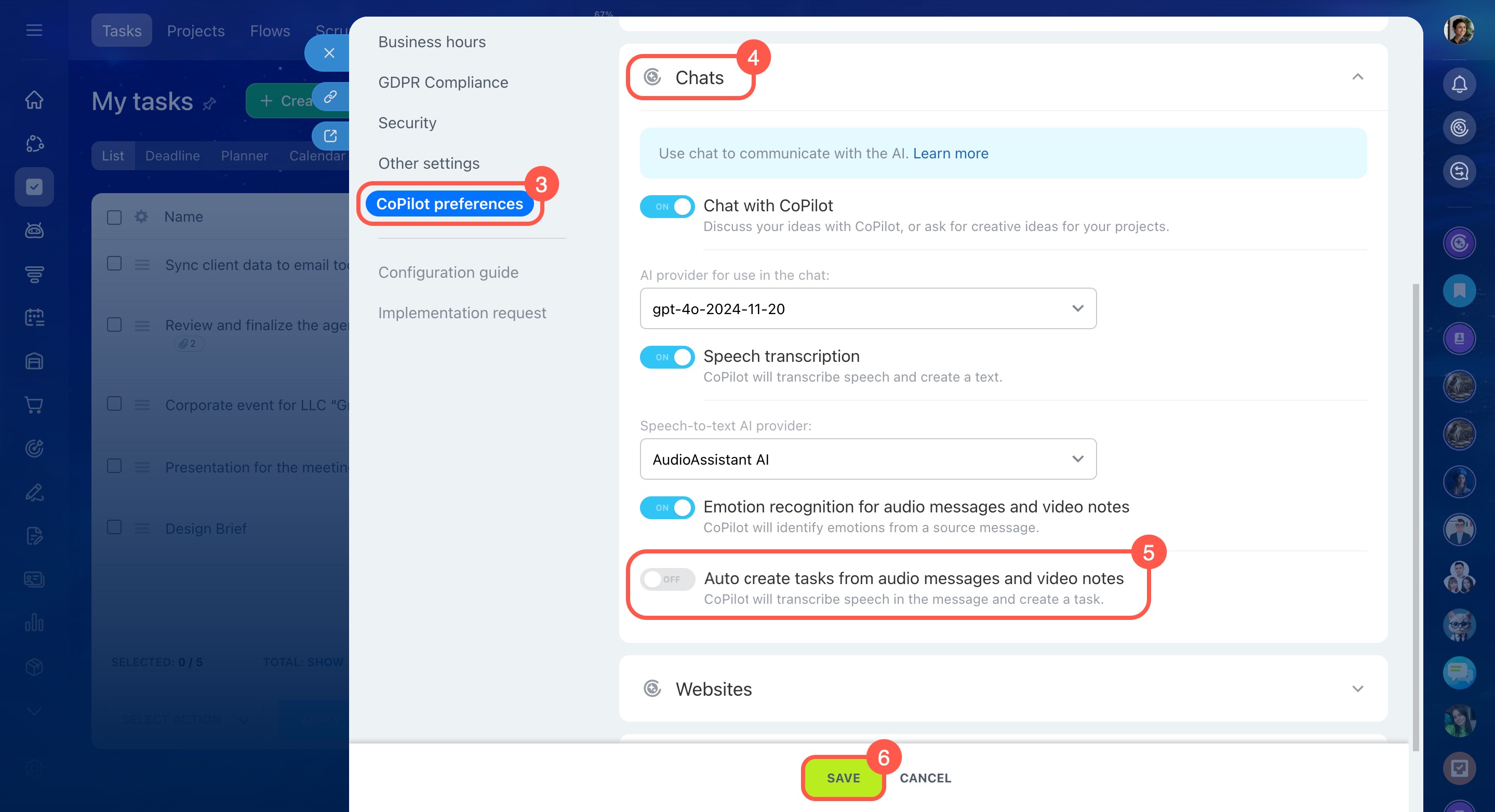
Account administrators can turn off automatic AI task creation from audio and video messages. Here's how:
- Go to Settings > Bitrix24 settings.
- Open CoPilot preferences > Chat with CoPilot.
- Disable Auto create tasks from audio messages and video notes.
- Click Save.