
To ensure uninterrupted telephony in Bitrix24, it is important to monitor the balance and top it up on time. If the funds run out, calls will stop working, and employees won’t be able to contact customers.
In this article:
When the low telephony balance notification appears
Bitrix24 sends a low telephony balance notification if the funds might not be enough to cover phone numbers and calls for the next few days. When checking the balance, Bitrix24 considers:
- Payments for phone numbers that need to be renewed within three days.
- Call expenses for the next four days, calculated based on the average spending over the last seven days.
If the balance is below this amount, Bitrix24 administrators will see a notification at the top of the screen and in the Notifications section of the Messenger.
How to check and top up the telephony balance
You can check and top up the telephony balance directly in Bitrix24.
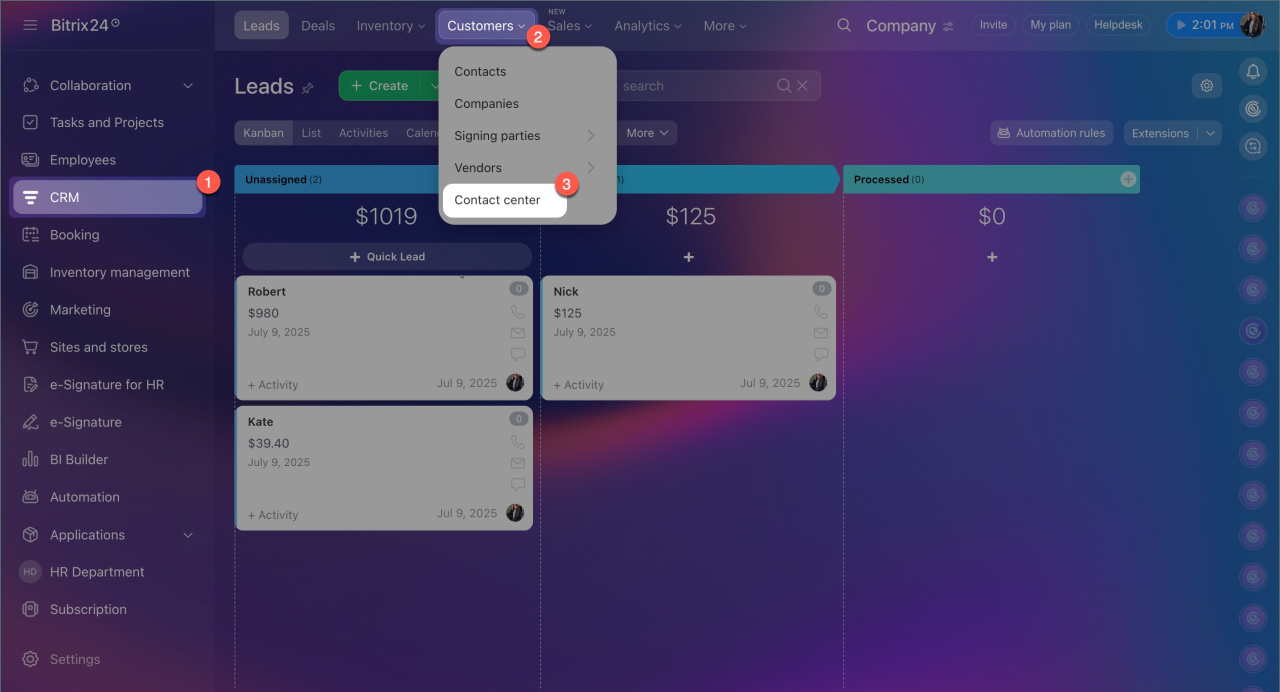
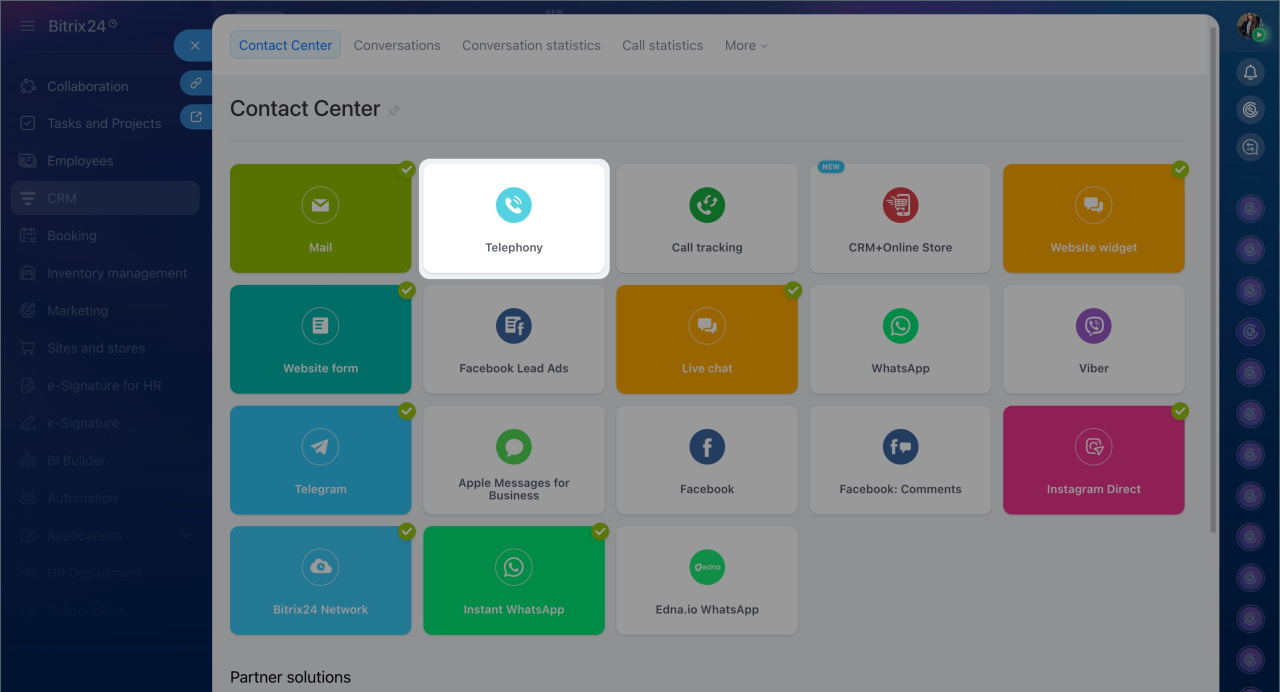
1. Go to CRM > Customers > Contact Center > Telephony > Connection.
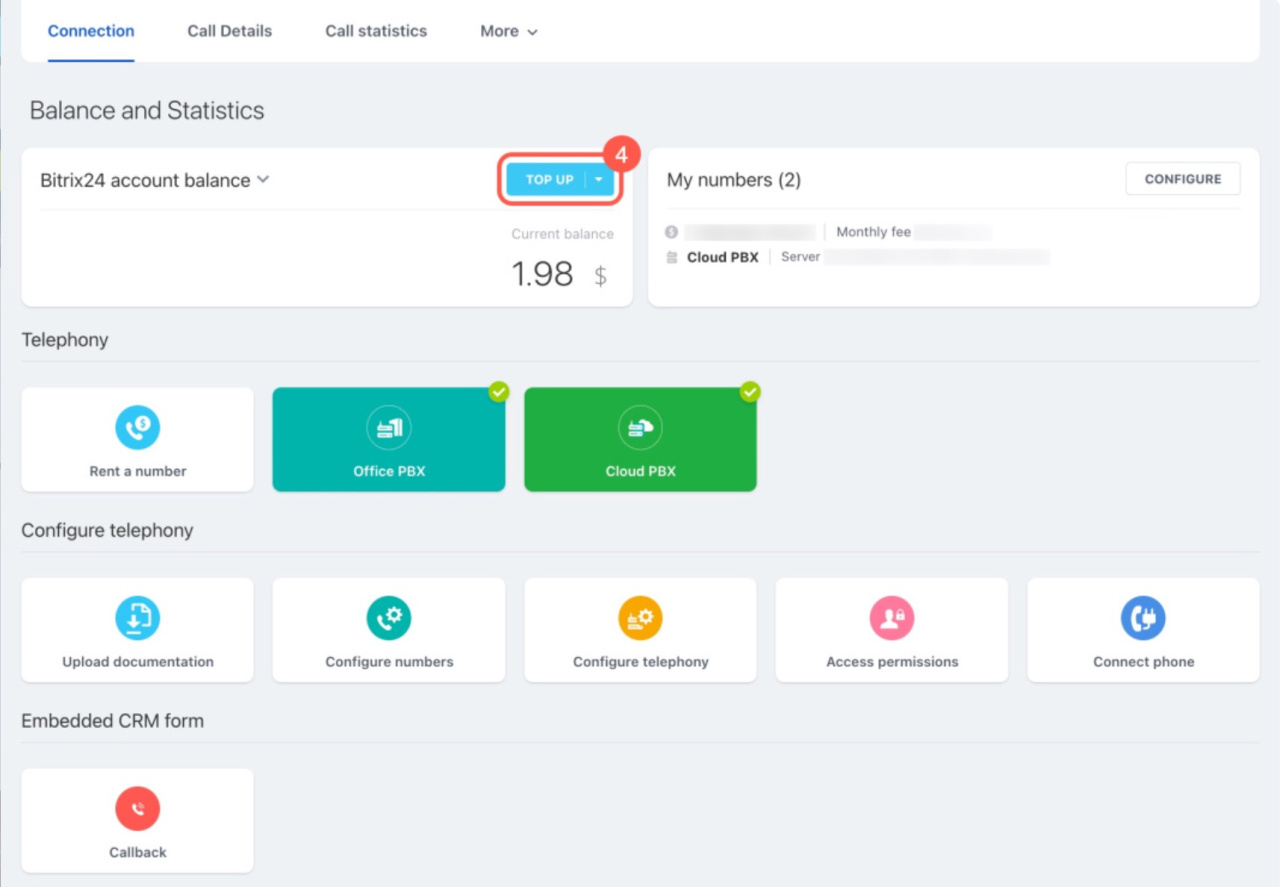
2. In the Balance and statistics block, you will see the current account balance. Click Top up to open the telephony operator’s Voximplant account.
3. Click Payment methods and choose a suitable option: card payment or bank transfer.
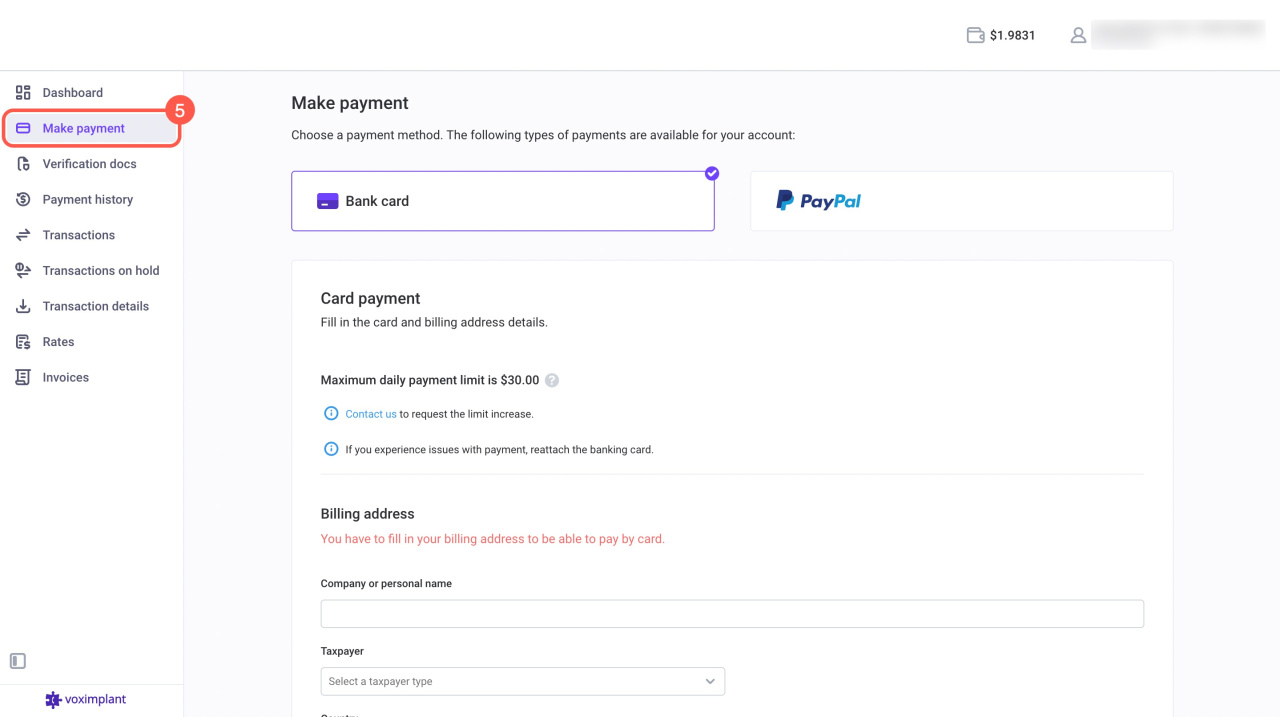
When paying by bank card, you must enter your phone number in the Mobile number field. Without providing a number, you cannot top up the balance.
How to check call costs
To understand how much the company spends on calls, use the call details section.
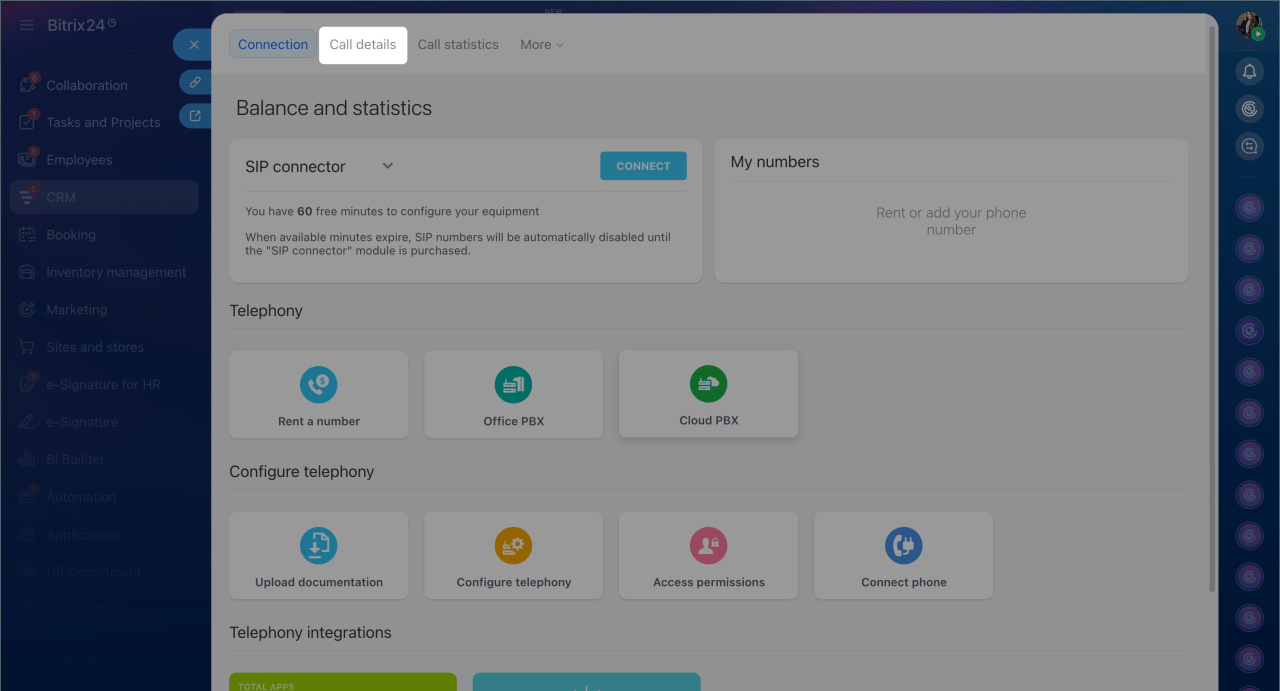
1. Open the Call details section.
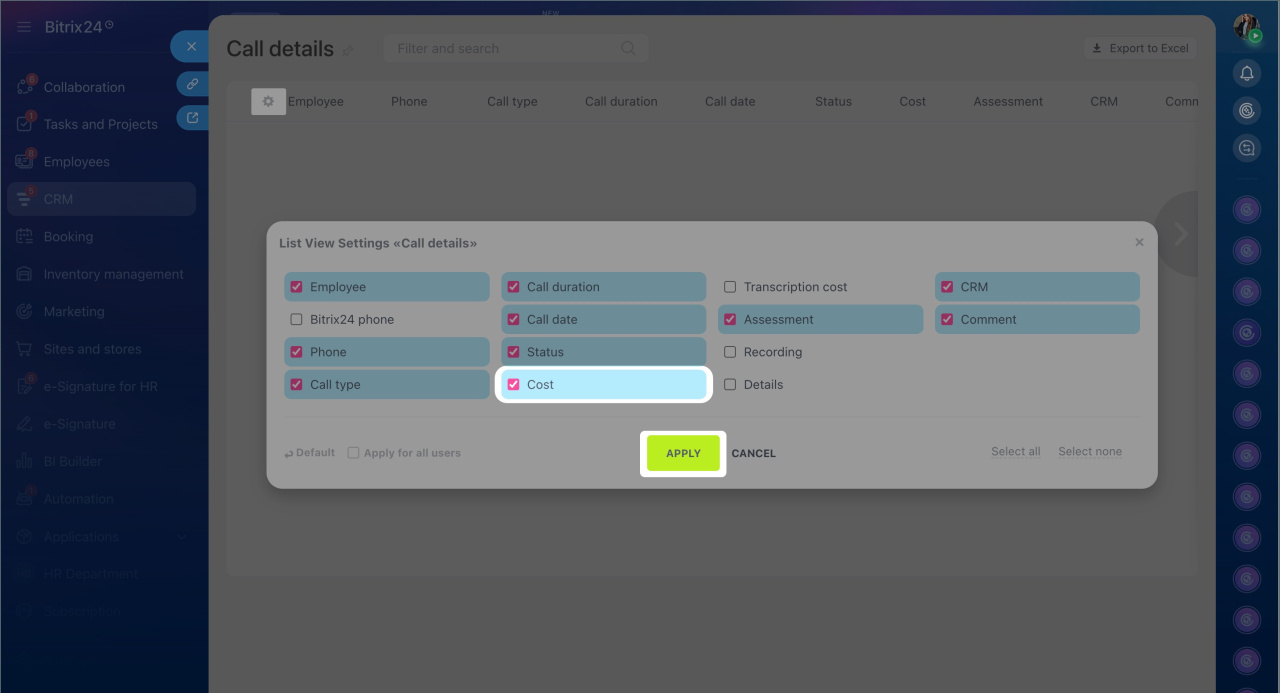
2. Click Settings (⚙️).
3. Select the Cost column and click Apply.
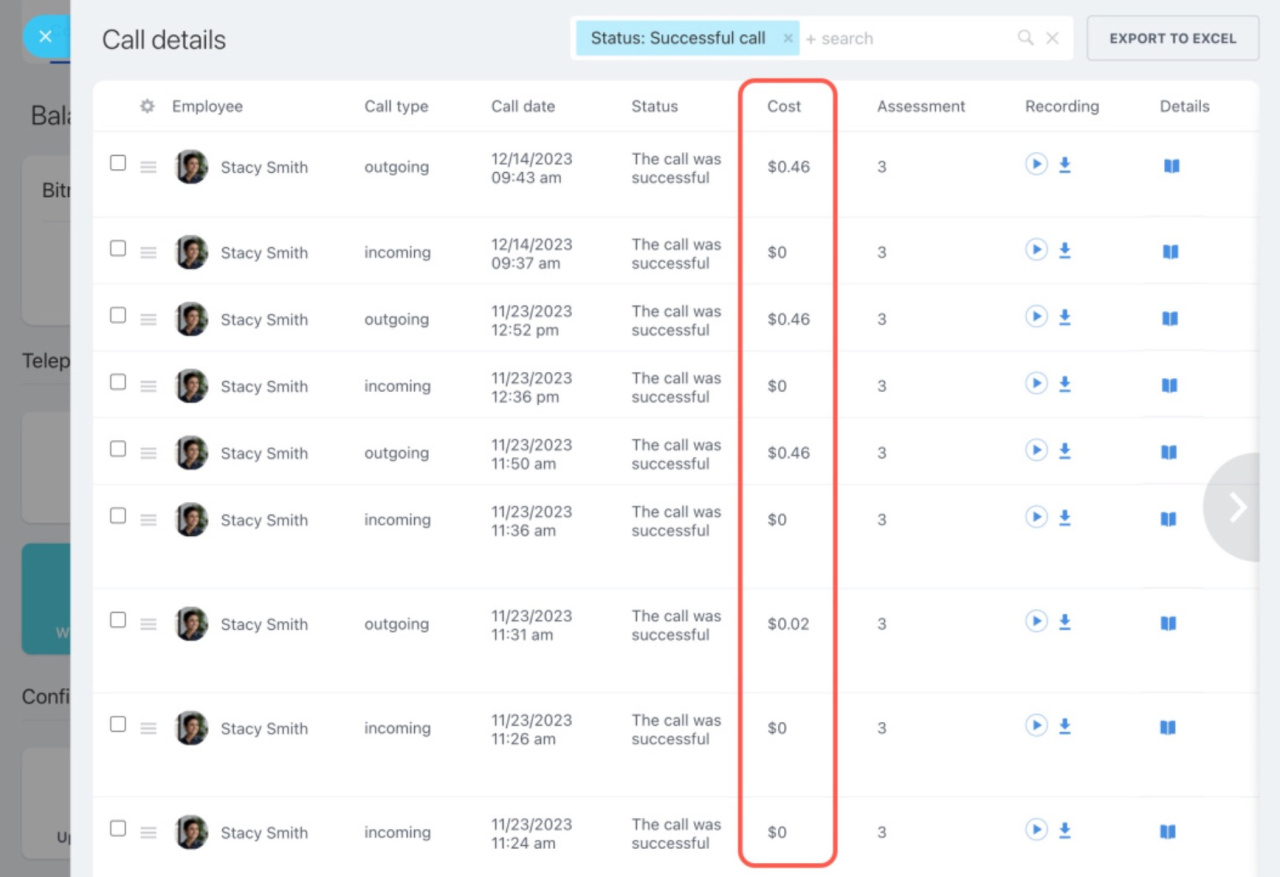
4. Now the list will show the cost of each call.
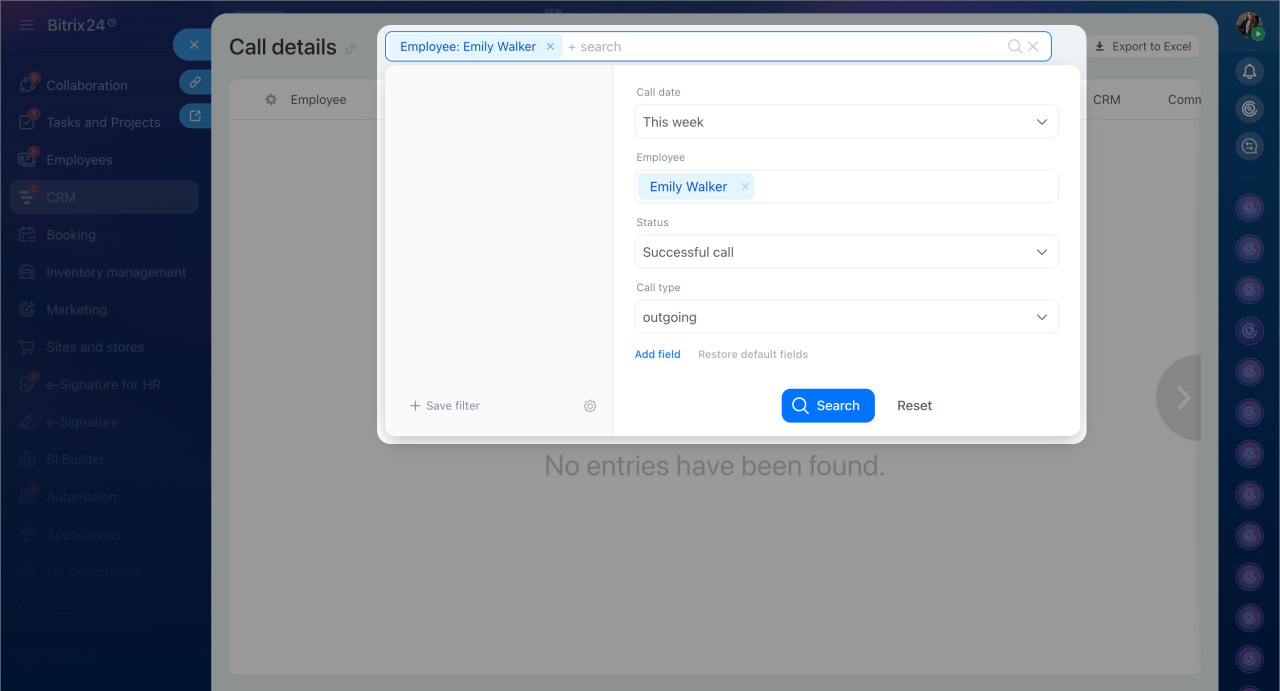
For convenience, you can set up filters, for example, to view expenses for a specific employee over a period.
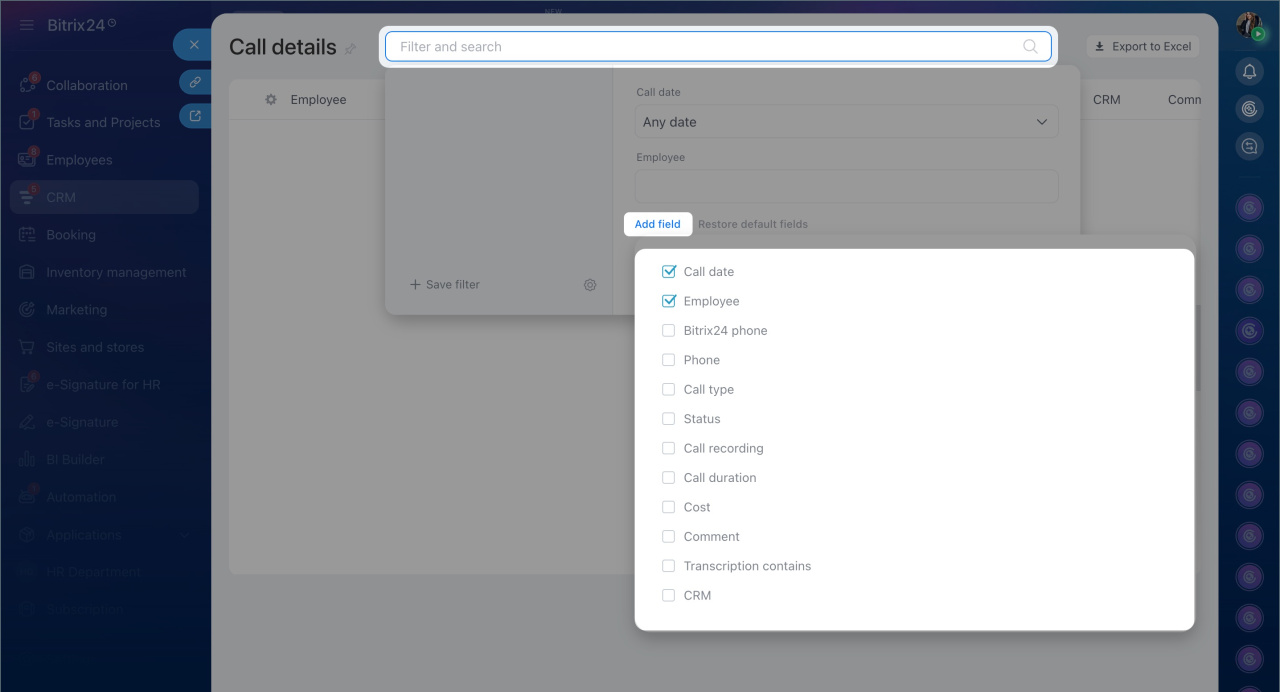
1. Click Filter and Search > Add fields and check the necessary fields.
2. Fill in the fields in the filter. For example, to view an employee’s expenses for the current week:
- Call date — select This week.
- Employee — choose the required user.
- Call type — specify if you want to view only certain calls, such as outgoing.
- Status — select Successful call to see only completed calls.
3. Click Search to display the list of calls matching the criteria.
In brief
- To ensure uninterrupted telephony in Bitrix24, monitor the balance and top it up on time.
- Bitrix24 sends a low telephony balance notification if funds might not be enough to cover phone numbers and calls for the next few days. Administrators will see the notification at the top of the screen and in the Notifications section of the Messenger.
- You can check the telephony balance in the CRM > Customers > Contact Center > Telephony > Connection section. Click Top up to pay for telephony.
- To understand call expenses, open the Call details > Settings (⚙️) section. Add the Cost column and click Apply.
