
In the deal form, you can choose how to calculate the amount: enter it manually or enable automatic recalculation based on products and services. This lets you set an approximate amount early on and get an accurate total once the details are final.
In this article:
Choosing the amount calculation mode
Manual mode. In this mode, you specify the deal amount yourself—products added to the form do not affect it. This option is suitable for early stages when there is an approximate budget, but the scope of work or products is still being discussed with the customer. It helps quickly set an amount so the team can estimate the workload and plan the next steps.
For example, after the first meeting, the manager knows the project will cost around $2,000, but details are still being clarified. While no products are added to the deal, the amount is entered manually. Even if products are later added, they won't affect the manually set amount.
Automatic mode. In this mode, the deal amount is calculated automatically. CRM considers the products and services in the form, including their quantities, prices, and discounts. This option is ideal when the scope of work is agreed upon with the customer, and the amount needs to update automatically with any changes.
For example, after approving the estimate, the manager adds all products and services to the deal. If the customer adjusts the scope of work or requests a new item, CRM recalculates the amount immediately—keeping it up-to-date and reducing the time spent on calculations and document preparation.
Product catalog
Add products to the catalog in CRM
Switching between amount calculation modes
The default calculation mode depends on how the deal is created.
If you create a deal manually:
- Manual mode is enabled—you can enter any amount.
- If you add products or services to the deal after saving, CRM will suggest switching to automatic mode.
- If products are added during deal creation, automatic mode is enabled.
If the deal is created automatically, such as from a CRM form, chat, or another source, automatic mode is enabled immediately, even if no products are added to the form.
You can switch the calculation mode at any time, depending on whether you need to enter an approximate amount manually or calculate it automatically based on products.
Switch to manual mode.
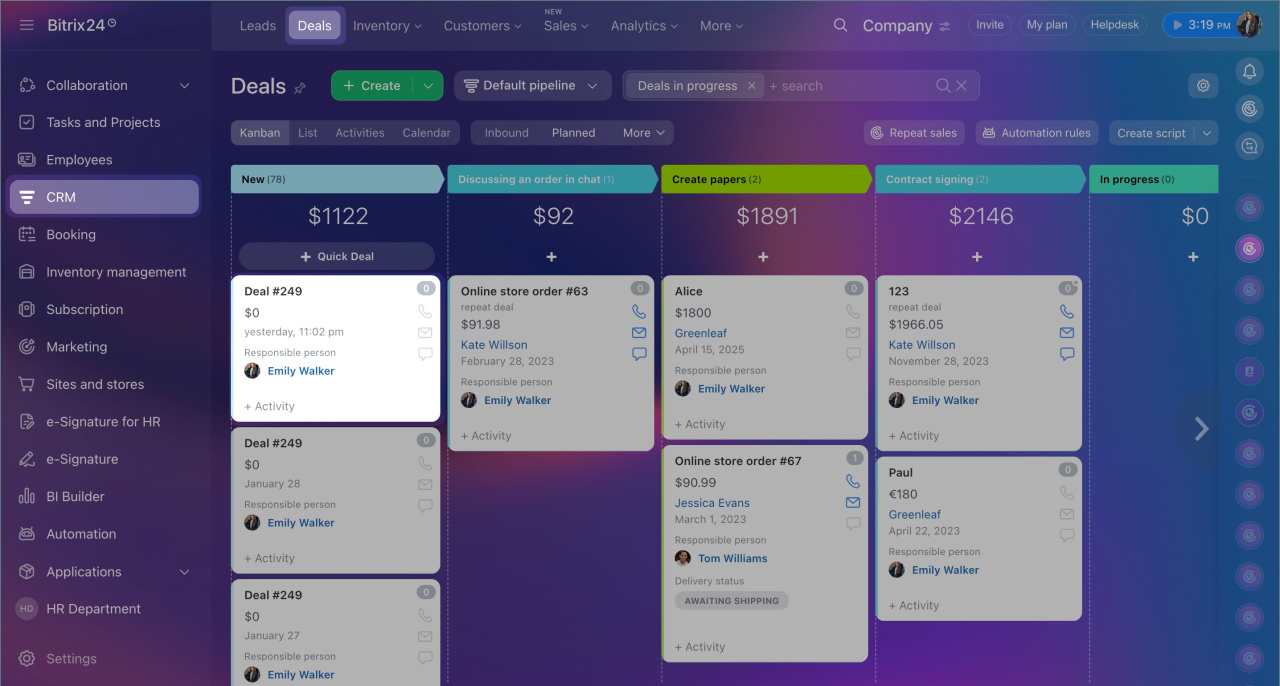
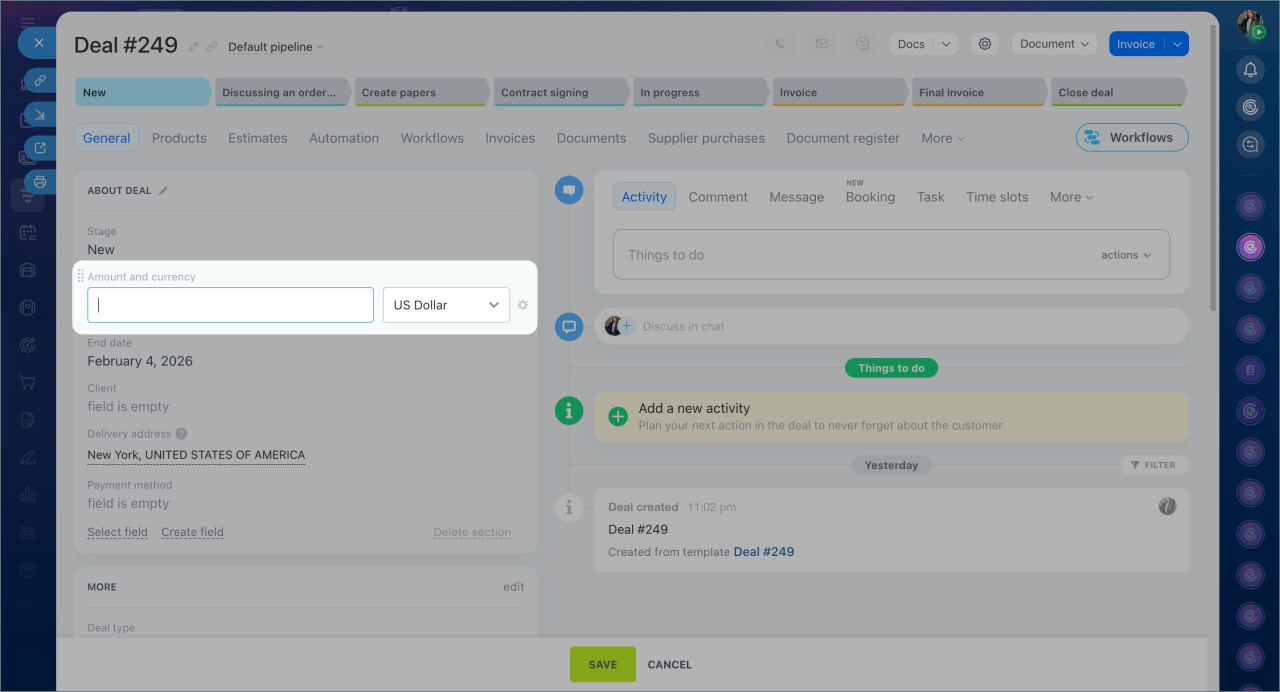
In a deal without products, the amount is zero—the Amount field is immediately editable.
1. Go to CRM > Deals. Open the required deal.
2. Click the Amount field and enter the amount manually.
3. Save the changes.
After saving, the deal amount will no longer depend on the products added to the form.
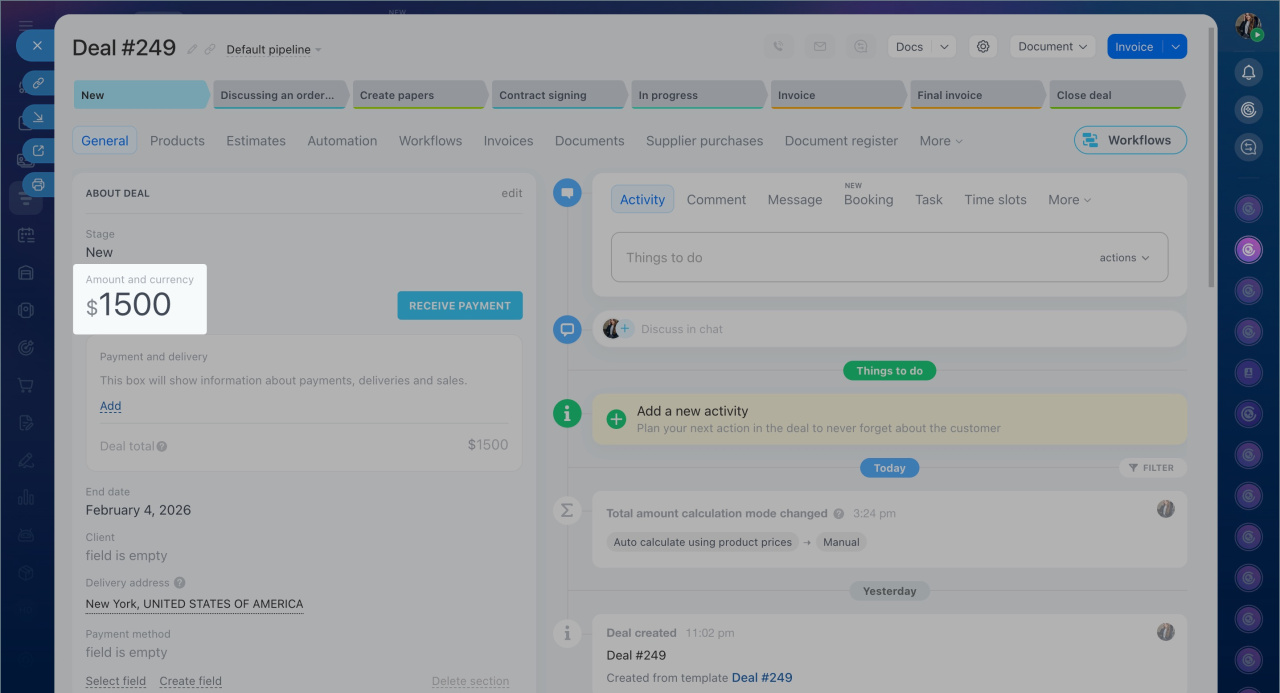
If products are already added to the deal, CRM will confirm whether you want to disable amount recalculation.
1. Go to CRM > Deals. Open the required deal.
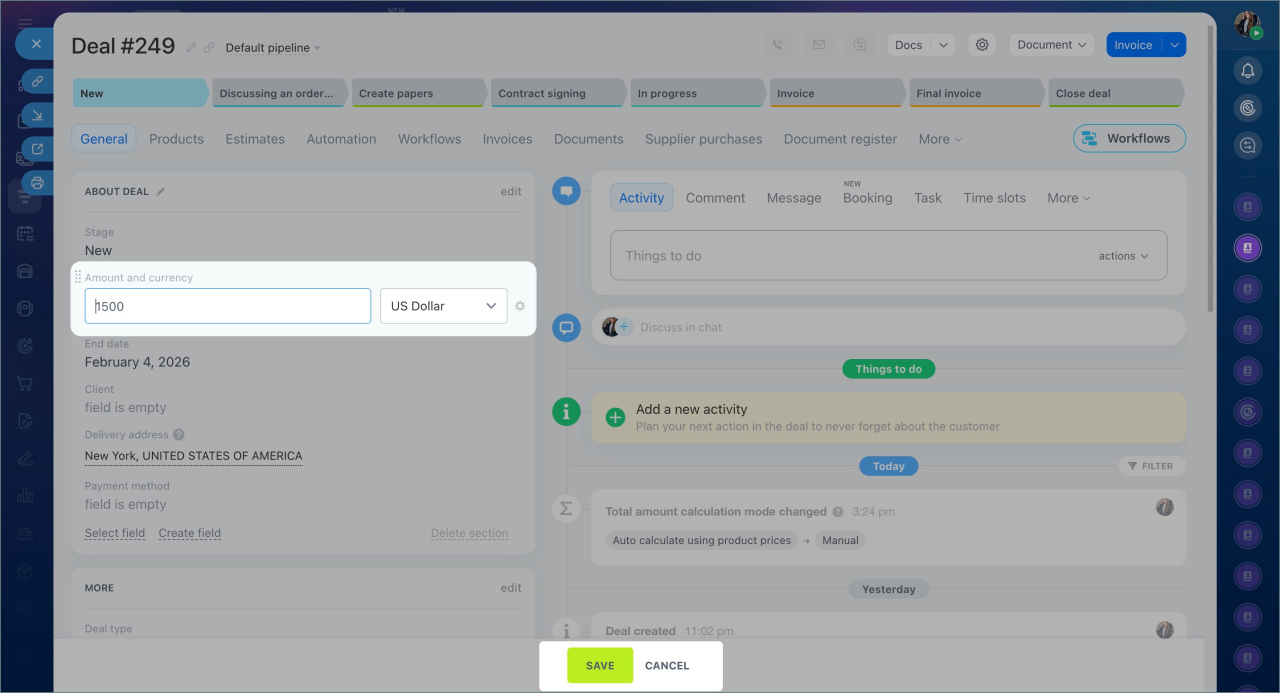
2. Click the Amount field twice.
3. Confirm the mode change.
4. Enter the required amount.
5. Save.
The Amount field will become editable and will no longer depend on the products.
Switch to automatic mode.
1. Go to CRM > Deals. Open a deal where manual mode was previously selected.
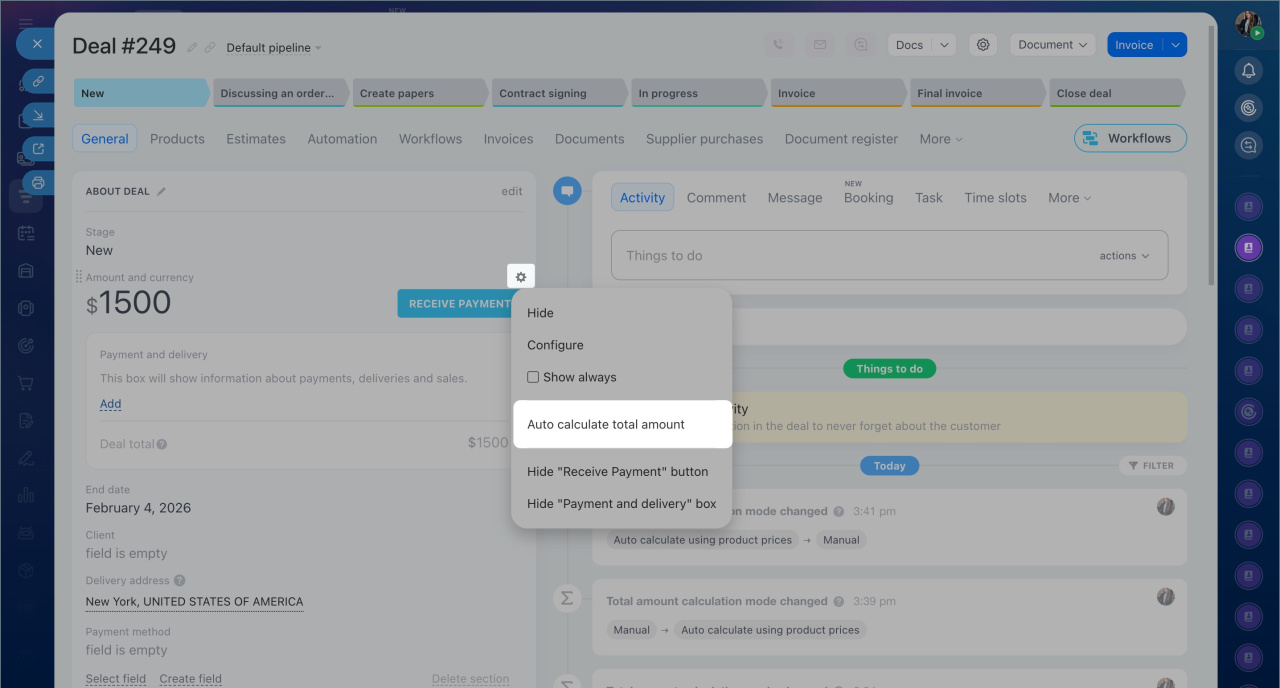
2. Next to the Amount field, click Settings (⚙️) > Auto calculate total amount.
3. Save.
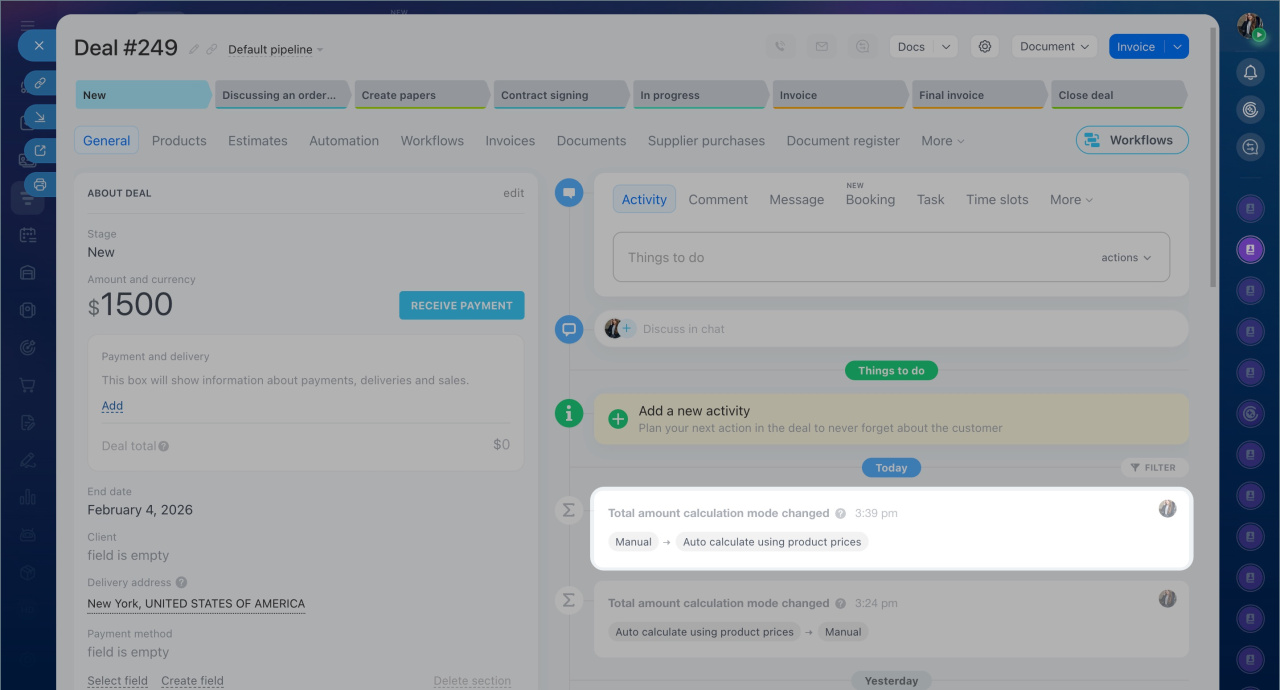
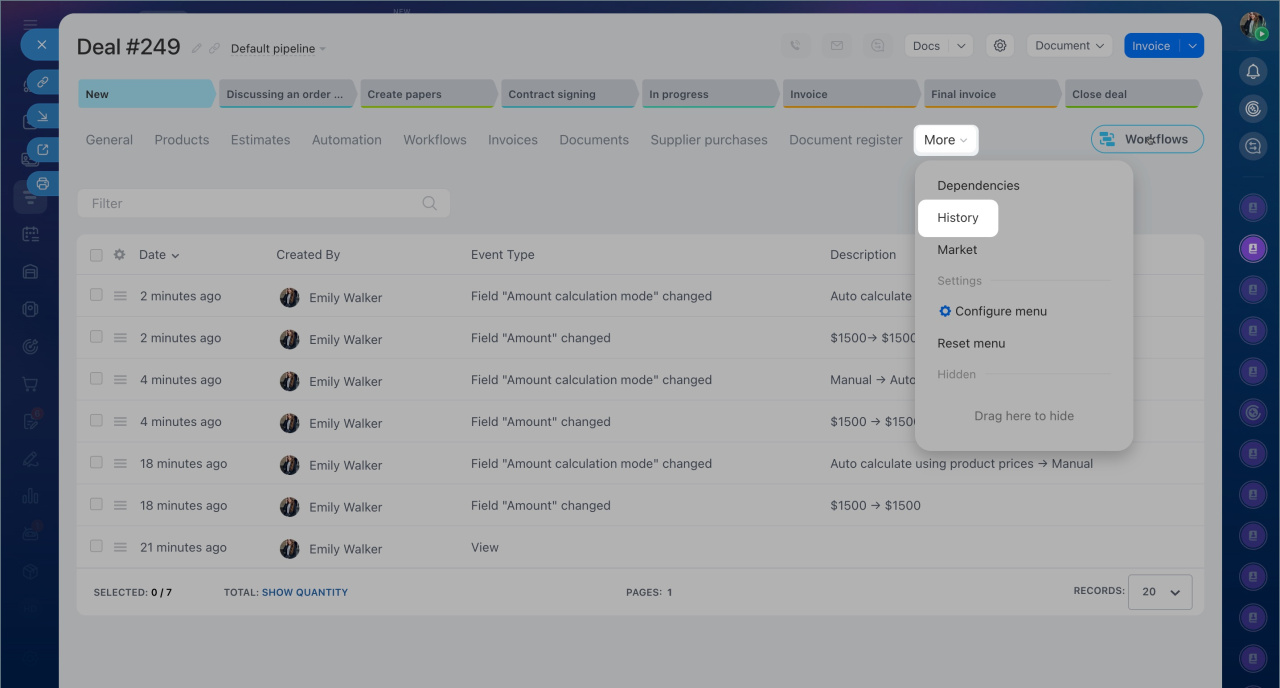
CRM will automatically calculate the amount based on the products and services in the deal. Mode changes are displayed in the deal timeline and on the History tab.
In brief
- You can choose manual or automatic calculation. The default mode depends on how the deal is created.
- In automatic mode, the amount updates with every change to the products or services added to the deal.
- In manual mode, you need to enter the amount manually.
- You can switch modes at any time.
- Mode changes are displayed in the deal timeline and history.
