
The Bitrix24 mobile app lets you work from your phone or tablet: manage tasks, chat, take calls, and more. It's convenient for quickly connecting to work, logging in from a new device, or continuing work outside the office.
The Bitrix24 mobile app is free and available on the App Store, Google Play, and Huawei AppGallery.
Download the mobile app
Ways to log in to the Bitrix24 mobile app
Open the app and choose a convenient way to log in to Bitrix24:
Phone number or email
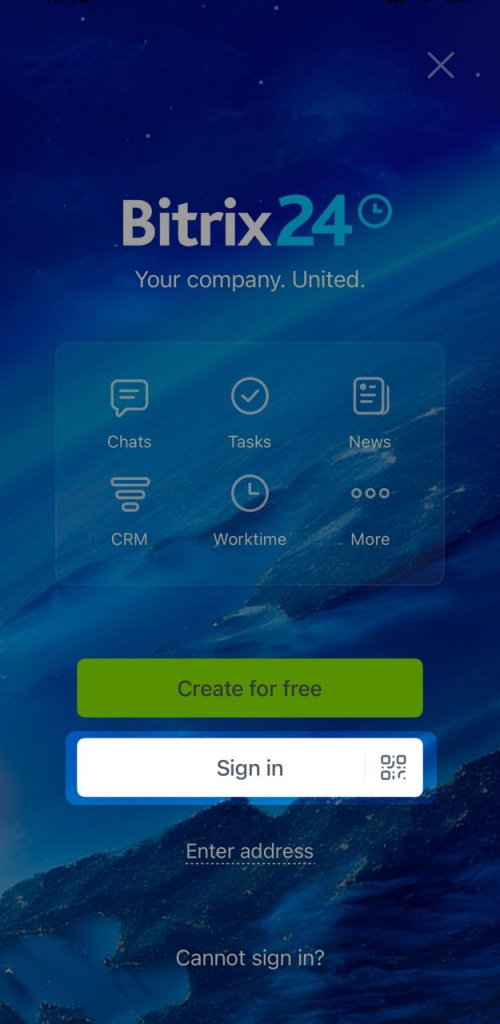
1. Tap Sign in.
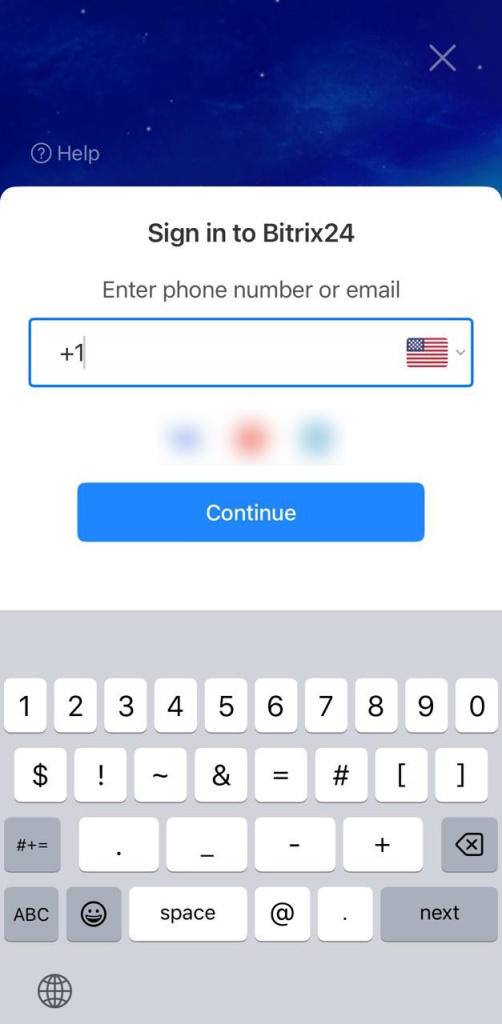
2. Enter your login, which can be an email or phone number. Tap Continue.
3. Enter your password and tap Continue. You will then log in to Bitrix24.
Address
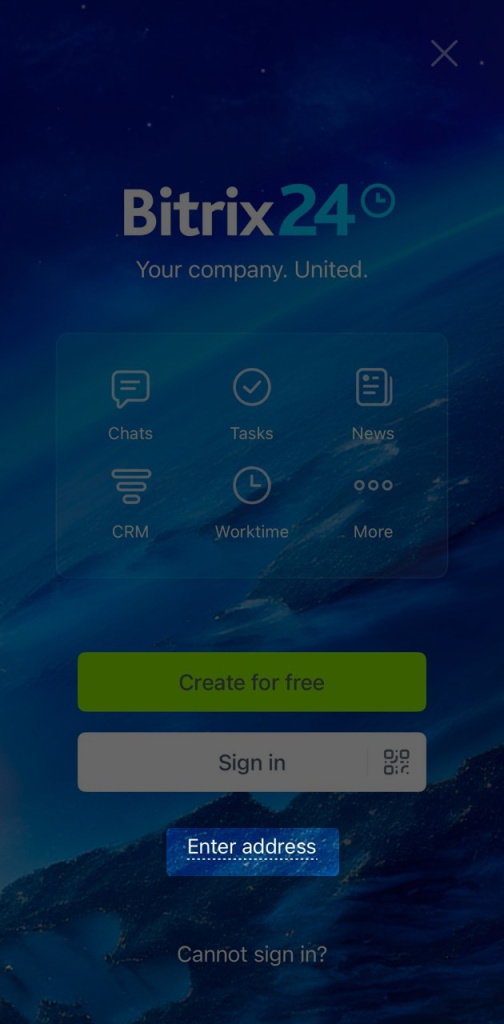
1. Tap Enter address.
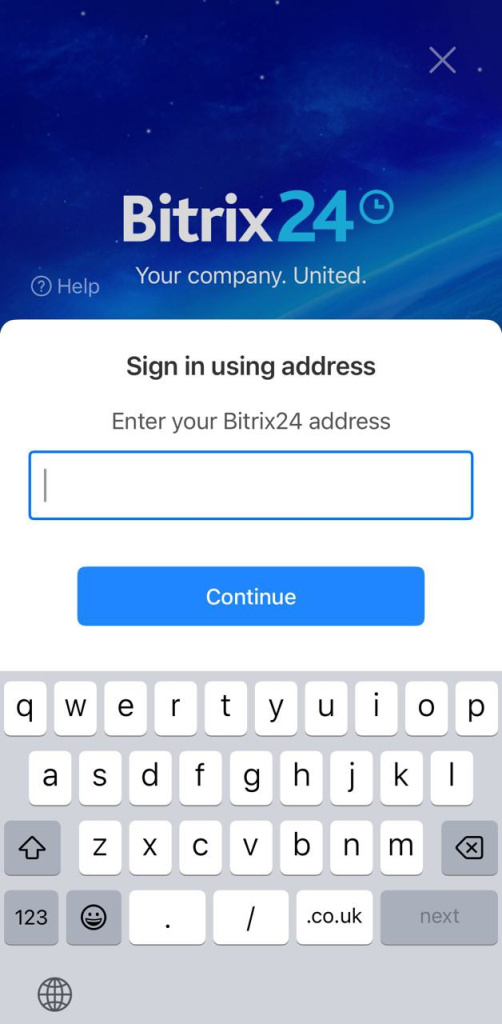
2. Enter your Bitrix24 address, for example, mycompany.bitrix24.com. Tap Continue.
3. Choose an authentication method: by login and password, via social networks, QR code, or Single Sign-On. Tap Continue.
4. Enter your password and tap Continue. You will then log in to Bitrix24.
Social networks
Tap the social network icon (e.g., Facebook, Google) to log in using a specific service linked to your Bitrix24 Network profile. Allow the app access to your account.
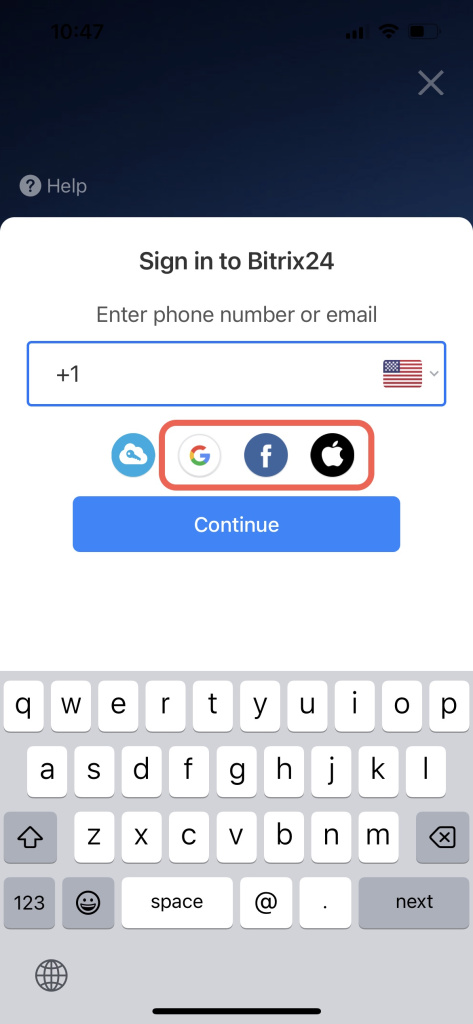

Set up login and password when using social login
QR code
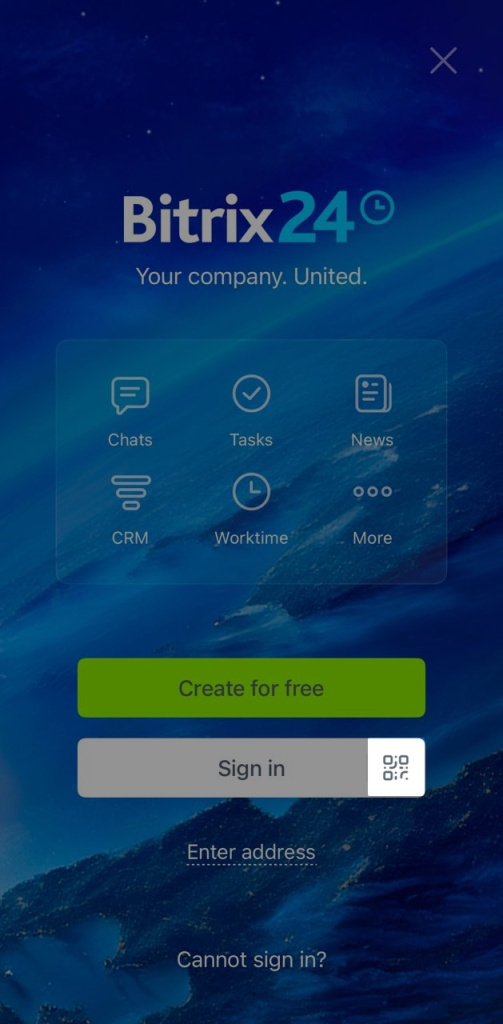
You can log in to the mobile app using a QR code if you are already logged in to the browser or desktop Bitrix24 app. This method is convenient for quickly logging in without entering a login and password.
1. Tap the QR code icon next to the Log in button.
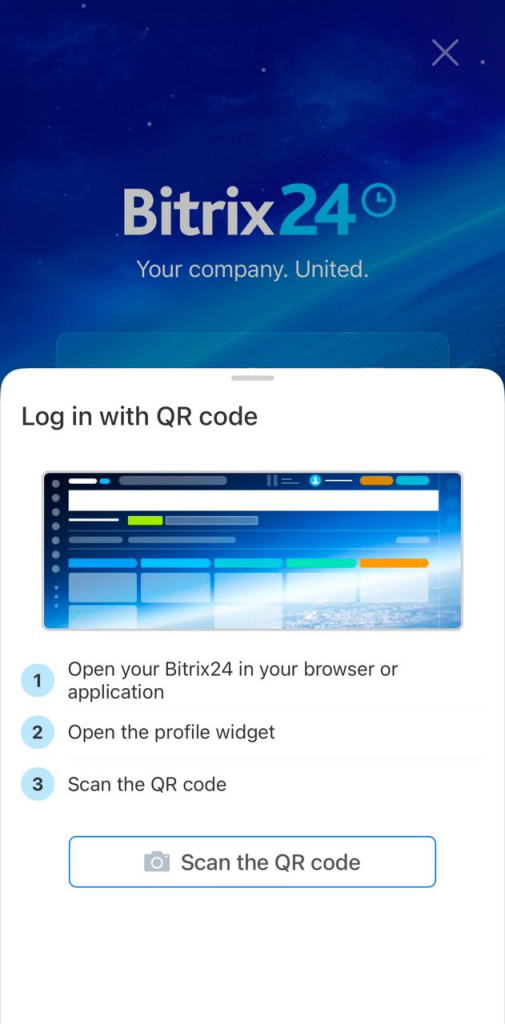
2. Open Bitrix24 on your computer and go to the employee widget. Tap Quick login on phone.
3. Tap Scan QR code in the mobile app.
4. Point your phone's camera at the QR code in the Bitrix24 desktop app. You will then log in to Bitrix24.
Single Sign-On
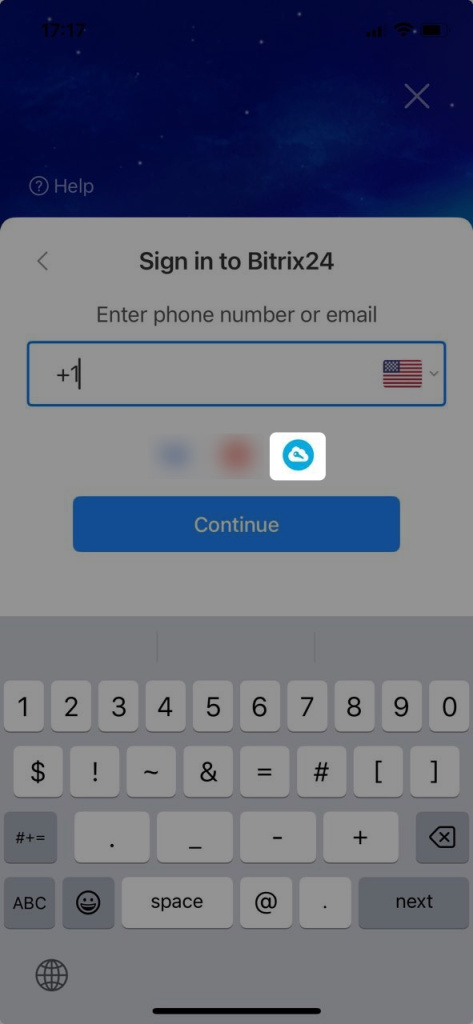
This technology allows users to log in to Bitrix24 without entering a password. Tap the SSO icon and enter your corporate email.
Configure Single Sign-On for Bitrix24 users
Bitrix24 plans and pricing
Add or switch accounts
In the mobile app, you can add multiple Bitrix24 accounts and switch between them. This is convenient if you work with different companies or projects.
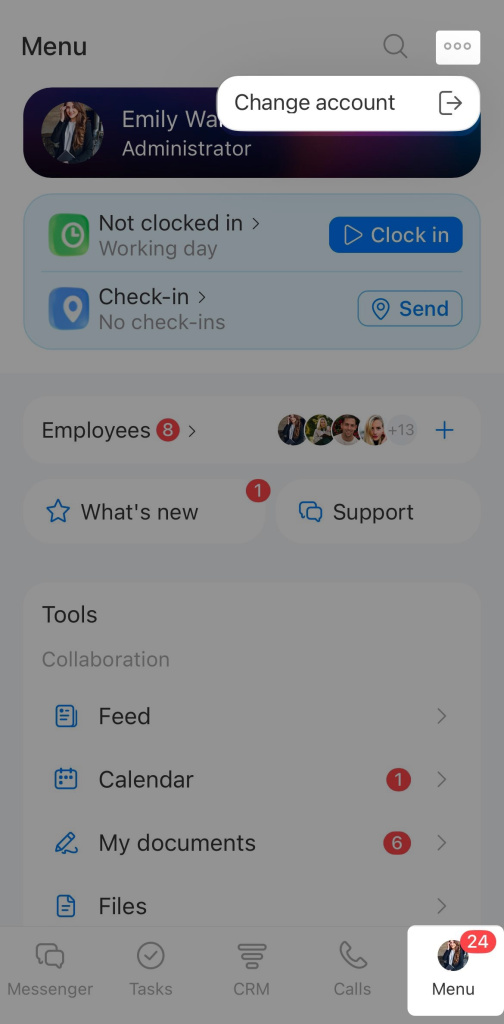
Tap Menu > Three dots (...) > Change account.
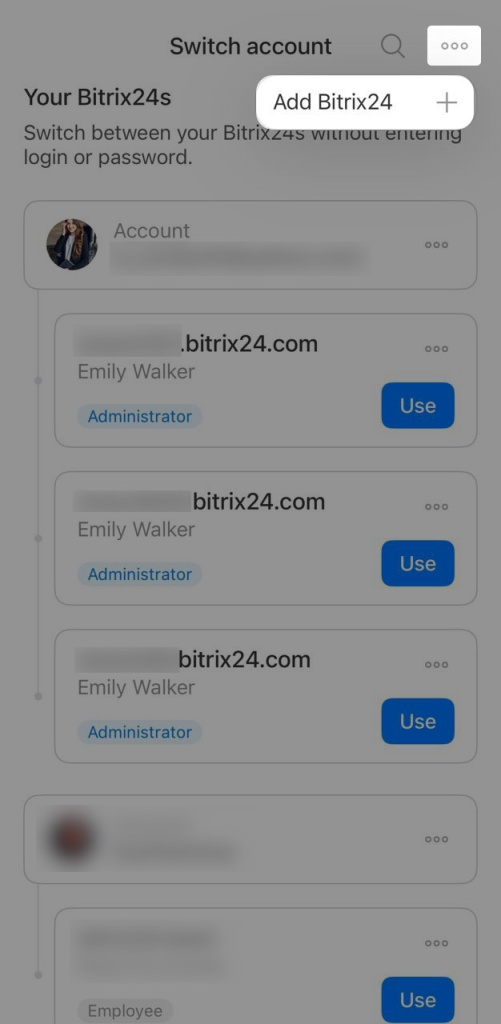
Add. Three dots (...) > Add Bitrix24. Log in using a convenient method.
Switch. Select the desired account and tap Use.
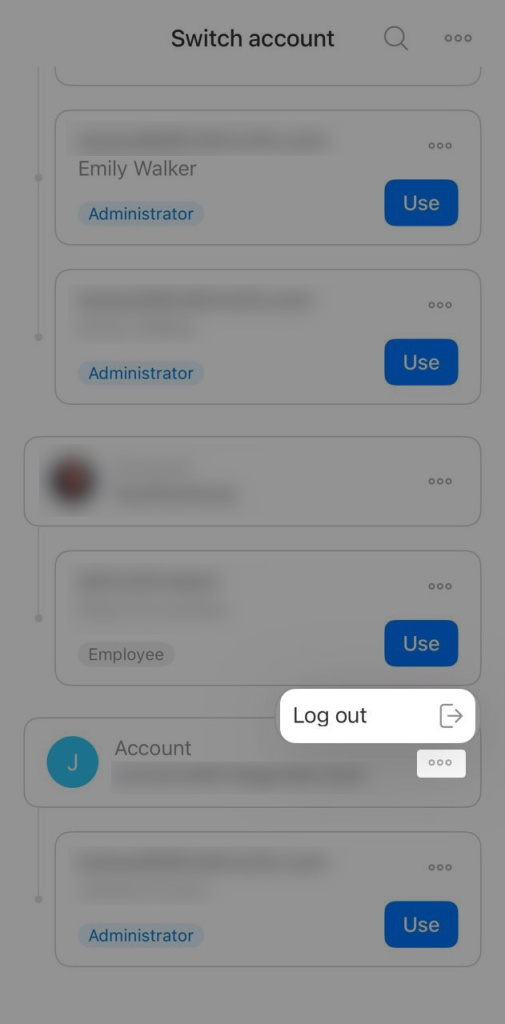
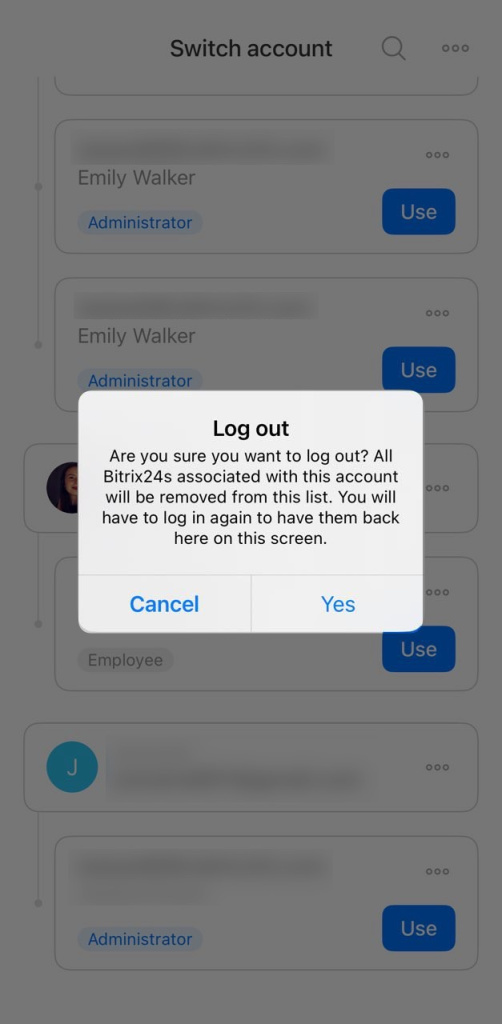
Log out of an account
If you no longer want to use an account in the mobile app, log out of it. The account will disappear from the list. Tap Three dots > Log out > Yes, log out.
In brief
- The Bitrix24 mobile app lets you work from your phone or tablet: manage tasks, chat, take calls, and more.
- You can log in to Bitrix24 by phone number or email, by Bitrix24 address, social network, using a QR code, or with SSO.
- In the mobile app, you can add multiple Bitrix24 accounts and switch between them. This is convenient if you work with different companies or projects. Tap Menu > Three dots > Change account.
- To remove a Bitrix24 account from the list, tap Three dots > Log out.
