
Reserving products allows you to allocate items in a deal for a specific customer. While the product is reserved, it cannot be sold to another buyer.
For example, if a customer is ready to make a purchase but all items are reserved, you can check which deals have reservations, clarify payment deadlines, and decide whether to keep the reservation or release the product.
This article explains how to:
Сheck reservations in a deal form
You can check where and in what quantity a selected product is reserved.
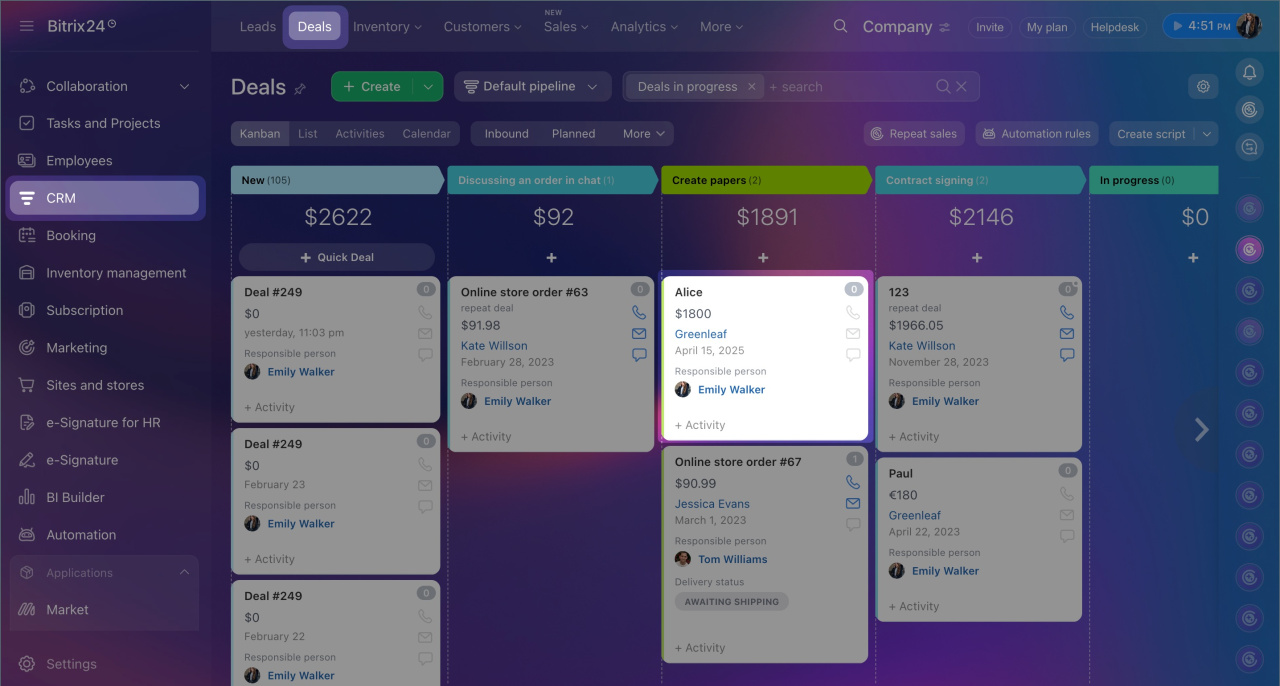
1. Go to CRM > Deals and open the required deal.
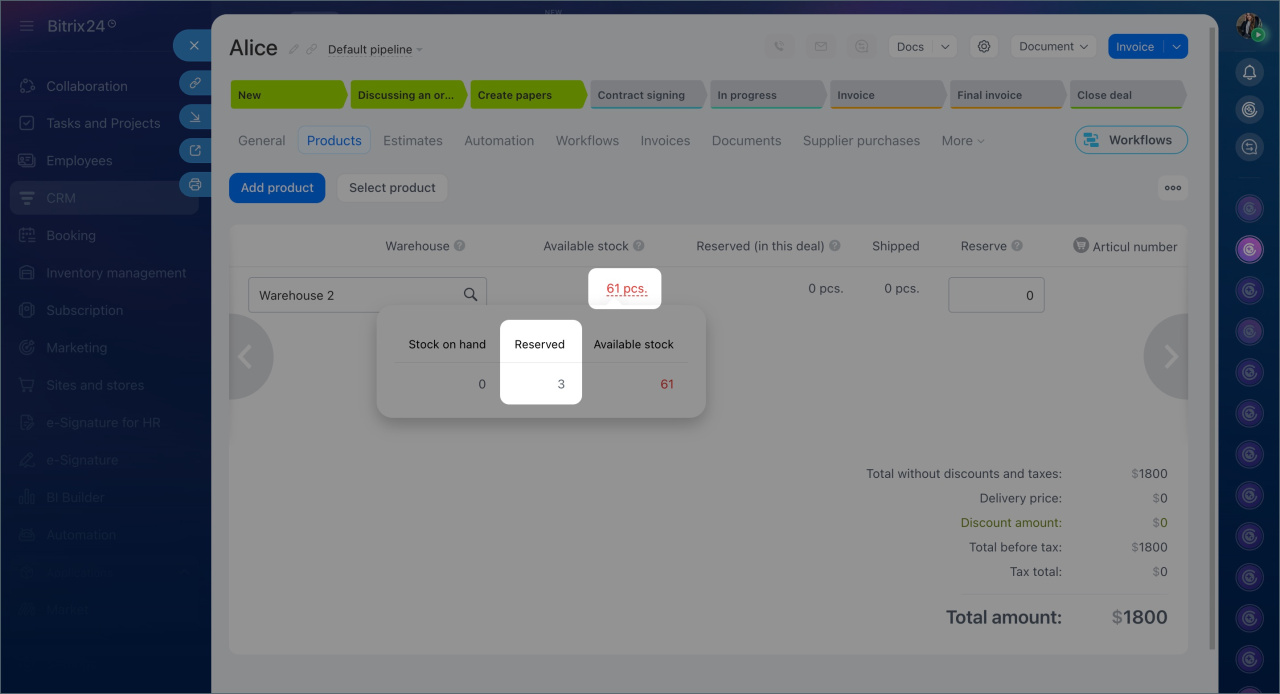
2. In the Products tab, click the value in the Available stock column.
A window will open showing the following details:
- Stock on hand: The number of units available in stock.
- Reserved: The number of units already allocated in other deals.
- Available stock: The difference between the quantity and reserved items. This is the stock available for sale or reservation.
3. Click the value in the Reserved column to see a list of deals where the product is reserved.
Find reservations using a filter in CRM
The filter helps you find all deals with a specific product and check if it is reserved.
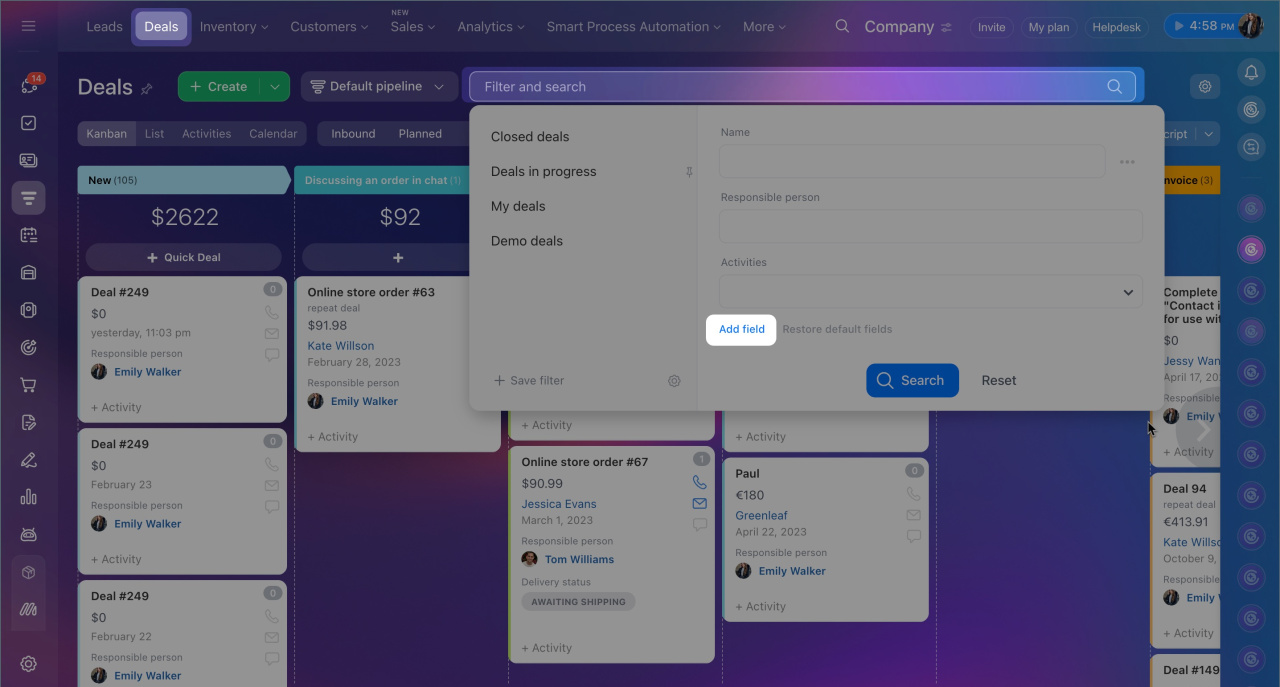
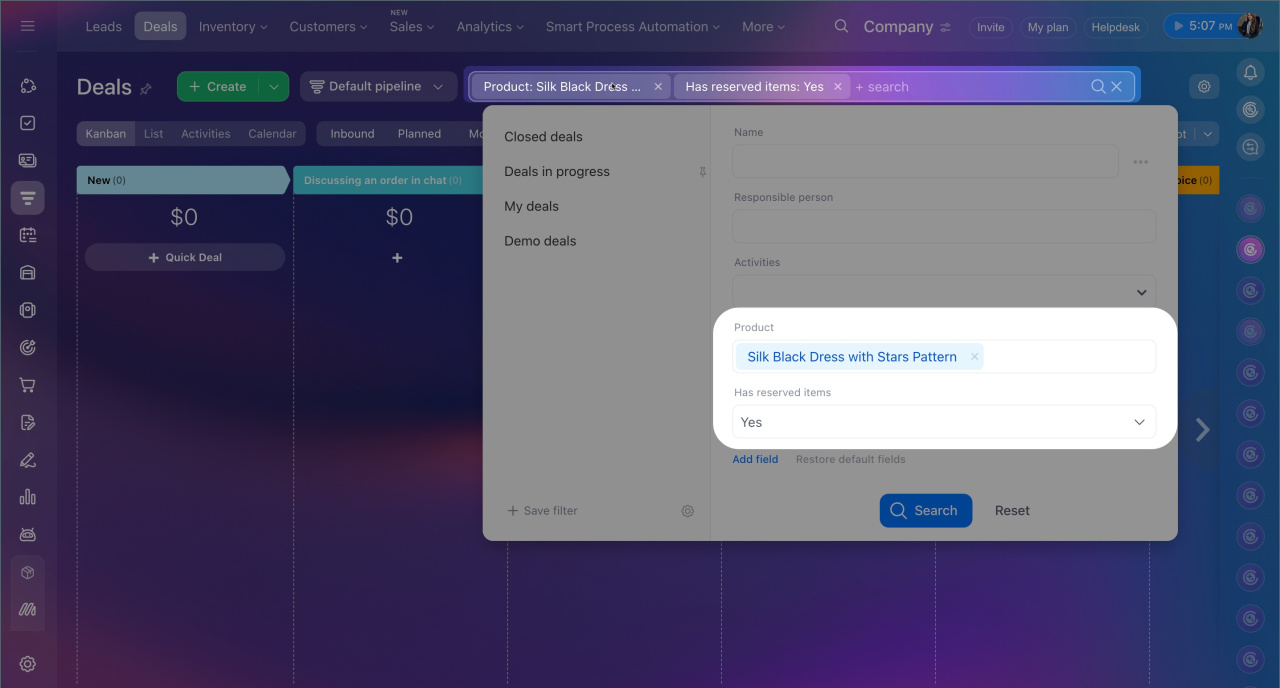
1. Go to CRM > Deals, open the filter, and click Add field.
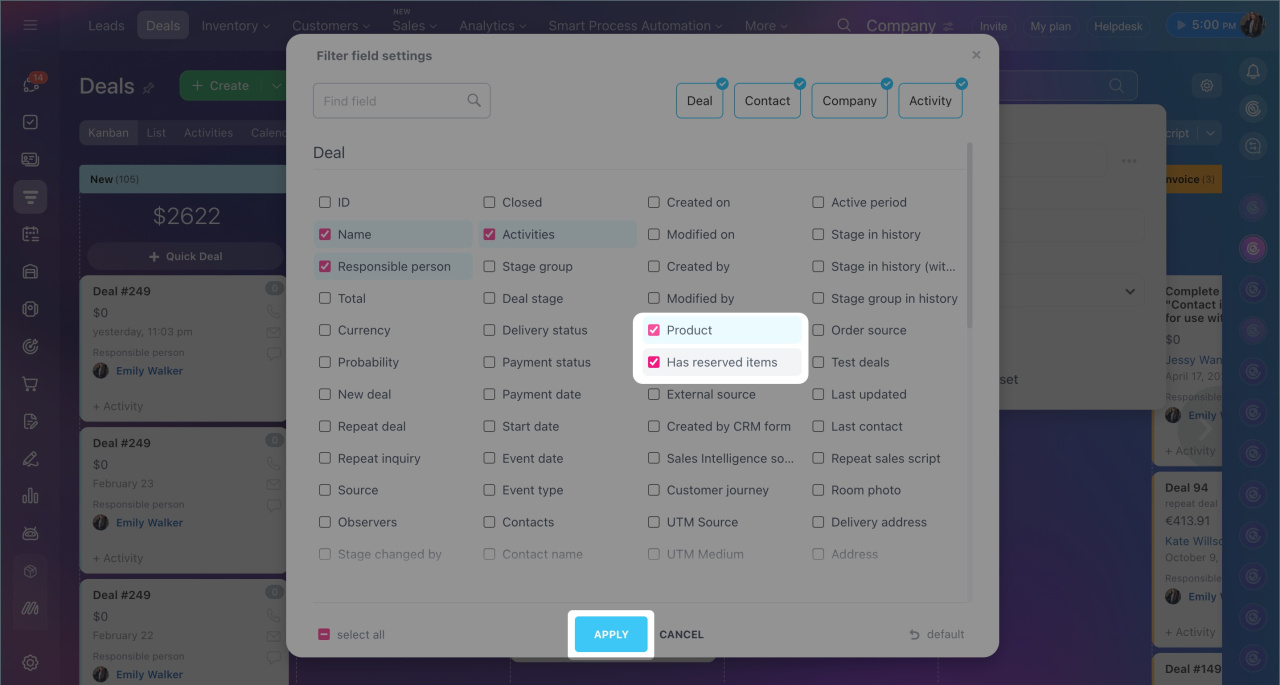
2. Select the Product and Has reserved items fields, then click Apply.
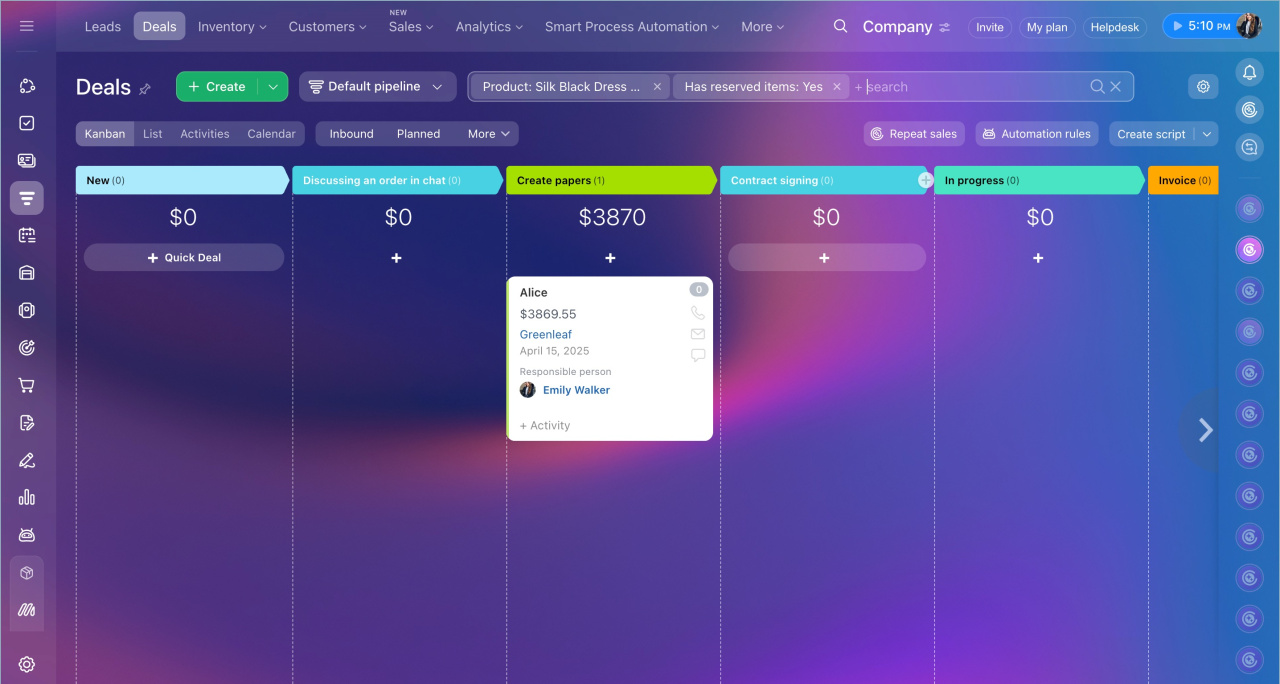
3. Specify the required product, select Yes in the Product reserved field, and click Search.
The CRM will display deals where the selected product is reserved.
If you only specify the product in the filter and select Not specified in the Has reserved items field, all deals with this product will be displayed, regardless of reservation status.
Check reservations in a product form
In the product form, you can view all deals where the product is reserved.
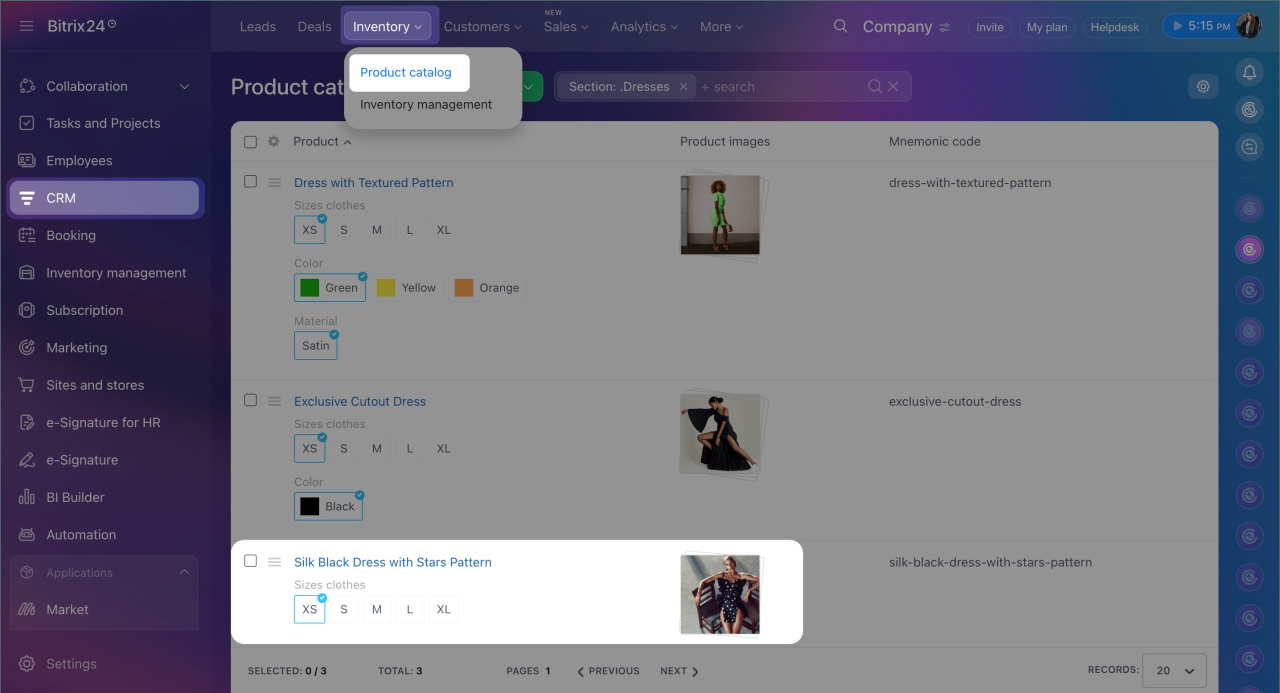
1. Go to CRM > Inventory > Product catalog and open the product form.
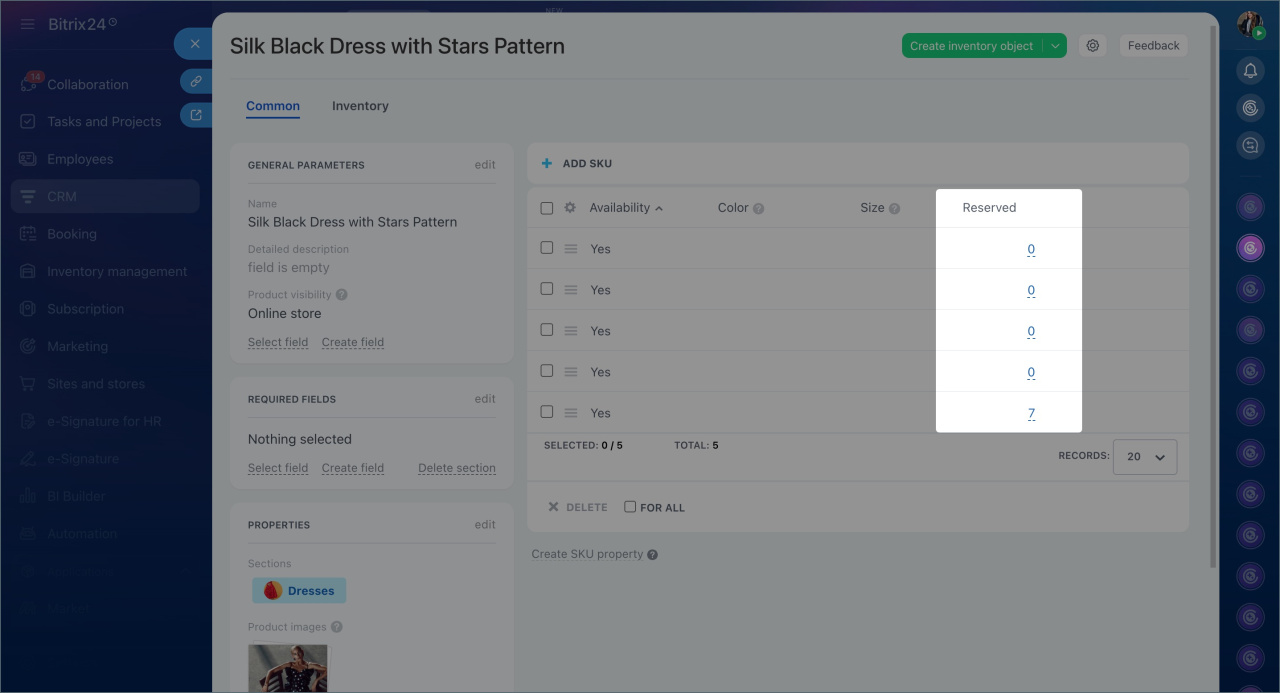
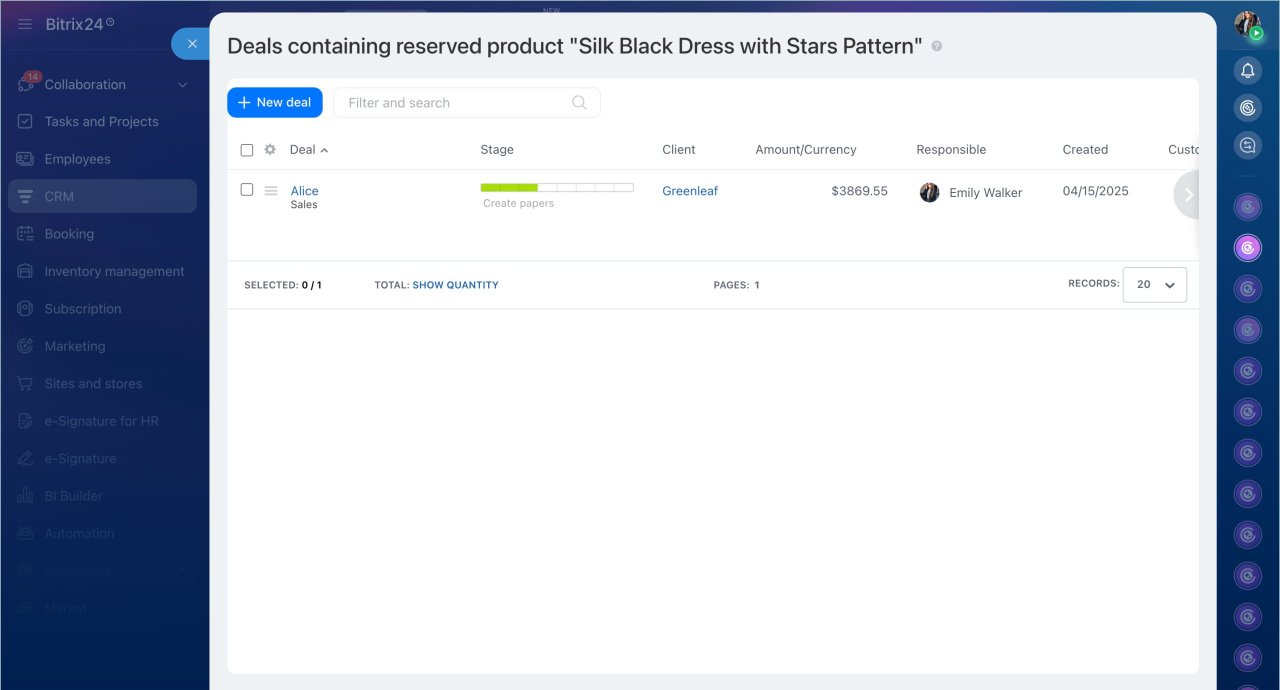
2. In the product variations table, check the Reserved field and click the number.
A slider will open with a list of deals where this product is reserved. You can navigate to the deal form from the list.
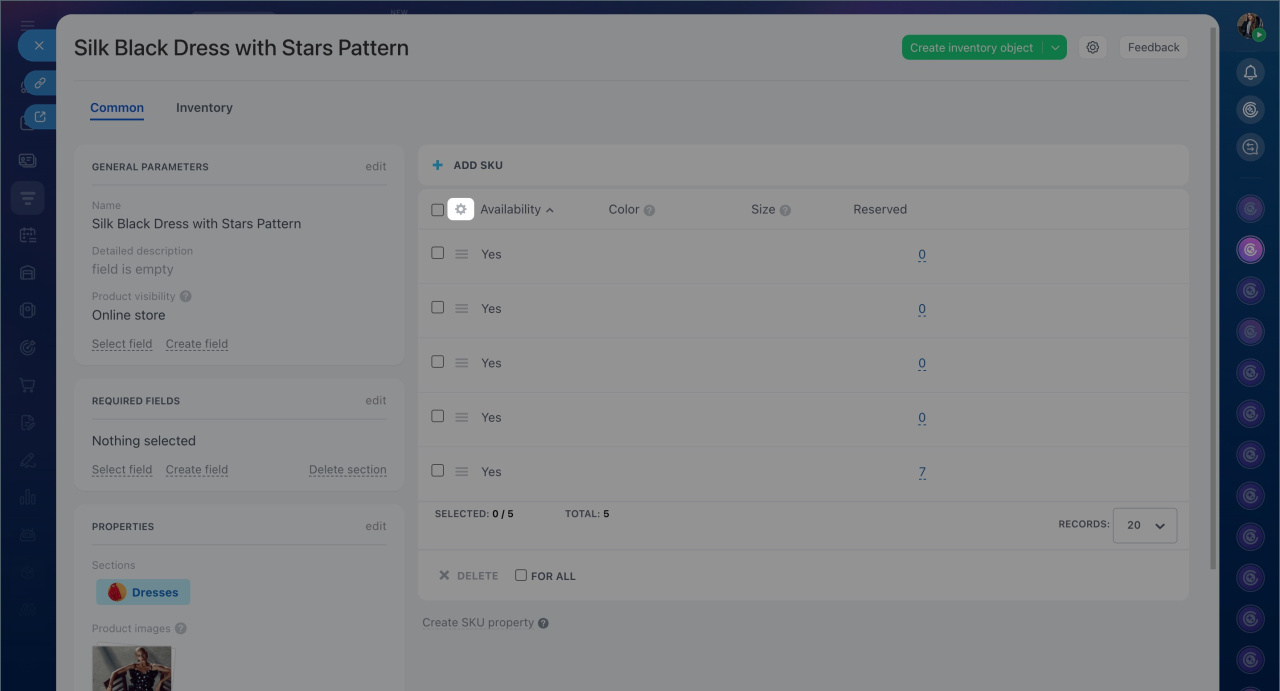
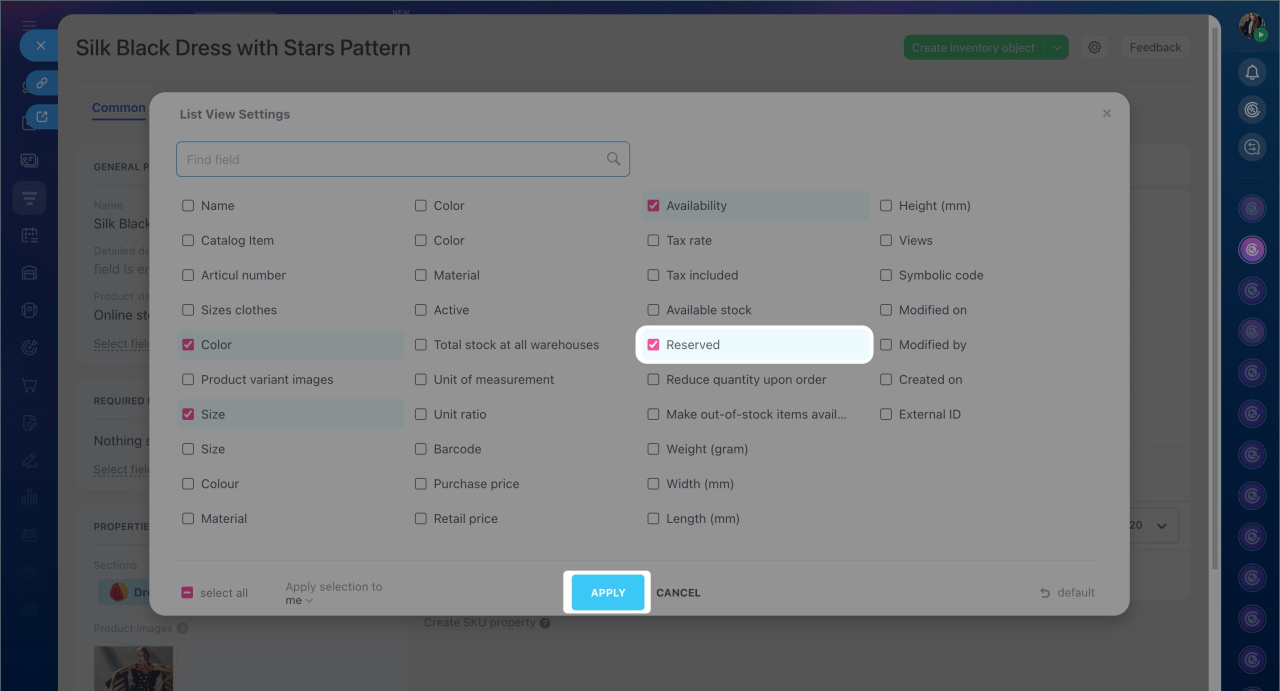
If the Reserved field is not displayed:
1. Open Settings (⚙️) in the product variations table, select the Reserved field, and click Apply.
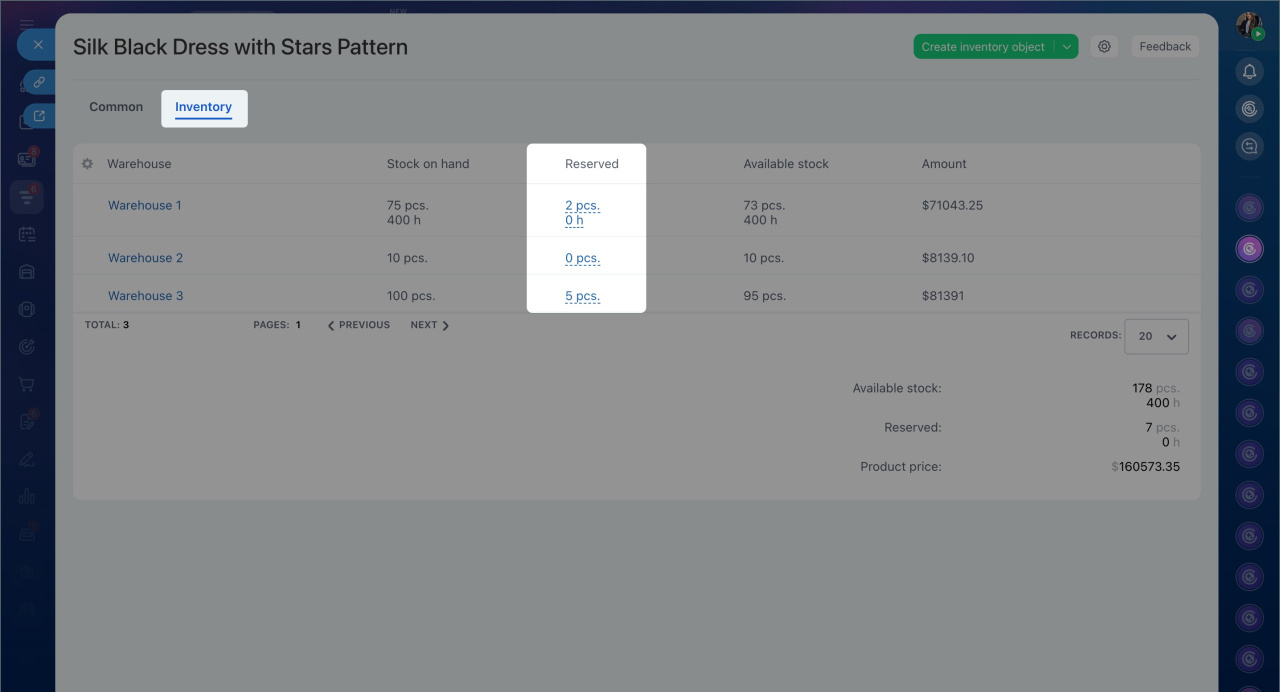
You can also view reservations in the Inventory tab of the product form. It shows distribution across warehouses, including total stock, reserved items, and available quantity. Clicking the value in the Reserved field opens a list of deals.
Check reservations in the inventory report
The inventory report helps evaluate reservations across warehouses. For example, a manager can review the report, notice an increase in reservations, and check unpaid deals.
Current stock report
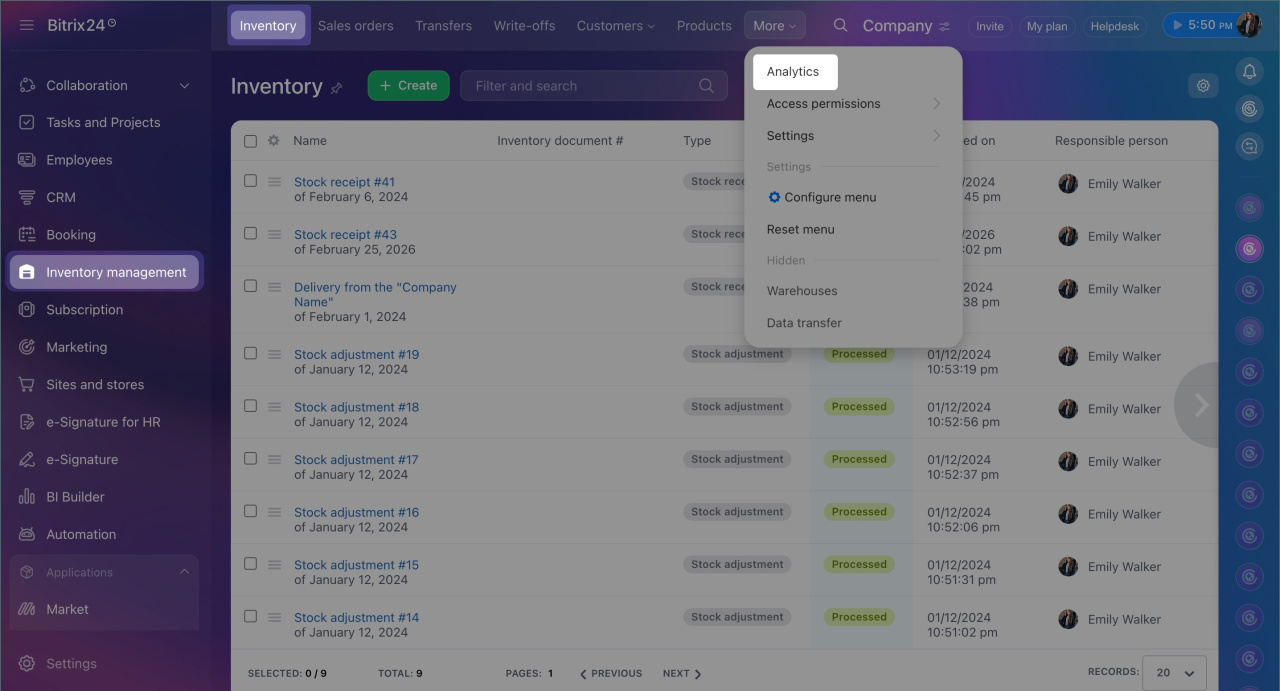
1. Go to Inventory management > Analytics.
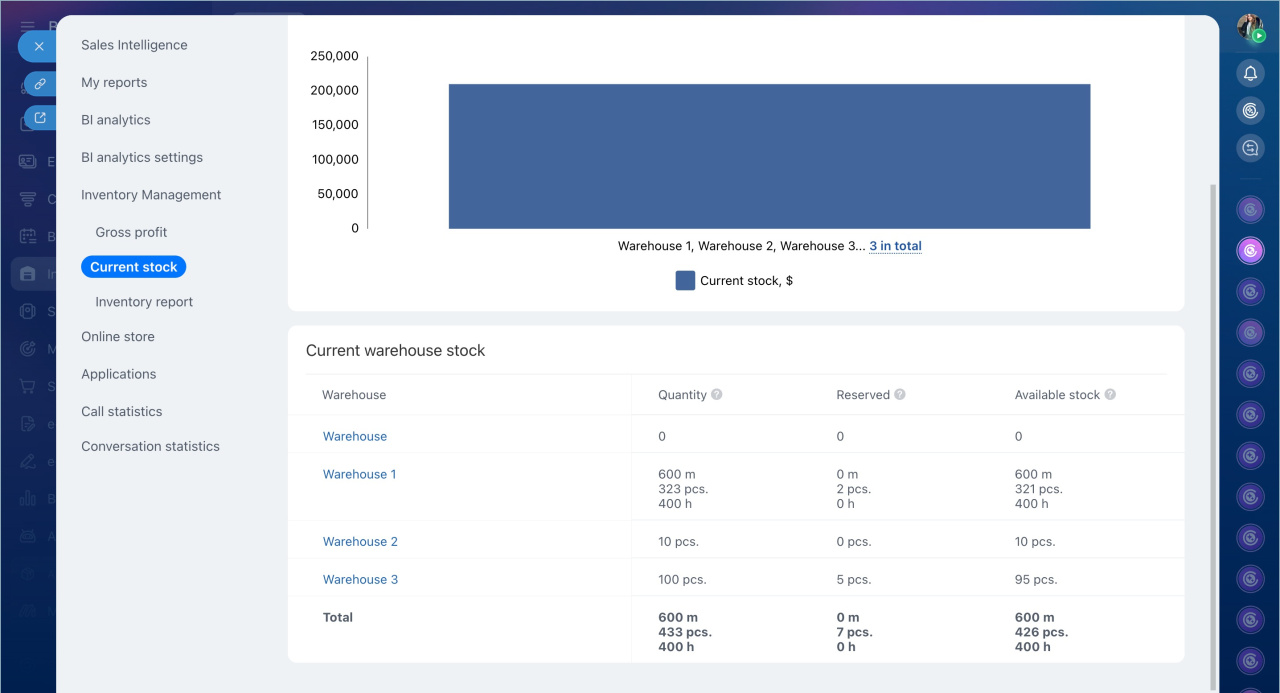
2. Open the Inventory report and select a warehouse at the bottom.
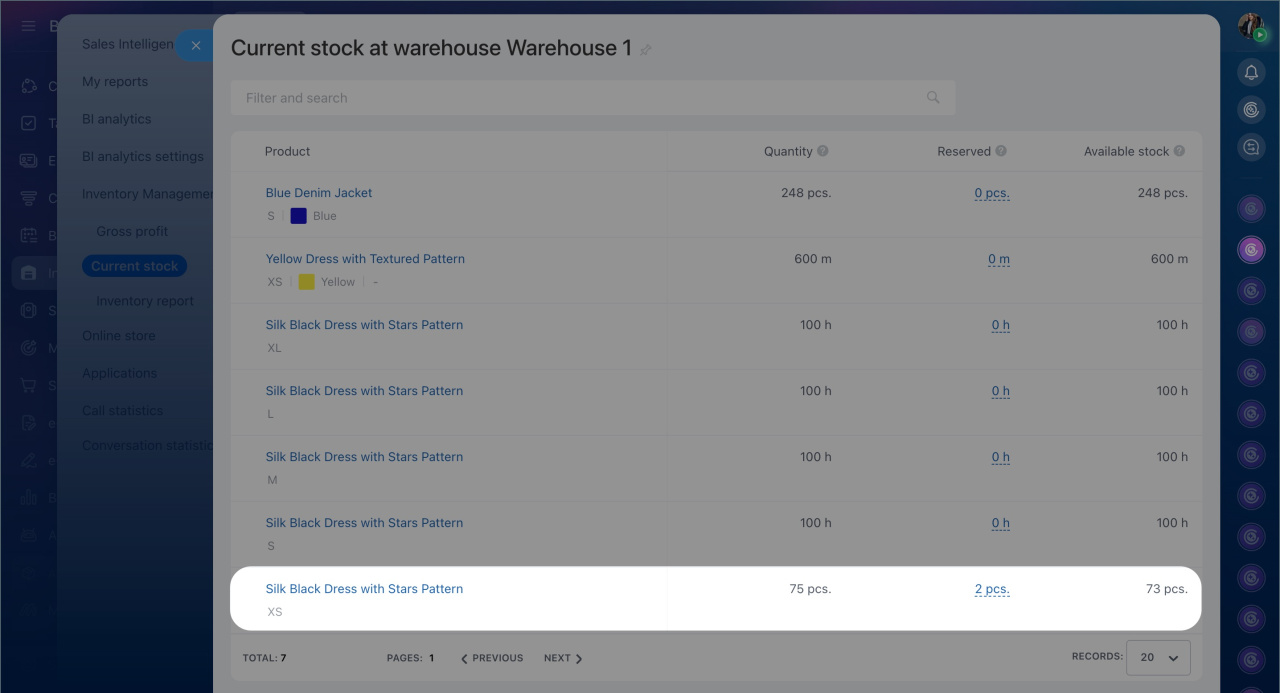
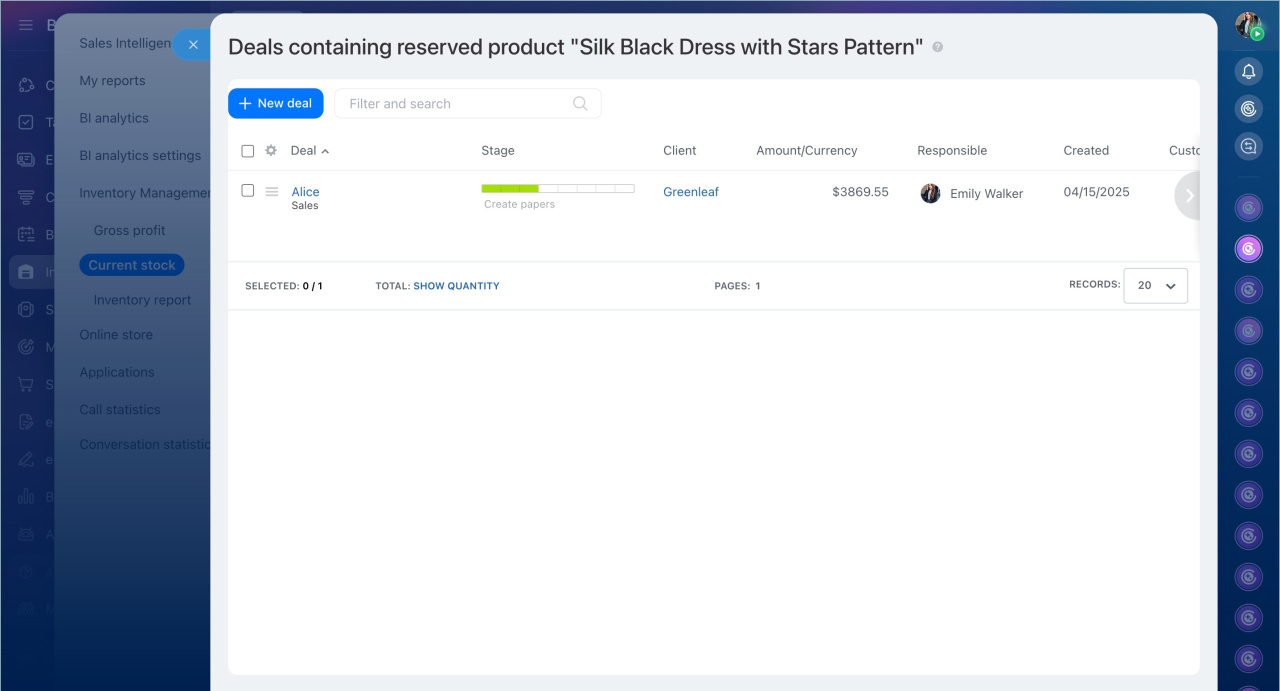
3. The warehouse inventory table displays the quantity, reserved items, and available stock for each product. Click the value in the Reserved field to see a list of deals where the product is reserved.
In brief
- Reserving products allocates them to a deal for a customer and reduces the available stock. While reserved, the product cannot be sold to another buyer.
- You can check which deals have reserved products in the deal form, using a CRM filter, in the product form, or in the inventory report.
- The deal form shows the quantity, reserved items, and available stock. The product form provides a list of deals with reservations.
- Filters are useful for finding all deals with a specific product. The inventory report helps evaluate reservations across warehouses and decide whether to keep the reservation, release the product, or plan restocking.
