
If the new two-factor authentication is enabled, confirm your login using the Bitrix24 mobile app. If your phone is lost, you changed devices, or the app is unavailable, restore access using alternative methods.
New two-factor authentication in Bitrix24
In this article:
Confirm login without the mobile app
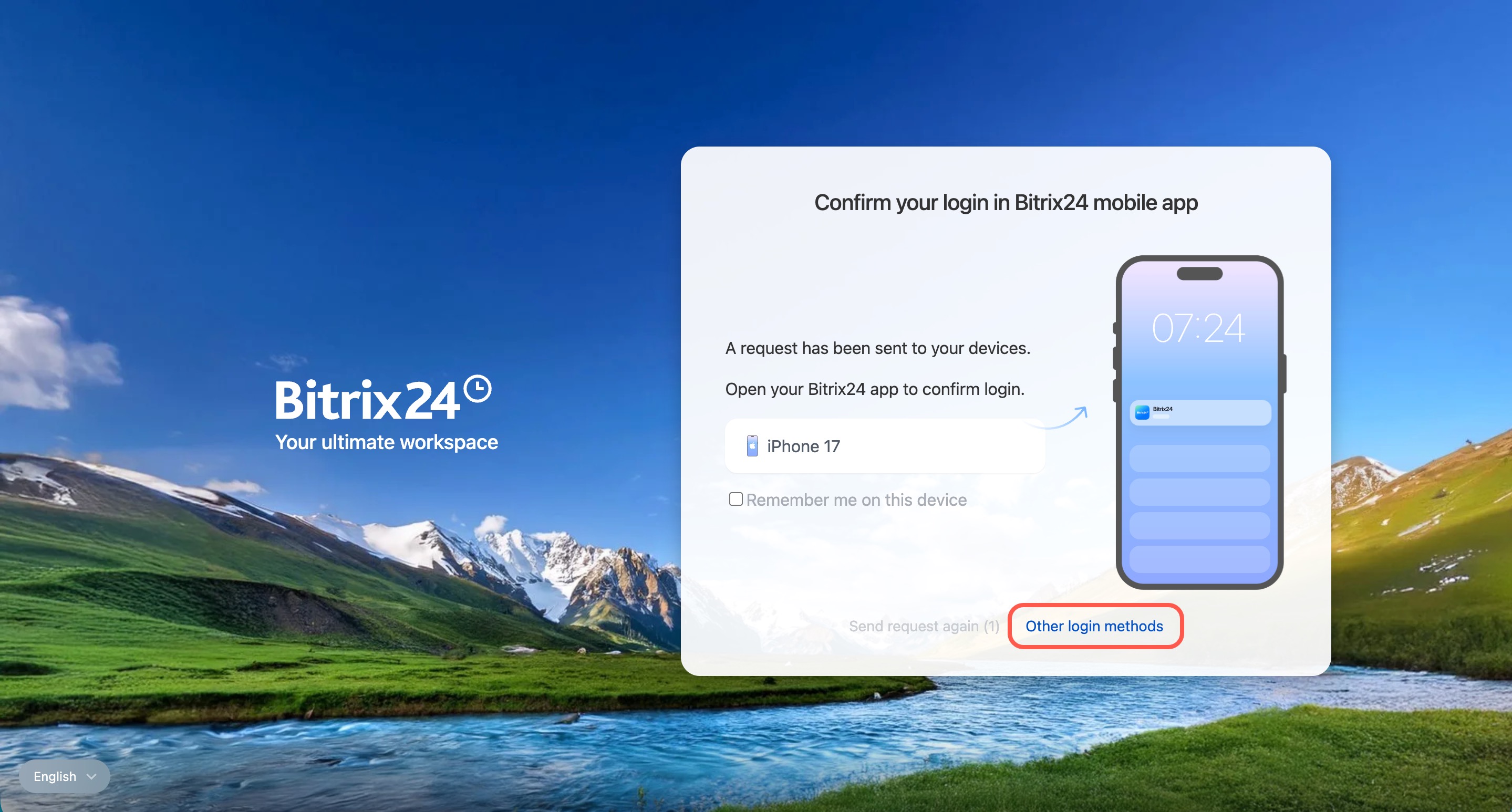
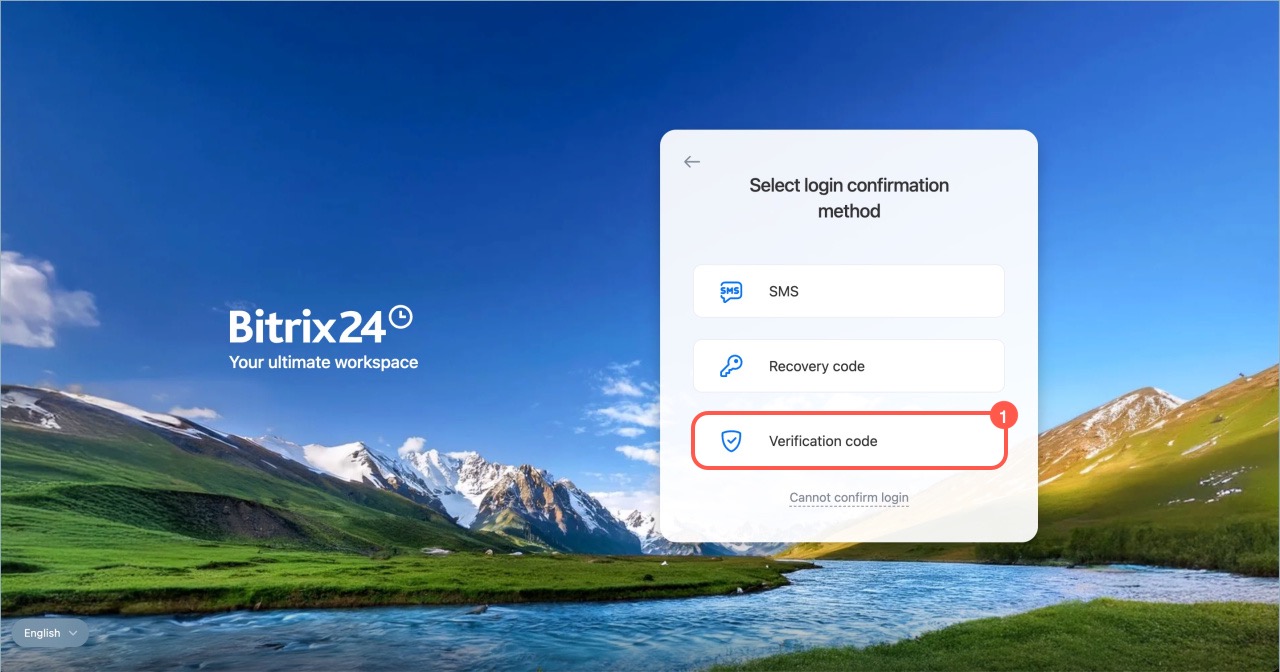
If the mobile app is unavailable, click Other login methods and select one of the following:
- SMS
- Recovery code
- Verification code
- Contact your Bitrix24 administrator to temporarily disable two-factor authentication.
SMS
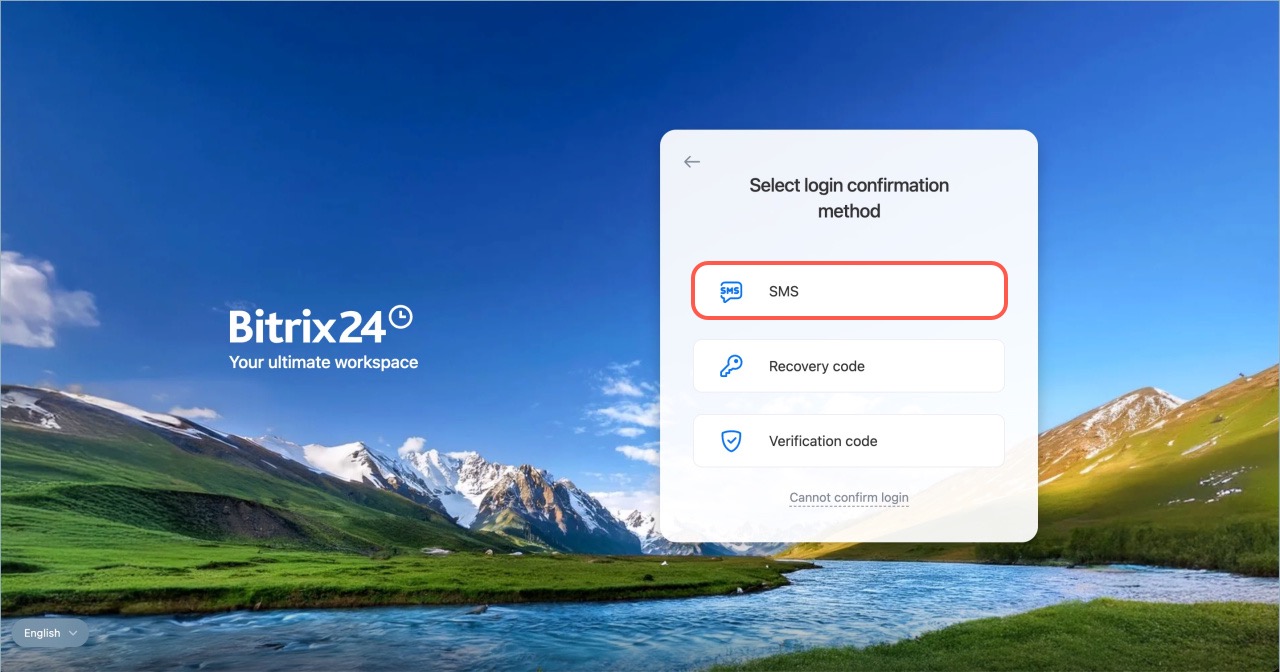
Use this option if you have access to the phone number linked to your account.
- Click SMS.
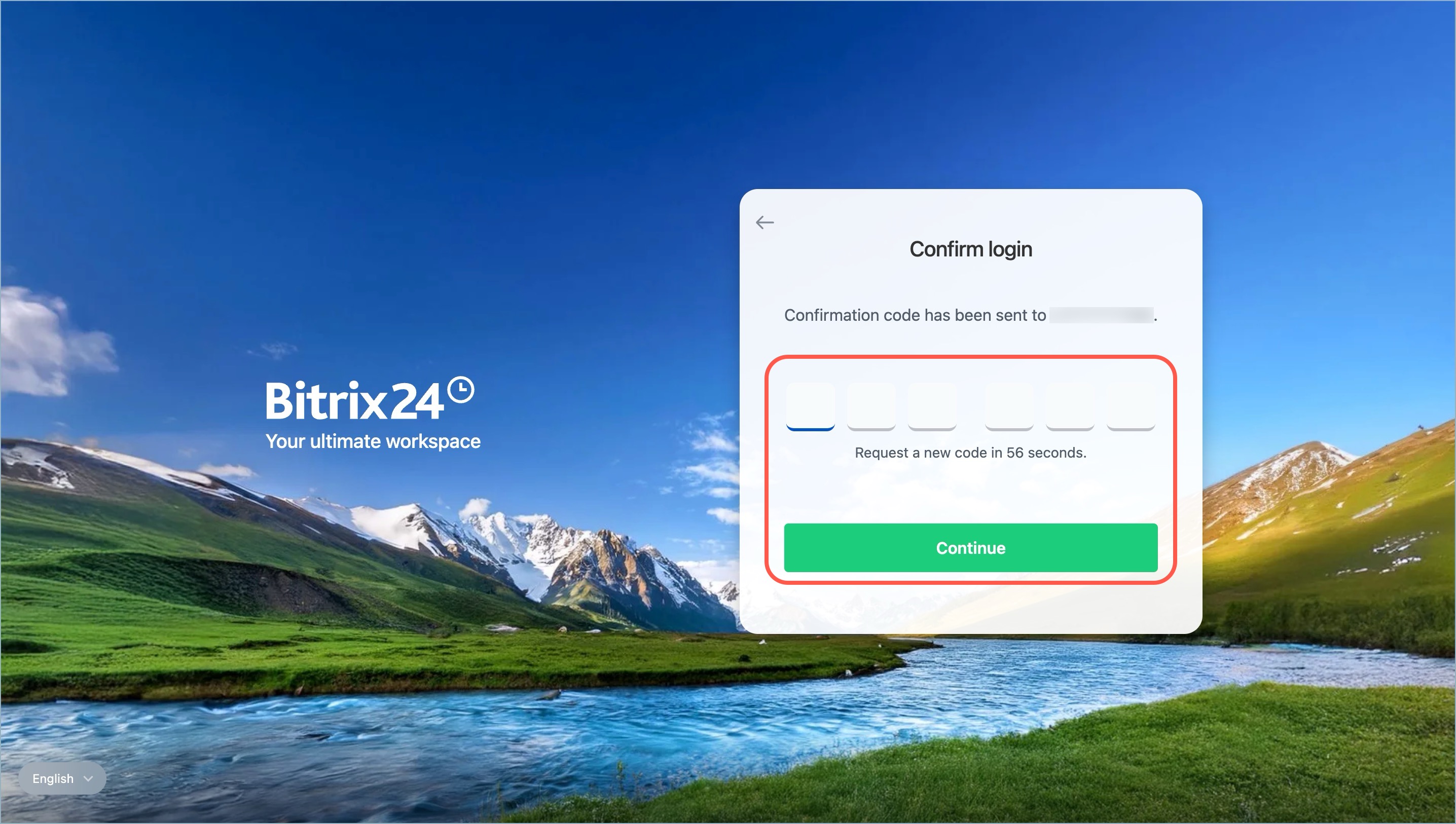
- Enter the code from the message and click Continue.
- You will be logged in to Bitrix24.
Recovery codes
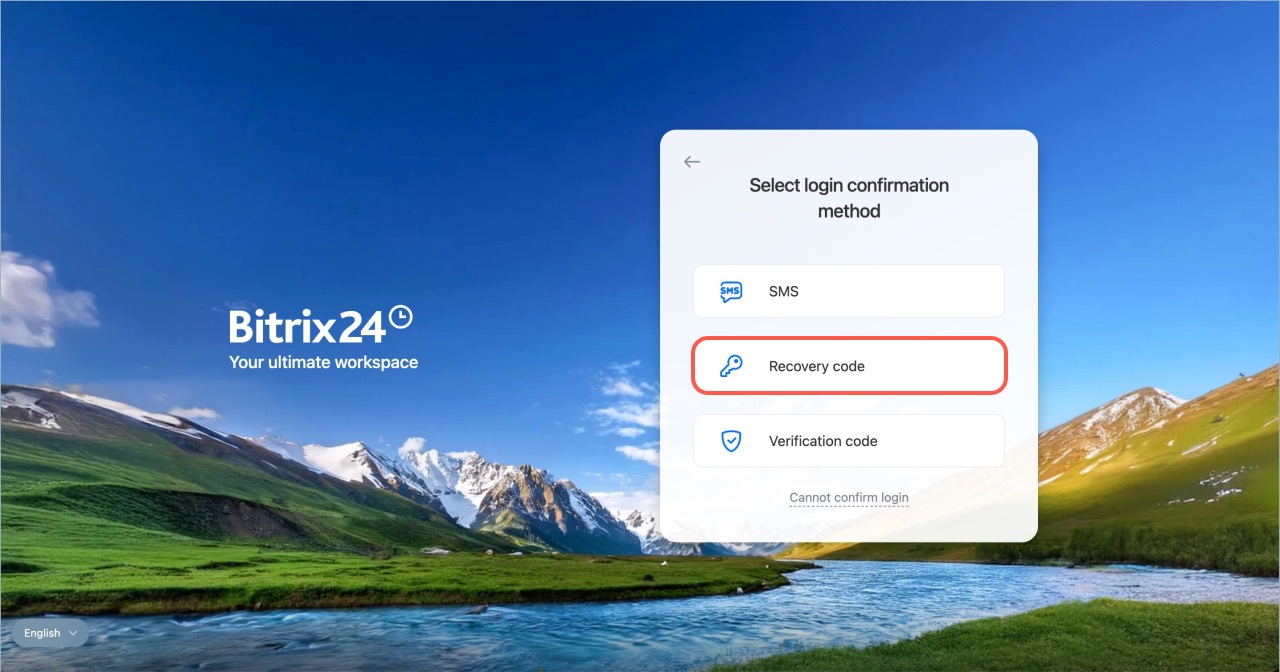
Recovery codes are generated when you set up two-factor authentication. If you saved the codes earlier, enter one of them. Each code can be used only once.
Save recovery codes
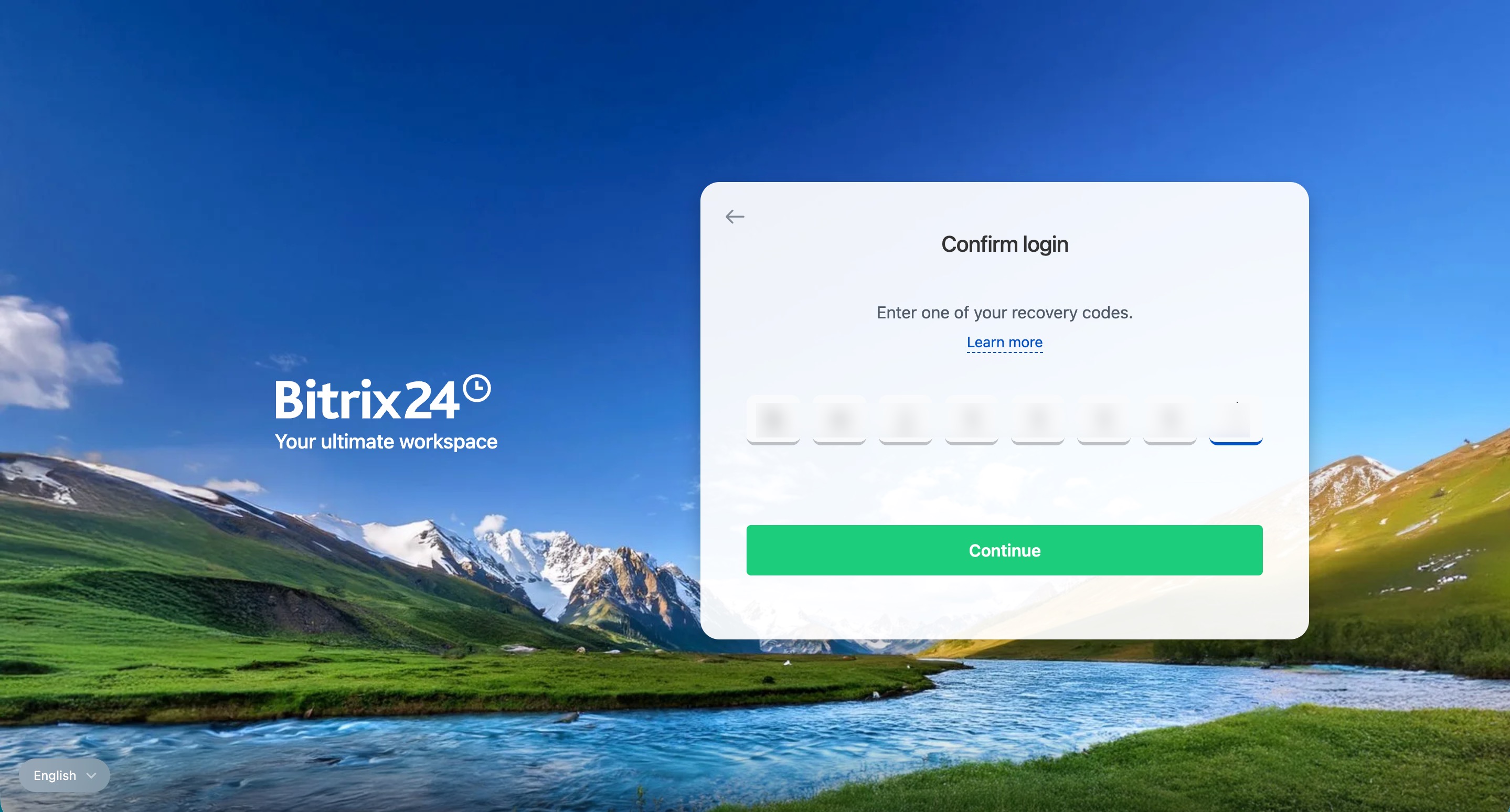
- Click Recovery code.
- Enter one of the saved codes.
- Click Continue. If the code is correct, you will be logged in.
Verification code
Use this option if mobile internet access is unavailable.
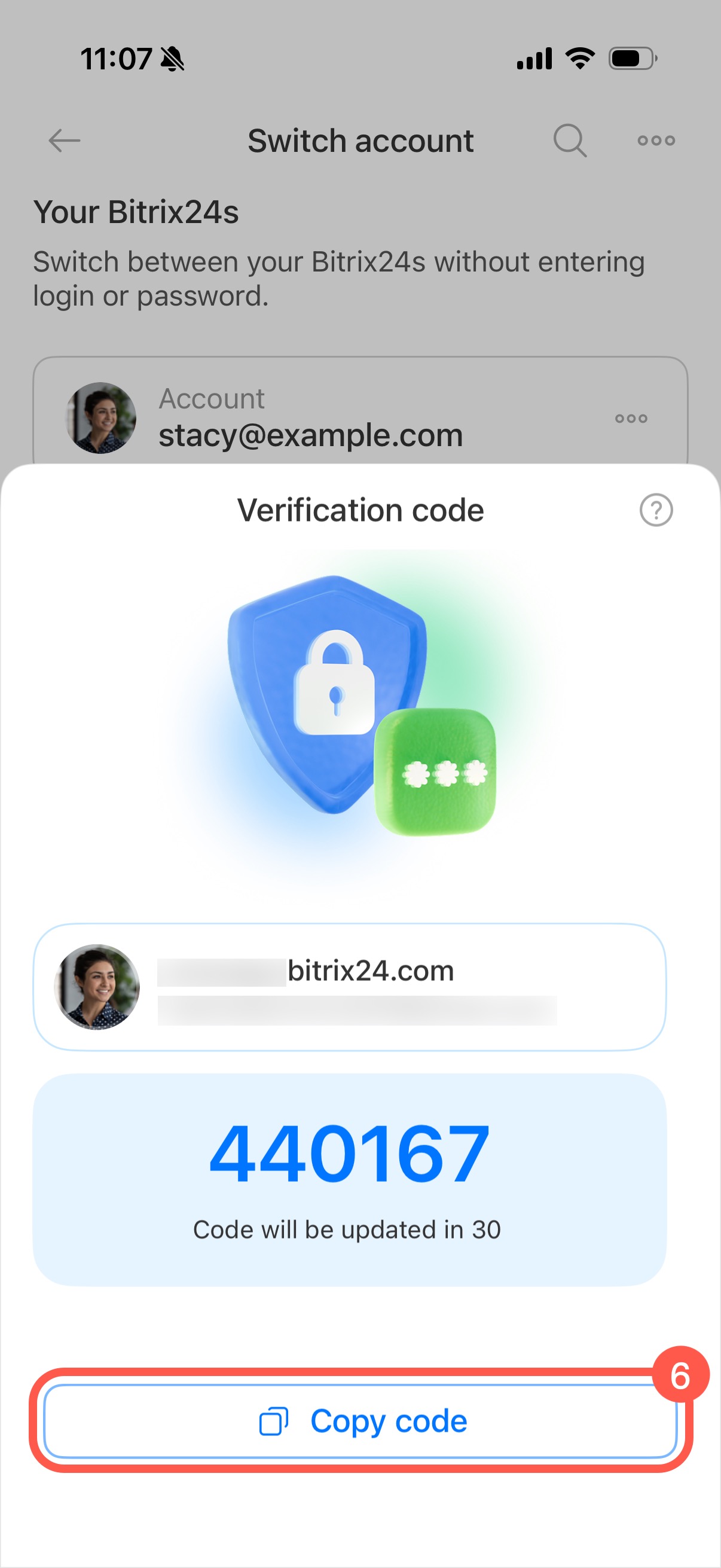
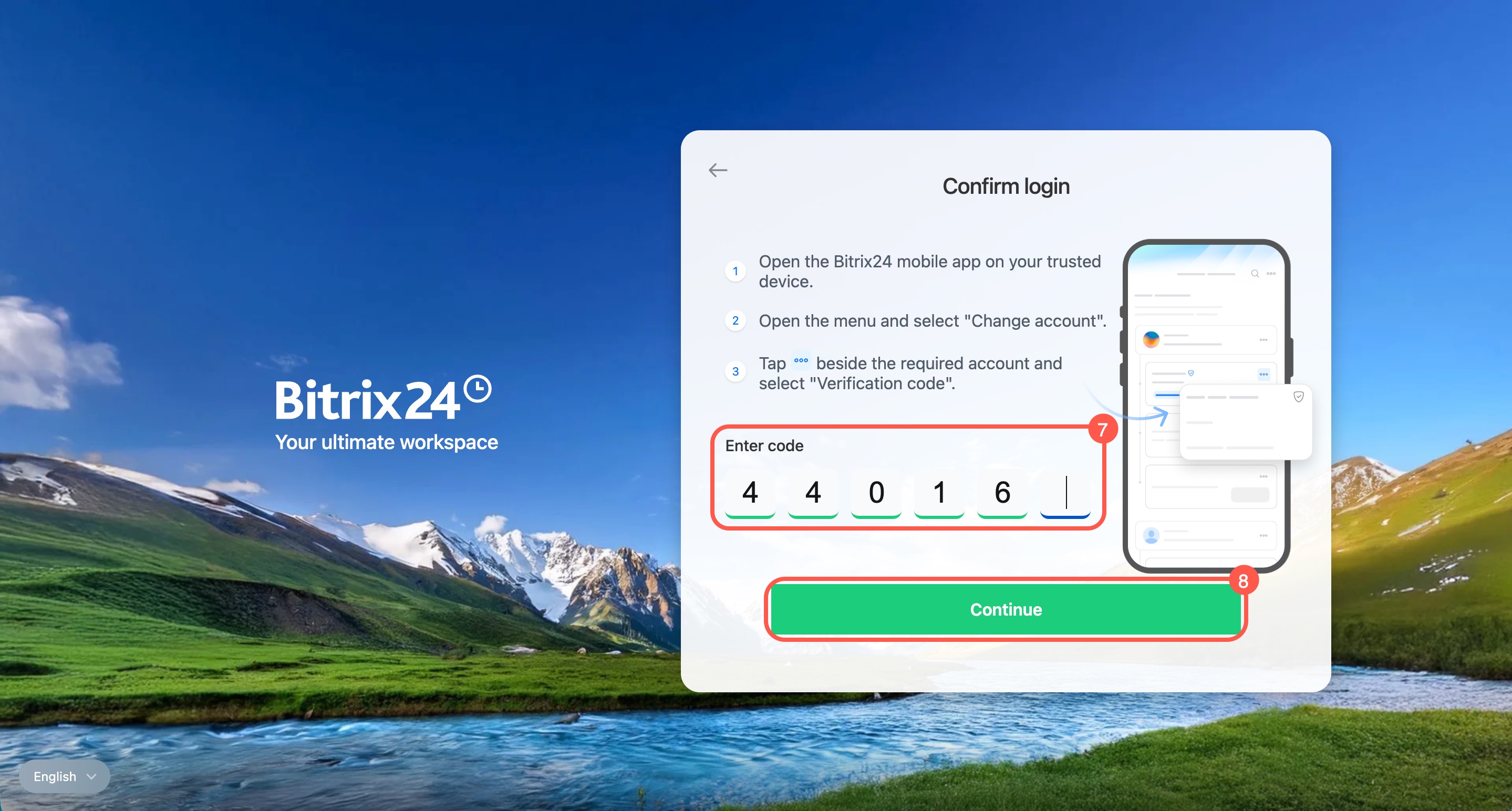
- Click Verification code. Bitrix24 generates a code and sends it to the mobile app.
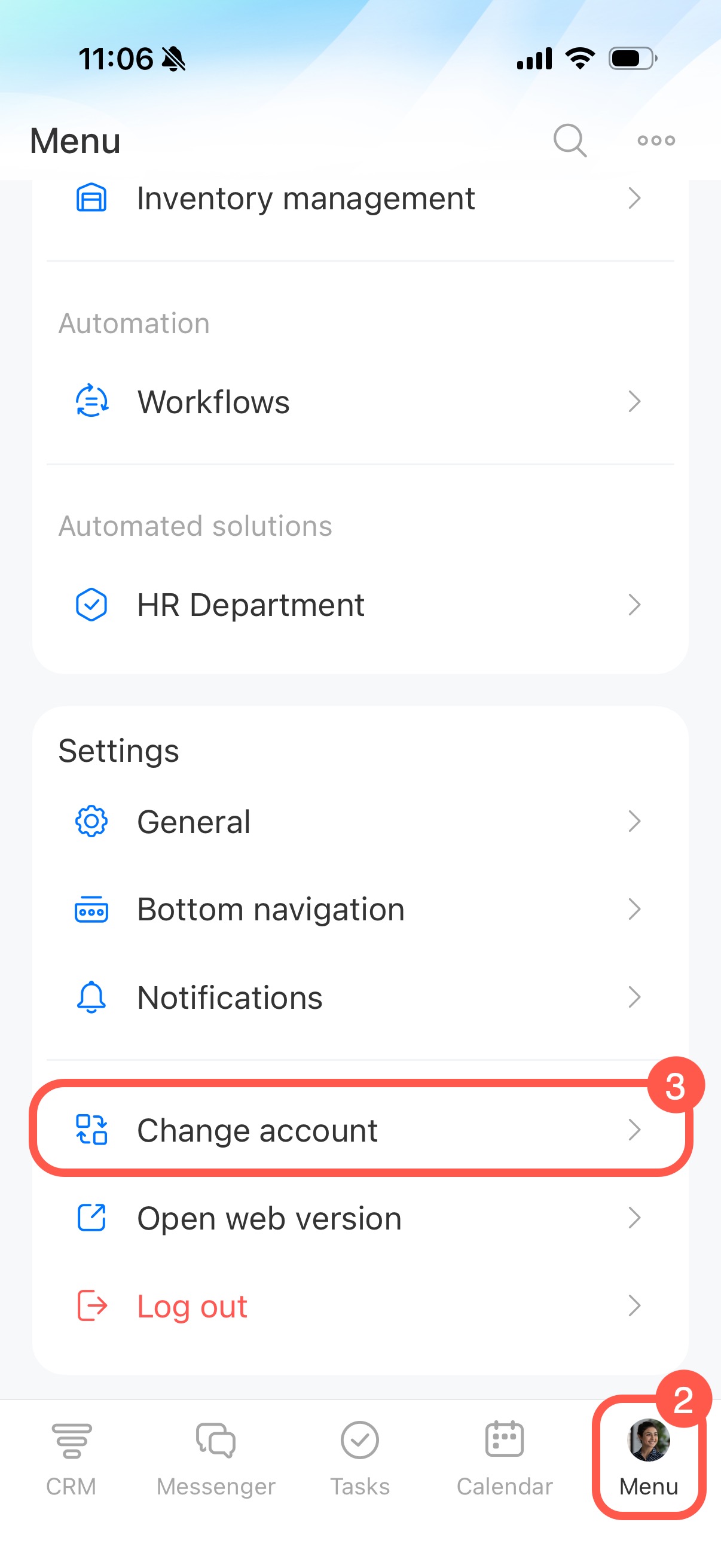
- Open the Bitrix24 mobile app on a trusted device.
- Tap Menu > Change account.
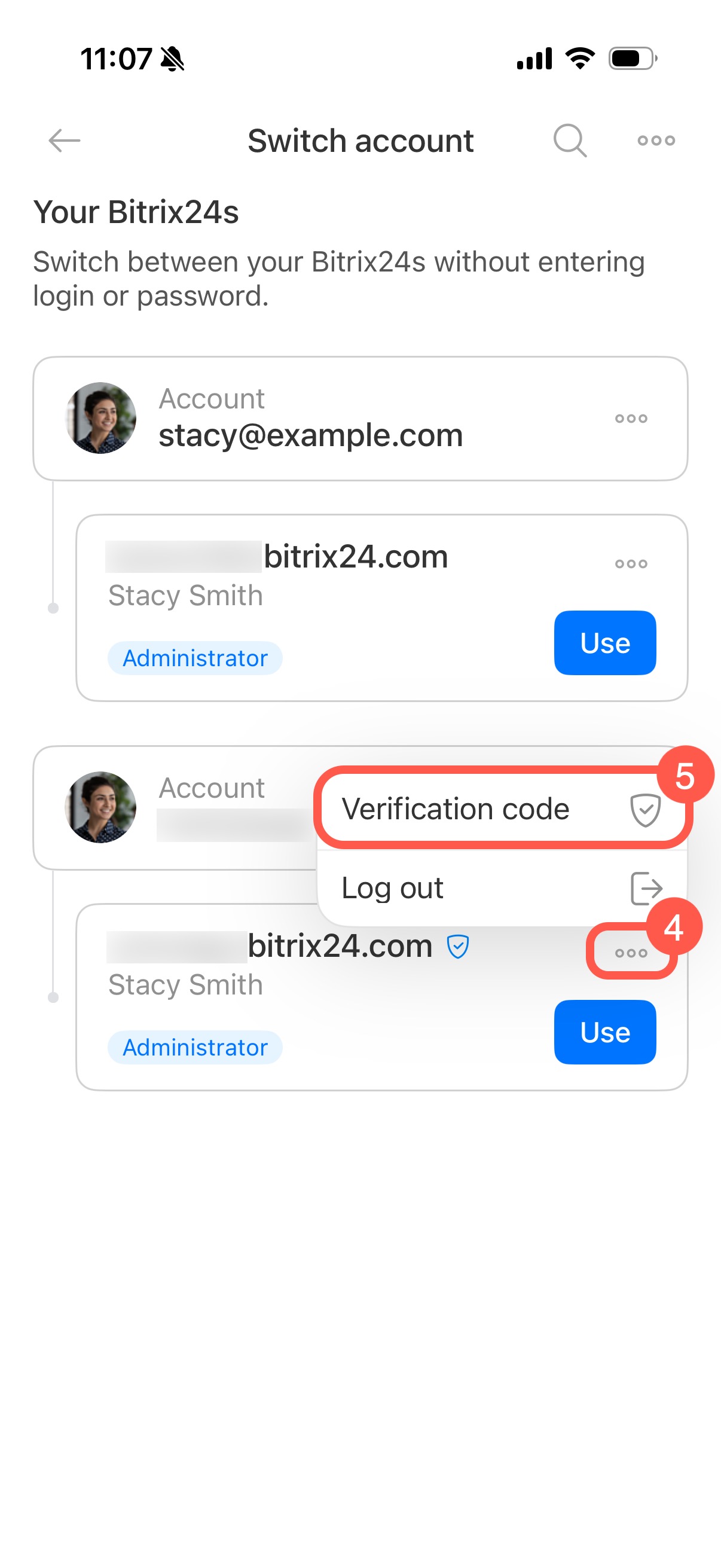
- Tap the three dots (...) next to your account and select Verification code.
- Copy or remember the code.
- Enter the code in Bitrix24 on your computer and click Continue. If the code is correct, you will be logged in.
Temporarily disable two-factor authentication
If SMS and recovery codes are unavailable, contact your Bitrix24 administrator and request temporary access recovery.
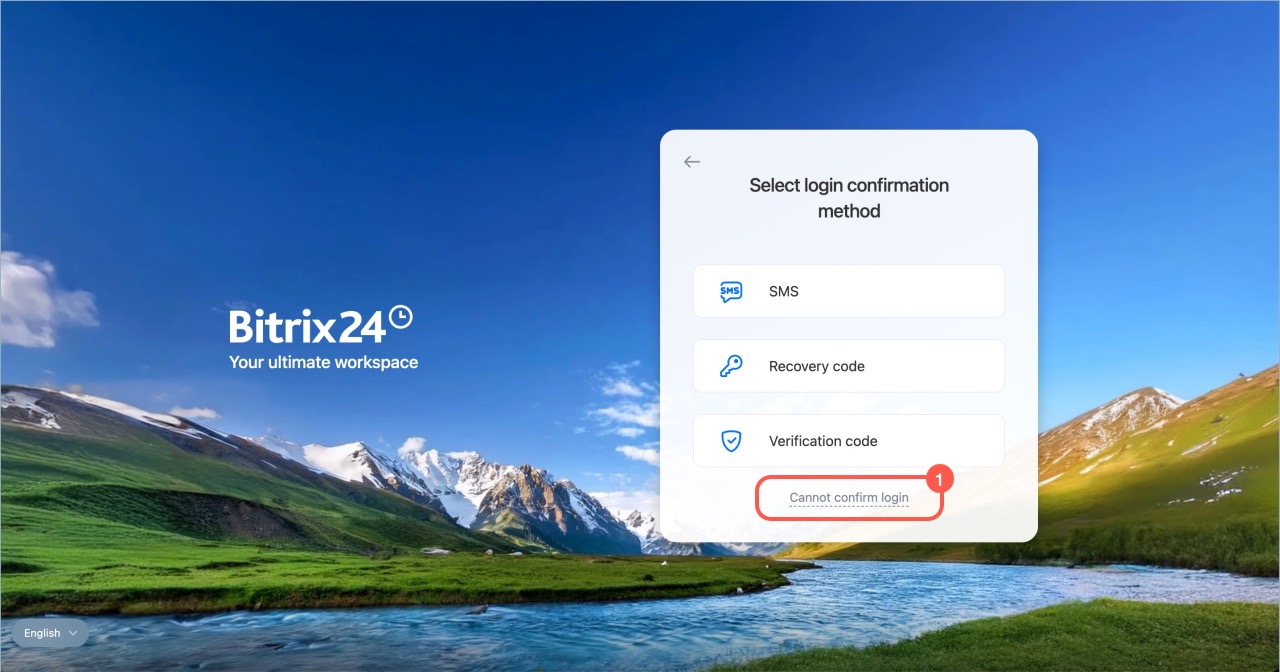
- Click Cannot confirm login > Send request. The administrator will contact you using an available communication channel.
- Wait until the administrator disables two-factor authentication, then refresh the login page. Access will be restored automatically.
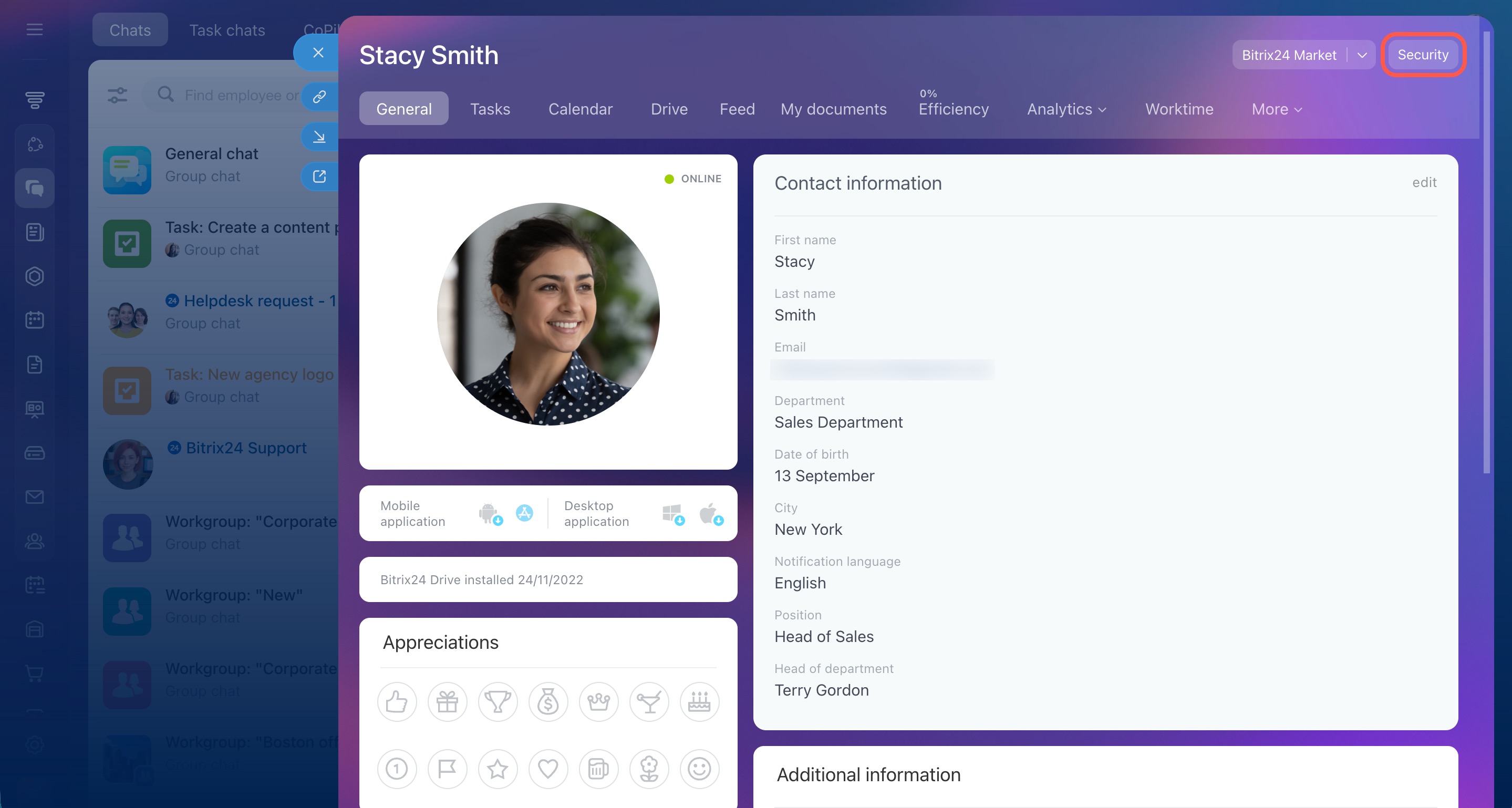
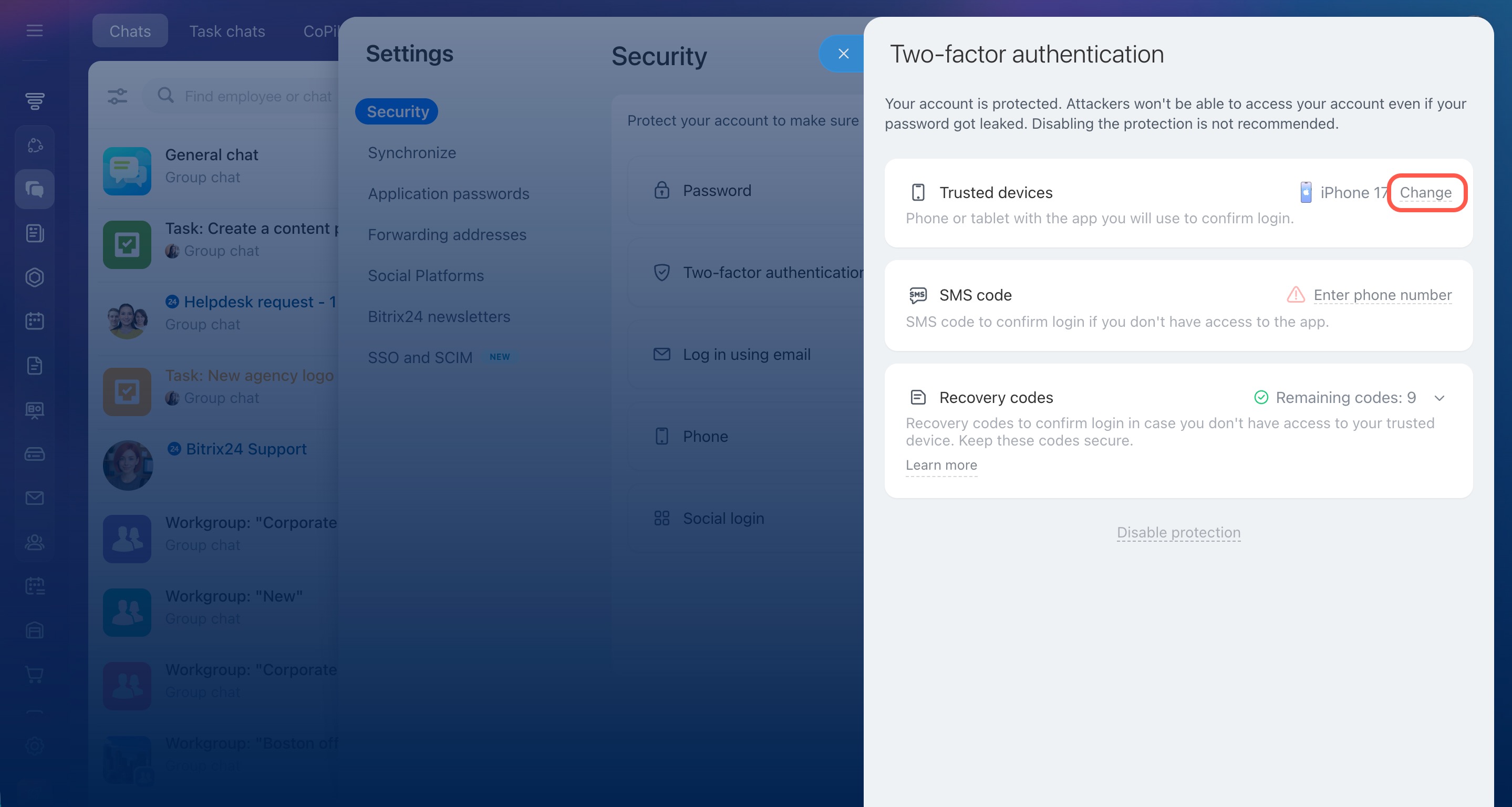
- Enable two-factor authentication again and update your trusted device if needed:
- Open your personal profile and go to Security.
- In the Trusted devices section, click Change.


Temporarily disable two-factor authentication for an employee (admins only)
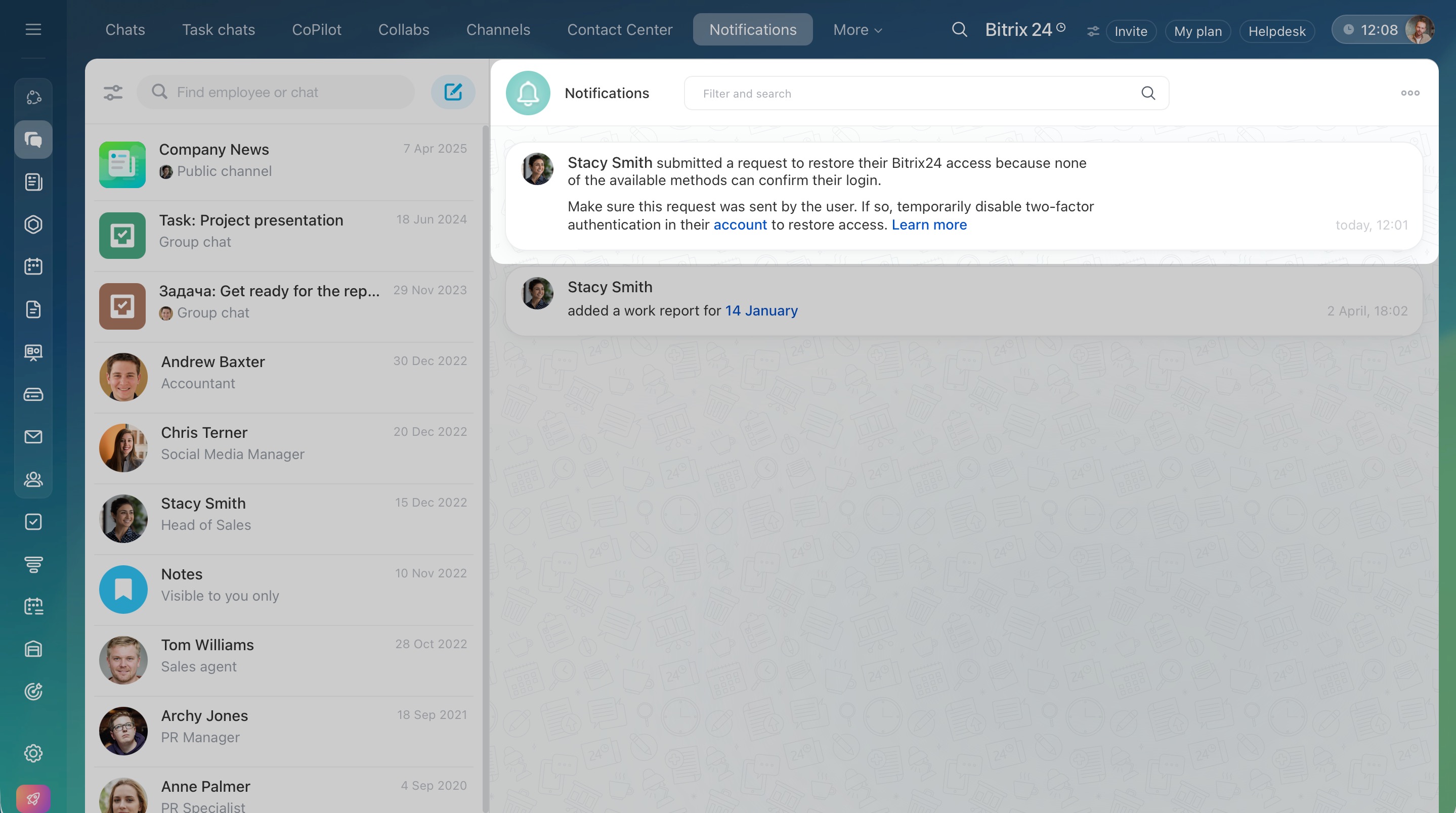
If an employee lost their phone and cannot log in using other methods, they can send an access recovery request.
A notification appears in Bitrix24. Make sure the request is legitimate. Contact the employee using any available communication channel.
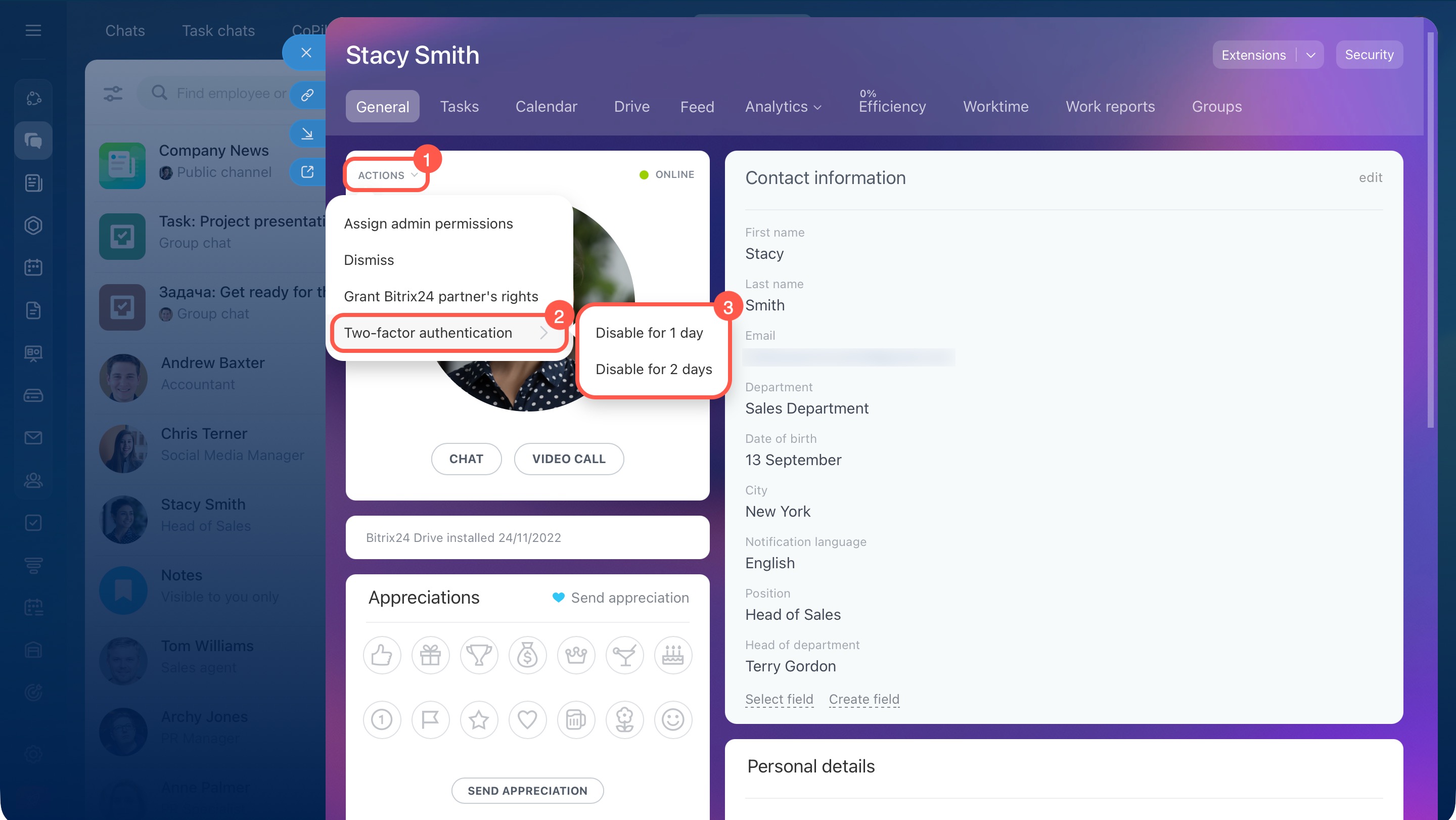
To temporarily disable two-factor authentication:
- Open the employee profile and click Actions.
- Click Two-factor authentication.
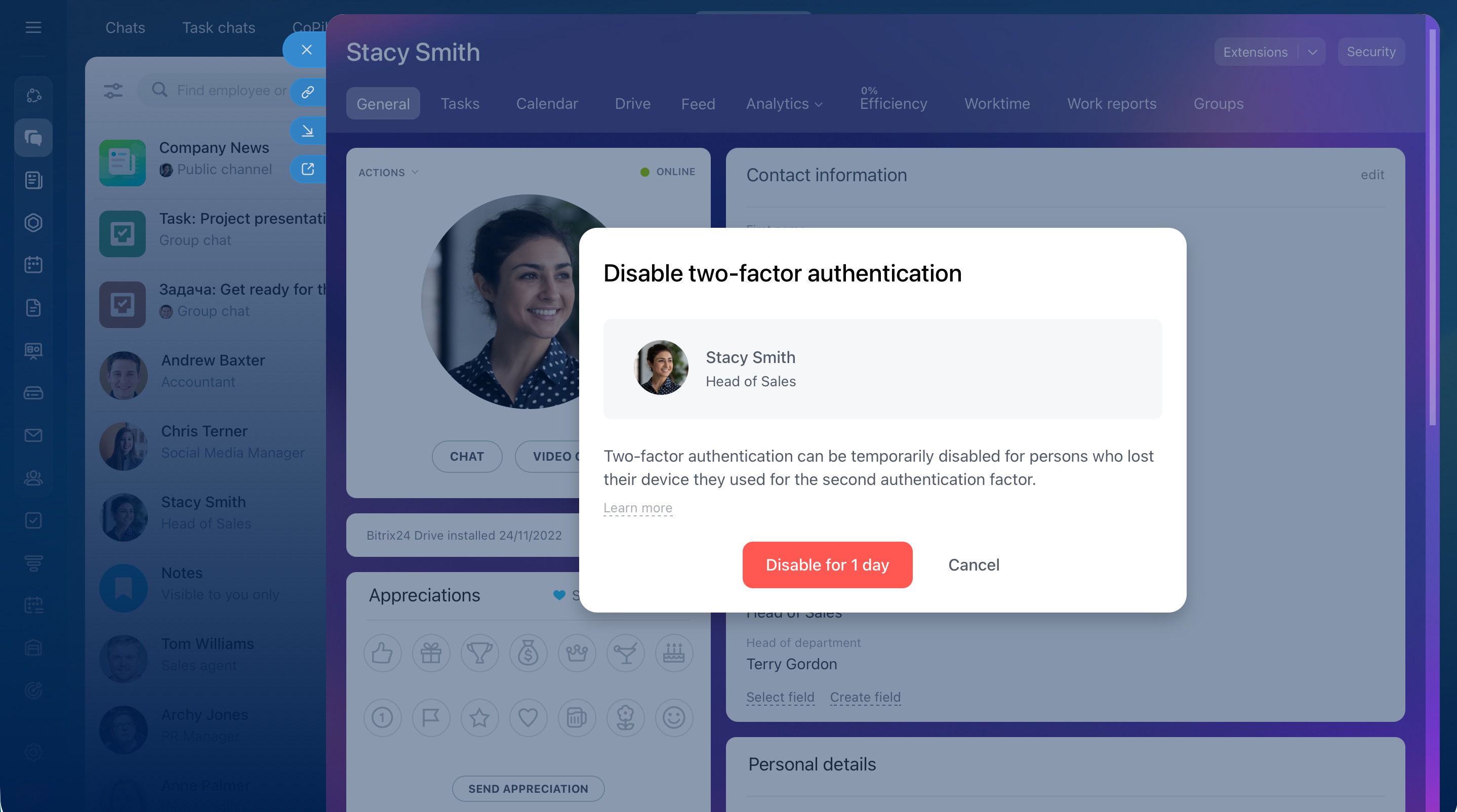
- Select the duration: one or two days.
The employee can then log in and set up two-factor authentication again.
In brief
- If the new two-factor authentication is enabled, confirm your login using the mobile app.
- If the mobile app is unavailable, use an SMS code, recovery code, or request temporary disabling of two-factor authentication.
- Click Other login methods on the Bitrix24 login page.
- Use SMS if you have access to the linked phone number.
- Recovery codes are created during setup. Enter any saved code. Each code can be used only once.
- To request temporary disabling of two-factor authentication, click Cannot confirm login > Send request.
- The administrator reviews the request and disables two-factor authentication for one or two days.
- After you log in, set up two-factor authentication again.
