
The dashboard form helps employees quickly understand how to use it and what a report shows. It includes key details such as a description, images, the report author, the selected time period, and a link to discuss the report with colleagues.
For example, when managers open a new sales report, they can read the description to see which metrics help evaluate the team's performance. If they need more context, they can start a discussion right from the form.
In this article:
Configure the report form
You can set up the form when you create a new report or update an existing one.
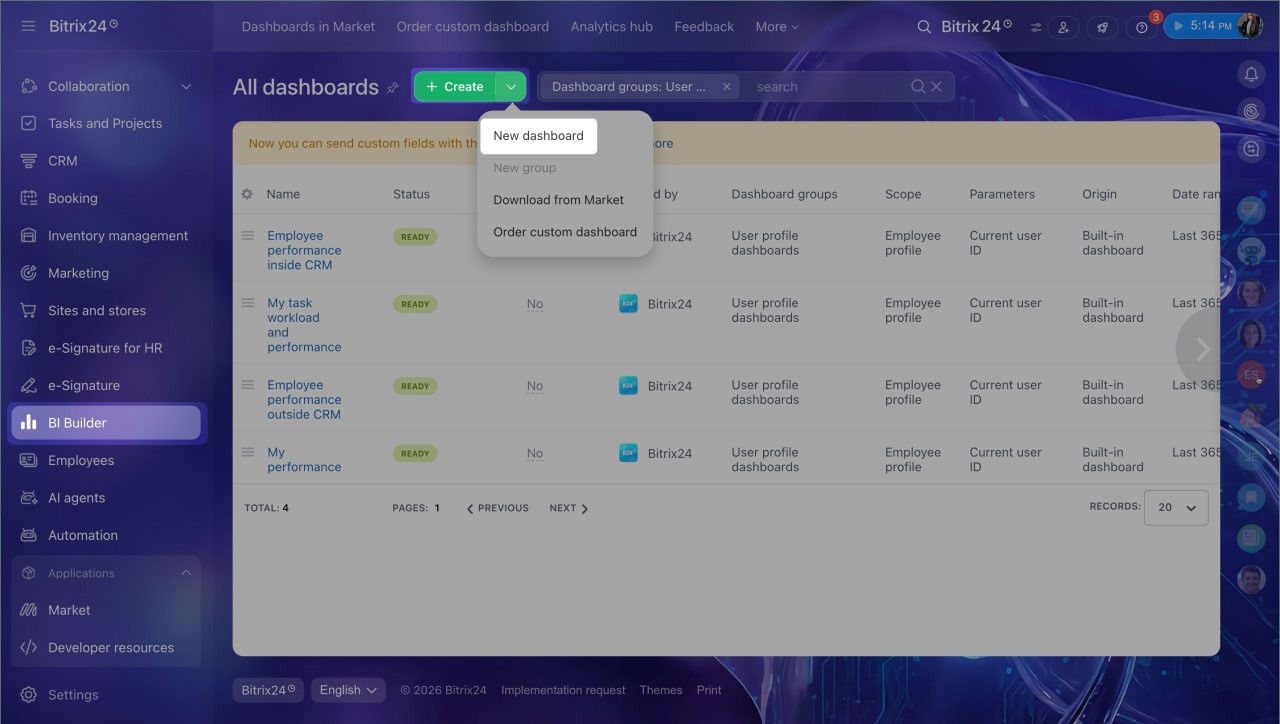
For a new report. Go to BI Builder > Create > New dashboard.
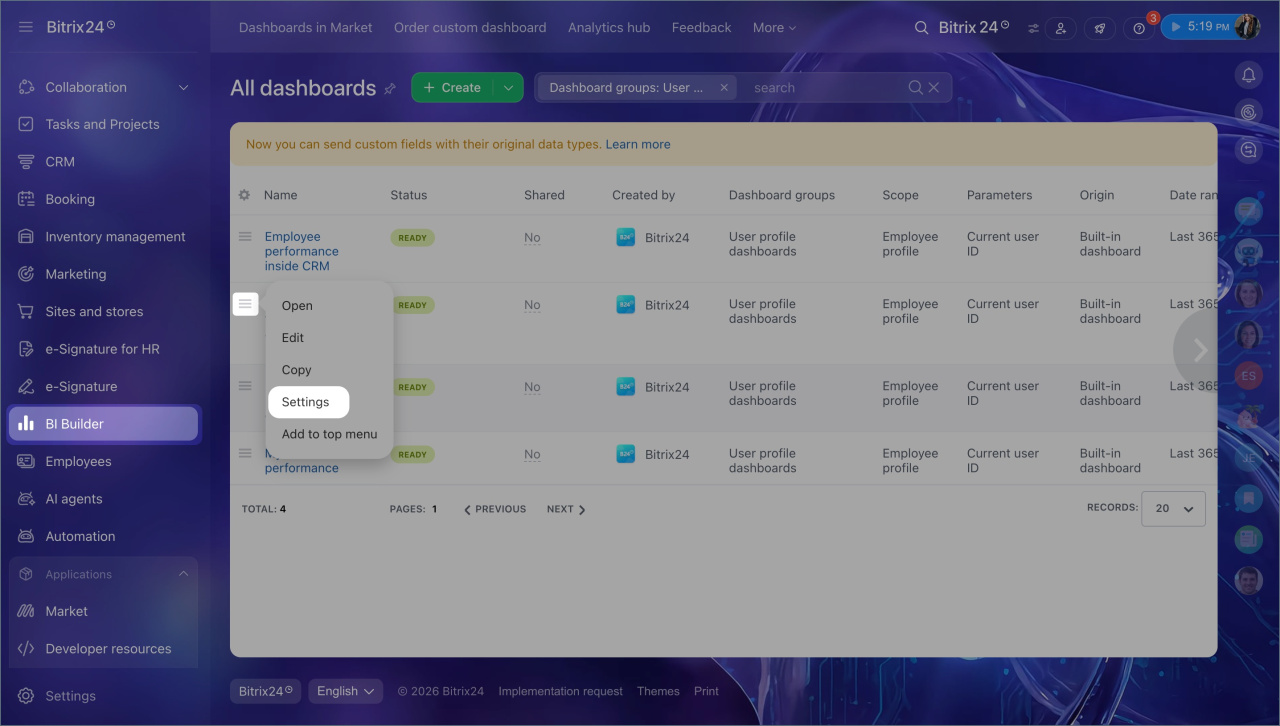
For an existing report. Open the report list, select the report you need, and click Menu (≡) > Settings.
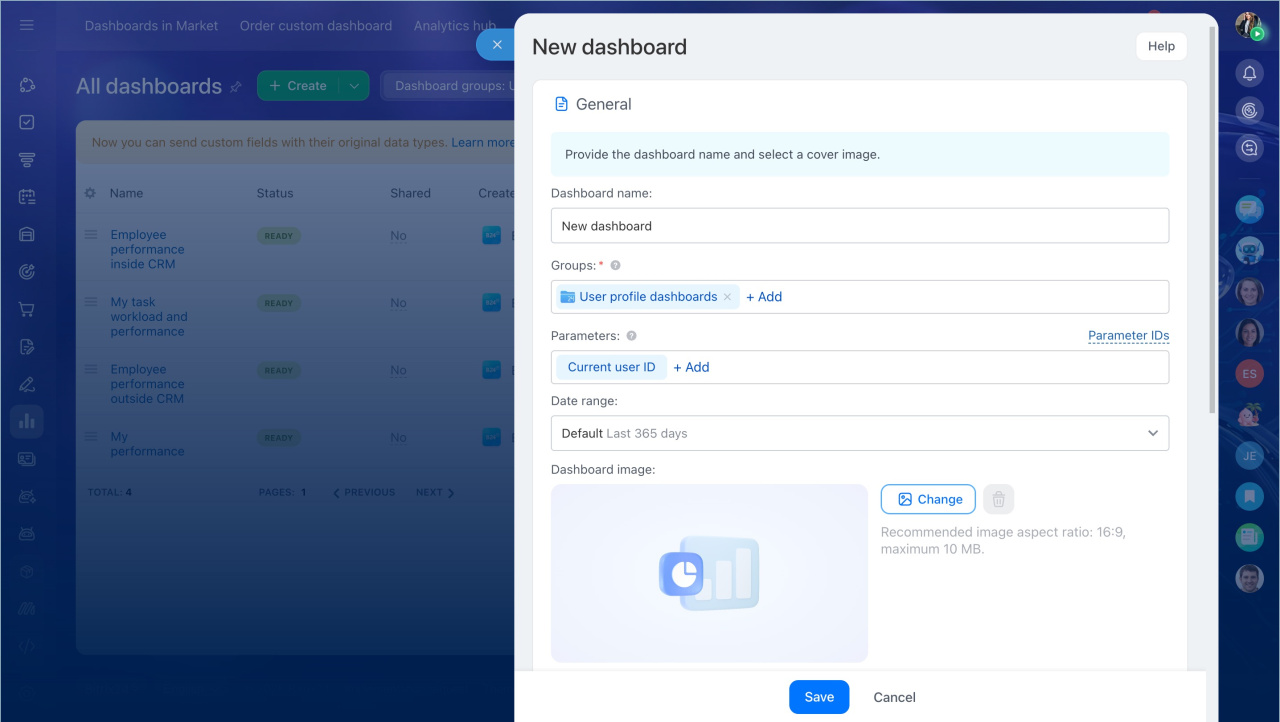
In the form that opens, complete these three sections:
General. In this section, you set the main report details: name, groups, parameters, period, and cover image. This helps colleagues understand what the report is about, find it faster, and open it with the right settings.
- Dashboard name: Enter a clear name that briefly explains what data the report shows.
- Groups: Select the workgroup the report belongs to. A report is always created inside a workgroup, and access depends on the permissions set for that workgroup. A workgroup is a collection of reports on one topic. Bitrix24 includes ready-made groups for Market reports and system reports.
Configure access permissions for BI Builder - Parameters: Add variables to filter data or show the values you need in the report. For example, you can use the Current user ID parameter to display data for a specific employee.
Configure dashboard parameters in BI Builder - Date range: Select the time range for the report. You can keep the period from the report settings or set a different one for this report. For example, the report can open with the last 365 days selected by default.
- Dashboard image: Upload an image to make the report easier to recognize.
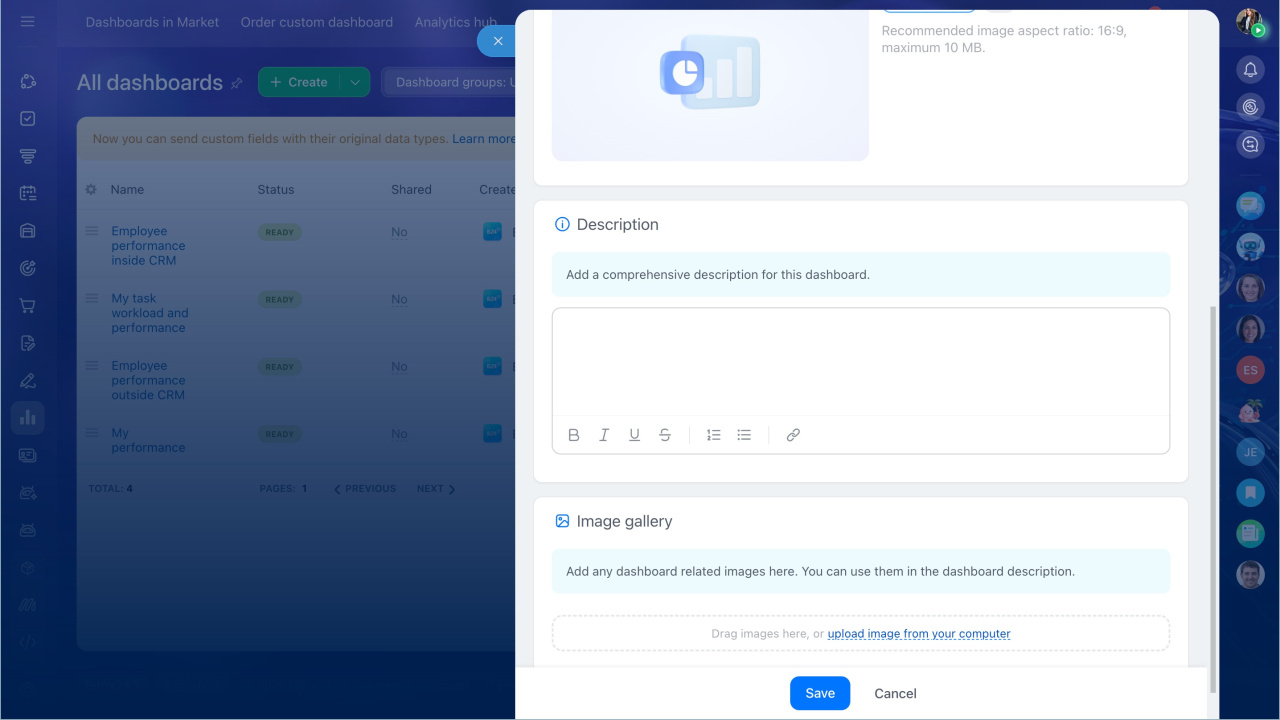
Description. Add text that explains what the report is for and which business tasks it helps solve. For example: "This report shows inbound and outbound call trends. A manager can use it to assess team workload and identify the days when employees miss the most calls."
Image gallery. Upload screenshots, diagrams, or sample charts. These images support the description and help colleagues quickly understand the report layout and find the data they need.
After you finish, click Save.
BI Builder settings
View information in the dashboard form
After setup, you can open the form from the report itself.
Go to BI Builder, open the dashboard you need, and click General.
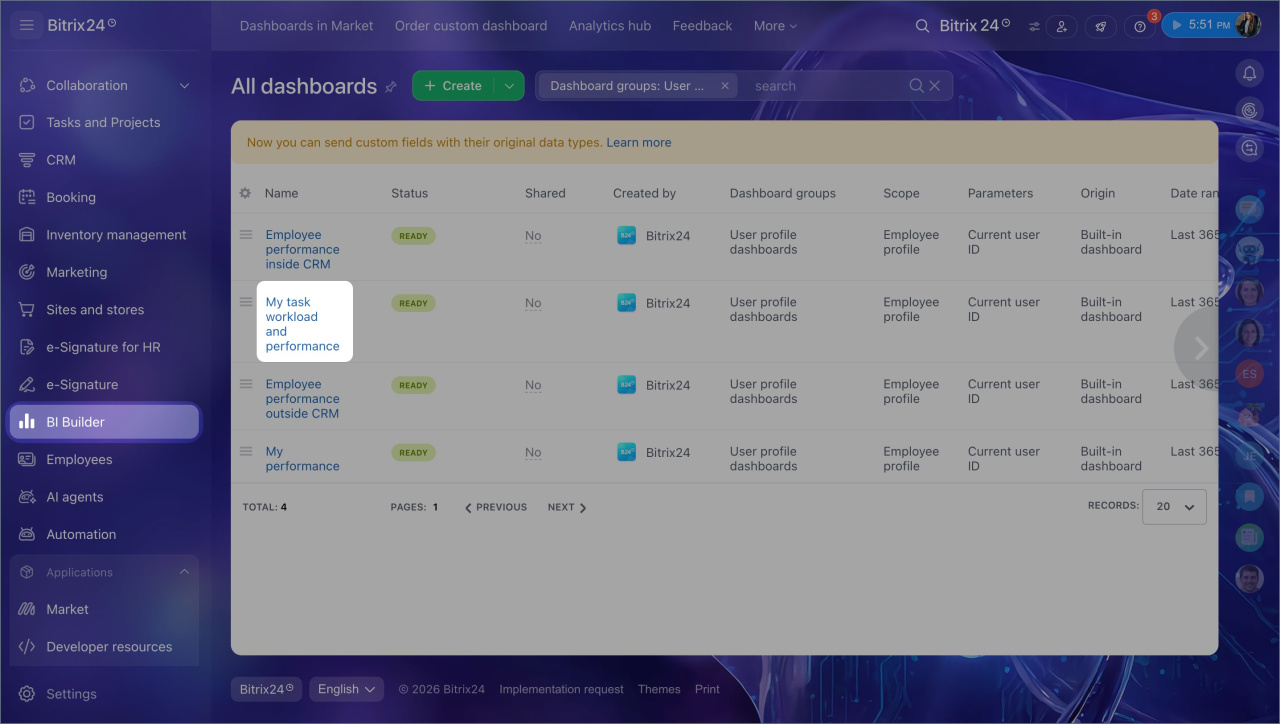
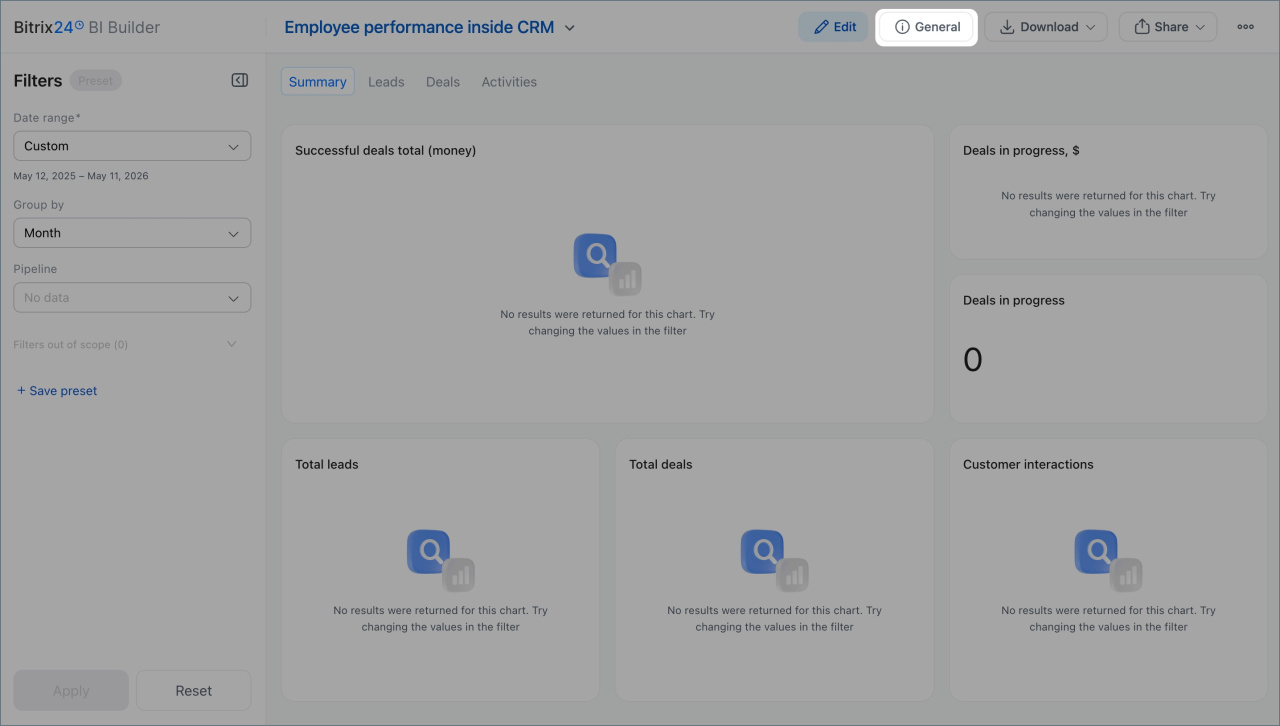
The form shows a quick overview of the report, including the name, report type, number of views, cover image, images, description, last updated date, and period. This helps you understand what the report is for, which metrics it includes, and how to use it.
For system reports and reports from Bitrix24 Market, the form also shows a rating. You can rate the report and leave feedback. This helps evaluate how useful the report is and collect ideas for improvement.
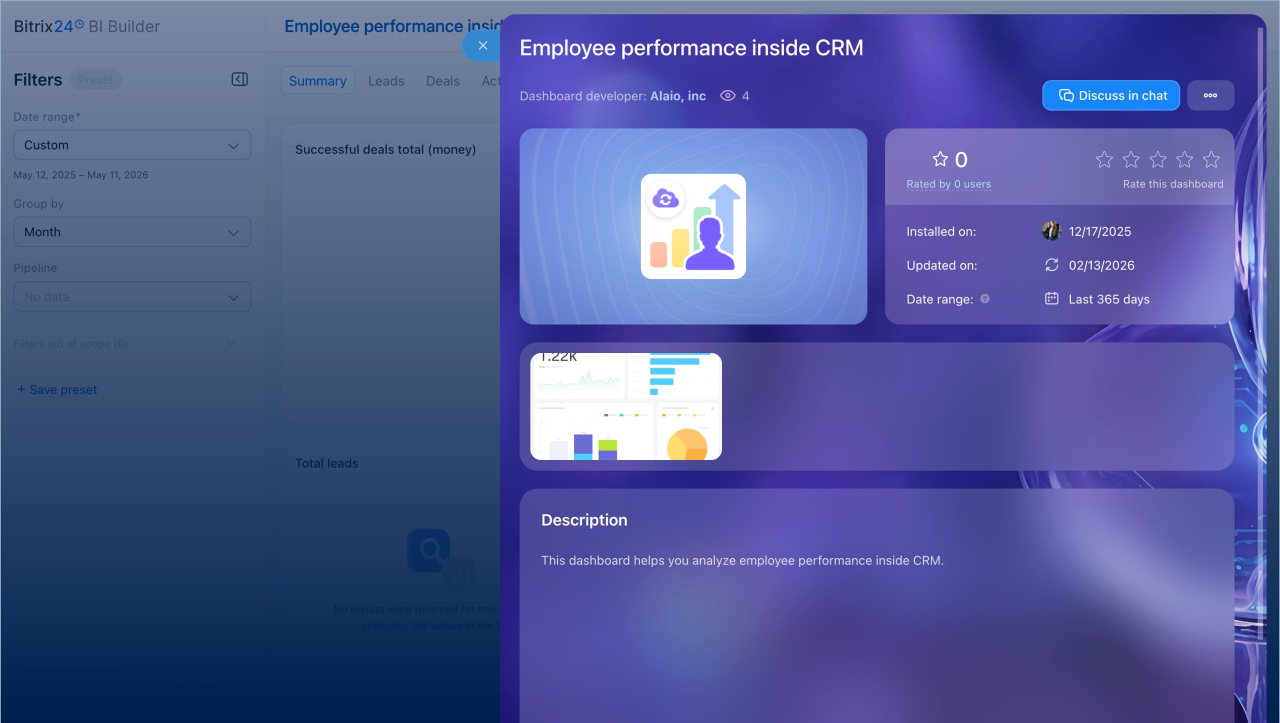
If you have a question about the report, click Discuss in chat. Bitrix24 opens a chat where you can discuss metrics, report structure, or suggestions for improvement.
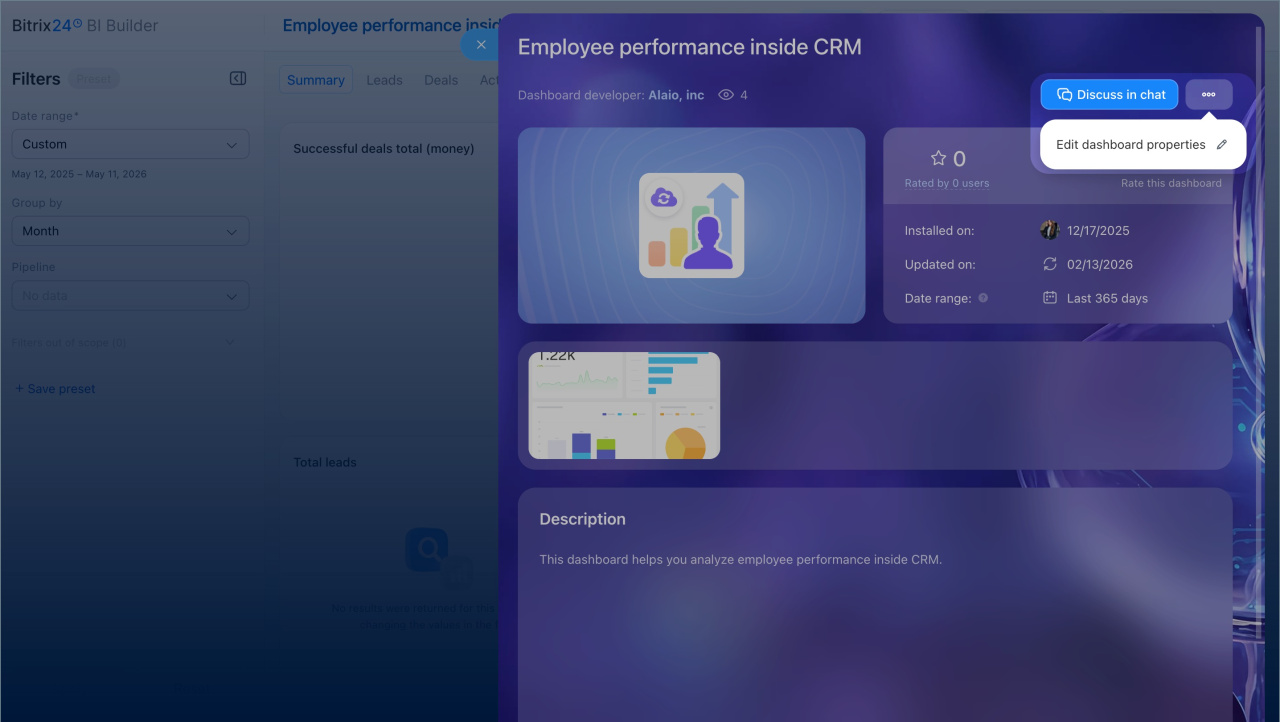
The Three dots (...) menu includes actions for the report. You can open the form editor or delete the report if you have the required permissions.
Configure access permissions for BI Builder
In brief
- The report form helps you understand what a report is for and what data it includes.
- You can configure the form when creating a new report or in the settings of an existing report.
- The form has three sections: General, Description, and Image gallery.
- In your own reports, you can change the name, cover image, description, and images. In system reports and reports from Bitrix24 Market, you can only change the period, report groups, and parameters.
- You can open the form with the General button. It includes the description, images, period, number of views, and a link to discuss the report with colleagues.