
In BI Builder, you can create analytical dashboards using your account data. To keep data secure and workflows efficient, assign access permissions based on each employee’s role.
In this article:
Define roles and permissions
Review what employees do and what access they need.
- Administrator: Manages BI Builder settings and user access. Needs full access to settings and permissions.
- Analyst: Creates and edits dashboards and works with data. Needs permission to create, edit, and view dashboards.
- Supervisor: Monitors performance and reviews dashboards but does not edit them. Needs view-only access to all dashboards.
- Sales team: Uses dashboards in daily work. Needs view-only access to specific dashboards without edit permissions.
Set up roles and permissions
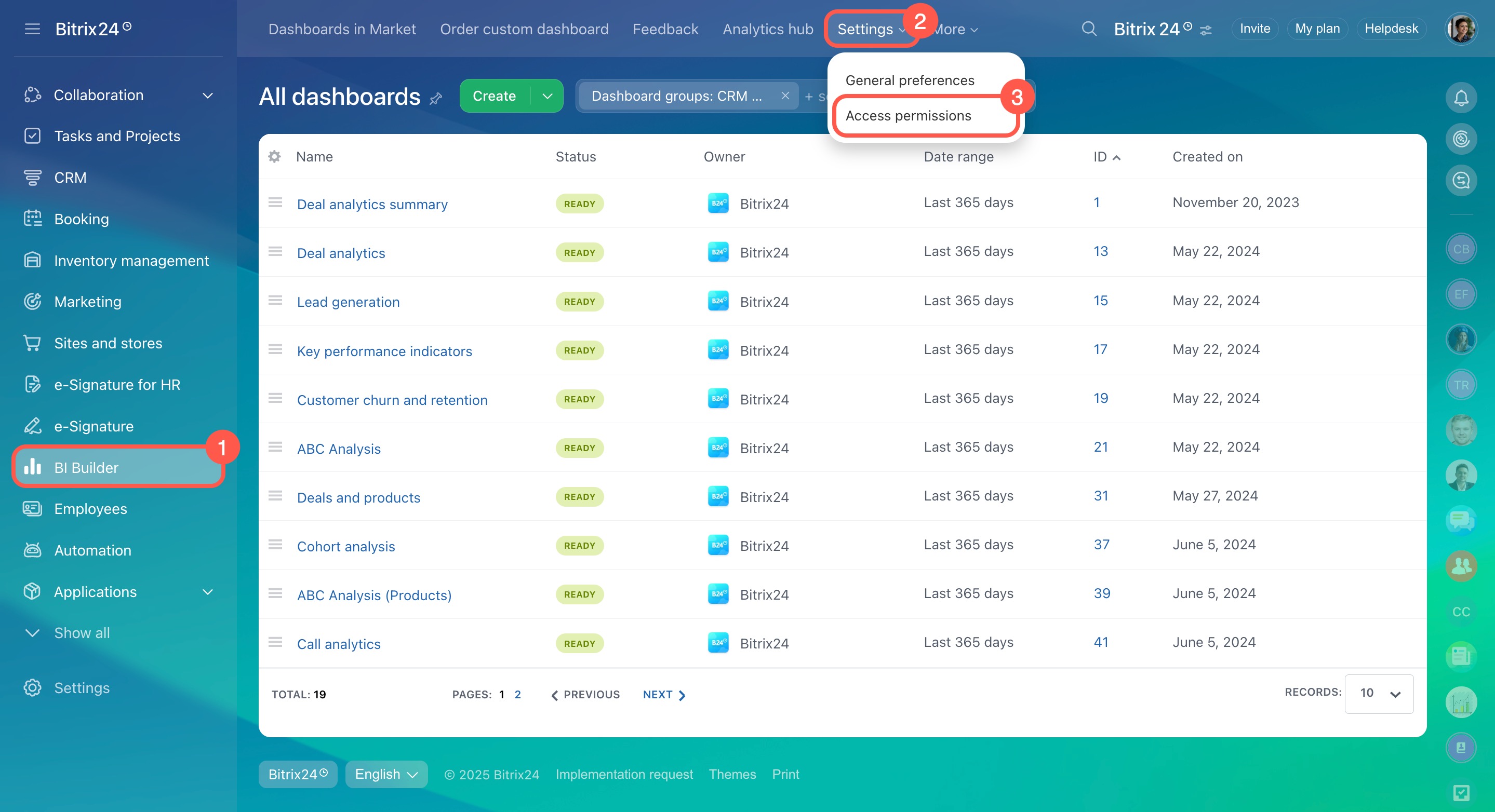
Go to BI Builder > Settings > Access permissions.
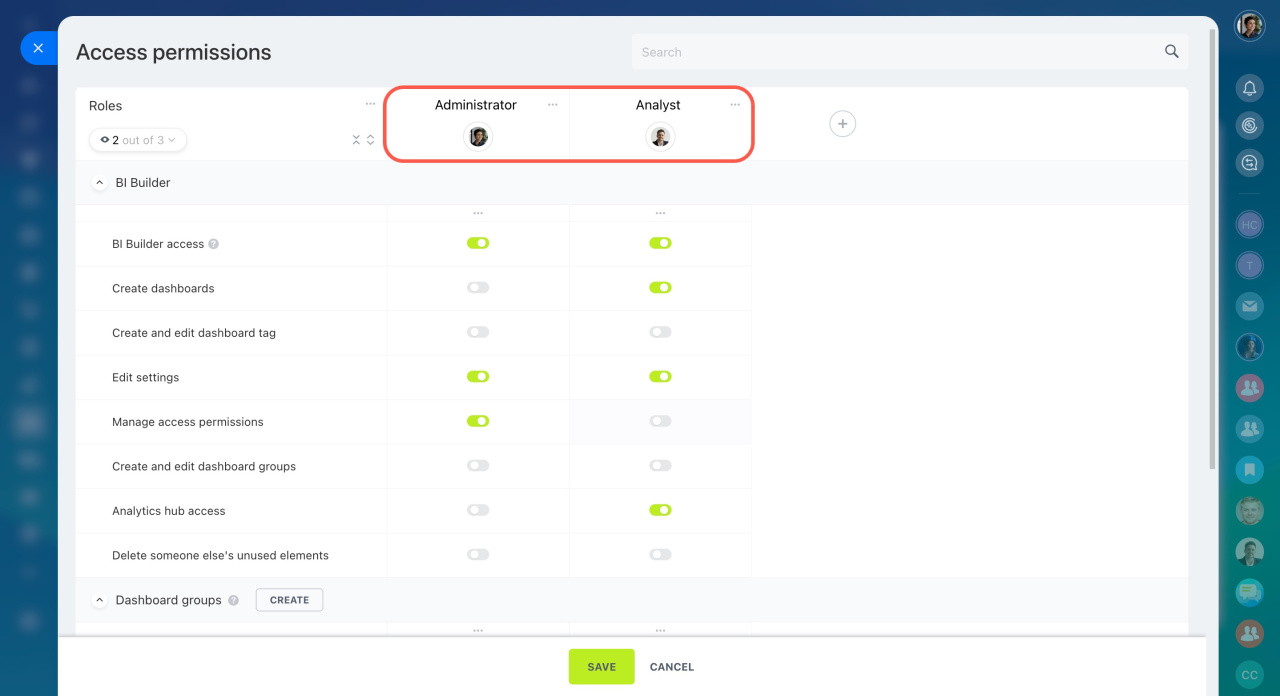
Use standard roles. BI Builder includes predefined roles with ready-to-use permissions. For example, Administrator and Analyst roles already have the required settings. You only need to assign employees to these roles. You can adjust permissions using toggles if needed.
How to select a suitable standard role
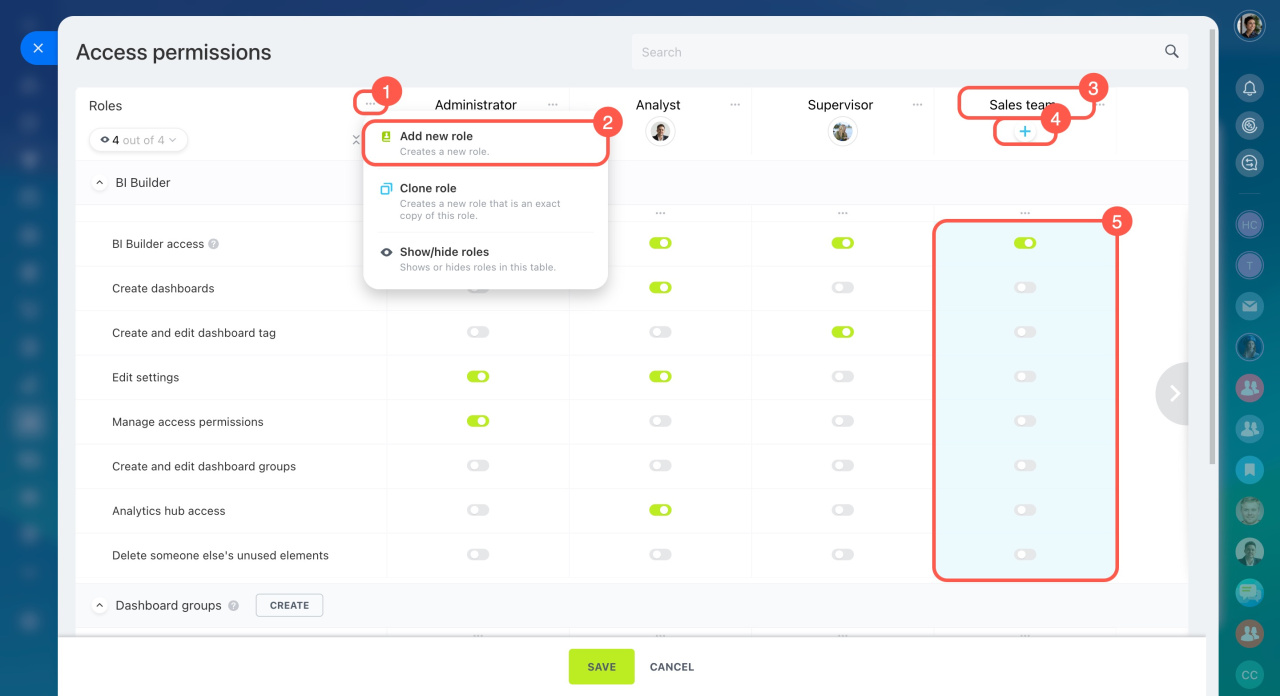
Create custom roles. If you need different access levels, create custom roles. For example, for supervisors or the sales team:
- Open the three-dot menu (...).
- Select New role.
- Enter a name.
- Add employees.
- Set permissions using toggles.
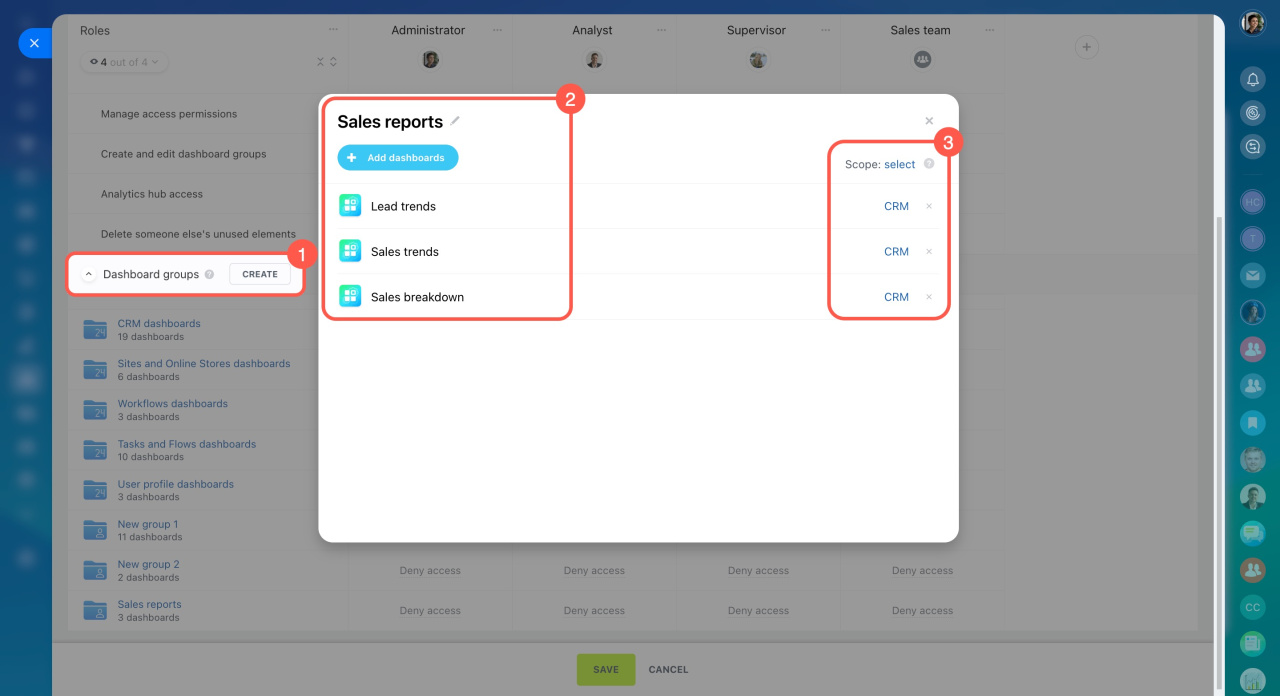
Configure dashboard groups. Use dashboard groups to simplify access management. Permissions apply to groups, not individual dashboards. A group is a set of dashboards on the same topic.
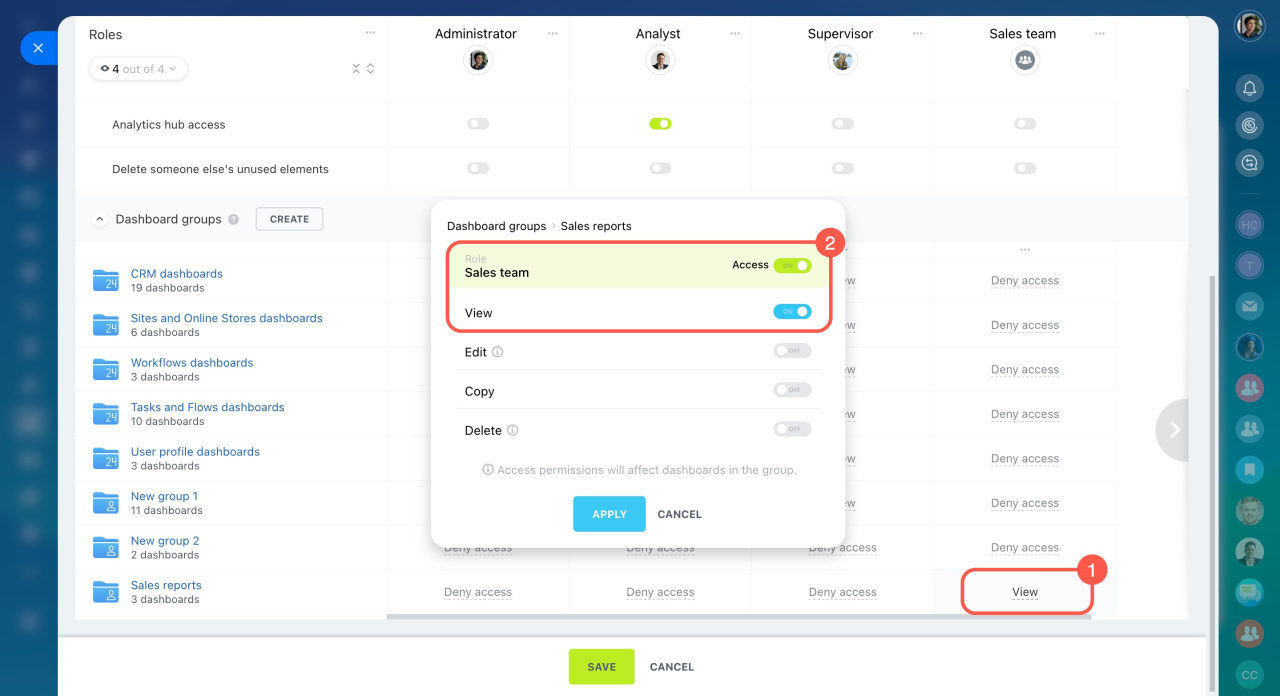
For example, create a Sales reports group for the sales team and add the dashboards they need. Then assign access to that group.
To create a dashboard group:
- Click Create next to Dashboard groups.
- Enter a name and select dashboards.
- Choose where the dashboards should appear, such as CRM, Tasks, or Inventory Management.
Dashboards in a group can have different visibility settings. If a dashboard has a broader scope, it can appear in multiple sections. For example, a dashboard in Sales reports can appear in both CRM and Tasks.
Set access levels for employees. For example, give the sales team view-only access so they can open dashboards but not edit them.
Check the permissions settings
After you set up roles and dashboard groups, make sure everything works as expected.
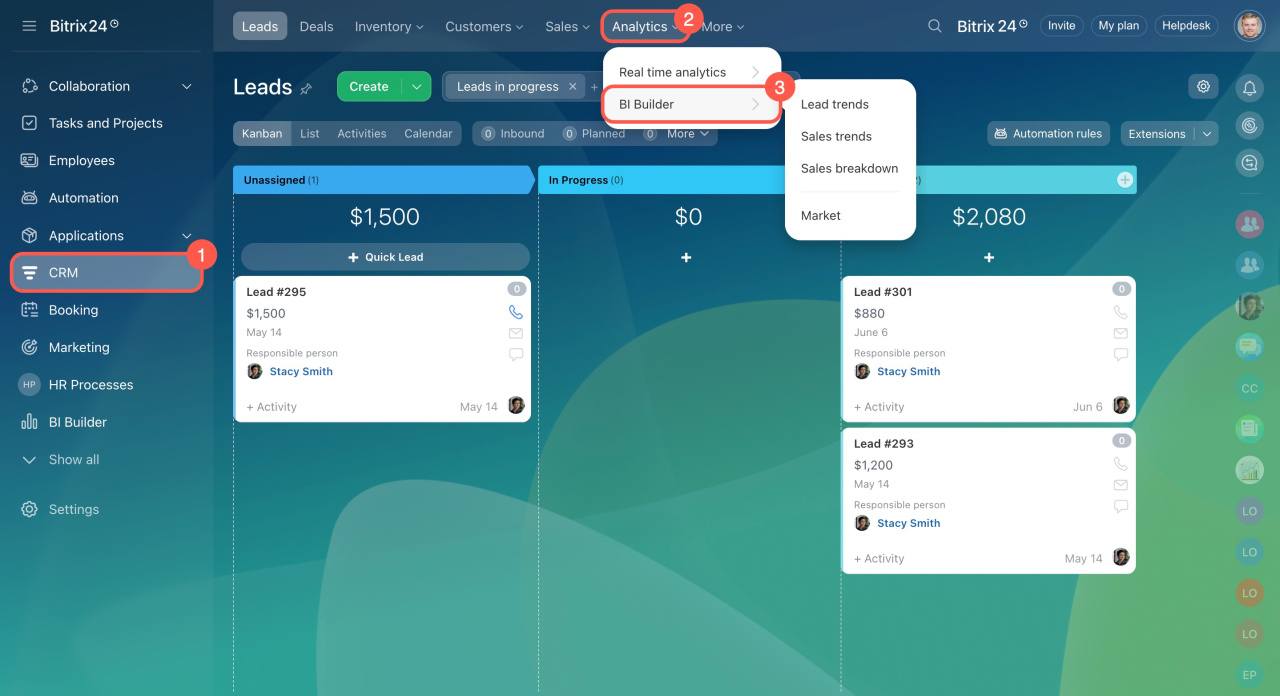
Ask employees to go to CRM > Analytics > BI Builder and check what they can see. For example, a sales rep should see the Sales reports group. Other dashboards or groups will also appear if their visibility includes CRM.
In brief
- Assign permissions in BI Builder based on employee responsibilities.
- Grant access to individuals or teams to simplify management.
- Group dashboards by topic so teams can quickly find relevant data.
- Review permissions after setup to make sure users only see what they need.