
From February 5, 2024, Viber changed its chatbot setup terms. You can now connect a new chatbot only with a paid plan. Chatbots created before this date will keep working under the previous terms.
New terms and conditions of chatbot operation on Viber website
Check if Viber connection to Bitrix24 is available on your Bitrix24 plan.
Create a Viber chatbot
- Apply directly to Viber.
- A Viber specialist will review your application and explain the next steps.
- After Viber approves your application, you will receive a special key. Enter this key in the Viber connection panel in Bitrix24.
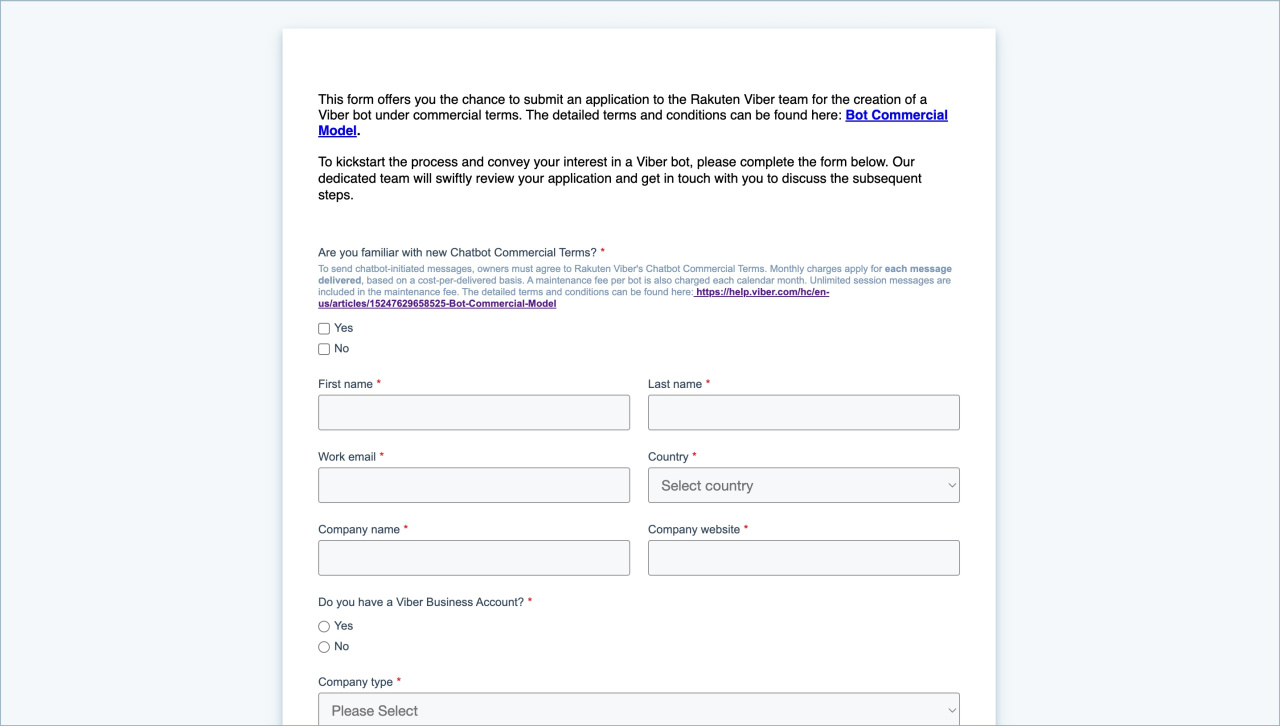
Fill out the application
Go to the Viber website and fill out the form.
If you have questions, submit a request to Viber support.
Connect the chatbot to Bitrix24
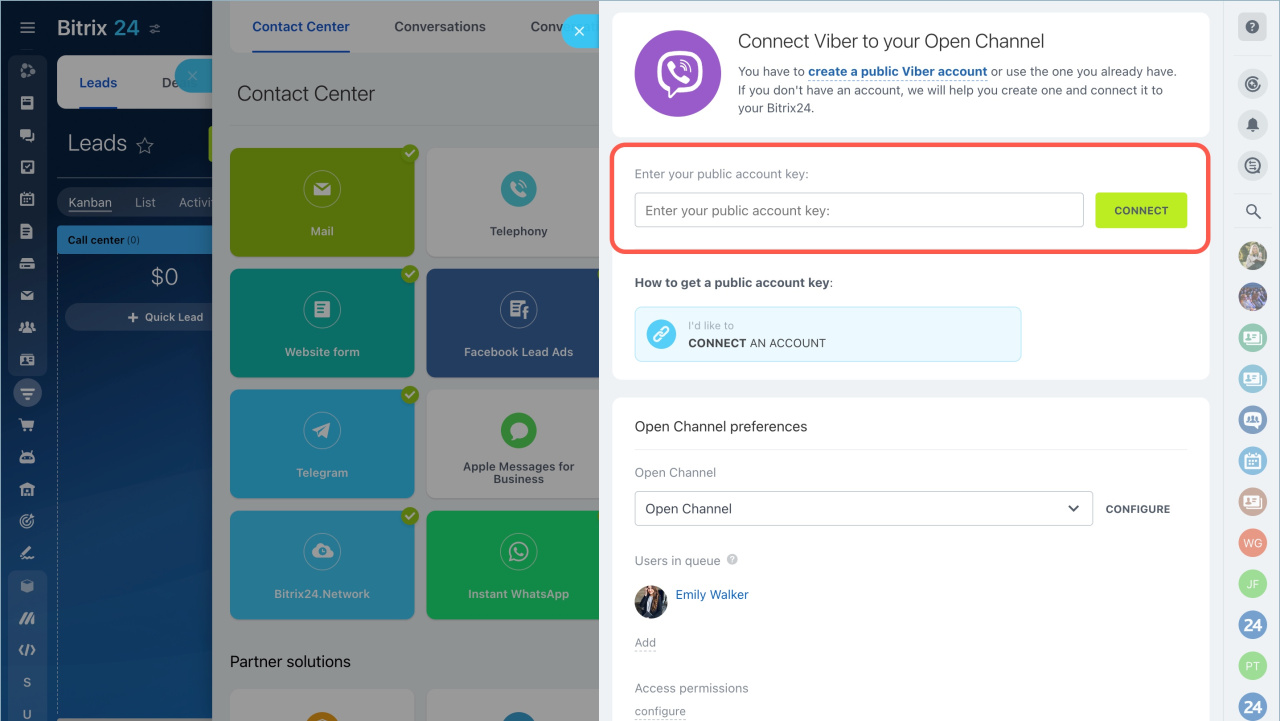
Go to CRM > Customers > Contact Center > Viber. Enter the key and click Connect.
How the chatbot works
To add a Viber chatbot to your website, connect it through the Bitrix24 widget. A customer opens your website, selects Viber as the communication method, and the message is sent to you in an Open Channel.
Viber channel limitations:
- Bitrix24 cannot manage or speed up chatbot registration.
- Viber Communities are not supported.
- Viber shows only bots from large companies and well-known brands in search. Customers can access your bot only through a direct link, such as
viber://pa?chatURI={botname}. - Viber does not send the customer’s phone number during a chat. You can get the phone number in CRM through the Viber channel only if the customer shares it in the conversation.
- You can connect one Viber chatbot to one Open Channel. To connect multiple chatbots, create another chatbot in your Viber account and connect it to a different Open Channel.
- From February 5, 2024, Viber changed its chatbot setup terms. New chatbots can be connected only with a paid plan.
- Chatbots created before this date keep working under the previous terms.
- Apply directly to Viber. After your application is approved, Viber will send you a special key. Enter this key in the Viber connection panel in Bitrix24.
- Viber does not send the customer’s phone number during a chat. You can get it in CRM through the Viber channel only if the customer shares it in the conversation.
- You can connect one Viber chatbot to one Open Channel. To connect multiple chatbots, create another chatbot in your Viber account and connect it to a different Open Channel.