
To start a workflow, an employee must fill in the required fields. For example, they can enter a date, city, or business trip purpose. You can configure a custom set of fields for each workflow.
Sequential Business Process Template
Status Driven Business Process Template
To open workflow field settings:
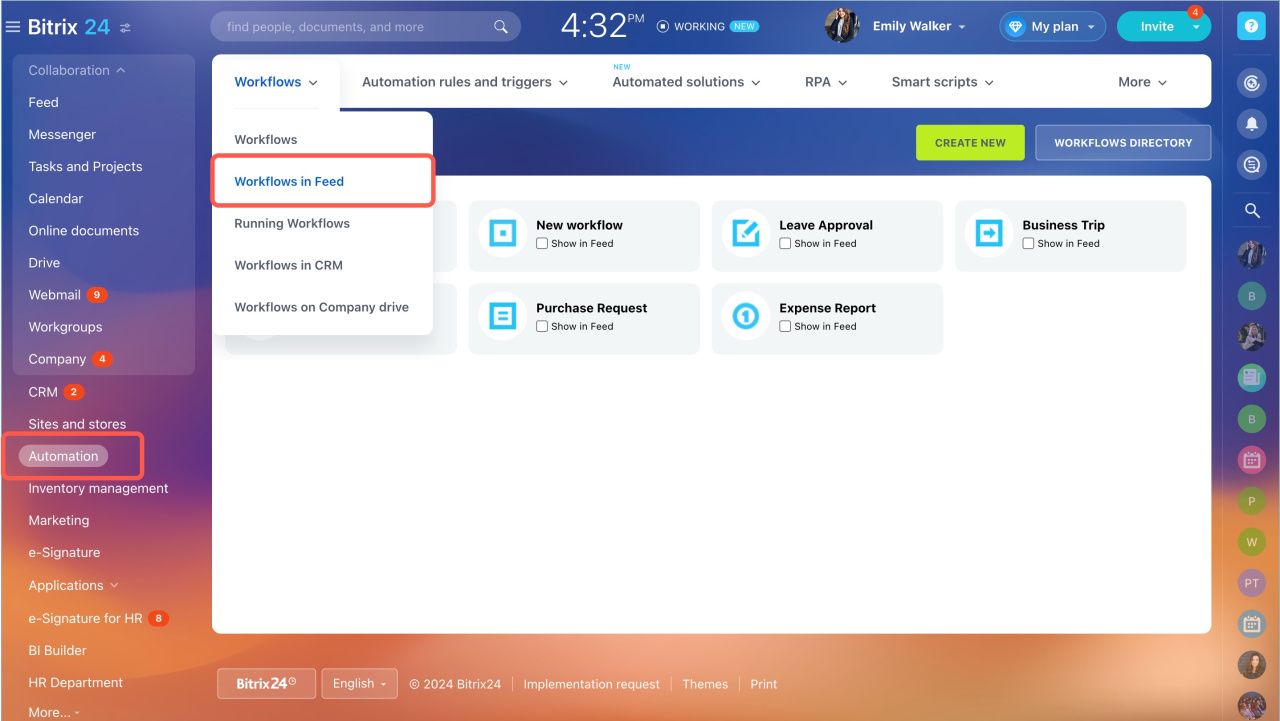
- Go to Automation > Workflows > Workflows in Feed.
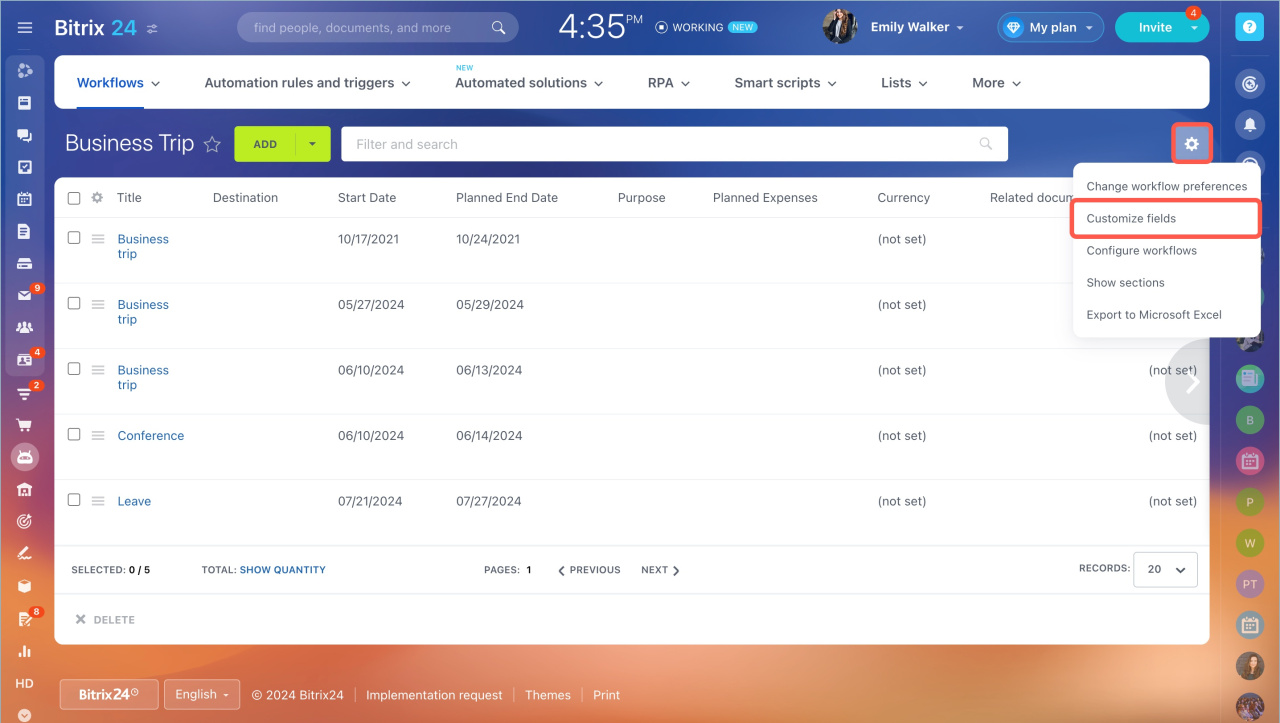
- Open the workflow form.
- Click Settings > Customize fields.
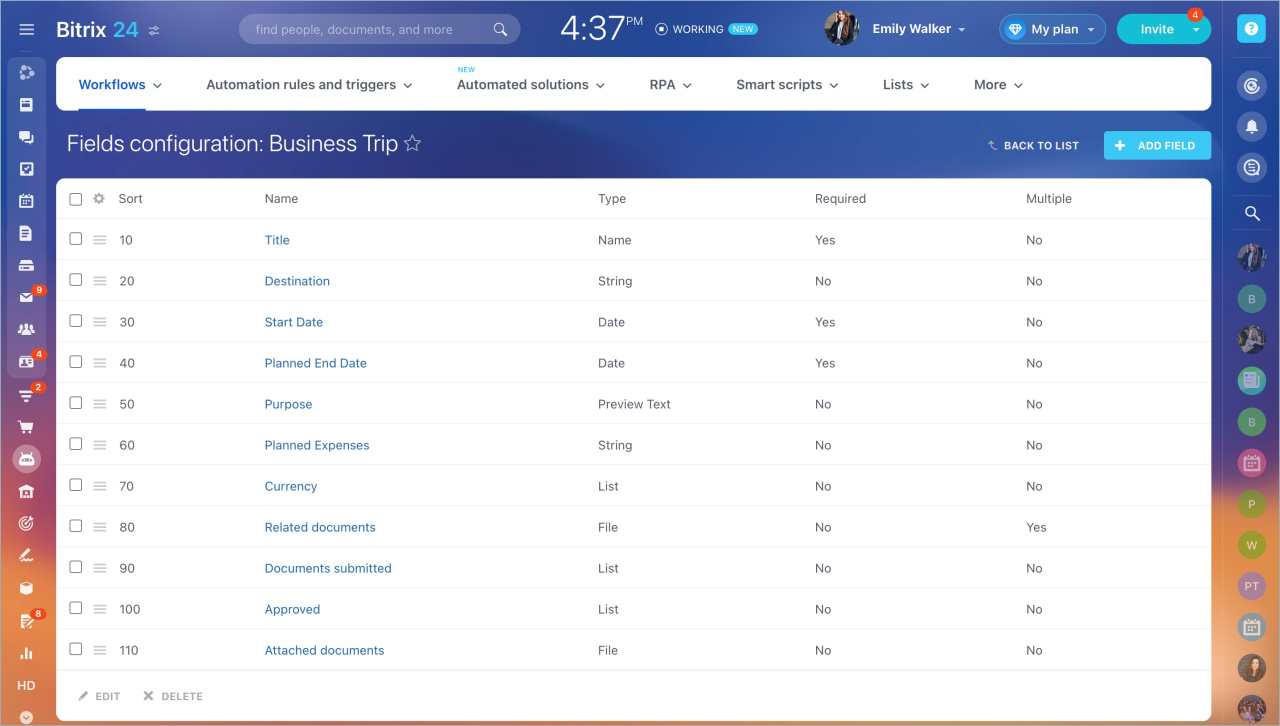
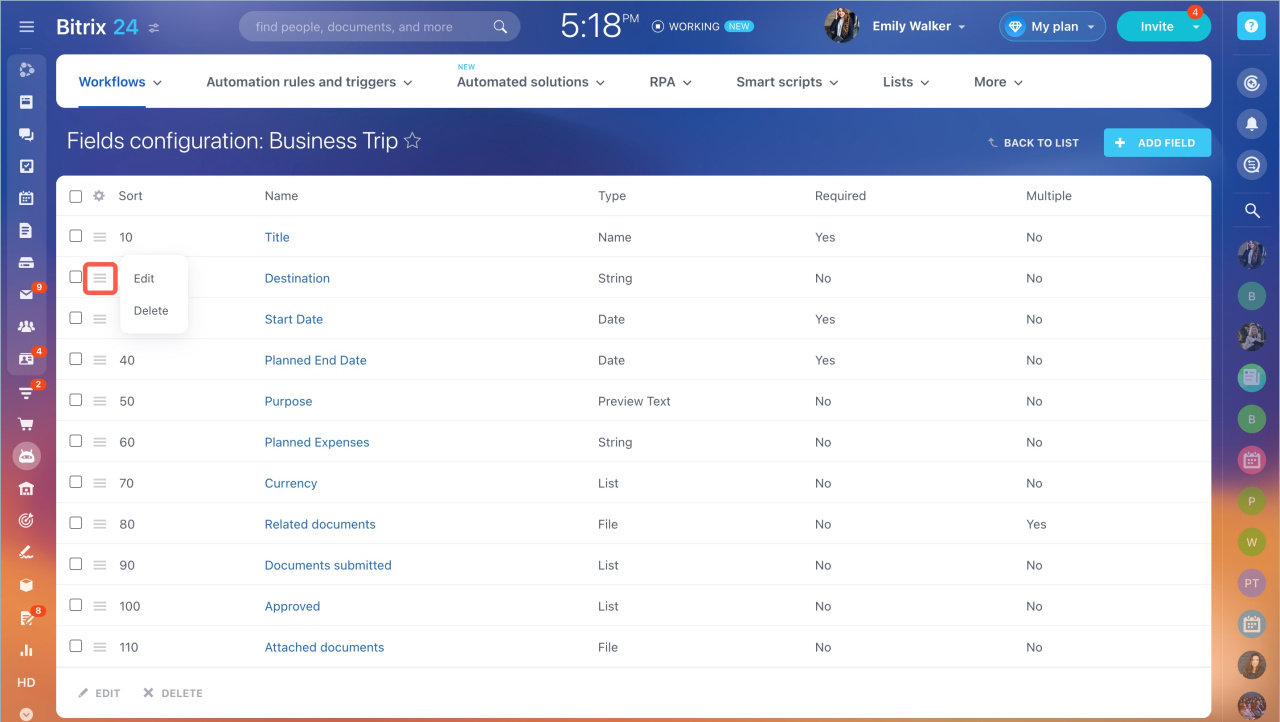
You will see a list of all workflow fields. You can edit, delete, or add new fields.
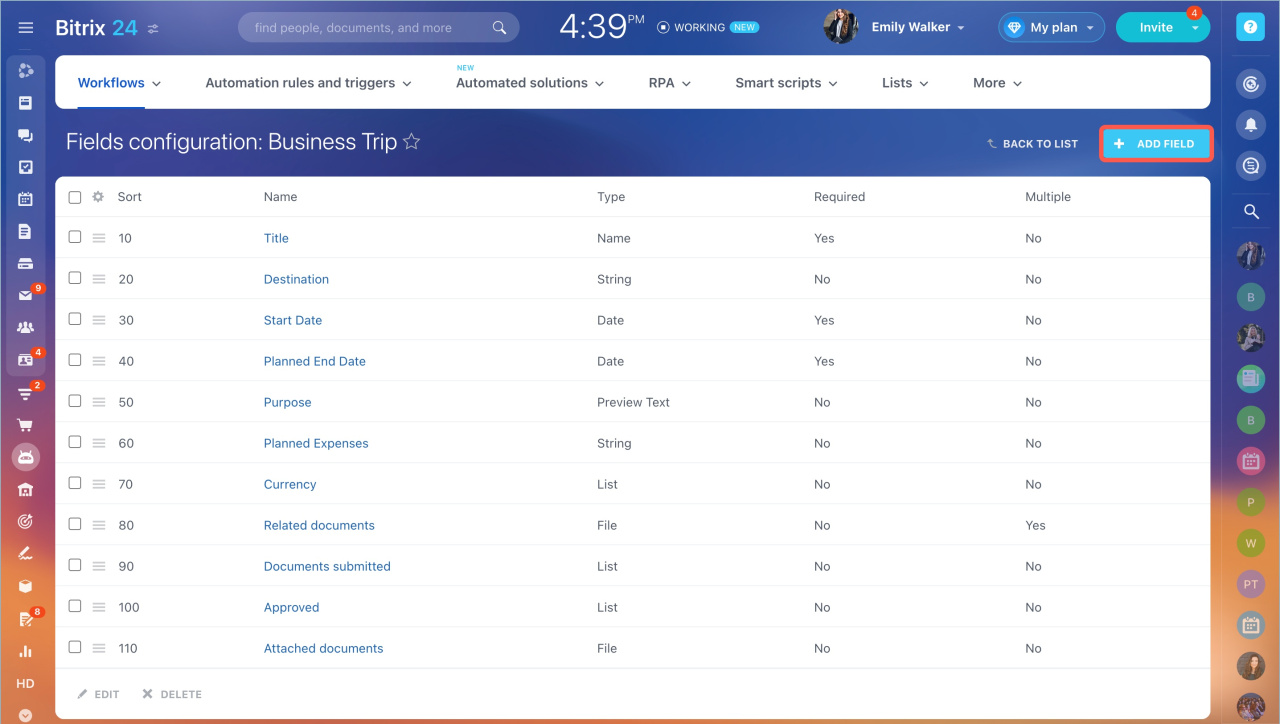
Add a new field
Click Add field. The available settings depend on the field type.
- Name — The field label shown to employees when they start the workflow.
- Required — Employees must fill in this field before they can start the workflow.
- Multiple — Allows entering multiple values, such as uploading several files.
- Type — Select a field type. You cannot change it after you create the field.
- Default value — A pre-filled value. Employees can change it when starting the workflow.
- Sort — Controls the field order. Lower numbers appear higher in the list.
- Show in new item form — Displays the field when starting a workflow.
- Show in edit item form — Displays the field when editing a workflow item.
- Read-only (new item form) — Shows the field but prevents editing when starting a workflow.
- Read-only (item edit form) — Prevents editing in the item form.
- Show field when creating a list item link — Shows the field when you share a workflow item link in chat or email.
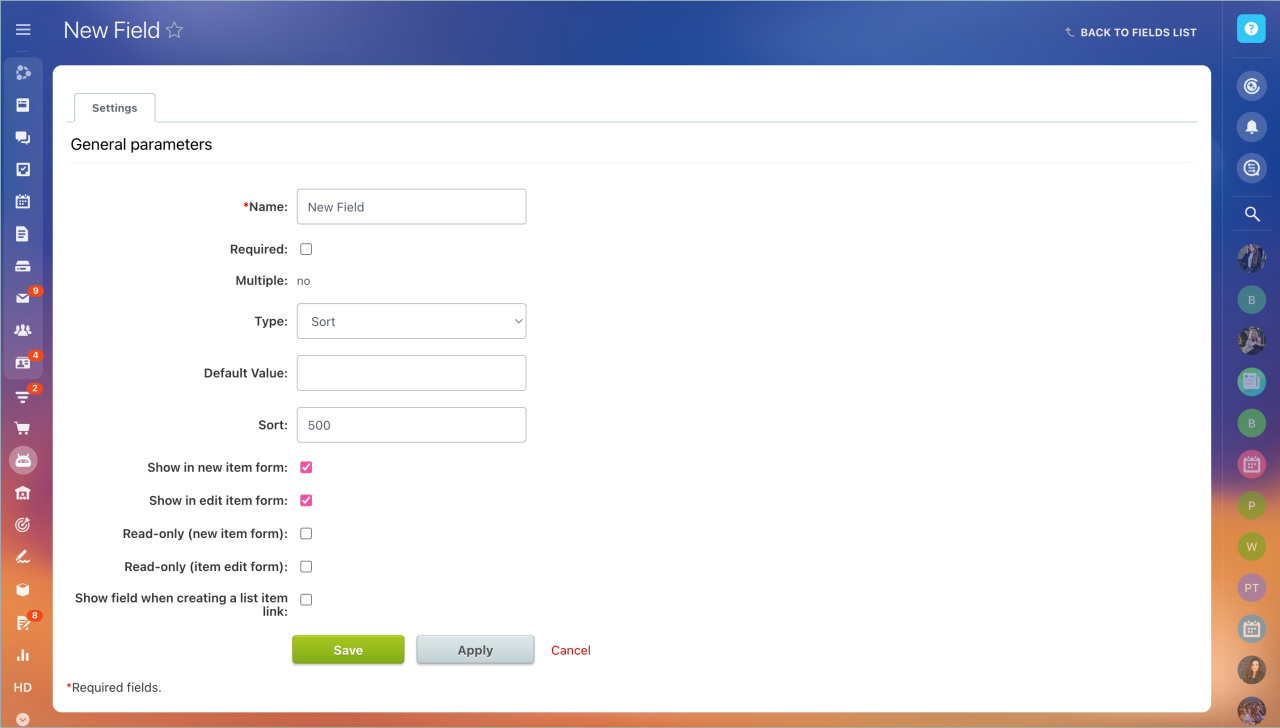
After you configure the settings, click Save.
Field types
Each field type stores a specific type of data.
- Sort — Controls the order of items in the workflow list.
- Active from — Start date and time.
- Active until — End date and time.
- Preview image — Image, such as an invoice or contract.
- Detail picture — Image.
- Detail text — Text content.
- Create date — Automatically shows when the item was created.
- Created by — Automatically shows who created the item.
- Modify date — Automatically shows when the item was updated.
- Modified by— Automatically shows who updated the item.
- String — Text.
- Number — Numeric value.
- List — A set of values. Users can select one or more.
- File — Document or image.
- Bind to sections — Links an item to a folder in another workflow.
- Bind to elements — Links items across workflows.
- Date — Date only.
- Date/Time — Date and time.
- HTML/text — Text with HTML formatting.
- Link to elements (drop-down list) — Select and link items from another workflow.
- Counter — Auto-increment value for each new item.
- File (Drive) — File from your computer or Bitrix24 Drive.
- Bind to CRM items — Links to CRM items such as deals, contacts, or companies.
- Link to employee — Select an employee.
- Money — Amount with currency.
Edit and delete fields
Click the menu icon next to a field and choose an action.
Each workflow includes a Title field. You cannot delete it, but you can rename it.
You can update any field settings. For example, you can make a field required or allow multiple values.
In brief
- Employees need to fill in fields to start a workflow. For example, enter the date, city, and purpose of a business trip.
- You can configure a custom set of fields for each workflow.
- Go to Automation > Workflows > Workflows in Feed.
- Open a workflow and click Settings > Customize fields.
- Select a field type and configure its settings.
- Available settings depend on the selected field type.