
A workflow is a set of actions that helps automate repetitive tasks. For example, you can create a workflow that generates an estimate and sends it to a supervisor for approval. You can start workflows from CRM and SPA item forms.
Bitrix24 pricing page
The workflow start interface in CRM has been updated. Workflows now appear in a separate section. You’ll see suggestions for required parameters and the average execution time across your company.
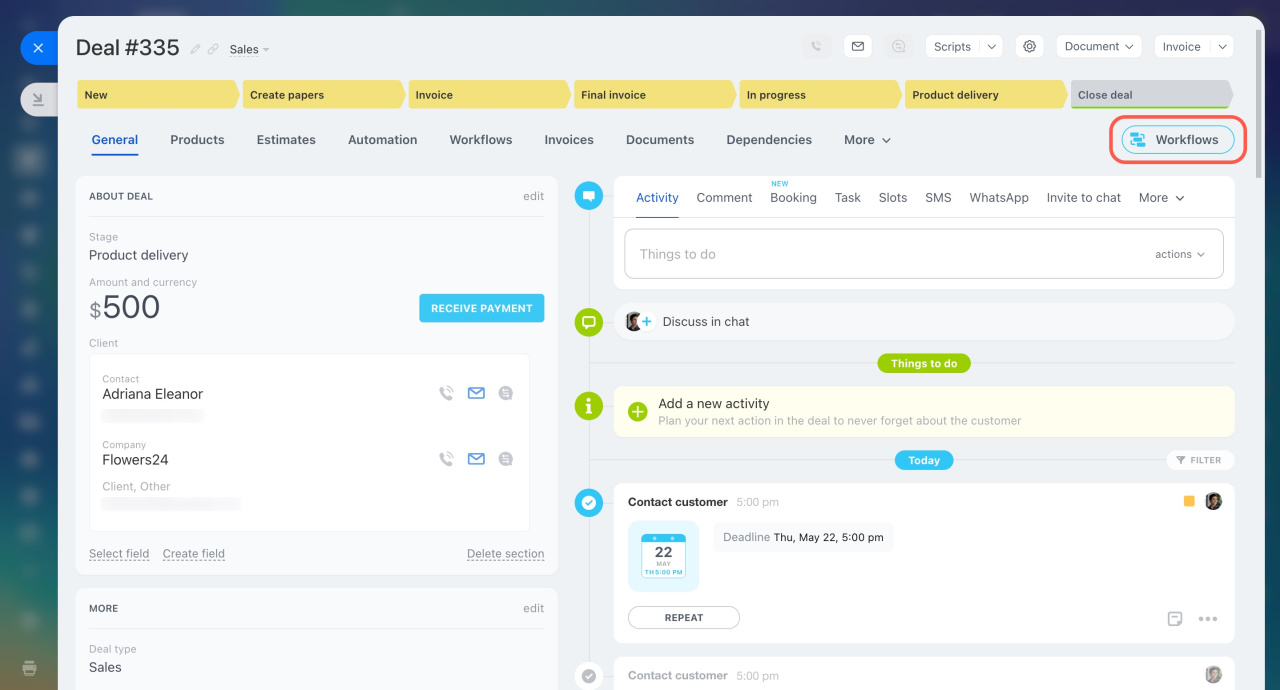
To start a workflow, open a CRM item form and click Workflows.
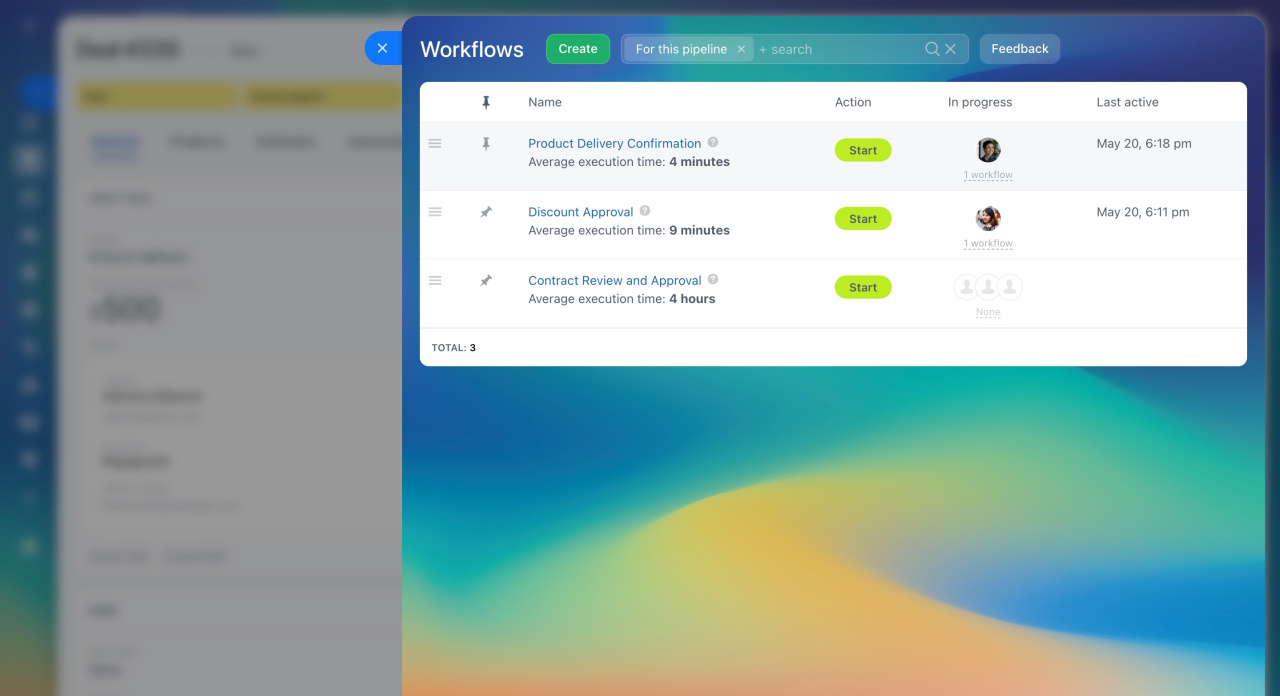
You’ll see a list of available workflows for this item. Each workflow shows its name, description, number of active runs, and last start time.
Name. Find a workflow by name. Hover over the help icon to see the description. The average execution time shows how long the workflow usually takes.
Action. Start a workflow directly from the list.
Workflows in progress. Click the number next to a template to view running workflows. You’ll see who started it, who is working on it, and how long it runs. The list shows the last 20 workflows.
Last active. Shows when the workflow last started.
Pin frequently used workflows to keep them at the top.
Start a workflow
-
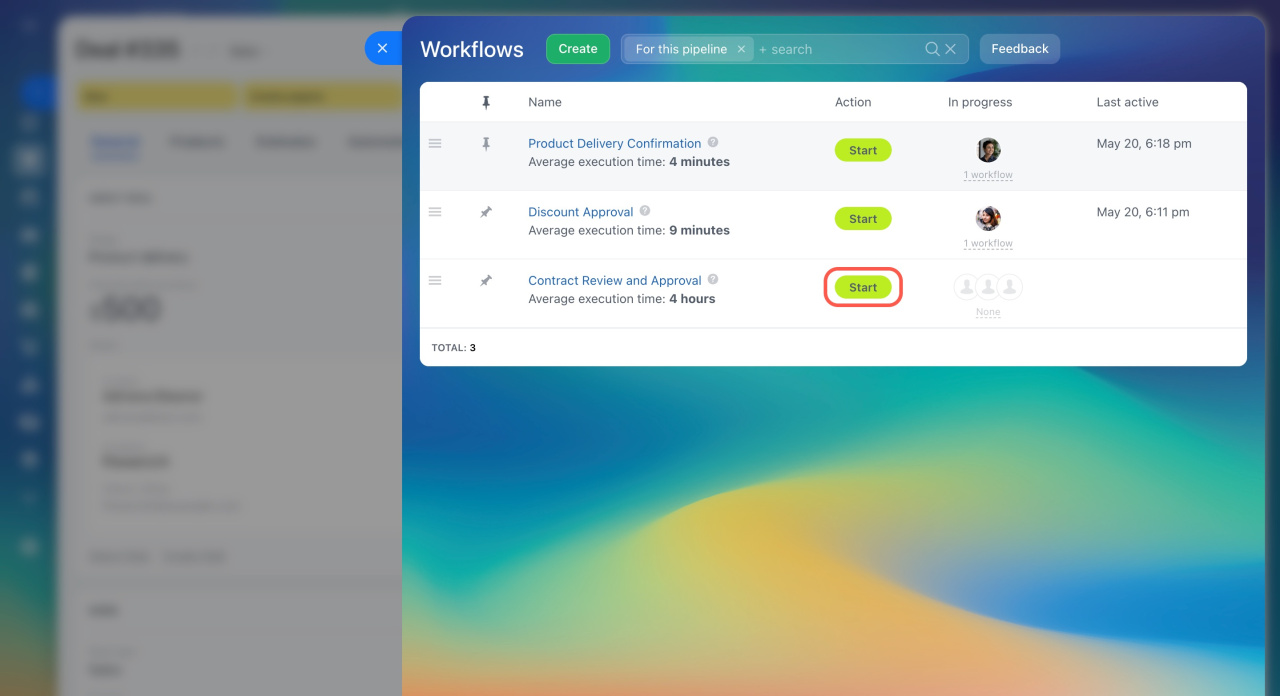
Click Start next to the workflow template.
-
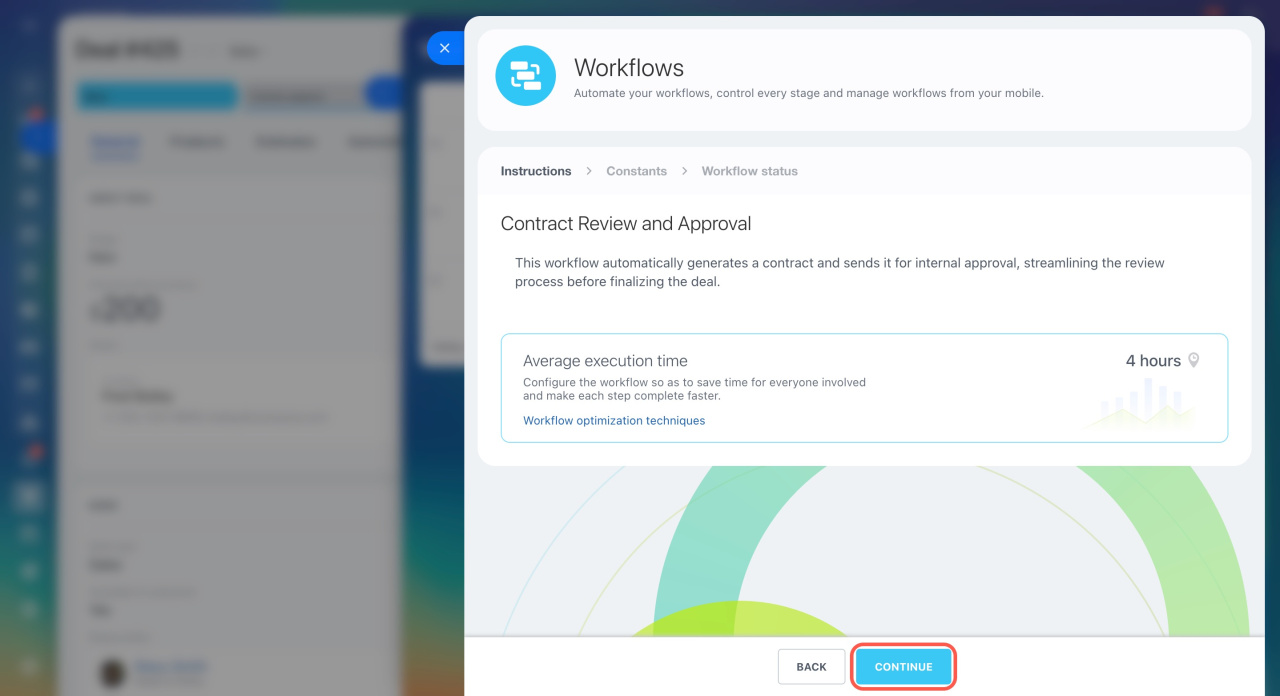
Review the suggested parameters and average execution time. This helps you estimate how long the workflow will take. Click Continue.
-
Fill in the required parameters and click Continue.
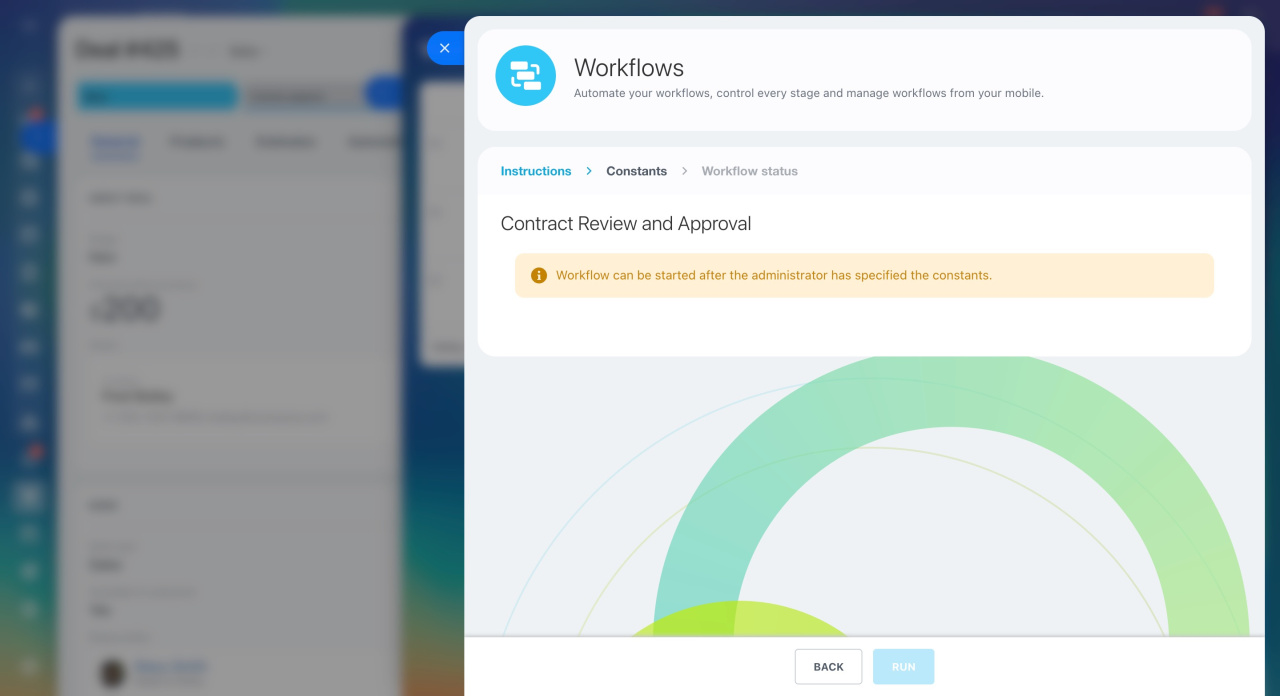
If the workflow uses constants, set their values in the template settings. For example, a contract approval workflow may use a fixed approver.
Stop or check a workflow
Active workflows appear in the CRM item timeline. Click the three dots (...) to choose an action, such as canceling the workflow or viewing logs.
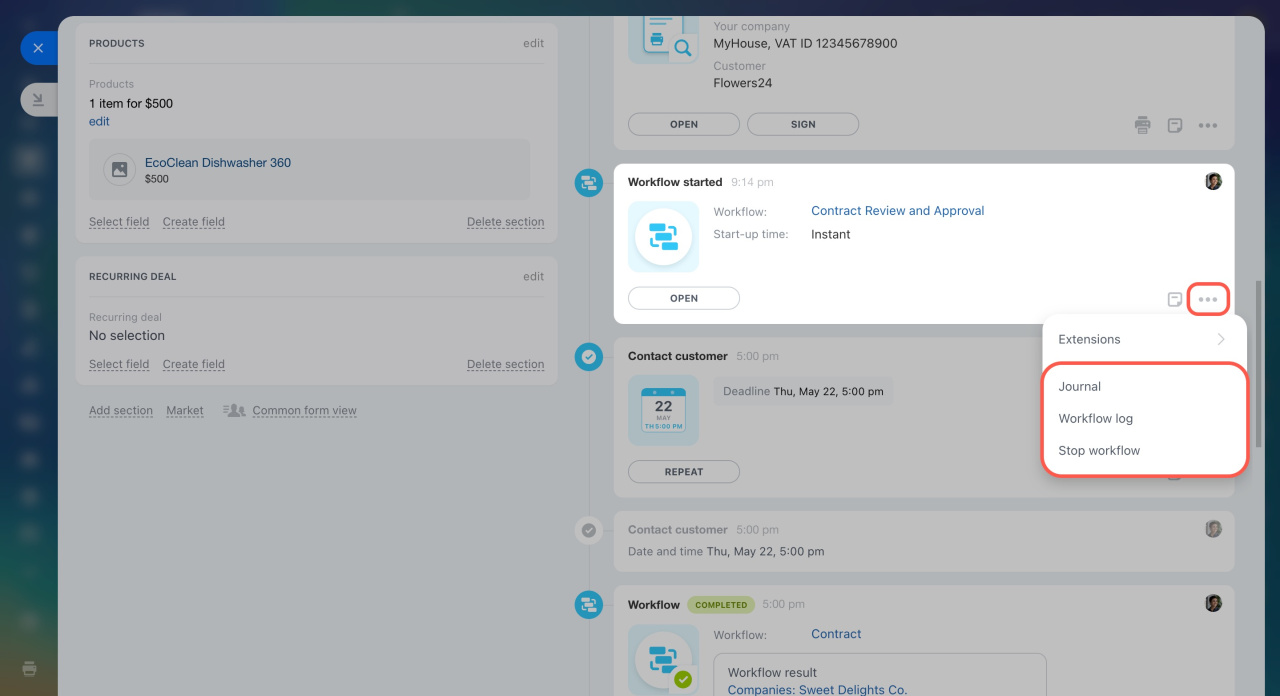
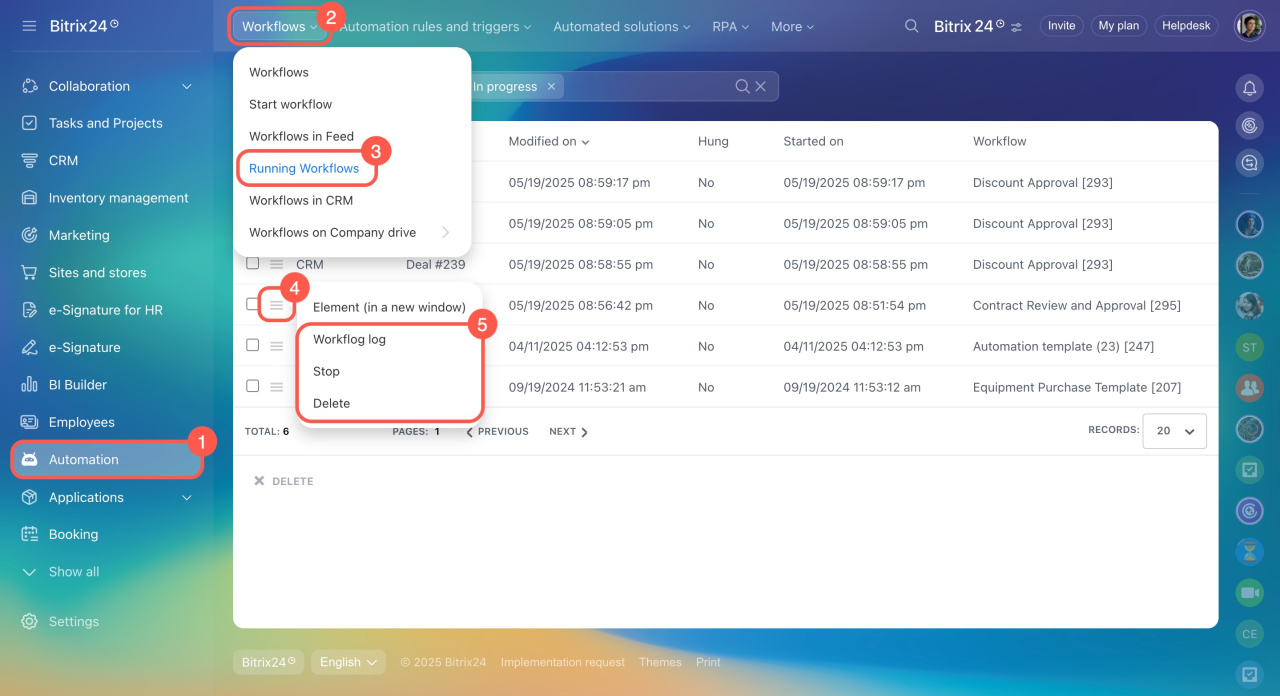
Workflow events appear in the timeline only if the Show workflow events in the timeline option is enabled in the template settings. If you don’t see them, check the list of running workflows:
- Go to Automation.
- Click Workflows.
- Select Running Workflows.
- Click Menu (≡) next to the workflow.
- Choose an action.
Find a workflow template
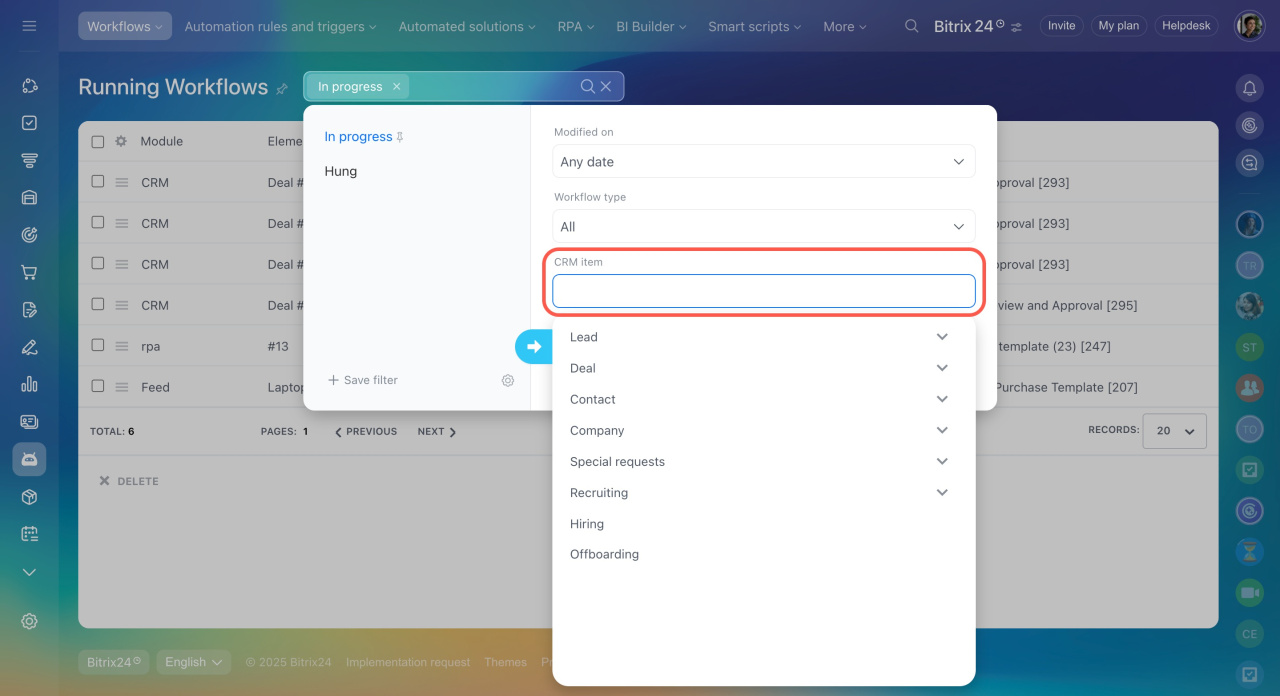
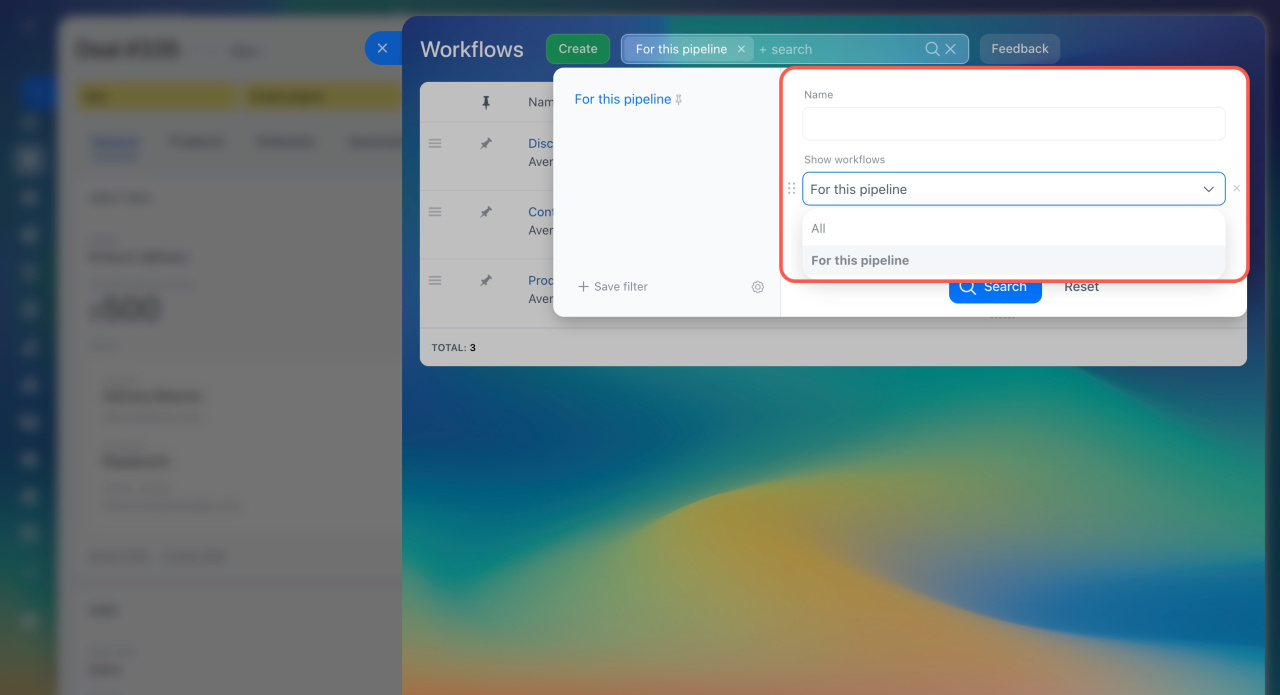
Use filters in the workflow list to find what you need.
Search. Enter keywords from the workflow name.
Filter. By default, you see workflows only for the current pipeline. In Show workflows, select All to see every workflow.
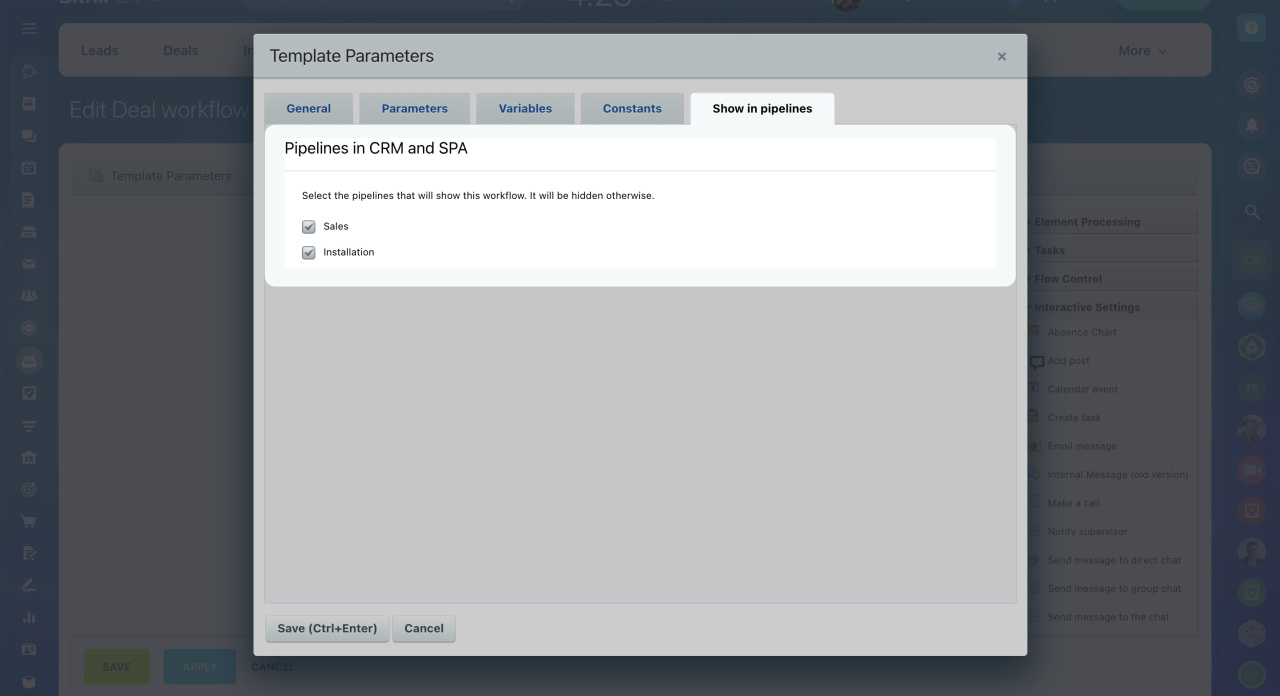
Sales pipelines
In the template settings, choose which pipelines will display the workflow.
In brief
-
A workflow automates routine actions, such as creating an estimate and sending it for approval.
-
You can start workflows from CRM and SPA item forms.
-
The start screen shows parameter suggestions and average execution time.
-
If a workflow uses constants, the administrator must set their values in the template settings.