
In Bitrix24, you can save the result of a completed workflow for later use. For example, a contract approval workflow may generate a document to download and share with a client.
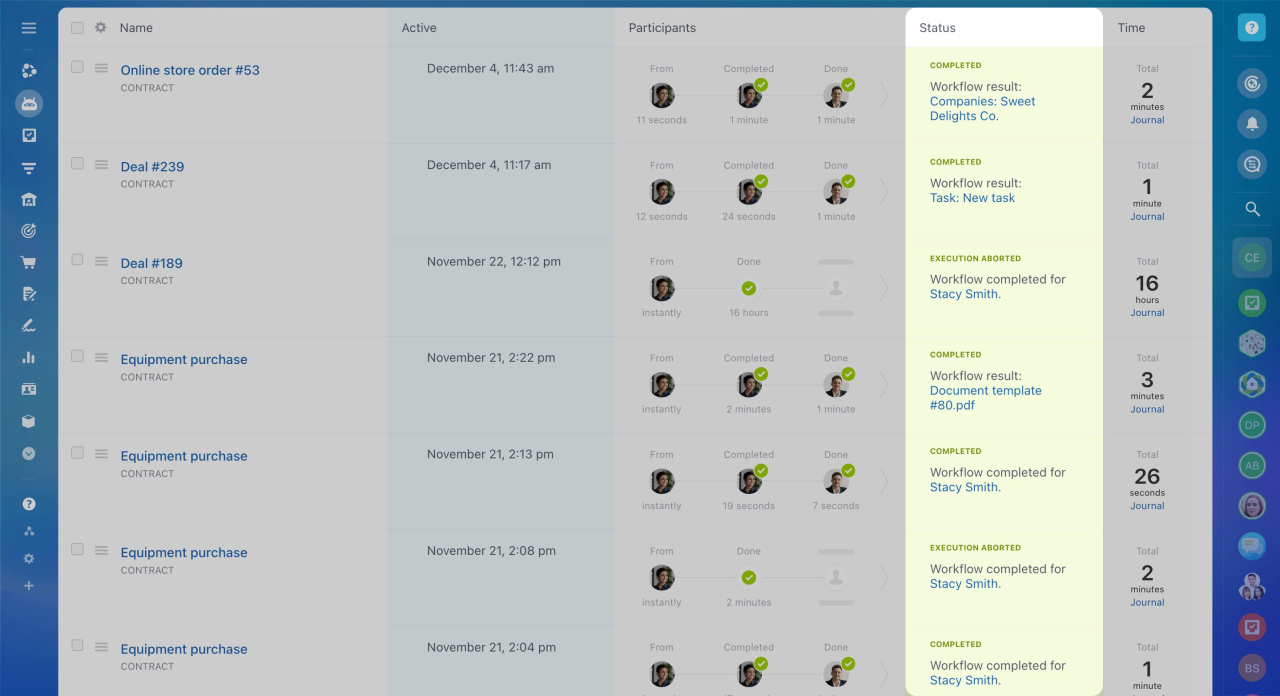
You can set a workflow result in two ways:
- Automatically – the system uses the result of the last supported activity in the workflow.
- Manually – you choose what result to display in the workflow template settings.
Set the workflow result automatically
When you use automatic mode, Bitrix24 checks all activities in the workflow template. The result is taken from the last supported activity in this list:
- Create new contact – link to the contact form
- Create new lead – link to the lead form
- Create new company – link to the company form
- Create new deal – link to the deal form
- Create CRM item – link to the CRM item
- Create SPA – link to the SPA item
- Add list item – link to the list item
- Create task – link to the task
- New element – link to the created element
- Read element – document to view or download
- Approve element – document to view or download
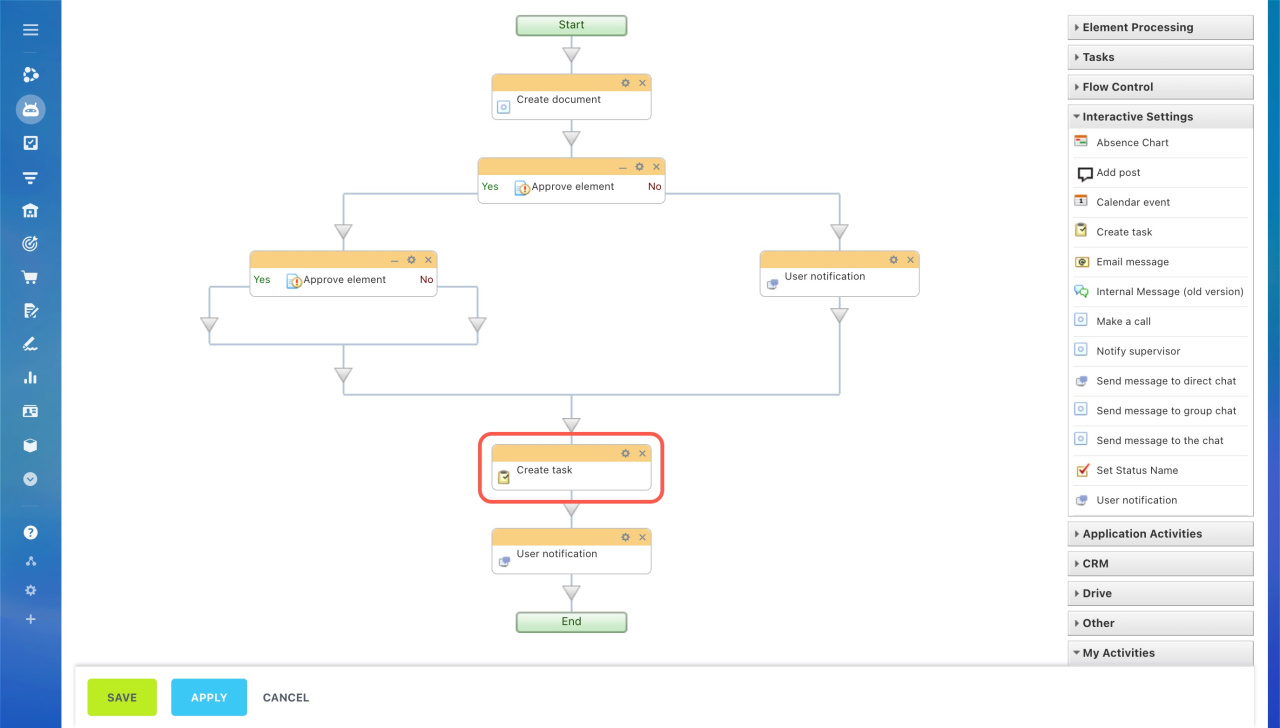 The last activity is User notification. This activity is not supported. The system uses the previous step, Create task.
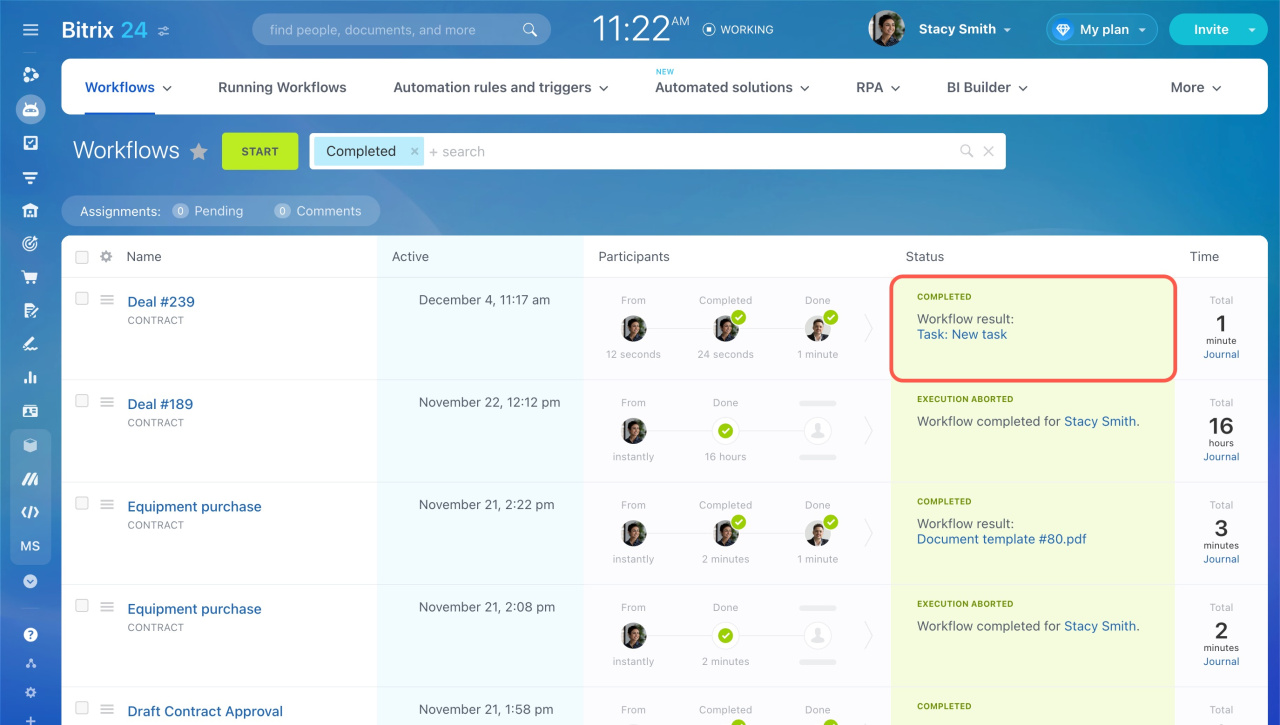 The workflow result includes a link to the created task.
Set the workflow result manually
Use the Set workflow result activity to define what users see. For example, you can show a created CRM item or an approval document.
To set it up:
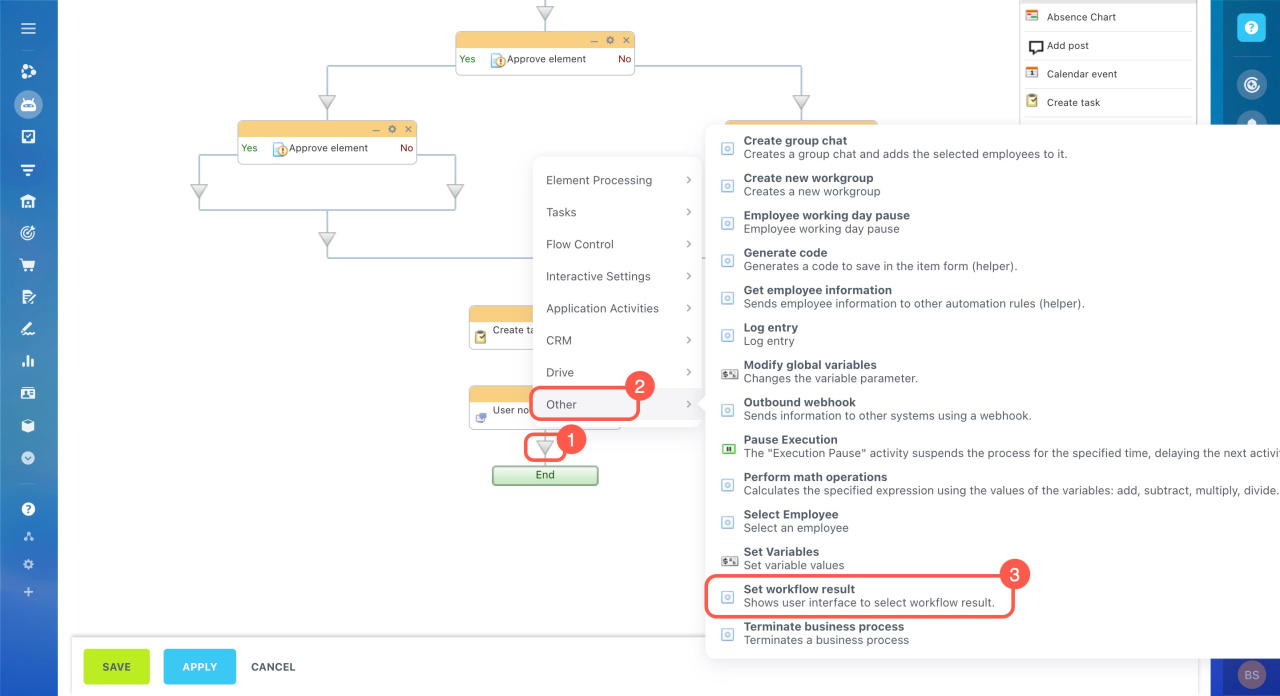
- Open the workflow template.
- Click the arrow above the End block.
- Go to Other.
- Select Set workflow result.
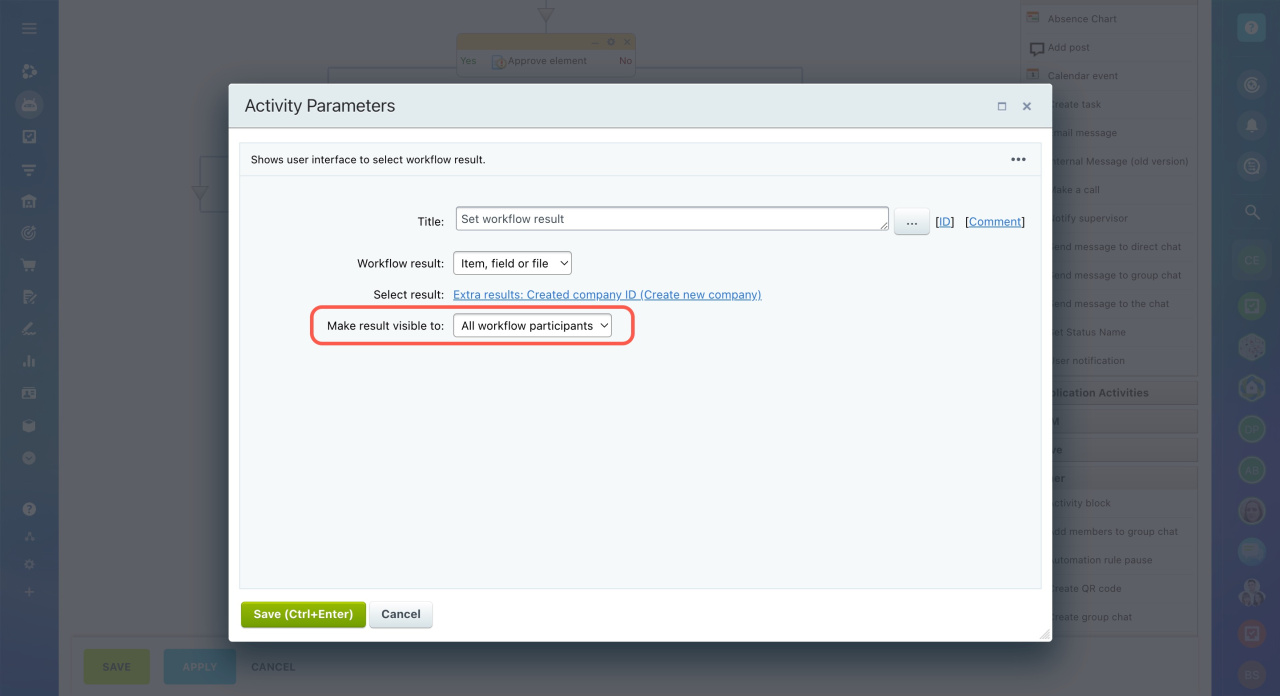
- Open the activity settings and configure the parameters.
Configure parameters
Workflow result: Choose what to show as the result:
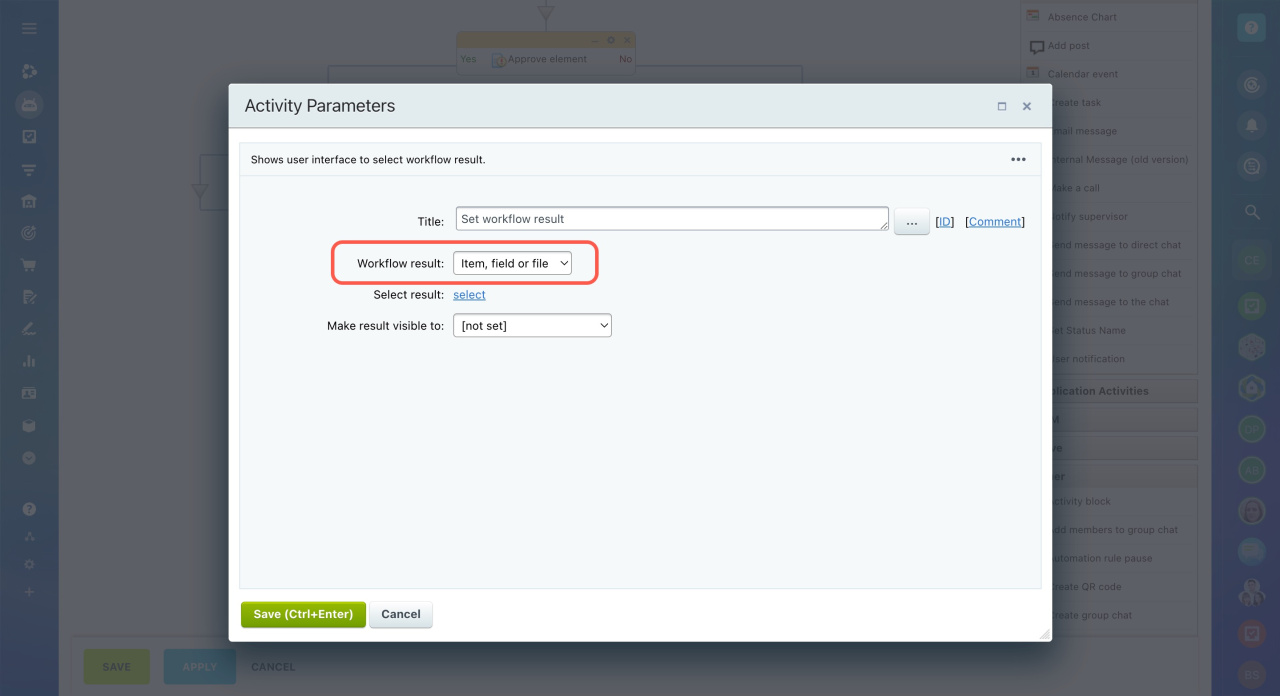
User: Displays a specific employee. Example: show the employee approved for a business trip.
Click the three dots (...) to select a role, variable, or constant.
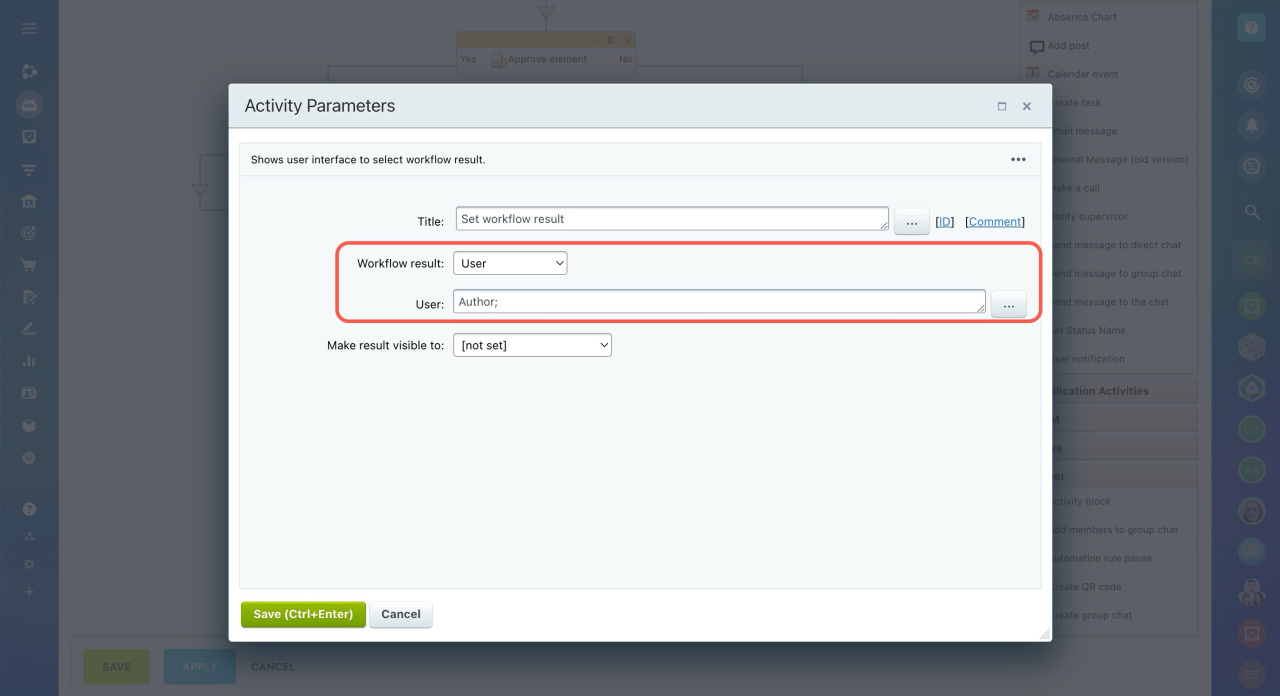
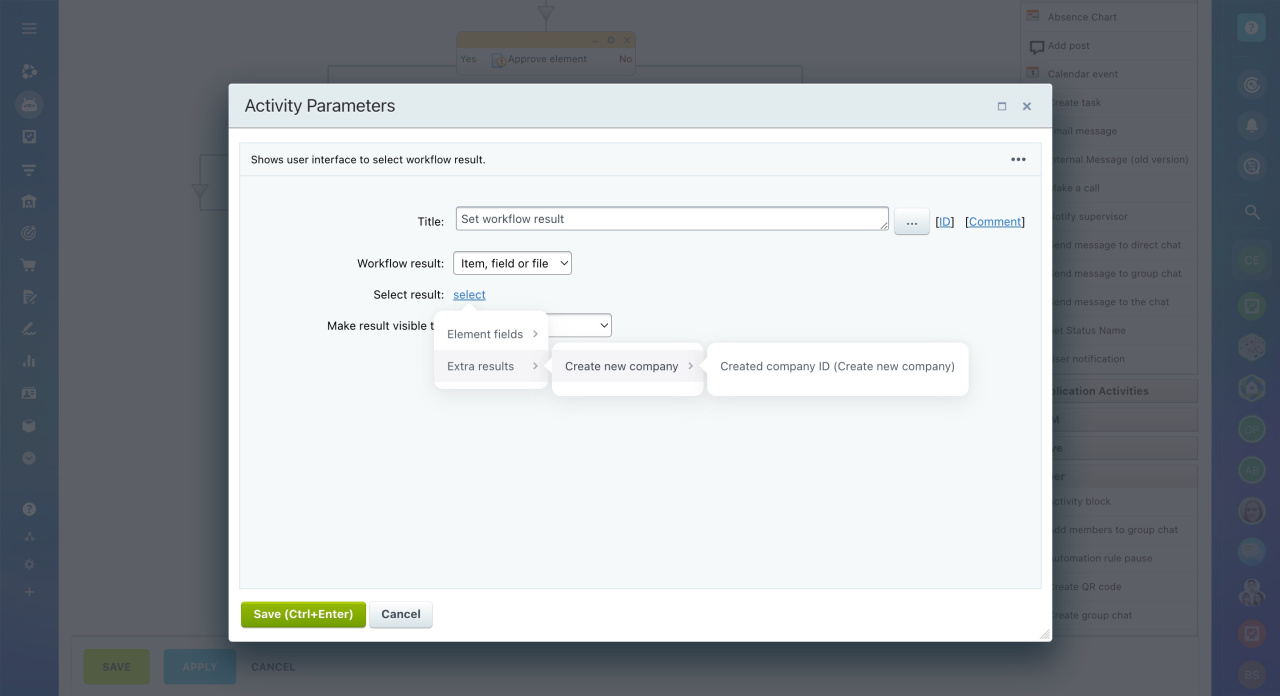
Item, field, or file: Select a value from the list:
- Element fields: Use a field value from the workflow form or CRM. Example: show the Order Number field.
- Extra results: Select results from activities that create items or elements. Example: choose the item created by the Create CRM item activity.
Make result visible to: Choose who can see the result:
- Workflow creator: The user who started the workflow, their supervisor, and administrators.
- All workflow participants: Everyone involved in the workflow.
- Other employees: Select specific users.
View the workflow result
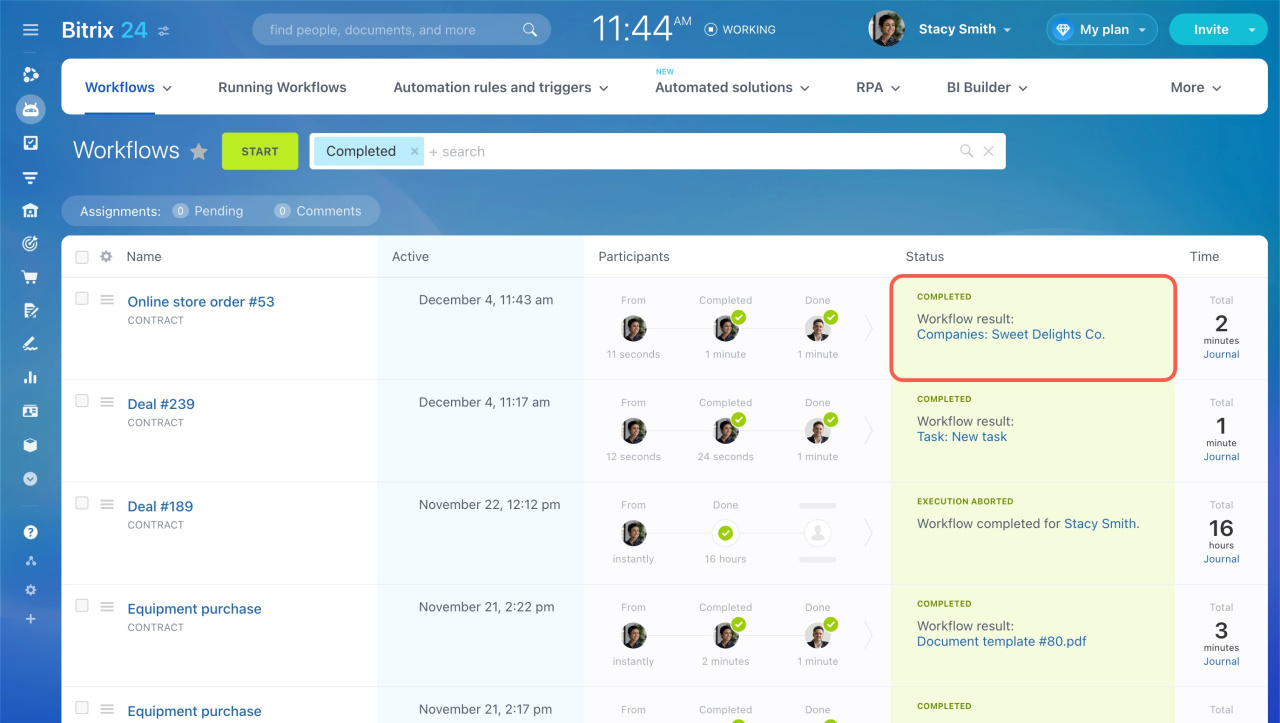
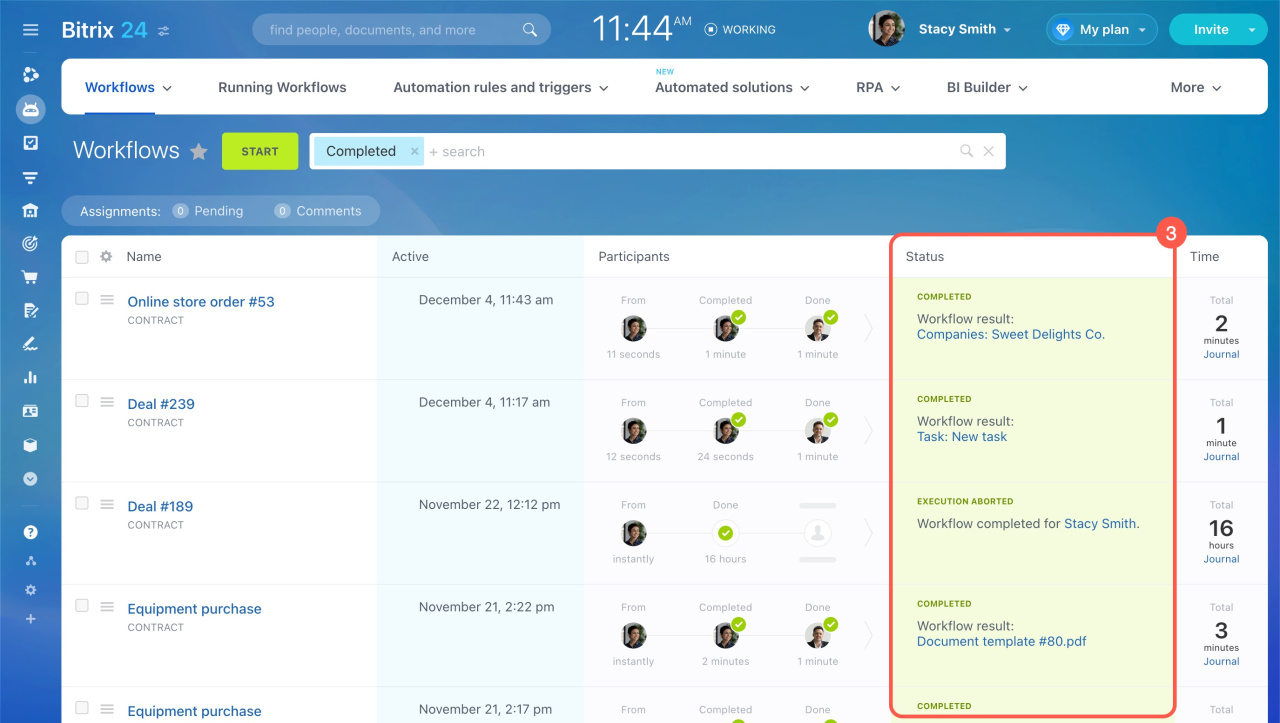
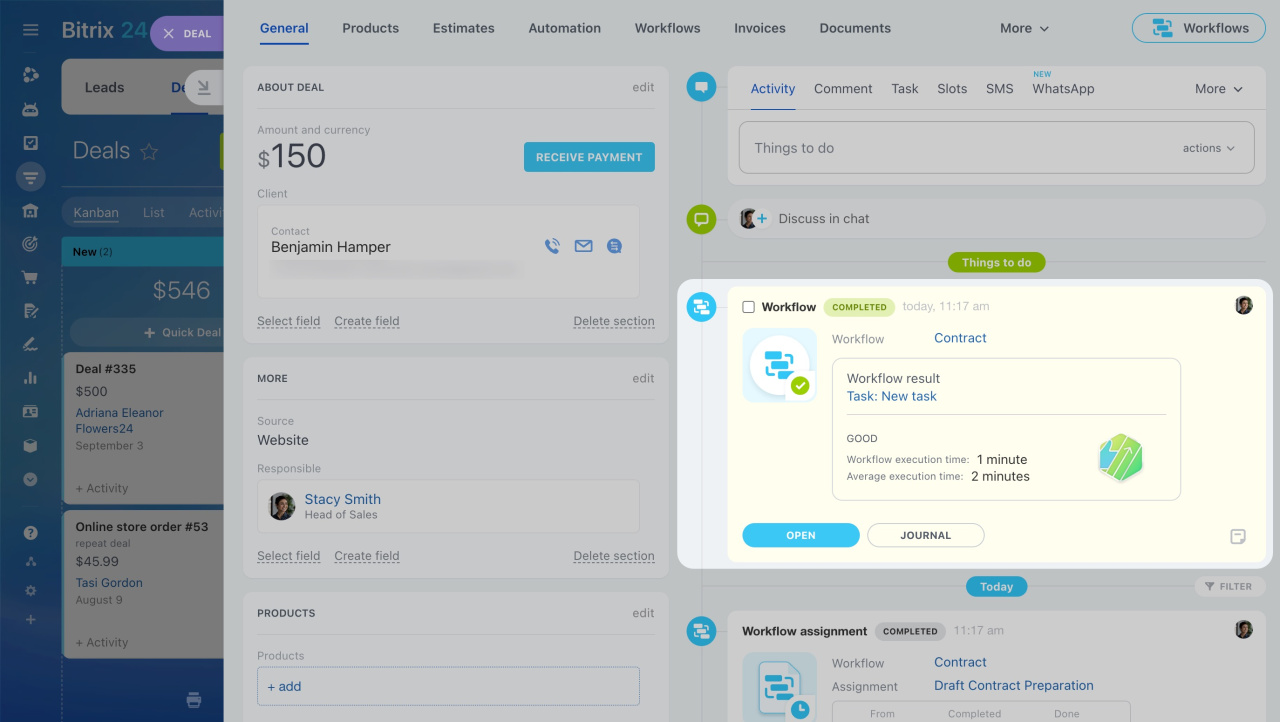
The workflow result appears in the list of completed workflows and in the CRM item form.
If the result is set automatically, only users with access to the related item or element will see it. For example, if the result is a deal, only users with permission to view deals will see it.
If you set the result using the Set workflow result activity, only the users defined in the activity settings will see it.
In the workflow list
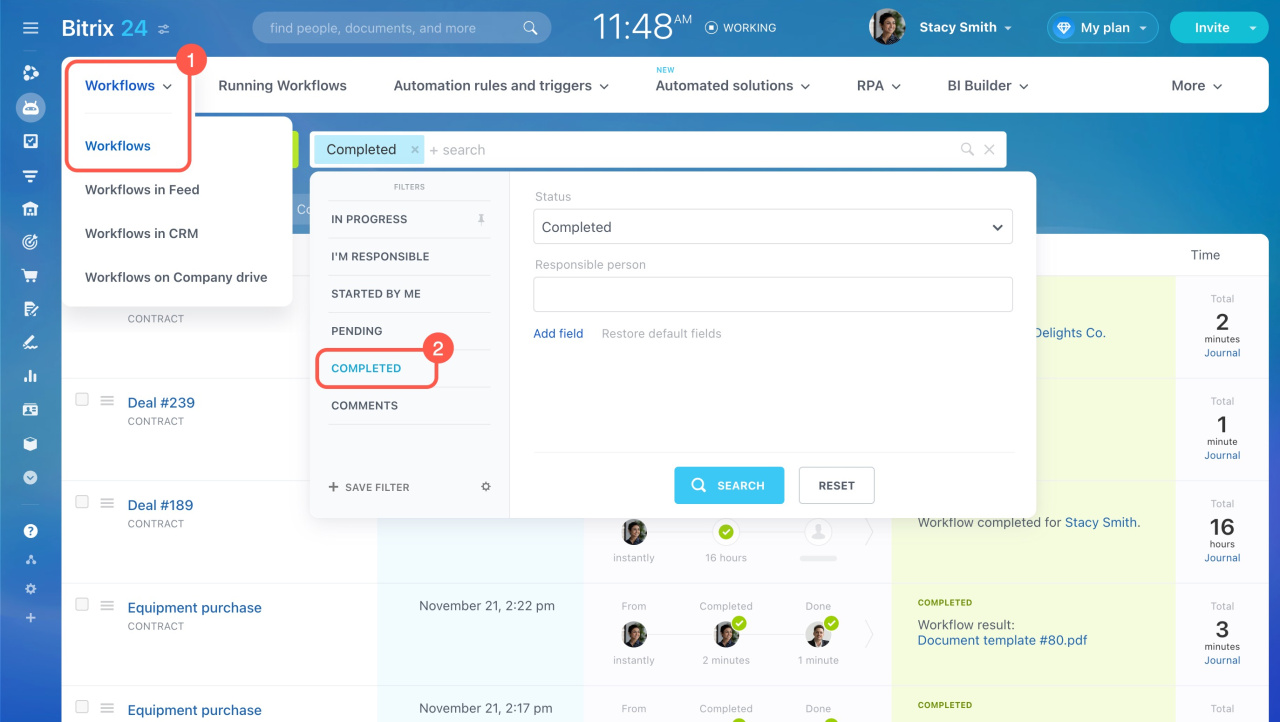
- Go to Automation > Workflows > Workflows.
- Filter workflows by Completed status.
- Check the result in the Status column.
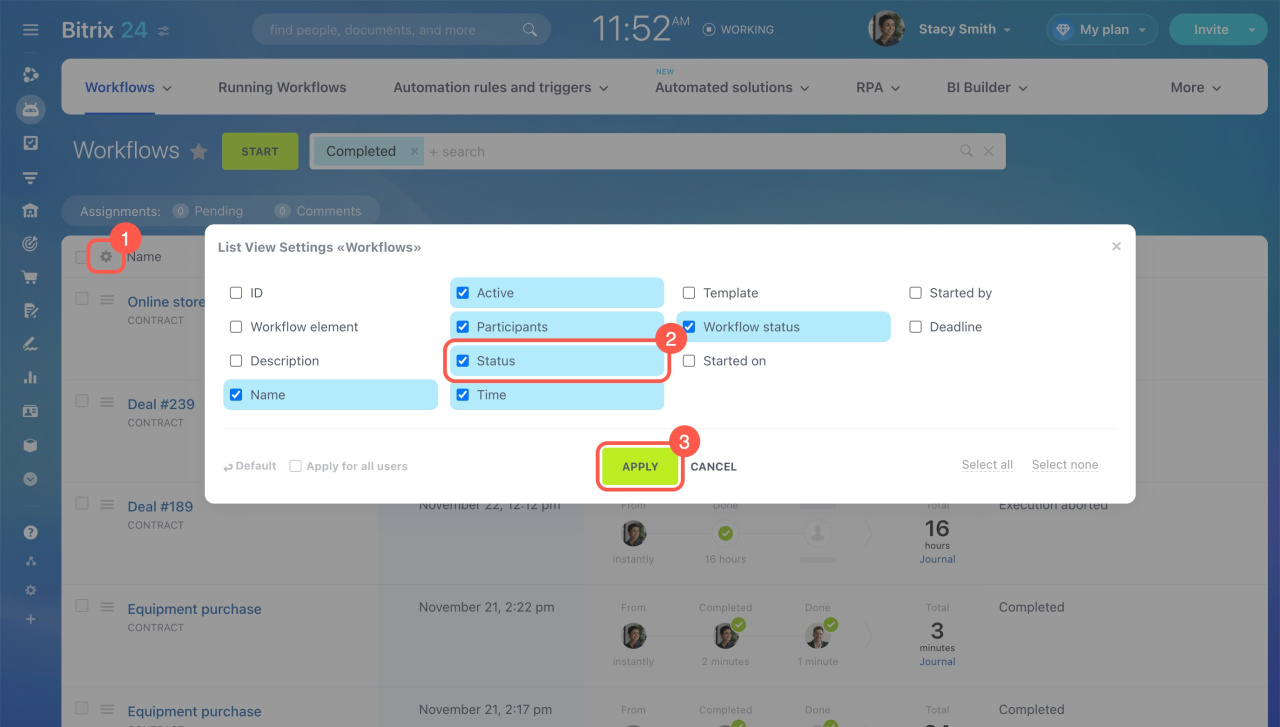
If you don't see this column:
- Open list view settings (⚙️).
- Select the Status field.
- Click Apply.
In the CRM item form
Open the CRM item where the workflow has completed. The result appears in the timeline.
Workflow events in CRM item form
In brief
- In Bitrix24, you can view results of completed workflows and use them later.
- There are two ways to set a workflow result: automatic or manual.
- In automatic mode, the system checks all activities in the template and uses the last supported one. Only activities related to creating CRM items, tasks, or approving and reviewing elements are included.
- Use the Set workflow result activity to choose what to display, such as an item, field, file, or user.
- The result appears in the list of completed workflows and in the CRM item form.