
The workflow test log helps you diagnose workflows. Use it to test workflows, track each step, and find errors.
Starting August 1, 2024, you can turn the log on or off for each workflow template.
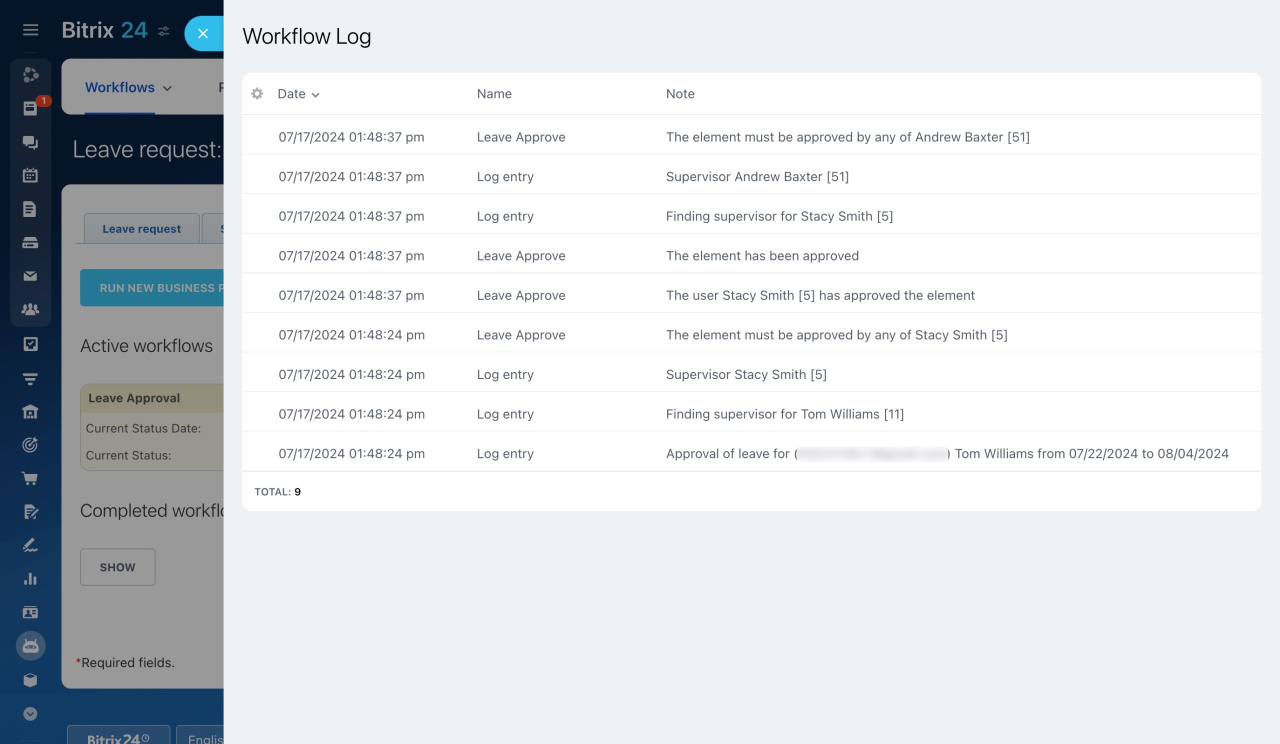
Now you can enable the workflow log manually. To record events in the workflow log, enable the log for each template.
How to enable event logging in a workflow template
The log recording period has changed. The log can only be enabled for seven days, and after a week, events will stop being recorded. Logs created by the Log entry activity will also be recorded for only seven days. To adjust your workflow, enable the log again.
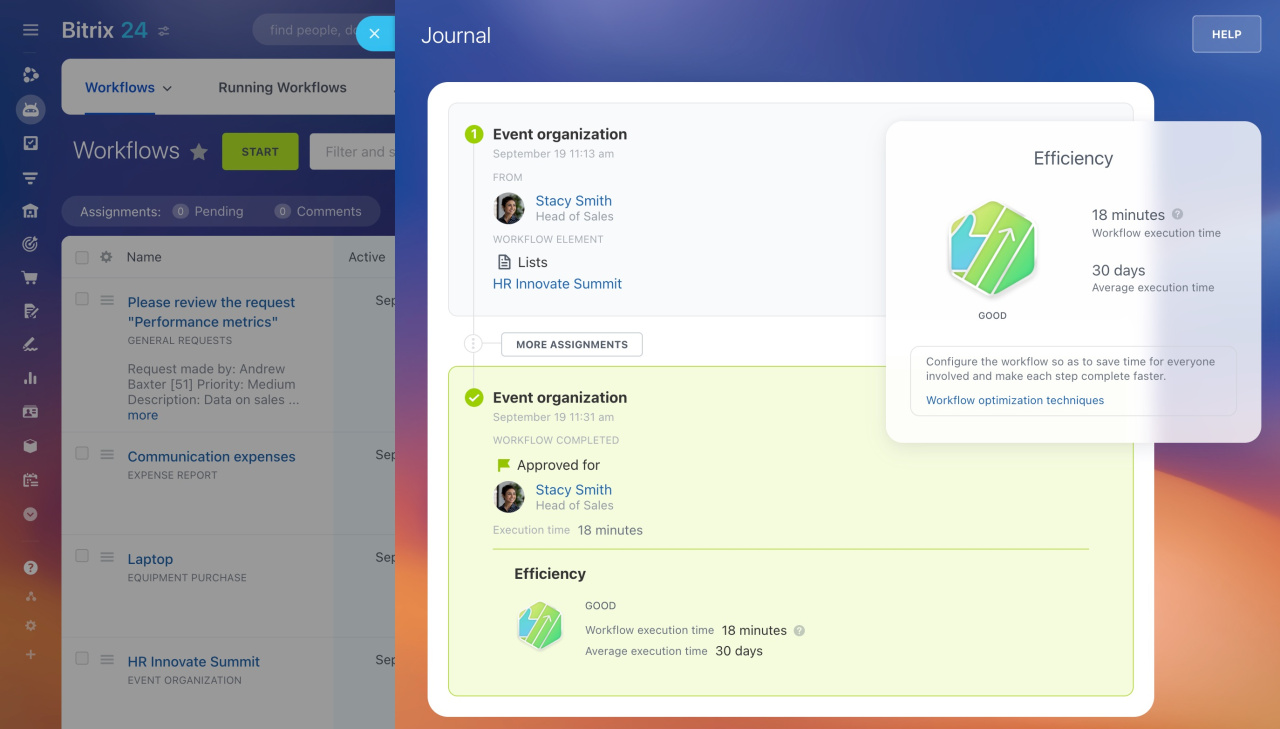
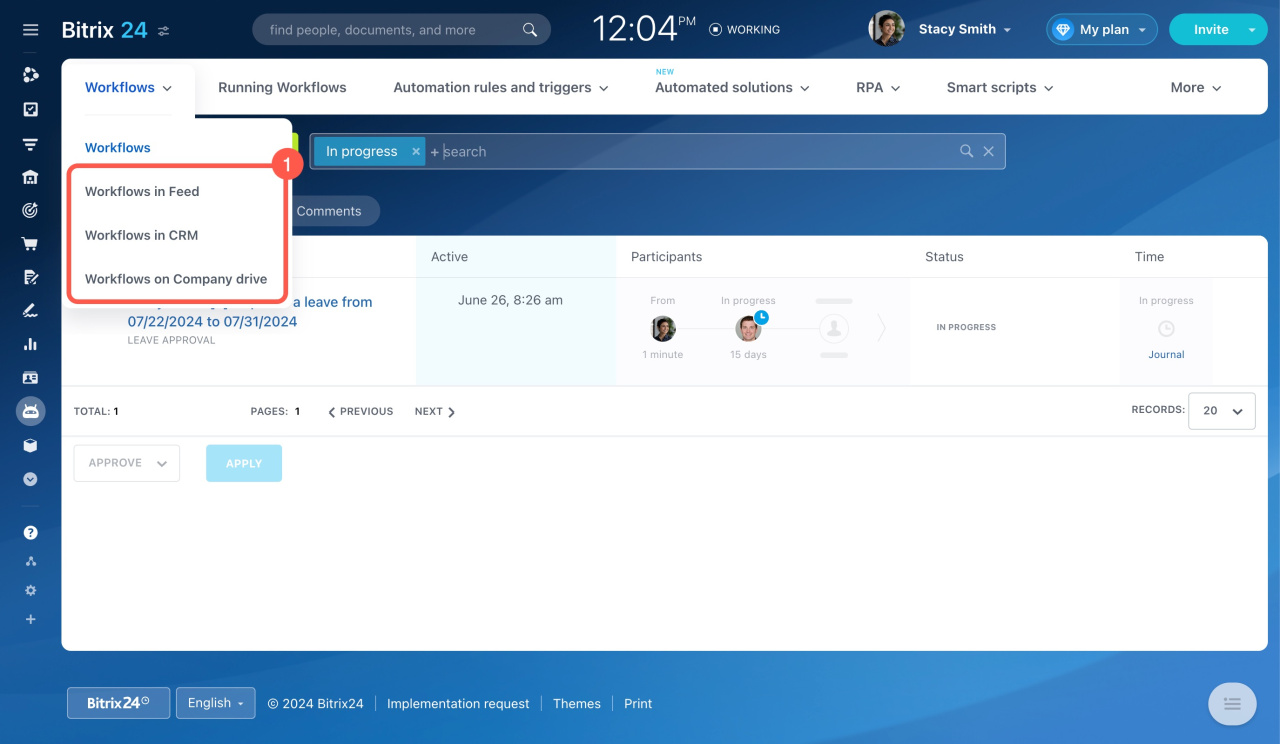
If you need to check the workflow execution history rather than troubleshoot, go to Automation, open Workflows, and click Journal in the Time column. It shows all the actions, participants, and effectiveness of the workflow.
Workflows: new interface and features
The number of records of automation rule actions has been reduced. If the automation rule runs several times for the same entity, only the last action will appear in the workflow log.
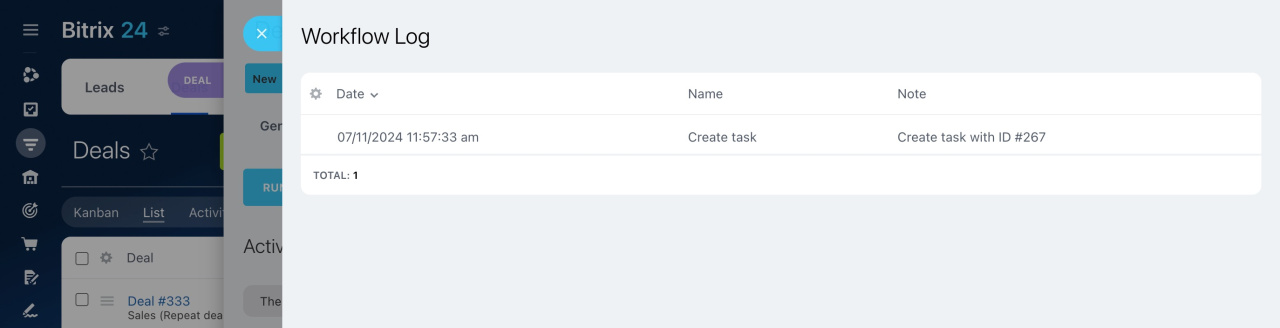
Automation rule test mode
Enable event logging in a workflow template
- Go to Automation > Workflows.
- Select the workflow type.
- Open the workflow template.
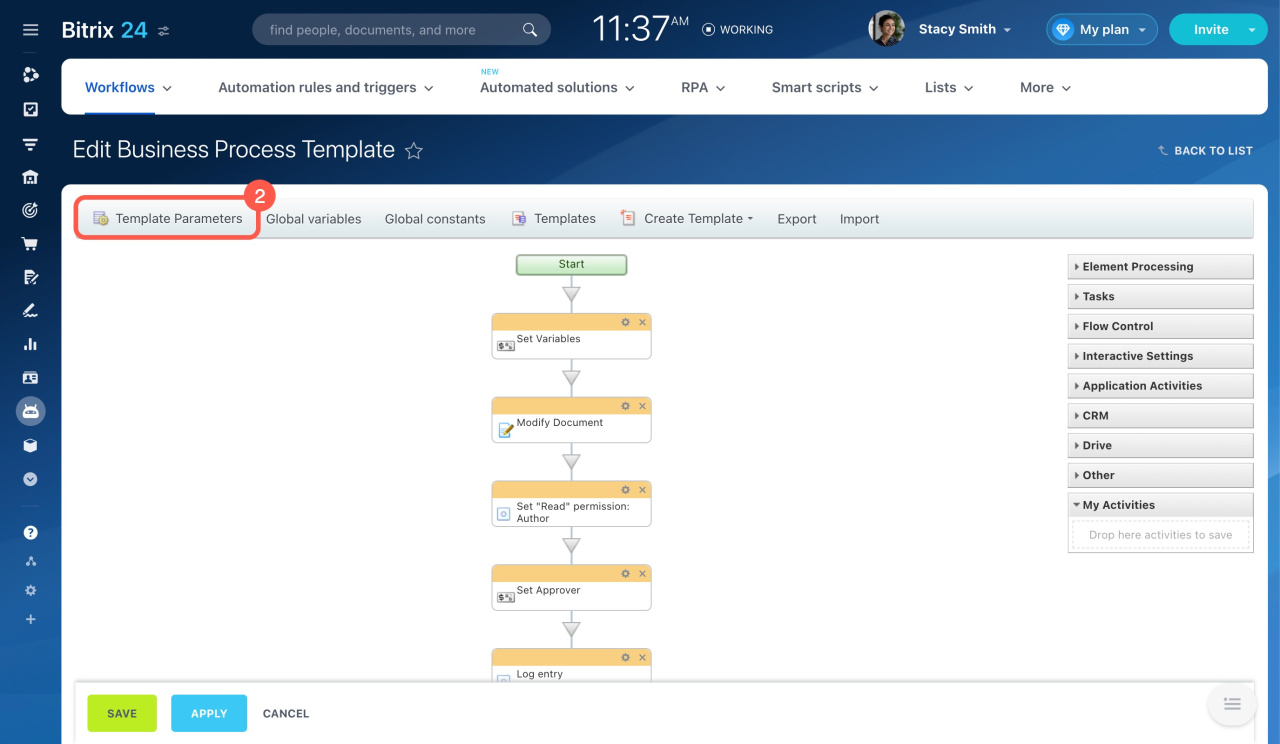
- Click Template Parameters.
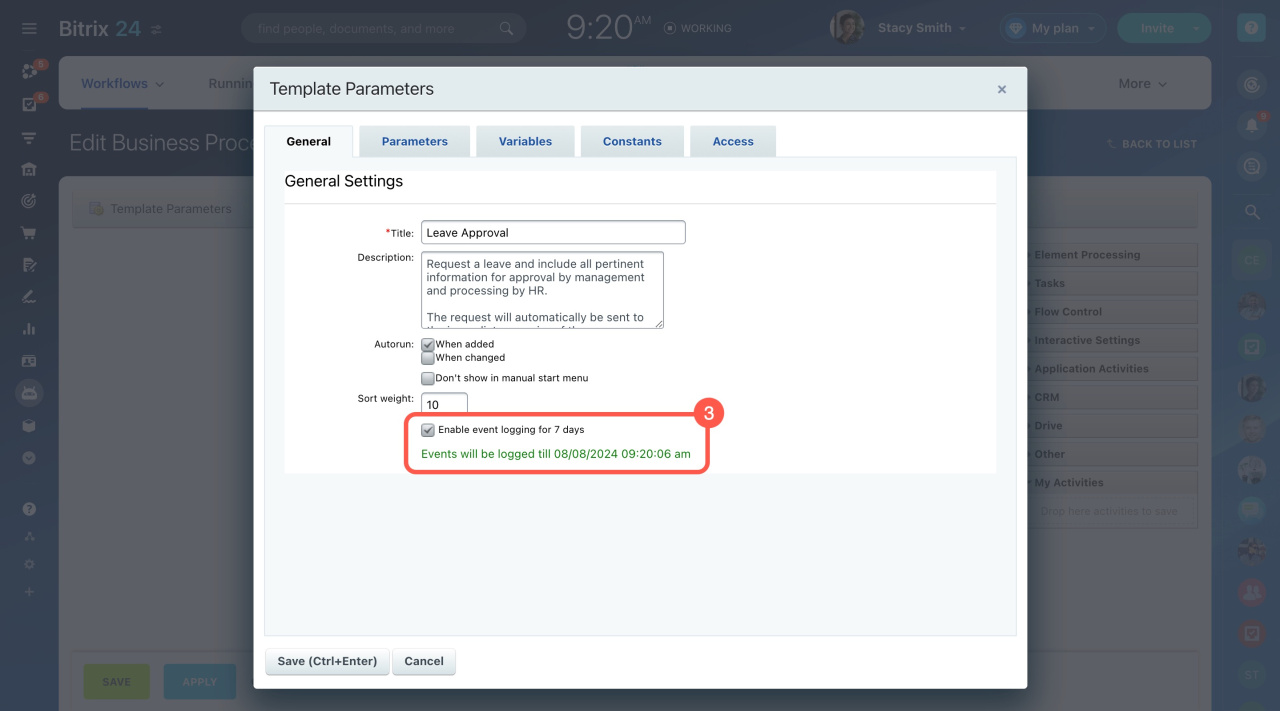
- Turn on Enable event logging for 7 days.
After seven days, logging stops automatically. To continue, turn it on again. To stop logging earlier, turn the option off.
In brief
- The workflow test log helps you diagnose workflows and find errors.
- Starting August 1, 2024, you control logging for each workflow template.
- Logs are stored for seven days.
- Logs created before August 1, 2024, will be deleted.