
Connect your office PBX to Bitrix24 using the REST API or the SIP connector. You can connect any number of PBXs to your account.
For REST API connections, install an app from the Bitrix24 Market. Check the app description or contact the developer if you need help.
Bitrix24 Market
This article explains how to connect a PBX using the SIP connector.
What you can do with the SIP connector
Outgoing calls. Bitrix24 connects to the server you set in the Outgoing calls section and establishes the connection after authentication.
Incoming calls. To receive calls, configure your IP-PBX and create a trunk using the settings from the Incoming calls section.
You can receive incoming calls for free through the Bitrix24 SIP PBX. You need the SIP connector for outgoing calls or call forwarding.
SIP connector
You also get free minutes to test outbound calls. Check your available minutes and license period in Connection > Balance and Statistics.

Connect your office PBX
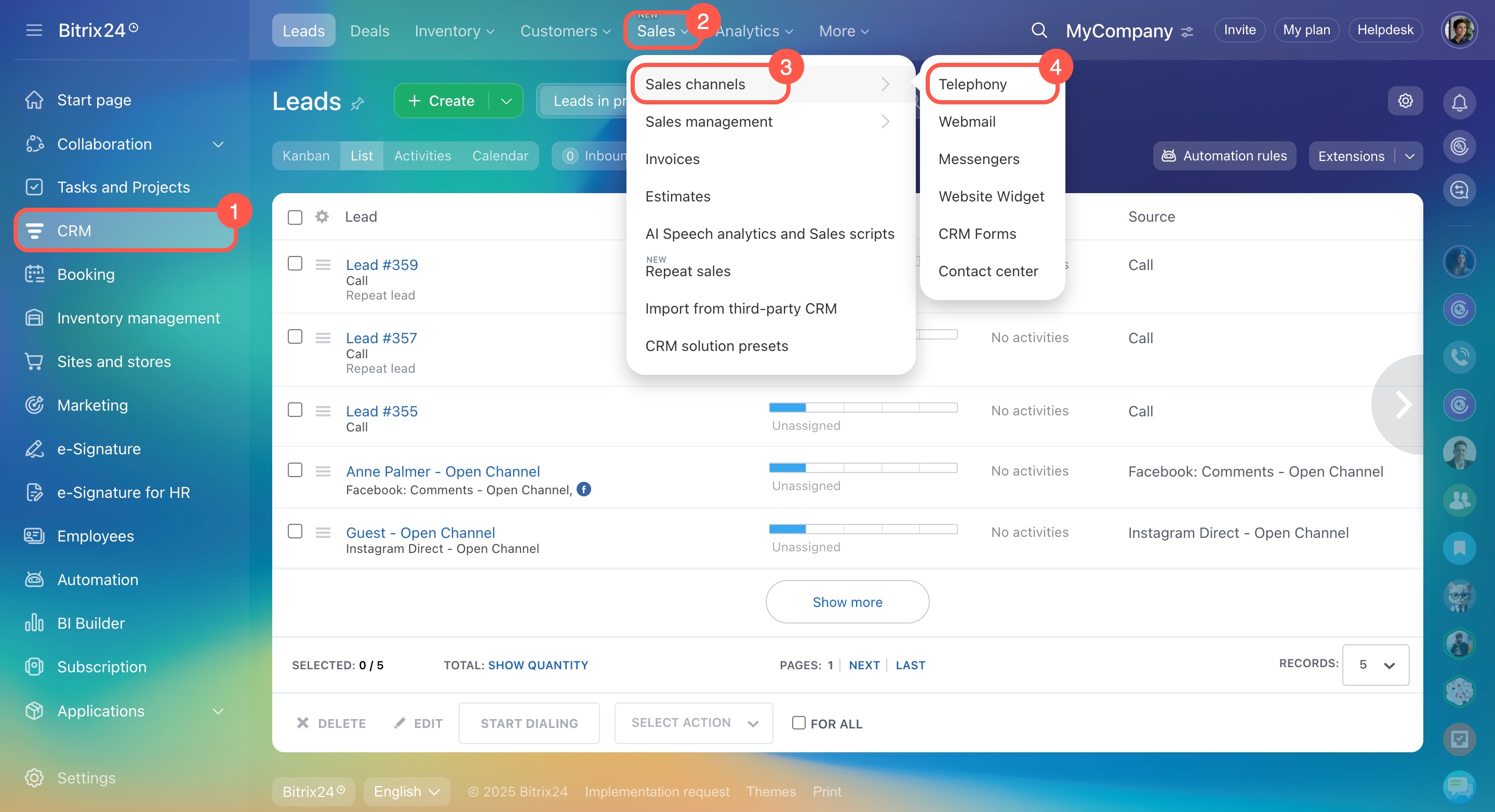
- Go to CRM.
- Click Sales.
- Open Sales channels.
- Select Telephony.
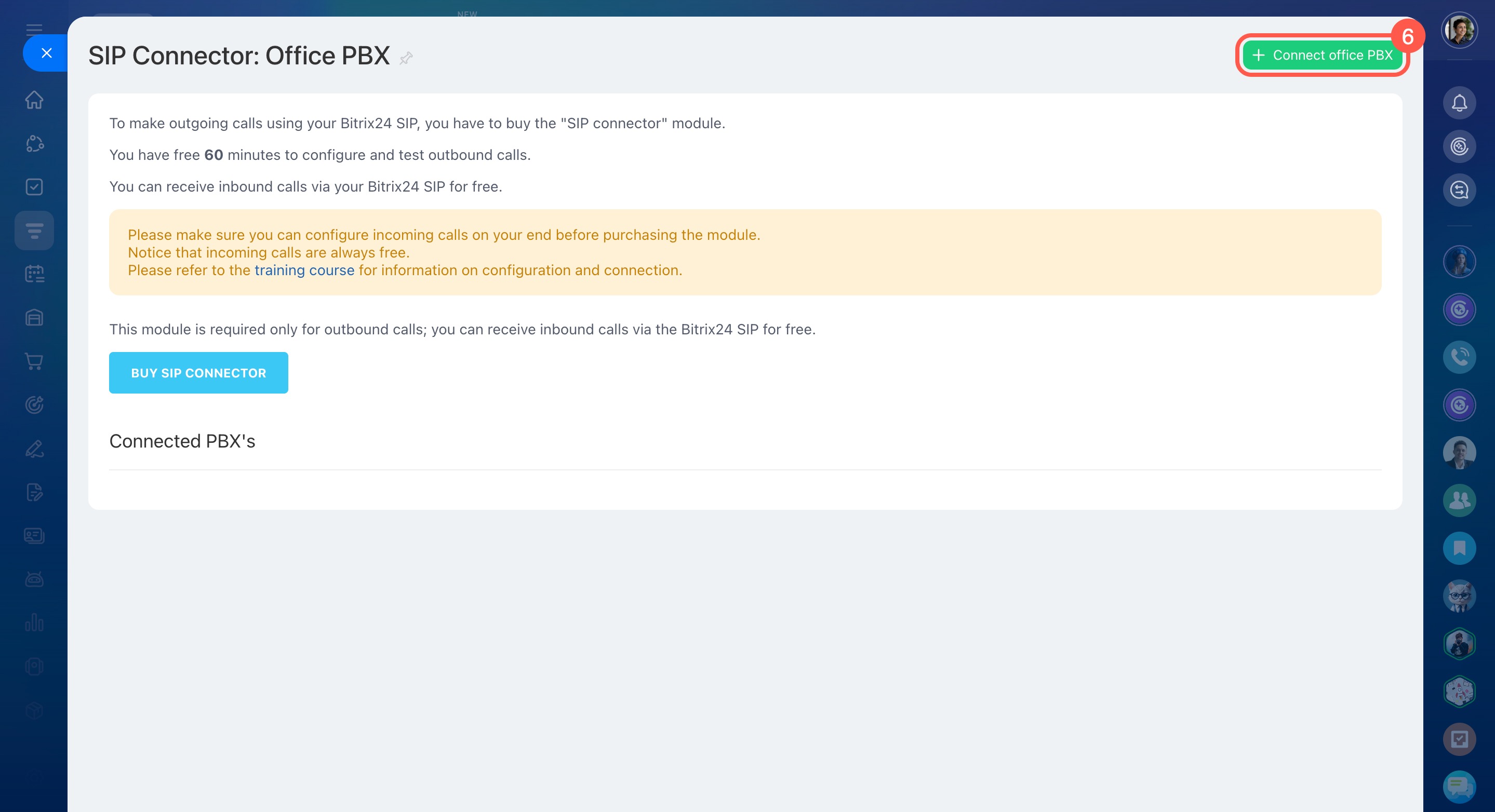
- Click Office PBX.
- Select Connect office PBX.
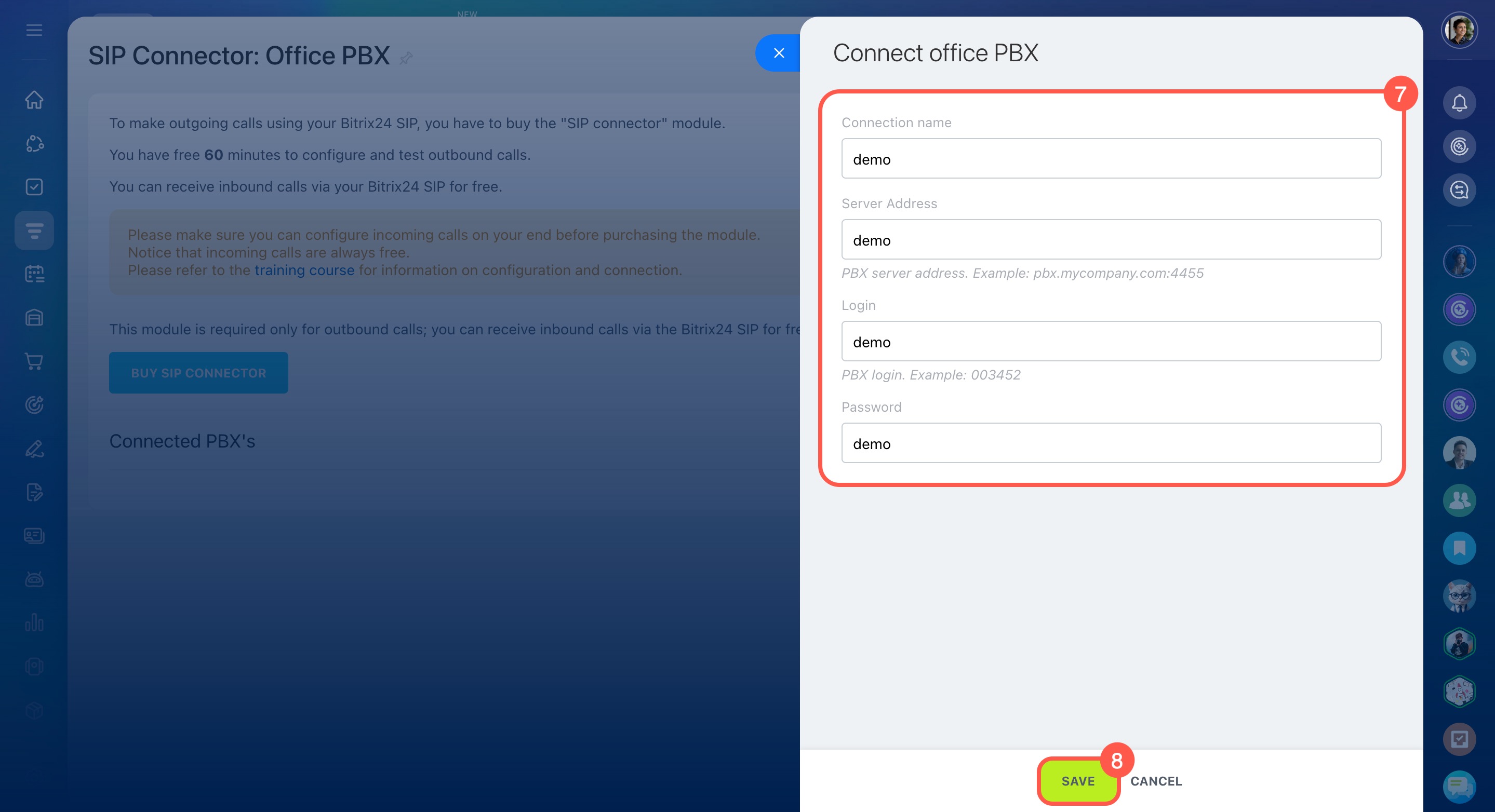
- Fill out the form:
Connection name: Enter a name (optional).
Server Address: Enter your PBX IP address.
Login and Password: Enter your PBX credentials. -
Click Save. A page with connection settings will open.
Configure numbers

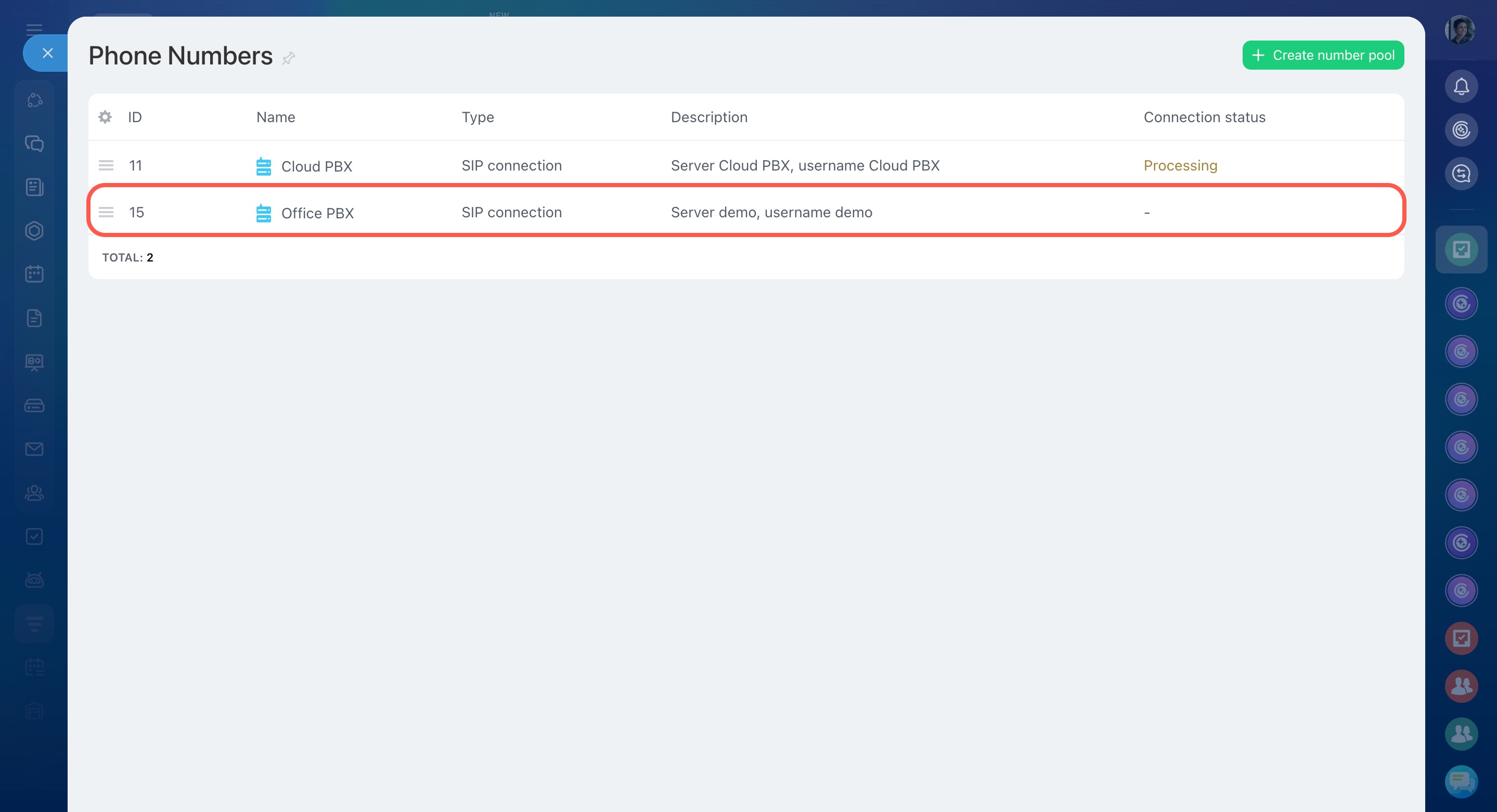
In the phone number list, you will see a dash instead of the connection status. This is expected. The PBX connects to telephony servers only during a call.
Configure your office PBX
Here is an example using Asterisk. Use the data from the Incoming calls section.
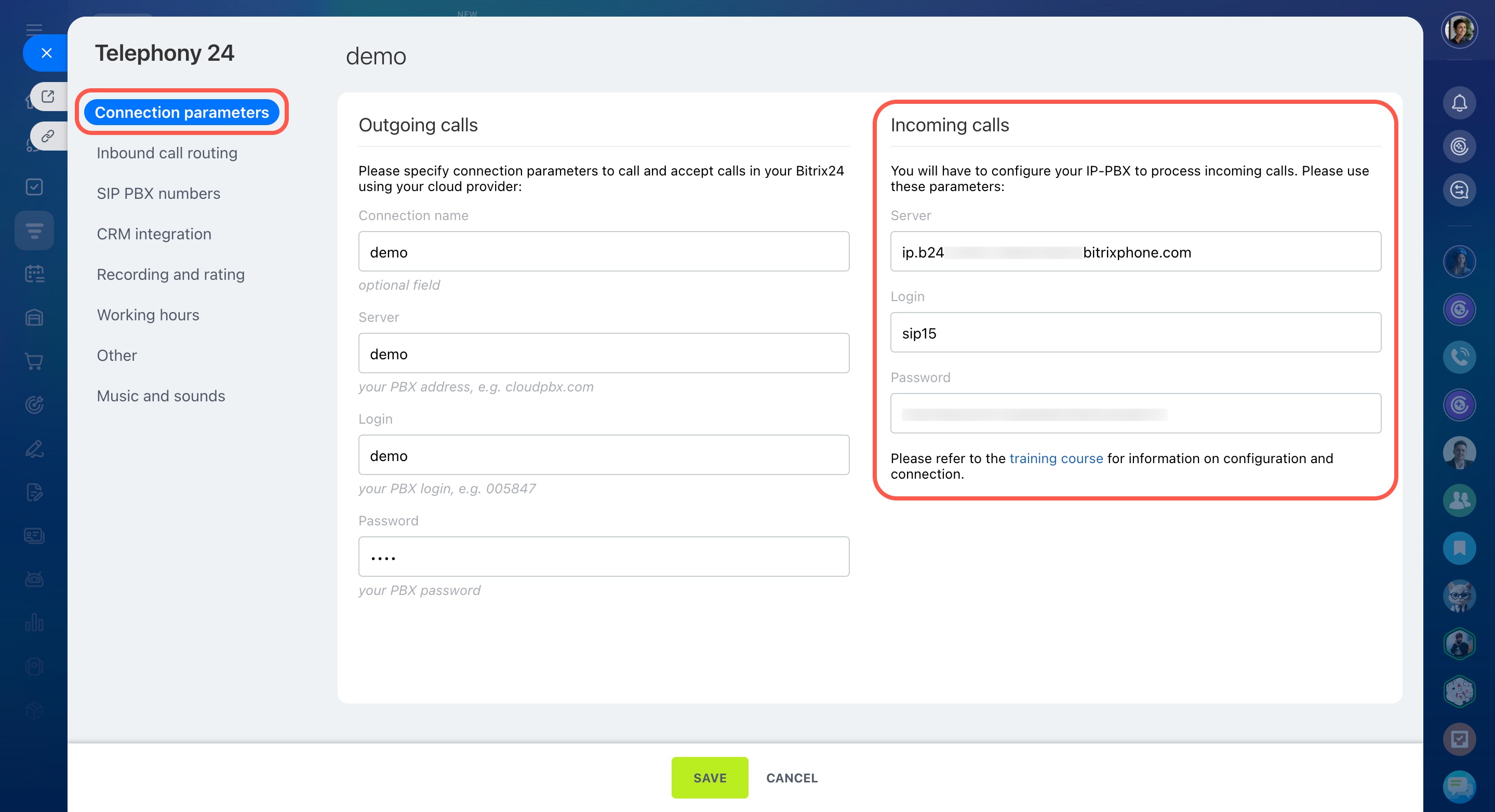
Create a trunk. Add this entry to the sip.conf file:
[voximplant] dtmfmode=rfc2833 ; instead of your_account, use the account name from the Server field fromdomain=your_account type=friend host=your_account ; use the value of the Login field fromuser=asterisk username=asterisk ; use the value from the Password field secret=mypass insecure=port,invite conext=contex-internal disallow=all nat=yes allow=ulaw&alaw
nat parameter to yes or no based on your network setup.Example:
[voximplant] dtmfmode=rfc2833 fromdomain=ip.b24-2729-1386056980.voximplant.com type=friend host=ip.b24-2729-1386056980.voximplant.com fromuser=sip1 username=sip1 secret=e349429f63f7e4d7025fcd32d477ea05 insecure=port,invite conext=contex-internal disallow=all nat=yes allow=ulaw&alaw
incoming instead of ip in the Server field (e.g., incoming.b24-6864-1386141129.bitrixphone.com). This still works, but performance is slower. Use ip instead.Apply the settings in the Asterisk console:
sip reload
Set up calls from Asterisk to Voximplant. Configure your Dialplan in the extensions.conf file:
Dial(SIP/voximplant/${EXTEN})
Calls will be sent to Bitrix24 as if they were originally dialed in Asterisk.
Asterisk documentation: Dialplan
Apply the changes in the Asterisk console:
dialplan reload
Configure firewall settings. Open these ports:
- For browser calls: 443 TCP, 3478 TCP/UDP, 8000-48000 UDP.
- For SIP device calls: 5060 TCP/UDP, 3478 TCP/UDP, 8000-48000 UDP.
Allow outbound traffic from your PBX. In most cases, inbound connections will work automatically. RTP usually uses UDP, so data can still be transmitted even if some packets are lost.
You can configure ports in your PBX settings. Make sure to open the same ports in your firewall.
Bitrix24 Self-hosted administration: Telephony