
In the Bitrix24 mobile app, you can connect a mailbox and work with email much like you do on desktop. You can read and send messages, forward emails to coworkers, create tasks, link emails to CRM, and more. This helps when you are away from the office and need to reply quickly to clients, coworkers, or partners.
Bitrix24 plans and pricing
In this article:
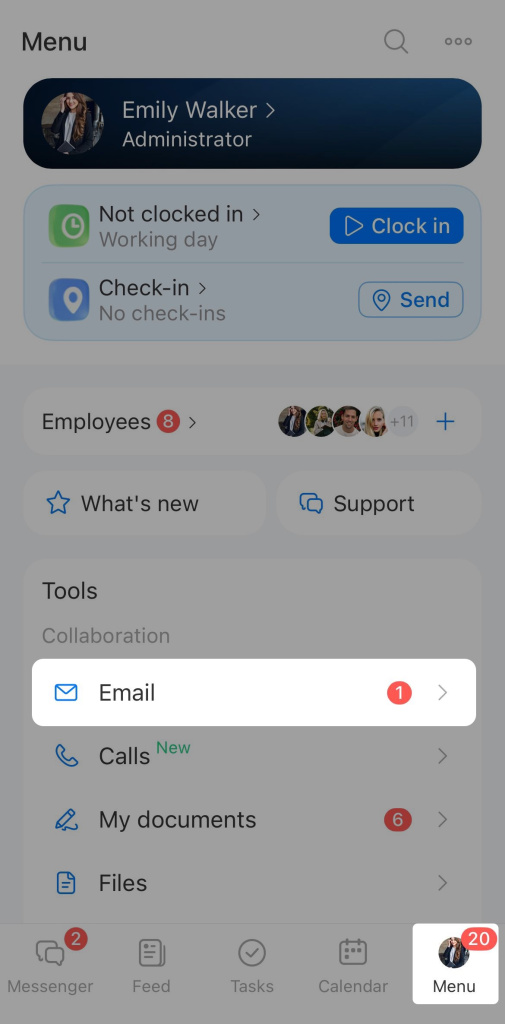
Connect a mailbox
- Go to Menu > Email
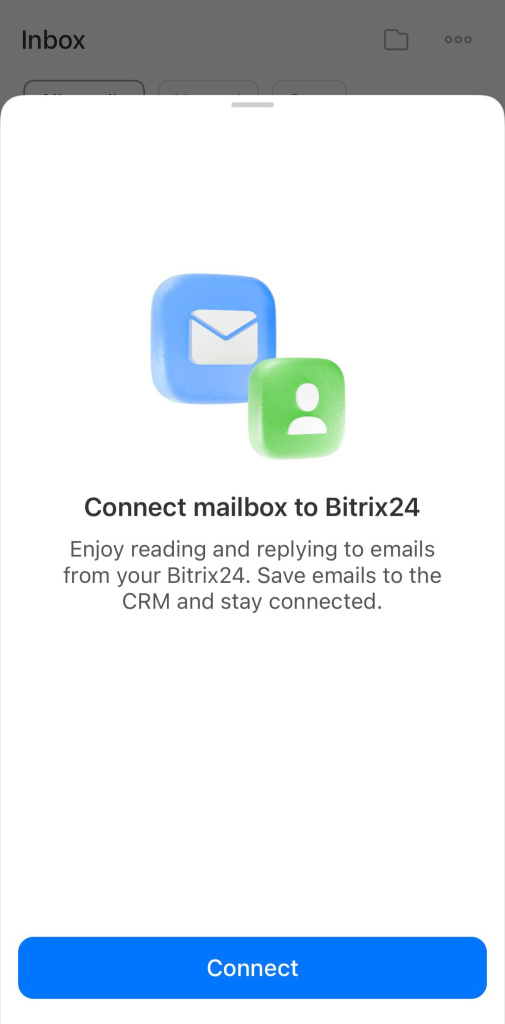
- Tap Connect.
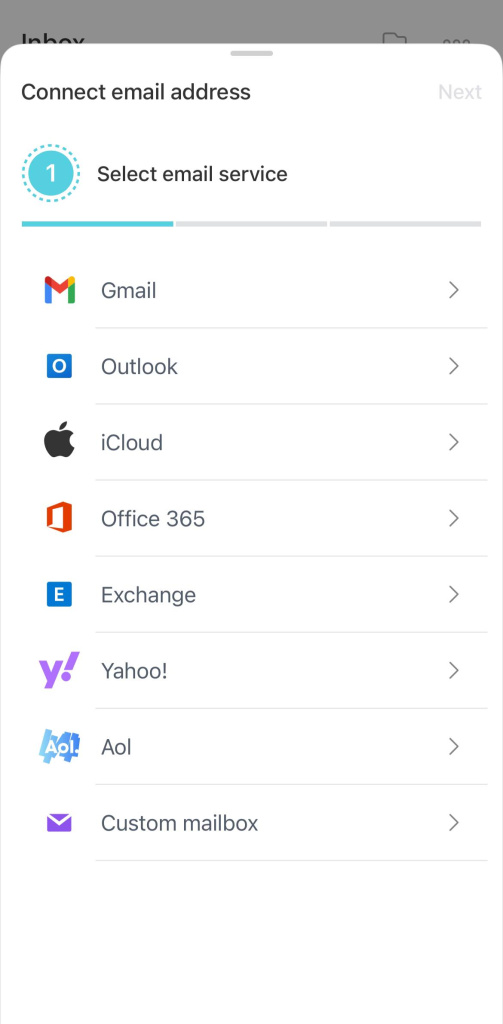
- Select the email service you want to use.
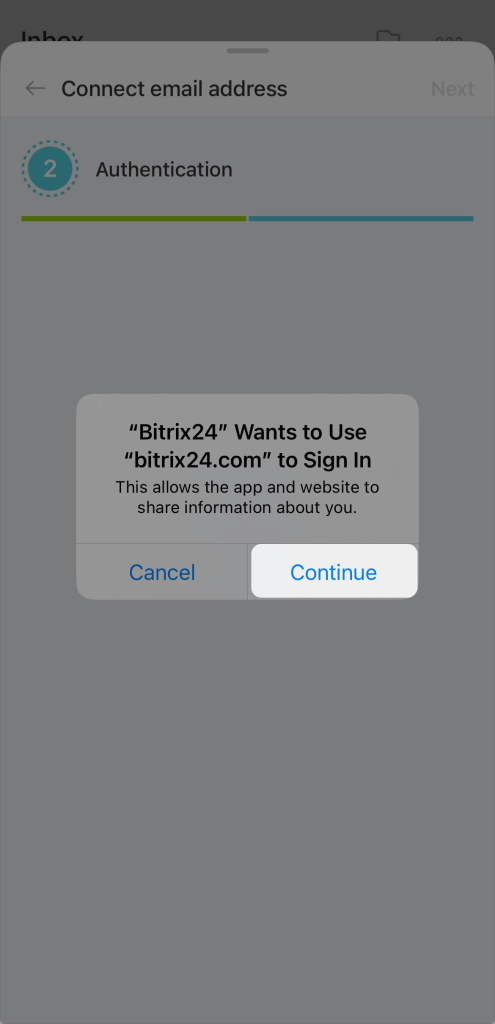
- Tap Continue, an authorization window for the selected service will open.
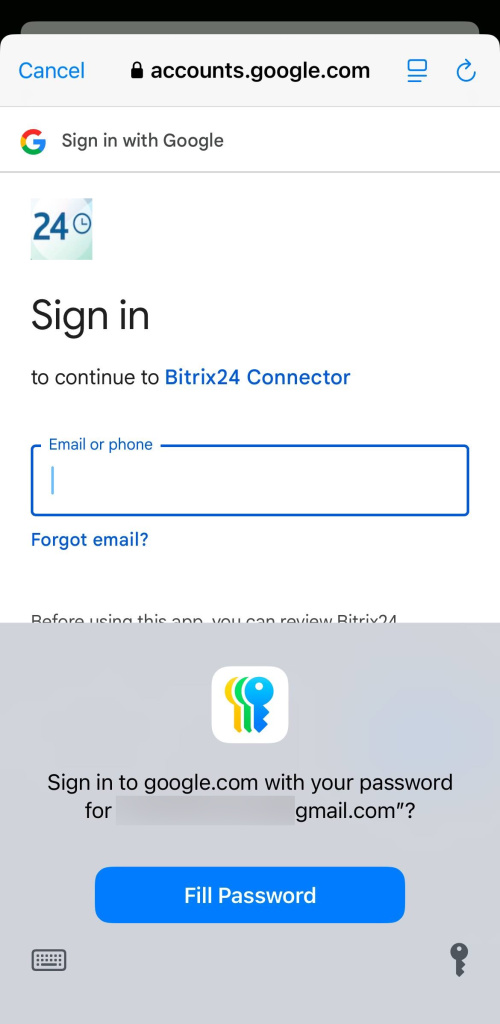
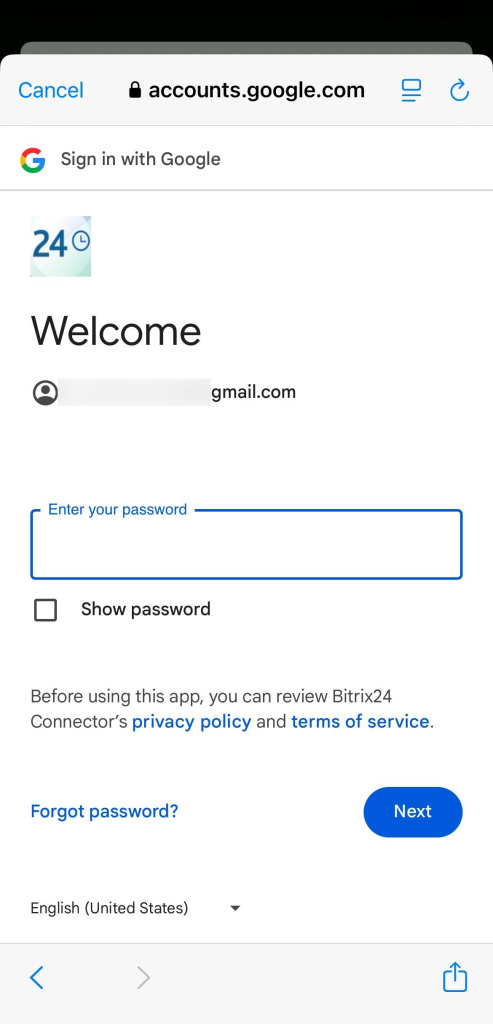
- Sign in to your email account.
- Confirm the sign-in with SMS, a push notification, or another method from your email provider.
- If you have several accounts, select the one you need.
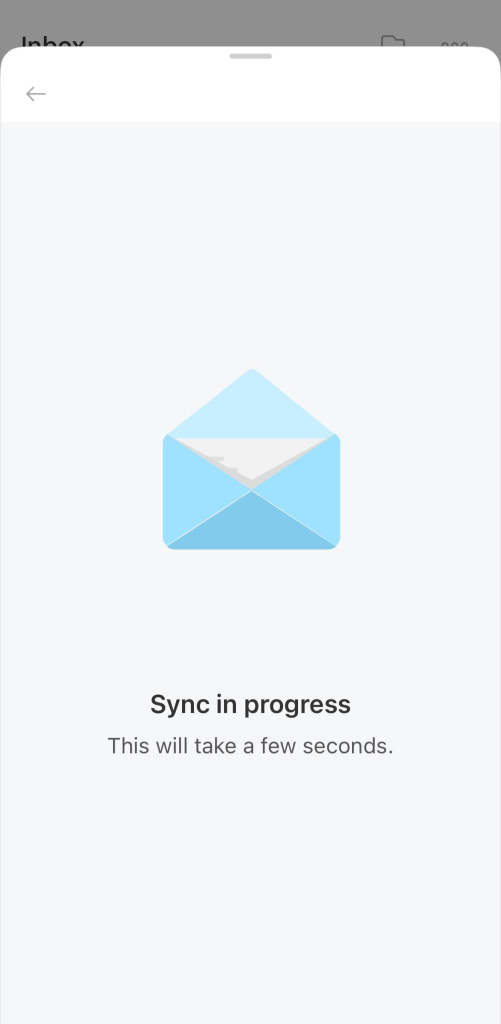
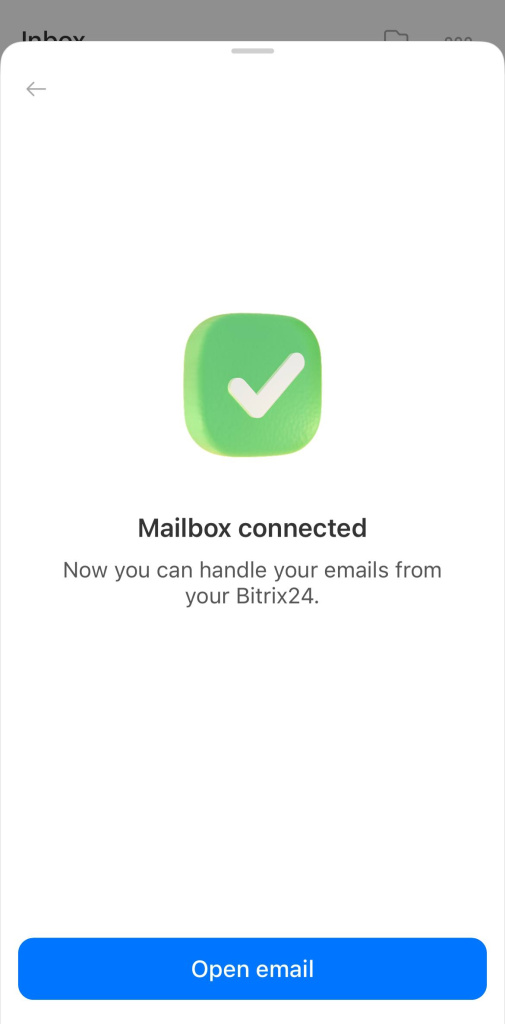
- Your mailbox is now connected. Tap Open email.
You can now work with email in the Bitrix24 mobile app.
Mailbox settings
Work with email
After you connect your mailbox in the Bitrix24 mobile app, you can use standard email actions.
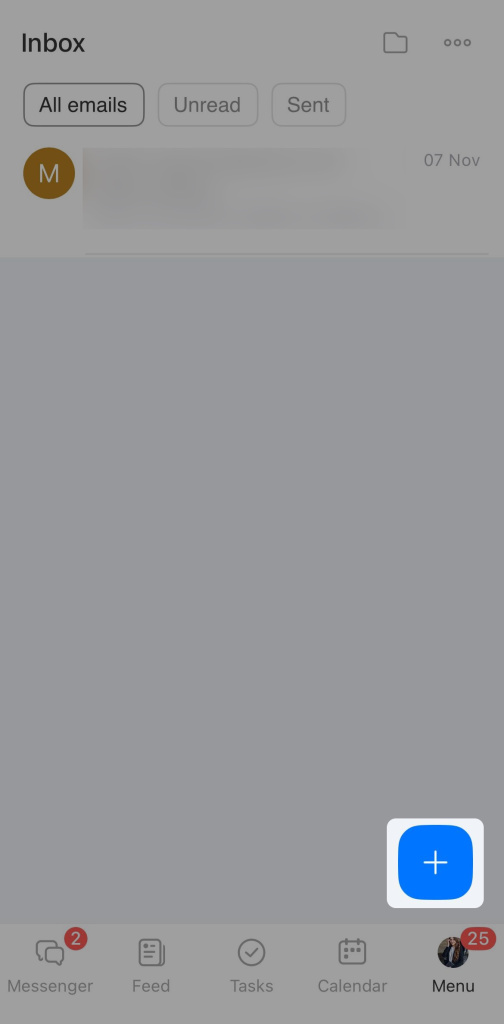
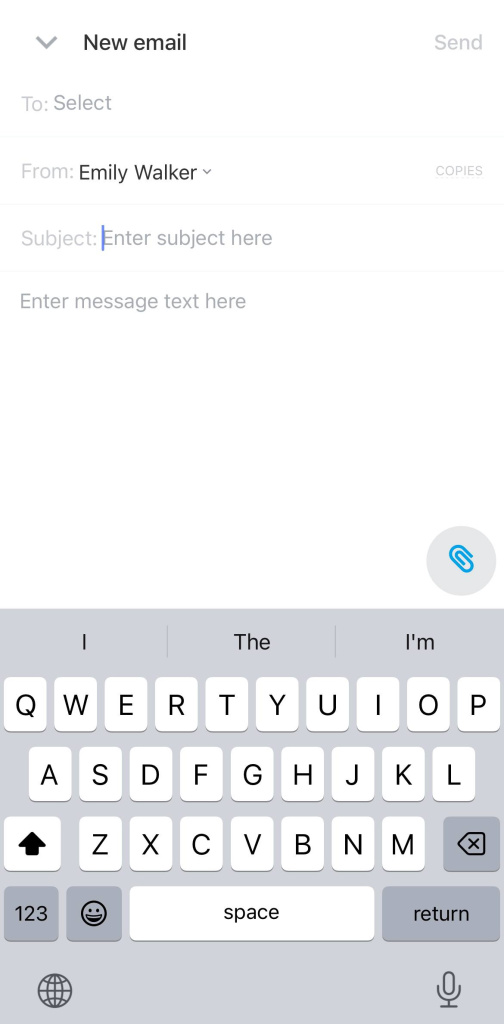
Create. Tap Plus (+) and select a recipient. This can be a contact from CRM, the address book, or a Bitrix24 colleague.
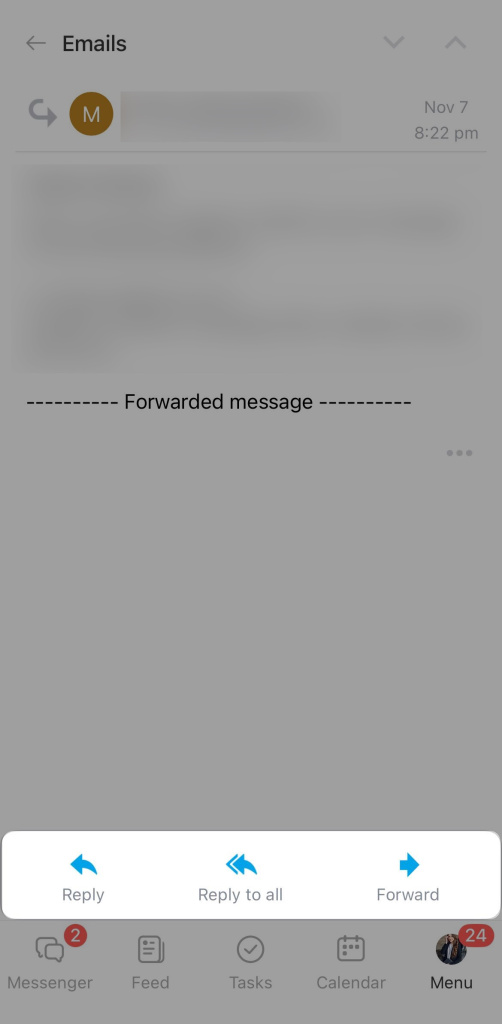
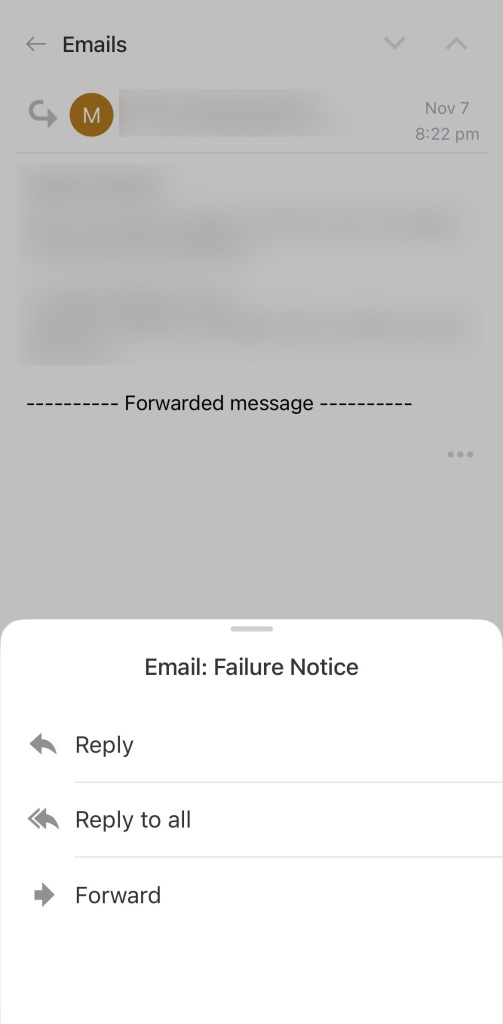
Reply or forward. Open an email and choose Reply or Forward. For example, if a client sends a contract, you can forward it to your legal team for review.
To exclude an email from CRM, mark it as spam, or delete it, tap Menu (...).
Sort. You can filter emails by status: All Inbox, Unread, and Sent. For example, open the Unread tab to reply to new messages faster. Use the buttons at the top of the screen to switch filters.
To connect another mailbox — tap the folder icon and click Plus (+).
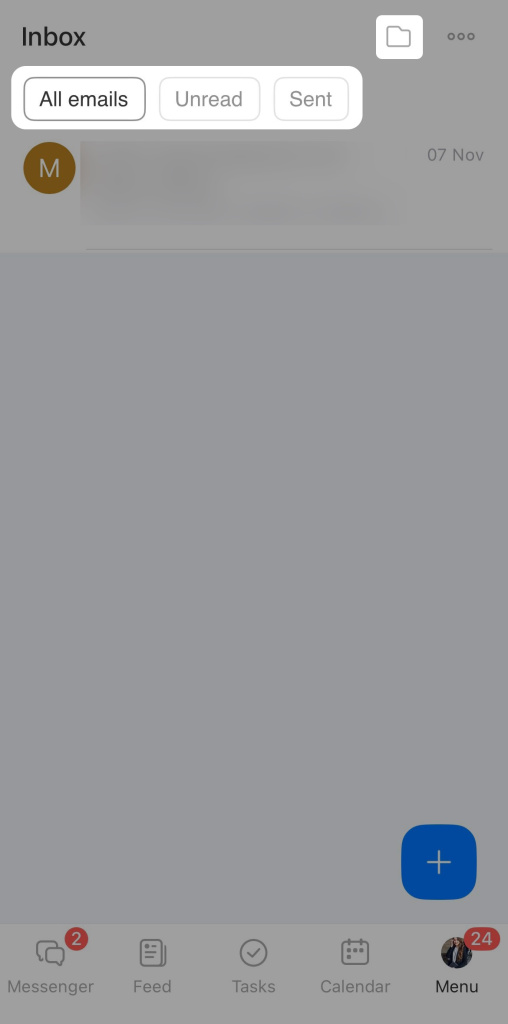
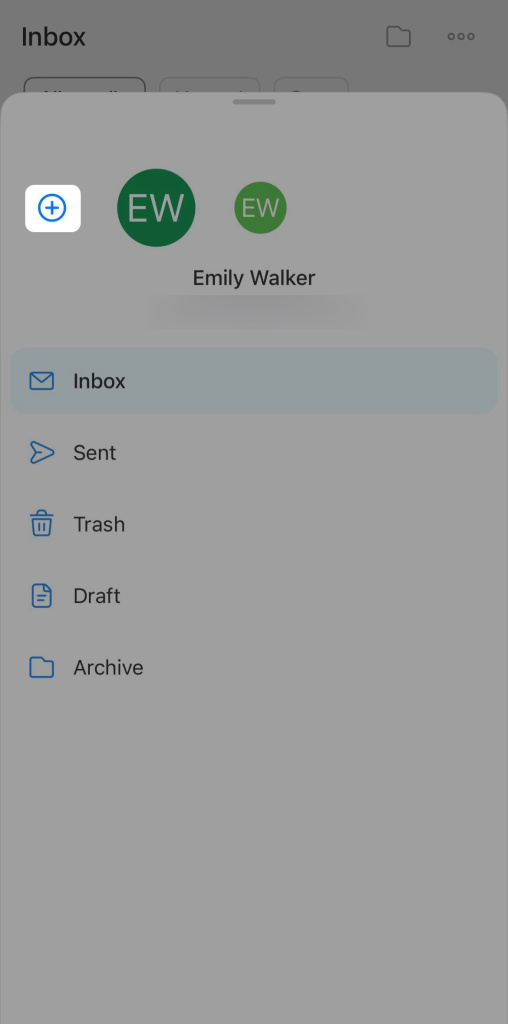
Manage emails. You can work with several emails at once. For example, you can mark them as read or delete them. This helps you organize your inbox faster.
- Tap Three dots (...) > Select multiple. Click on the emails you need.
- Tap Actions and choose the desired option.
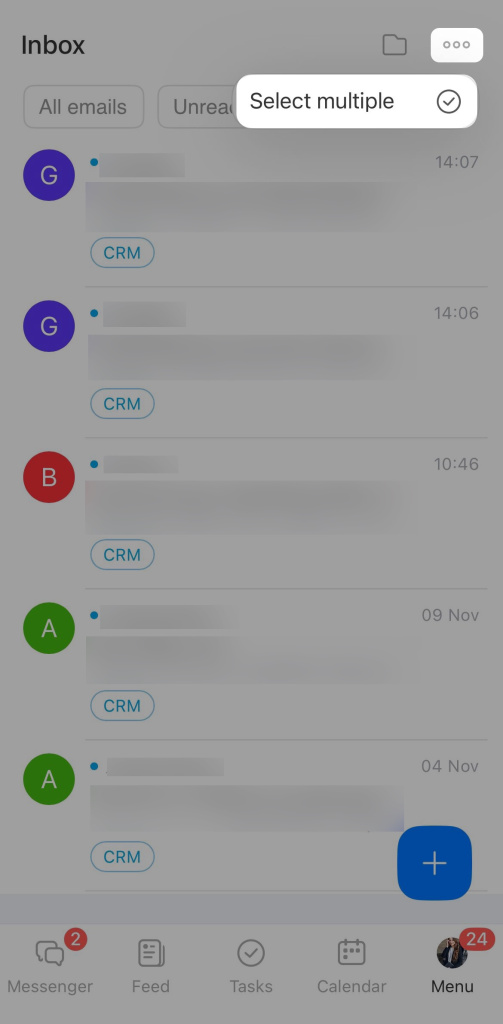
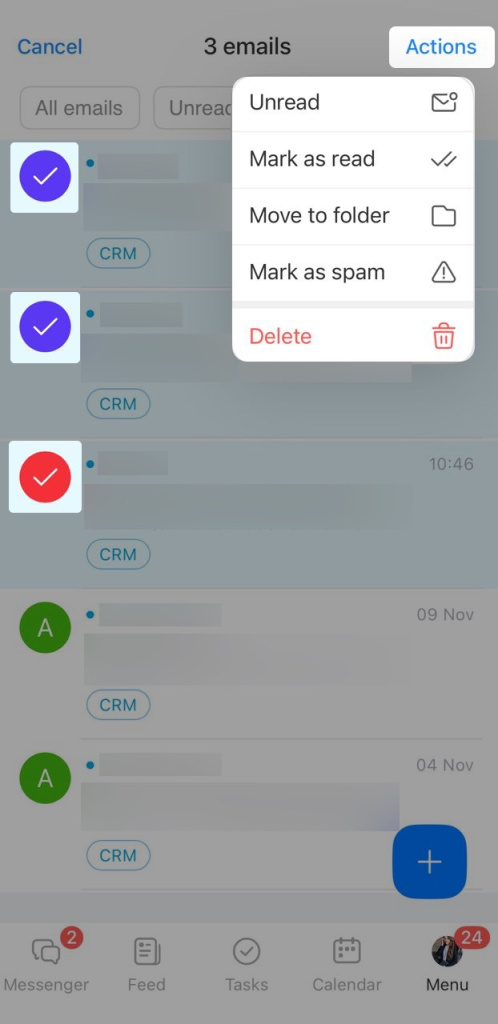
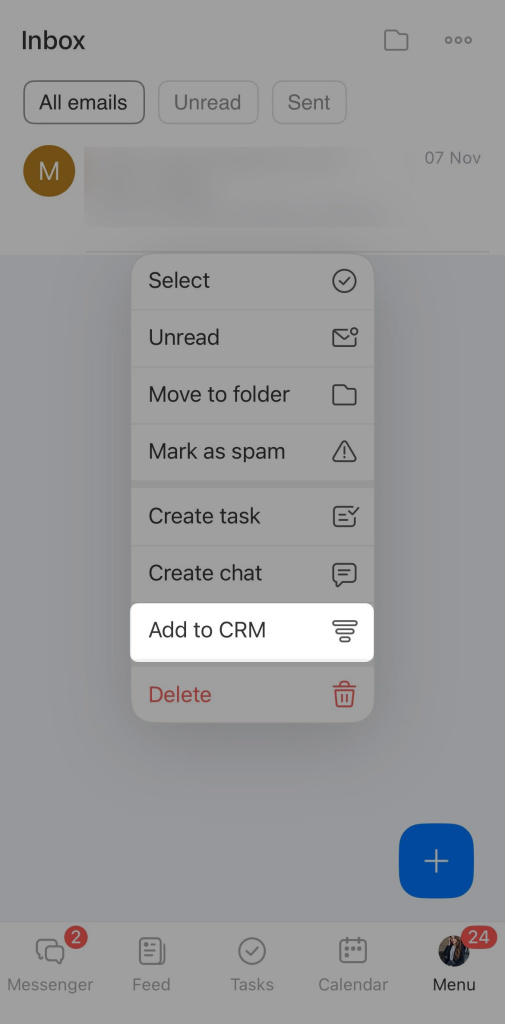
Link an email to Bitrix24 tools. From an email, you can create a task, a chat, a calendar event, and more. For example, if a client sends an invoice, you can create a task for the accounting team.
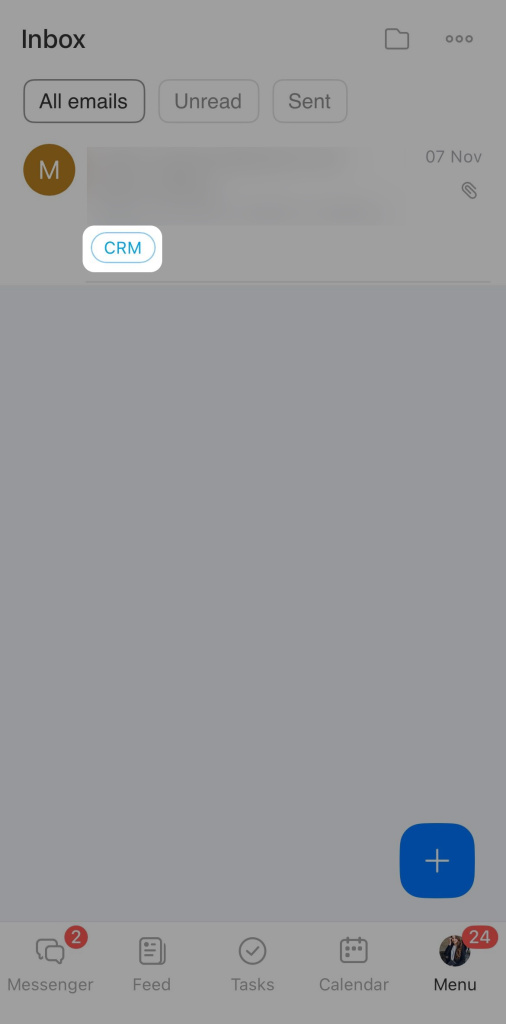
Press and hold an email, then choose an action, such as Add to CRM. The email will get a CRM label, and you will be able to open the linked record quickly.
In brief
- In the Bitrix24 mobile app, you can connect a mailbox and work with email much like on desktop.
- To connect email, go to Menu > Email > Connect and sign in to your email service.
- You can set up a mailbox only in the Bitrix24 desktop version.
- After you connect your mailbox in the mobile app, you can read, reply, forward, and link emails to tasks, events, CRM records, and other Bitrix24 tools.
