
Bitrix24 online store is a ready-to-use solution for online sales. You can launch it quickly and start accepting orders without any programming skills or additional services. This article answers frequently asked questions about working with online stores in Bitrix24.
- How to show multiple variants of a product to customers
- How to recreate a store with demo products
- How to manage customer registration and personal area
- How to set up product discounts without coupons
- How to check current product stock levels
- How to give employees access to store pages
- How to hide the coupon field on the checkout page
- How to remove duplicate checkout buttons
- How to fix the smart filter if it disappears after publication
- How to process product returns
- How to configure payment system restrictions
- How to manage product stock levels
- Which features are not yet available
How to show multiple variants of a product to customers
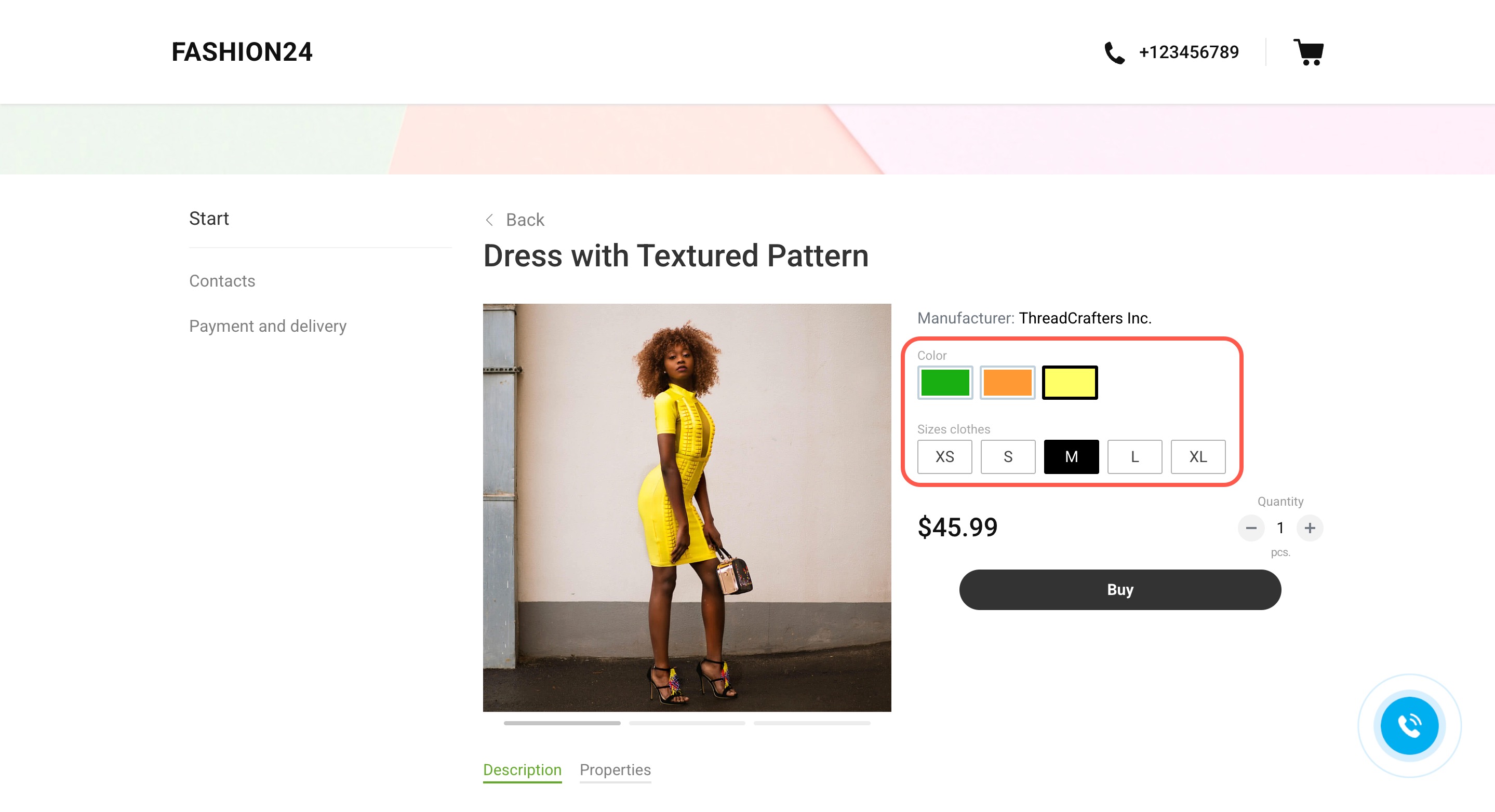
You can set up product variants with different options, such as size, color, or material. Customers can select the option they want directly on the product page without searching for similar items.
Product catalog
Working with product variants
How to recreate a store with demo products
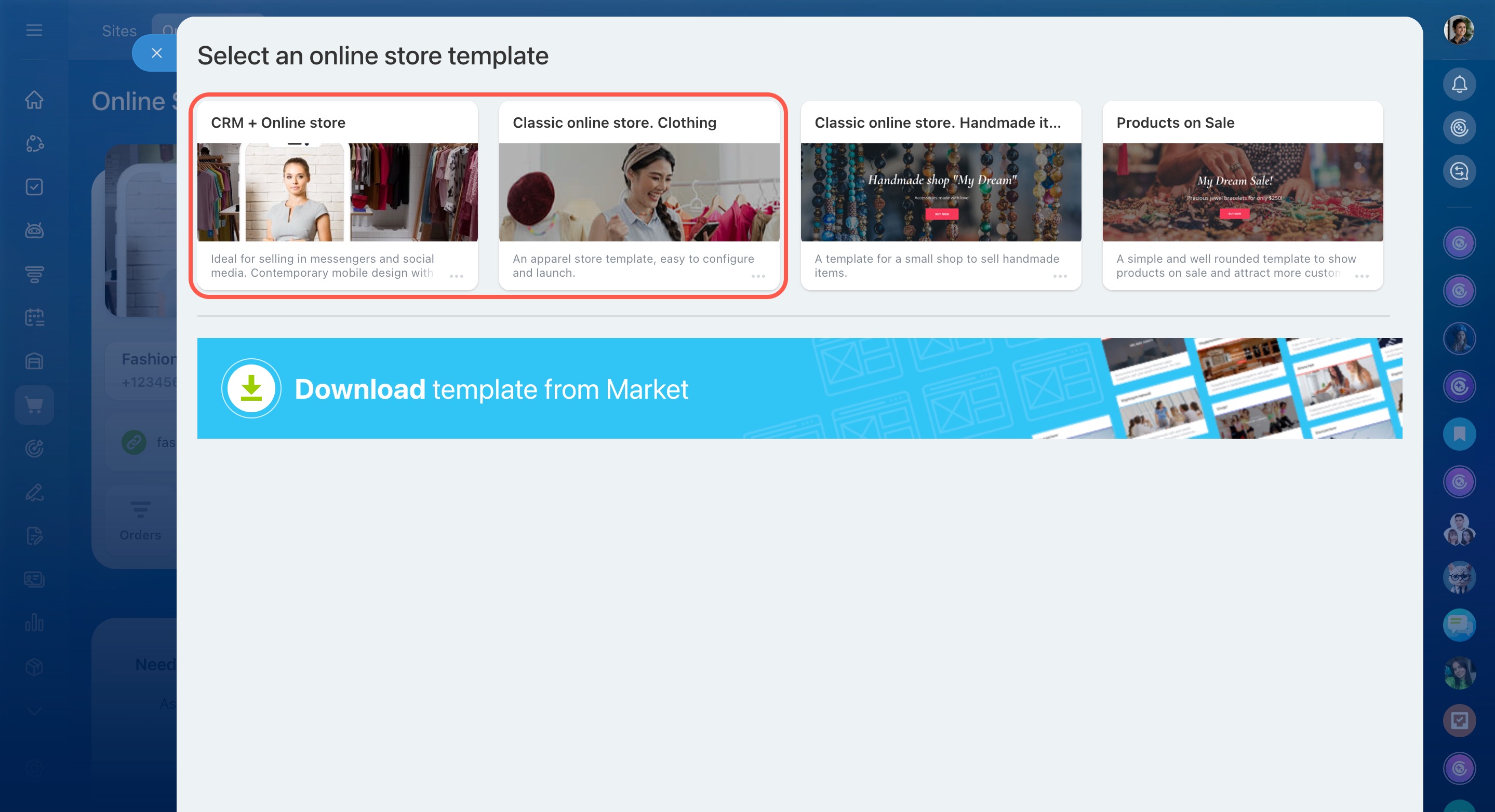
When launching a store using the "CRM + Online Store" or "Classic online store. Clothing" template, Bitrix24 automatically adds demo data. This includes sample products, catalog sections, and preset settings. The demo content helps you see how a ready-to-use store looks and test the checkout process.
If you need to recreate the demo data, first delete all existing products and sections from the Bitrix24 product catalog. Then create the store again using the same template.
Create an online store in Bitrix24
Create CRM + Online Store
How to manage customer registration and personal area
Customers are registered automatically when they place their first order. Here’s how it works:
- The customer enters their email address on the checkout page.
- After the order is placed, a personal area is created automatically.
- The customer receives an email with a link to set up a password.
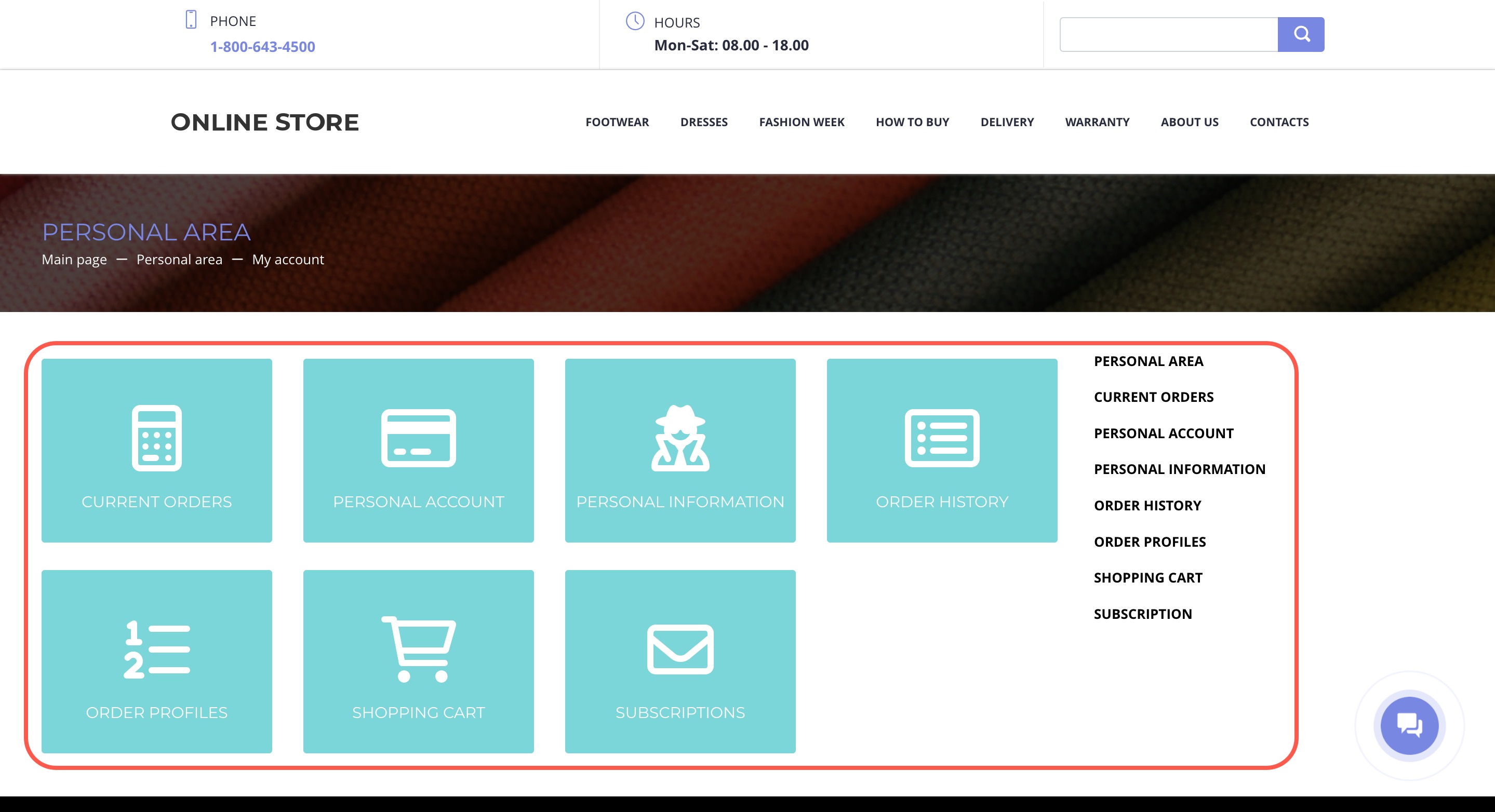
In their personal area, customers can view their order history, place repeat orders, and update their personal information.
Personal area in the online store
How to set up product discounts without coupons
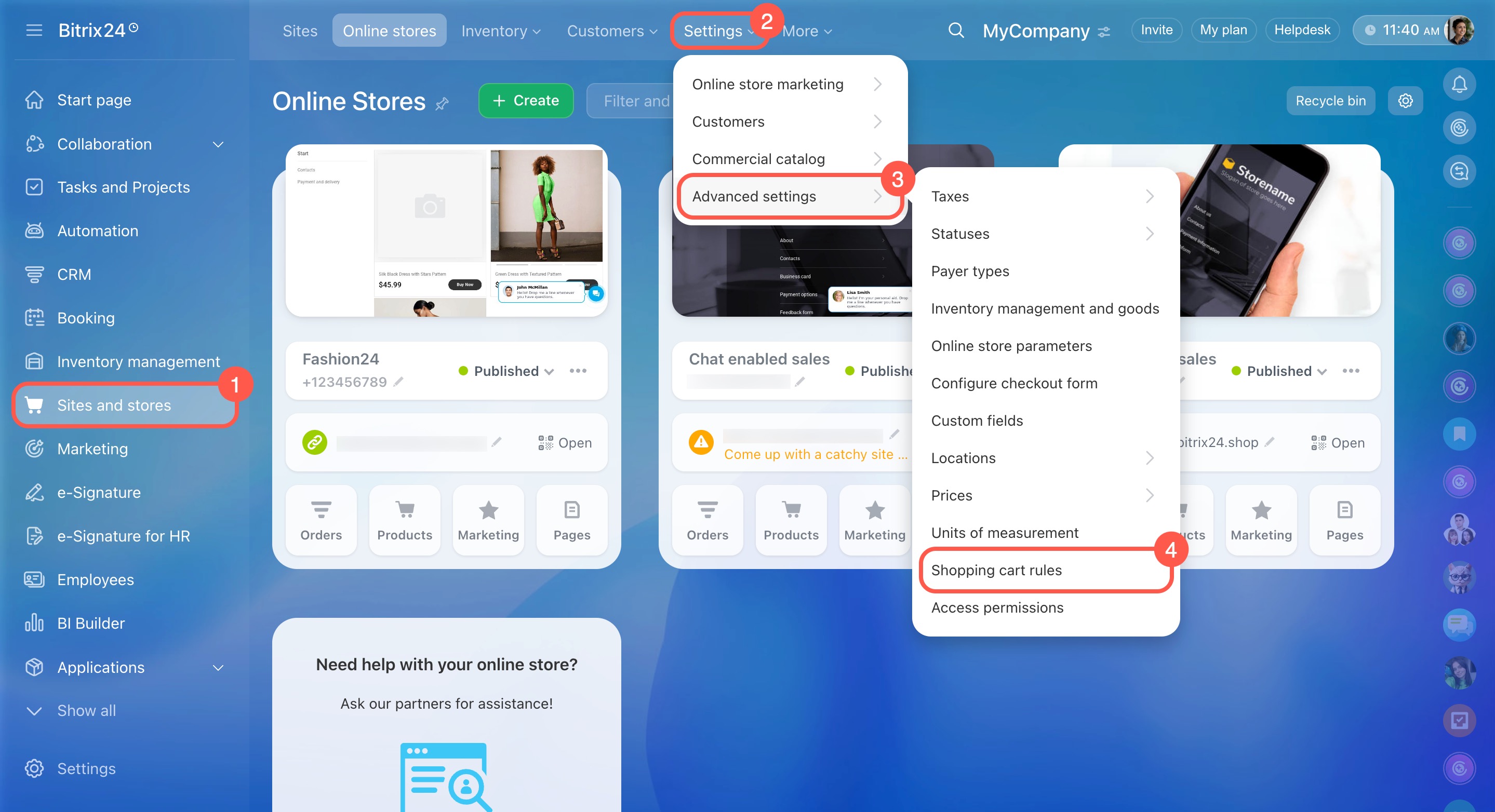
Use cart rules to create discounts. Go to Sites and stores > Settings > Advanced settings > Shopping cart rules.
You can set up:
- A discount for a specific product
- A discount for a catalog section
- A discount based on conditions, such as a minimum order total
How to check current product stock levels
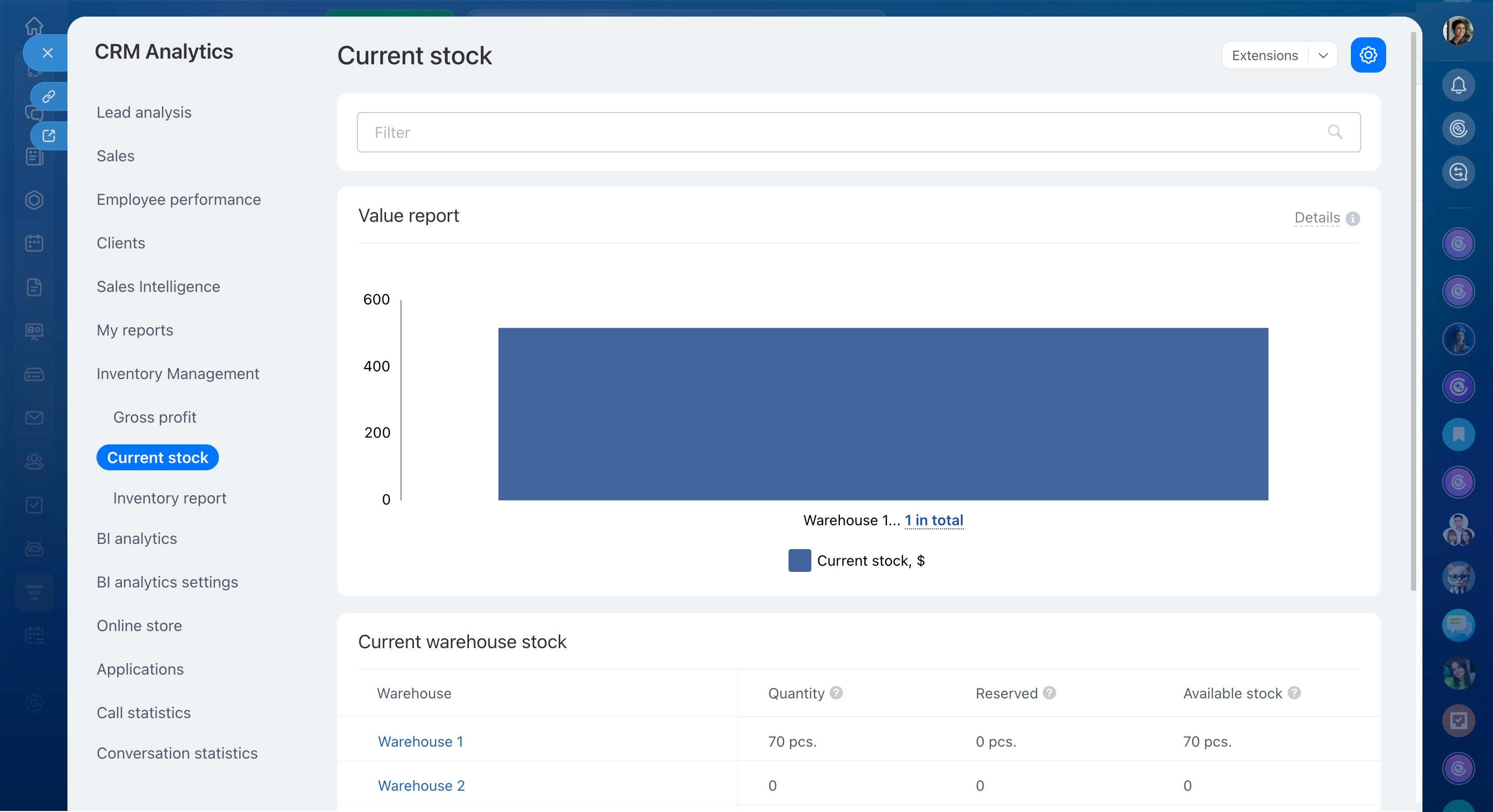
You can view current stock levels for all warehouses in the inventory management reports. Go to Inventory management > Analytics > Current stock.
At the top of the report, you’ll see the total inventory value. Below that, a table shows all products and warehouses with details on quantity, reserved stock, and available stock.
This report replaces the old summary table and gives you a complete overview of stock levels for all products in the catalog.
Current stock report
How to give employees access to store pages
If an employee can’t view or edit store pages, check the access settings.
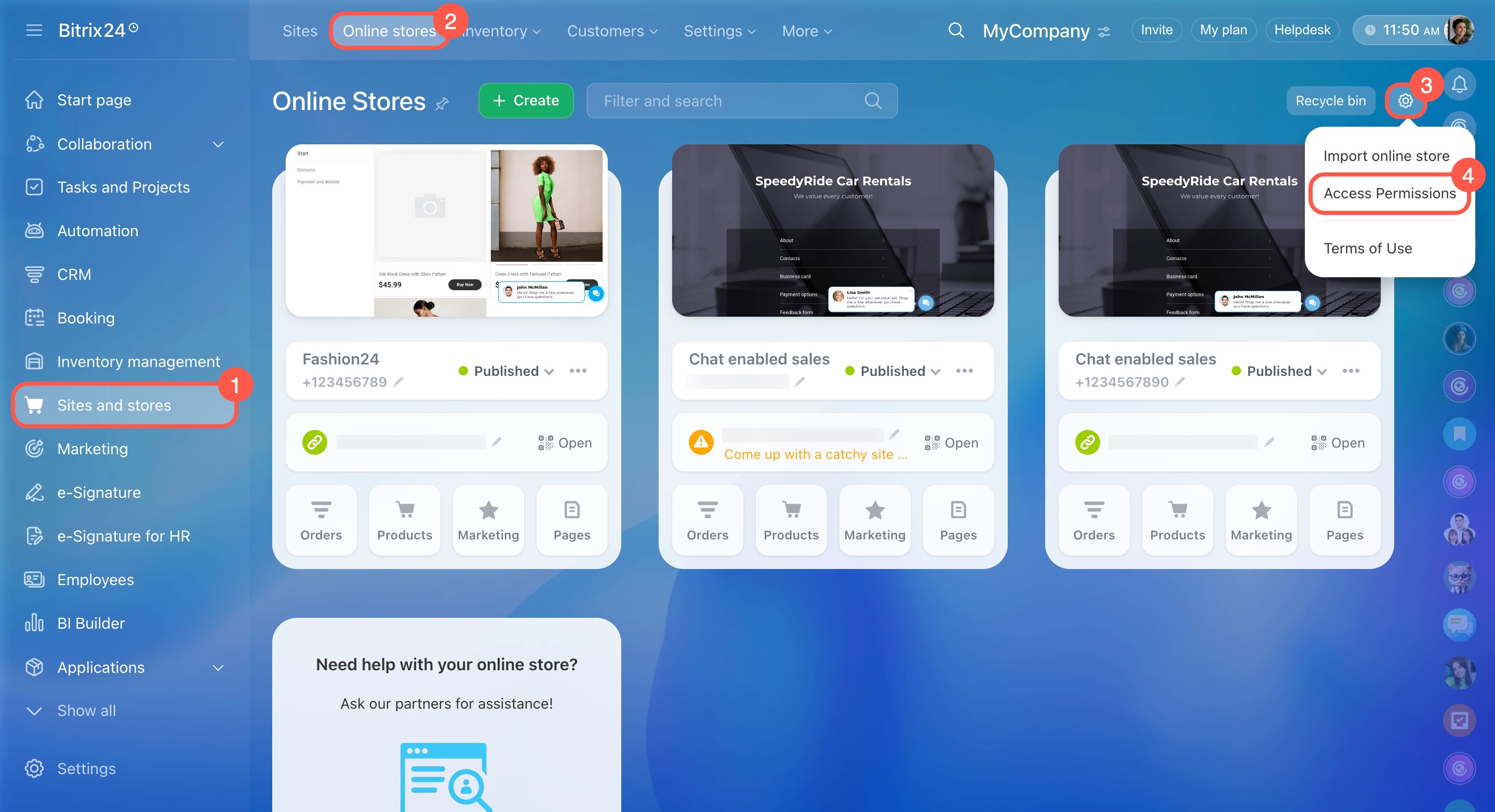
- Go to Sites and stores > Online stores.
- Click Settings (⚙️).
- Select Access permissions.
- Review the permissions assigned to the user or their department.
How to hide the coupon field on the checkout page
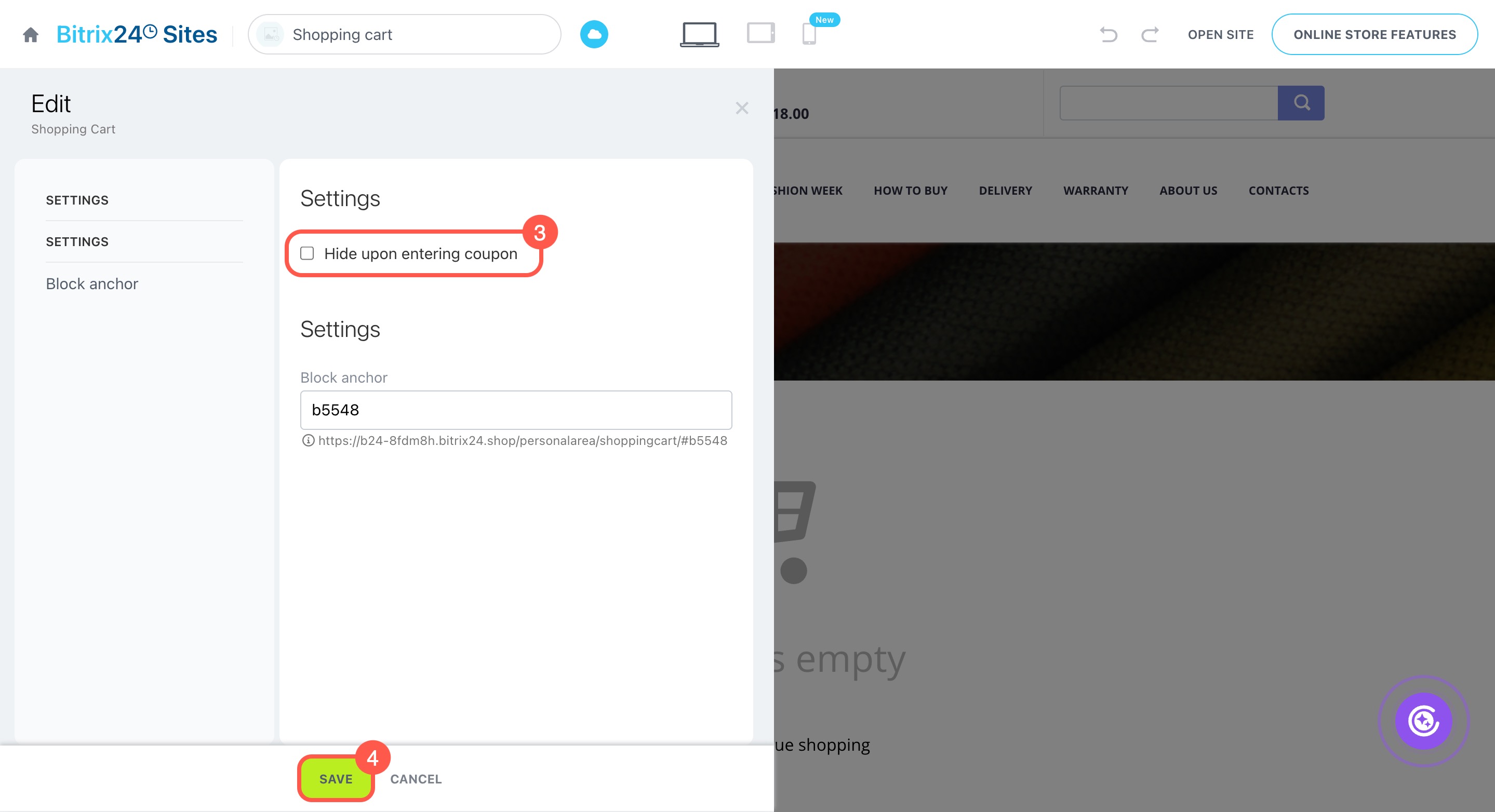
You need to hide the coupon field in both the cart and the checkout. If you hide it only in the cart, customers will still see it during checkout.
First, hide the coupon field in the cart:
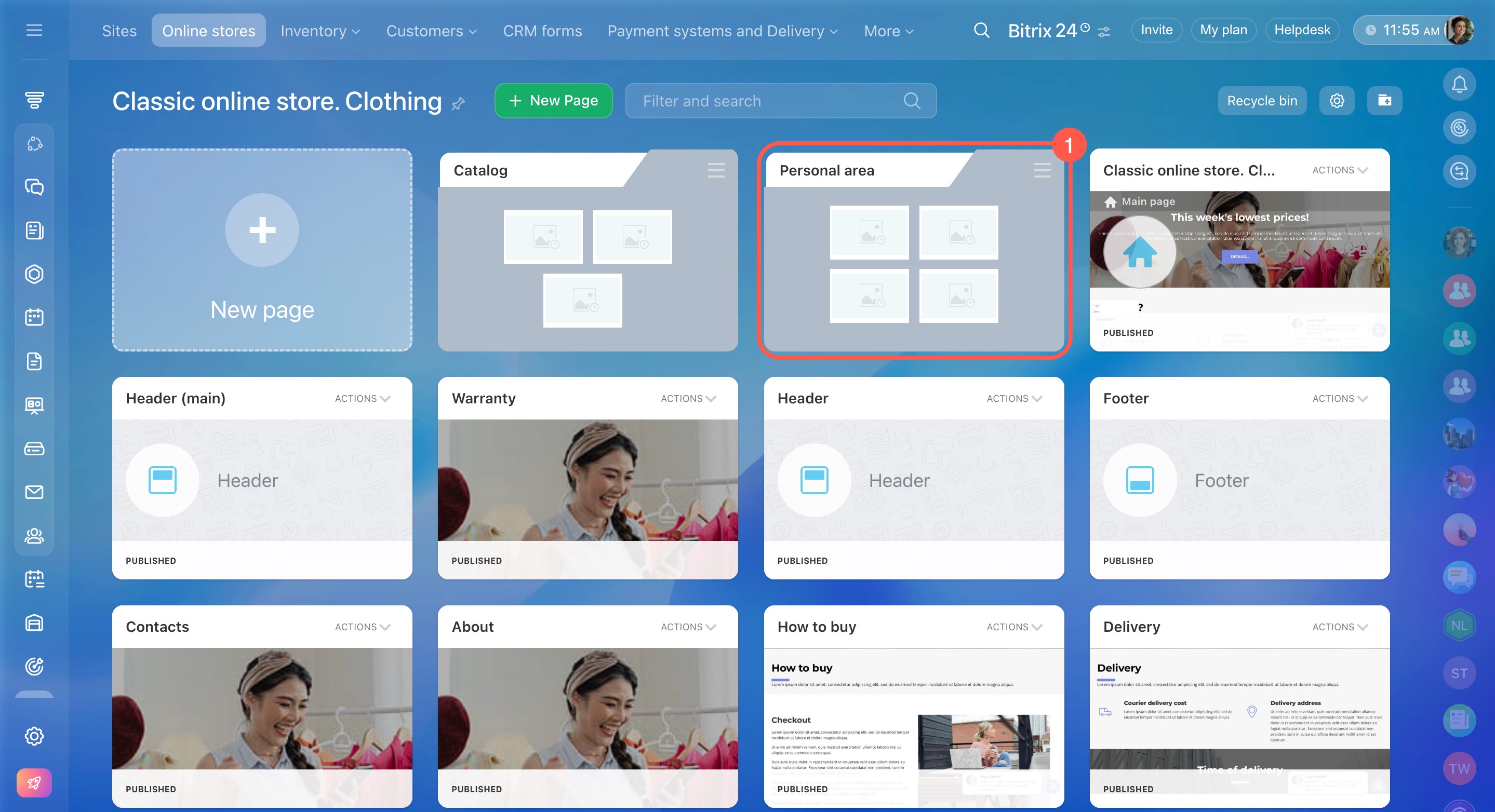
- Open the online store and go to Personal area.
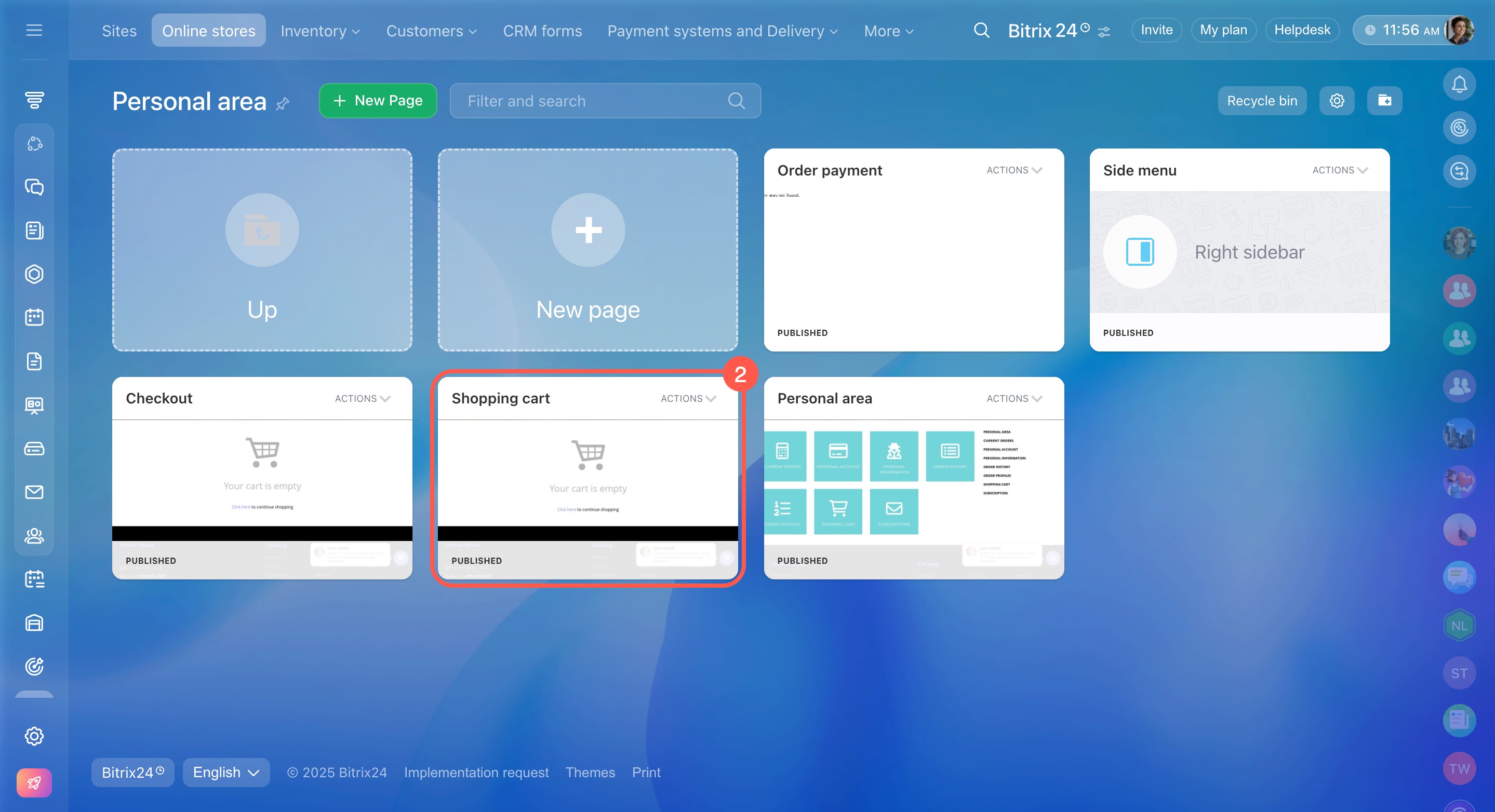
- Open the Shopping cart page in edit mode.
- In the block editing menu, enable the Hide upon entering coupon option.
- Save the changes.
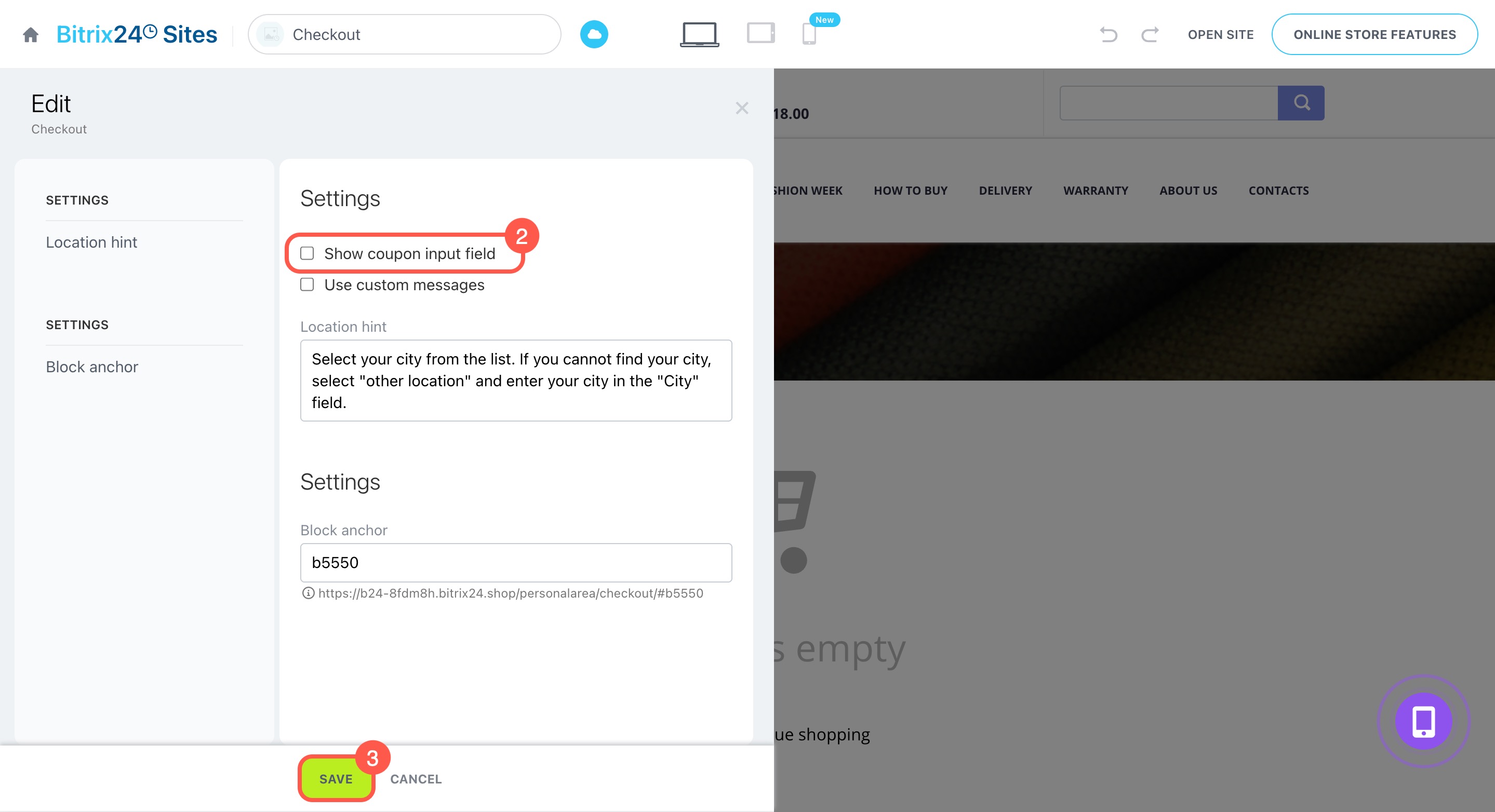
Next, hide the coupon field during checkout:
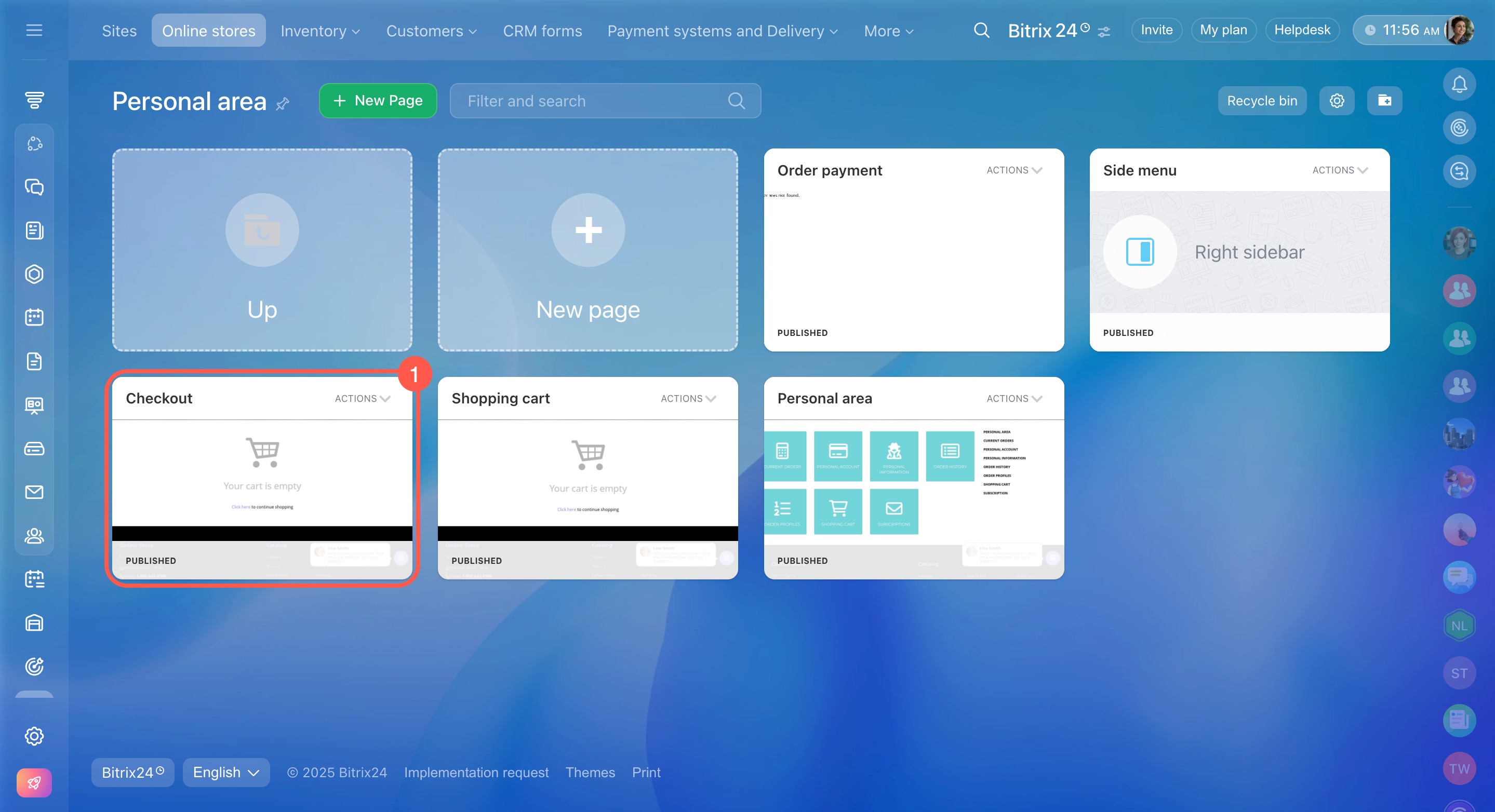
- Return to the Personal area and open the Checkout page.
- In the checkout block settings, uncheck the Show coupon input fields option.
- Save the changes.
After that, the coupon field will be hidden, and customers will see only the essential checkout elements.
How to remove duplicate checkout buttons
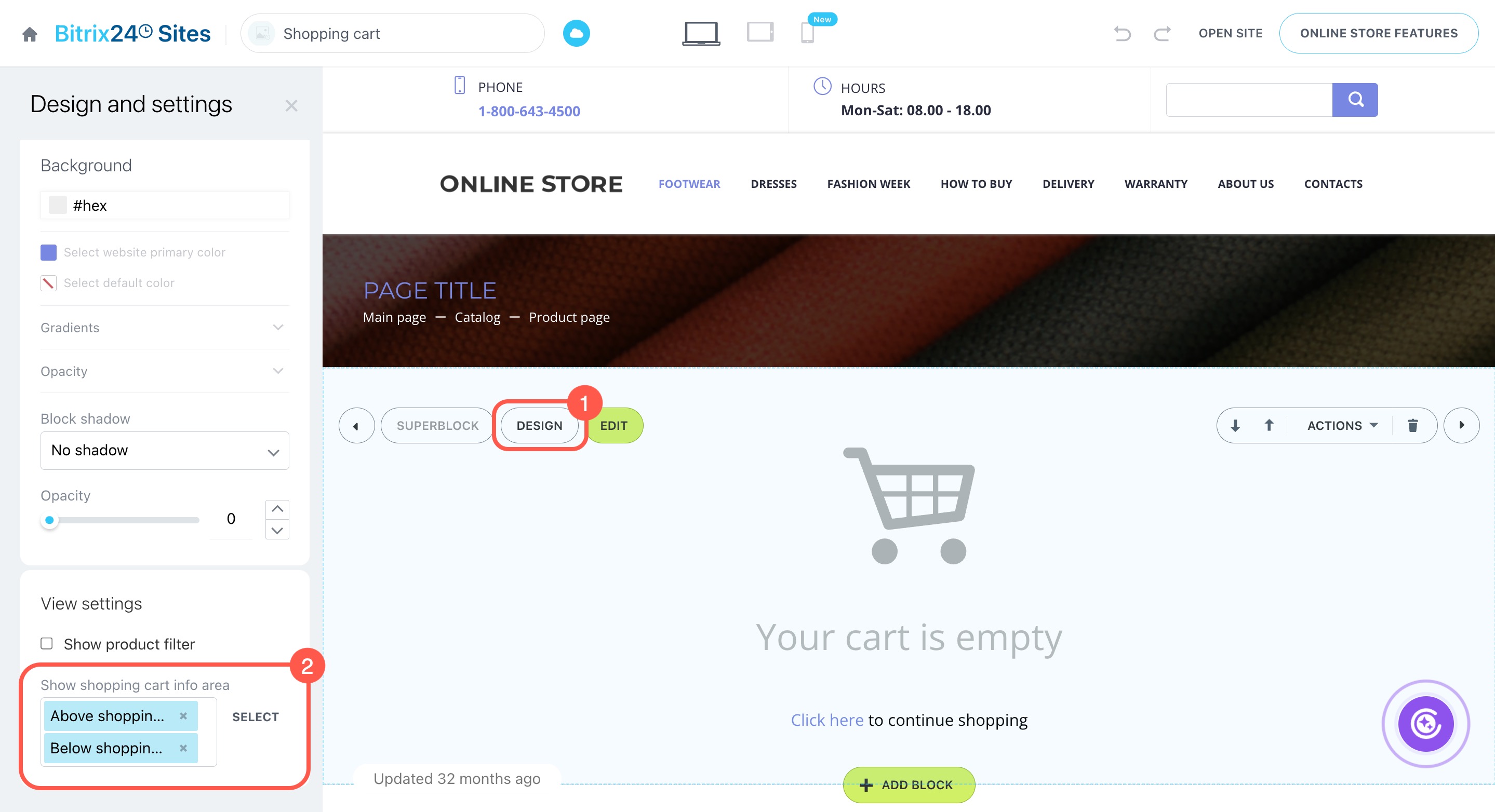
Two Checkout buttons appear if they are enabled in different cart blocks. To keep only one button, adjust the block design settings.
- Open the Shopping cart page of your store and click Design.
- In the block settings, find the Show shopping cart info area block.
- Choose where to display the Checkout button.
How to fix the smart filter if it disappears after publication
The smart filter works correctly if the same catalog folder is specified in the store settings and product blocks. If different folders are selected, the filter may appear in the editor but won’t be visible or show properties on the published page.
Check the catalog and product page settings:
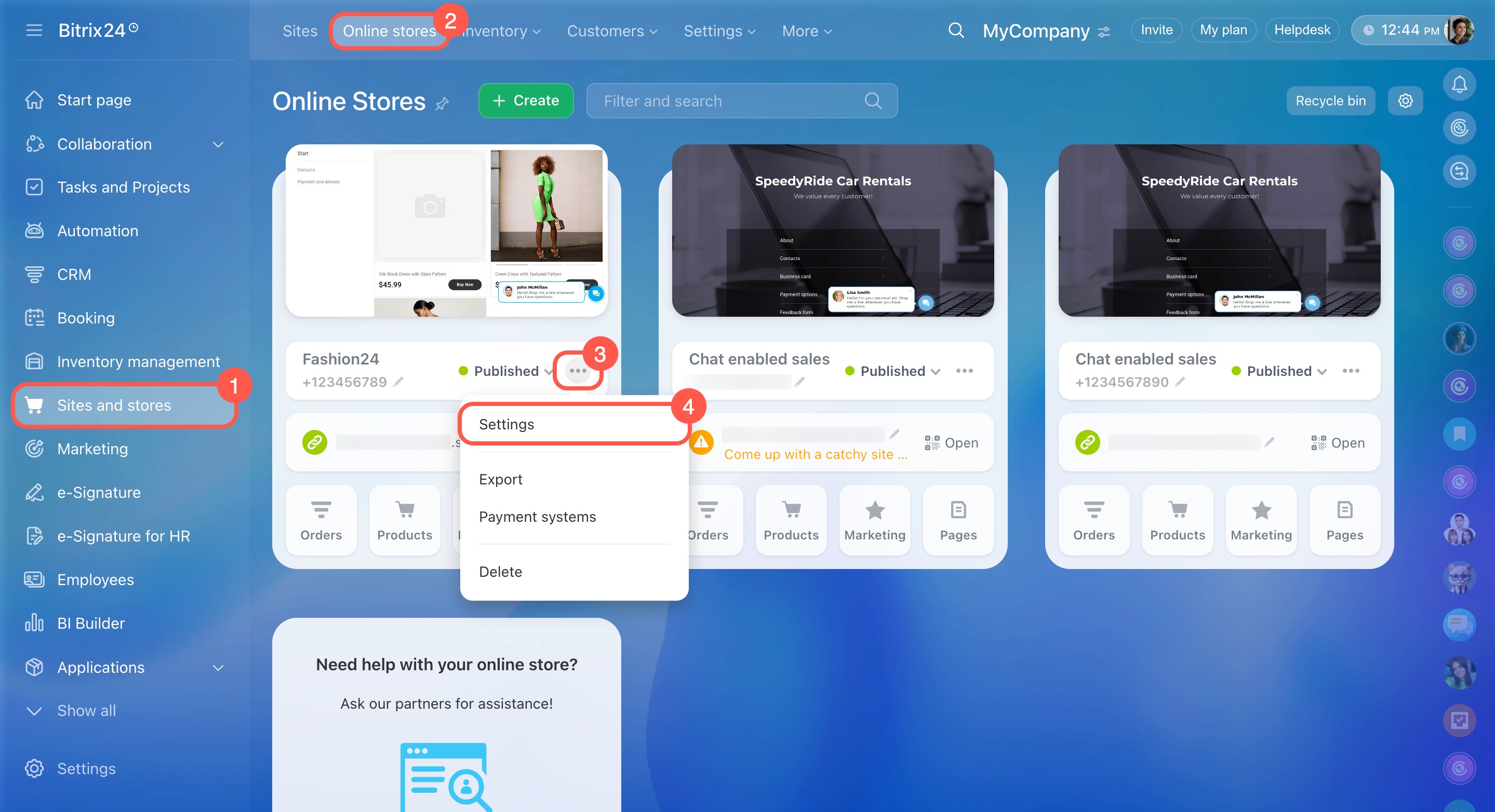
- Go to Sites and stores > Online stores.
- Open the three-dot menu (…) next to the store.
- Select Settings.
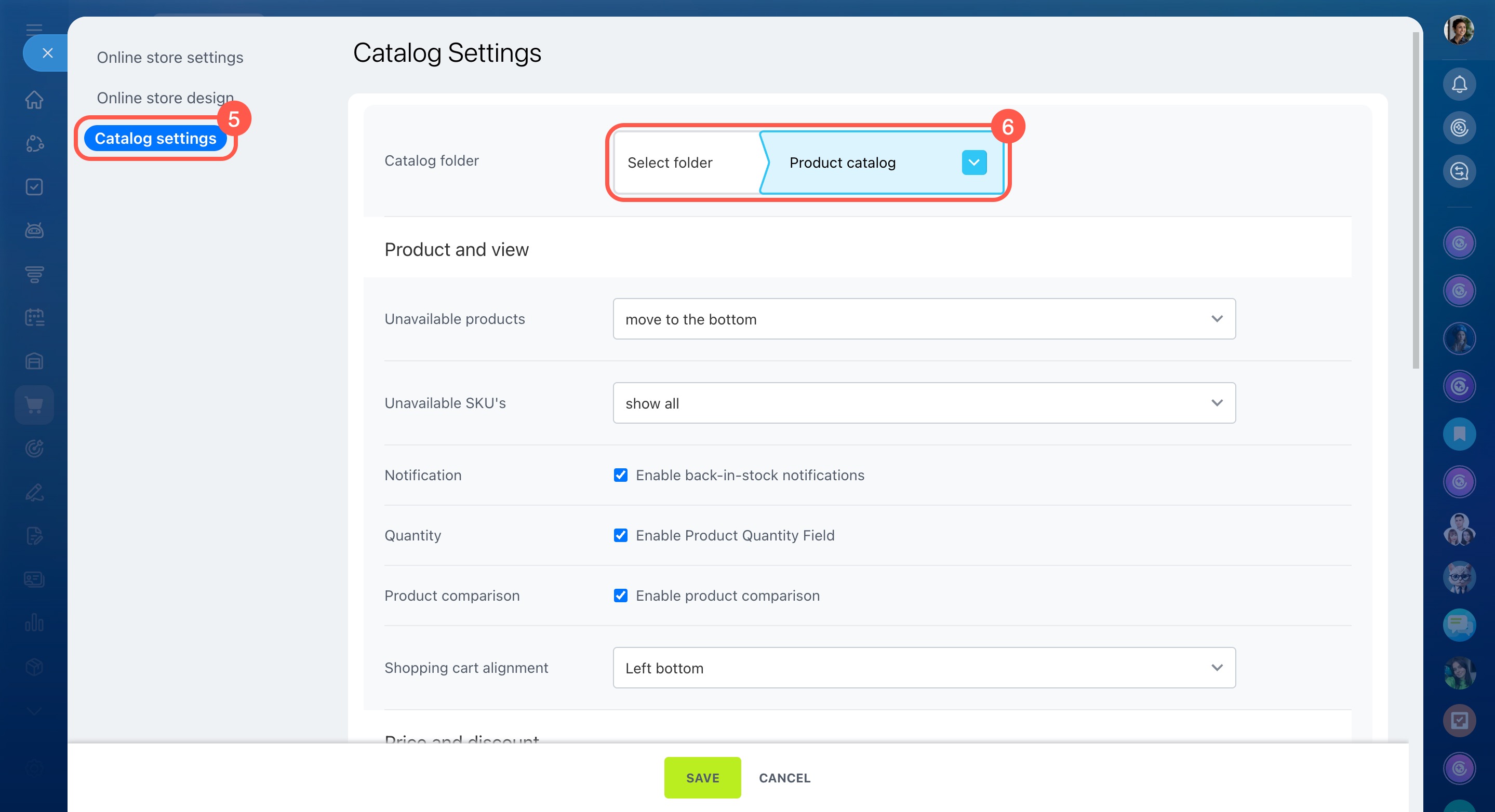
- Switch to the Catalog settings tab.
- In the Catalog folder field, select the product section.
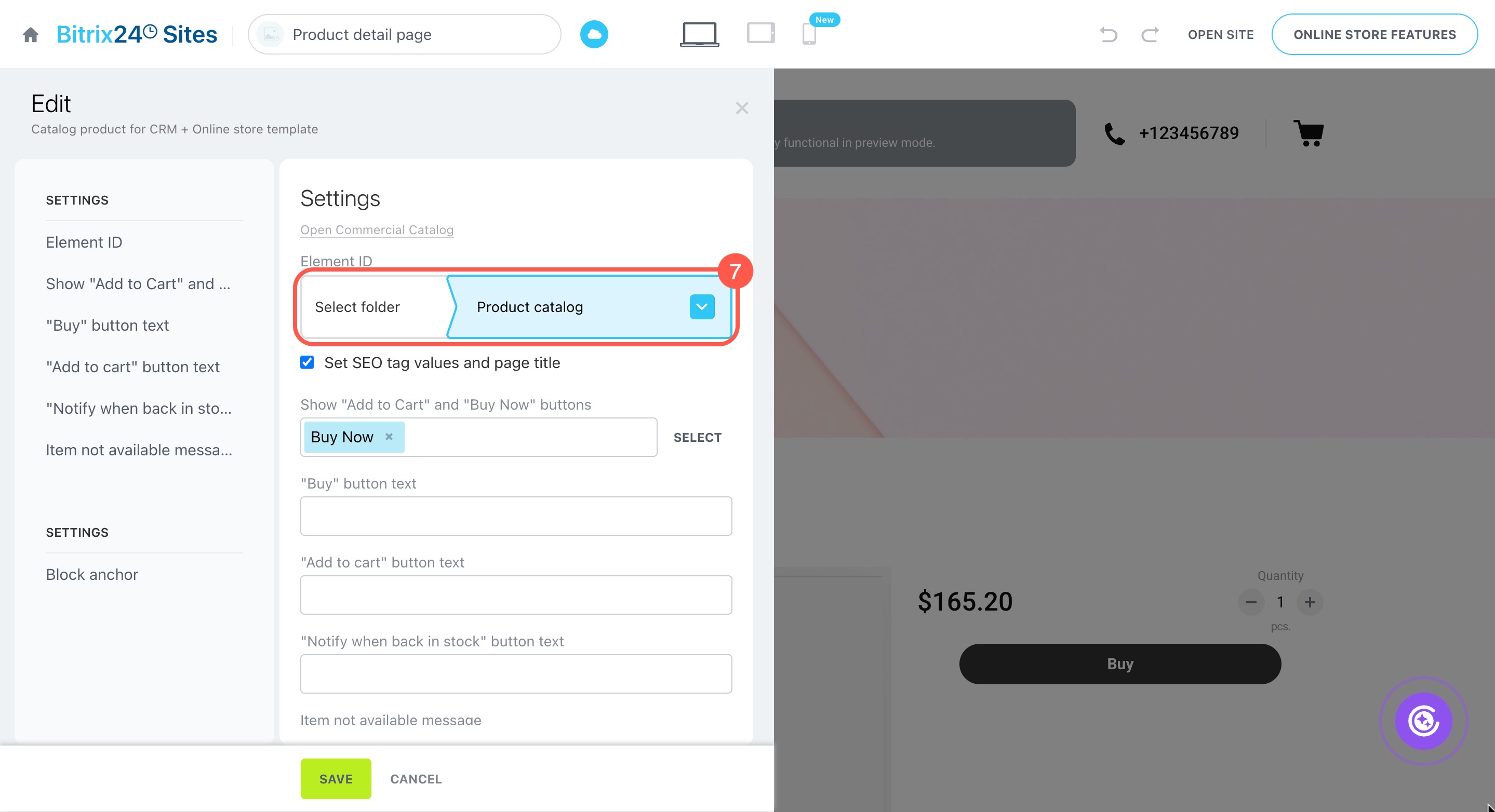
- Open the store pages with product blocks. Ensure the same section is specified for products as in the store settings.
Add and configure the product catalog
How to process product returns
To process a product return, follow these steps:
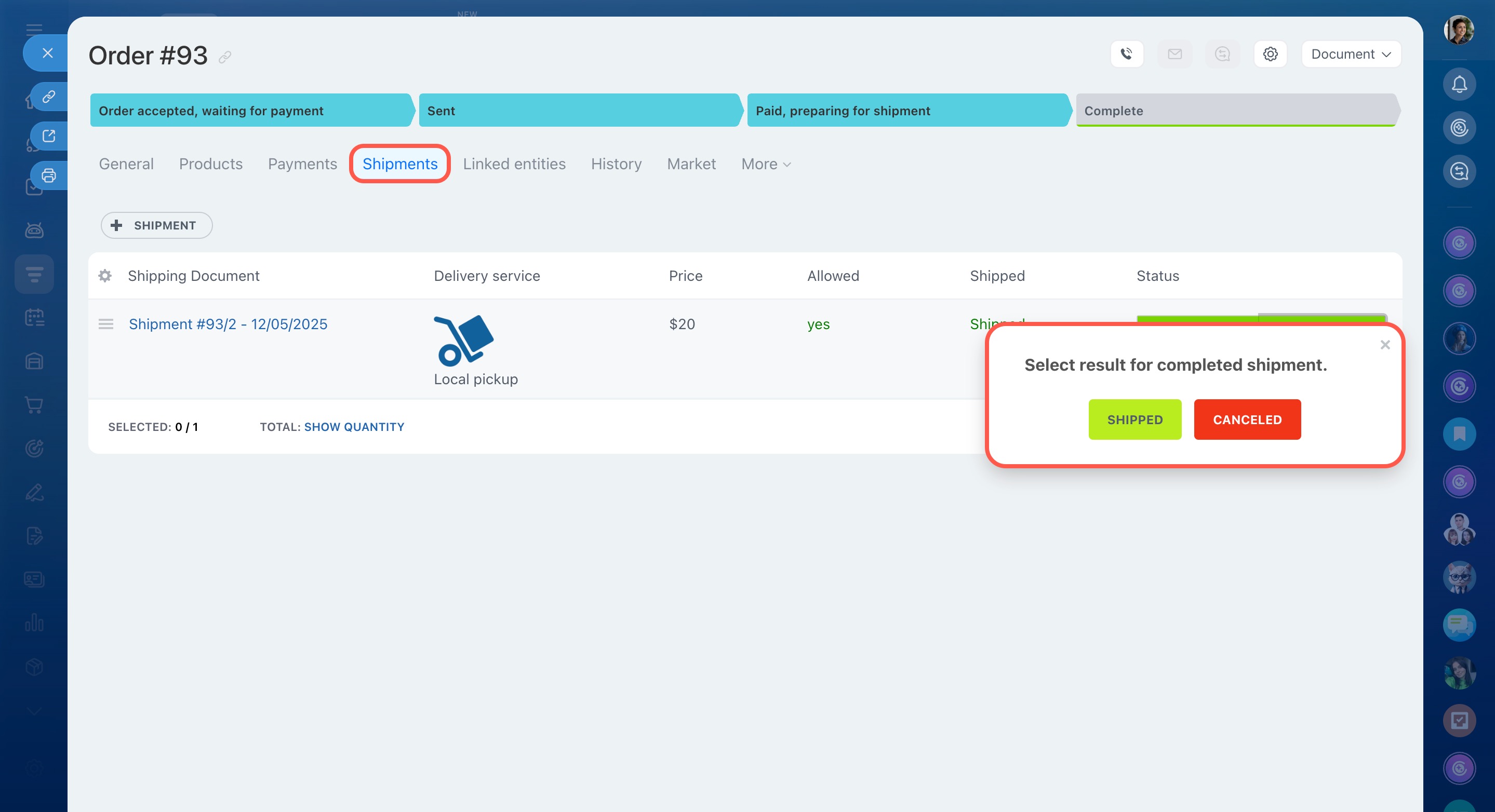
Cancel the shipment. Open the relevant order in CRM and cancel the shipment.
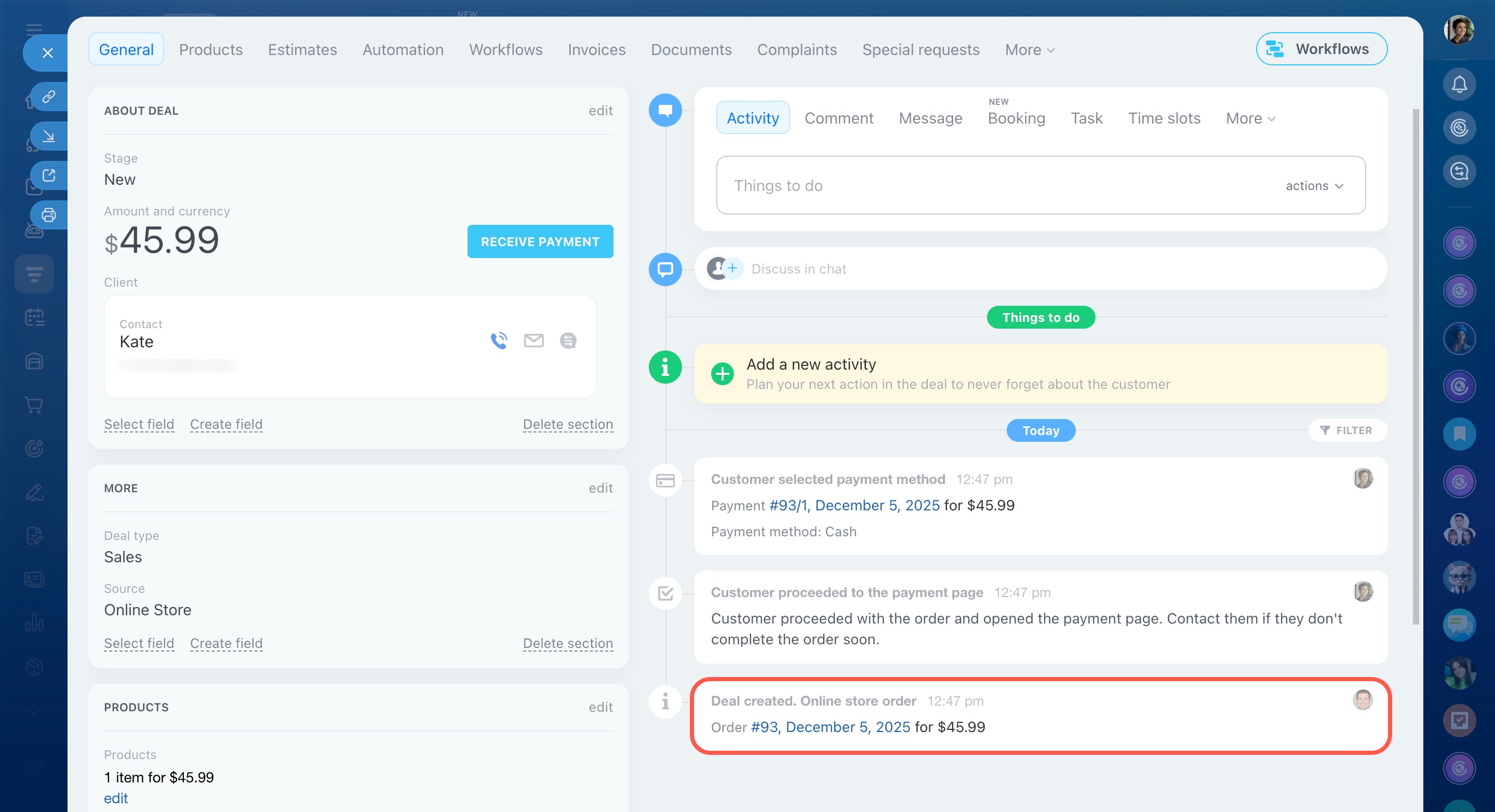
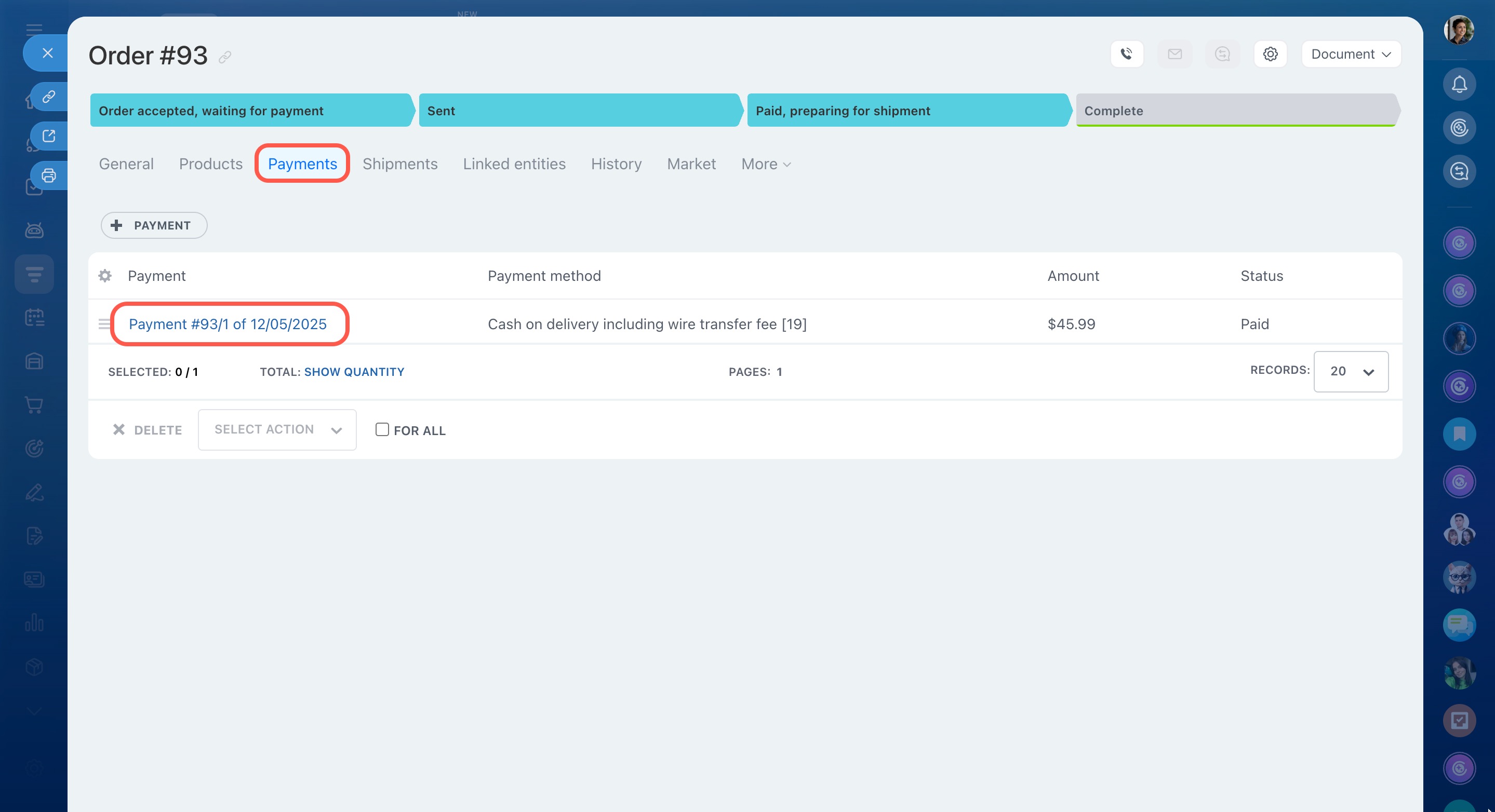
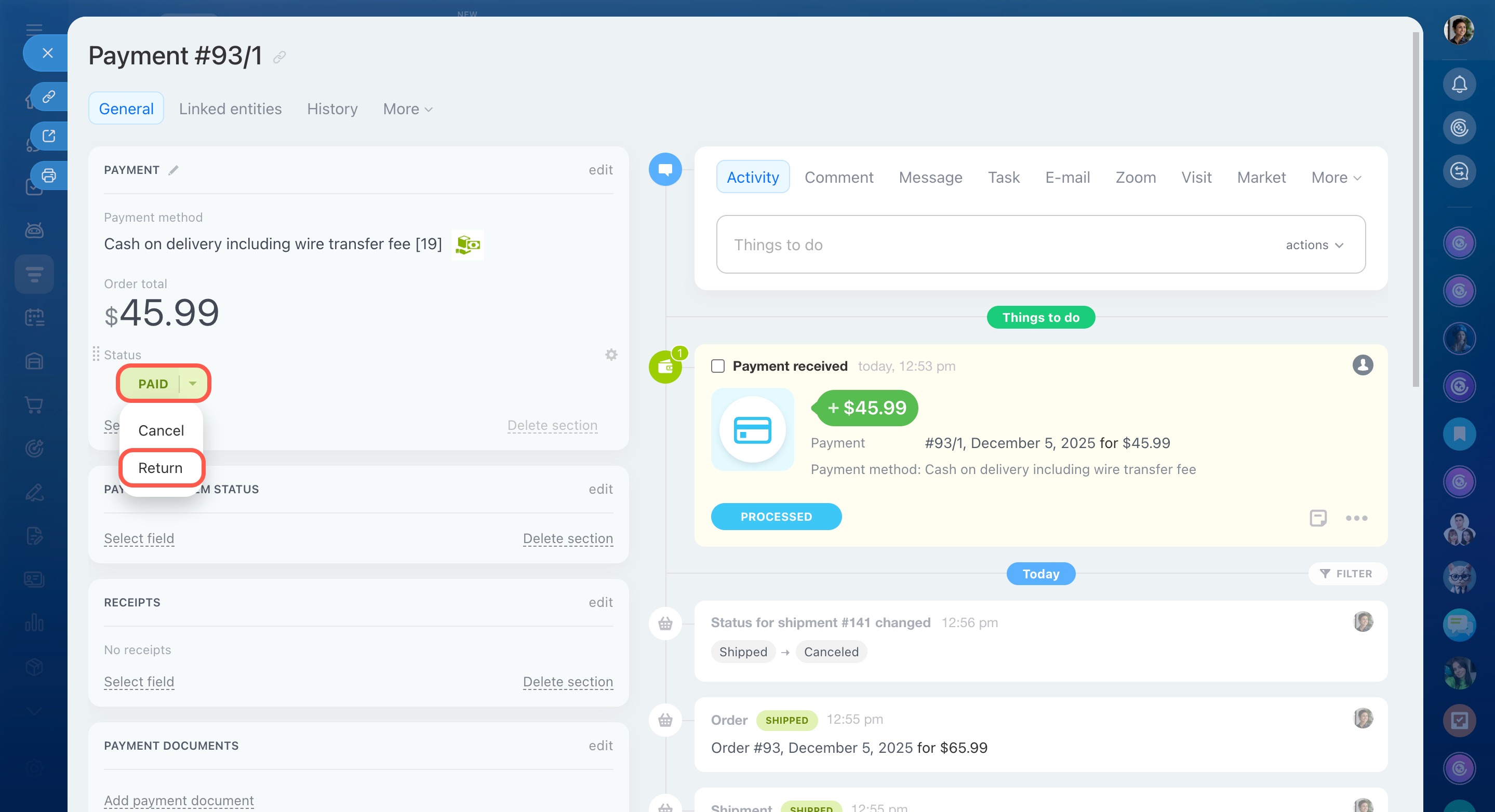
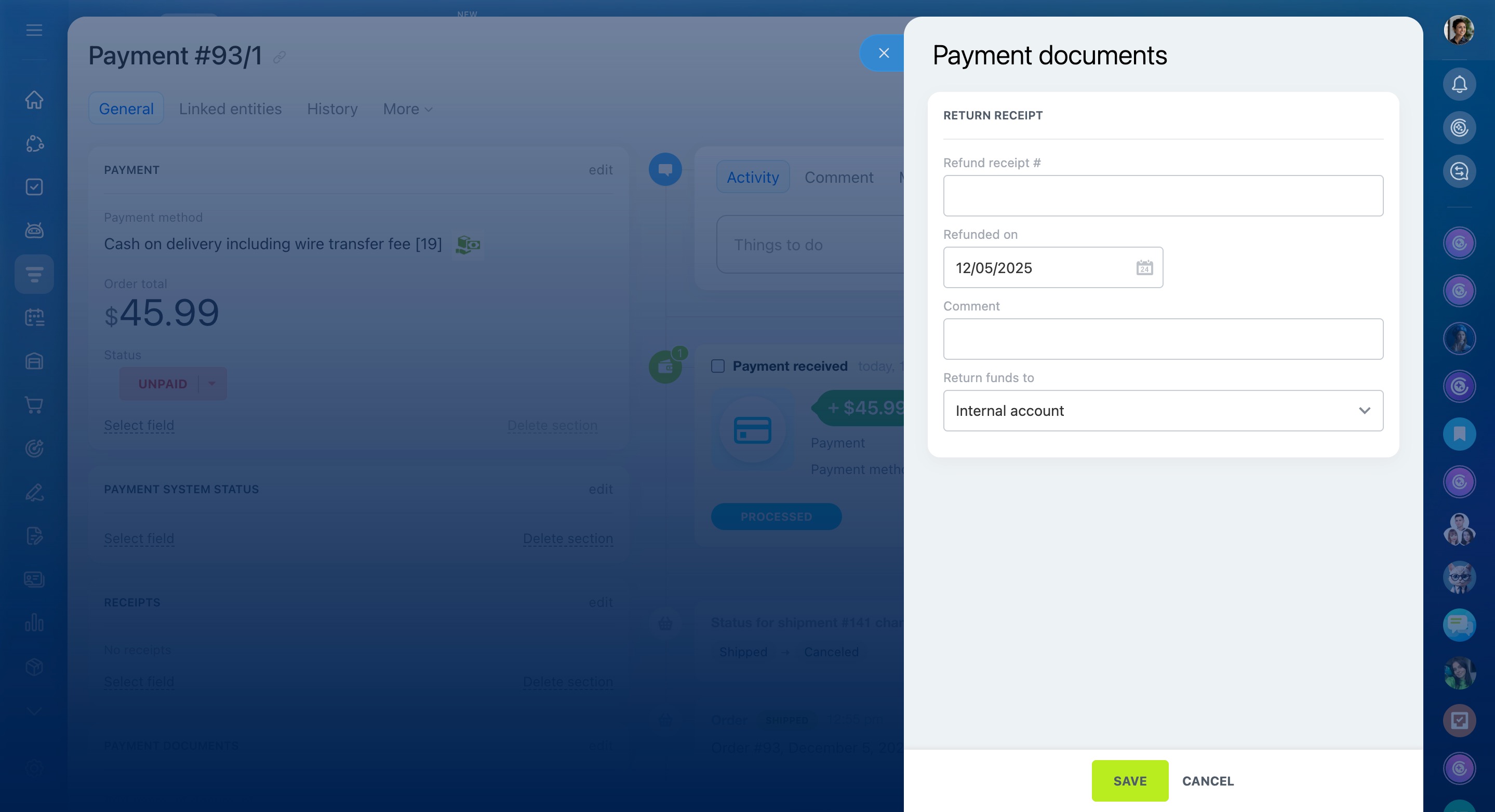
Process the payment refund. In the order, open the Payments tab and select the appropriate document. Change the payment status to Refund and fill in the refund document details. Consult your accountant for the necessary information.
How to configure payment system restrictions
Payment system restrictions let you control when a customer can use a specific payment method. If the conditions aren’t met, Bitrix24 hides that payment option during checkout.
To set up restrictions:
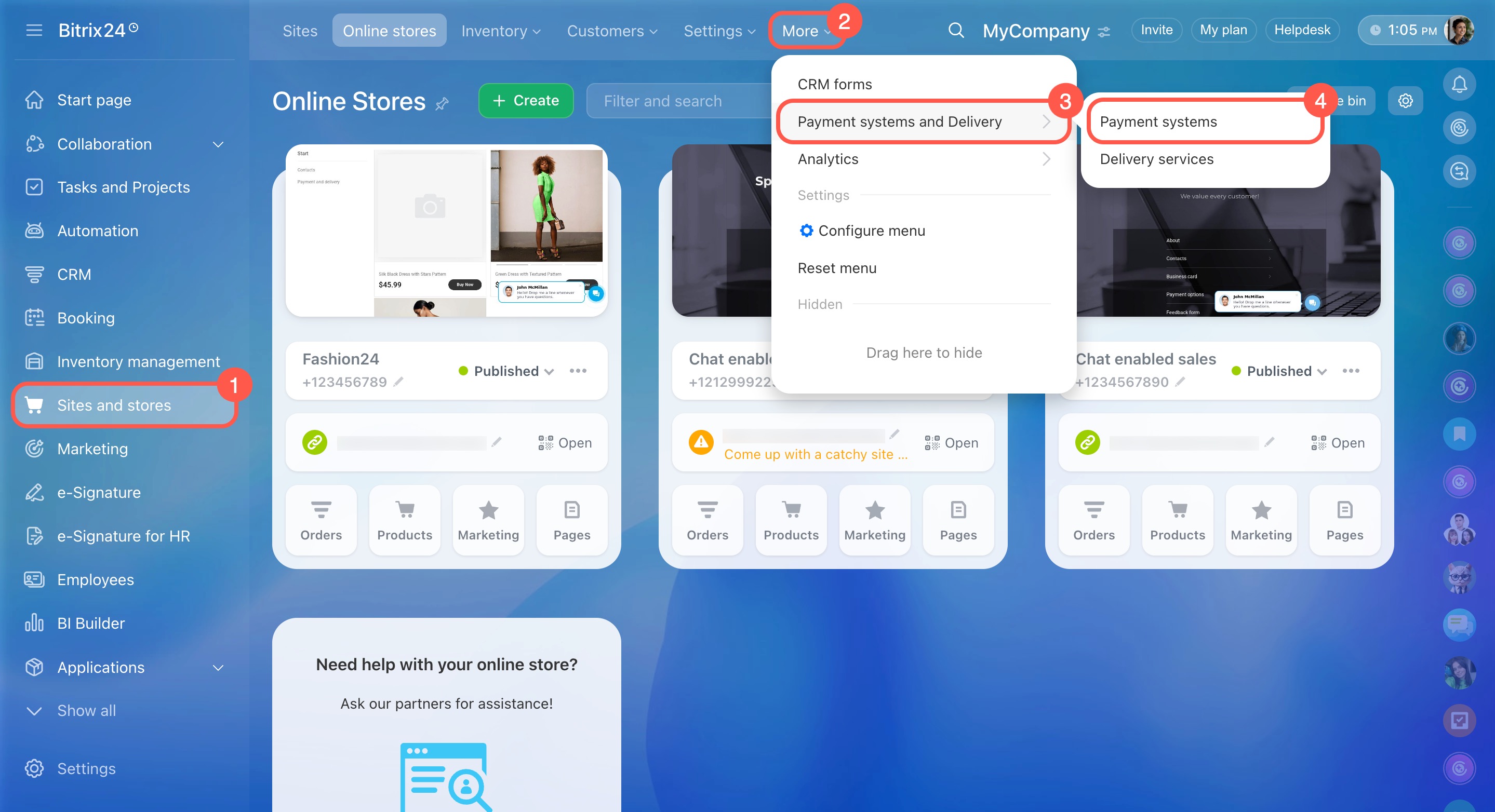
- Go to Sites and stores.
- Expand More.
- Click Payment systems and Delivery.
- Select Payment systems.
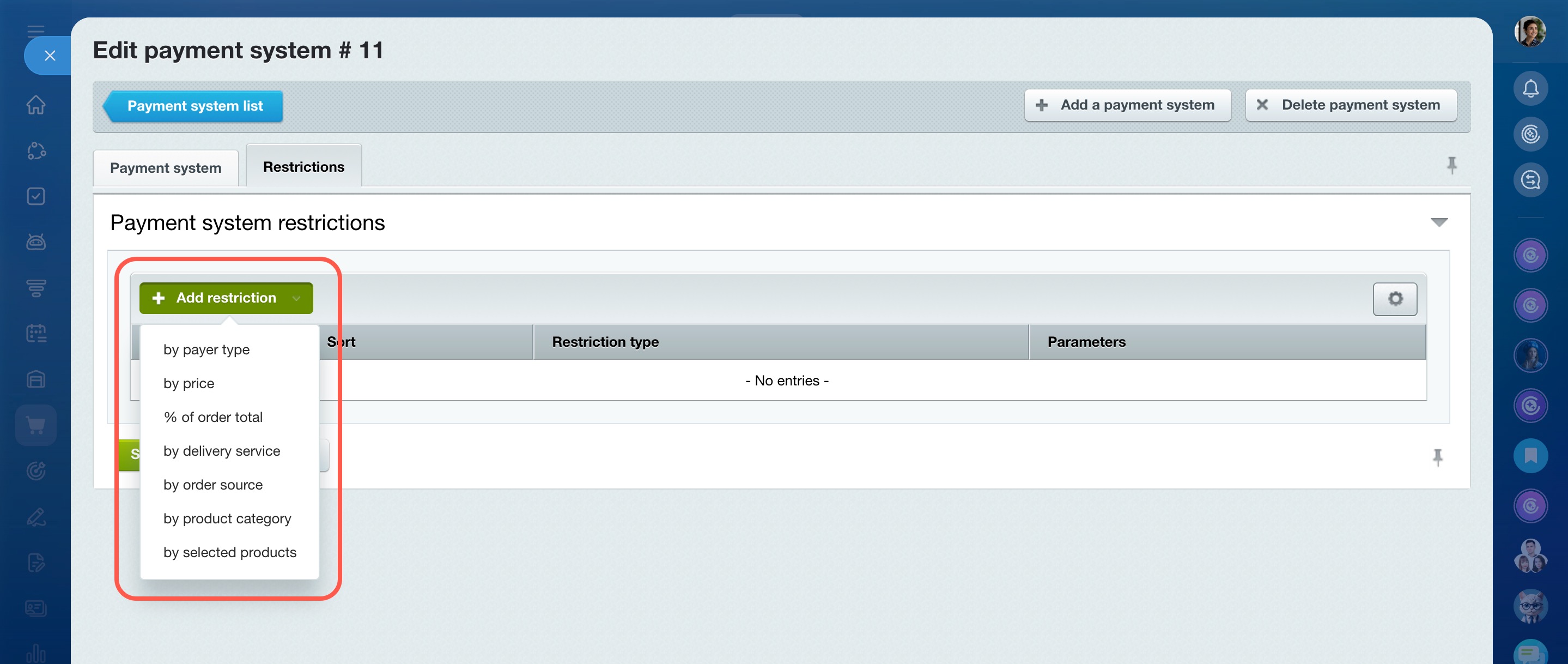
- Open the required payment system and go to the Restrictions section.
You can set restrictions based on:
- Price: Set a minimum or maximum order amount for a payment method. For example, orders over $10,000 can only be paid through a specific system.
- Payer type: Limit payment methods for individuals or legal entities. For example, cash on delivery for individuals and bank transfers for companies.
- Percentage (%) of order total: For the Internal Account payment system, allow payments within a specific range of the order total. For example, 15–30% from the internal account, with the rest paid by another method.
- Delivery service: Link payment methods to delivery options. For example, cash is allowed only for courier delivery, while local pickup allows only online payments.
- Order source: Restrict payment methods based on the order source. For example, specific payment systems may be available only for online store orders.
- Product category: Hide payment options if the order contains products from a specific catalog section. For example, one system may be for clothing, another for electronics. If the order includes both, some payment methods may be unavailable—ensure at least one universal method is available.
- Selected products: Limit payment methods for individual products. For example, e-books can only be paid online, while physical books accept any payment method. If an order includes a restricted product, incompatible payment options won’t appear.
How to manage product stock levels
You can manage product stock levels in two ways: quantity tracking and inventory management. Both methods help prevent overselling:
- Quantity tracking: Best for small stores where all products are stored in a single location.
- Inventory management: Ideal for retail chains with multiple warehouses and frequent stock transfers.
How to display product properties above characteristics
This setting is not currently available. Product properties and characteristics are shown in a fixed order.
How to customize the post-order message for customers
This feature is not implemented at this time.
How to add “Frequently Bought Together” and “Similar Products” blocks on sites
There is no standard block for this. If you need such a block, check out ready-made templates in the marketplace to find a suitable solution.
Bitrix24 Market
How to clear abandoned carts
This feature is not currently implemented.
