
Checklists help break a task into clear steps, assign responsibility, and monitor progress. This is especially useful for large tasks or those involving multiple employees.
For example, when preparing a marketing campaign, you can create a checklist with items like defining goals, gathering content, launching ads, and analyzing results. This makes it easier for the assignee to plan their work and for the supervisor to track what has been completed and what is still in progress.
You can create multiple checklists within a single task and use them as mini-plans.
Creating a checklist
You can create a checklist in a task using Bitrix24 on both desktop and mobile apps. This can be done in a new task or an existing one.
By default, only the task creator can create and edit checklists. An administrator or an employee with task management permissions can grant these rights to the assignee.
Task access permissions
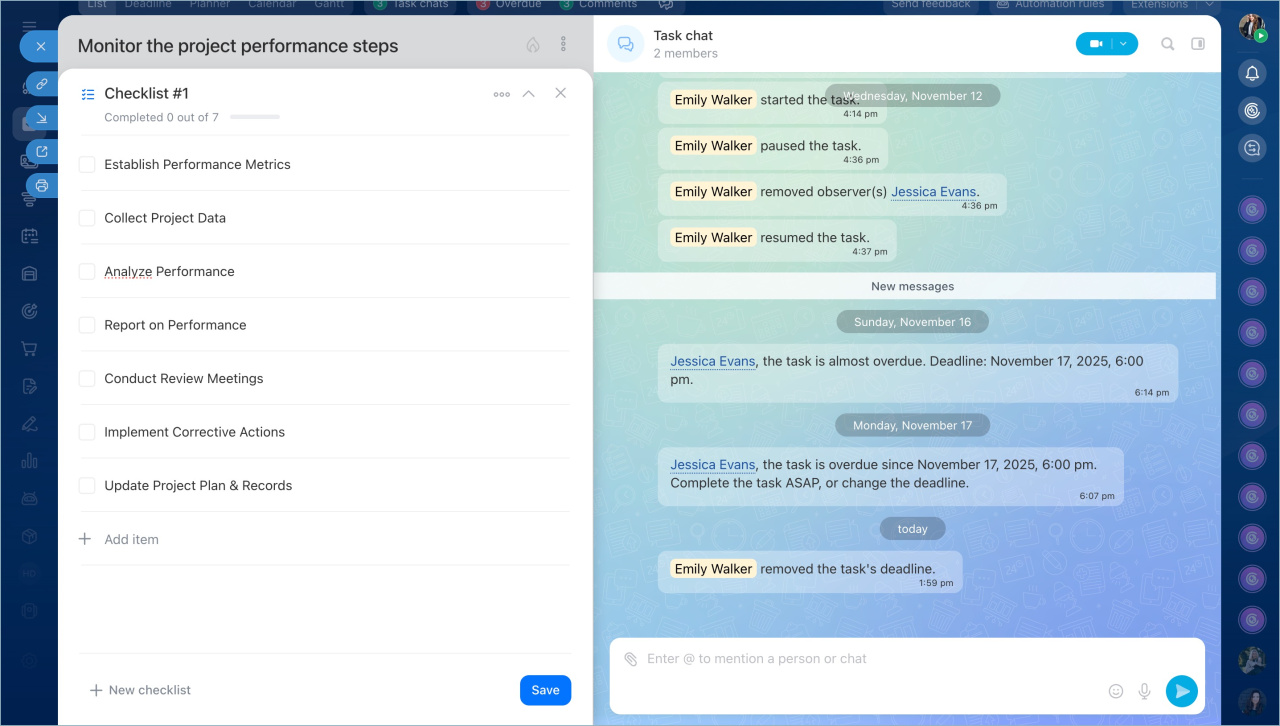
- Open the task form and click Checklists.
- Enter a checklist name. This makes it easier to find if there are multiple checklists.
- Add items. Each item represents a separate action, such as preparing files, verifying calculations, or approving text.
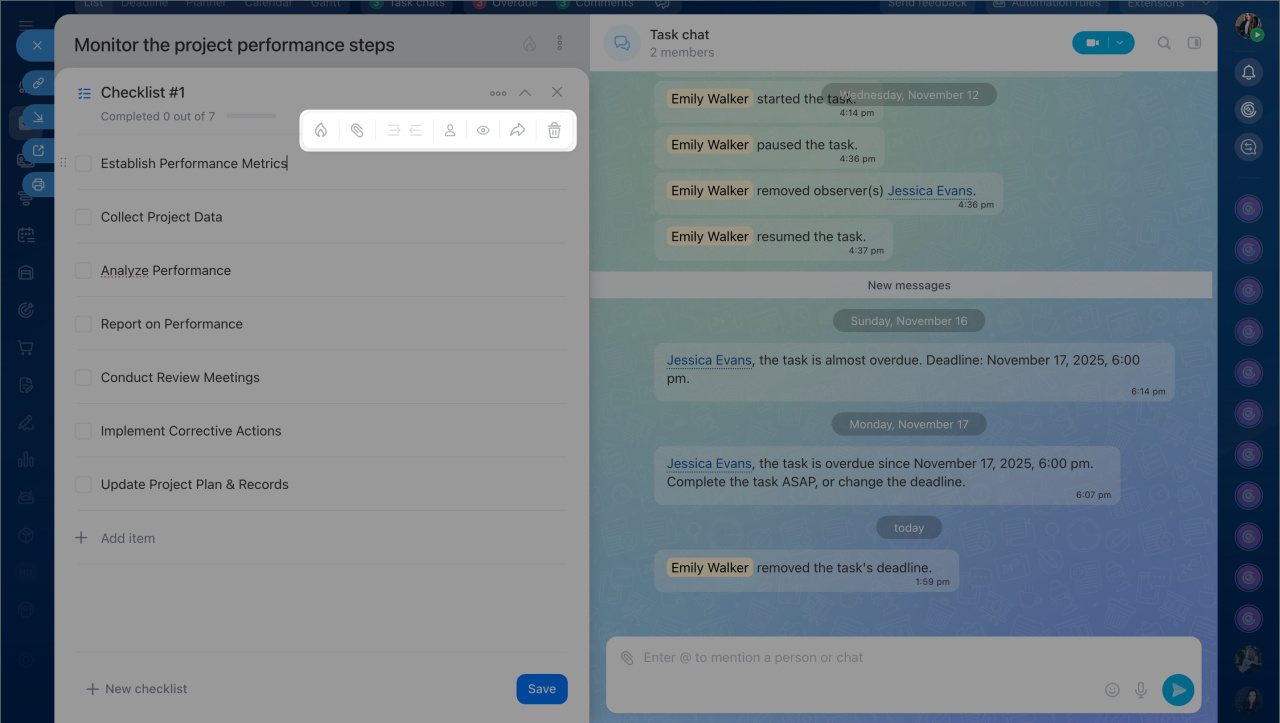
- Customize items by placing the cursor on the desired line and selecting an action:
- mark the checklist item as important
- attach a file
- set the nesting level of the item. For example, item 2 can include sub-items 2.1, 2.2, and so on. There is no limit to the number of levels
- assign participants and observers to individual checklist items or the entire list
Save your changes.

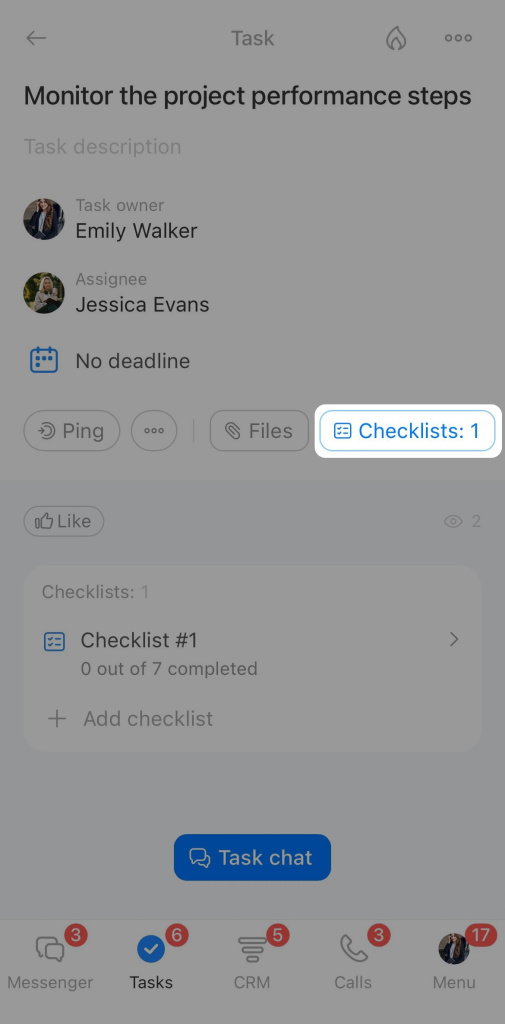
- Open the task form and click Checklists.
- Enter a checklist name. This makes it easier to find if there are multiple checklists.
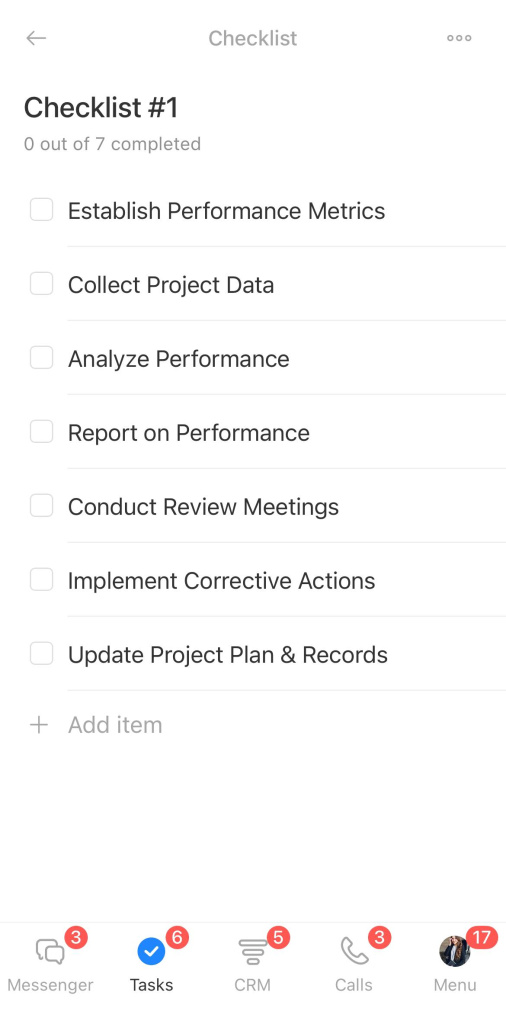
- Add items. Each item represents a separate action, such as preparing files, verifying calculations, or approving text.
- Customize checklist items by tapping the desired line and selecting an action:
- mark the checklist item as important
- attach a file
- set the nesting level of the item. For example, item 2 can include sub-items 2.1, 2.2, and so on. There is no limit to the number of levels
- assign participants and observers to individual checklist items or the entire list
Save your changes.
How it works
You can create multiple checklists within a single task, delete unnecessary items, mark completed ones, and hide those no longer needed.
Add an additional checklist. If multiple employees are working on a task, divide actions into separate lists.
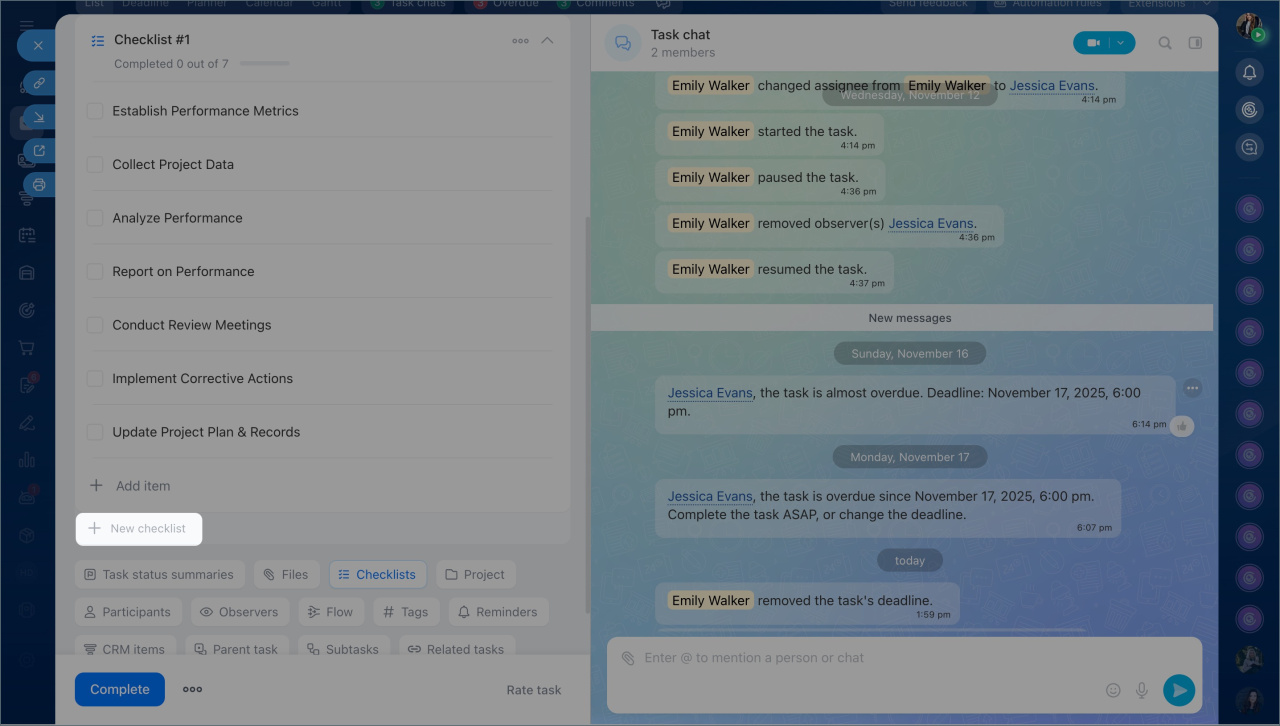
Reorder checklist items. To change the order of items, hold and move them to the desired position.

Adjust item visibility. If there are many items, you can hide completed ones to avoid distractions. This helps focus on what is still in progress.
Click Three dots (...) > Hide completed items. You can always bring back completed items to the checklist later.
Edit items. You can modify multiple items at once. Click Three dots (...) > Group actions. Check the boxes next to the items and select the desired action.
Delete items. You can delete items or the entire checklist. To delete an item, place the cursor next to its name and click the bin icon.

To delete a checklist, click Three dots (...) > Delete.

Add an additional checklist. If multiple employees are working on a task, divide actions into separate lists.
Click Add checklist.
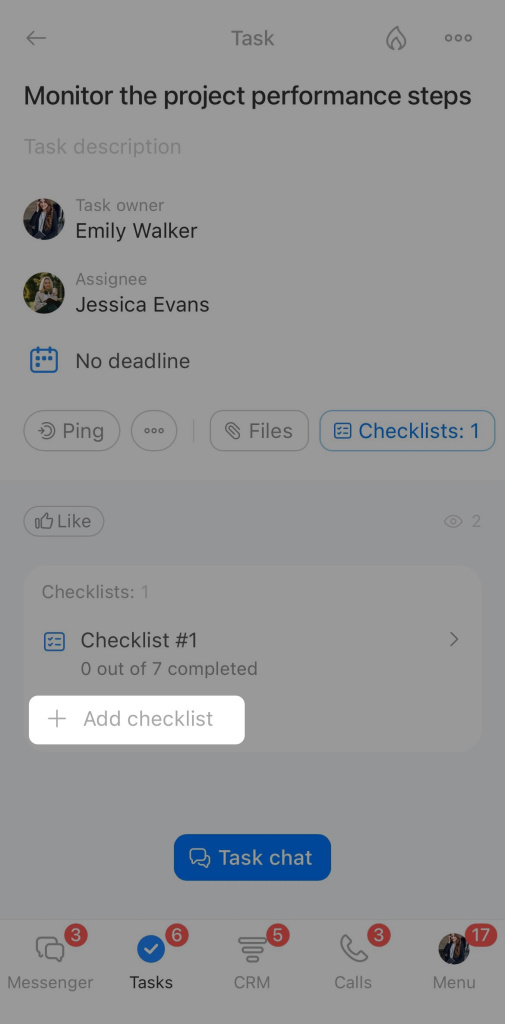
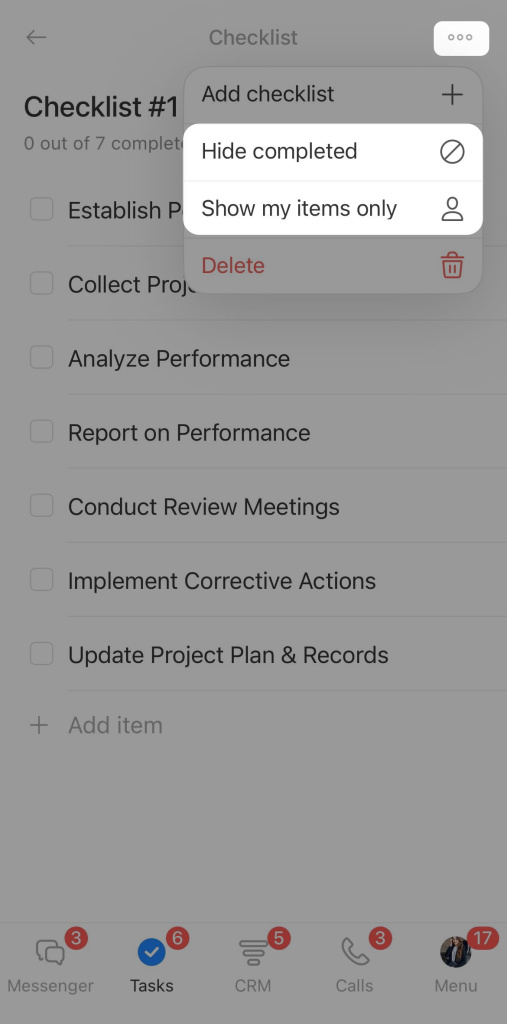
Adjust checklist visibility. If there are many items, you can hide completed ones to avoid distractions and leave only those where you are responsible.
Click Three dots (...) and select the desired action.
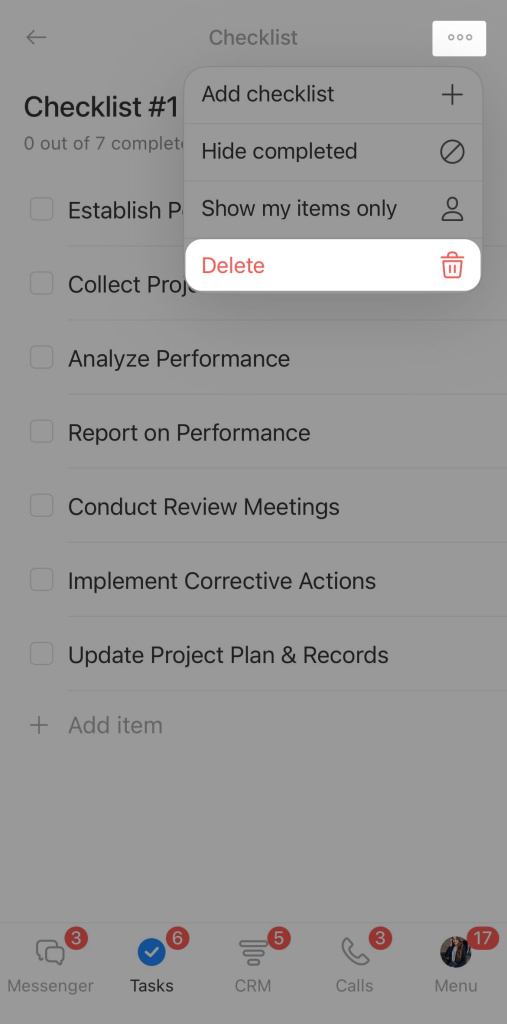
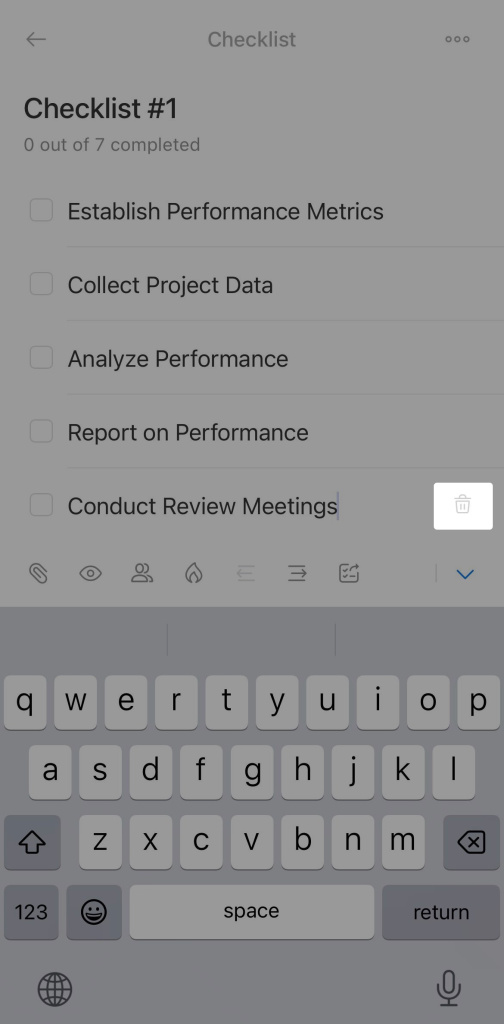
Delete items. You can delete items or the entire checklist. To delete the entire checklist, click Three dots (...) > Delete, and to delete an item, highlight the desired line and click the bin icon.
In brief
- Checklists help break tasks into clear steps, assign responsibility, and monitor progress.
- You can create multiple checklists within a single task and use them as mini-plans.
- By default, only the task creator can create and edit checklists.
- You can create a checklist in a task using Bitrix24 on both desktop and mobile apps. This can be done in a new task or an existing one.
- To create a checklist, open the desired task and click Checklists.
- You can create multiple checklists within a single task, delete unnecessary items, mark completed ones, and hide those no longer needed.
