
In the Bitrix24 Messenger, you can use stickers to react to messages and add emotions to the chat.
Bitrix24 offers ready-made sticker packs. You can use them or add your own.
Stickers can be used in:
- Personal and group chats
- Comments on Feed posts
- Collabs
- Task chats
Send stickers
By default, all employees have access to standard sticker packs. You can use them in Bitrix24 on both desktop and mobile apps.
To send a sticker:
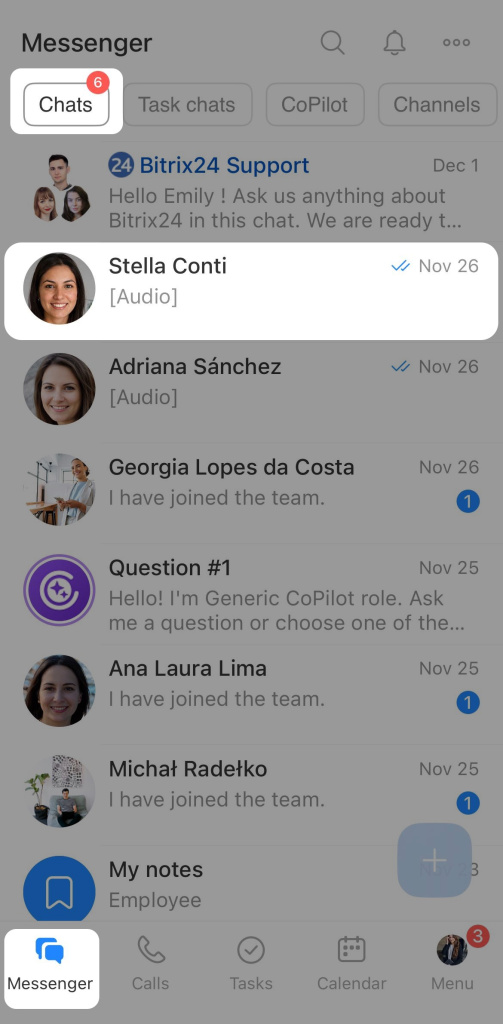
- Open the chat, channel, or collab.
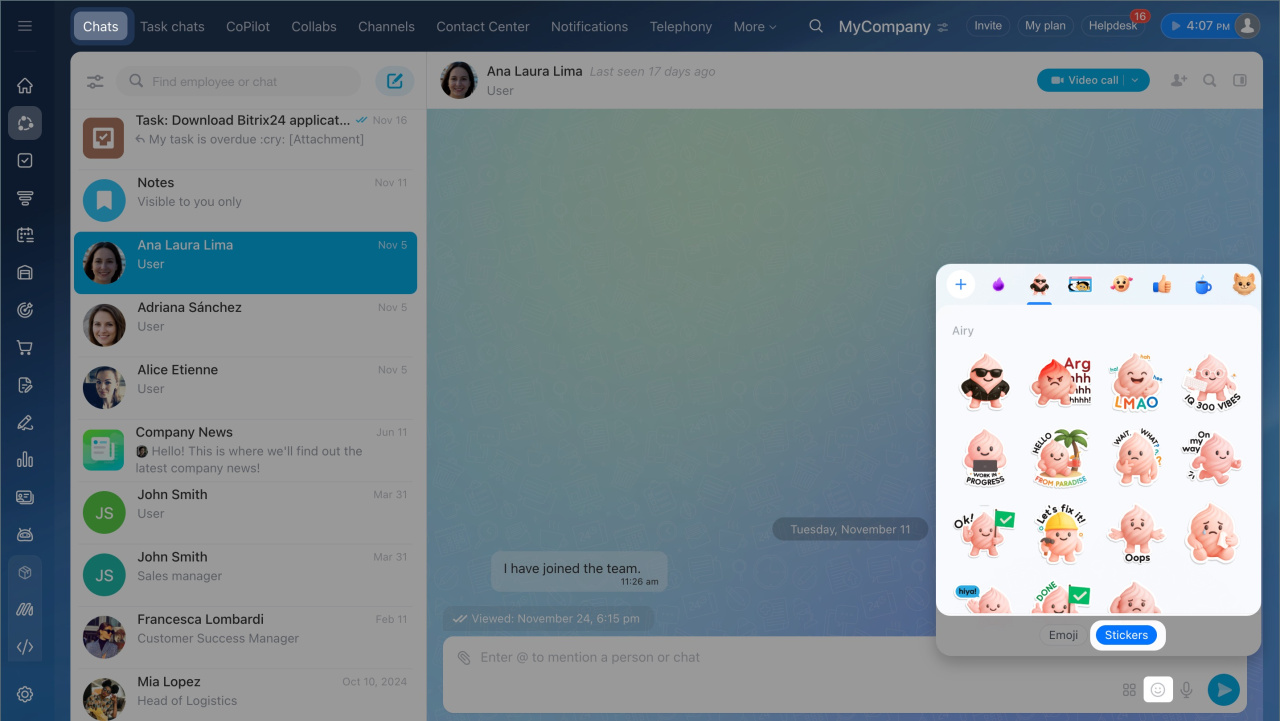
- Click the Emoji icon in the text input field.
- Go to the Stickers tab.
- Click the desired sticker. It will immediately appear in the chat.
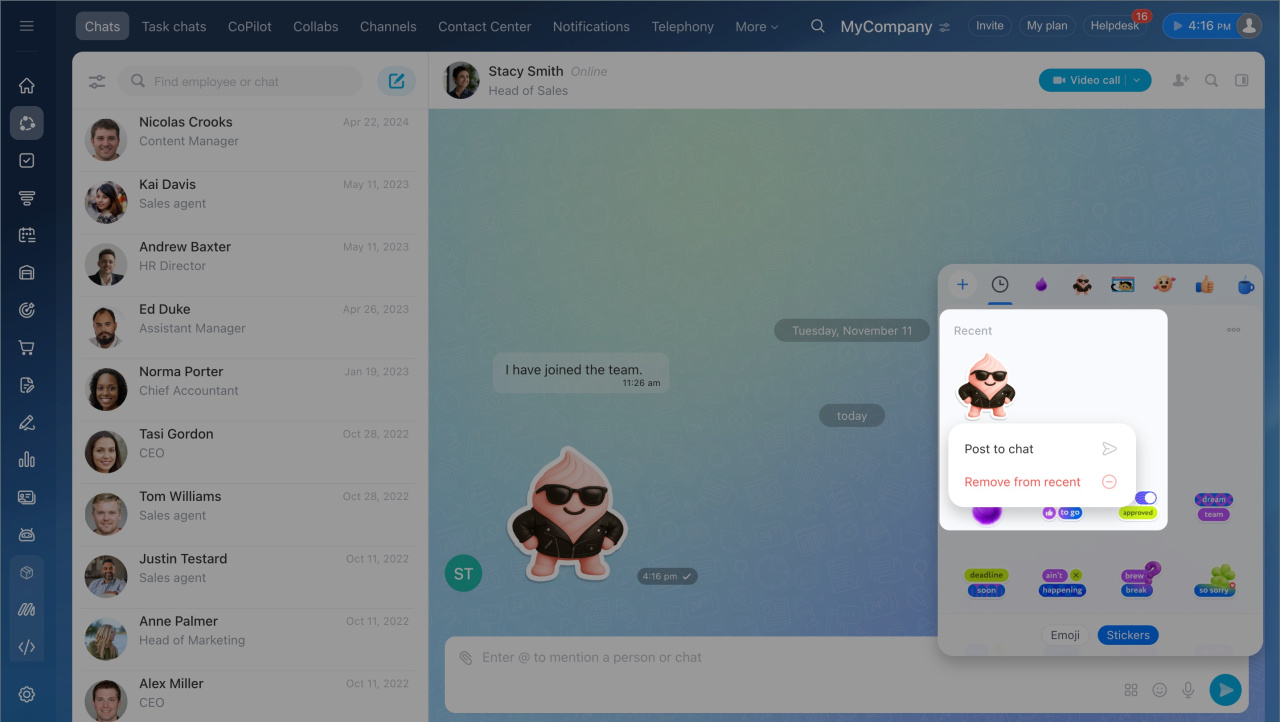
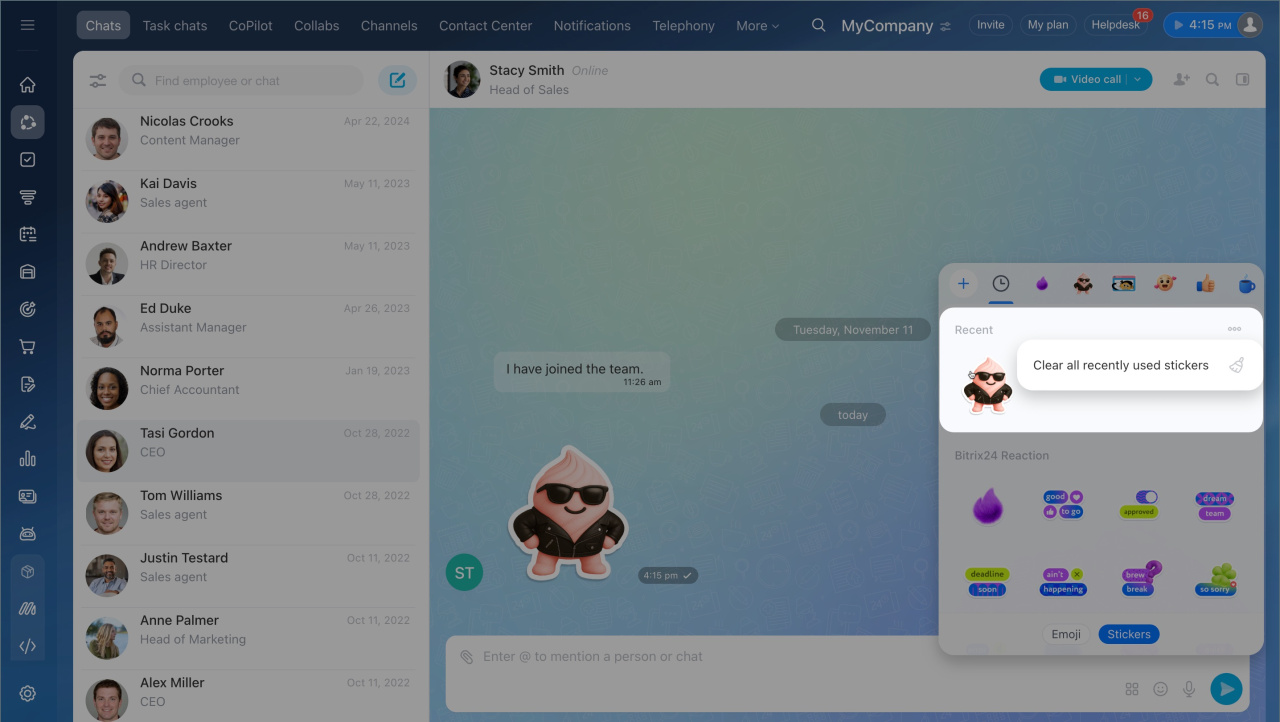
Sent stickers are saved in the Recent section. The system keeps the last 12. You can:
- Send a sticker — click on it.
- Delete a specific sticker — right-click it and select Remove from recent.
- Clear all stickers — click Three dots (...) > Clear all recently used stickers.
1. Open the chat, channel, or collab.
2. Tap the Stickers icon in the input field.
3. Select a sticker.
4. Tap it to send it to the chat.
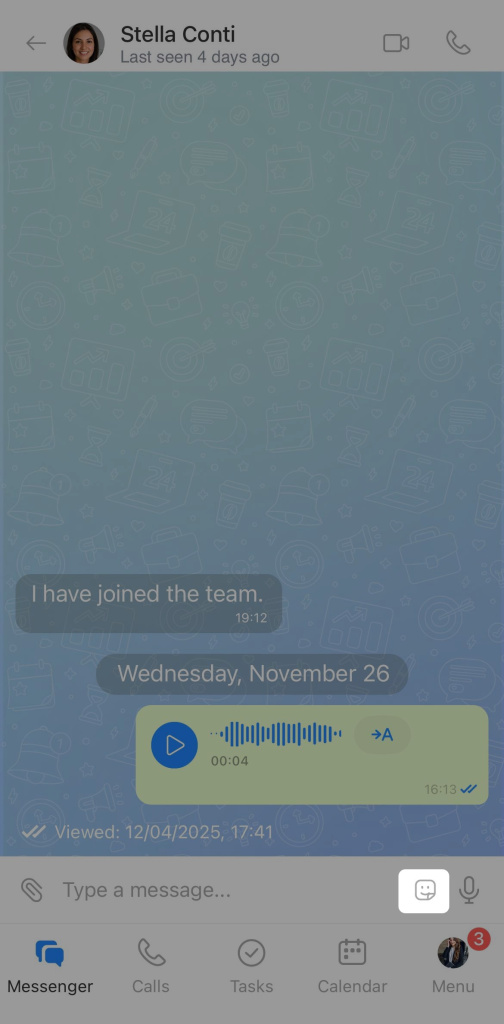
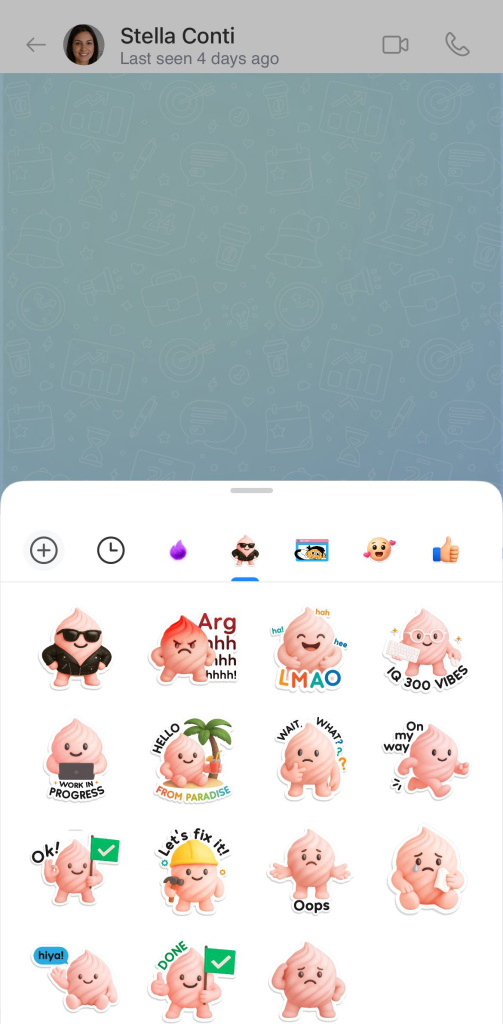
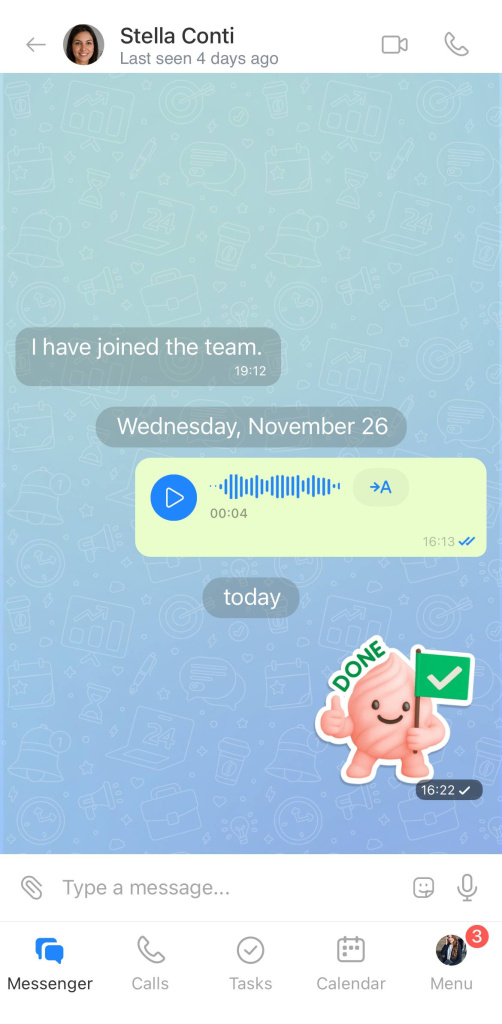
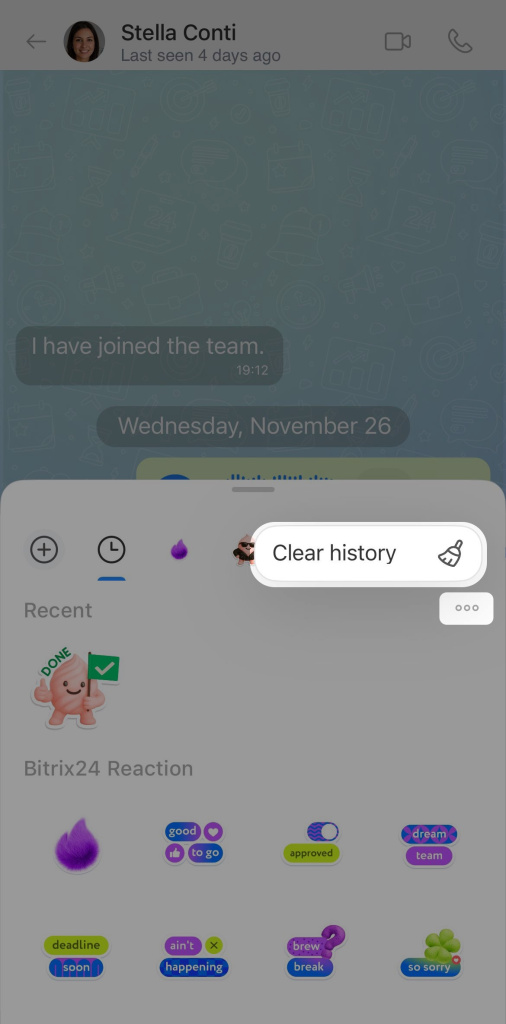
Sent stickers are saved in the Recent section. The system keeps the last 12. You can:
- Send a sticker — click on it.
- Delete a specific sticker — right-click it and select Remove from recent.
- Clear all stickers — click Three dots (...) > Clear all recently used stickers.
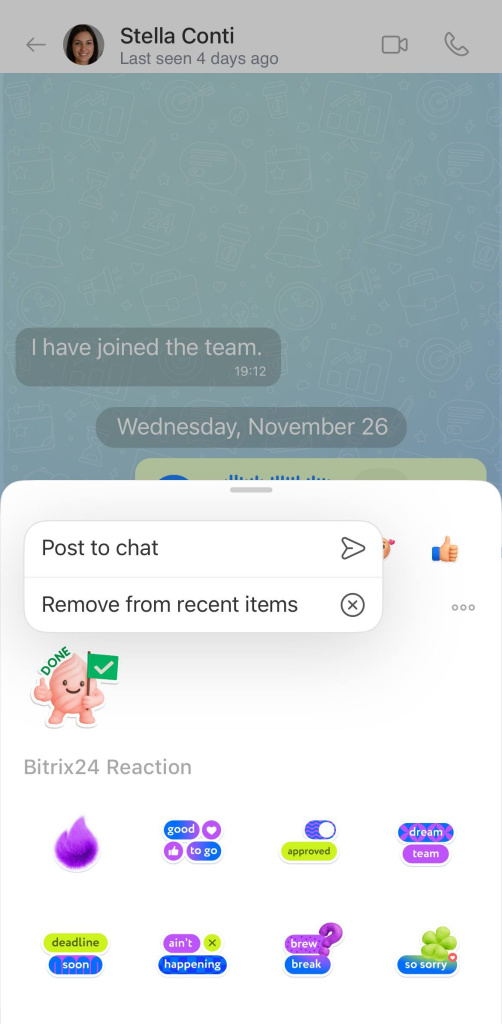
Create your own sticker pack
In Bitrix24, you can create custom sticker packs. Once created, send a sticker to a chat, and participants can add the entire pack to their collection.
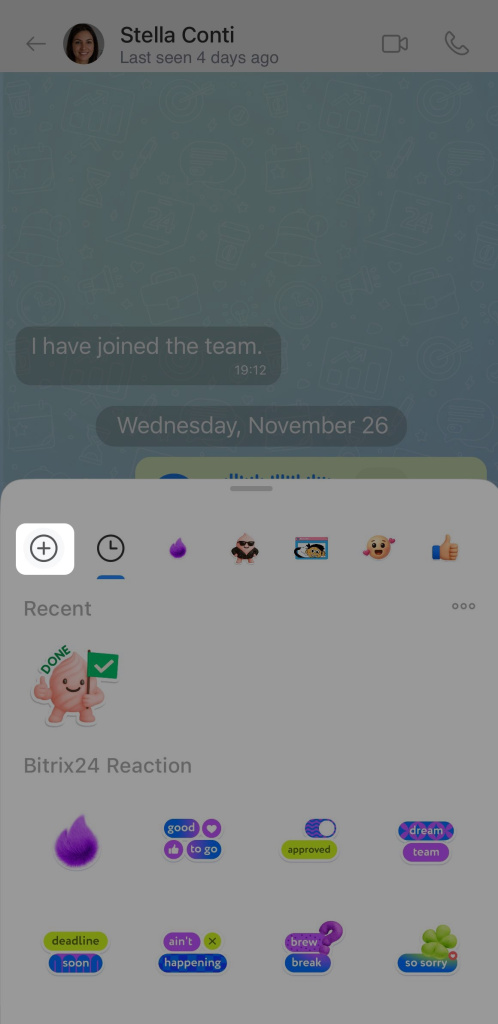
- Open a chat, channel, or collab.
- Click the Emoji icon in the text input field.
- Go to the Stickers tab.
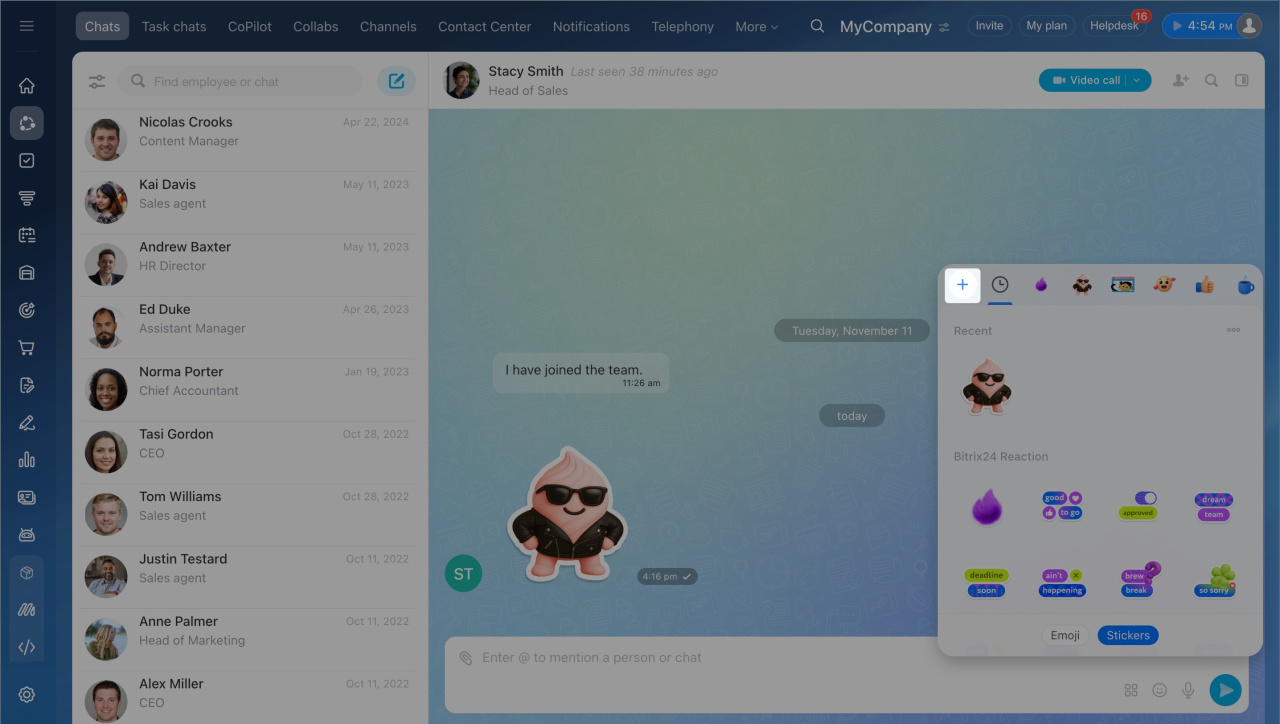
- Click Plus (+).
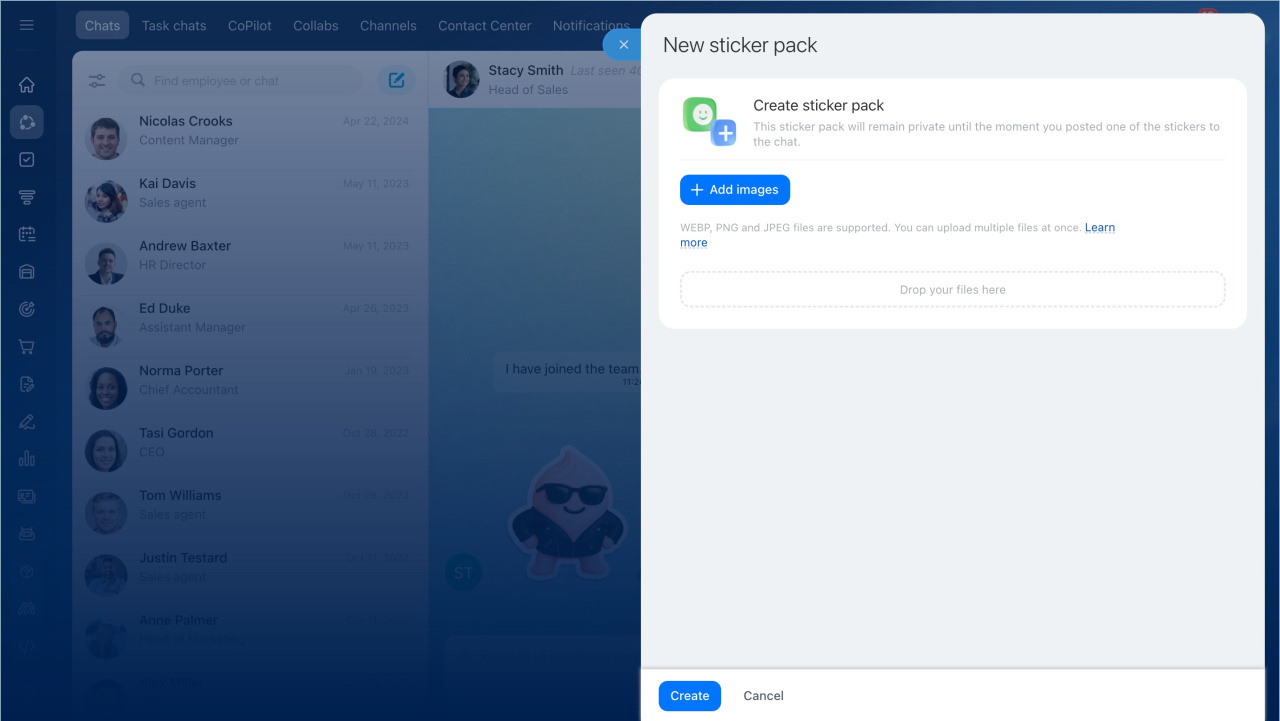
- In the pop-up window, click Add images and select files from your computer.
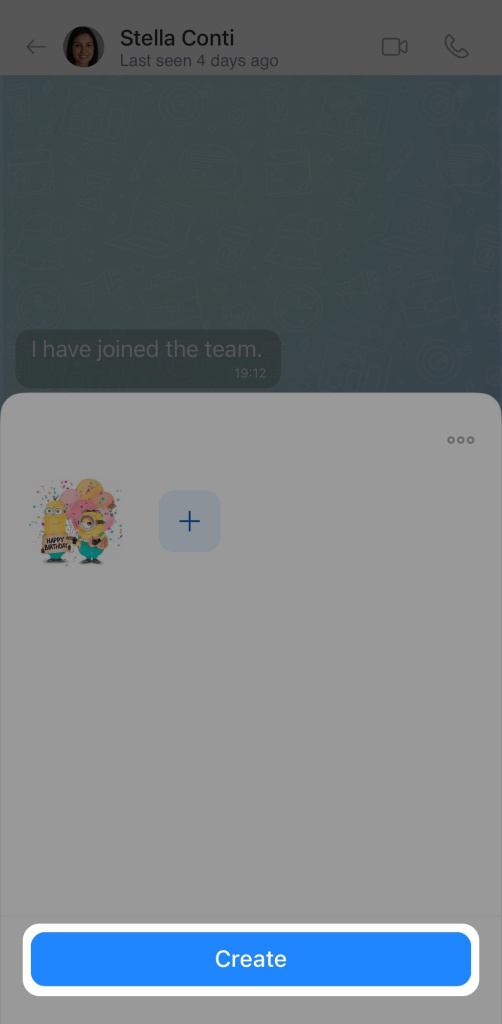
- Enter a name for your pack. If you don't, a name will be generated automatically.
- Click Create.
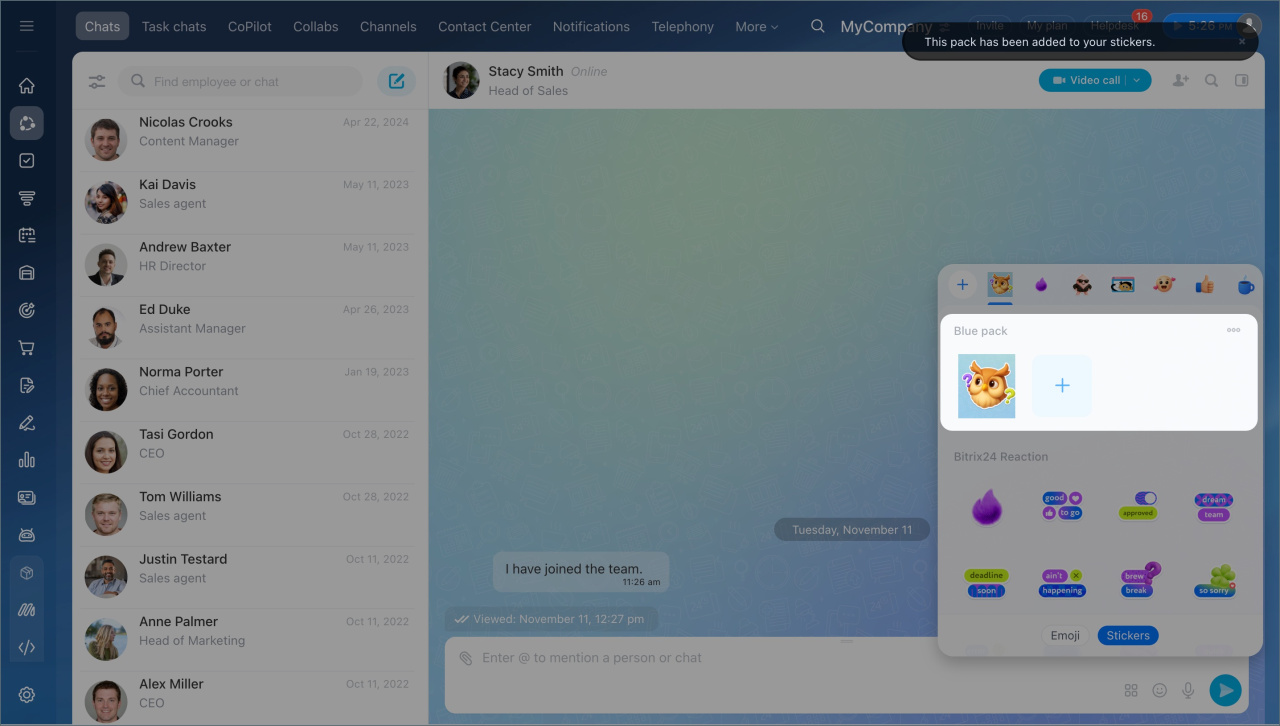
- The pack is now created, and you can send stickers from it in chats.
- Open a chat, channel, or collab.
- Tap the Stickers icon.
- Tap Plus (+).
- Select images from your phone's gallery—mark them with checkmarks.
- Tap Send files.
- Enter a name for the pack and tap Continue. If you don't, a name will be generated automatically.
The first uploaded sticker becomes the pack's avatar.
Add stickers from colleagues
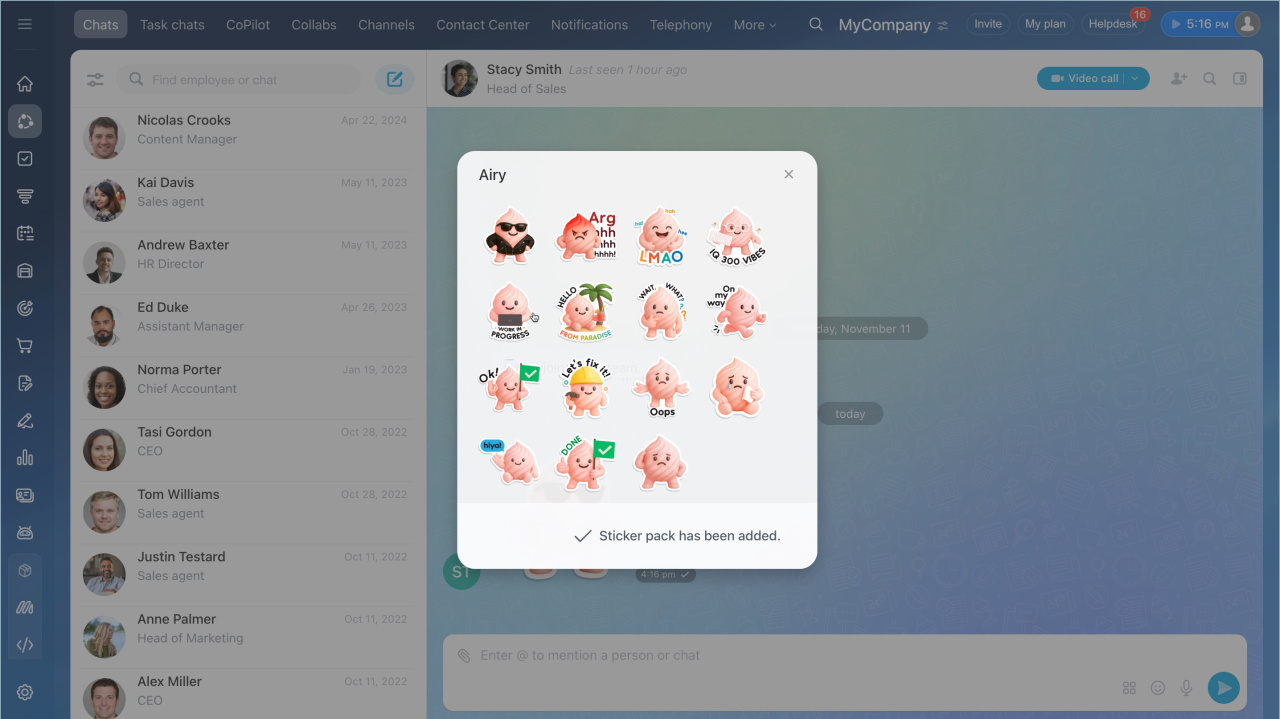
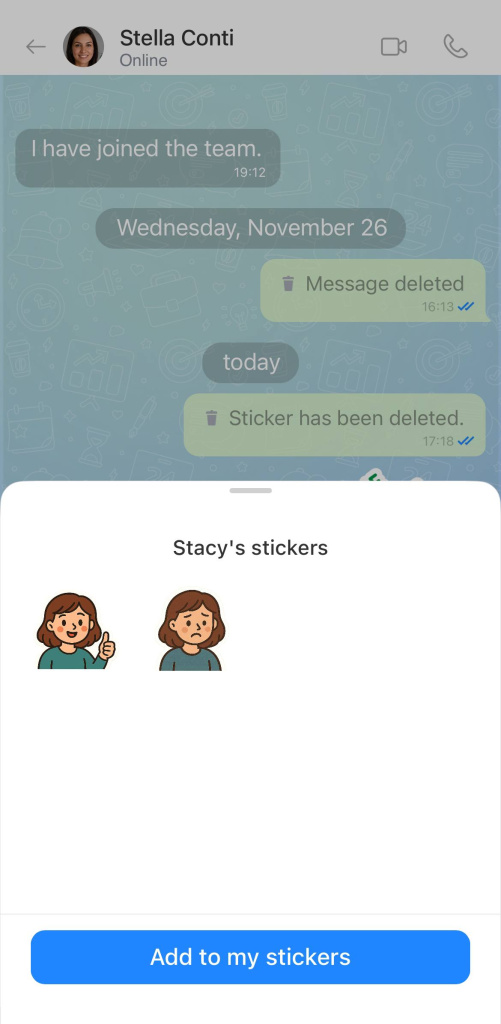
If a colleague sends a sticker to the chat, you can add the entire pack to your collection.
- Click on the sticker—the entire pack will open.
- Click Add pack.
- The pack will appear in the Stickers tab.
- Click on the sticker—the entire pack will open.
- Click Add pack.
- The pack will appear in the Stickers tab.

Manage sticker packs
Your packs. You can edit, rename, or delete sticker packs you created for all users.
Edit a sticker pack:
- Add new stickers—click Plus (+).
- Delete a specific sticker—right-click it and select Remove from pack.
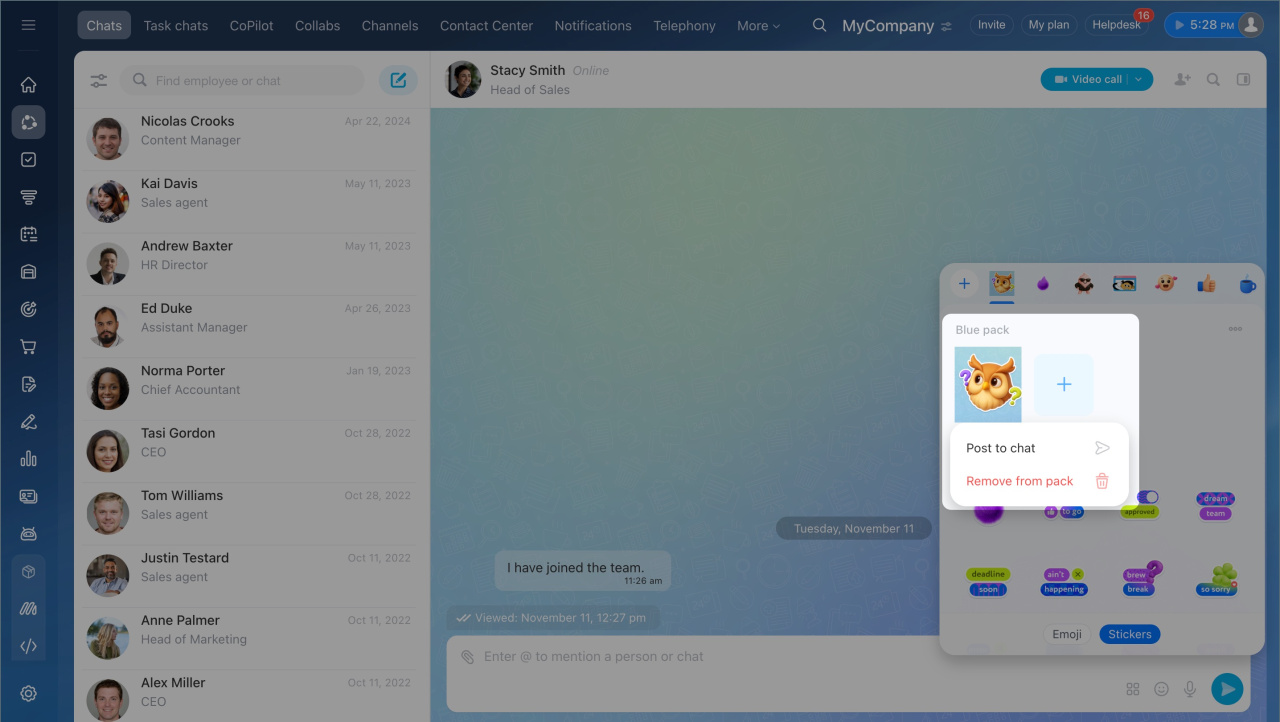
Rename or delete a pack:
1. Click Three dots (...) next to the pack's name.
2. Choose an action:
- Edit—change the pack's name. It will be visible to all users.
- Delete for all—completely remove the pack for all users.
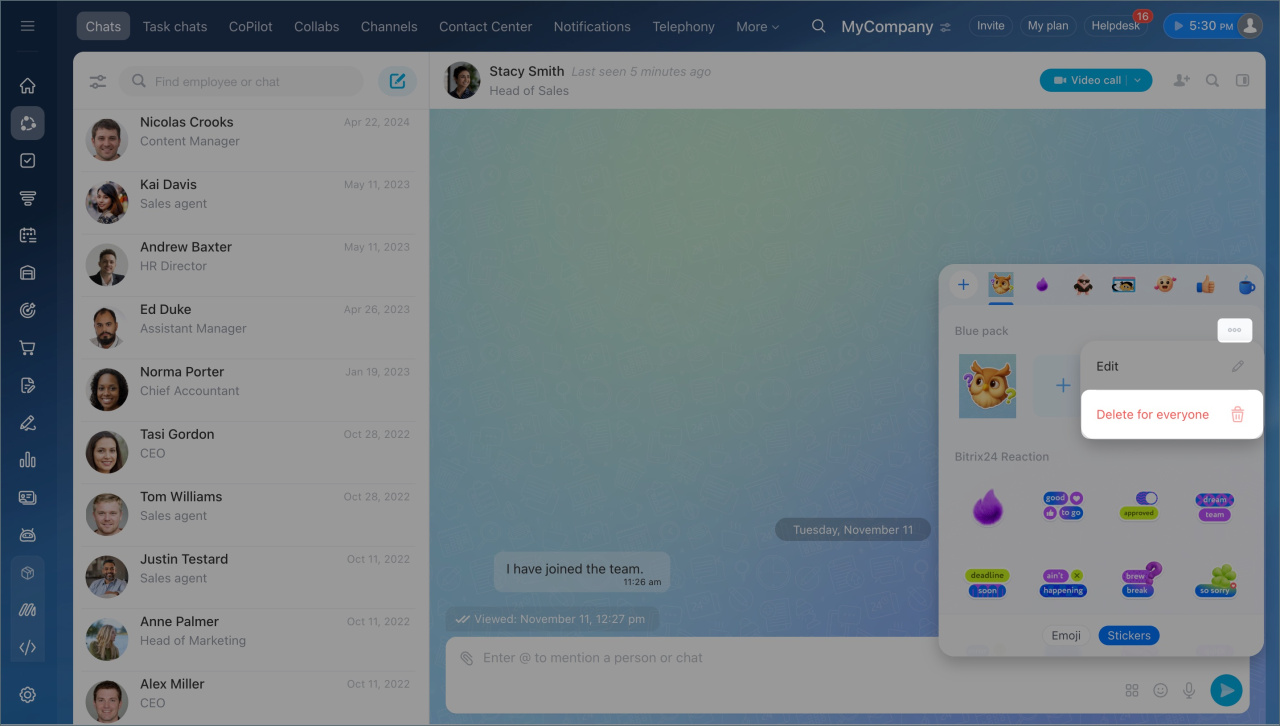
Colleagues' packs. If you added sticker packs from colleagues, you can remove them from your collection—click Three dots (...) > Remove from my collection.
Your packs. You can edit, rename, or delete sticker packs you created for all users.
To edit a pack, tap Three dots (...) > Edit and choose an action:
- Add new stickers—tap Plus (+).
- Delete a specific sticker—tap and hold it, then select Remove from pack.
- Rename the pack—tap Three dots (...) > Rename and change the name. It will be visible to all users.
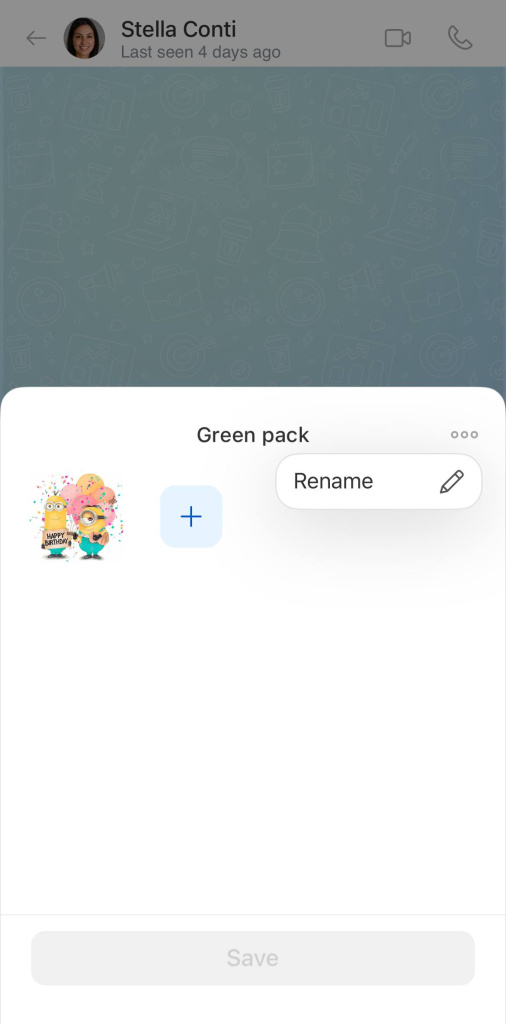
To delete a pack, tap Three dots (...) > Delete for all. The stickers will disappear for all users.
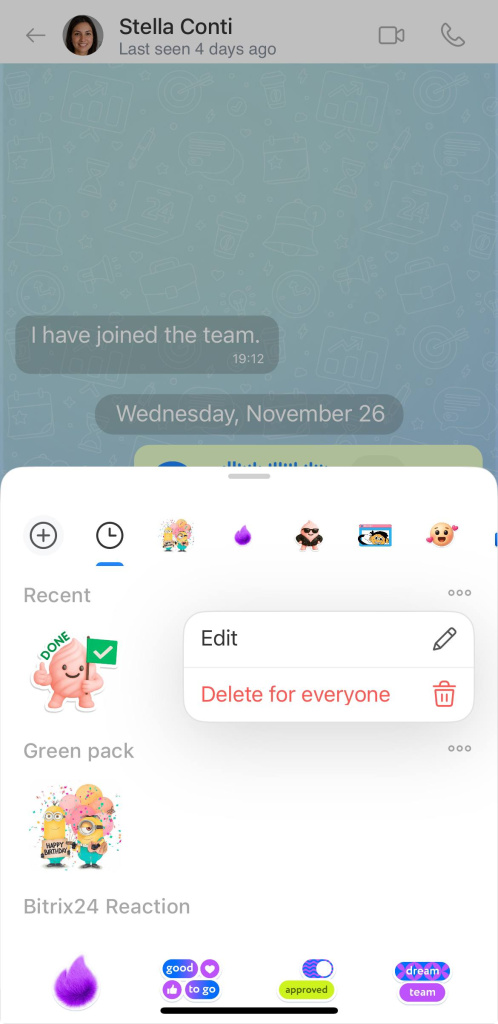
Colleagues' packs. If you added sticker packs from colleagues, you can remove them from your collection—tap Three dots (...) > Remove from my collection.
In brief
- By default, all employees have access to standard sticker packs. You can use them in Bitrix24 on both desktop and mobile apps.
- Stickers can be sent in any chat, channel, or collab. Select a sticker and click on it.
- Sent stickers are saved in the Recent section—always keeping the last 12 at hand.
- In Bitrix24, you can create custom sticker packs. Once a sticker is sent to a chat, participants can add the entire pack to their collection.
- You can edit, rename, or delete your sticker packs for all users.
- If you added sticker packs from colleagues, you can remove them from your collection. Tap Three dots (...) > Remove from my collection.
- Pre-installed packs cannot be deleted.
