
Product properties are characteristics specified in the product or service form, such as color, material, duration, manufacturer, and other parameters. These properties help managers quickly select the right items and allow customers to find suitable offers in the online store.
Role-based access permissions in CRM
In this article:
Create a property
Product and service forms include standard fields for describing basic characteristics, such as name and unit of measurement. To specify additional parameters, you need to create new fields via CRM settings or directly in the product form.
Via CRM settings.
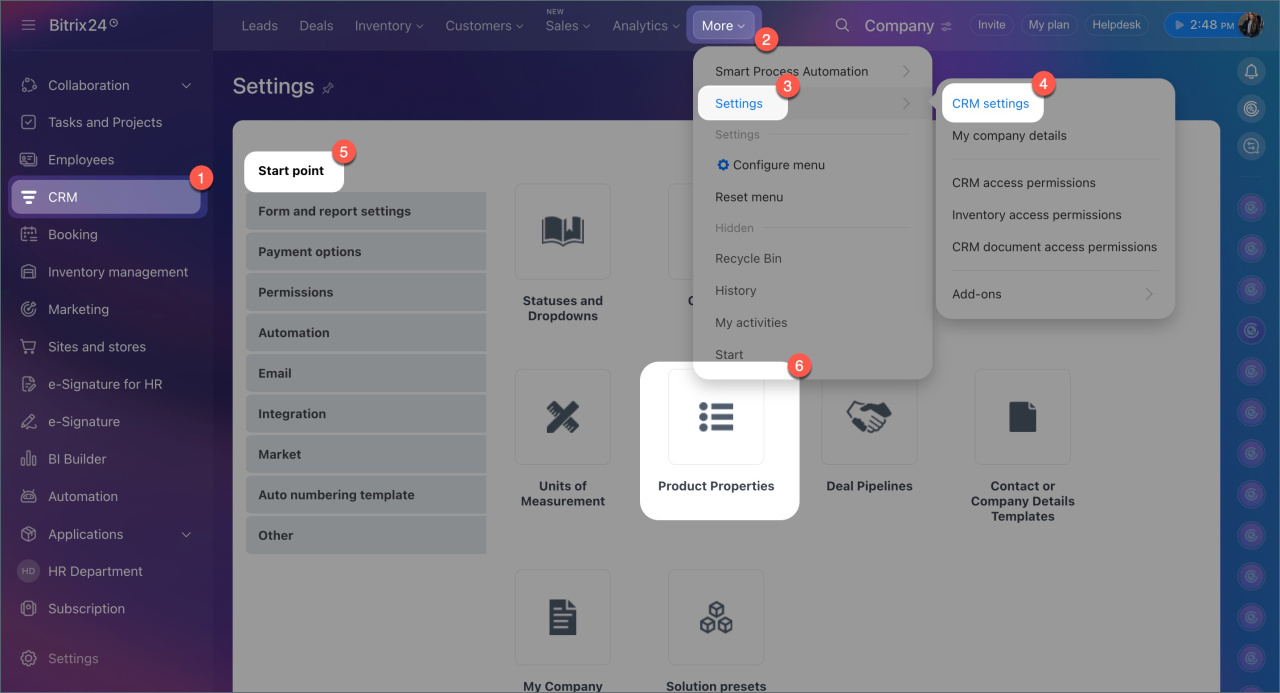
1. Go to CRM > More > Settings > CRM settings > Product properties.
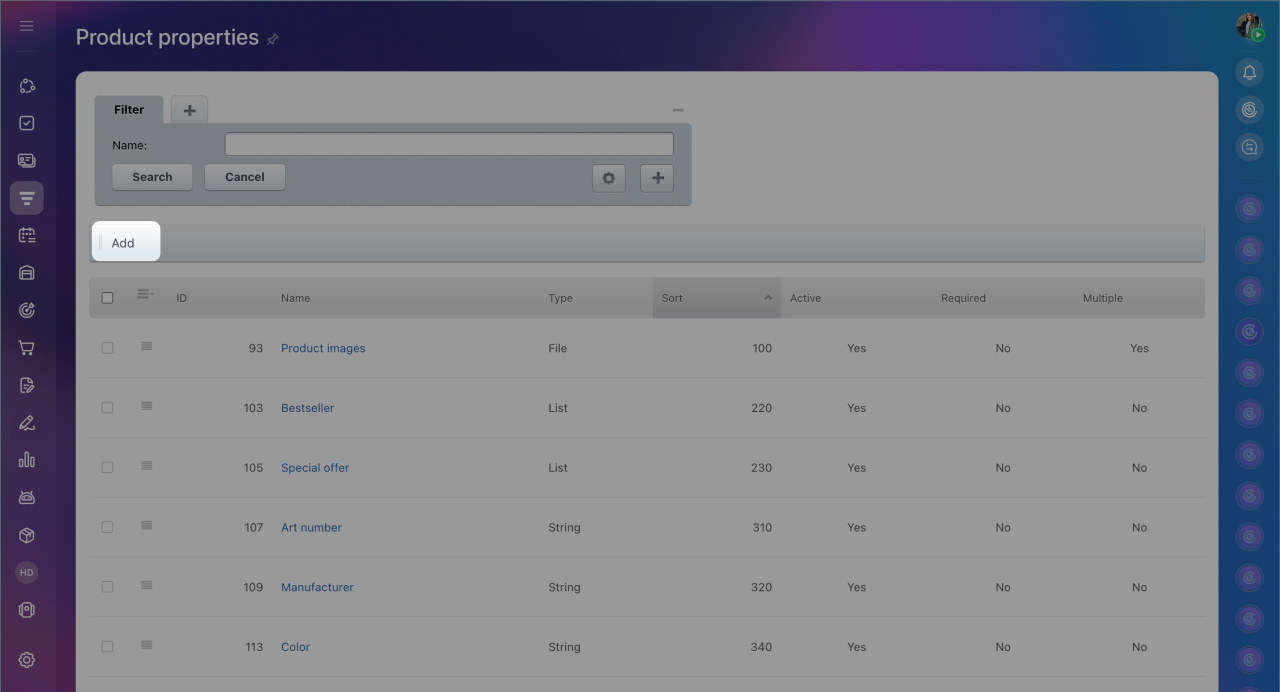
2. Click Add.
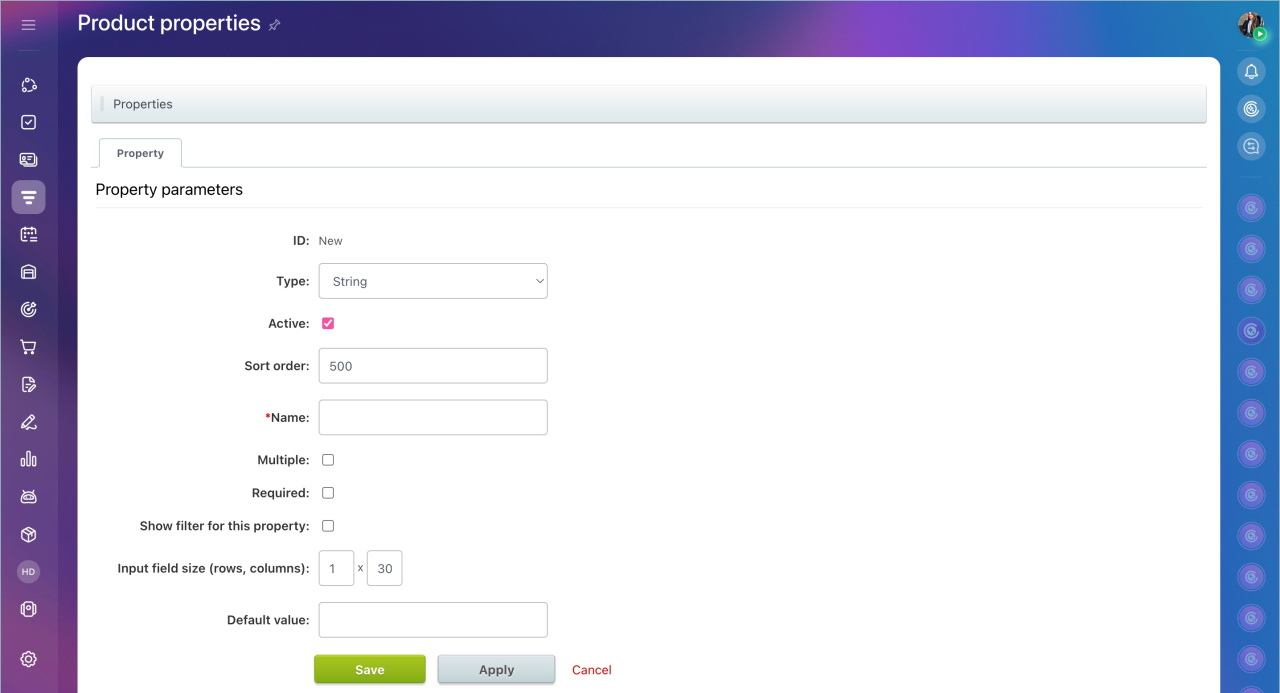
3. Specify the parameters:
- Type — defines the field type: text, number, file, etc.
Custom fields in CRM - Property active — if enabled, the property can be added to the product or service form.
- Sort order — determines the position of the property in the list. Lower numbers appear higher. For example, Material (100) appears above SKU (200).
- Name — displayed in the product or service form.
- Multiple — allows multiple values to be entered in the field, such as listing all materials in a product.
- Required — the form cannot be saved until this field is filled in.
- Show filter field on the item list page — enables searching for products and services by this property. If disabled, the field will not appear in the filter.
- Default value — specifies data that will automatically populate the field, such as a price for a Money field or coordinates for a Map link field. Users can keep or replace the default value.
4. Save the changes.
Additional settings for different field types
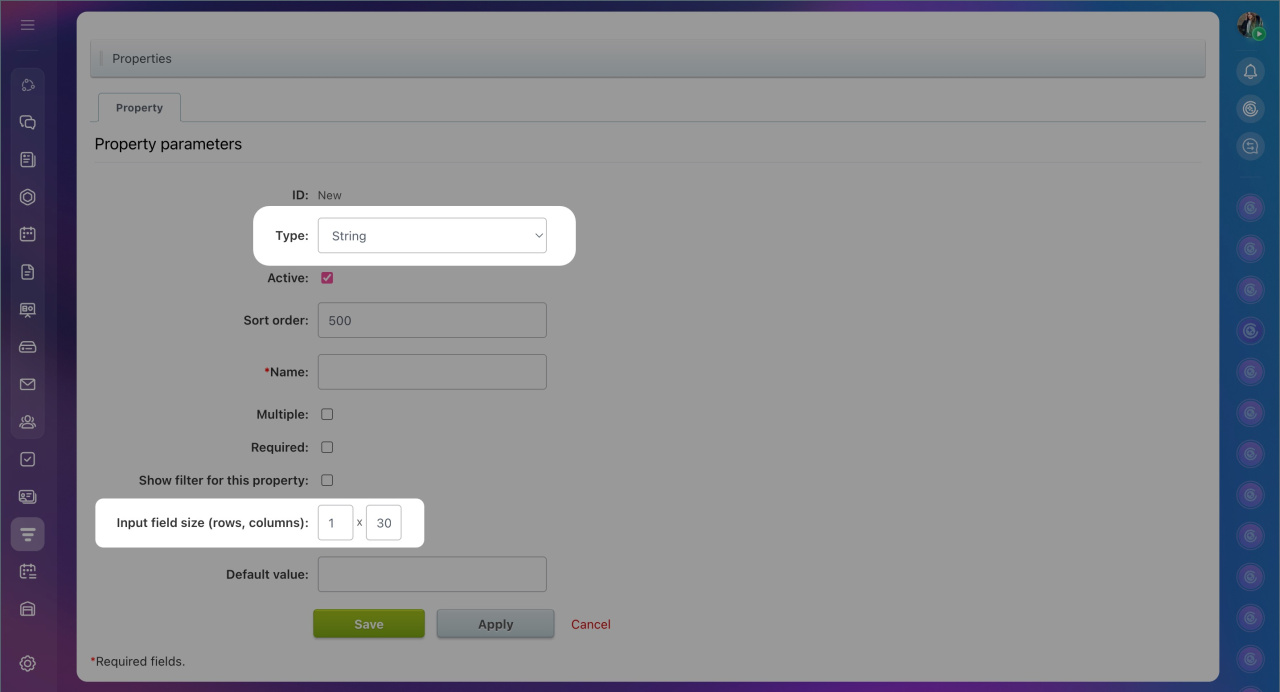
String. The Input field size (rows, columns) option sets the height and width of the text input field. For example, a value of 5 × 20 makes the field taller and more convenient for entering long descriptions.
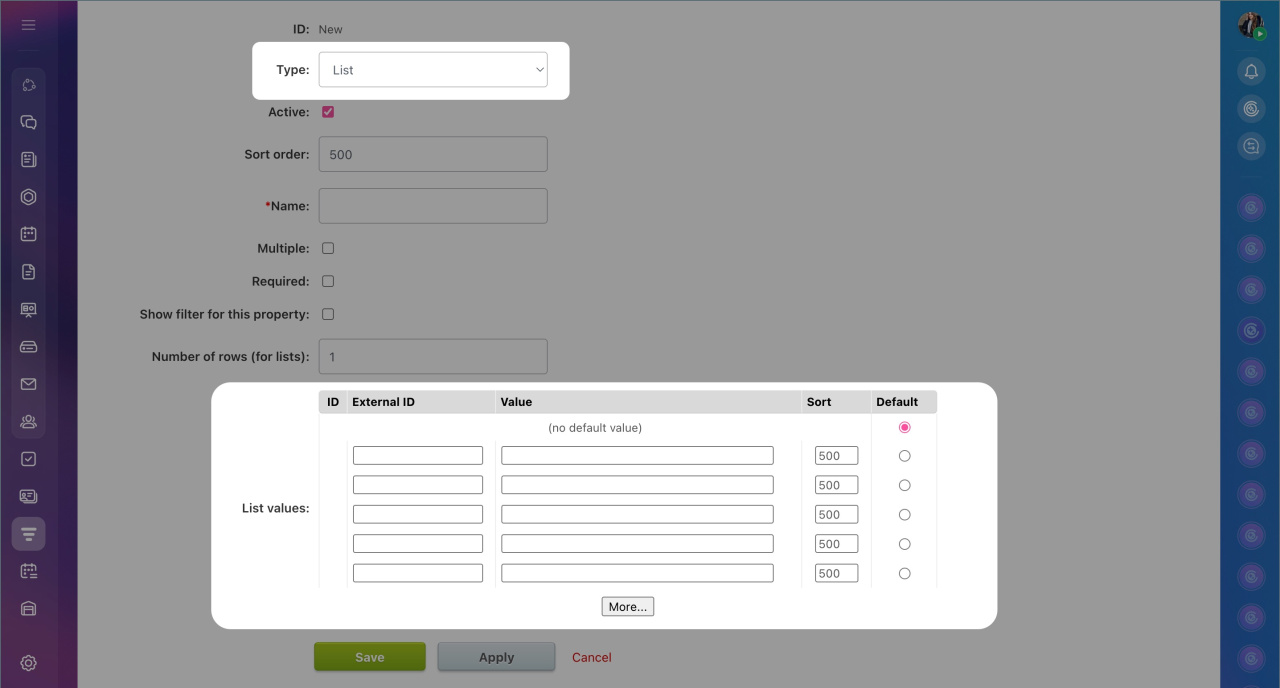
List. In the List values field, add options that users can select when filling out the product form. For example, list available T-shirt colors or durations for different massage sessions.
If needed, fill in the parameters for list values:
- ID — an internal property code assigned automatically. It cannot be changed.
- External ID — a unique property number used for data import and synchronization. It is assigned automatically after saving the property, but you can set it manually.
- Sort — determines the position of the option in the list. The smaller the value, the higher it appears.
- Default — allows you to select a value that will automatically populate the form. Users can keep or replace it.
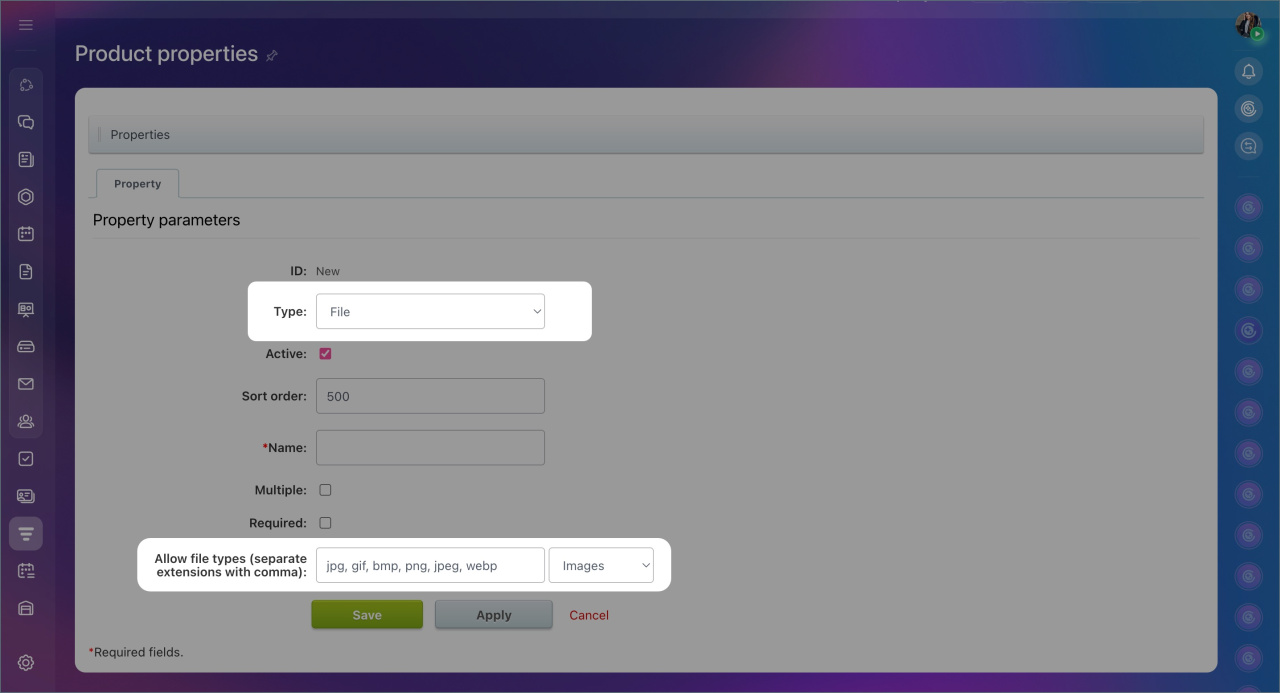
File. In the Allow file types (separate extensions with comma) field, specify the file formats that can be attached to the product or service form, such as pdf, docx, jpg. To automatically add allowed extensions, select a category like Images.
If the field is left empty, users can attach files of any type.
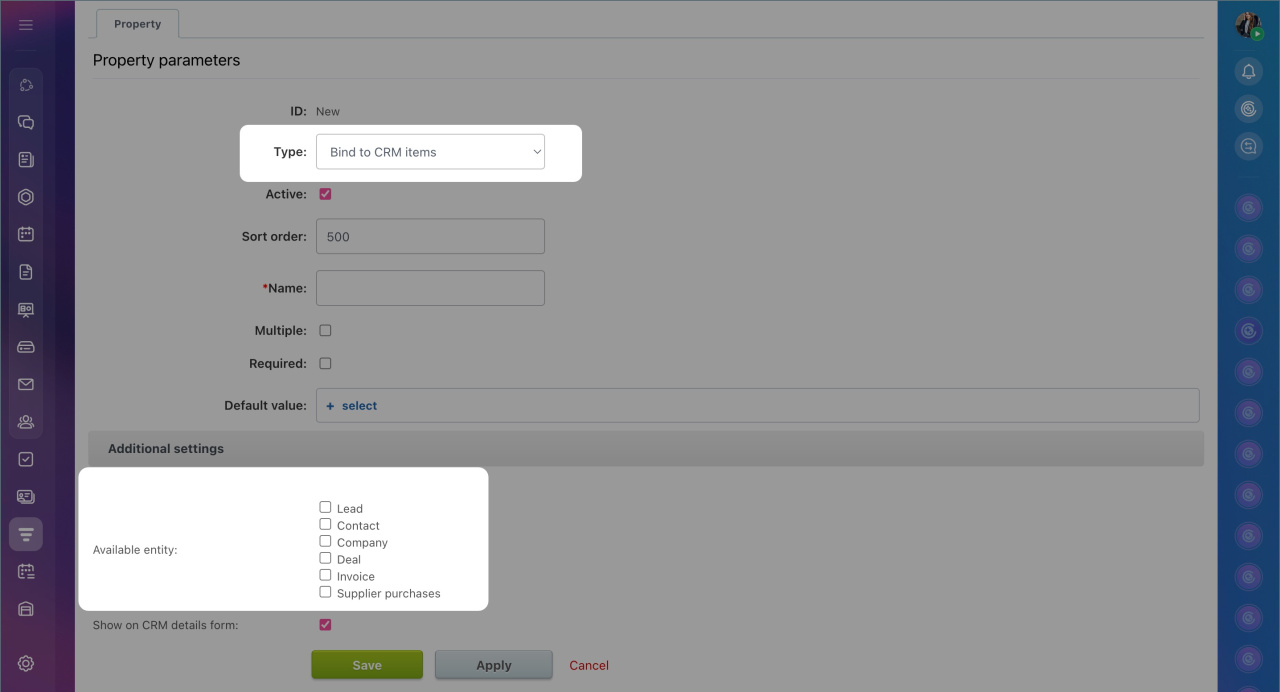
Bind to CRM item. The Available entity option defines which CRM items the product or service can be linked to, allowing quick access from the form.
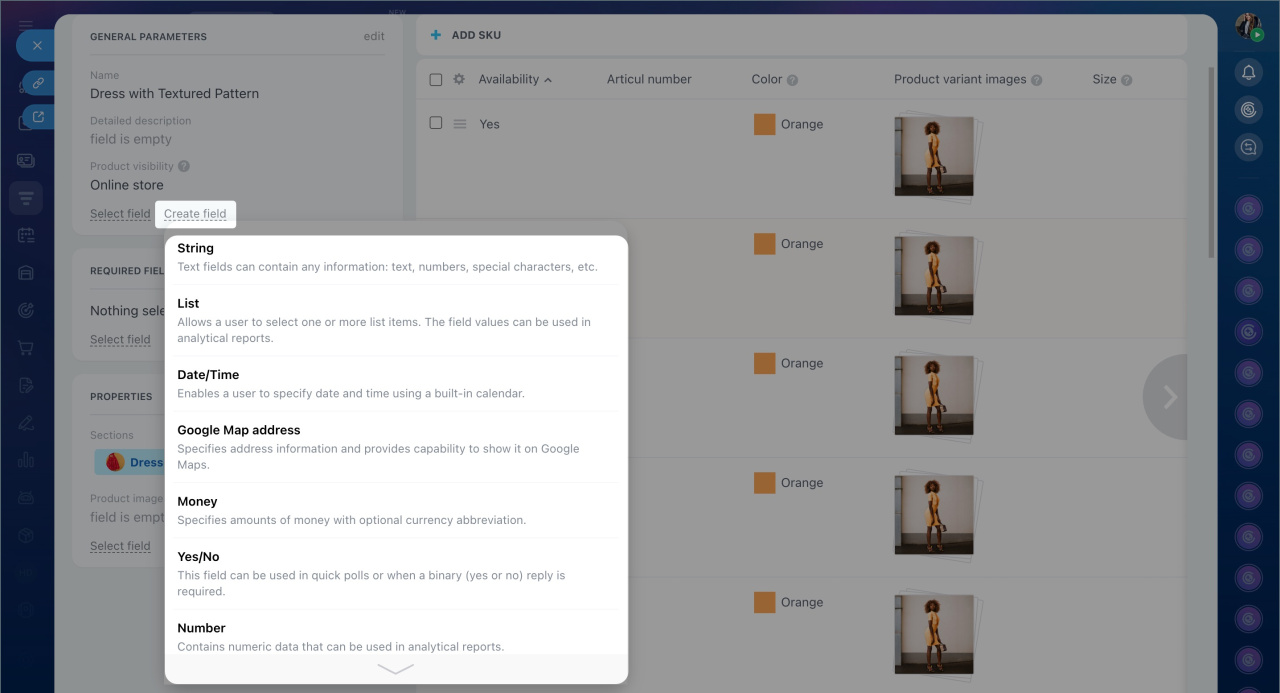
In the product form, fewer property parameters can be set compared to the CRM settings. This method is convenient for quickly adding a new property to the form and including it in the Bitrix24 online store filter.
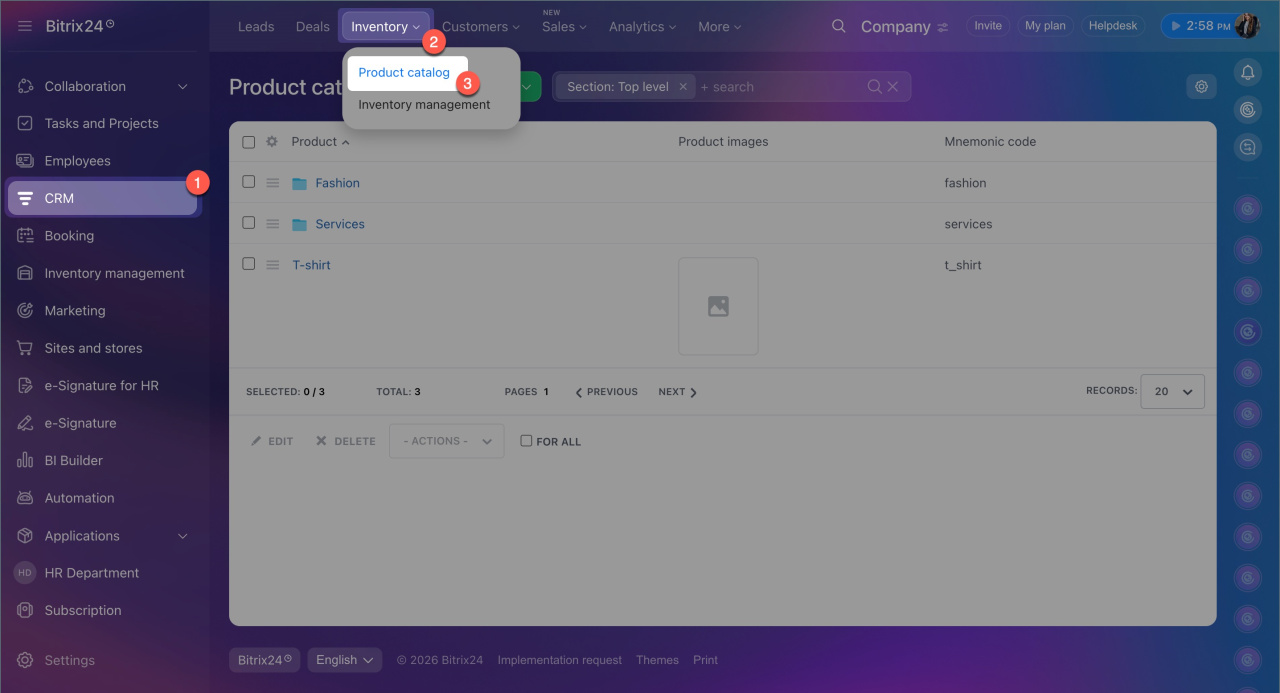
1. Go to CRM > Inventory > Product catalog.
2. Open the product form, click Create field, and select its type.
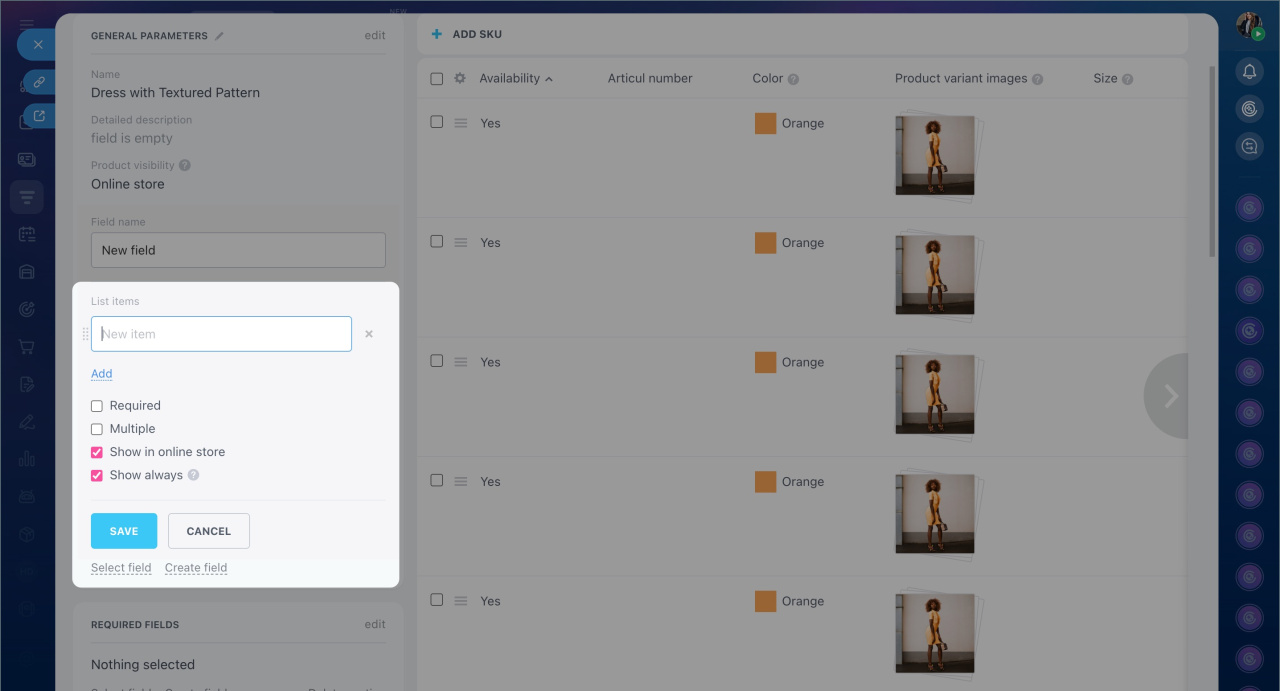
3. Specify the field name and parameters:
- Required.
- Multiple.
- Show in online store — enables searching for products and services by this property in the Bitrix24 online store.
- Always show — the field is displayed in the form even if it is not filled in.
8. Save the changes — the property will be added to the product or service form and the general property list.
Edit or delete a property
You can edit property settings in the product form and edit or delete them in the CRM settings.
In the product form.
1. Go to CRM > Inventory > Product catalog and open the product form.
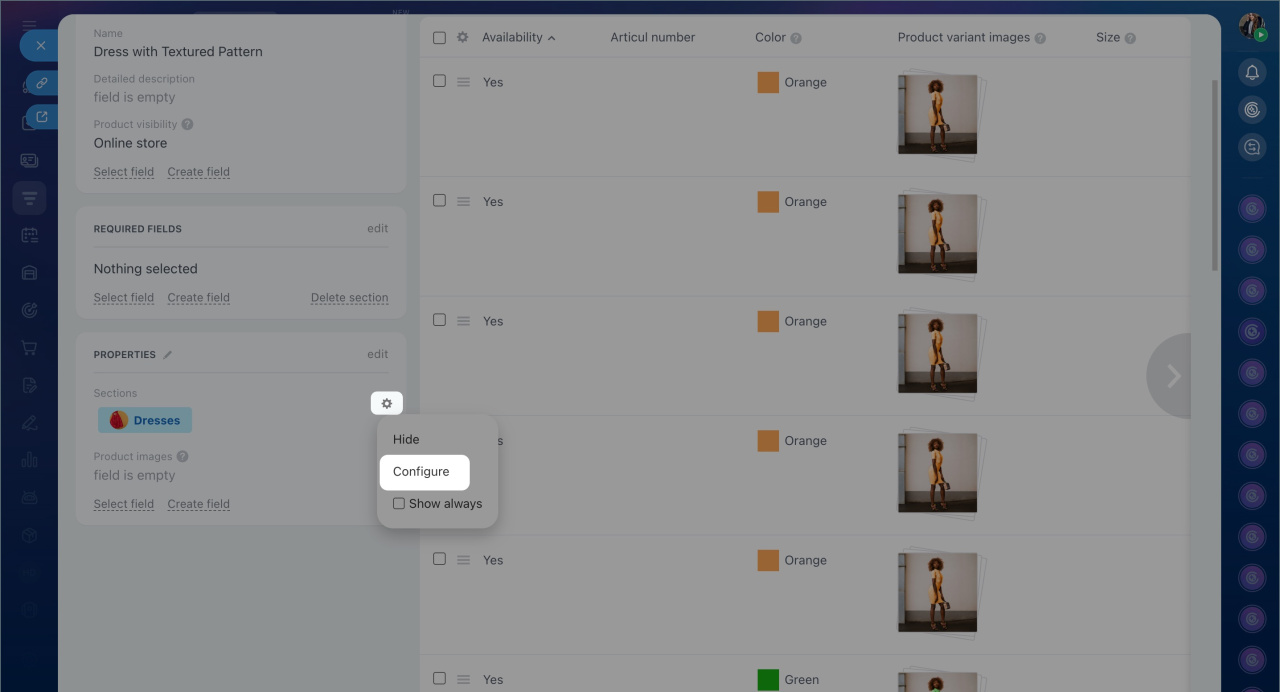
2. Click Settings (⚙️) next to the required field and select Configure.
3. Edit the property and save the changes.
In CRM settings.
1. Go to CRM > More > Settings > CRM settings > Product properties.
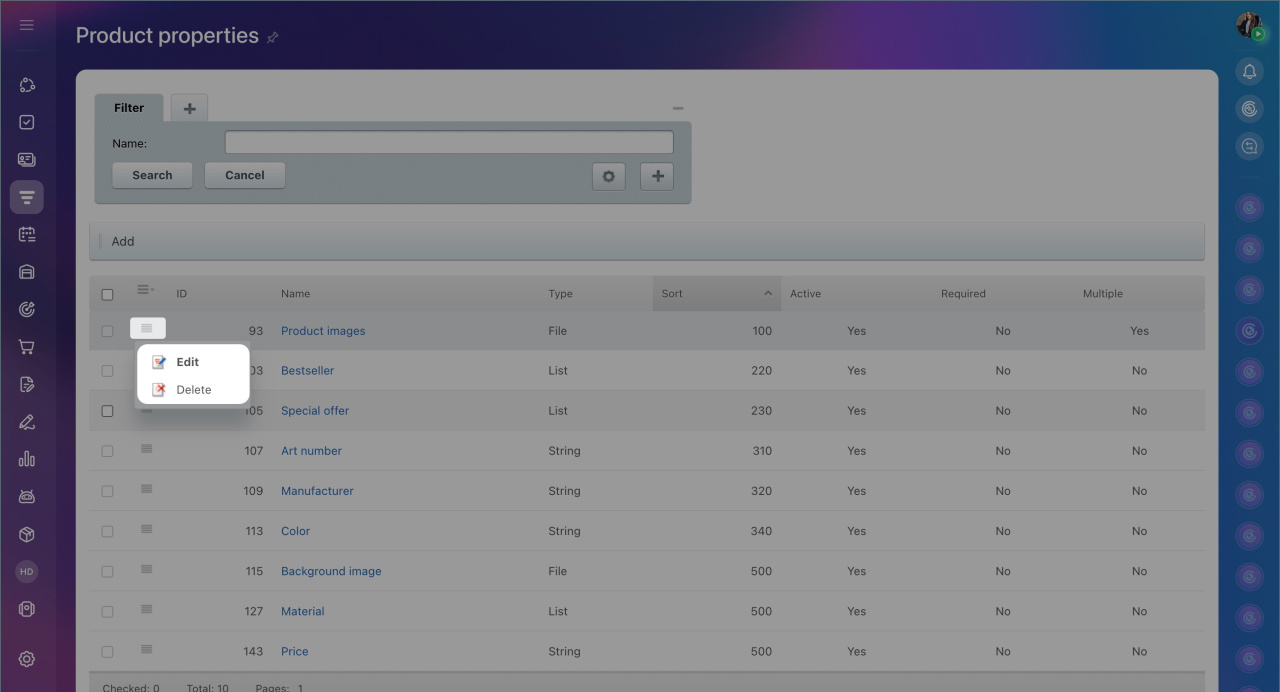
2. Click Menu (≡) next to the property and select Edit or Delete.
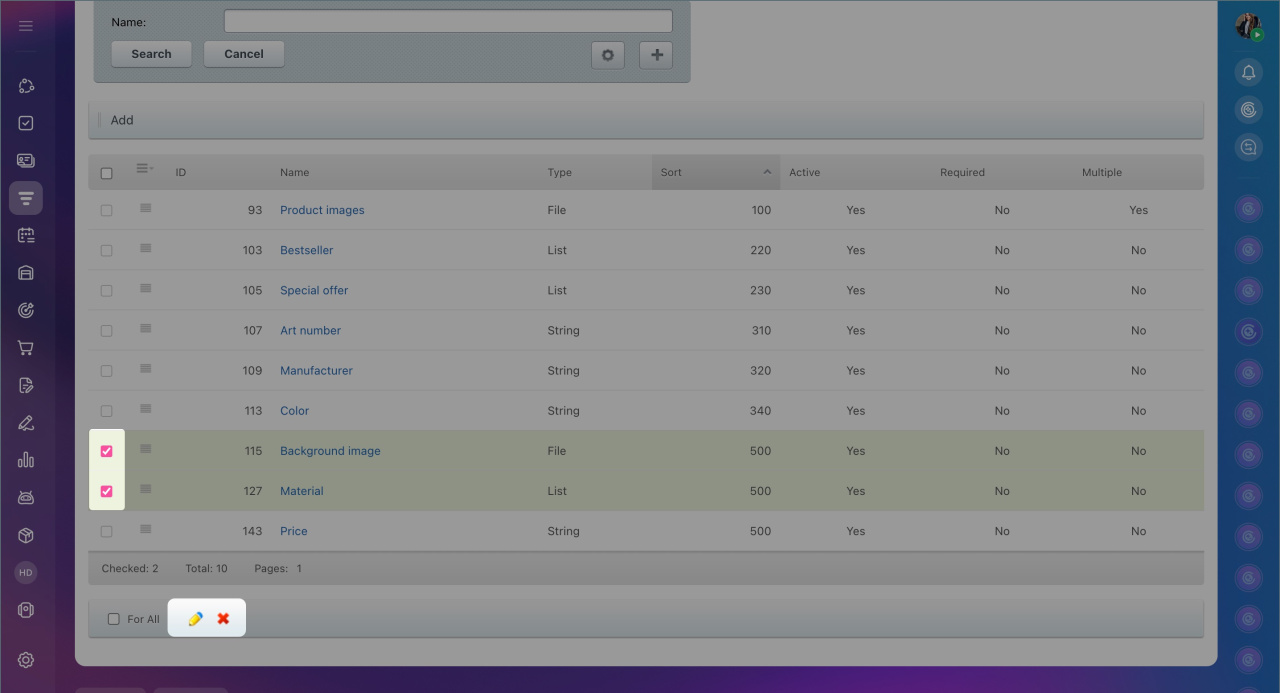
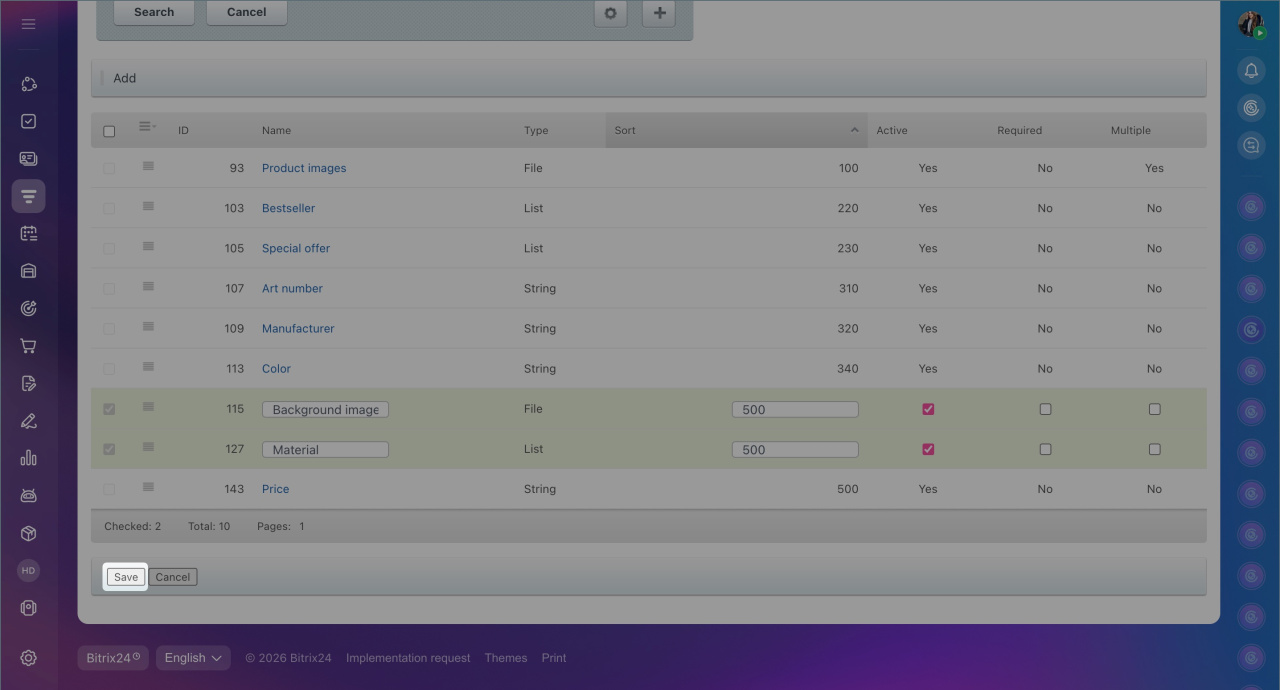
3. To edit or delete multiple properties at once, use group actions. Select the required properties and click the Edit (pencil) or Delete (cross) icon.
4. Confirm the deletion or save the changes, depending on the selected action.
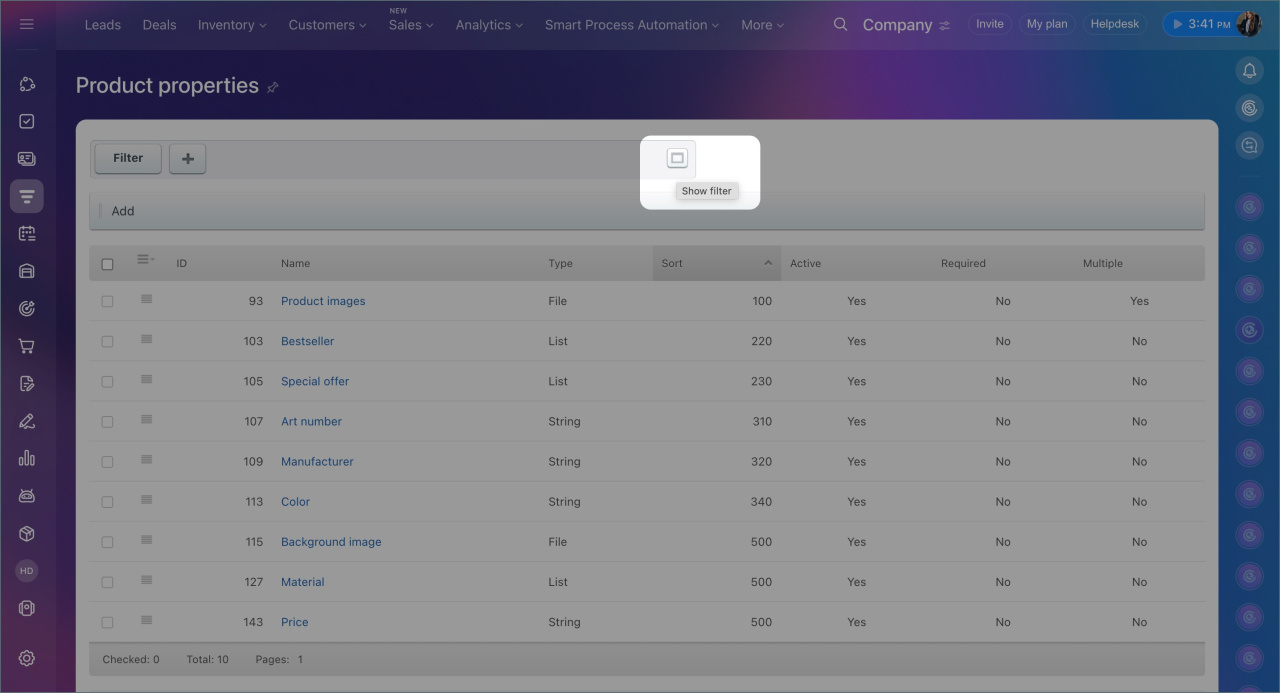
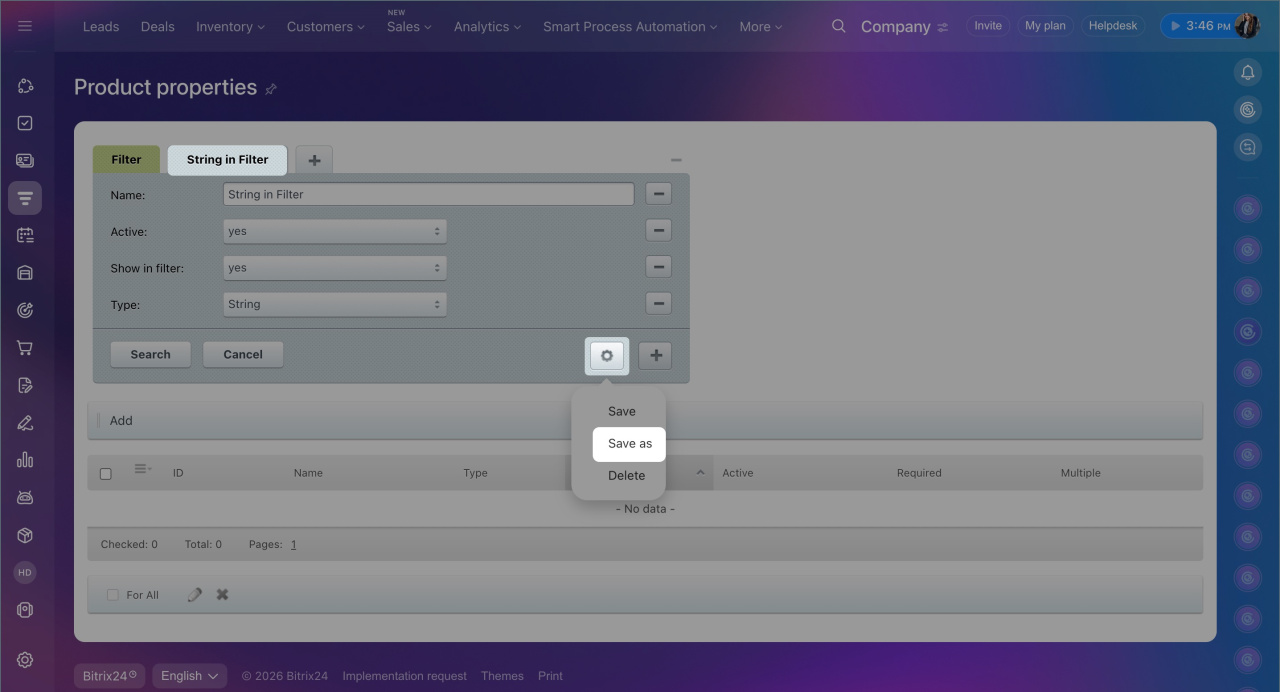
If there are many properties, use the filter to find the required ones.
1. Click a special icon in the Filter field.
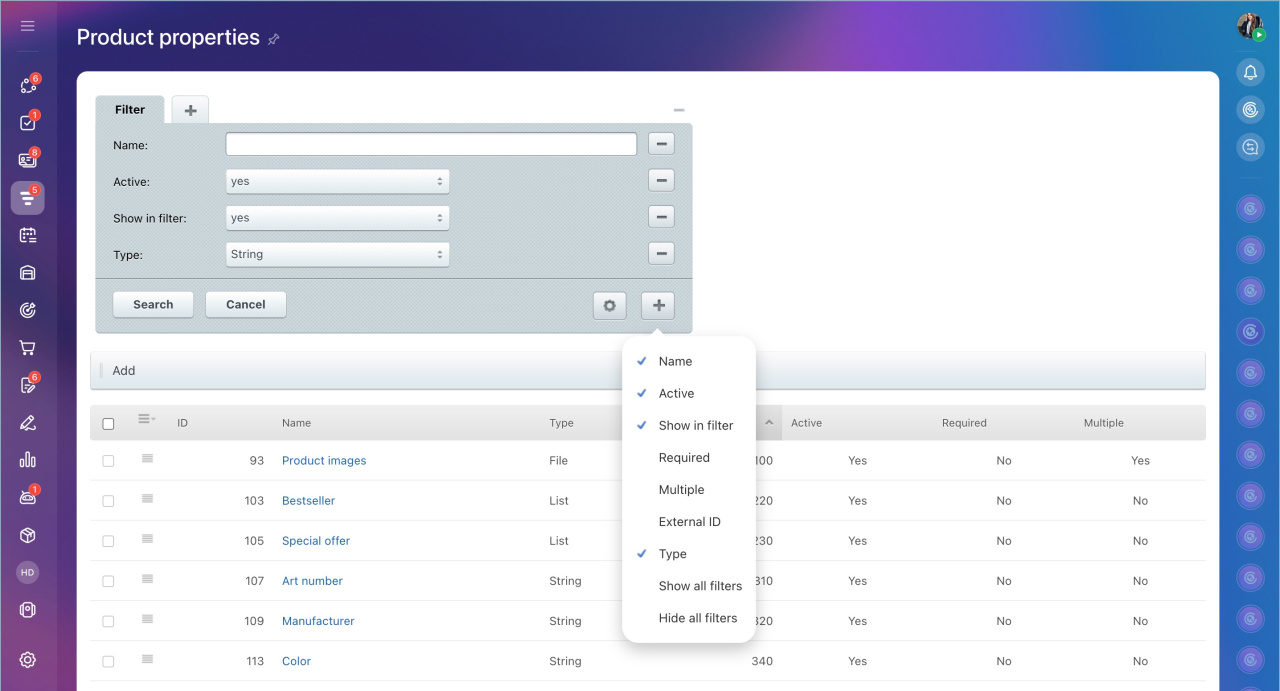
2. Click ➕ and select search parameters.
3. Click ➖ to remove parameters from the filter.
4. Specify values and click Search.
5. Save the filter to avoid re-entering search parameters each time. Click Settings (⚙️) > Save as, specify a name, and click Save.
6. A tab for quick access to the filter will appear on the page.
In brief
- Product properties are characteristics specified in the product or service form. They help managers quickly select items and help customers find suitable offers in the online store.
- To add a new property in the CRM settings, go to CRM > More > Settings > CRM settings > Product properties and click Add. Specify the parameters and save the changes.
- To add a new property in the product or service form, go to CRM > Inventory > Product catalog. Open the product form, click Create field, specify the parameters, and save the changes.
- You can edit property settings in the product form or the CRM settings. Deletion is only possible in the CRM settings.
- The property type defines the type of data the field can store and is set during creation. It cannot be changed later.
- Use the filter to search for properties.
