The Employees section in Bitrix24 helps track working hours, set schedules, and view work reports. Here are the answers to the most common questions:
- Why is the "Start workday" button missing?
- What is the difference between reports in the Work reports and Working time sections?
- Why can't an employee end their workday?
- How to grant permissions for adding absences to the schedule for all employees?
- Why are there multiple entries for one day in working time or a "Expired" status displayed?
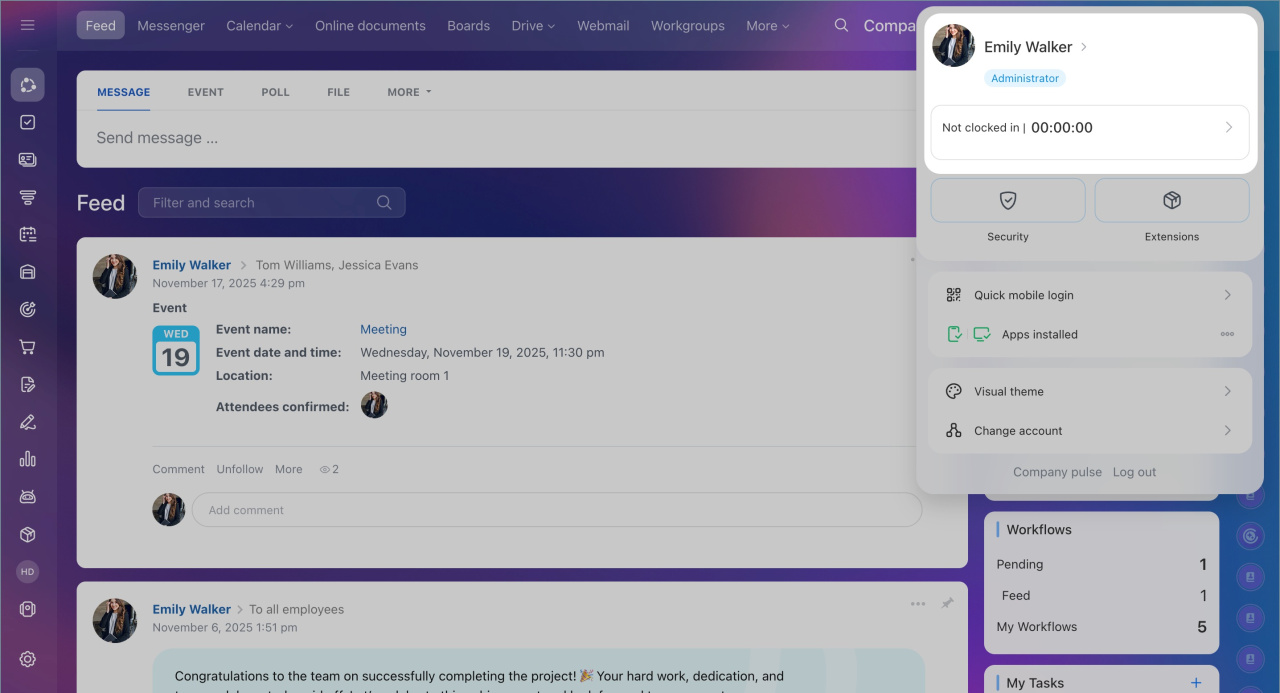
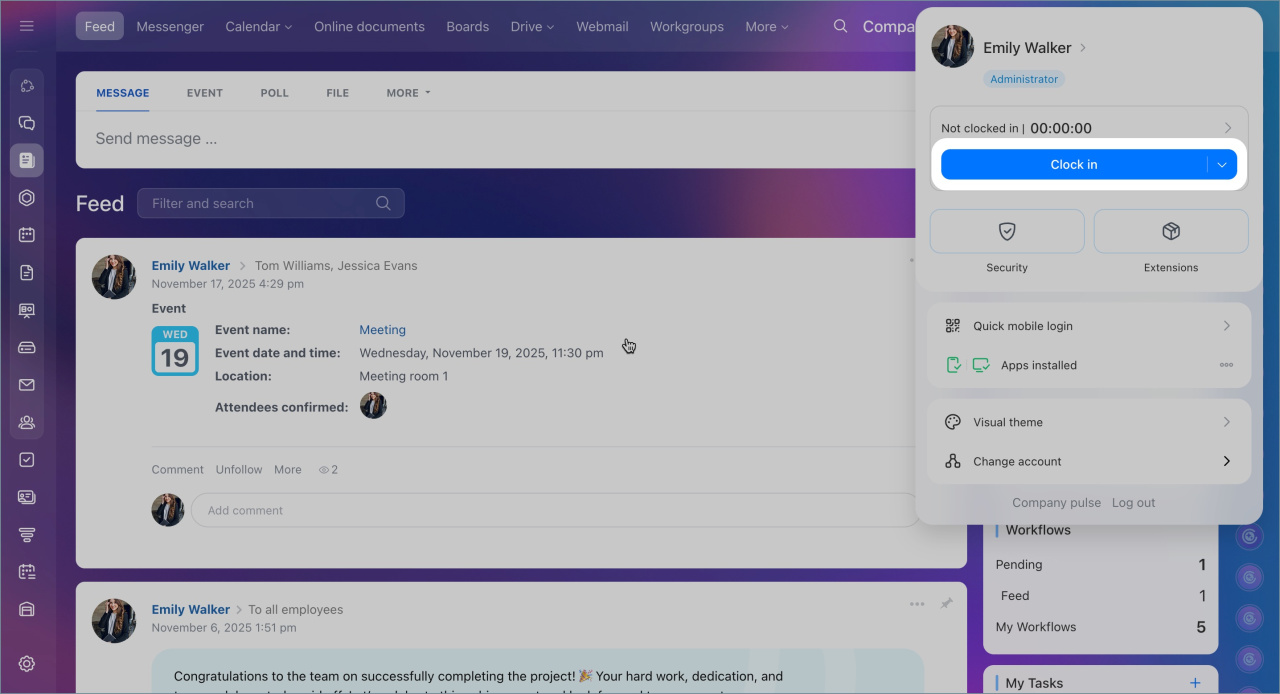
Why is the "Clock in" button missing?
Issue: The "Clock in" button is not available in the employee widget.
Reasons:
- Working time tracking option is not enabled for the employee.
- The employee does not have permissions to use the Working time tracking option.
Worktime tracking in Bitrix24
Solution: Check if working time tracking option is enabled for the employee and if they have the necessary permissions to use the tool.
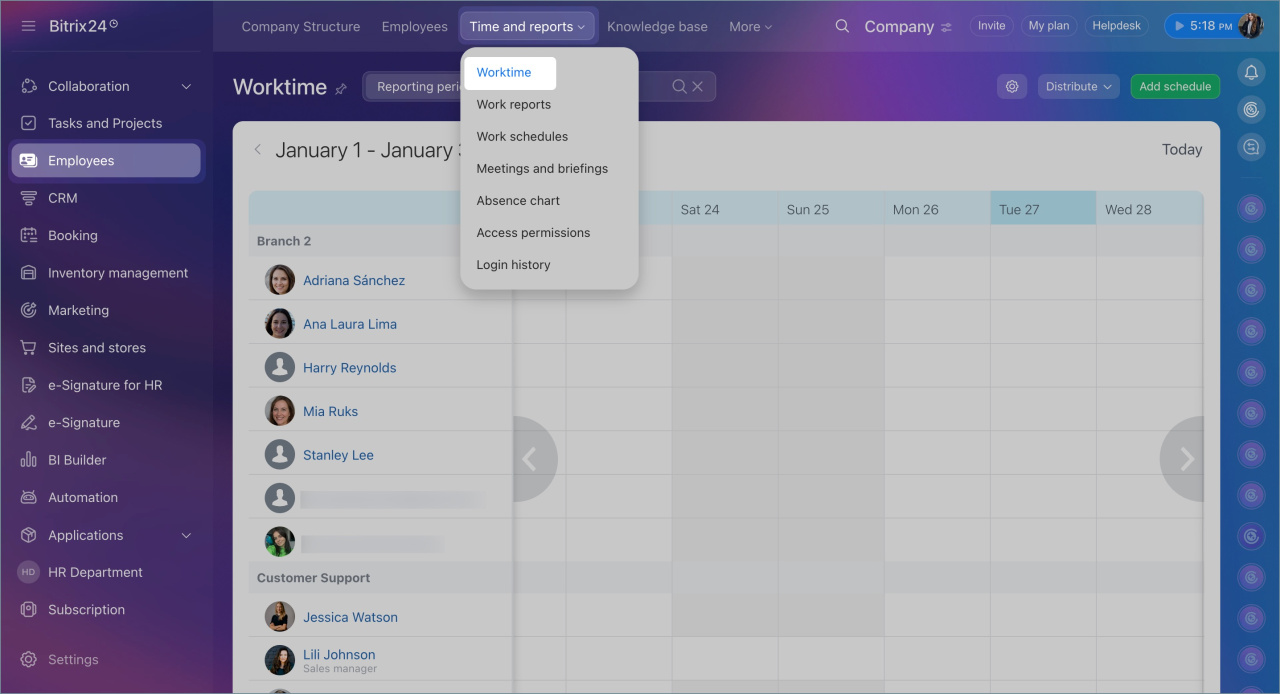
Enable working time tracking option for an employee:
1. Go to the Employees section > Time and reports > Worktime.
2. Click the clock icon next to the name of the employee who does not have the "Clock in" button.
5. Choose an option:
- Inherit department settings — use this if tracking is already set up for your department.
- Enabled — enable working time tracking only for this employee. Use this option for selective tracking.
6. Save the changes.
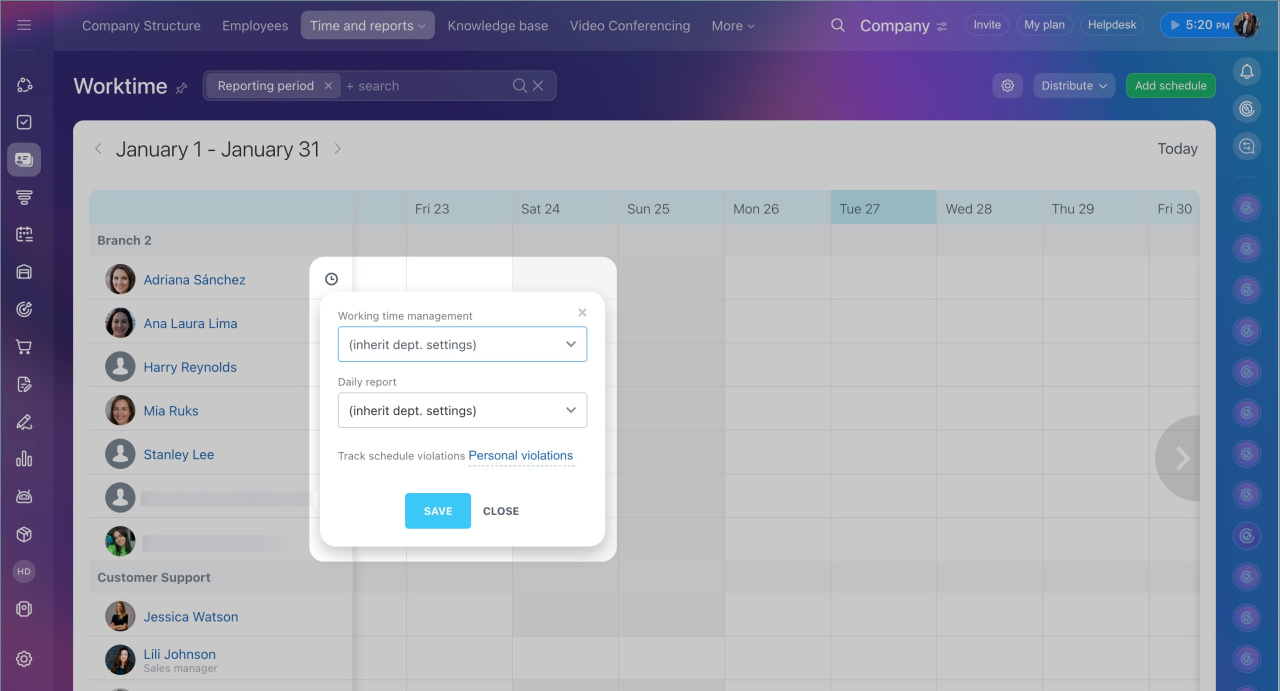
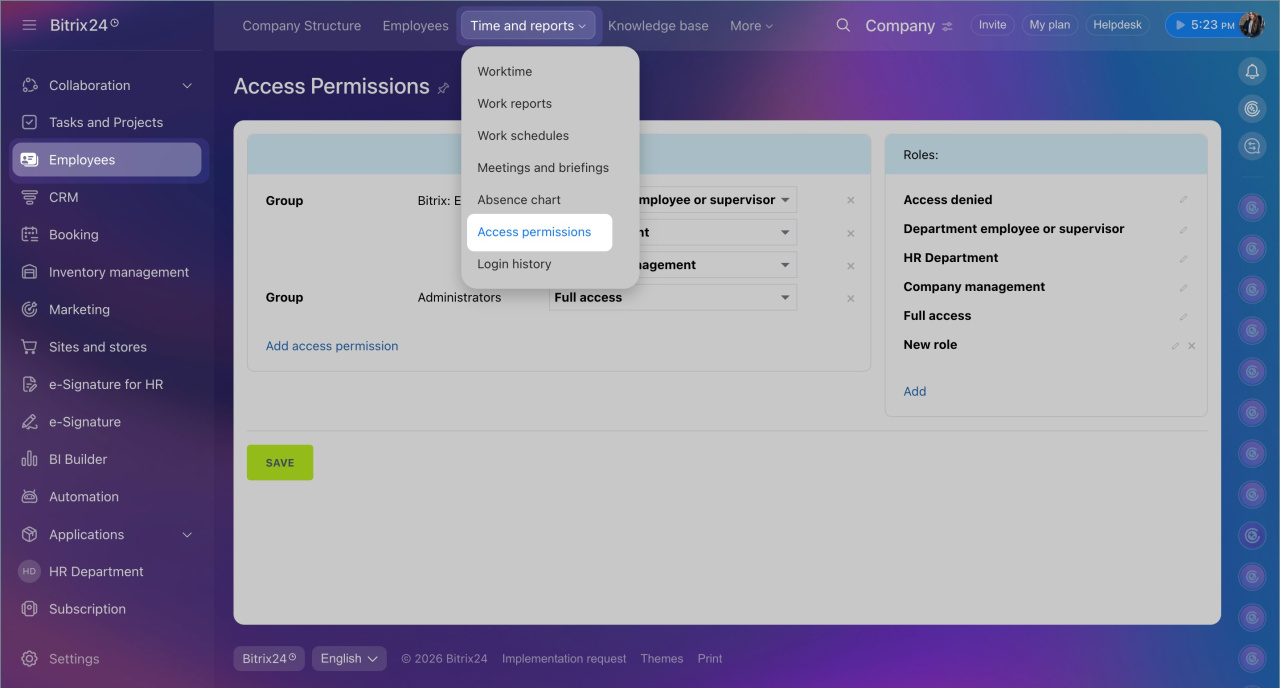
Check access permissions: To verify the access permissions for working time tracking for a department or employee:
1. Go to the Employees section.
2. Click Time and reports > Access permissions.
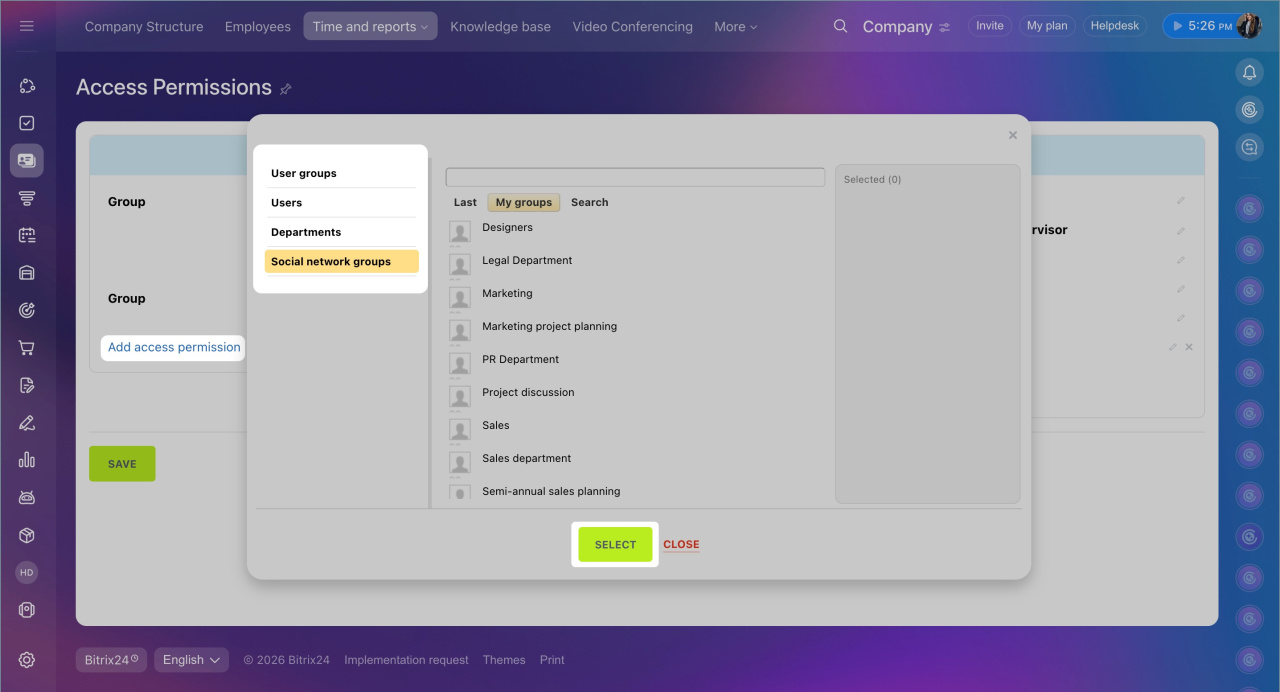
3. Select Add access permission.
4. Click Users — to select a specific employee, or Employees and departments — to add an entire department.
5. Find the required employee or department.
6. Click Select.
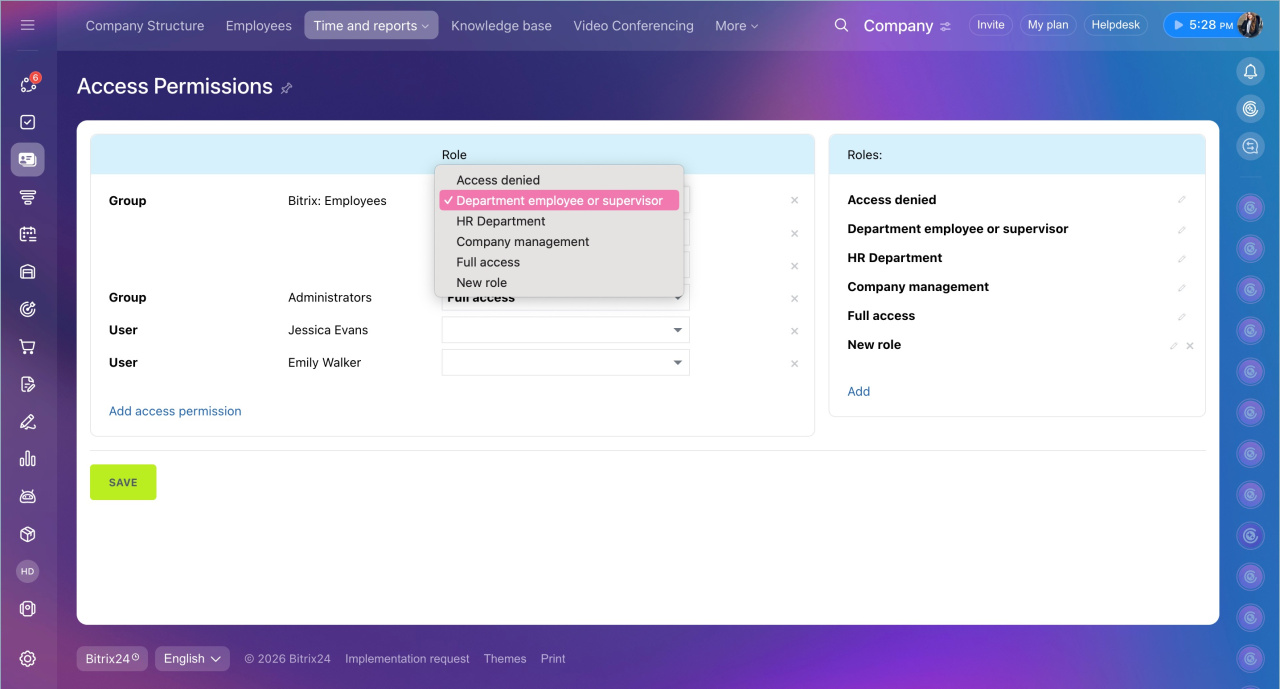
7. Choose the access permission Employee or department supervisor — it works differently depending on the user's role in the company structure:
- Regular employee — can view and edit only their own workday and report.
- Department supervisor — in addition to their own data, can view and edit the workday and reports of subordinates.
9. Save the changes. After this, the employee will see the "Start workday" button.
 Worktime tracking option is enabled
What is the difference between reports in the Work reports and Working time sections?
Bitrix24 offers two options for employee work reports: "Work report" in the Working time section and regular reports in the Work reports section.
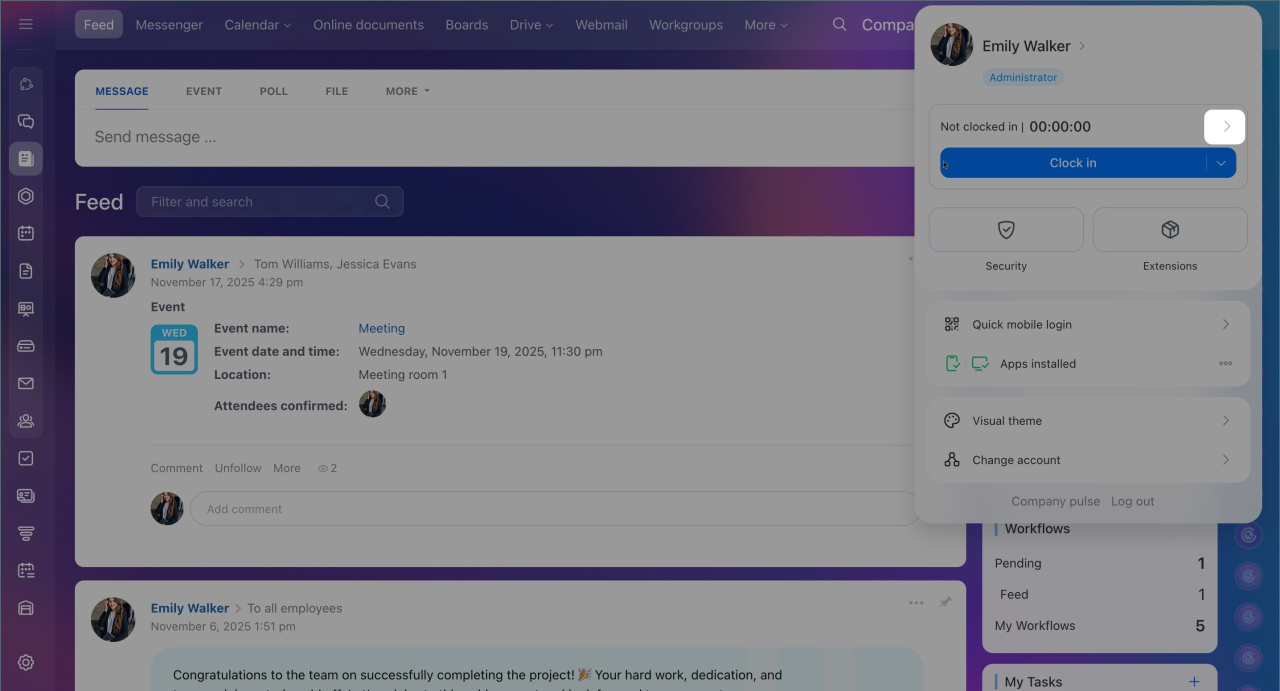
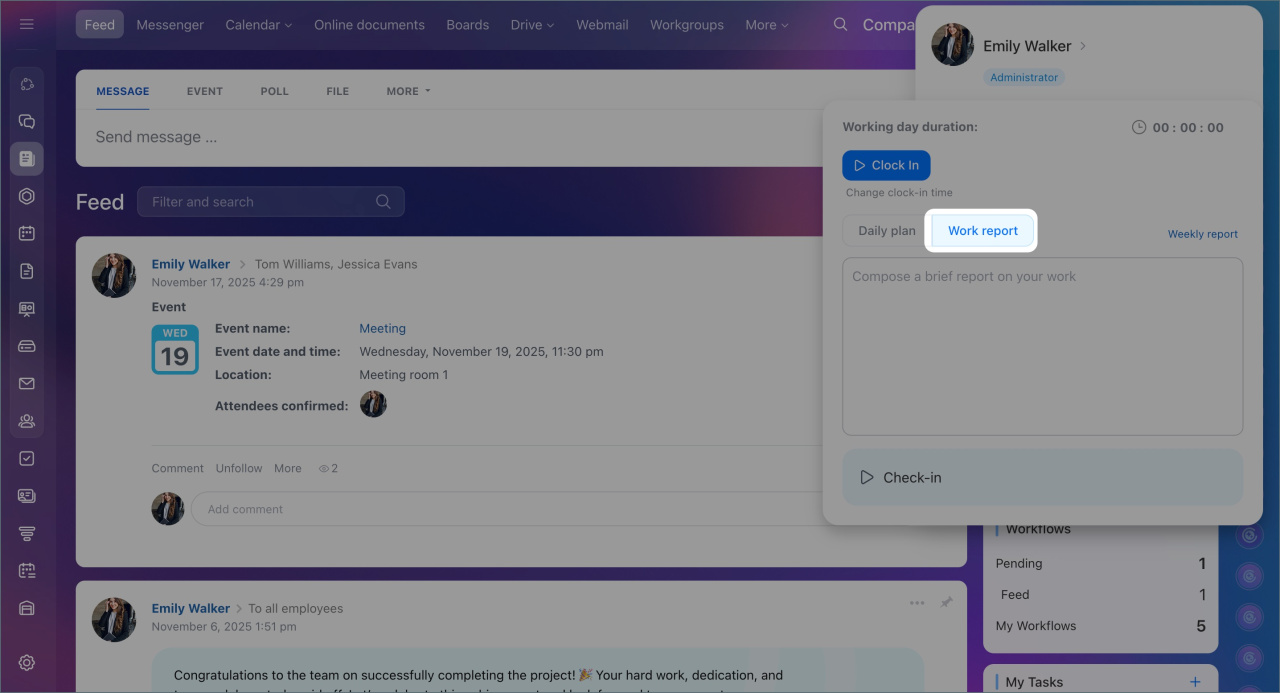
The report in the Working time section can be filled out in the employee widget. Click the arrow and go to the Work report tab. In this report, the employee lists the tasks completed during the day.
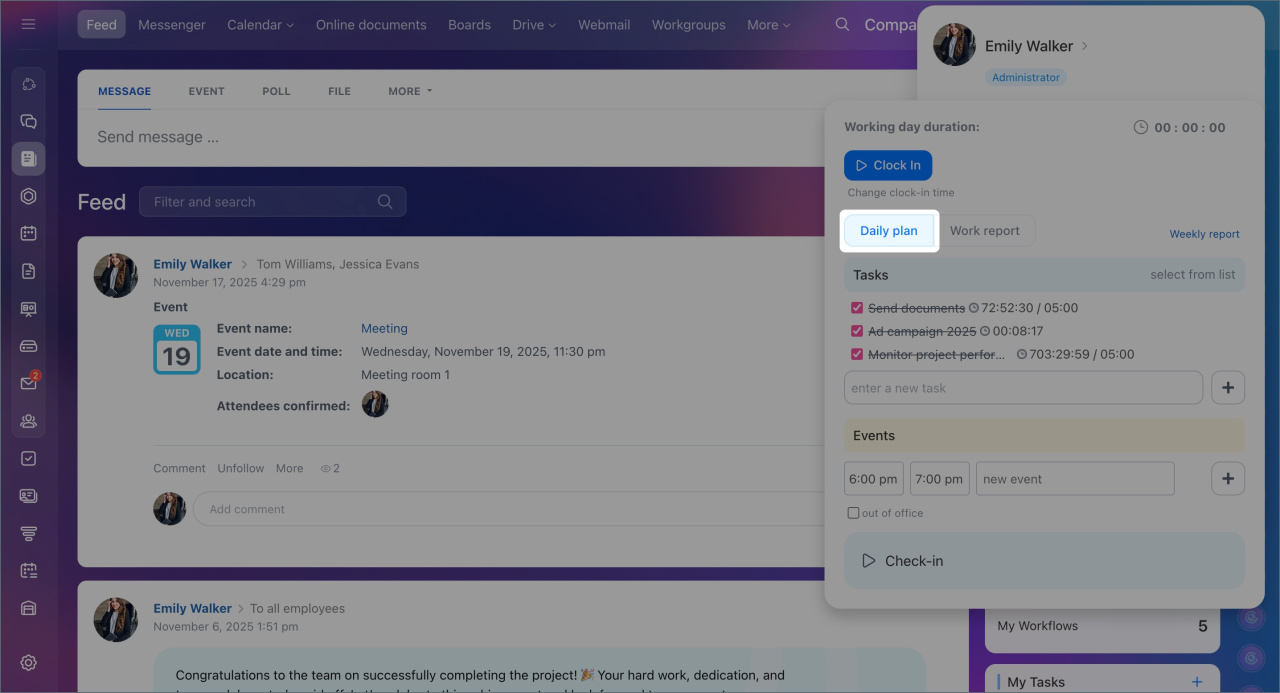
The Daily plan tab displays tasks and meetings scheduled for today. New events can be added if needed.
Daily plan
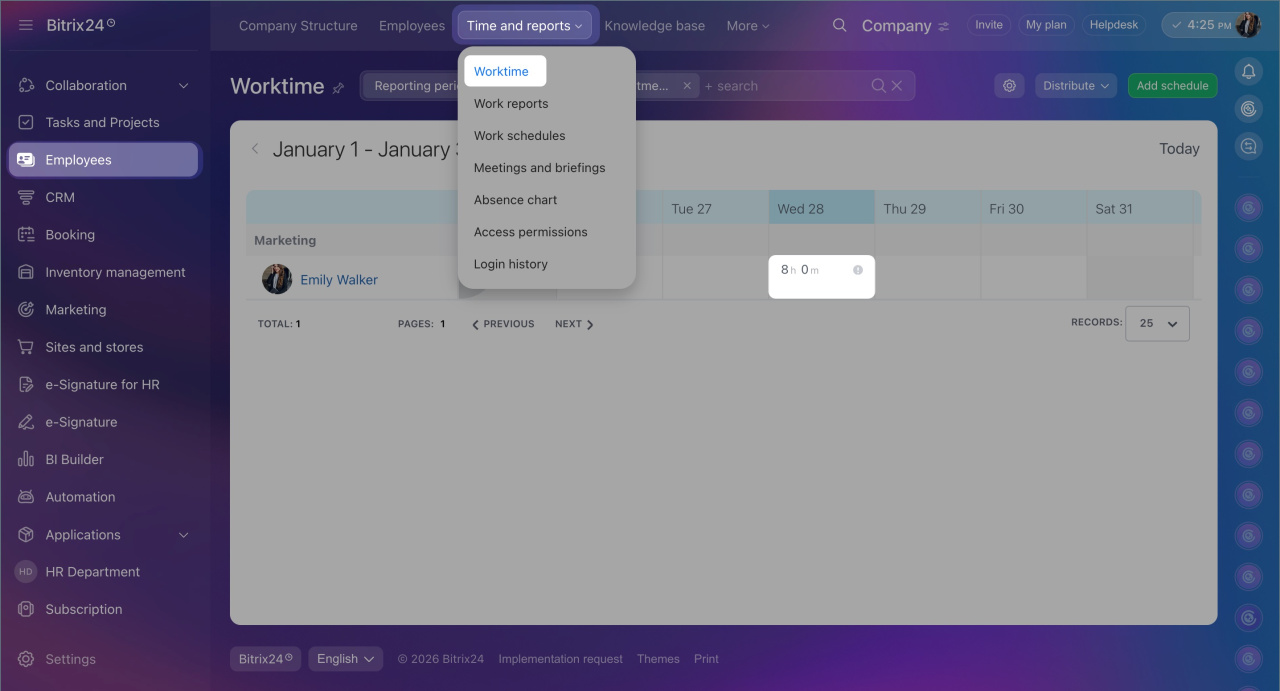
To view reports for the day, go to the Employees section > Time and reports > Worktime and select the date in the calendar.
Bitrix24 plans and pricing
Tracking is only possible if the "Worktime and reports" option is enabled in your Bitrix24 settings.
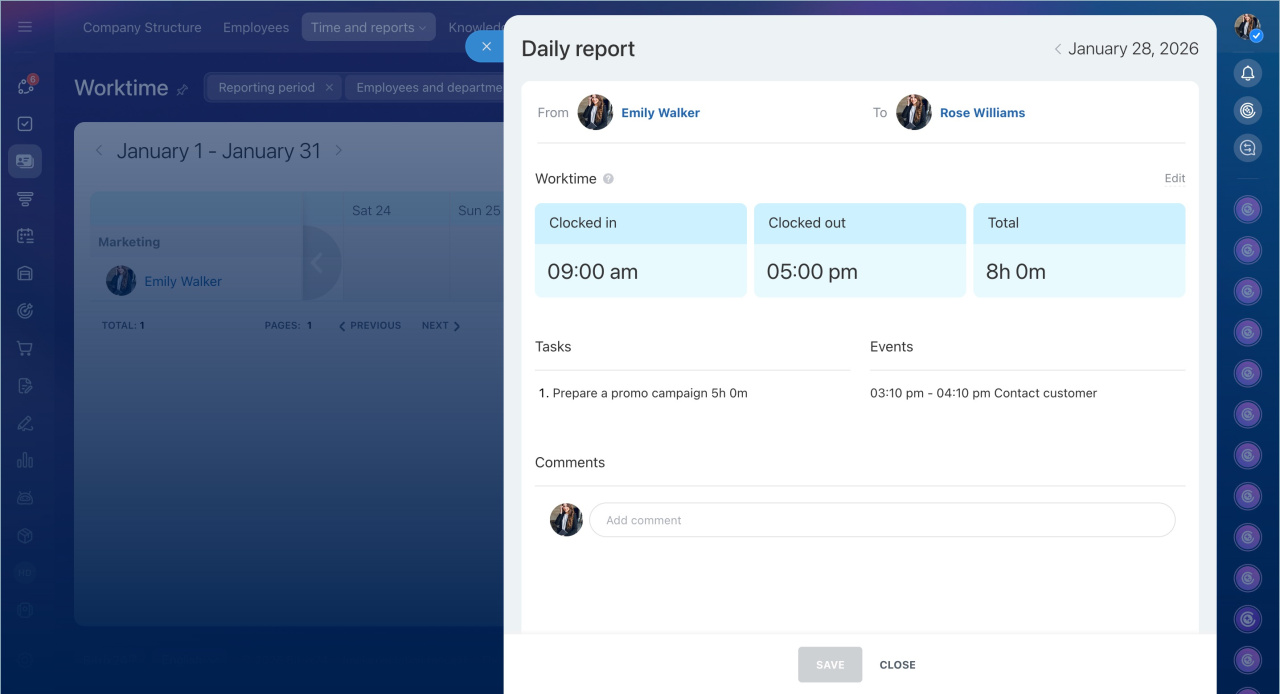
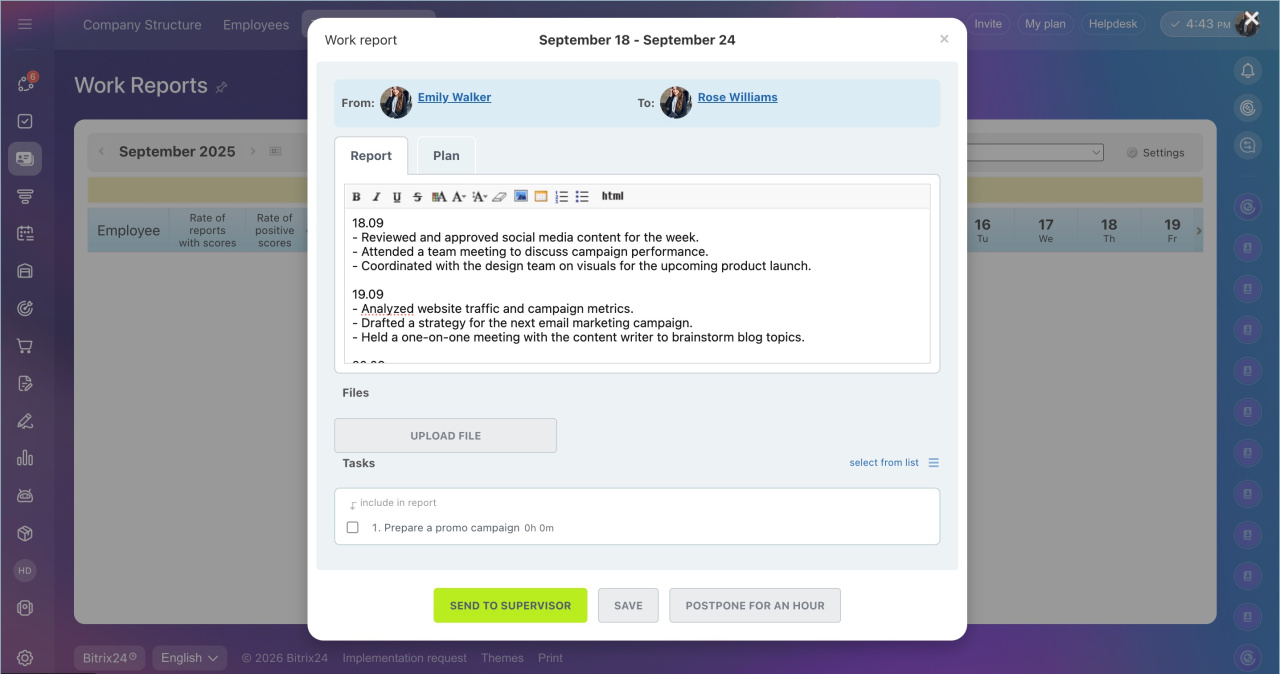
The report in the Work reports section is generated for a selected period — day, week, or month. It automatically collects data from "Daily report". These entries can be edited — for example, to change wording or add information.
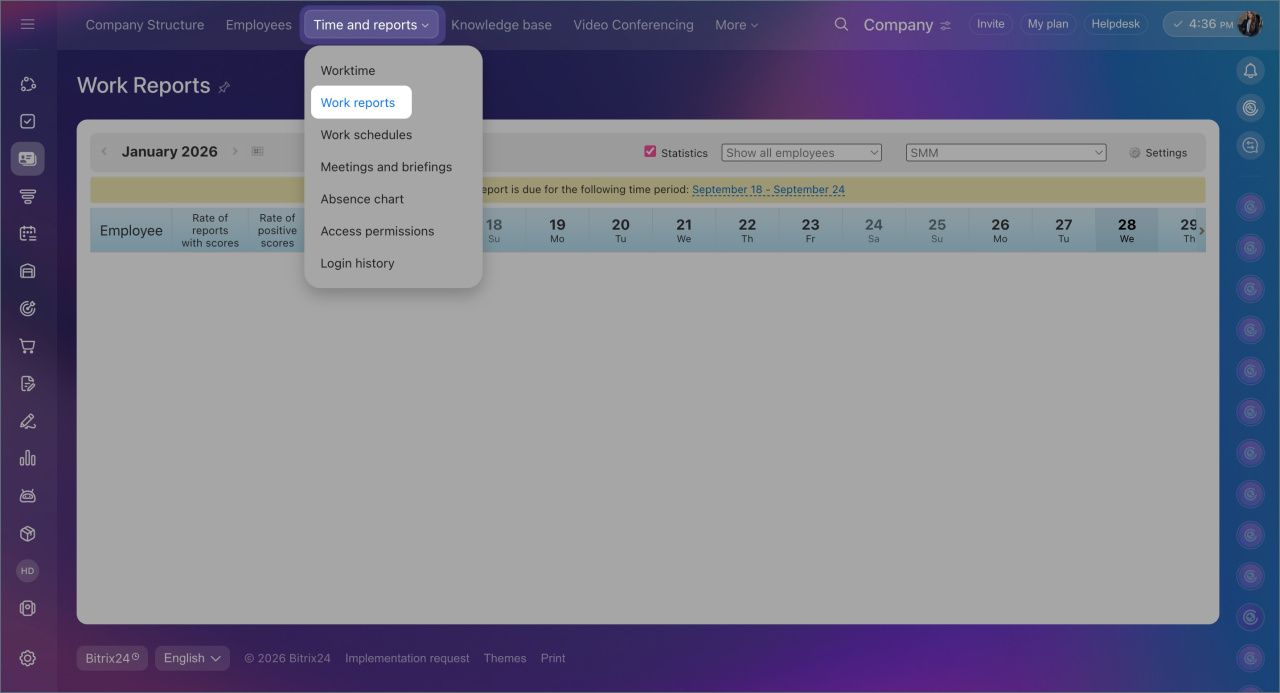
After submitting the work report, the supervisor can review it and provide feedback. Reports can be found in the Employees > Time and reports > Work reports section.
Work reports
Why employees cannot end their workday
Issue. An employee cannot end the workday in Bitrix24. The notification appears.
Cause. There is a conflict in the work schedule settings:
- Shifts overlap in time.
- The schedule does not match the actual start time of work. For example, the schedule is from 9:00 AM to 6:00 PM, but the employee starts their workday at 5:00 AM.
- The employee is assigned to multiple work schedules.
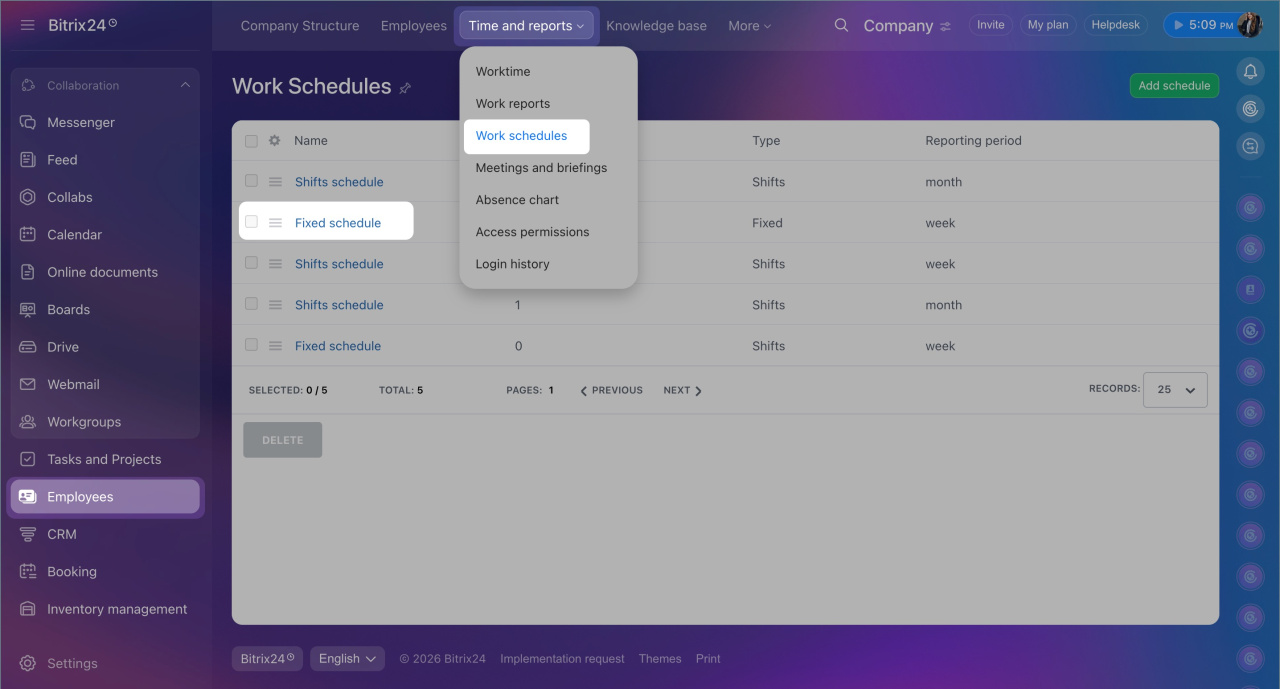
Work schedules
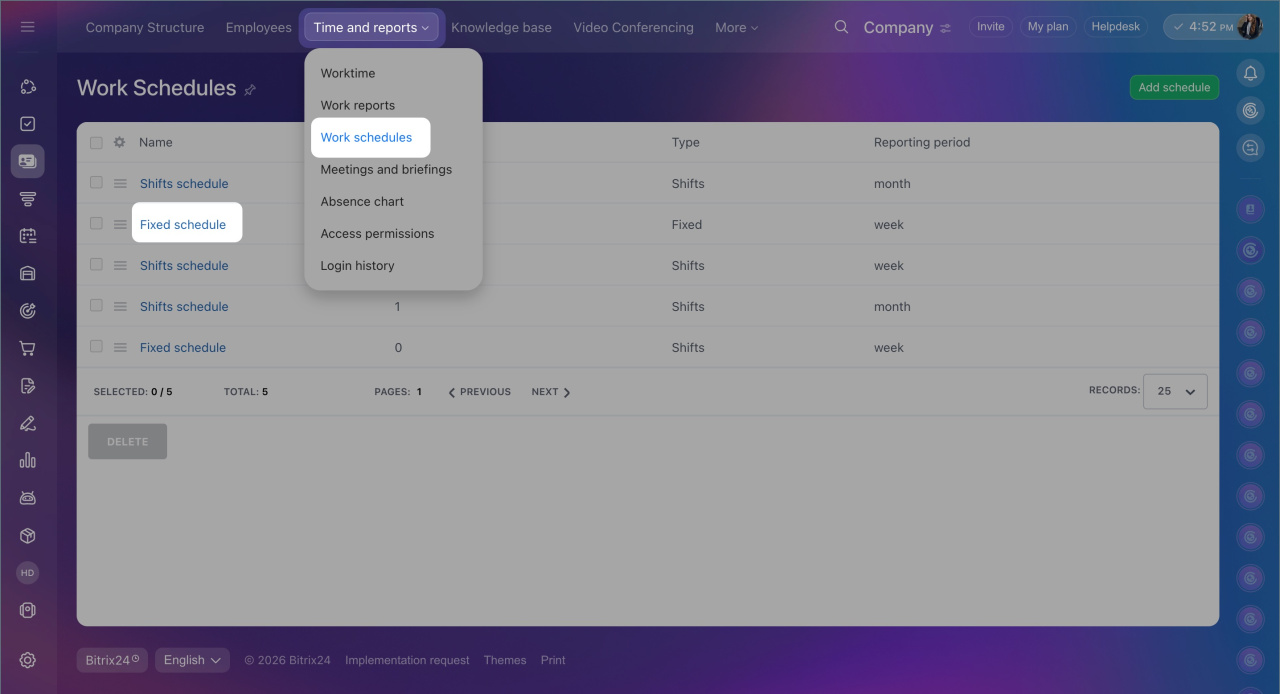
Solution. In the Employees > Time and Reports > Work Schedules section, the supervisor or Bitrix24 administrator should check:
- That there are no overlapping shifts in the work schedule.
- That the schedule settings match the employee's actual working hours. For example, an employee with a schedule from 9:00 AM to 6:00 PM should not start their workday at 5:00 AM.
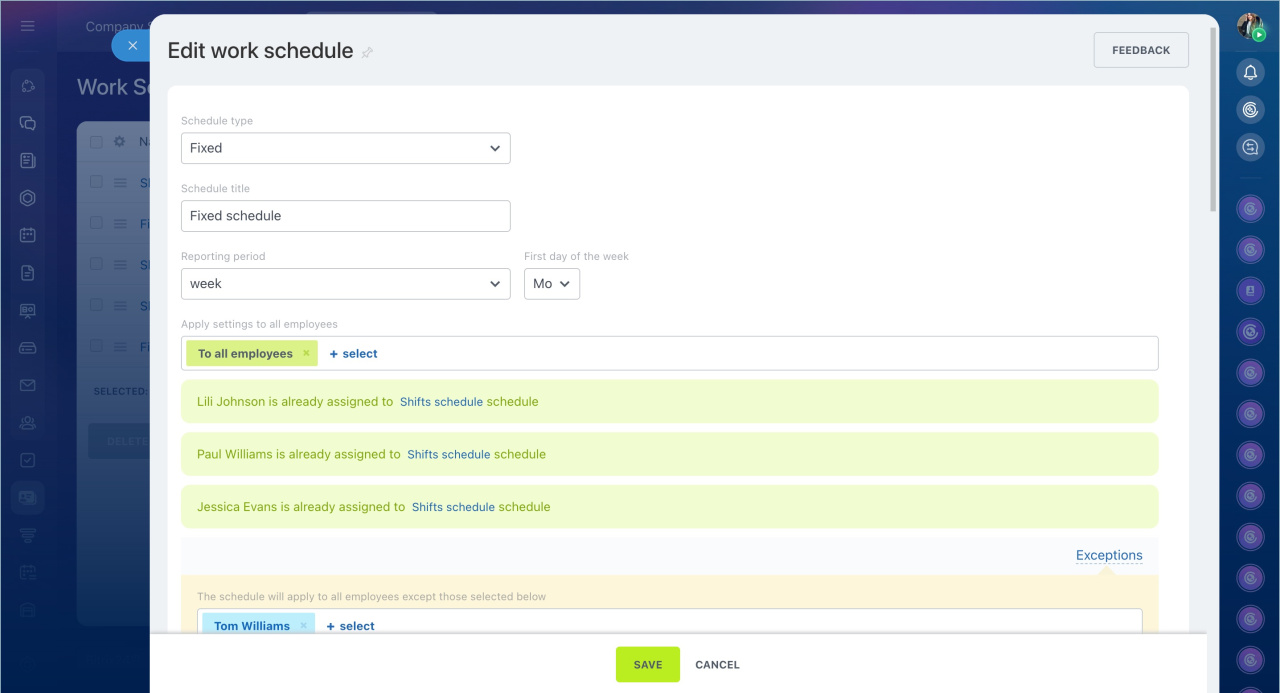
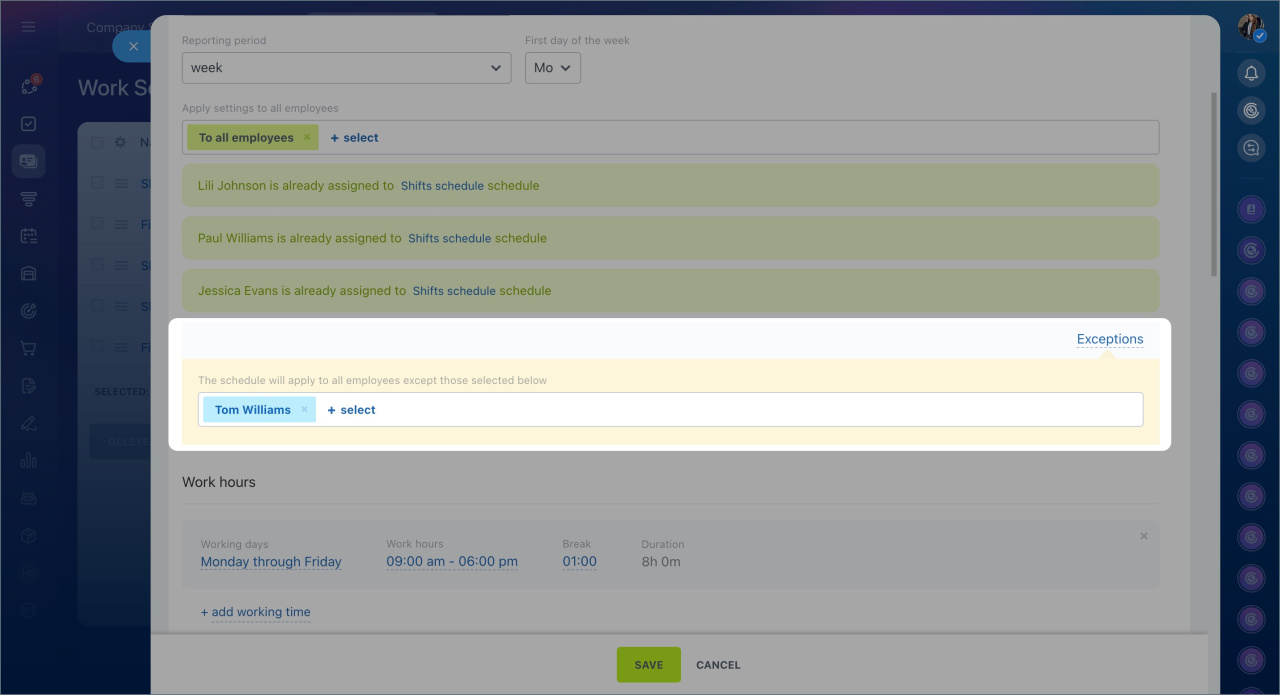
- Which schedules the employee is assigned to. If assigned to multiple schedules, add them to Exceptions in other schedules to avoid conflicts.
To add an employee to exceptions:
1. Select the schedule the employee is assigned to, for example, Fixed Schedule.
2. Click Exceptions > Select.
3. Add the necessary employees to the list and save the changes.
Work schedule types
Granting all employees permission to add absences to the schedule
In the cloud version of Bitrix24, only administrators can add absences through the schedule. Employees can add absences via a calendar event or a workflow.
Absence chart
Bitrix24 plans and pricing
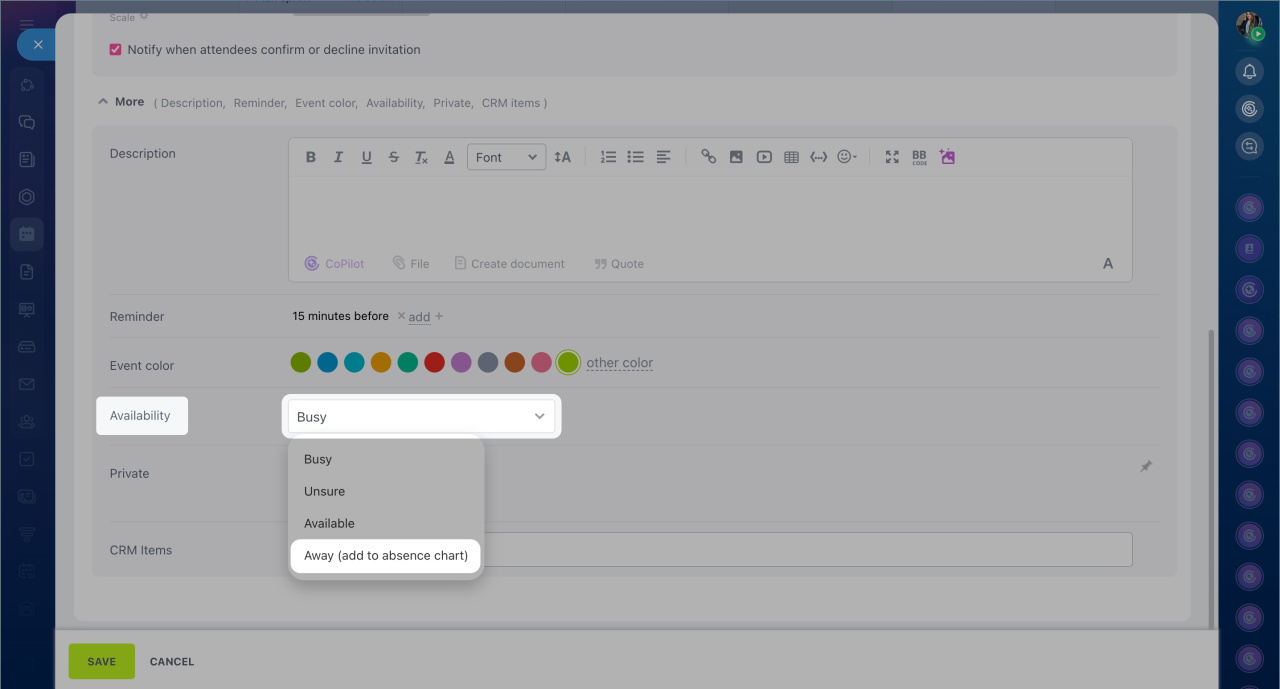
Calendar. Create an event in the calendar. In the Availability field, select Absent (Add to absence schedule).
Create a calendar event
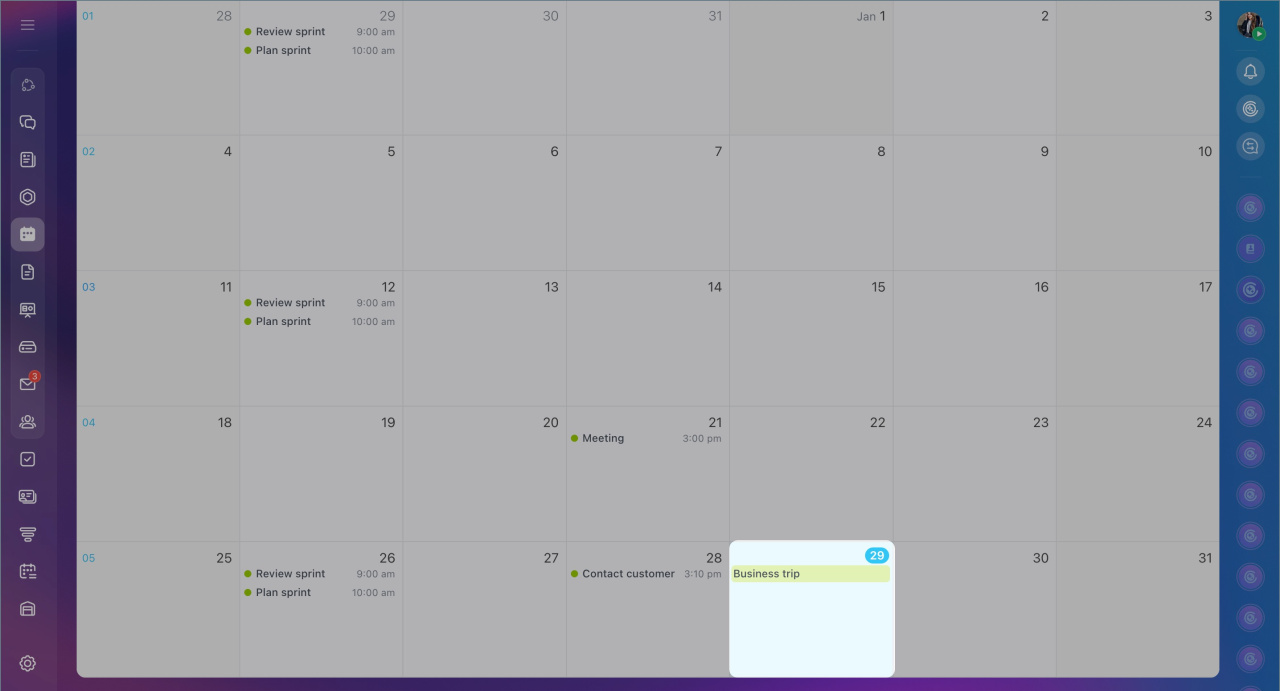 Calendar event
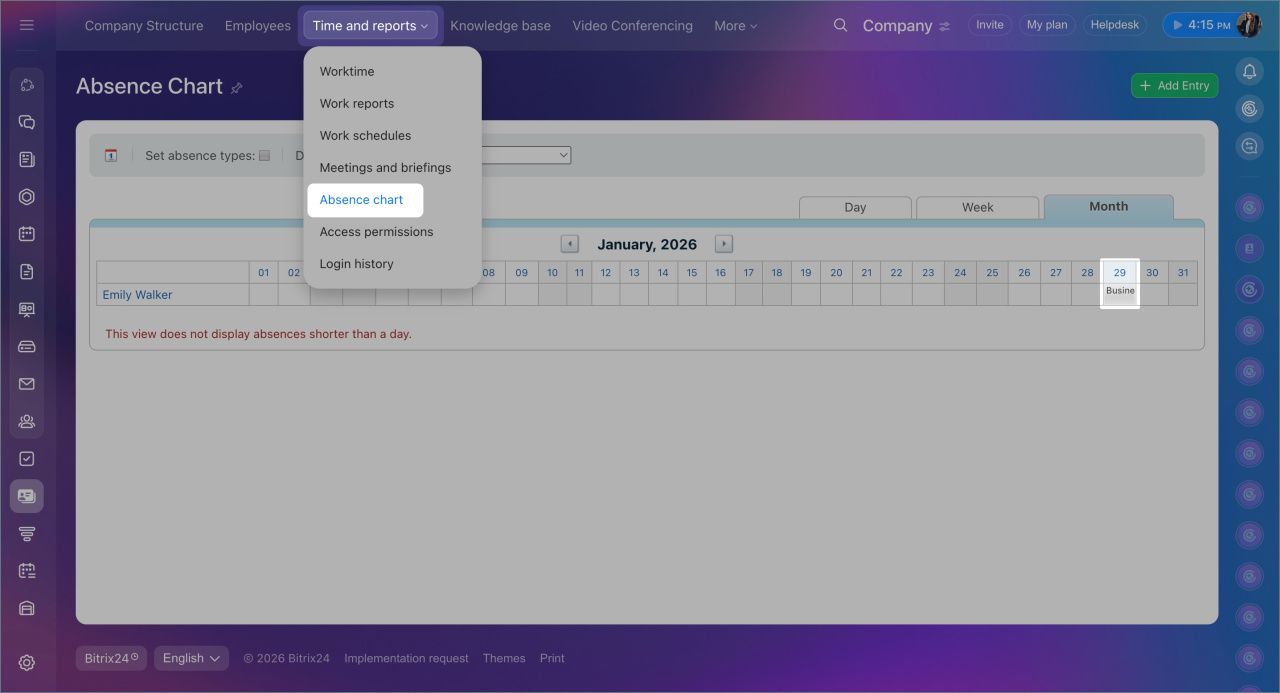 Event in the absence schedule
Workflows.
- Click Feed > More > Workflows.
- Select a workflow, such as Leave Approval, and start it.
- Once the workflow is approved, the absence will appear in the schedule.
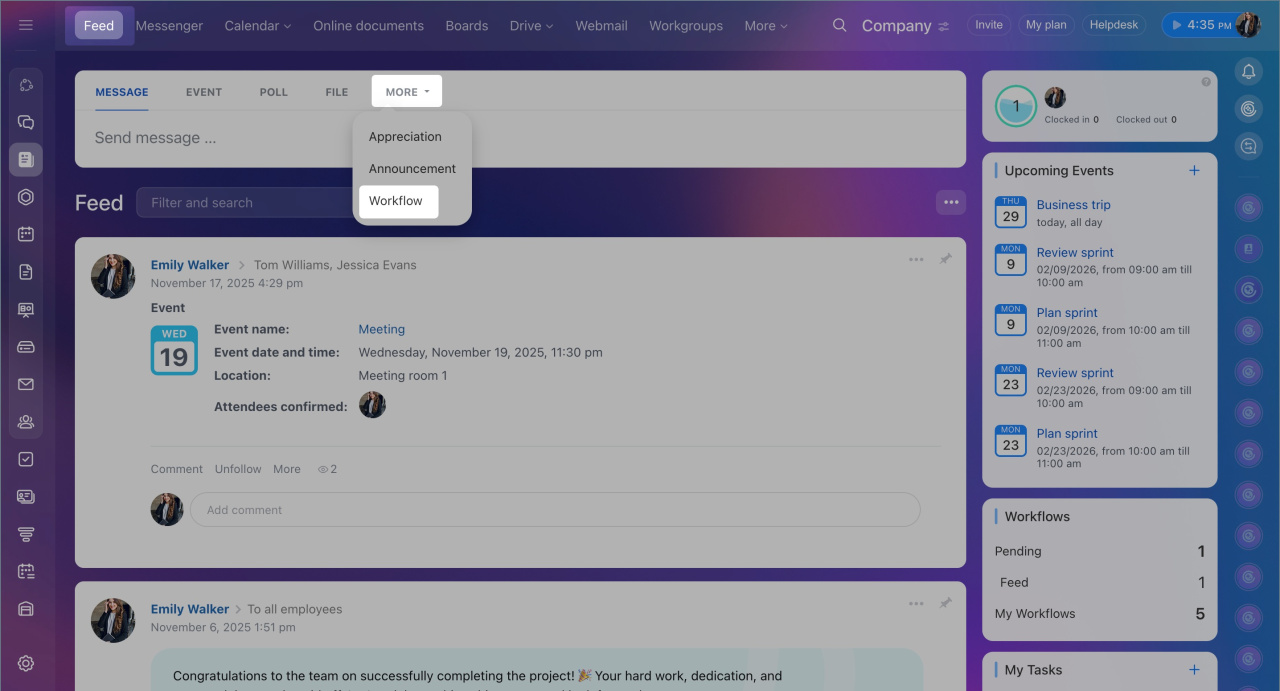
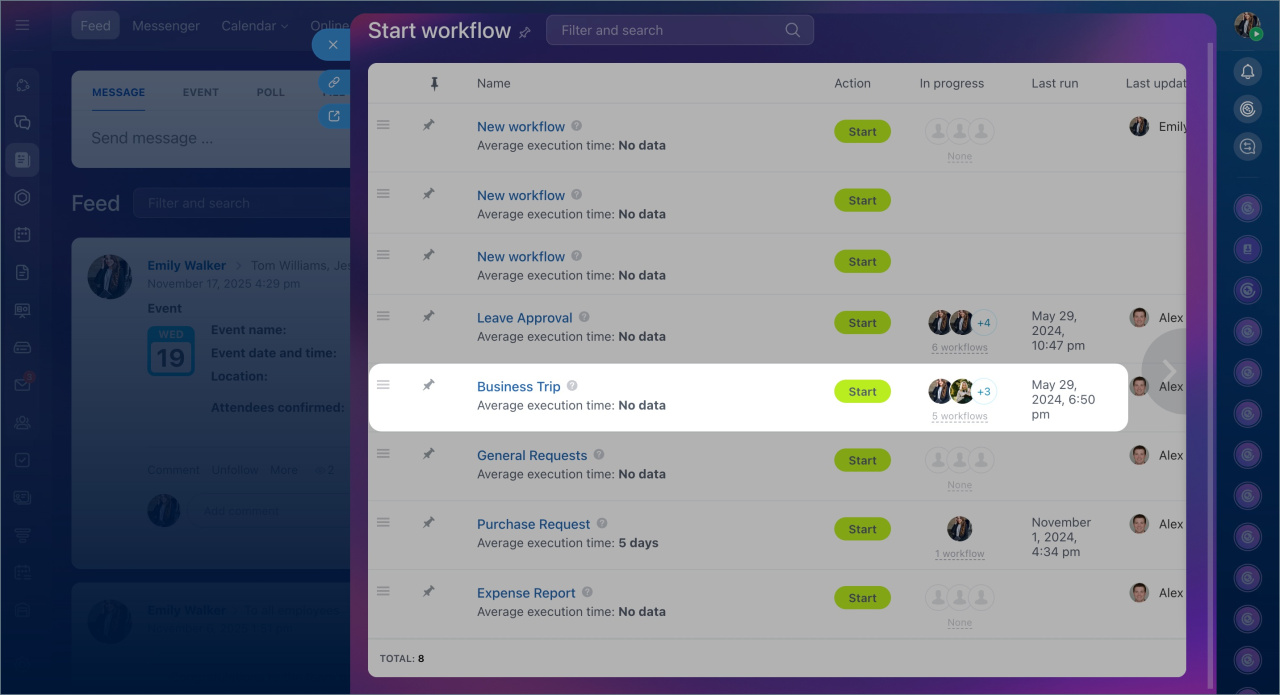
In the Bitrix24 On-Premise version, absences can be added to the schedule by administrators and users included in the HR Department group.
Why are there multiple entries for one day in work time or a "Expired" status displayed?
Issue. In the Employees > Time and reports > Work time section, multiple entries for one day may appear, or the "Expired" status may be displayed.
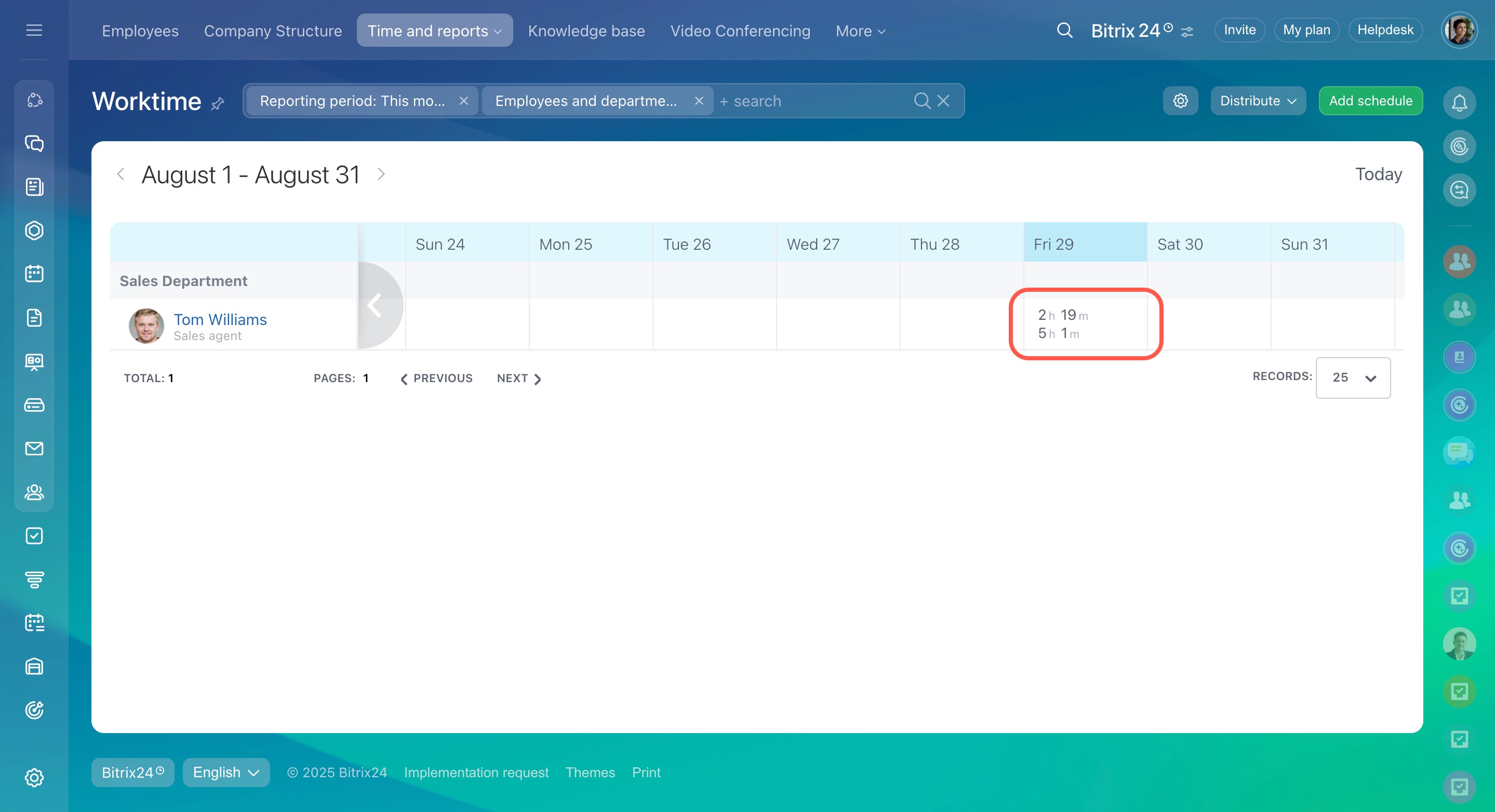
Causes:
The work schedule was changed after the workday started. For example, you started working according to a schedule from 8:00 AM to 8:00 PM, but during the day, you were switched to another shift—from 8:00 PM to 8:00 AM. In this case, the workday started under the old schedule is marked as "Expired."
When you finish this workday and start a new one, two entries will appear in the work time—one for the old schedule and one for the new schedule.
The employee is assigned to multiple schedules or a schedule with overlapping shifts. In this case, the workday may end at the start of another schedule or shift. This results in multiple work time entries for one day.
The actual start time does not match the schedule. For example, an employee has a schedule from 9:00 AM to 6:00 PM but started the workday at 5:00 AM. Until 9:00 AM, the work time is recorded outside the schedule, and at the start of the scheduled shift, the current entry ends and is marked as "Expired."
Solutions. Adjust the work time and check the schedule settings. Employees can only edit their own work time. Supervisors or Bitrix24 administrators can edit an employee's work time and schedule settings.
To adjust the time:
1. Go to Employees > Time and reports > Worktime.
2. Click Expired > Edit.
3. Enter the actual start time or the required date. Click Save.
4. Add a comment to the entry, such as "Switched to a new shift." Save the changes.
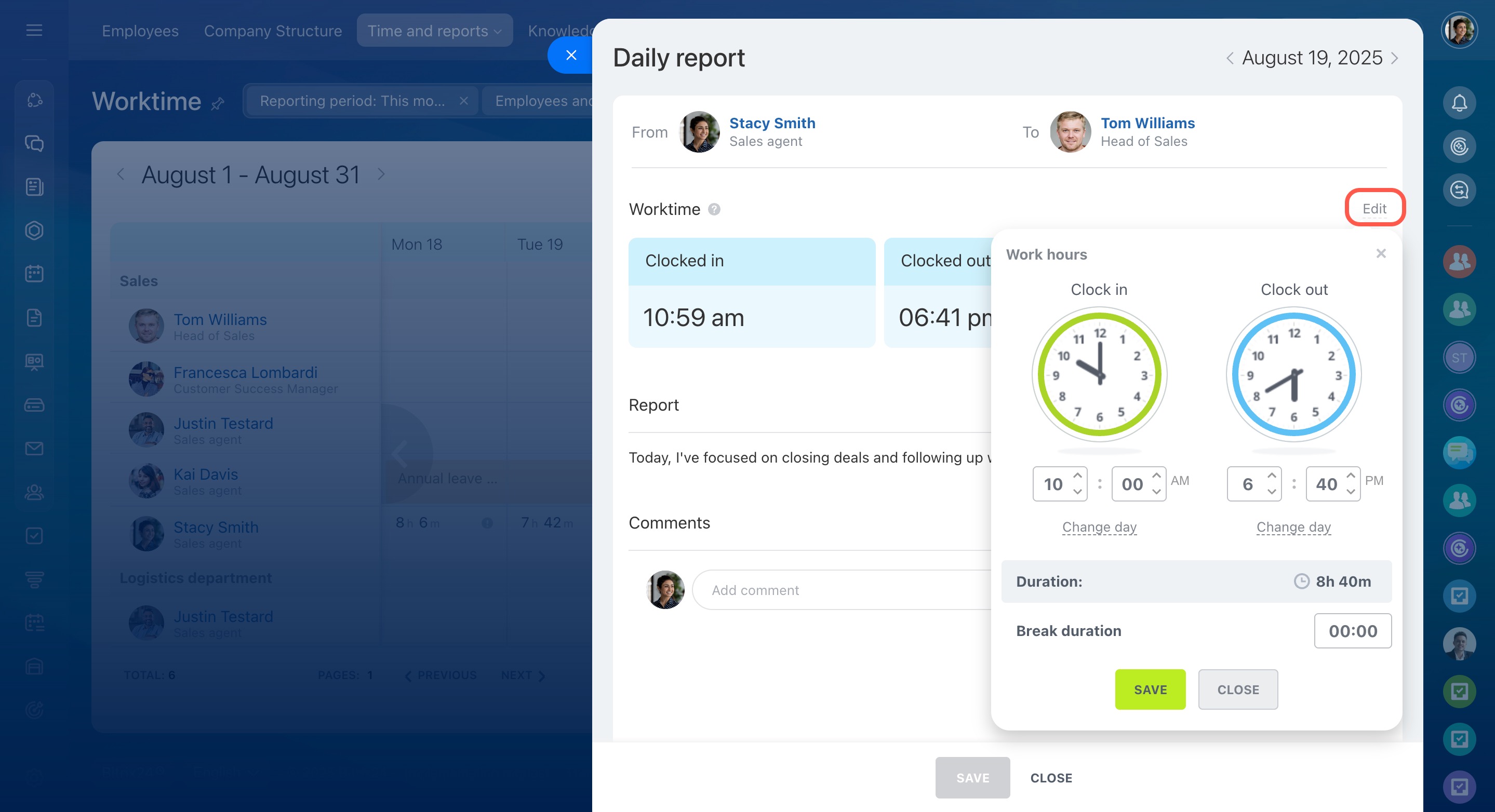
To check schedule settings:
1. Go to Employees > Time and reports > Work schedules.
2. Select the required schedule, such as Fixed.
3. Check and adjust the schedule settings if necessary.
4. Save the changes.