
The loading speed of a website or online store affects user convenience and is considered by search engines. Faster page loading increases the likelihood that users will stay on the site and complete a target action, such as placing an order or filling out a CRM form.
Bitrix24 offers settings to speed up page loading without modifying the code. These settings can be configured by the Bitrix24 administrator or employees with access permissions to edit site settings.
Site access permissions
In this article:
Speed up page loading
Bitrix24 provides two settings to help pages load faster for users. These settings affect content loading differently, so they can be used together or separately.
Optimize page loading time. Displays text first while other elements load later. Users can start interacting with the page even if the design is not fully displayed yet.
Defer image loading. Images not visible on the user's screen load only when the page is scrolled. This reduces the load when opening the site, especially if the page contains many images.
1. Go to the Sites and Stores section and select the Sites or Stores tab.
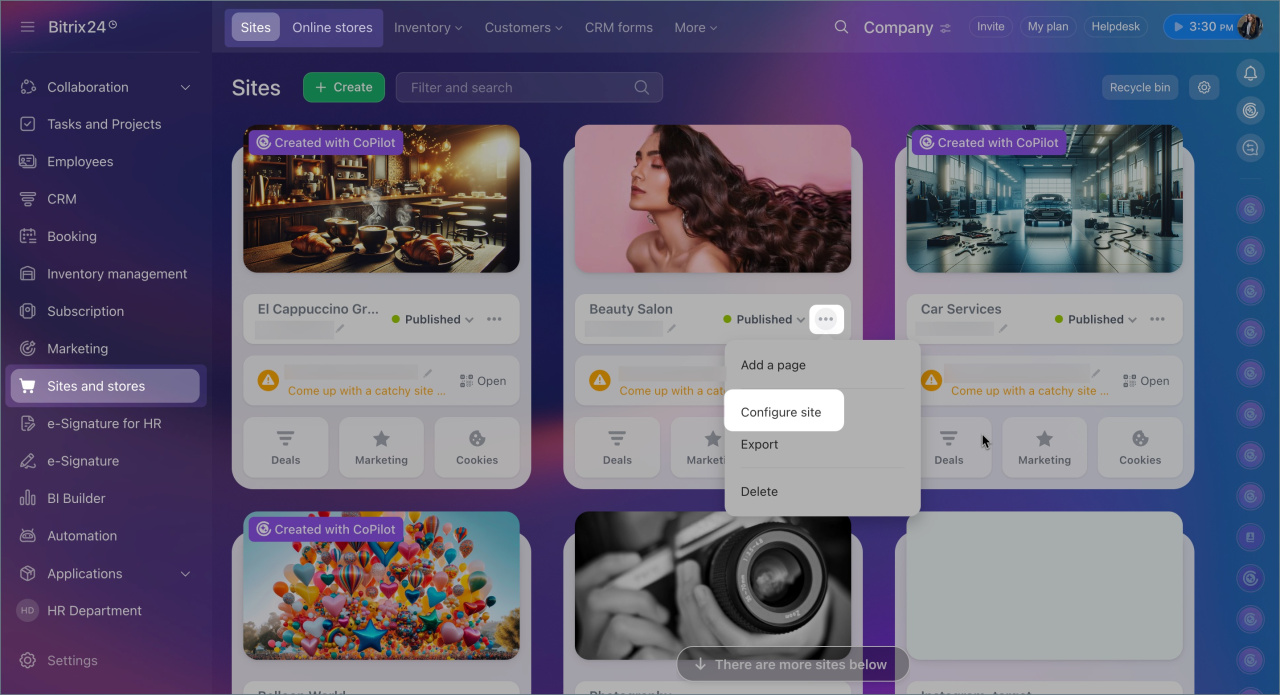
2. Choose the desired site and click Three dots (...) > Configure site or Settings.
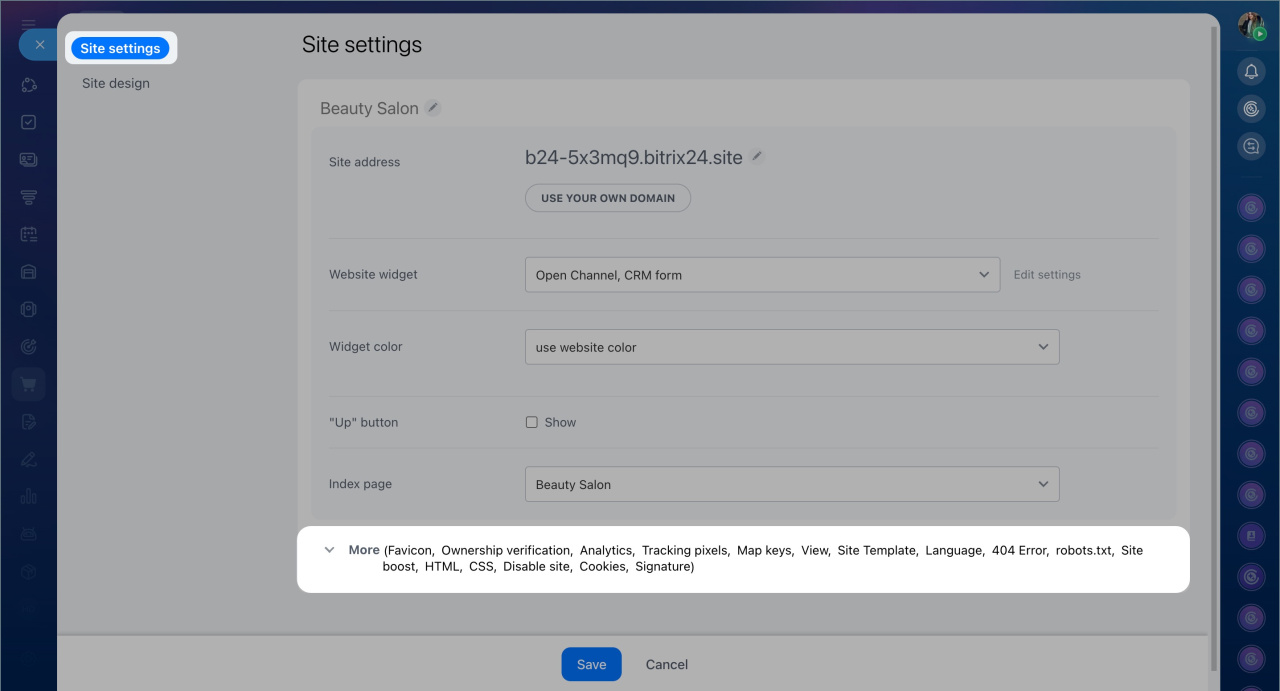
3. Click More in the Site settings tab.
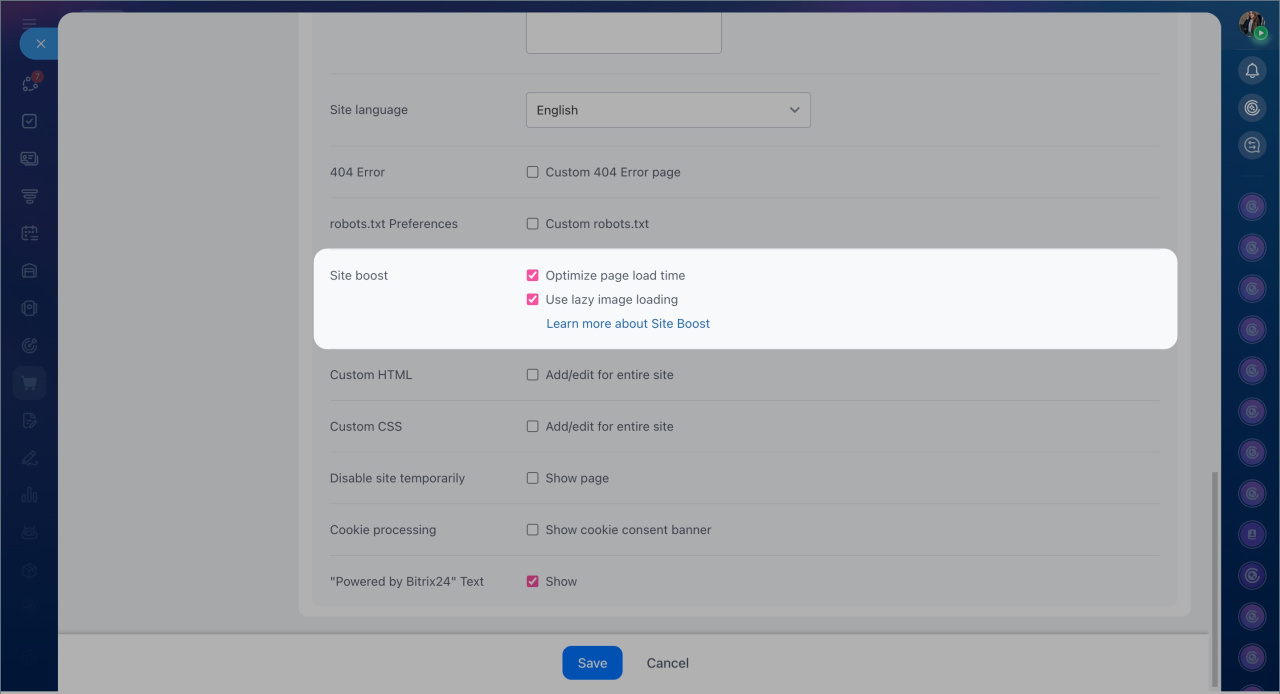
4. In the Site boost section, enable the Optimize page load time and Use lazy image loading options.
5. Save the changes.
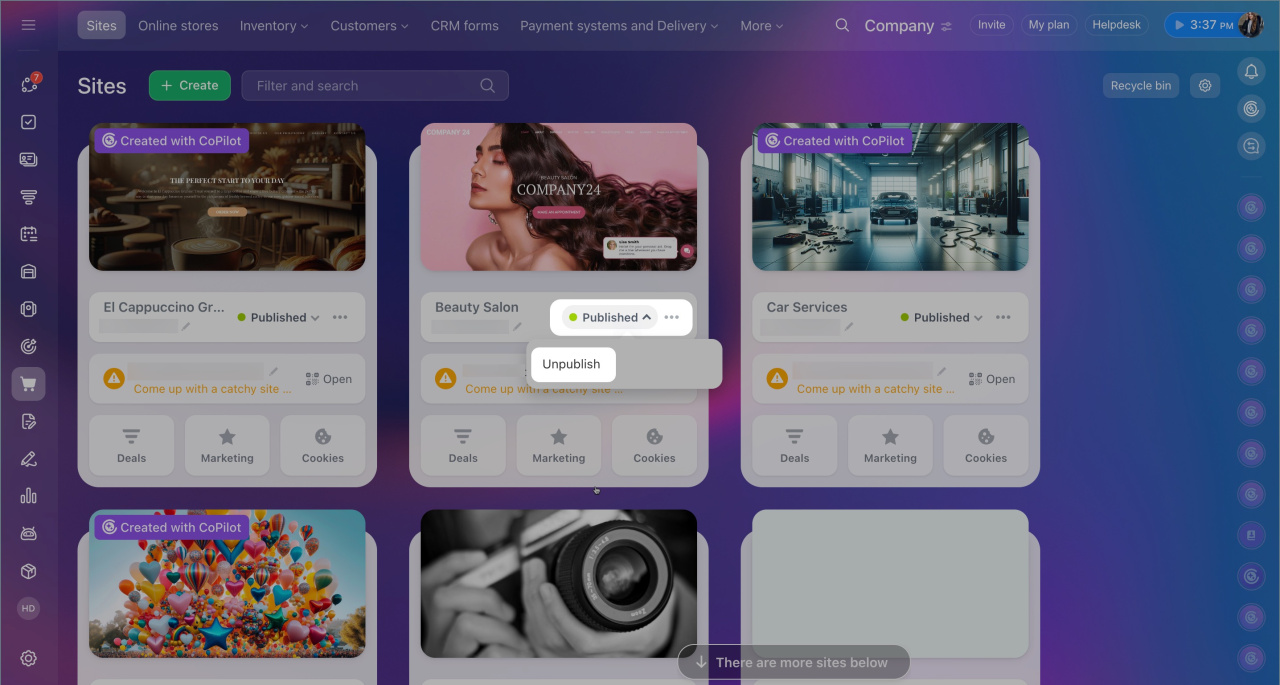
6. Republish the site to apply the settings. Click the site status, unpublish it, and then publish it again.
Evaluate site performance
Open the site in a browser and check:
- How quickly the first page loads
- How smoothly content loads when scrolling
For a more detailed analysis, use online tools to measure site loading speed, such as PageSpeed Insights, Pingdom Tools, or Uptrends. These tools allow you to compare performance before and after enabling the settings. For accurate results, test on different platforms.
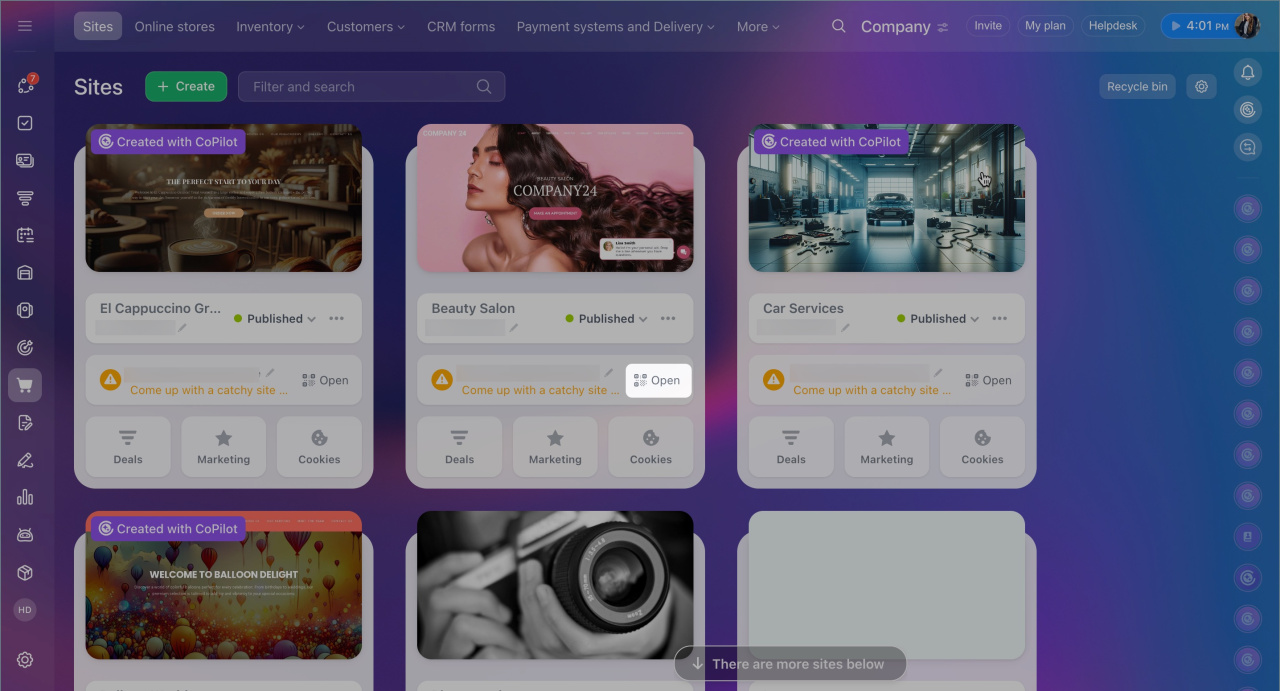
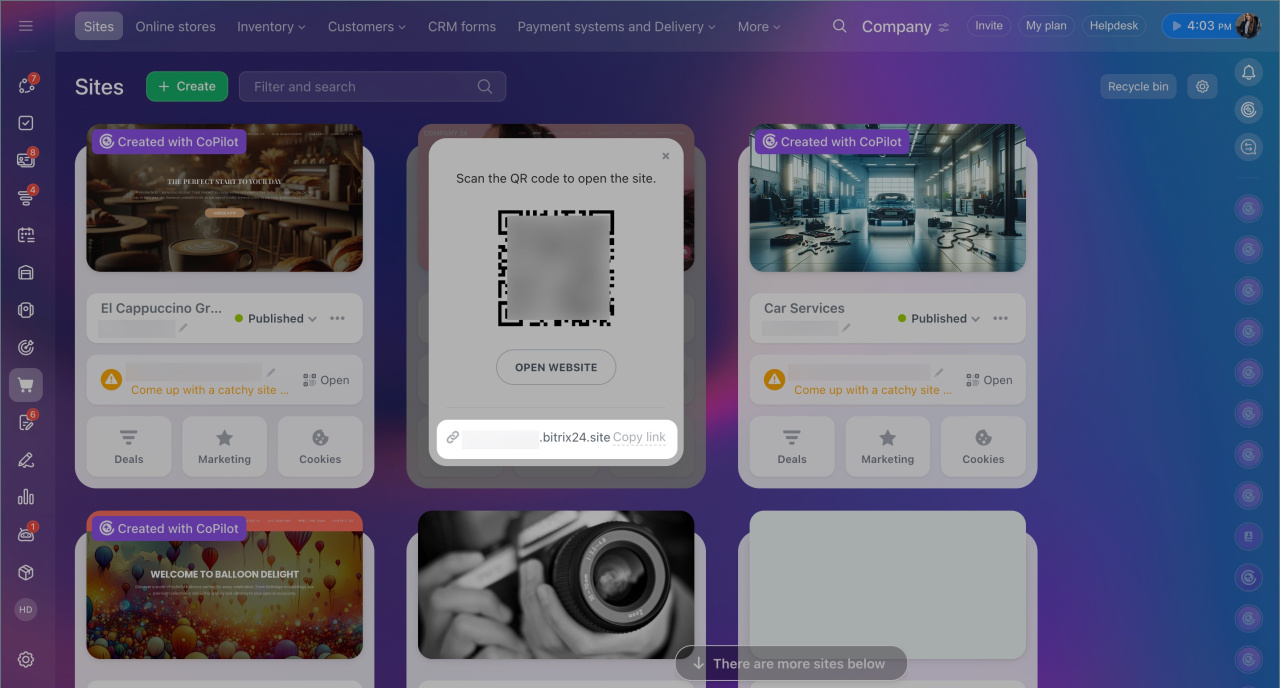
1. Select the desired site and click Open > Copy link.
2. Enter the site URL on the online tool's page and start the test.
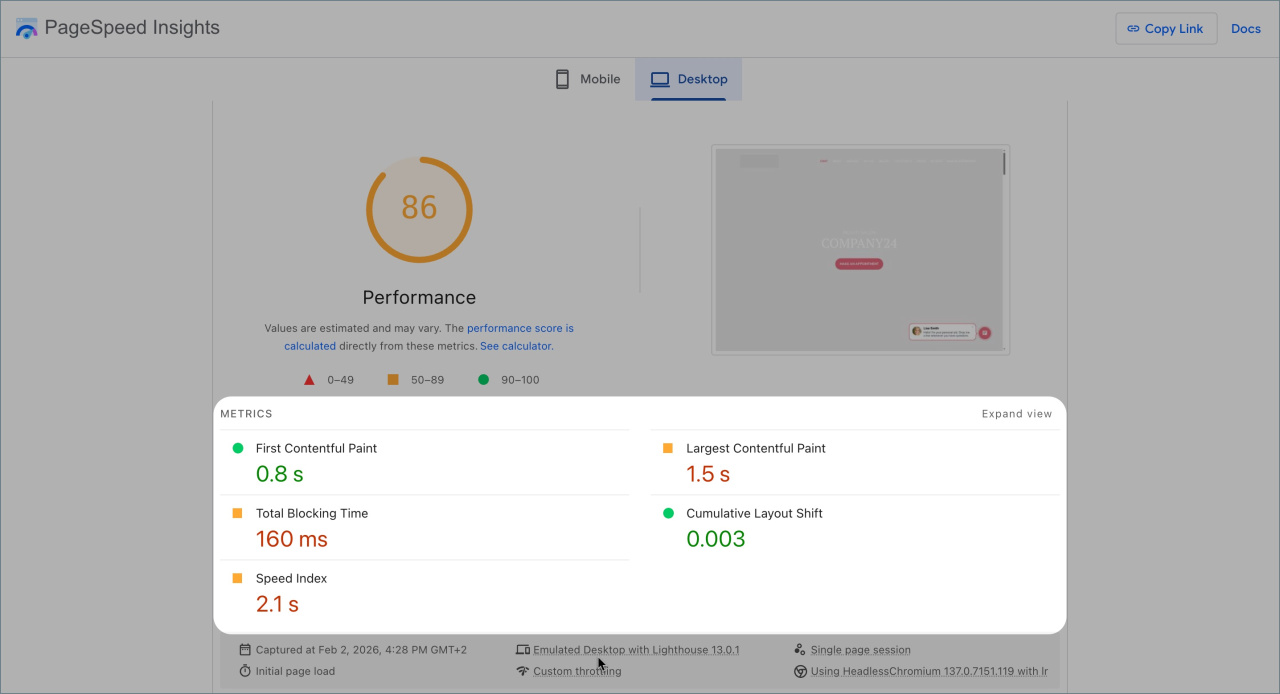 Test results before enabling site acceleration settings
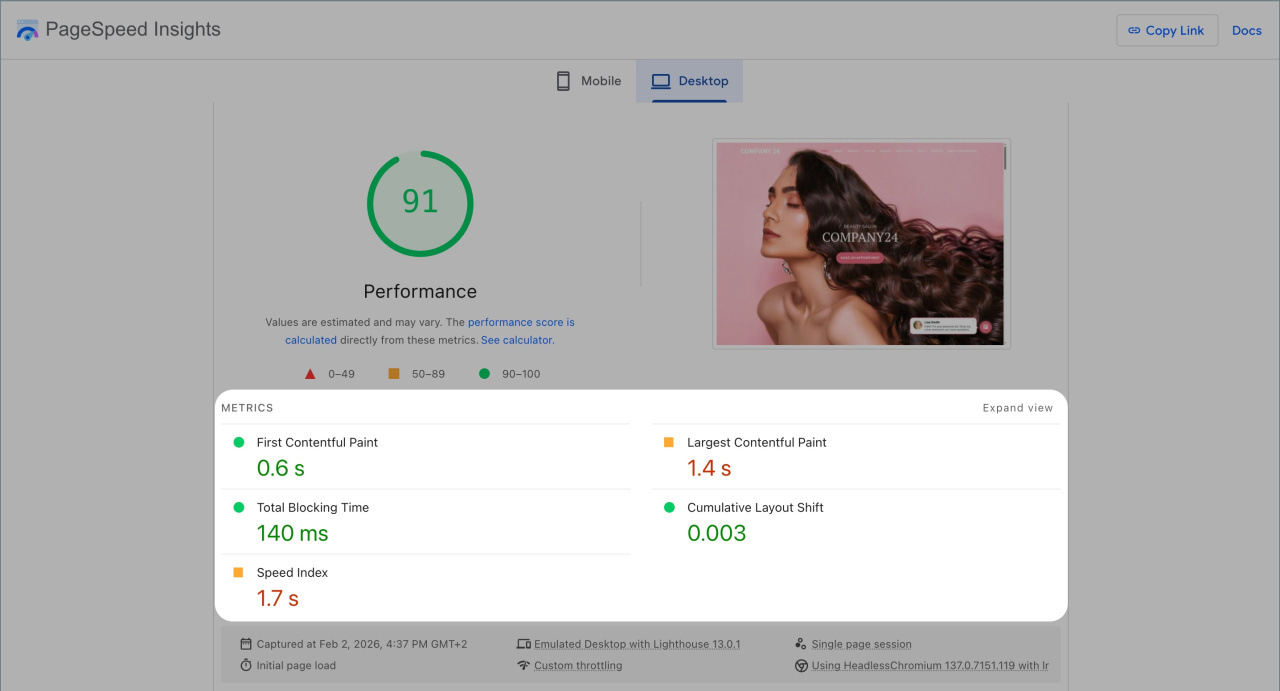 Test results after enabling site acceleration settings
In brief
- Site loading speed affects user experience and is considered by search engines.
- In Bitrix24, you can optimize page loading time and enable deferred image loading. These settings can be used together or separately.
- To speed up your site, go to Sites and Stores > Sites, select the desired site, and click Three dots (...) > Site settings > More. In the Site boost section, enable the Optimize page load time and Use lazy image loading options. Save the changes.
- You can check site loading speed manually or using online tools.
