
Email in CRM lets you communicate with clients directly from a lead, deal, contact, or company form. CRM stores all emails in the Timeline, so you can view the full conversation history in one place.
Bitrix24 plans and pricing
In this article:
Create an email
You can create an email from a list of CRM items or from an individual item.
Create an email from a list
Use this option when you need to contact a client quickly without opening the item form.
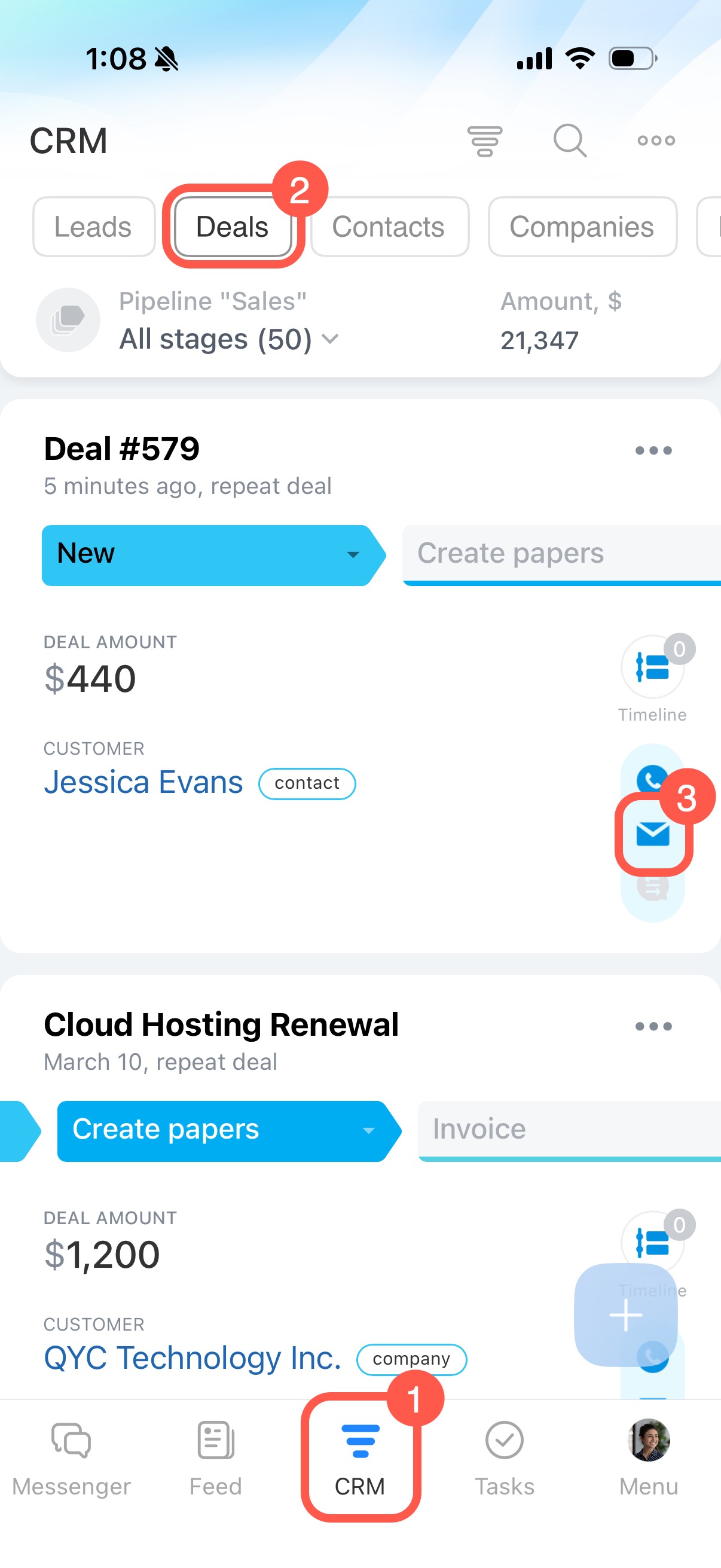
- Go to CRM.
- Open the section you need, for example Deals.
- Tap the envelope icon next to the item.
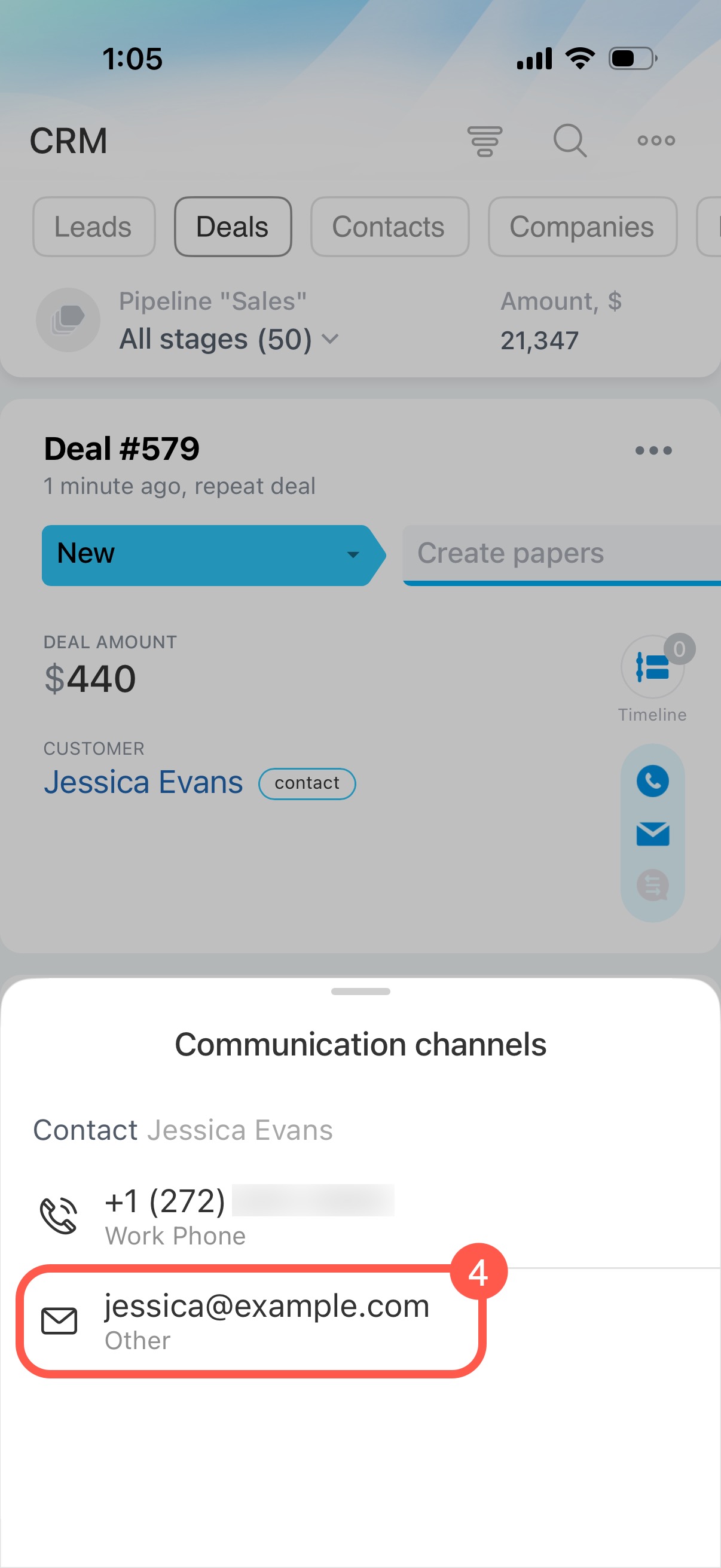
- Tap the client’s email address to open the email composer.
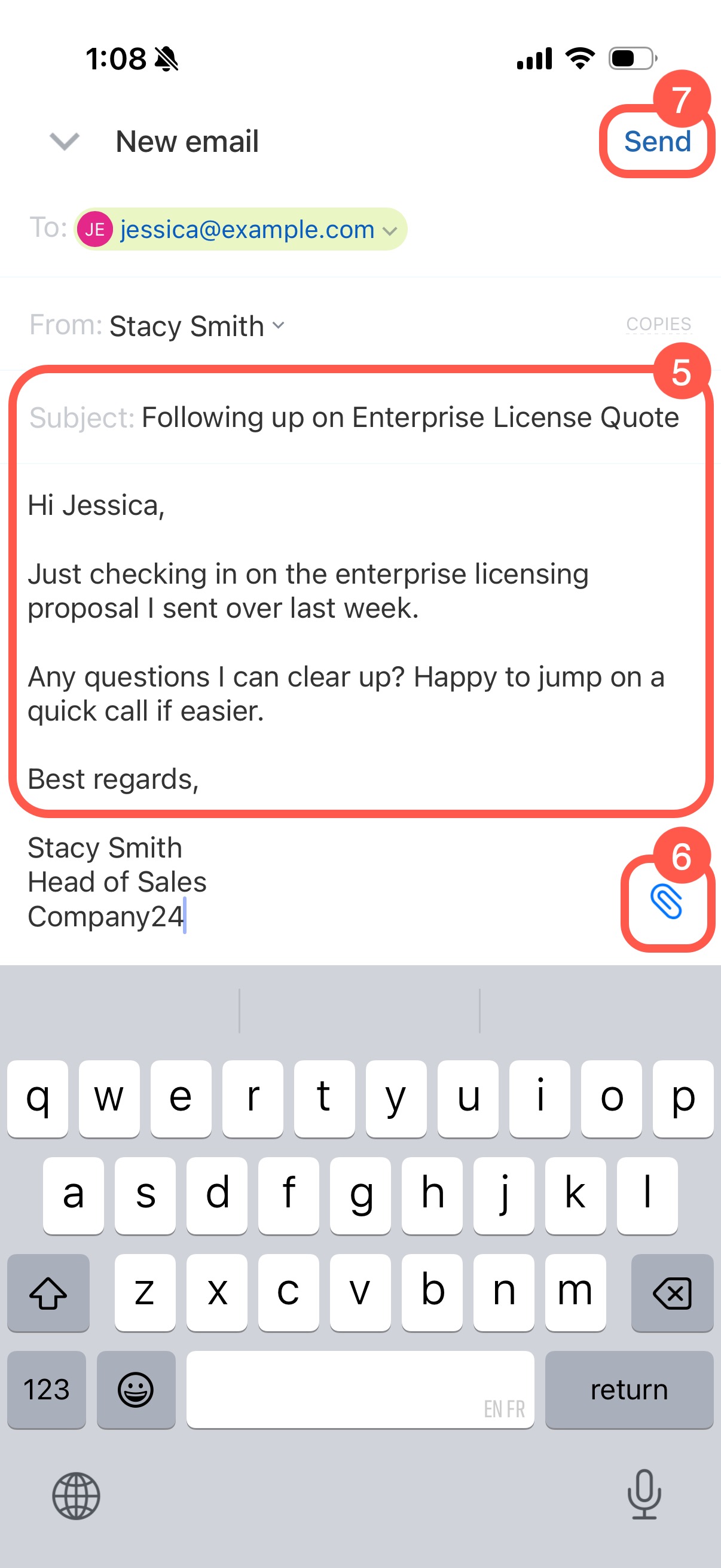
- Enter the subject and message.
- To attach a file, tap the paperclip icon.
- Send the email.
Create an email from a CRM item
Use this option when you are already working in an item and want to view the full communication history.
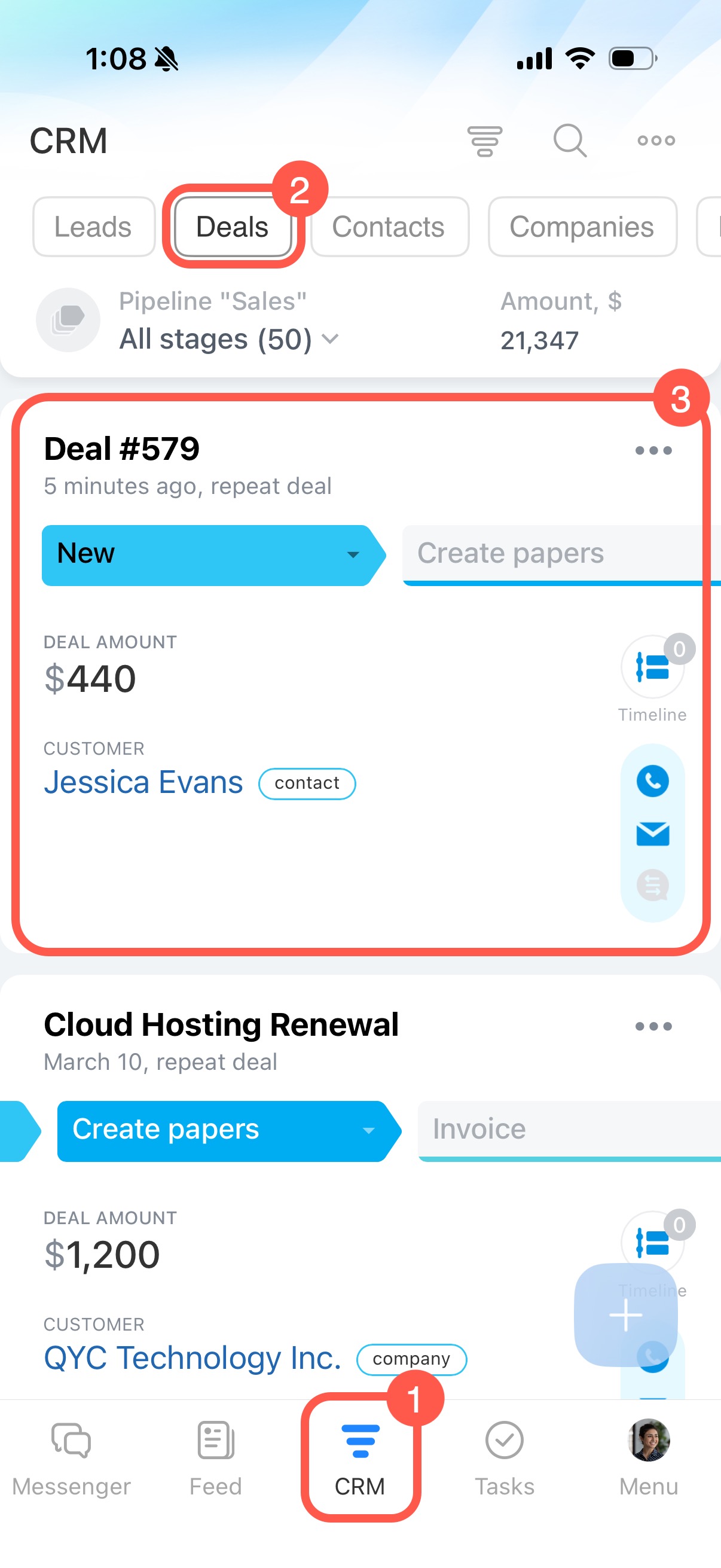
- Go to CRM.
- Open the section you need, for example Deals.
- Open the item.
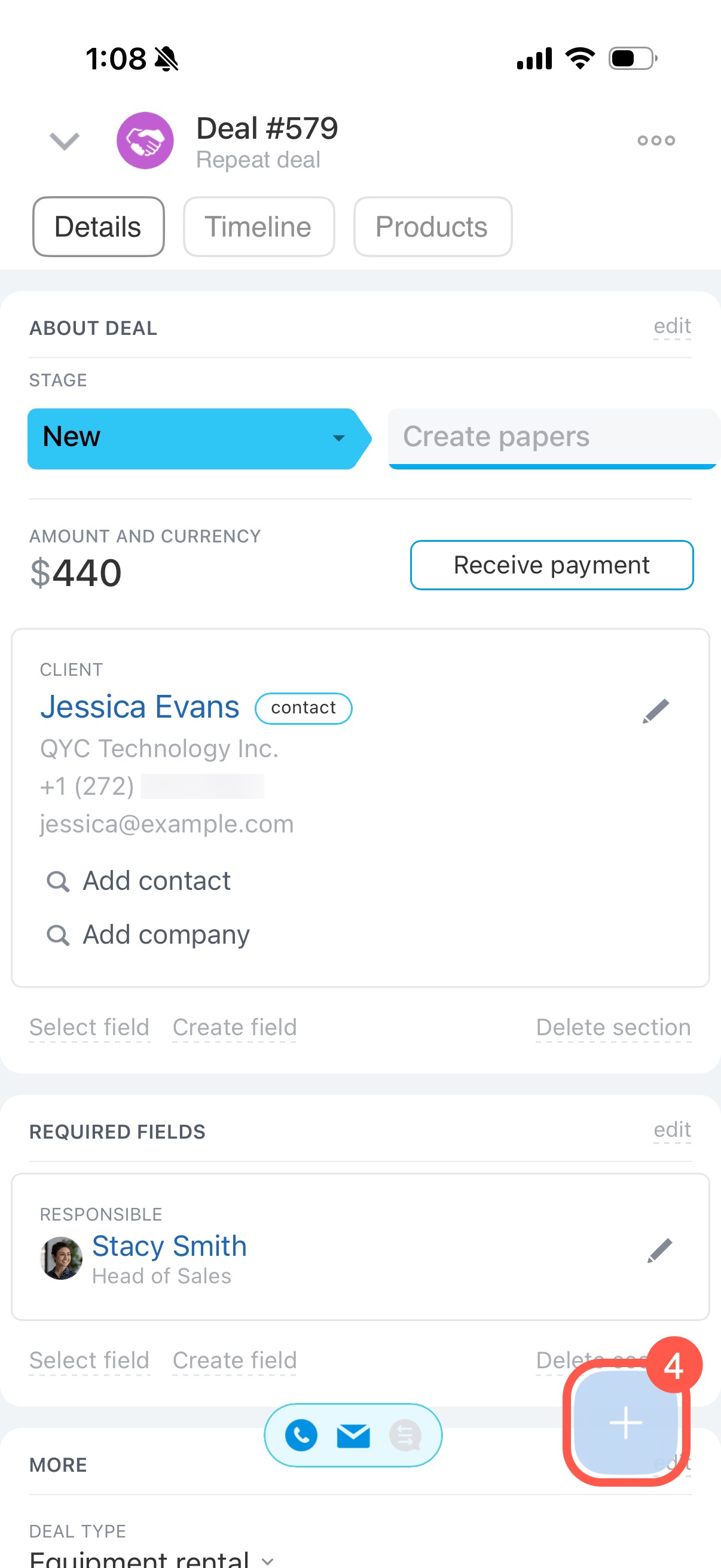
- Tap Plus (+) in the bottom-right corner.
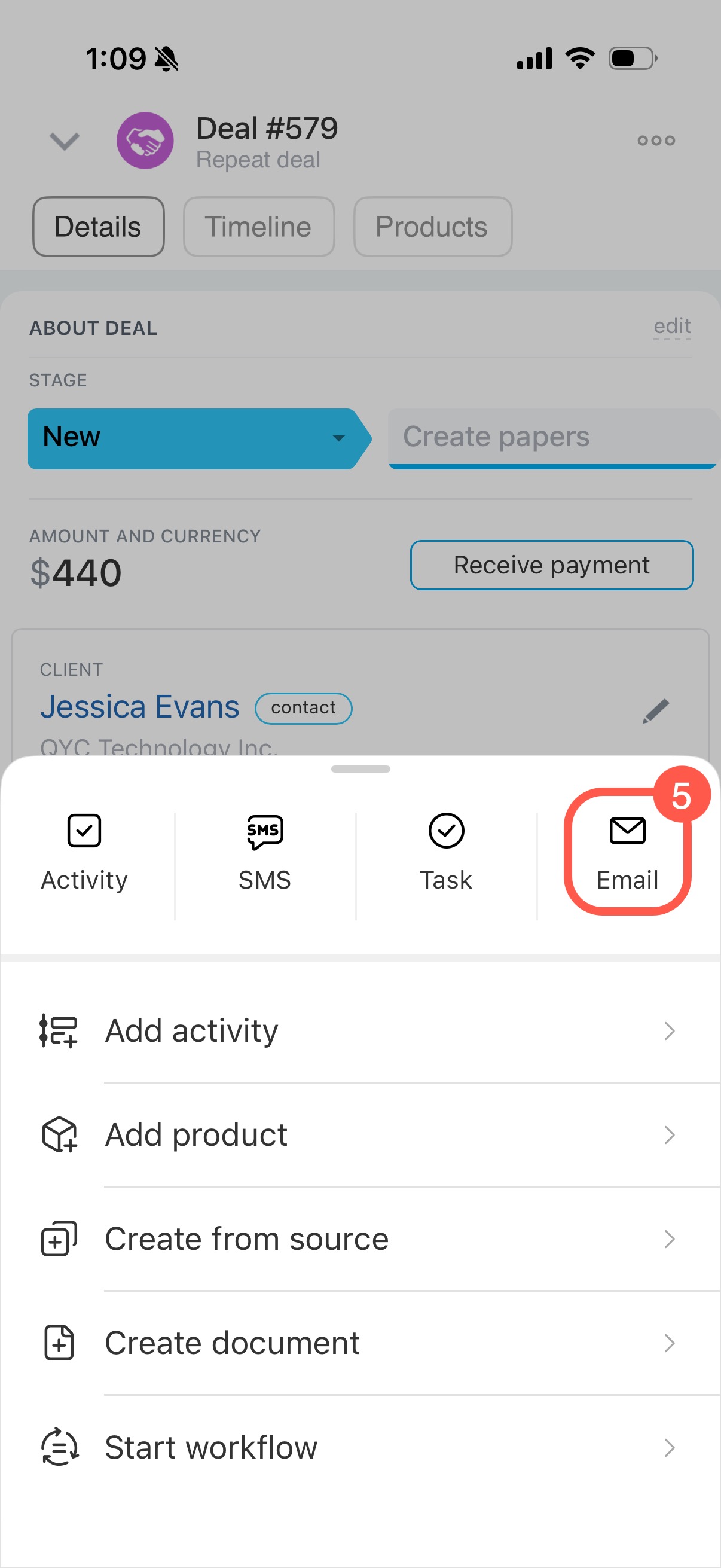
- Select Email.
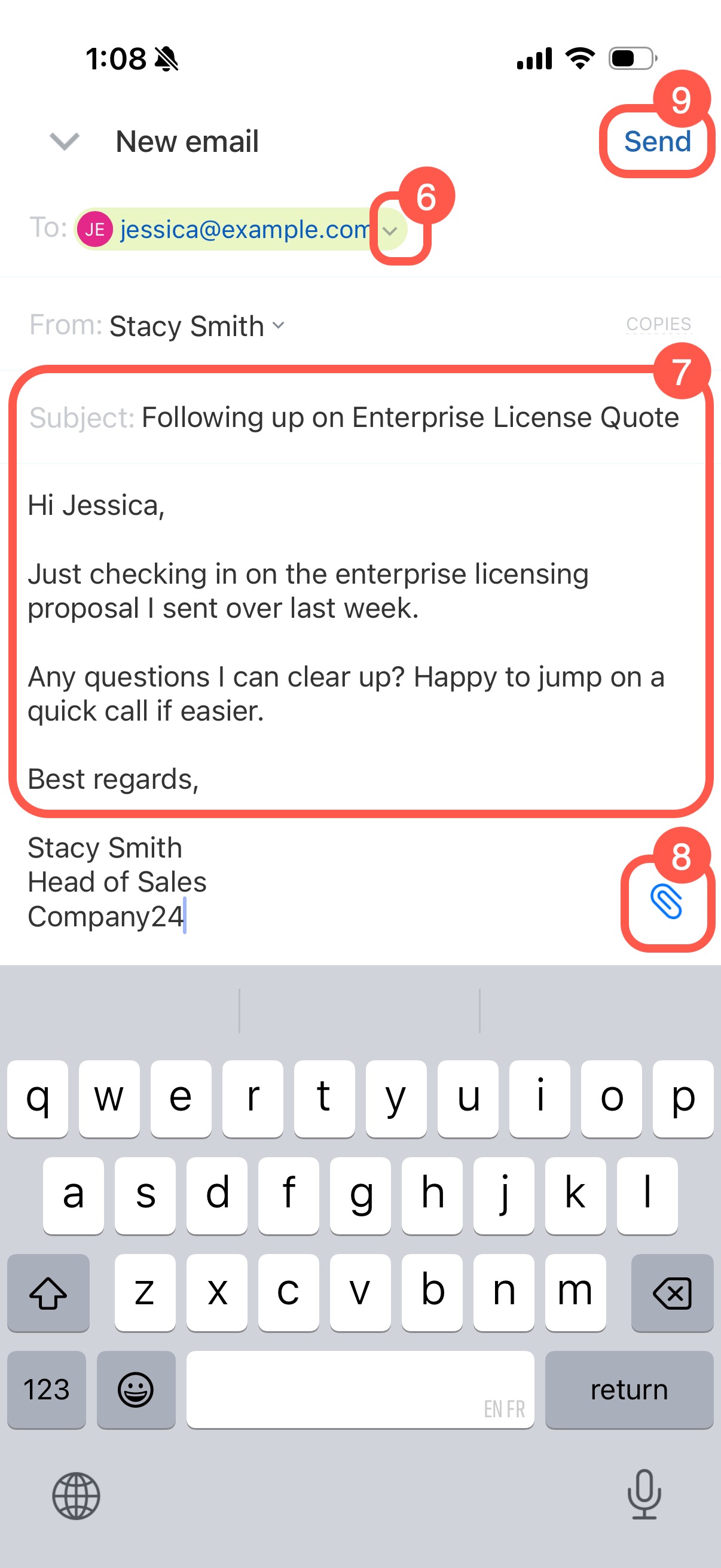
- If the item contains multiple email addresses, CRM adds the first one automatically. To choose another address, tap the arrow.
- Enter the subject and message.
- To attach a file, tap the paperclip icon.
- Send the email.
Manage emails
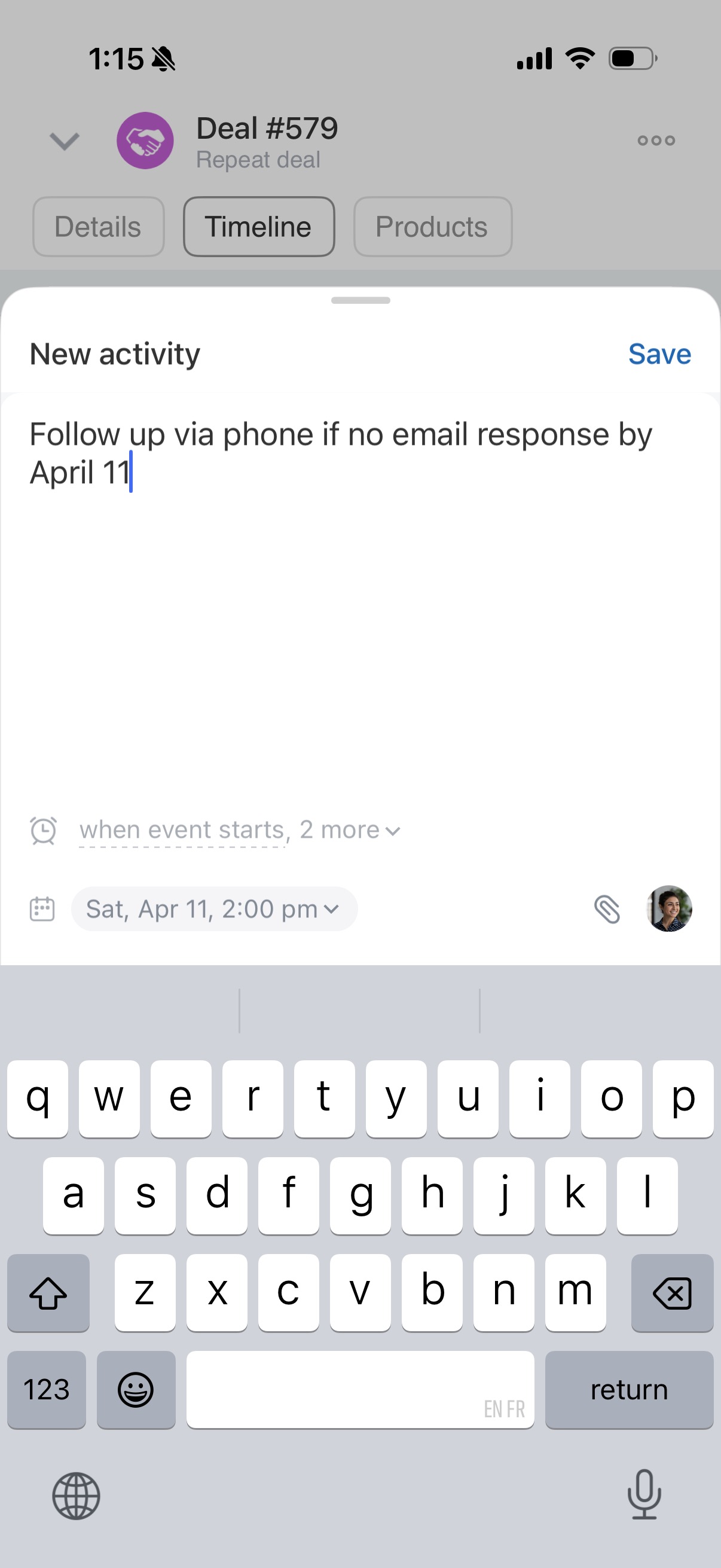
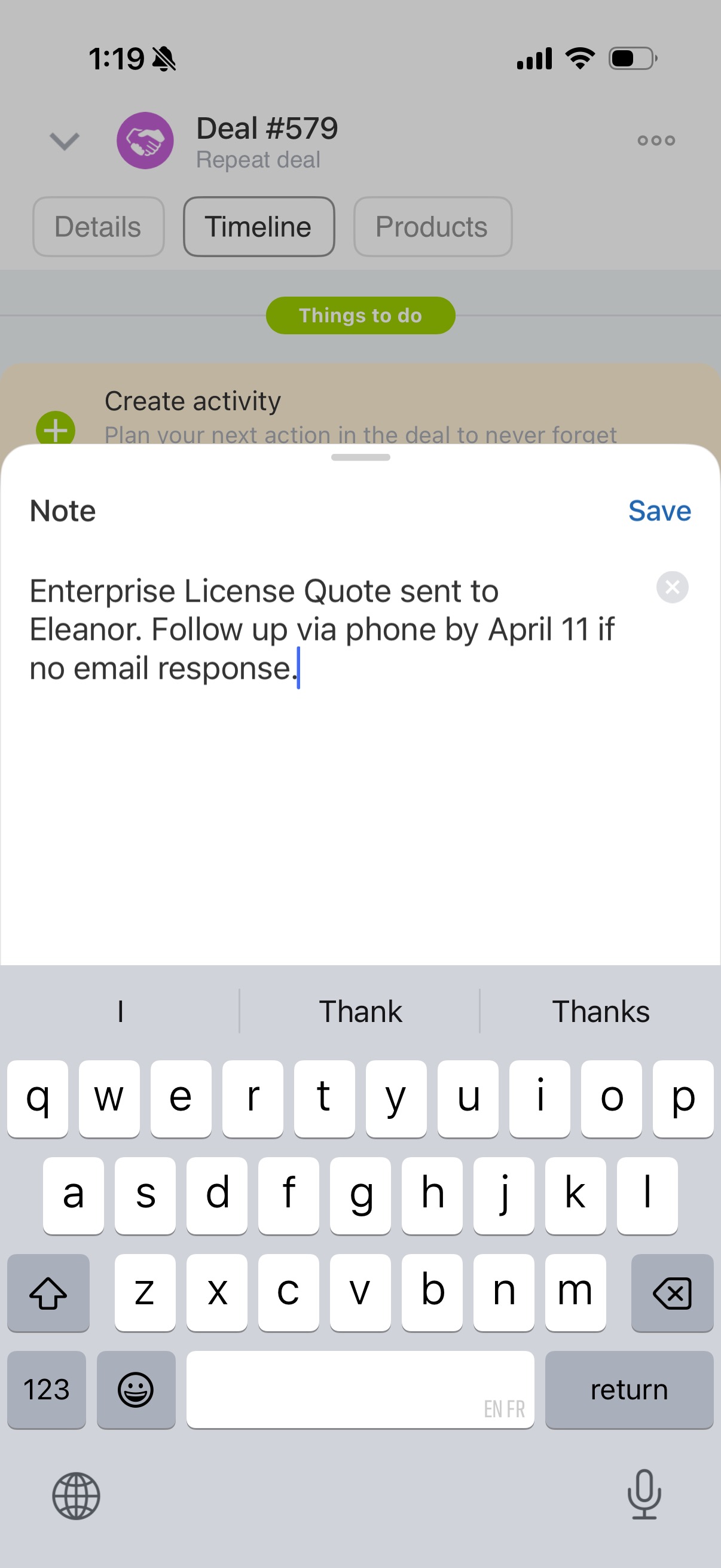
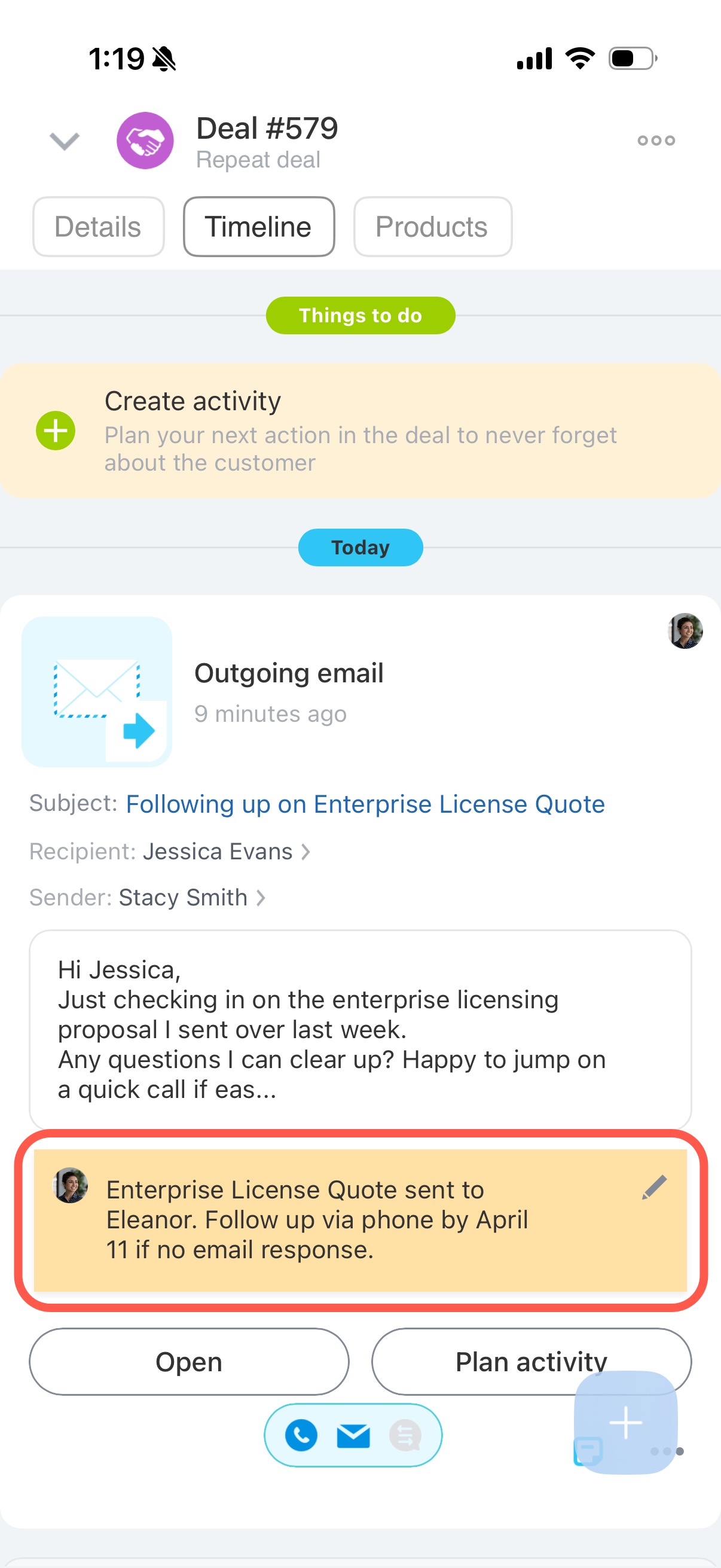
In the CRM item, you can pin incoming and outgoing emails, add a note, or plan an activity. For example, after you send a quote, you can schedule a call to follow up with the client.
Add a note or plan an activity
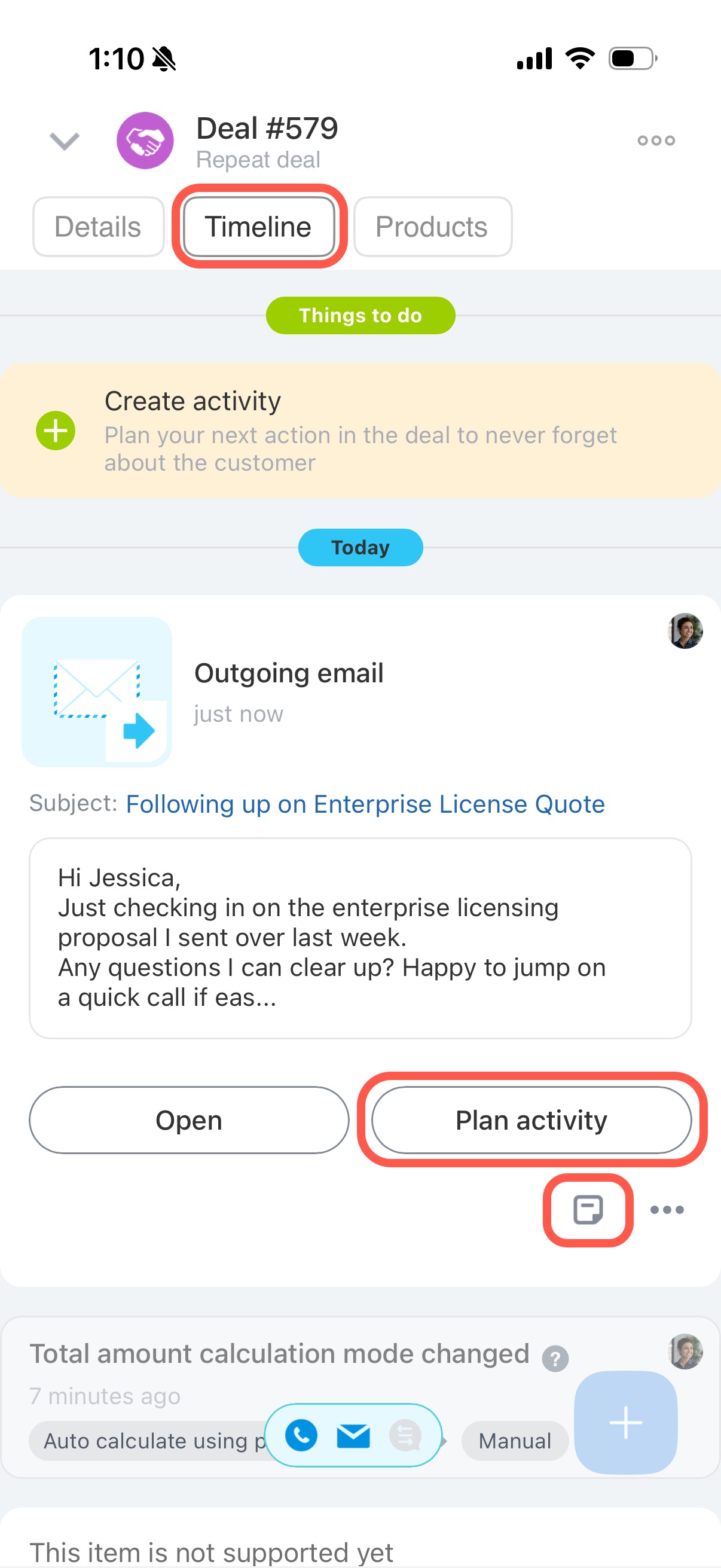
- Go to the Timeline tab.
- Open an incoming or outgoing email.
- Tap the document icon to add a note.
- Select Schedule activity to create an activity for that email.
Complete an email activity
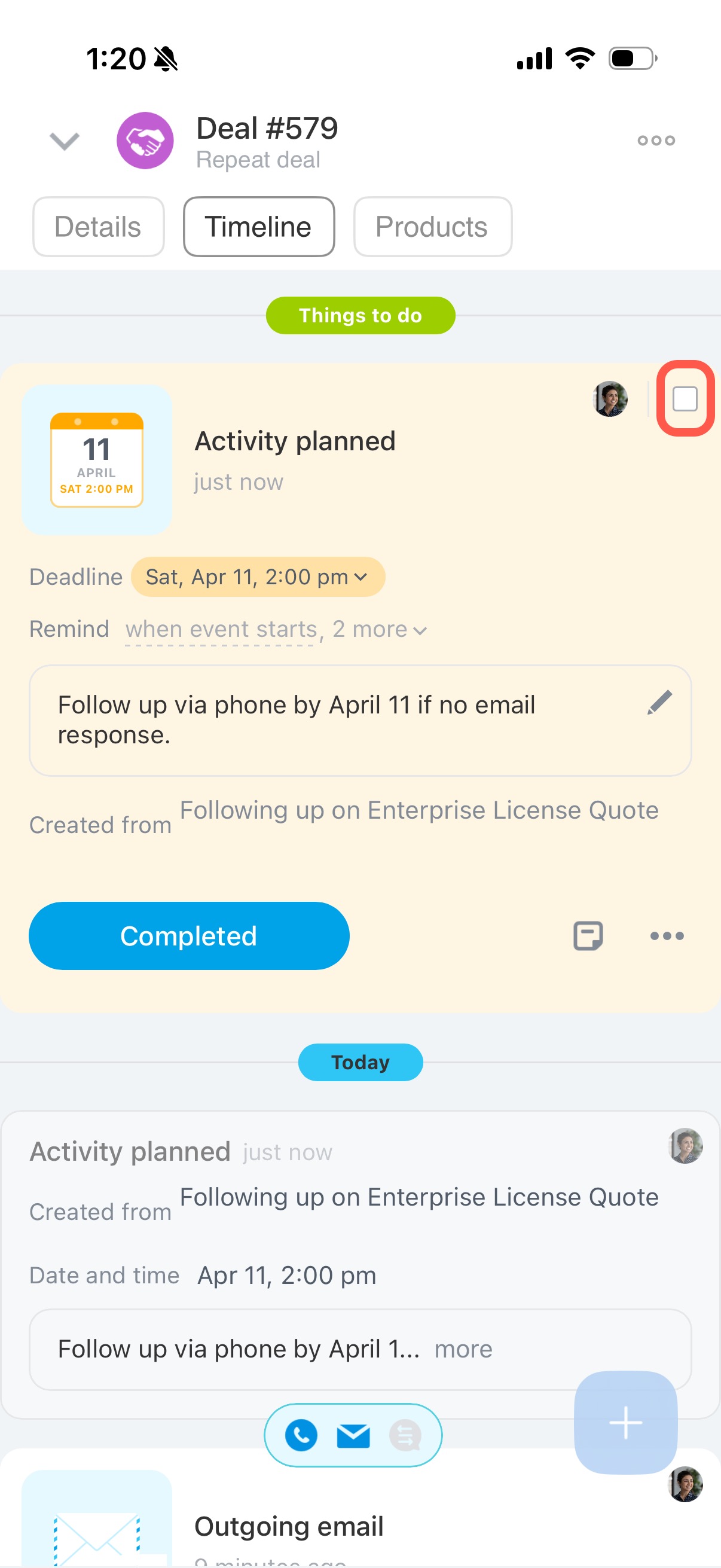
- Find the activity in the Timeline.
- Select the checkbox next to your avatar.
Pin an email or activity
Pin important emails or activities for quick access.
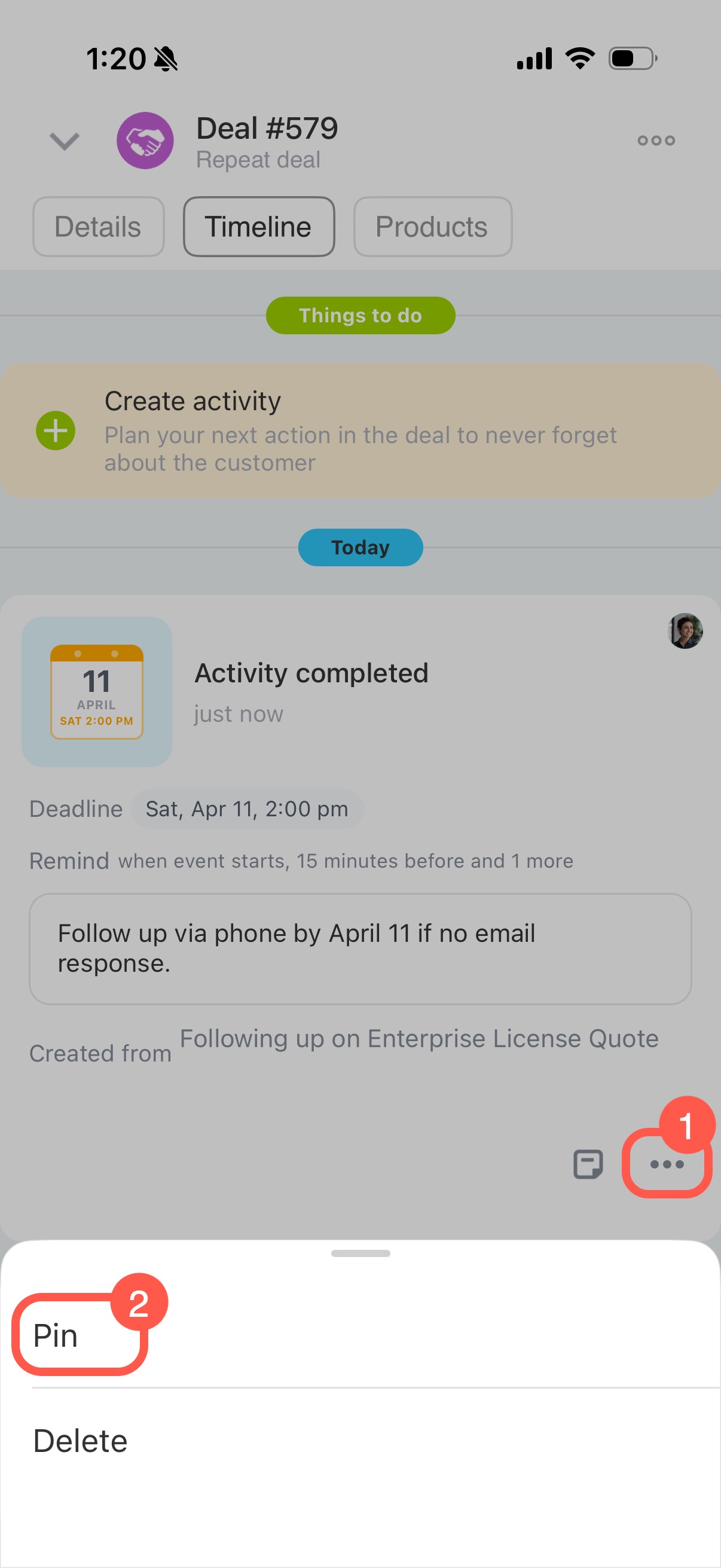
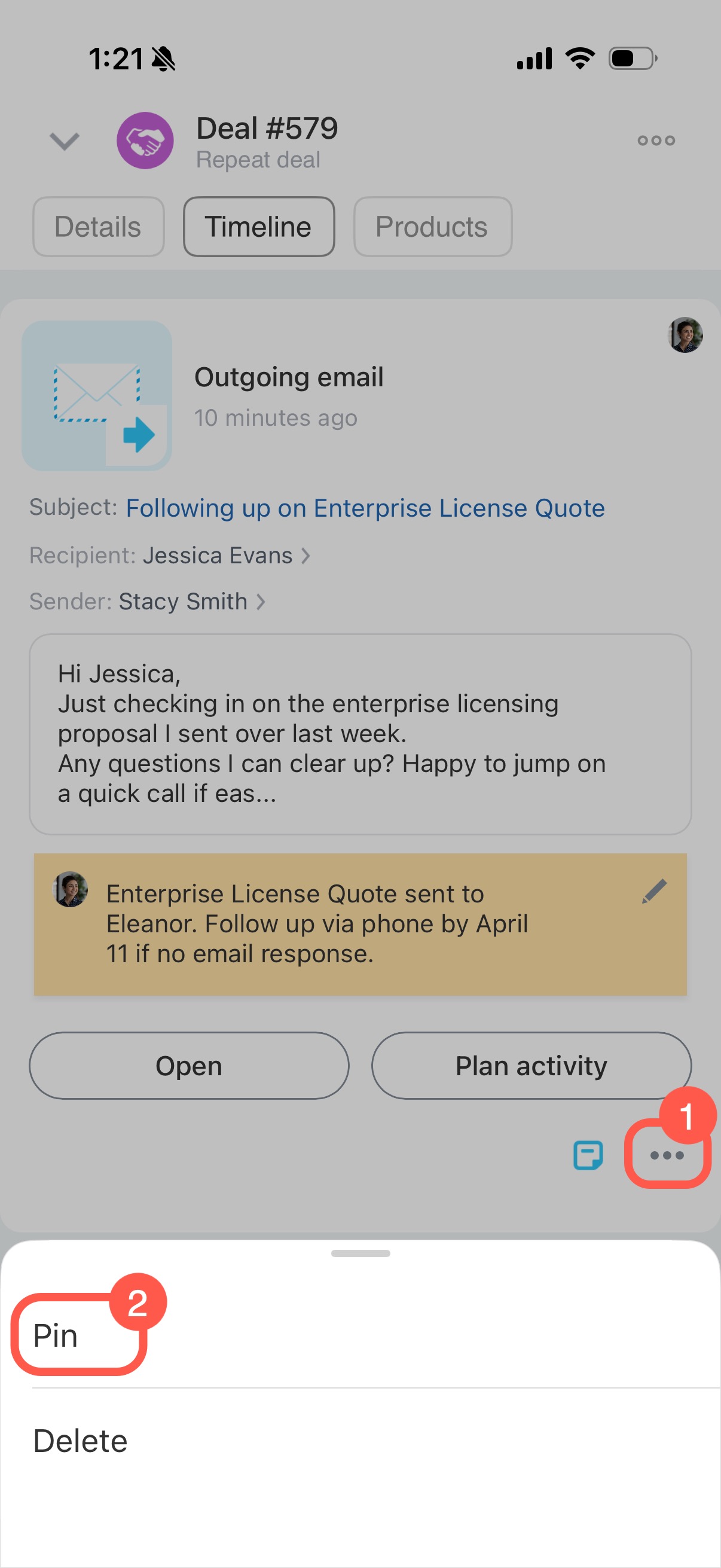
- In the Timeline, open the email or activity.
- Tap Three dots (...) and select Pin.
Reply to an email
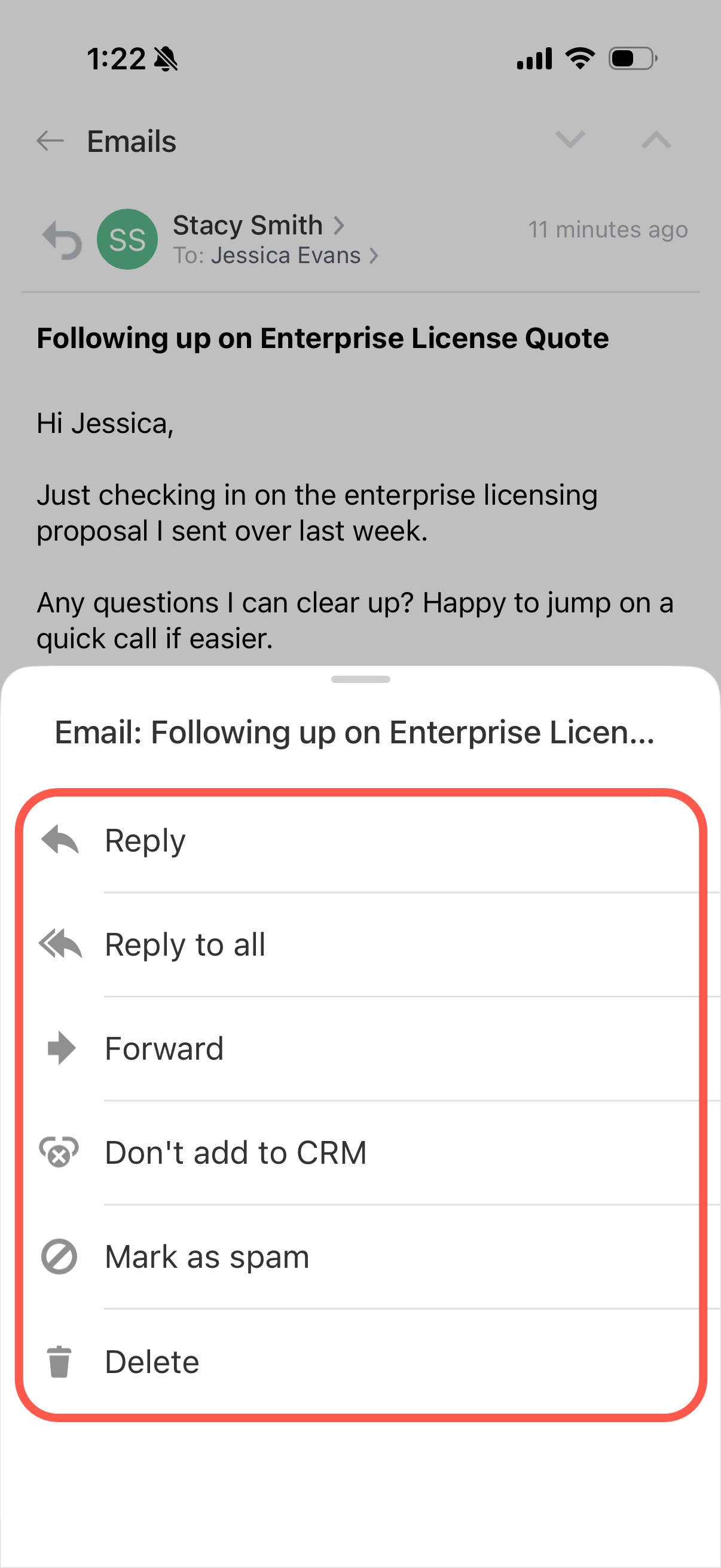
From an incoming email, you can:
- Reply to the sender
- Reply to all recipients
- Forward the email
- Mark it as spam
- Delete the email
Exclude an email from CRM or delete it
If an email is not related to client work, you can exclude the sender from CRM.
Select Don't add to CRM. Future emails from this address will no longer appear in CRM automatically, but you can still read them in your mailbox.
You can also delete the email from the CRM item.
To do this:
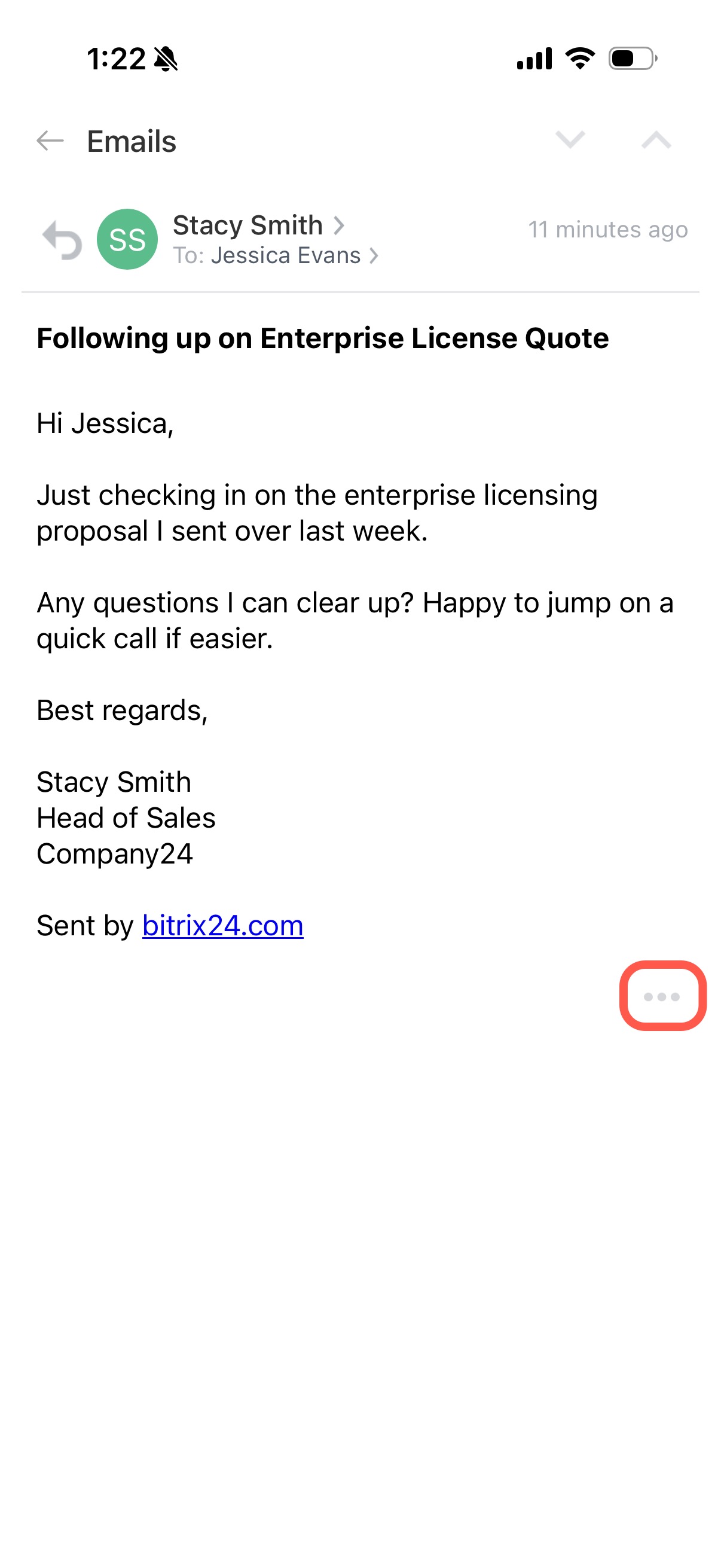
- Open the email.
- Tap Three dots (...).
- Select the action you need.
In brief
- Email in CRM lets you communicate with clients directly from leads, deals, contacts, and companies.
- CRM stores all emails in the Timeline.
- You can create emails from a list or from an individual item.
- Add notes, schedule activities, or pin emails to keep important communication easy to find.
- From an incoming email, you can reply, forward, mark it as spam, exclude it from CRM, or delete it.
