
Send invoices directly to tax authorities using the DDD Invoices and Bitrix24 integration. After installing and configuring the app in your Bitrix24 account, you can issue compliant invoices on behalf of your company. The integration is designed only for B2B invoices to legal entities and B2G transactions with government authorities.
In this article:
- Install the application
- Configure tax rates and units of measurement for invoices
- Create and send an e-invoice with DDD Invoices
- Cancel a sent invoice
- Send invoices created with DDD Invoices using automation rules
Install the DDD Invoices application
DDD Invoices
To get started, install the DDD Invoices application from the Bitrix24 Market.
Find and install Bitrix24 Market applications
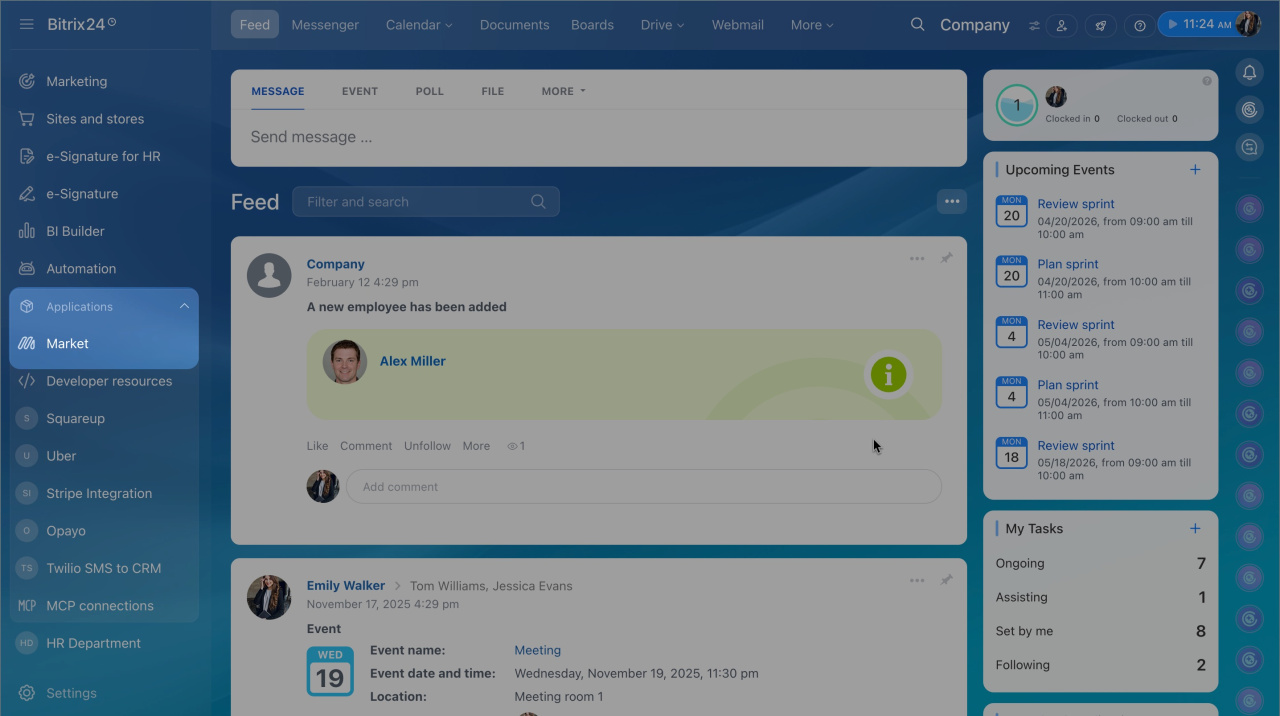
1. Open the Applications > Market section.
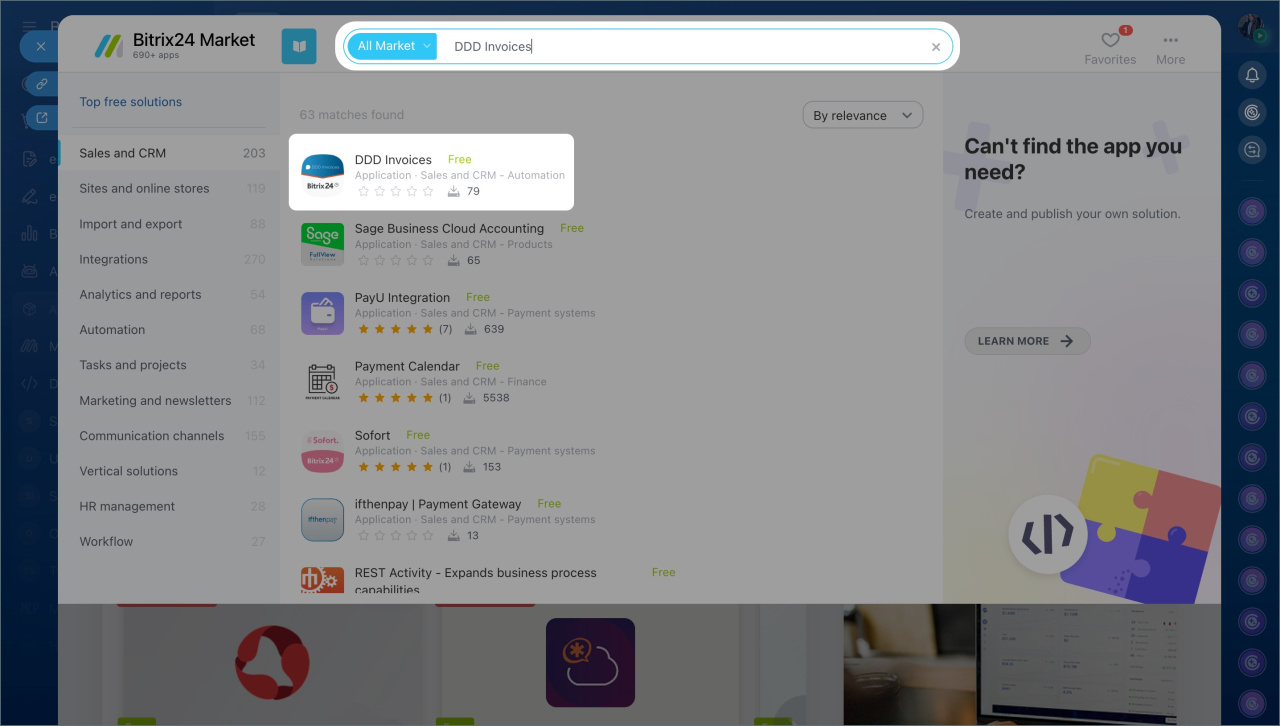
2. Use the search to find the DDD Invoices application and open it.
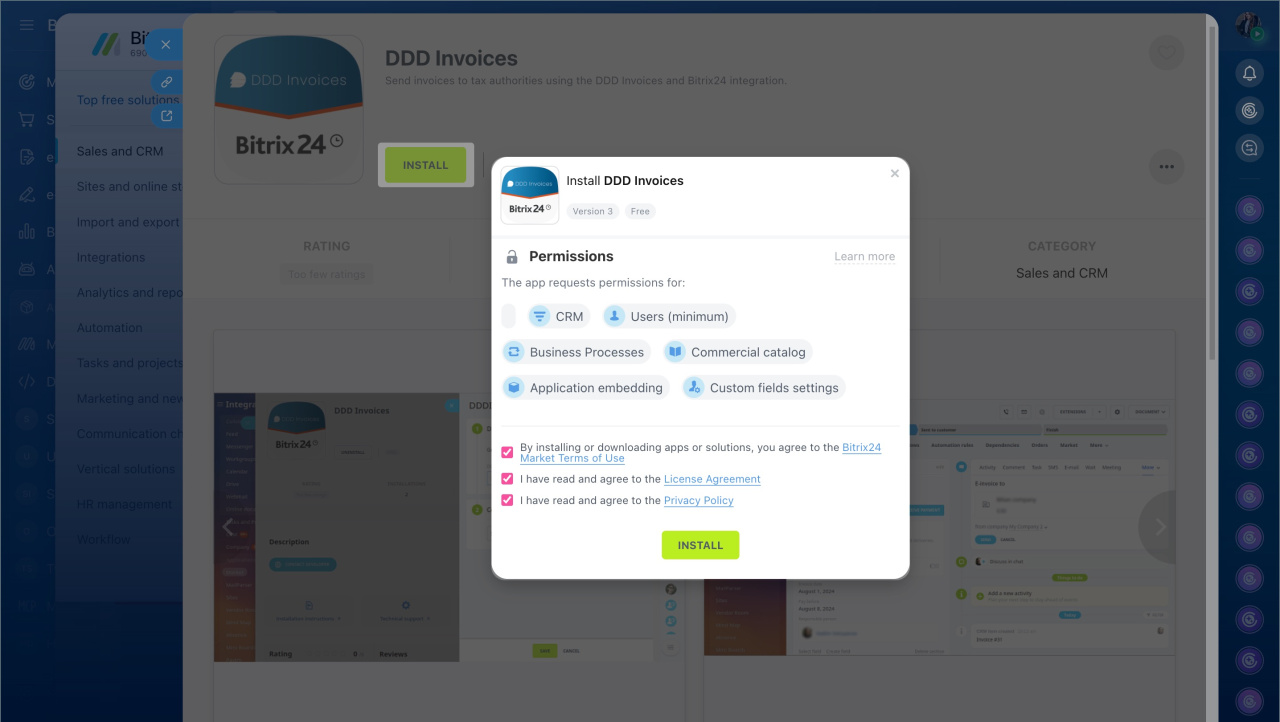
3. Click Install.
4. Review and accept the Bitrix24 Market Terms of Use, License Agreement, and Privacy Policy. Then click Install.
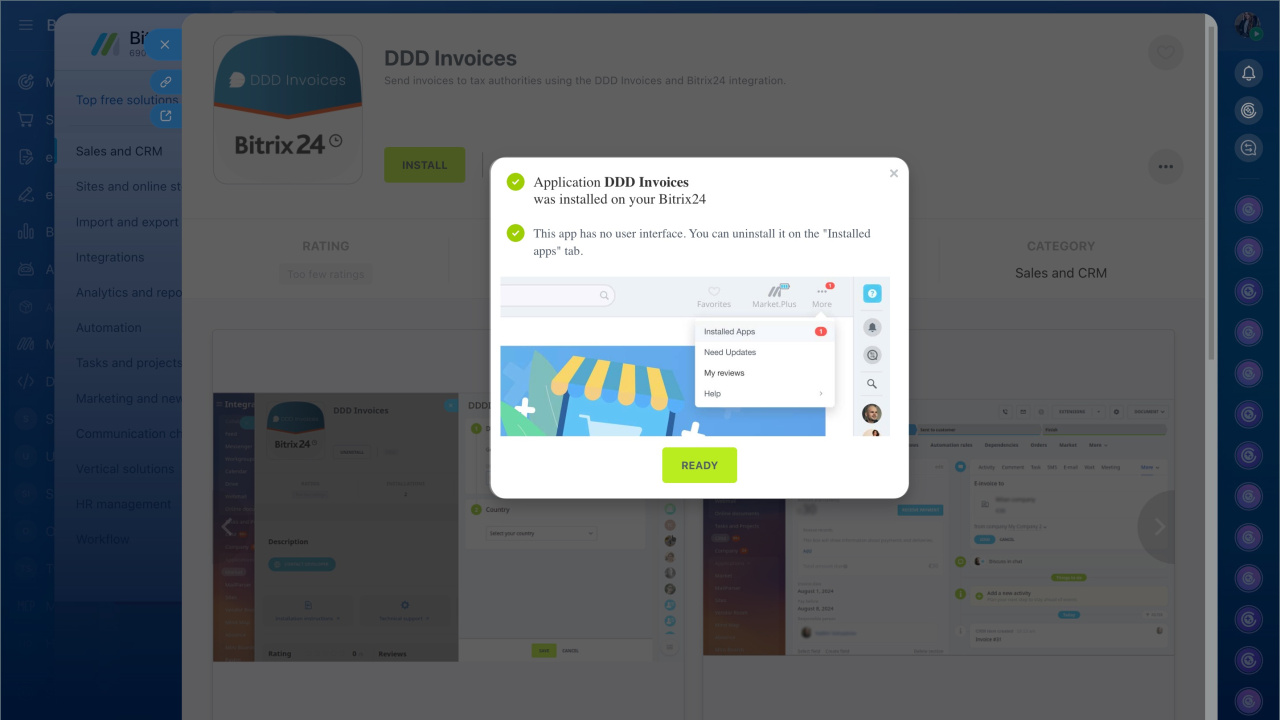
5. Click Ready.
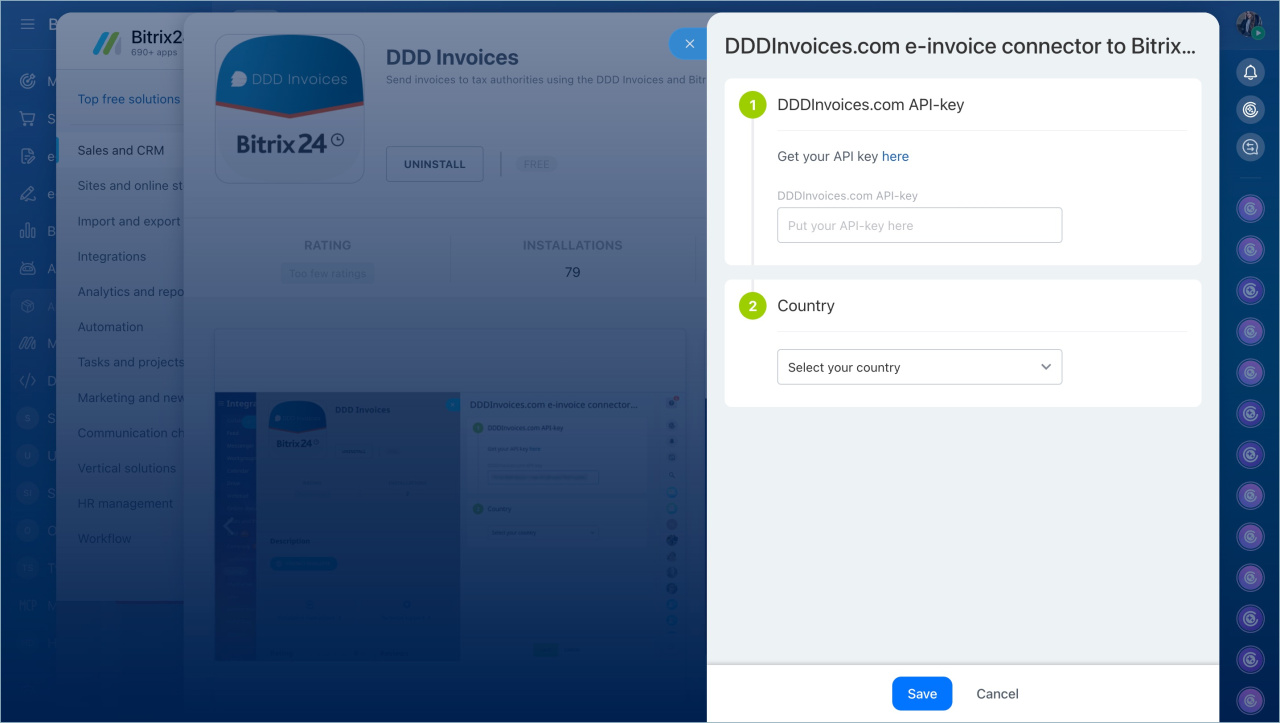
6. Enter your DDD Invoices API key and select your country:
- Germany
- Spain
- Сroatia
- Italy
- Montenegro
- Romania
- Serbia
- Slovenia
- Denmark
- Czech Republic
- United Kingdom
- Norway
- Sweden
Get the DDD Invoices API key
To get the DDD Invoices API key:
1. Open the Dashboards section in your active DDD Invoices account.
2. Go to Settings > Pre-built plugins.
3. Find the Bitrix24 block and copy the API key.
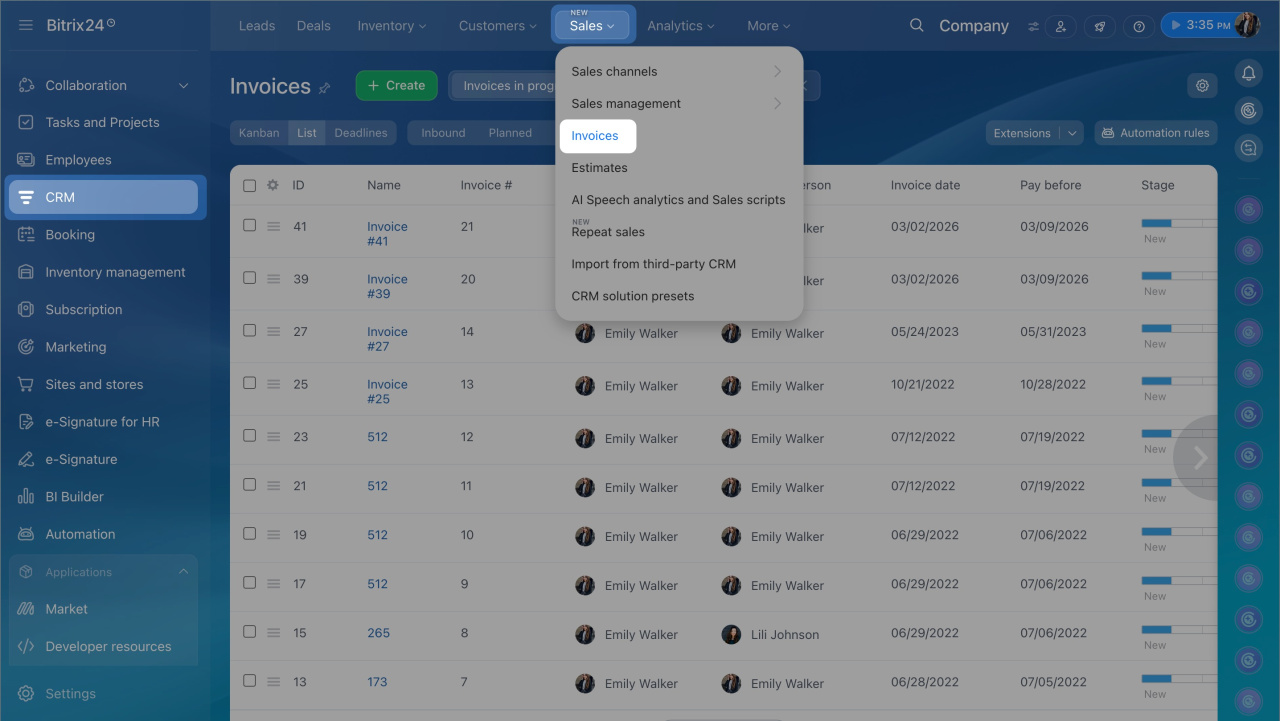
After you install the application, open the CRM > Sales > Invoices section and select the invoice you need.
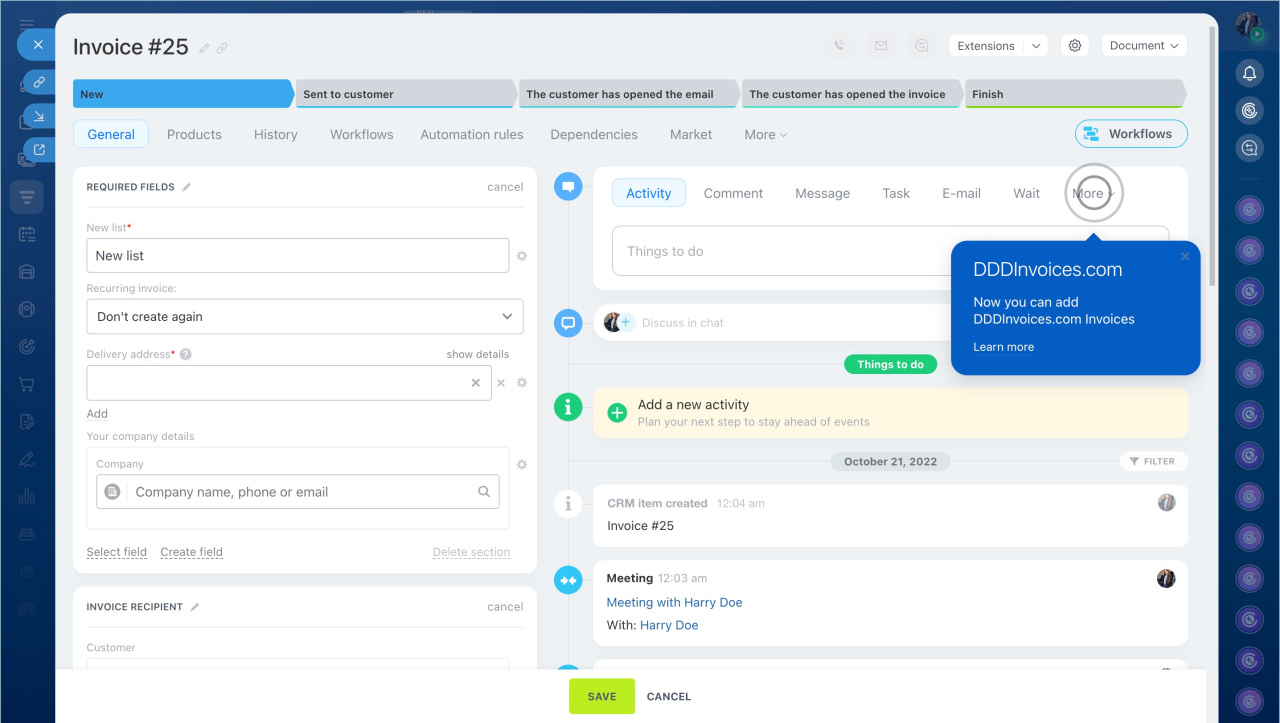
A pop-up notification confirms that the app was installed successfully. The DDD Invoices option appears in the Timeline menu. If the option is hidden, you can find it under More.
Configure tax rates and units of measurement
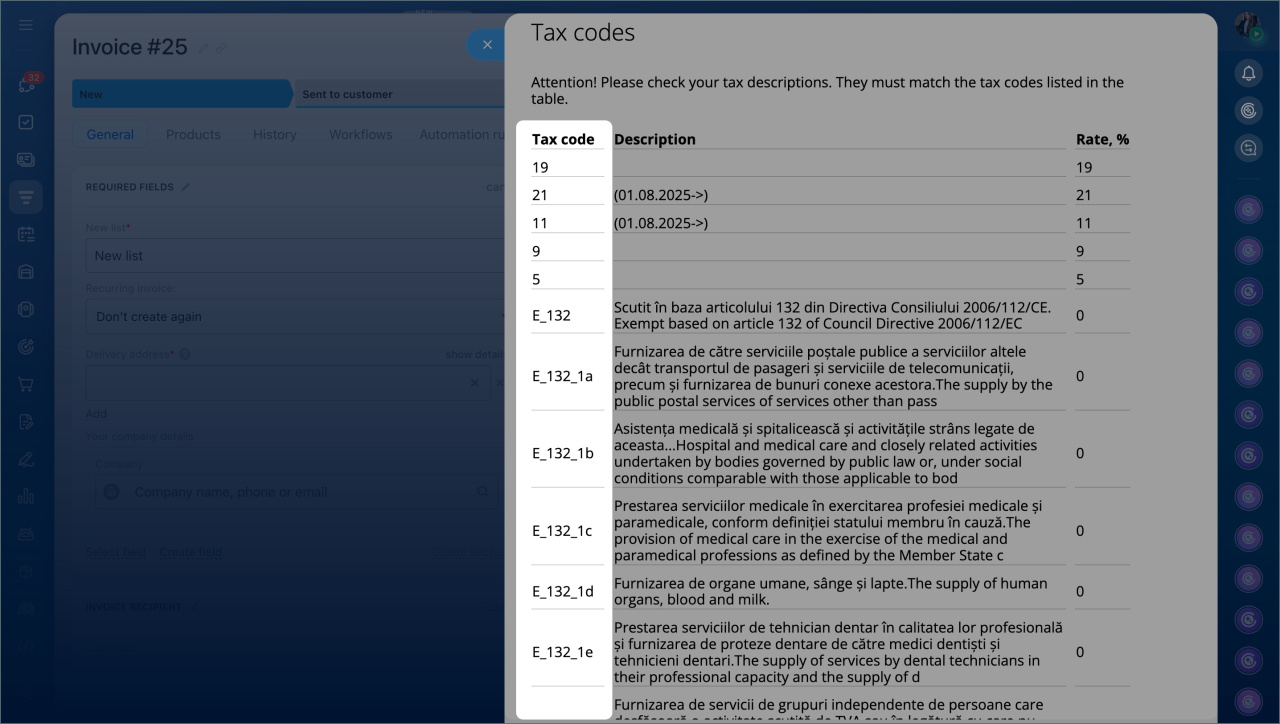
Configure a tax rate. Each e-invoice must be linked to the correct tax rate. Create the required tax rate in your Bitrix24 CRM settings before creating invoices.
Click Check your tax codes.
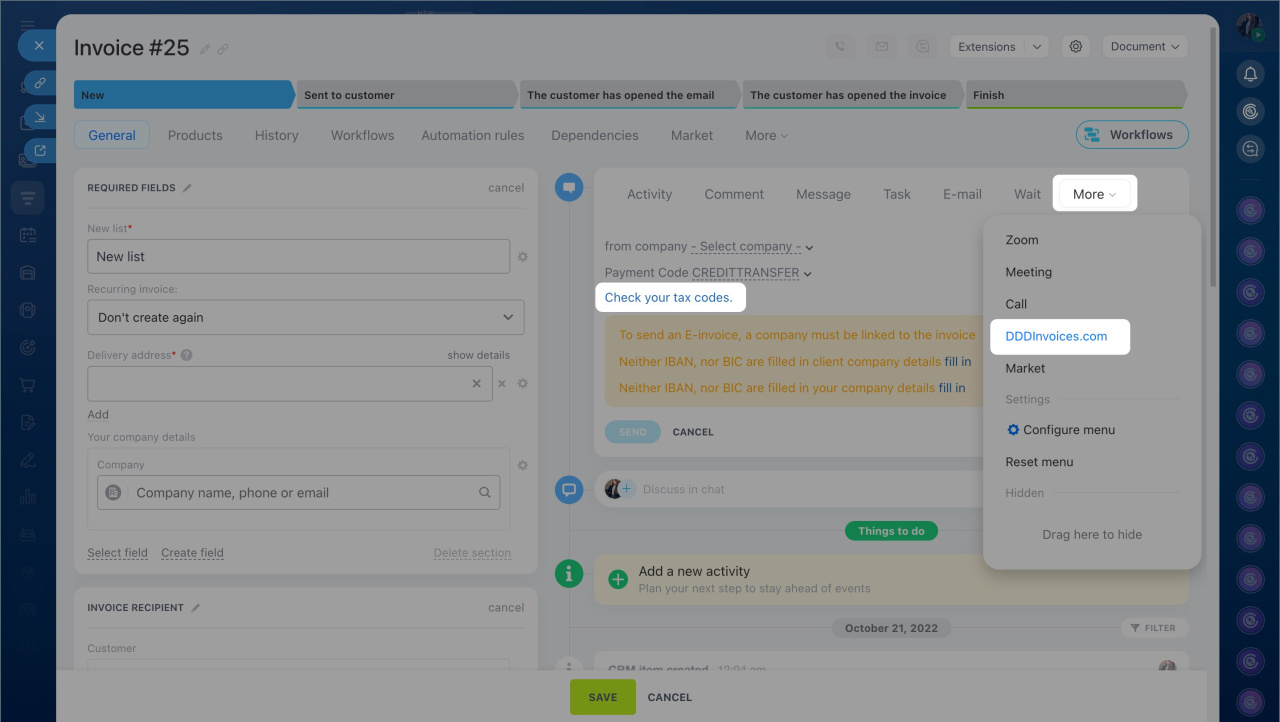
The tax rate name should match the code in the Tax code column.
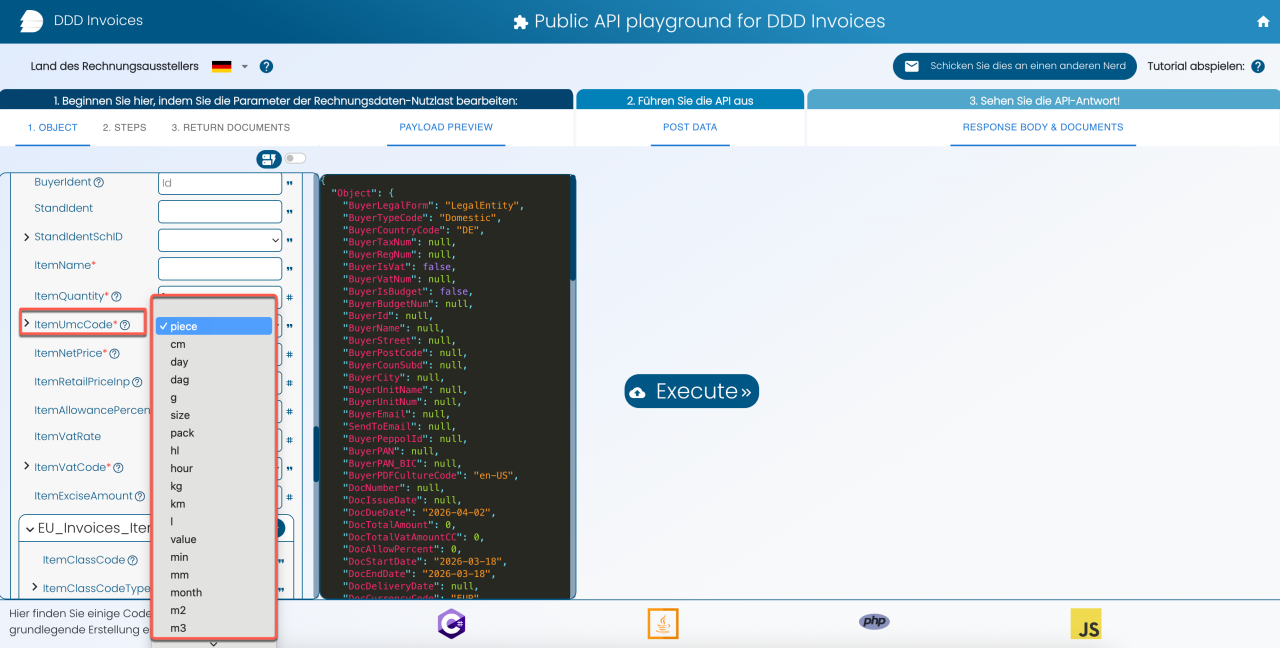
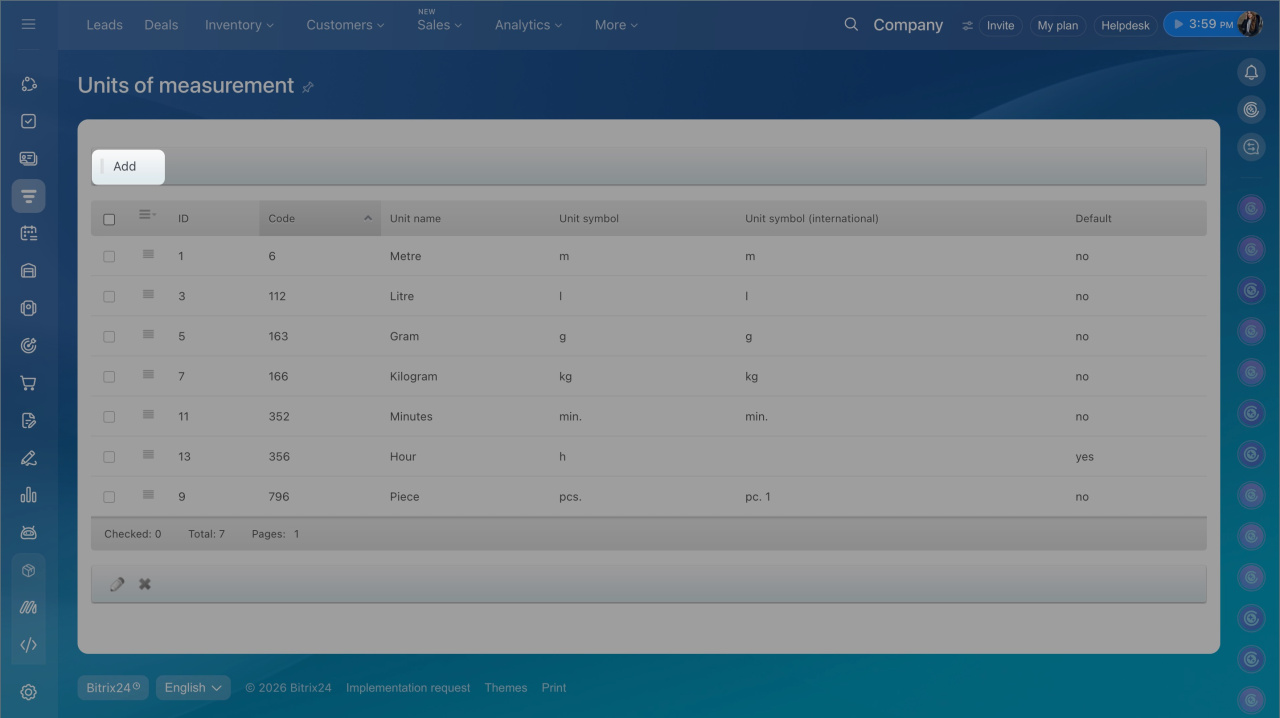
Configure units of measure. The symbol of each created unit must match the ItemUmcCode in your DDD account.
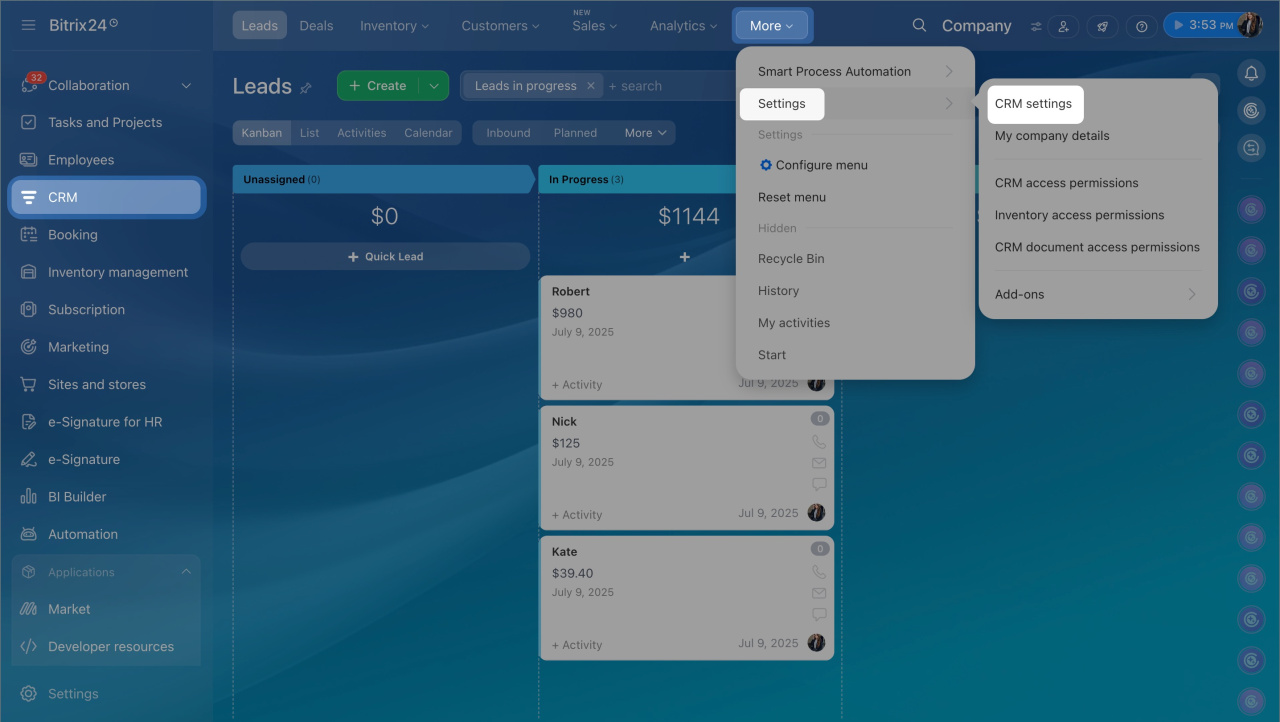
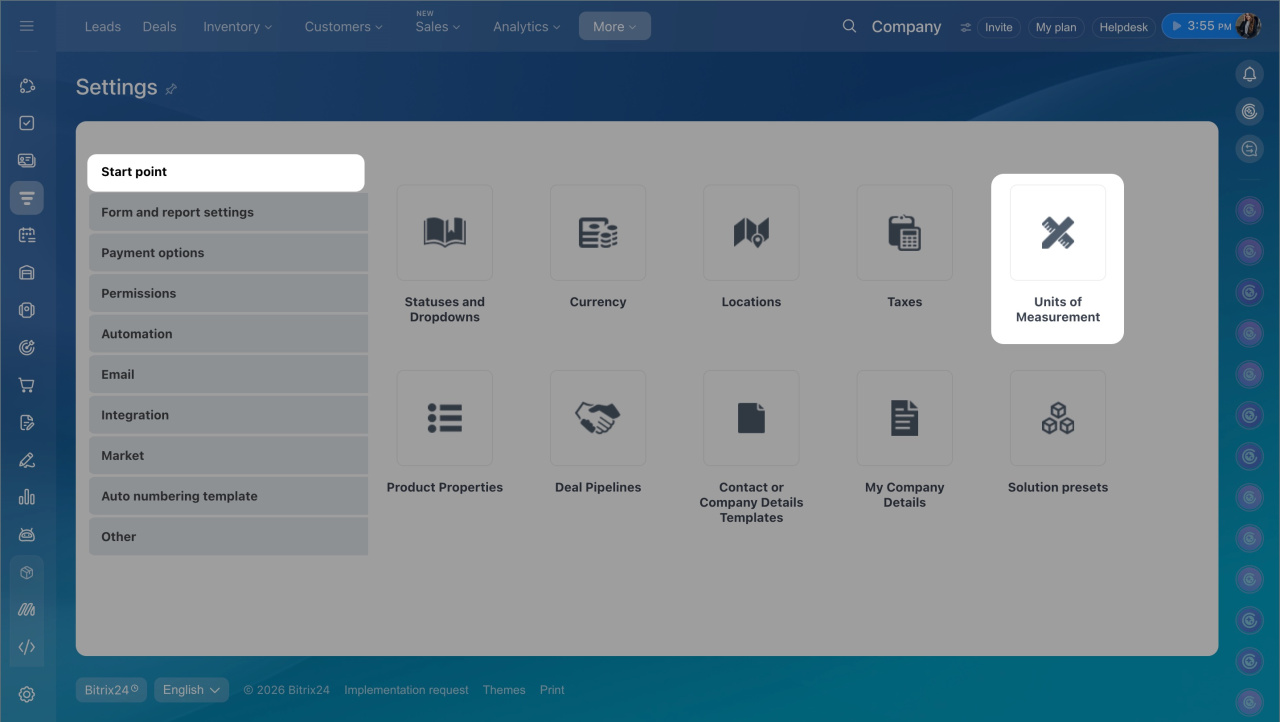
Create all required units of measure.
1. Go to CRM > Settings > CRM settings.
2. Select the Units of Measurement block.
3. Click Add.
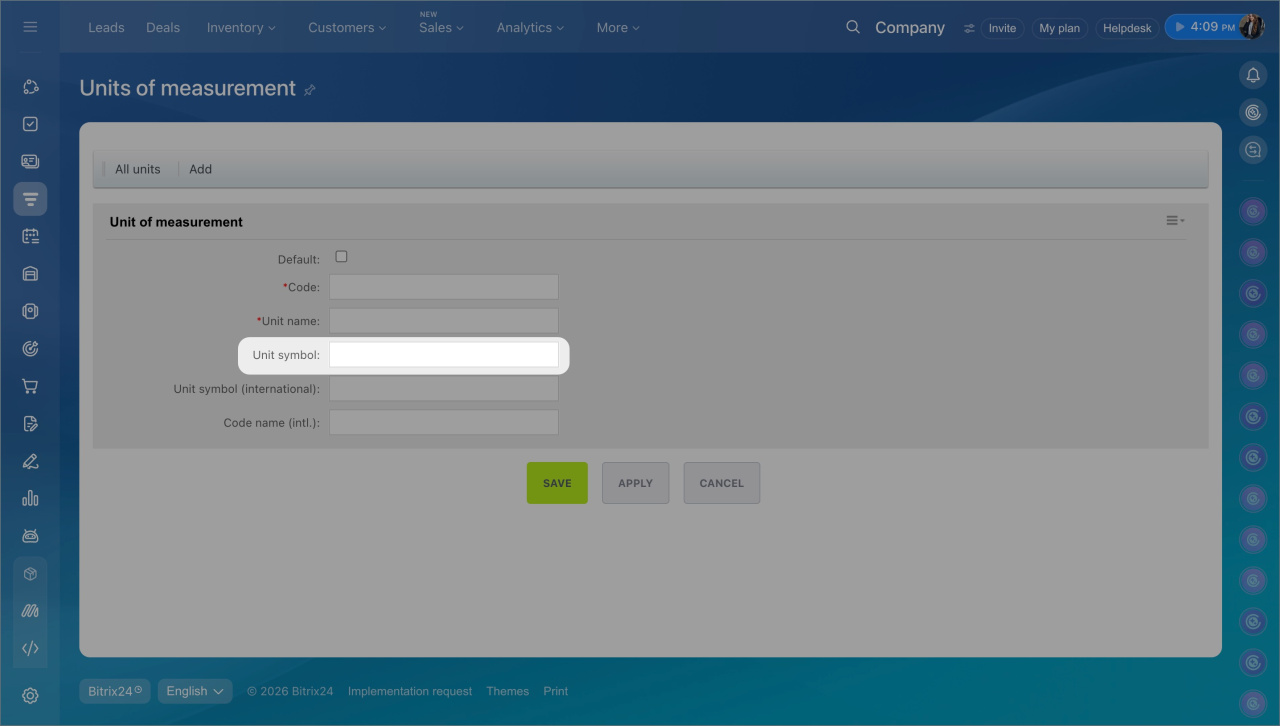
4. Enter the corresponding DDD Invoices UMC code in the Unit symbol field.
5. Save the settings.
Create and send an e-invoice with DDD Invoices
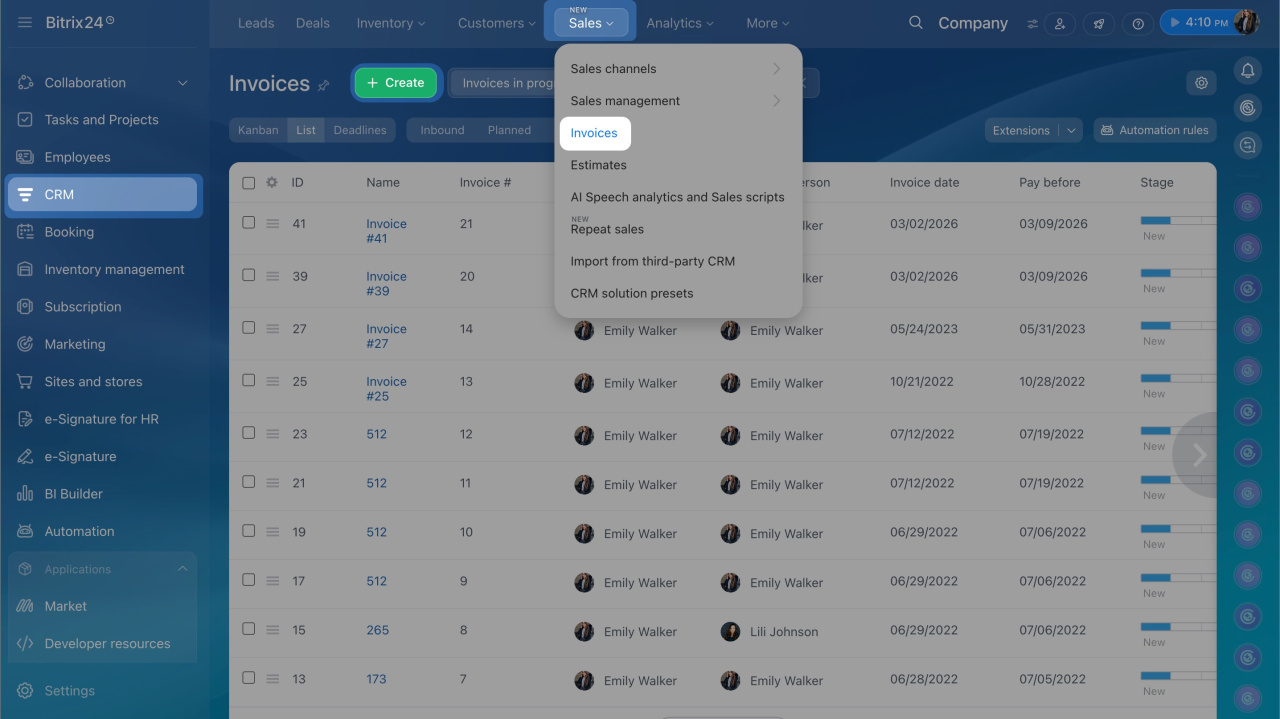
Go to CRM > Sales > Invoices and select the required invoice or create a new one by clicking the Create button.
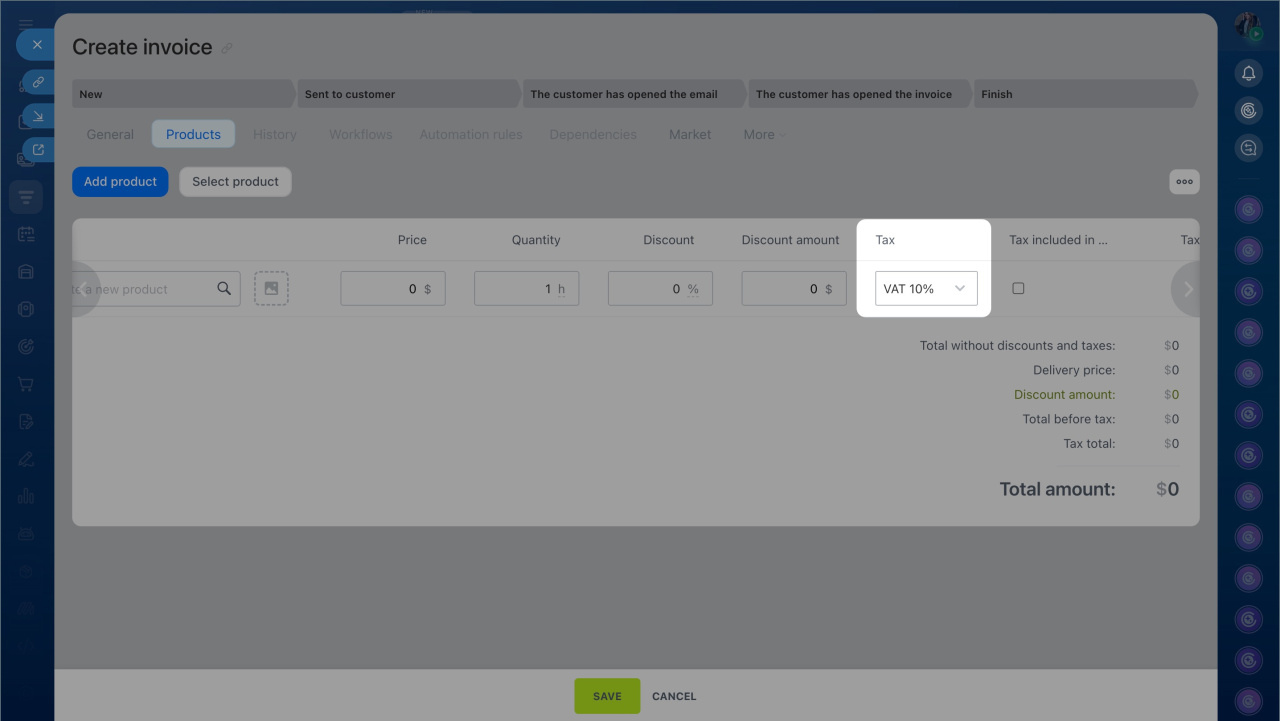
Add products and specify the correct tax rate for each product.
Required invoice data
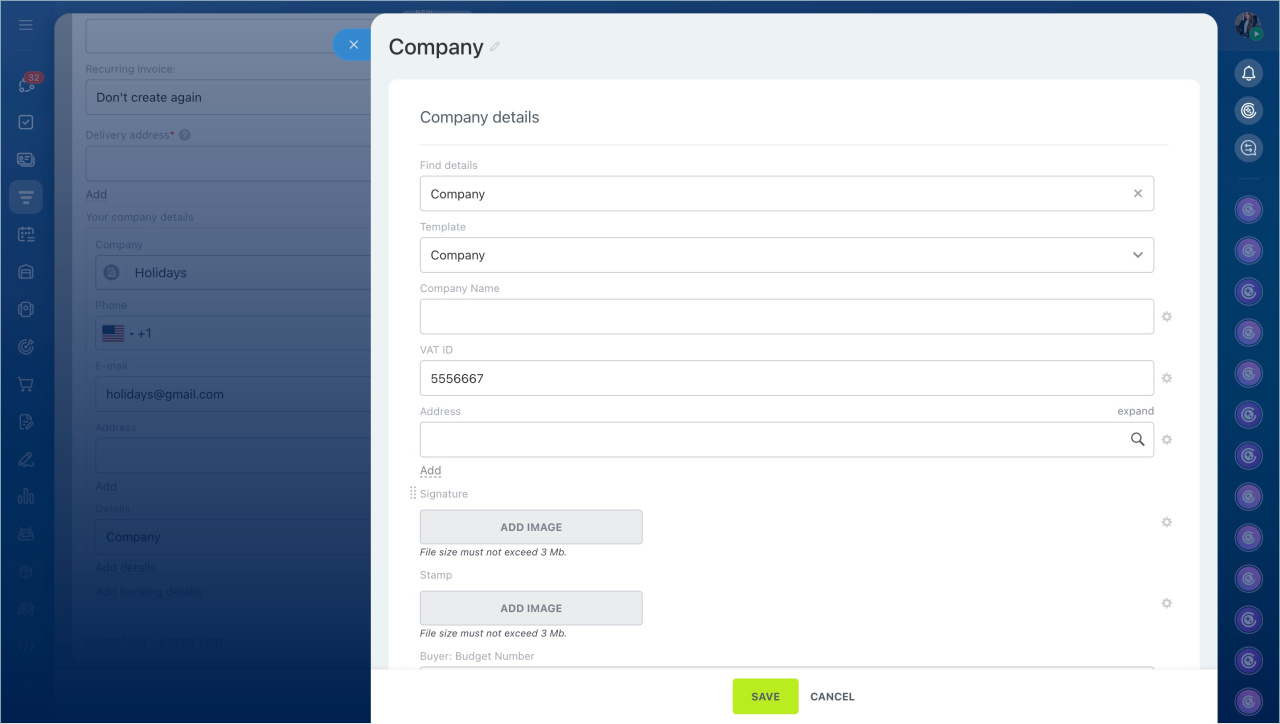
To send the e-invoice successfully, specify the following data:
Seller
- Company name and full address
- Country, ZIP code, city
- Tax number or VAT ID
- IBAN and BIC
- Country-specific additional fields such as for invoices in Romania or Slovenia
Buyer
- Name and full address
- Buyer email address
- Country and tax number or VAT ID if available
- IBAN and BIC if required by local law
- Country-specific additional fields depending on the country
Create and configure details templates in CRM
Send the invoice. After completing all required fields, follow these steps:
- Click DDD Invoices in the Timeline menu.
- Select the company issuing the invoice if you have multiple companies.
- Select the payment type in the DDD Invoices payment type code field.
- Click Send.
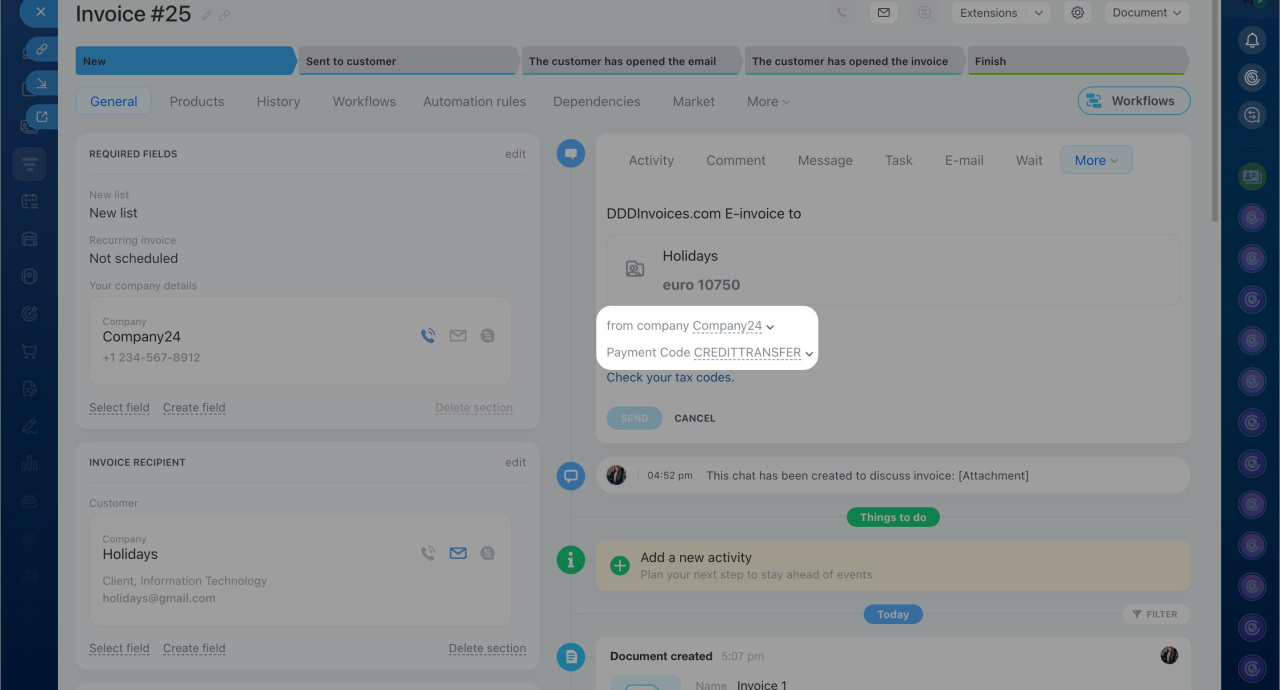
The invoice is converted to XML format and automatically sent to the tax authority.
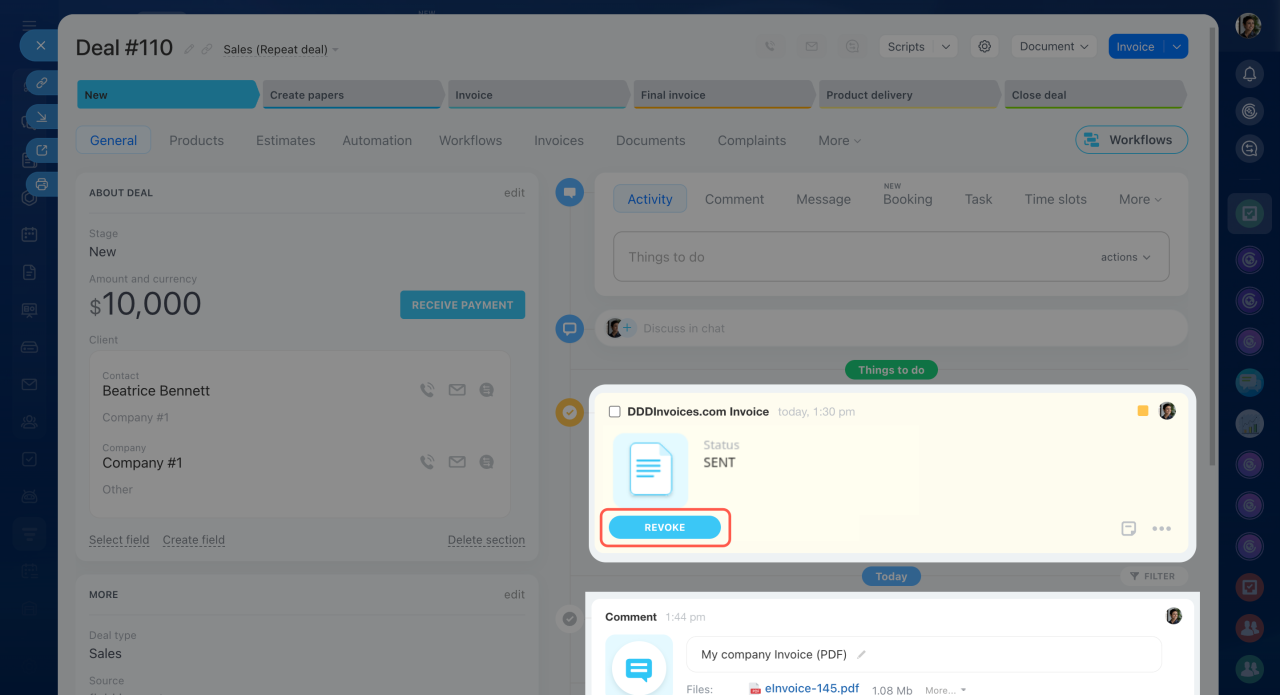
The Timeline shows an activity with the invoice status. A comment with the saved PDF invoice appears below. You can download and store the invoice on your computer if needed.
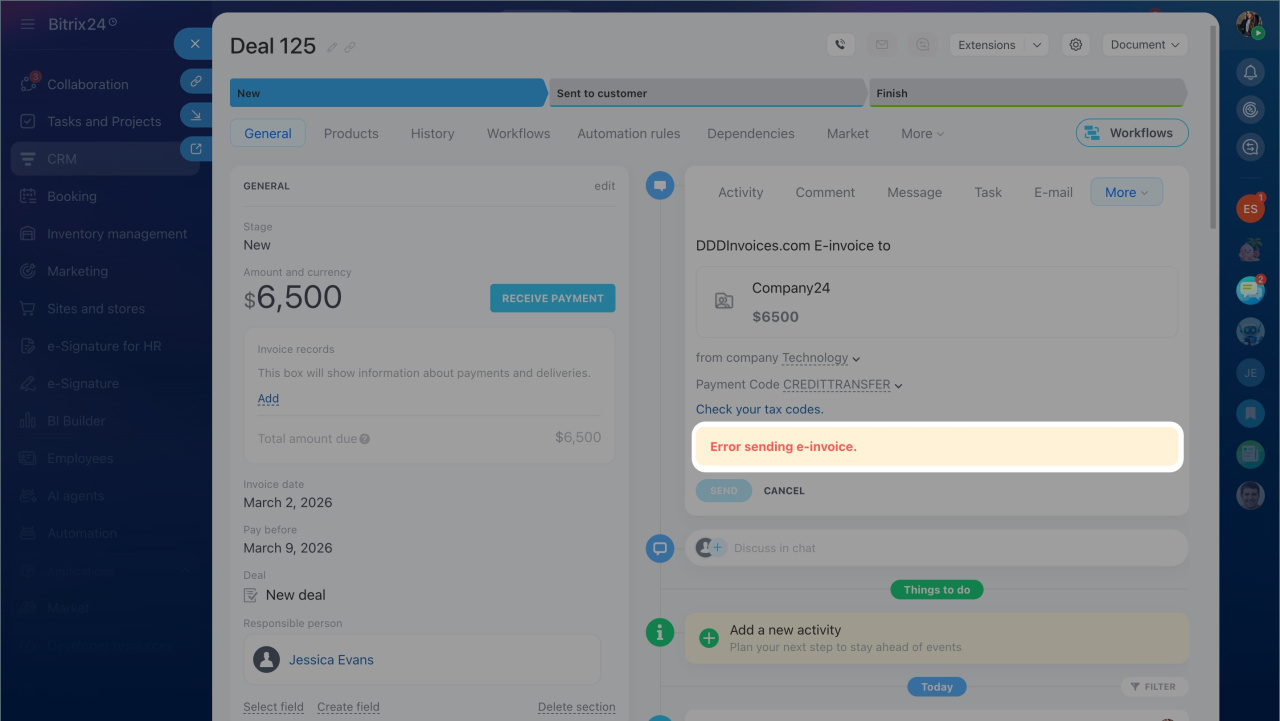
If an error occurs, a notification appears with the error description.
Cancel an invoice
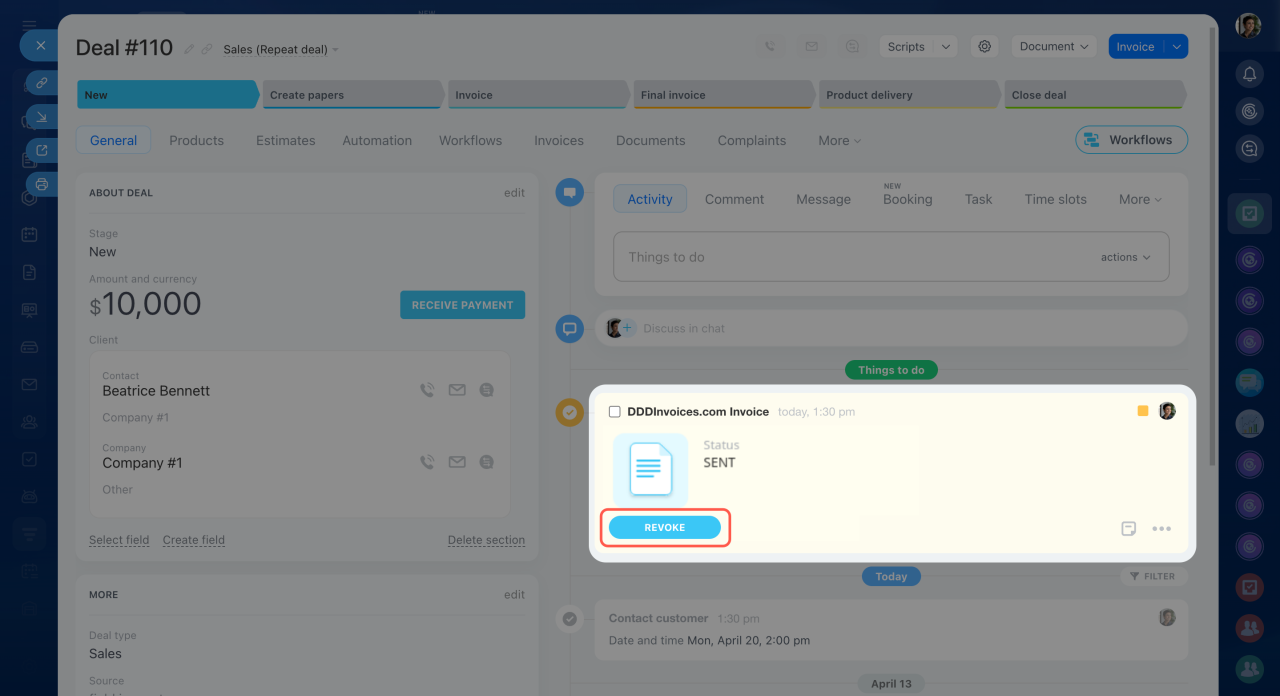
You can cancel a sent invoice at any time. Follow these steps:
- Click the Revoke button.
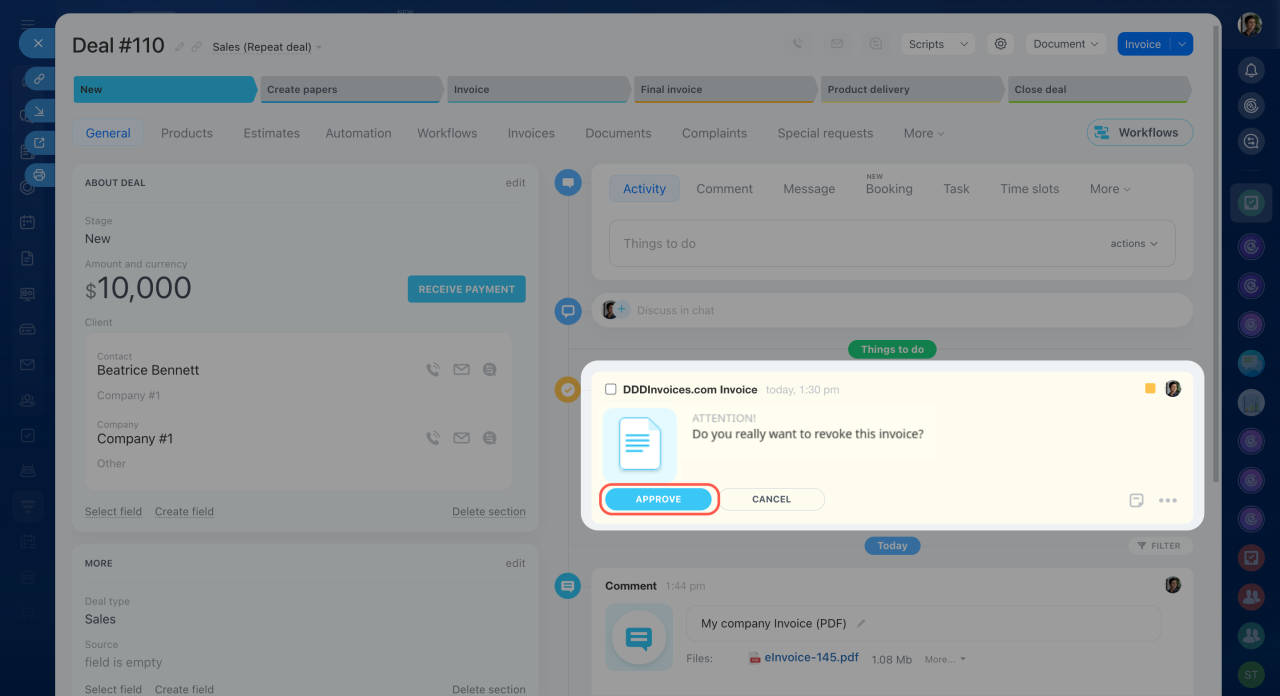
- Confirm the cancellation with Approve.
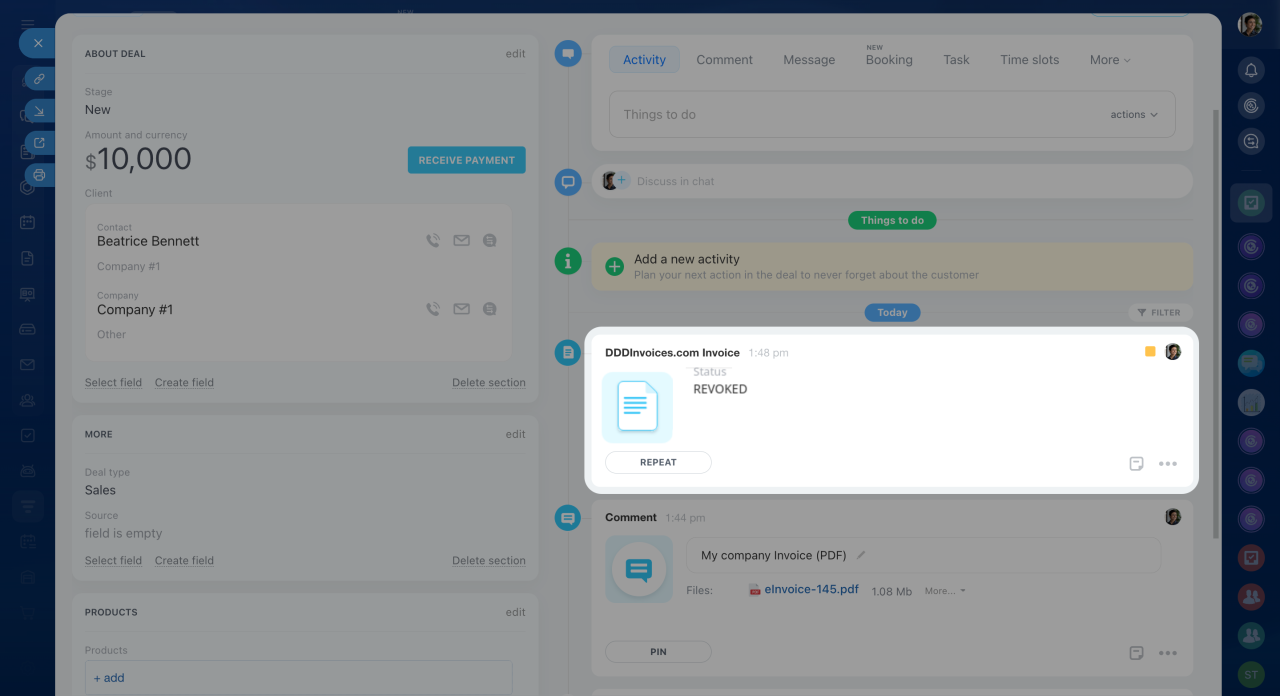
- After cancellation, the invoice status updates automatically in the Timeline.
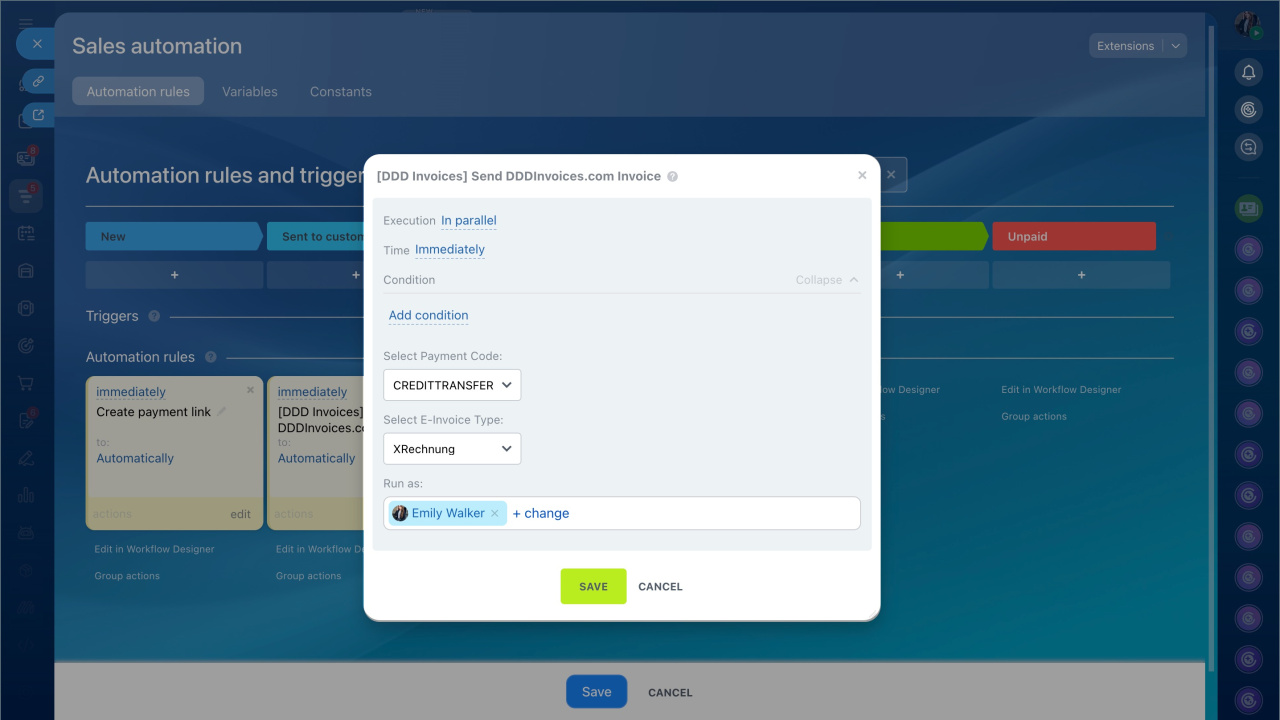
Send invoices created with DDD Invoices using automation rules
You can send e-invoices automatically using automation rules. Create a rule for the required stage.
Automation rules and triggers in Bitrix24
Click Create in the required stage and select the DDD Invoices automation rule in the Other block.
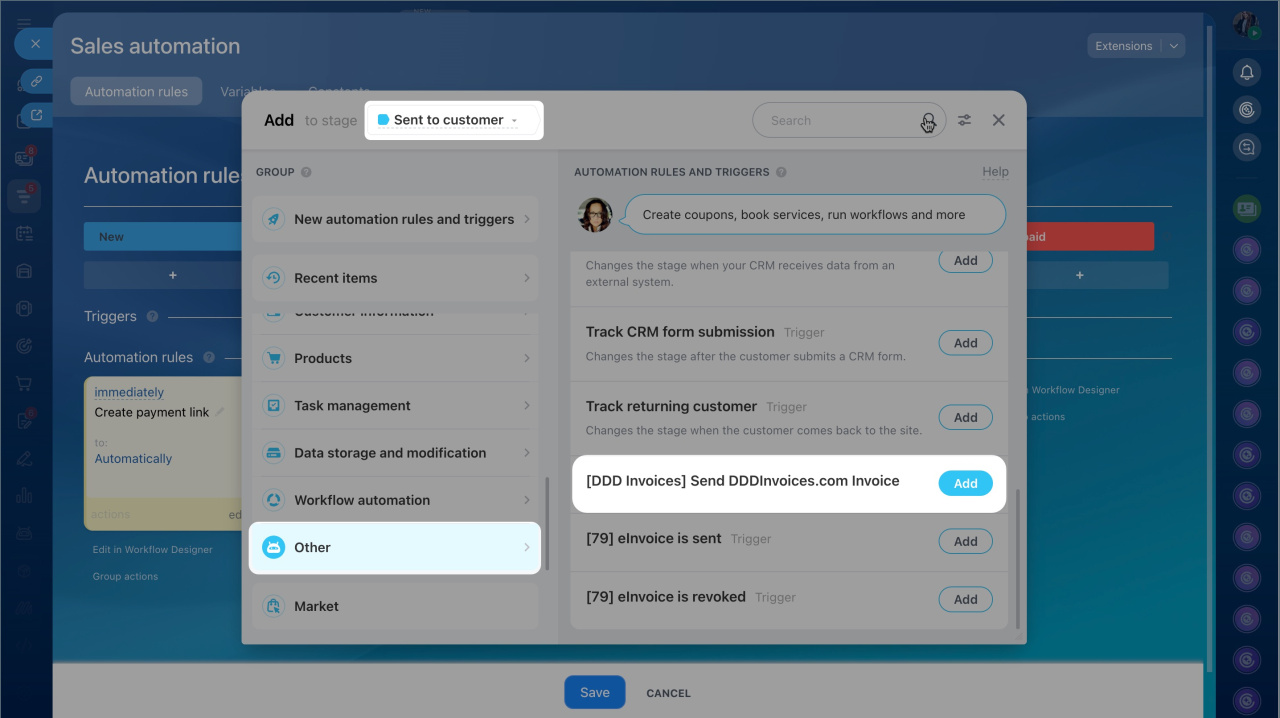
When the invoice reaches this stage, it is automatically sent to the tax authority.
You can also use triggers to move invoices automatically to a specific stage after sending or canceling an invoice.
In brief
- In Bitrix24, you can send invoices directly to tax authorities using the DDD Invoices integration.
- The integration supports only B2B invoices to legal entities and B2G transactions with public authorities.
- You need an active DDD Invoices account to use the integration.
- Install the DDD Invoices app from the Bitrix24 Market. After installation, the DDD Invoices option appears in the Timeline of Bitrix24 invoices.
- Each e-invoice should be linked to the correct tax rate. Create the required tax rates in Bitrix24 CRM settings.
- To create and send an e-invoice, click DDD Invoices in the Timeline menu. Complete the required fields and click Send.
- You can cancel a sent invoice at any time. Click the Revoke button.
- You can send e-invoices automatically using automation rules. Select the DDD Invoices automation rule or trigger in the Other block.