
In Bitrix24, you can enter your company details once and reuse them across invoices, estimates, contracts, and other documents. This helps you save time and avoid errors.
If you have added multiple companies, you can choose which details to use when creating a document.
In this article:
Check which company is used in documents
By default, Bitrix24 uses the primary company for all documents.
Add company details
Role-based access permissions in CRM
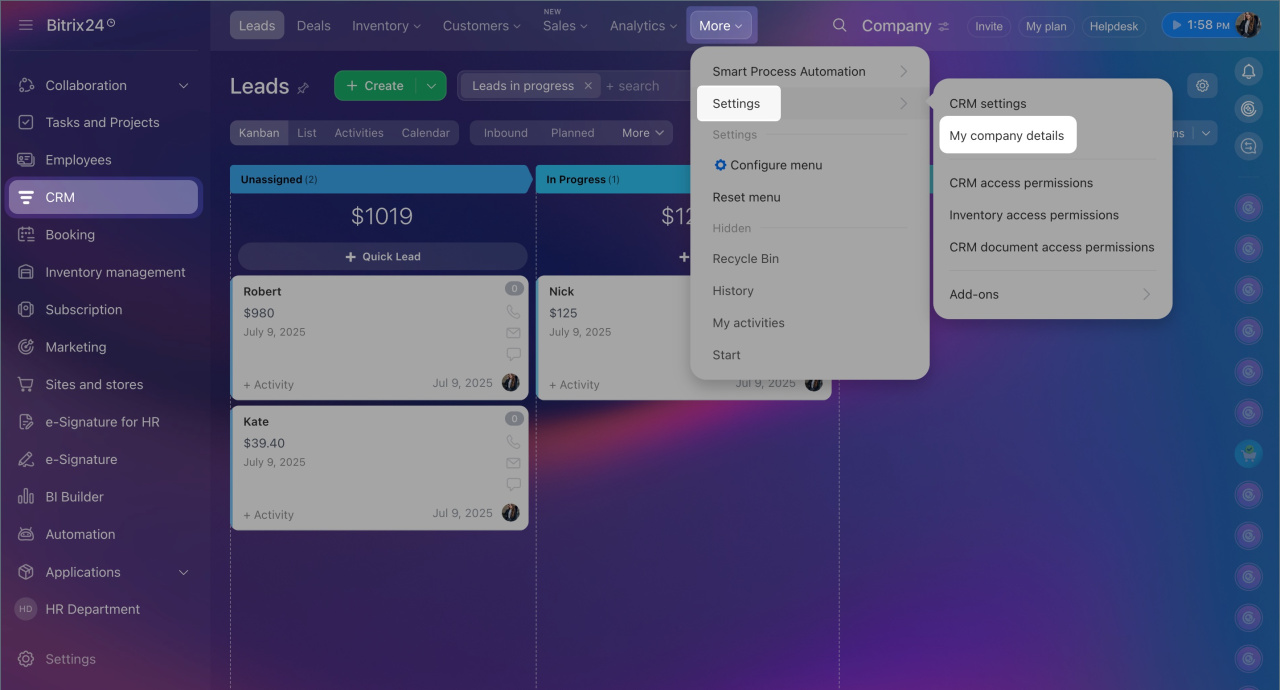
1. Go to CRM > More > Settings (⚙️) > My company details.
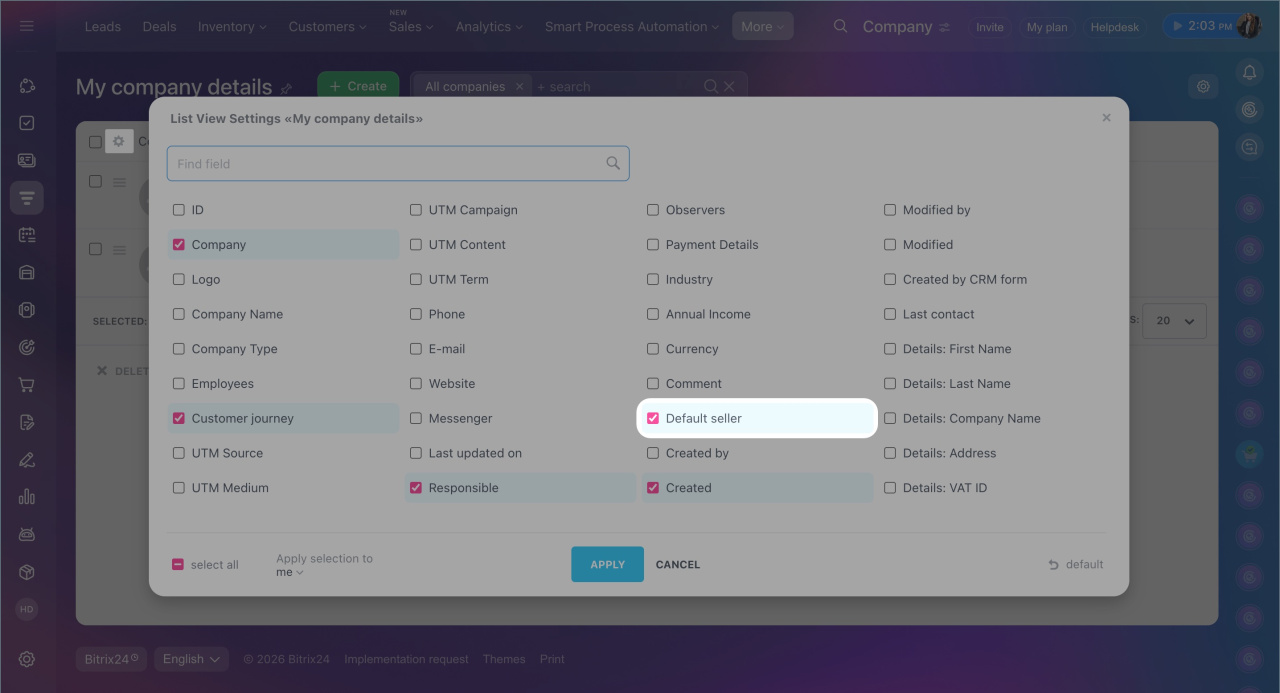
2. Click Settings (⚙️) > Default seller.
3. Click Apply.
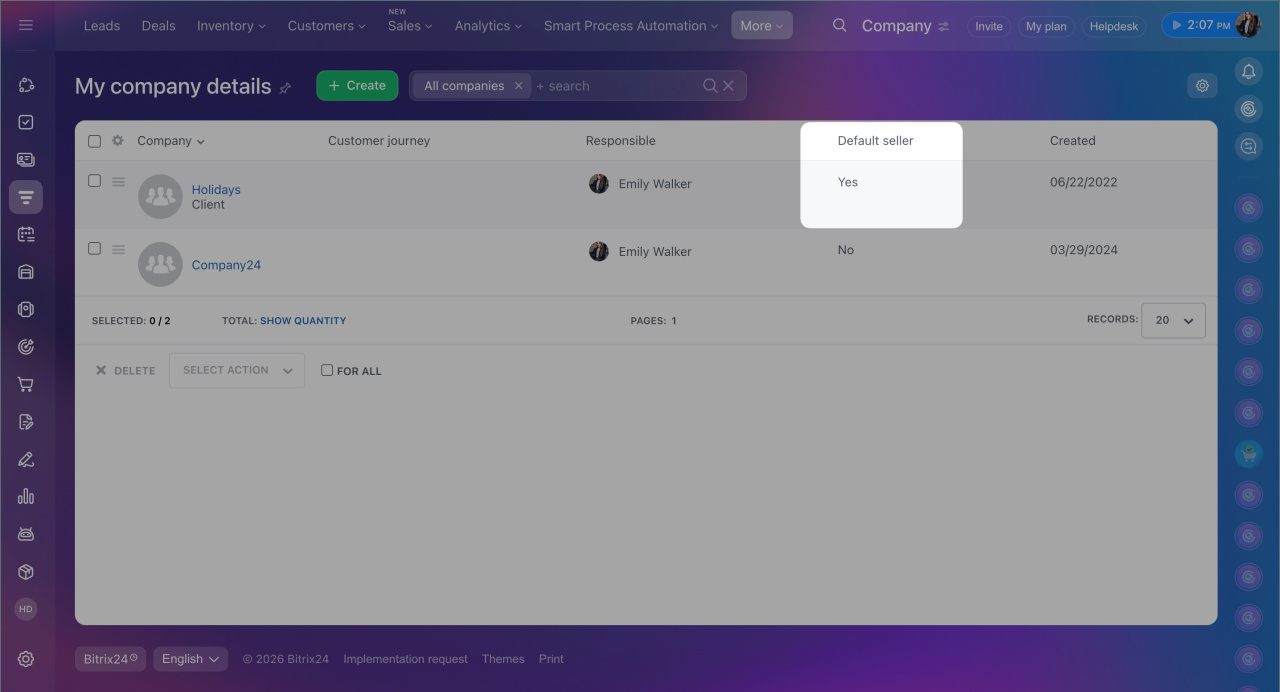
4. Check which company is marked as primary. Its details will be used in documents.
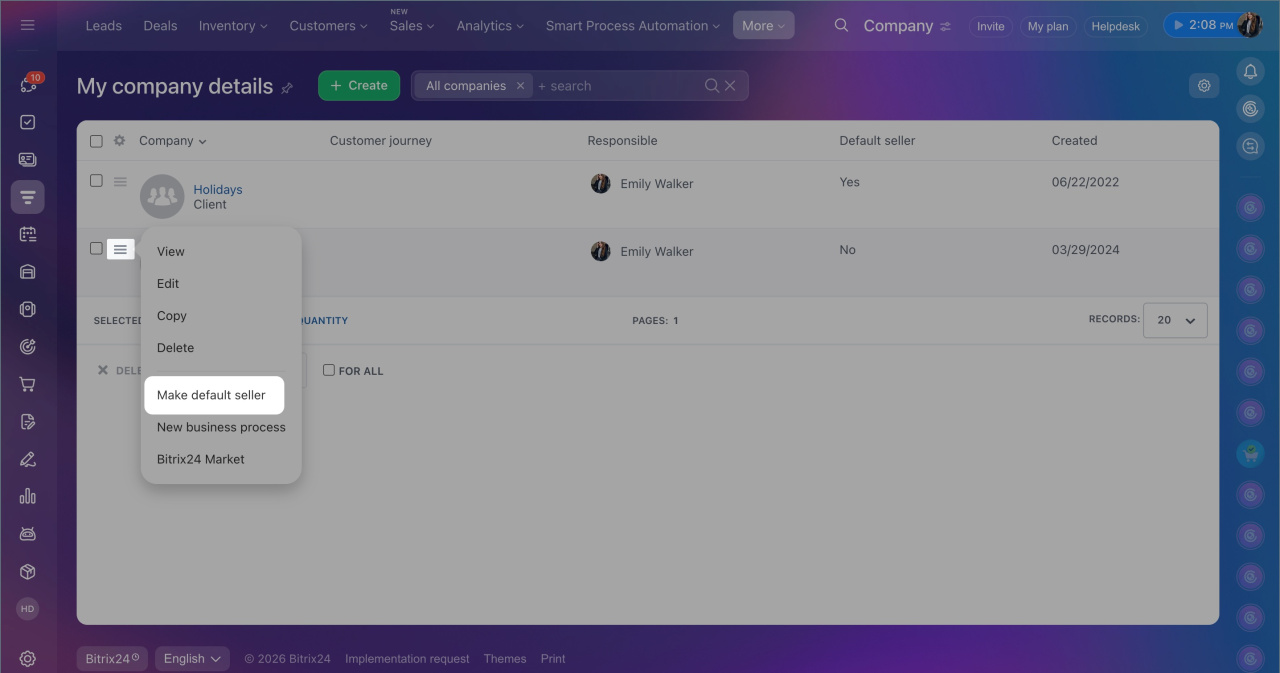
5. To change it, click Menu (≡) > Set as primary next to another company.
Add company details to invoices and estimates
When you create an invoice or estimate, Bitrix24 automatically uses the primary company details.
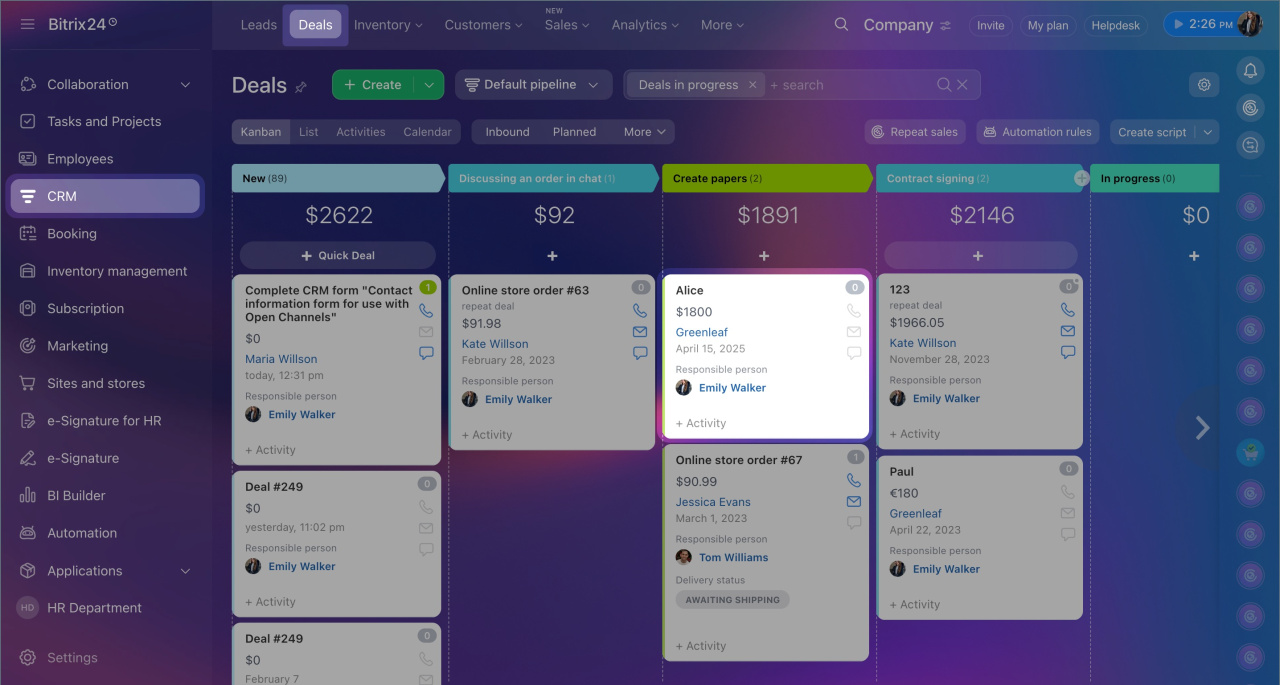
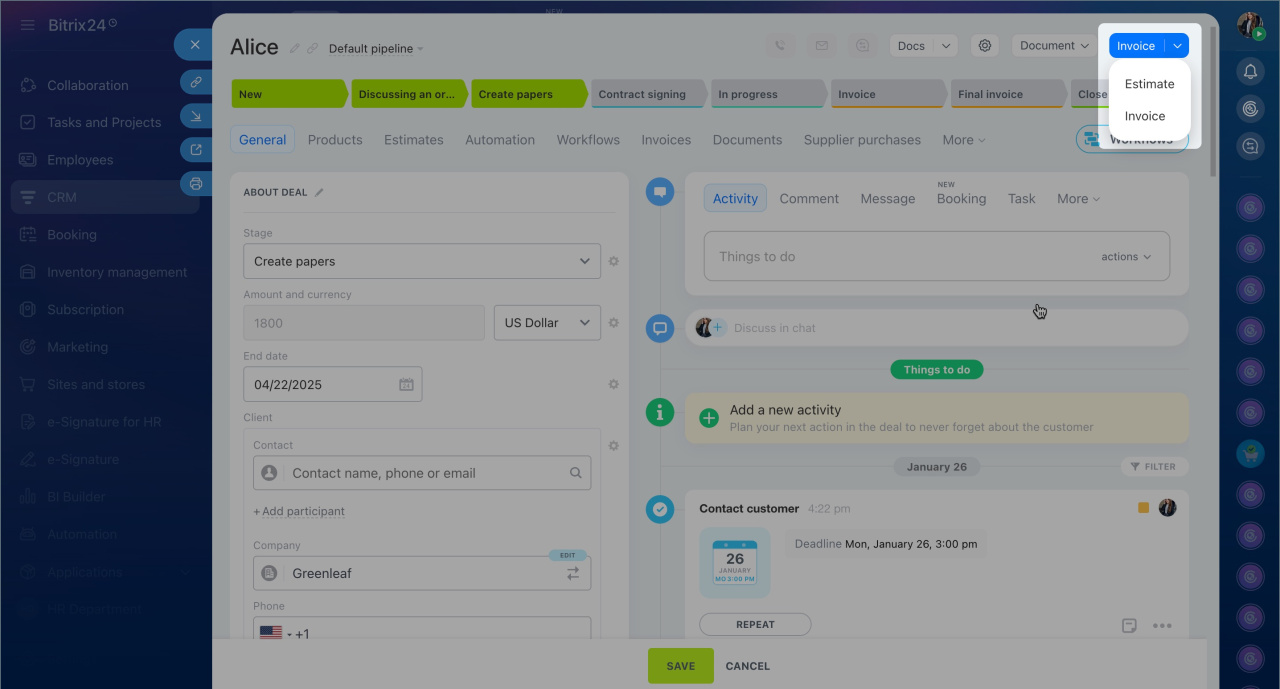
1. Go to CRM > Deals and open a deal.
2. Click Invoice or Estimate in the top-right corner.
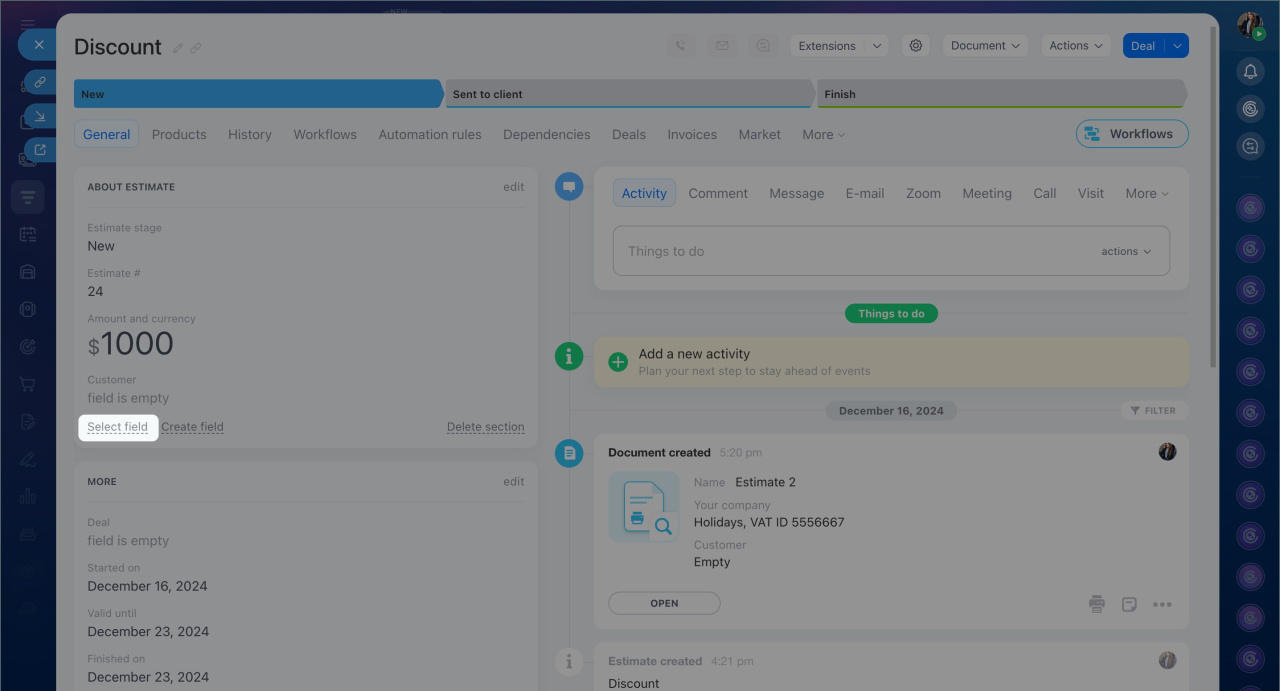
After you create the document, review the company details in the form.
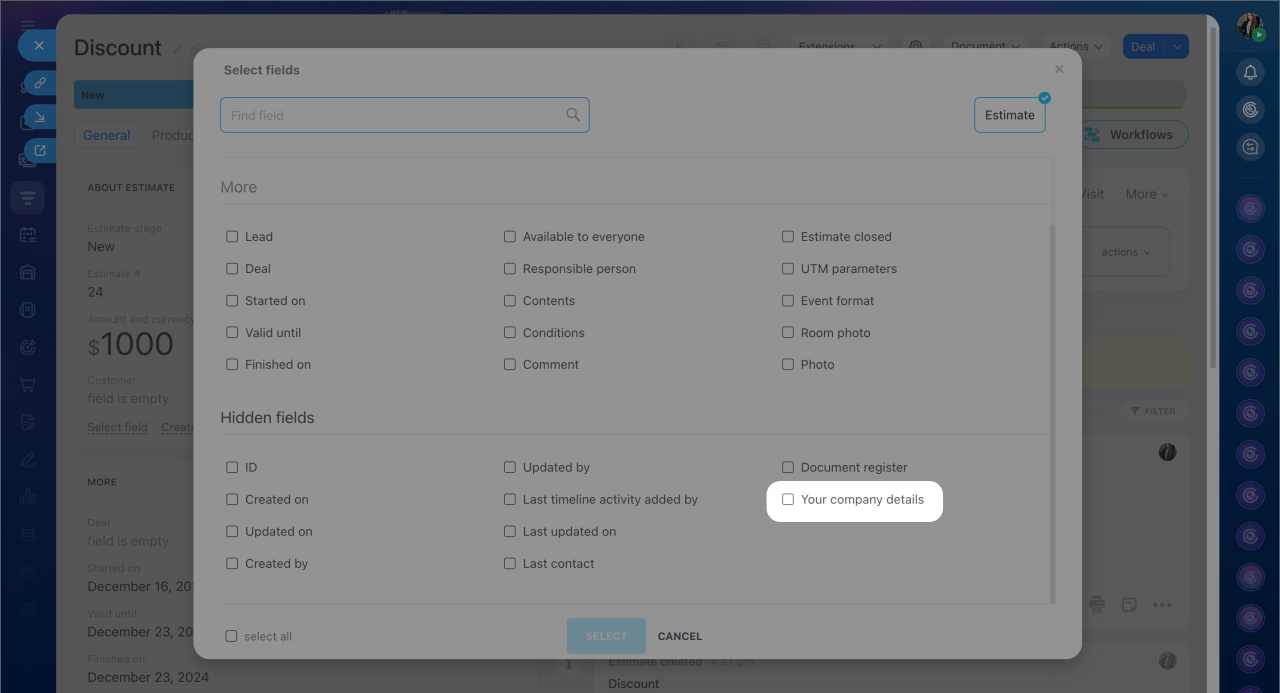
If the details are missing, add the field to the form:
1. Click Select field in the desired section.
2. Choose Your company details.
3. Click Select.
The company details will appear in the form.
Add company details to documents
Company details in documents depend on the template type.
Standard document templates. In standard templates, the details of the primary company are automatically used. Simply select the required template and verify the data before sending it to the customer.Documents in CRM: Create and send to customers
Access permissions for CRM documents
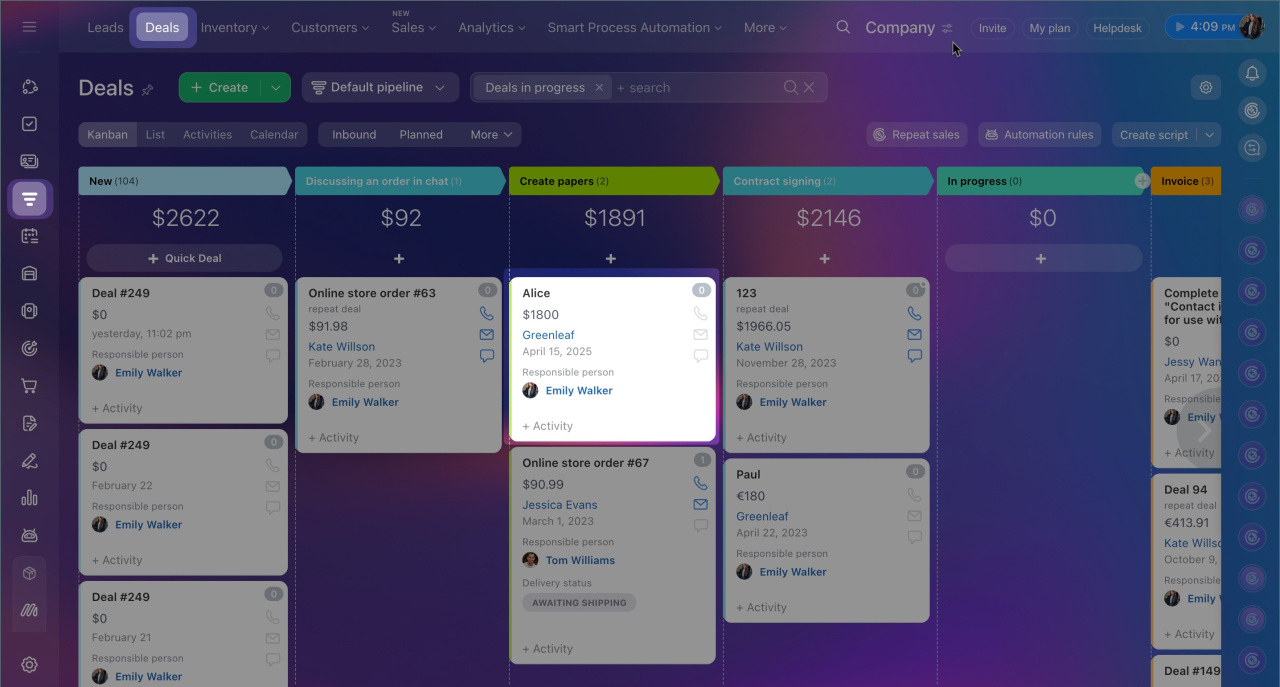
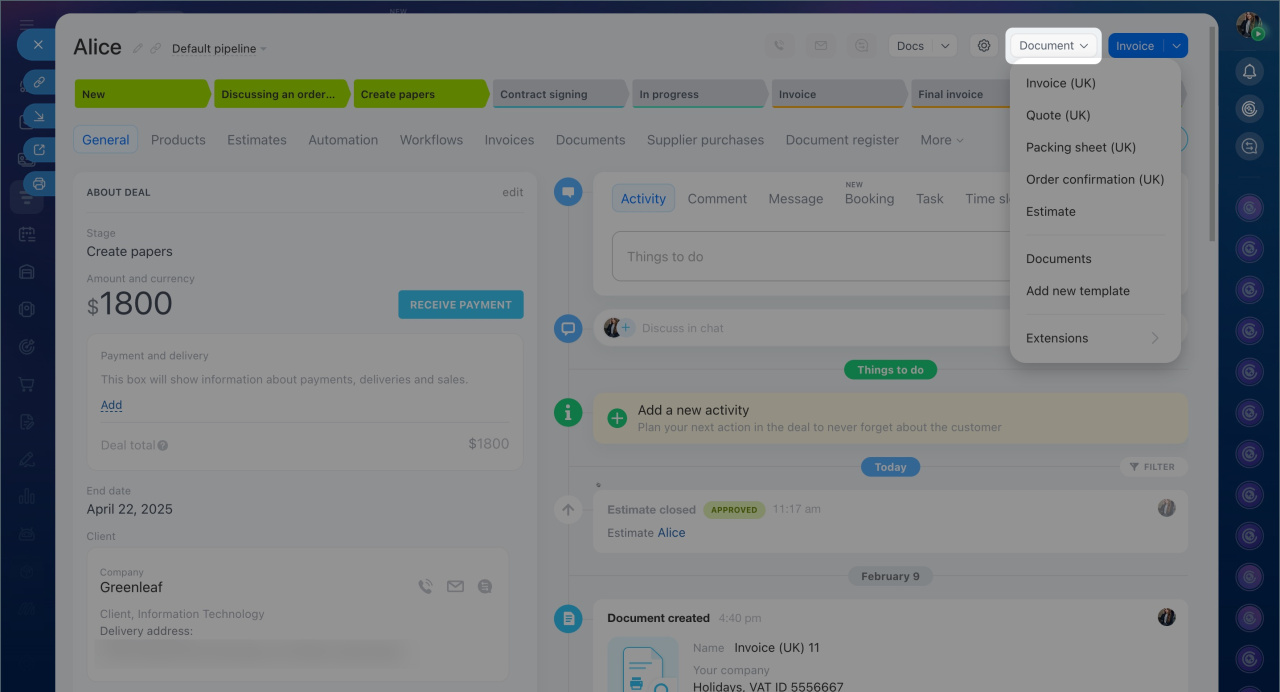
To create a document:
- Go to CRM > Deals and open a deal.
- Click Document and select a template.
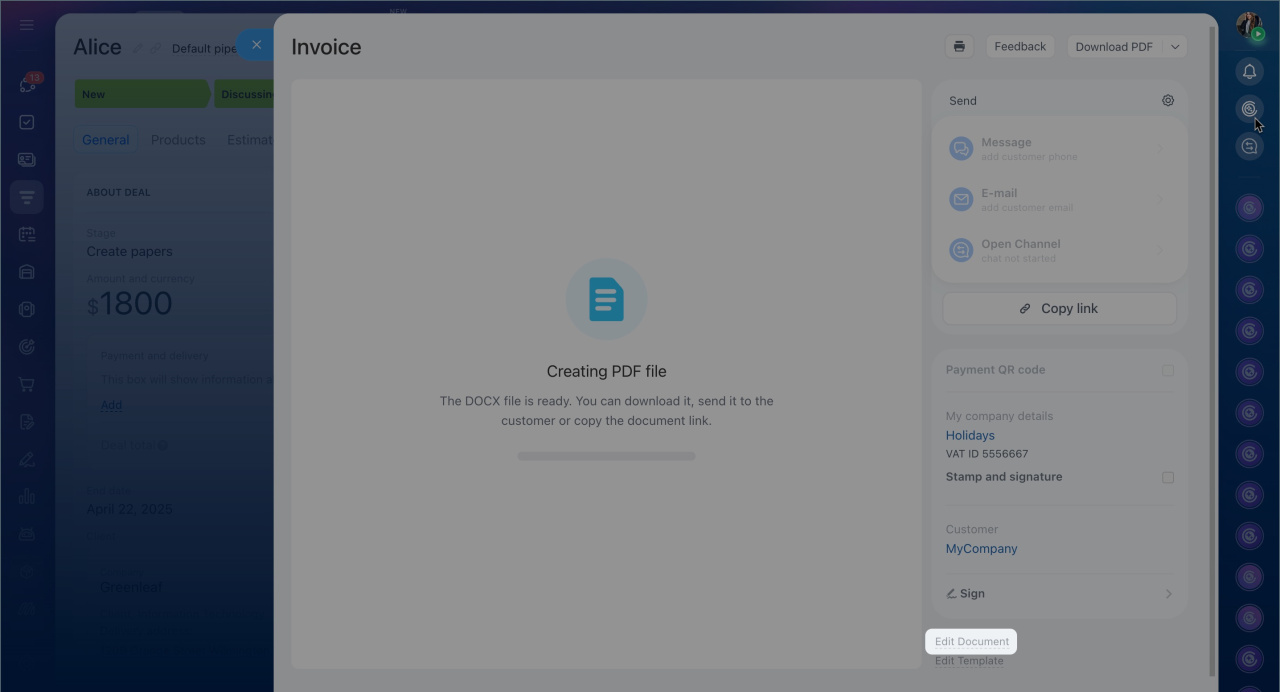
- Review the company details.
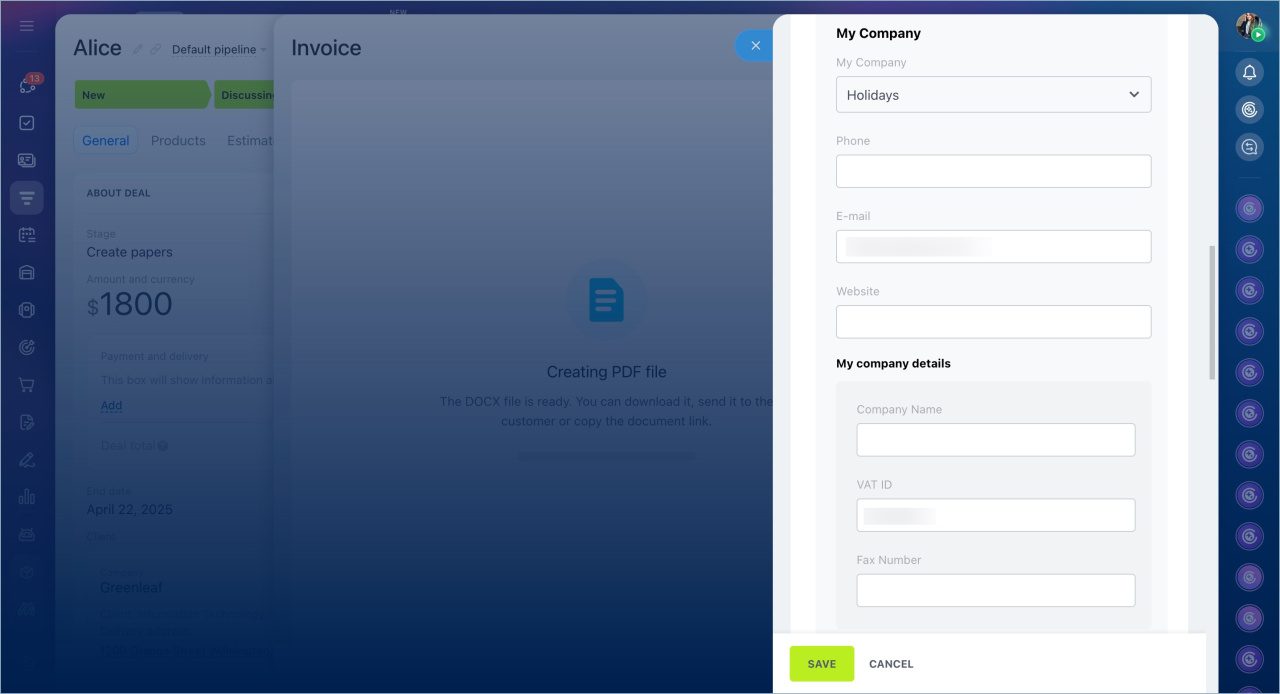
To use another company:
- Click Edit document.
- In the My company field, select a different company.
- Save your changes.
Custom document templates. In custom templates, you must insert company details manually using symbolic codes. These codes are replaced with actual data when the document is created.
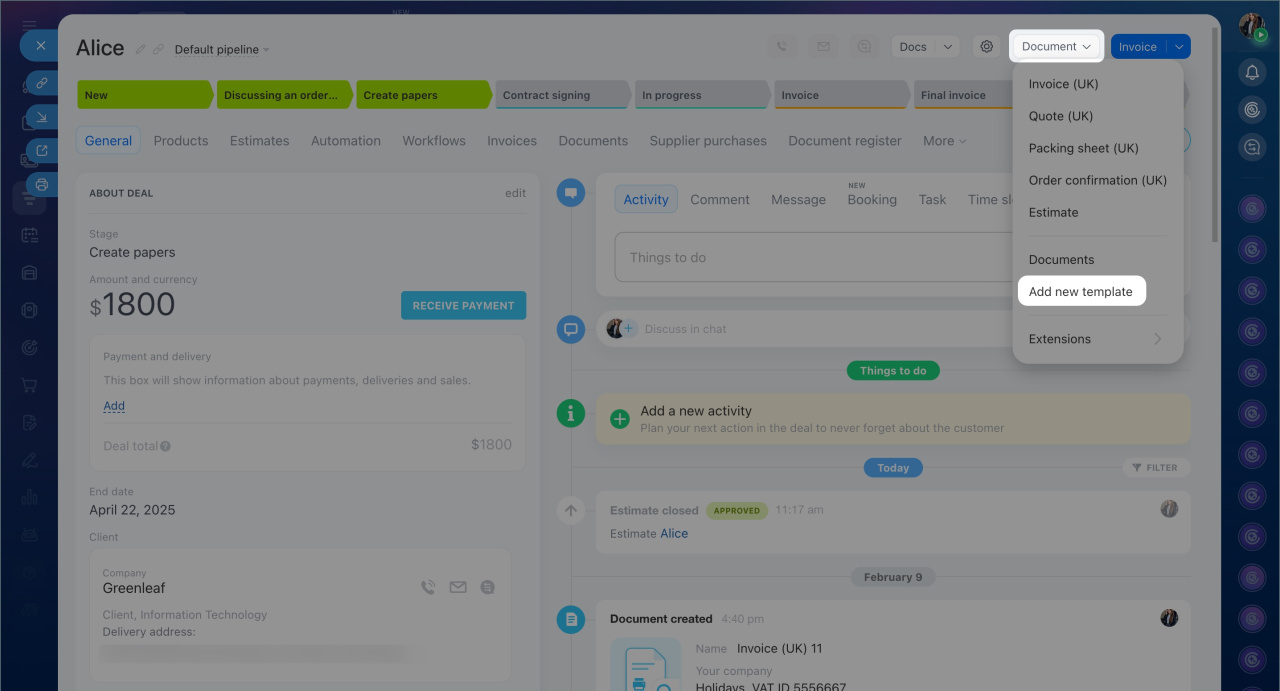
- Go to CRM > Deals and open a deal.
- Click Document > Add new template.
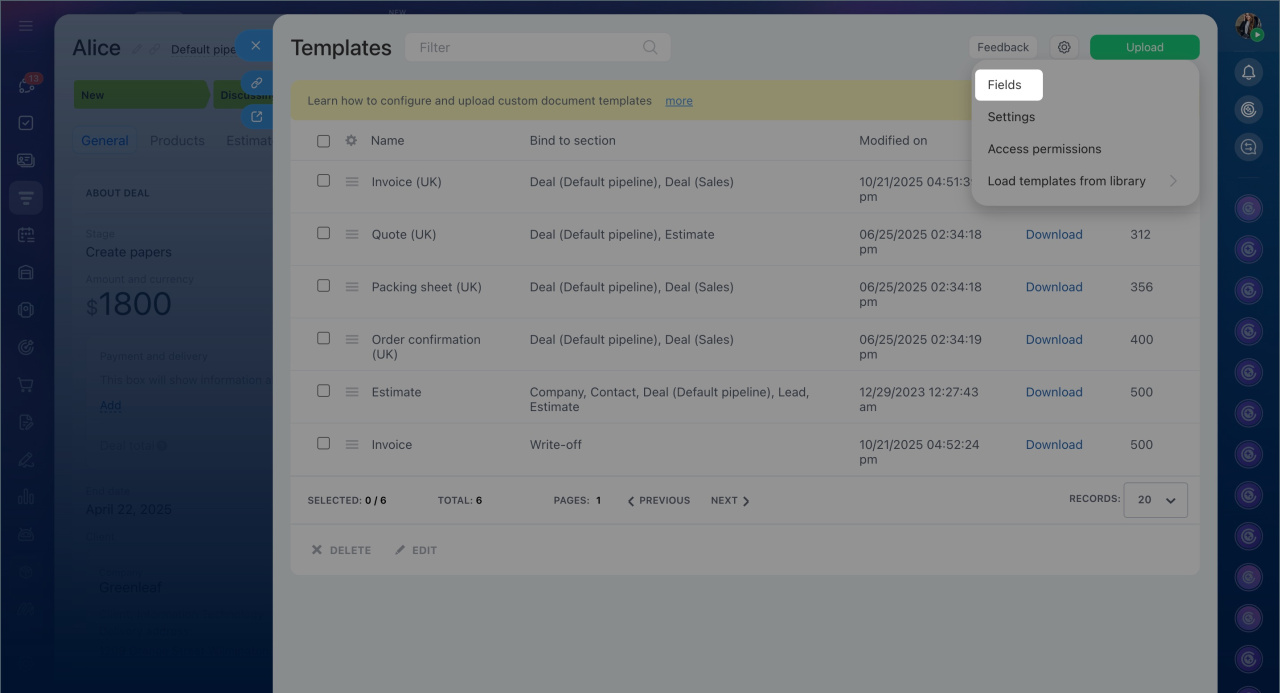
- Open Settings (⚙️) > Fields.
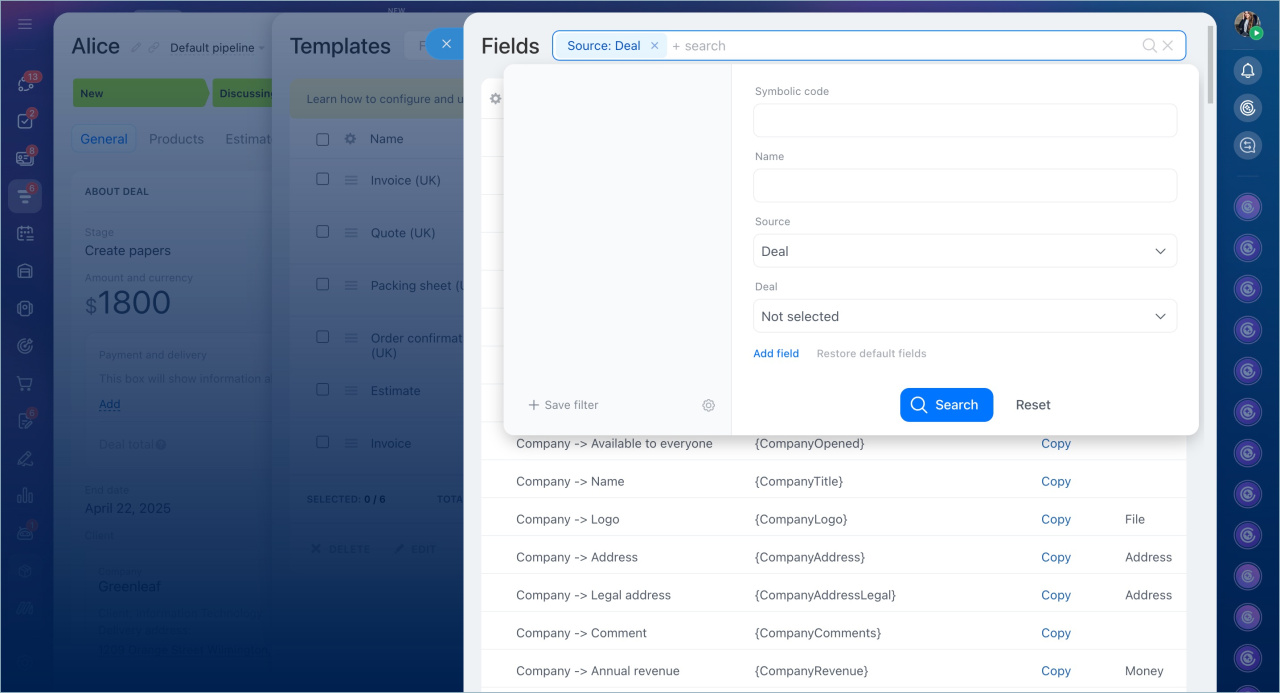
- Use the filter to find fields:
- In Source, select the CRM item (for example, Deal).
- In Deal, select My company > Customer details.
- Click Search to view available fields.
Add the required codes to your template and upload it to Bitrix24.
Create and upload your document template to CRM
Edit standard document templates in CRM
Use company details on a landing page
Bitrix24 can automatically create a landing page with your company details and contact information.
You can share this page with clients or partners instead of sending documents.
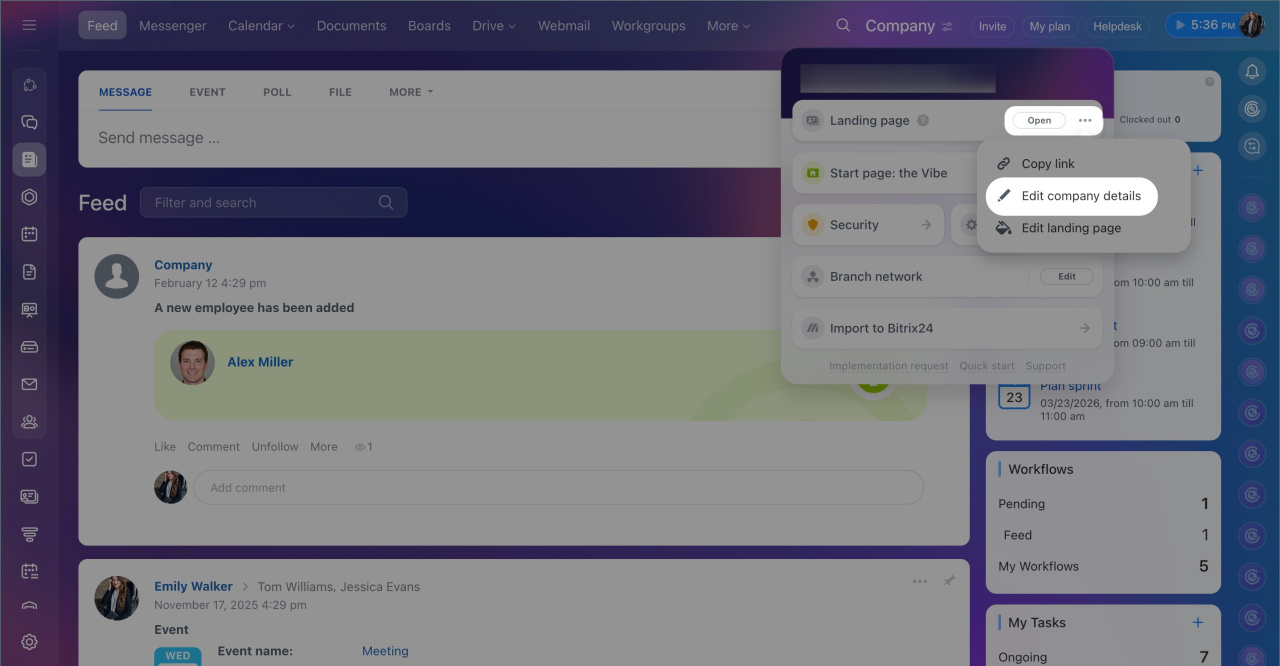
To open the landing page:
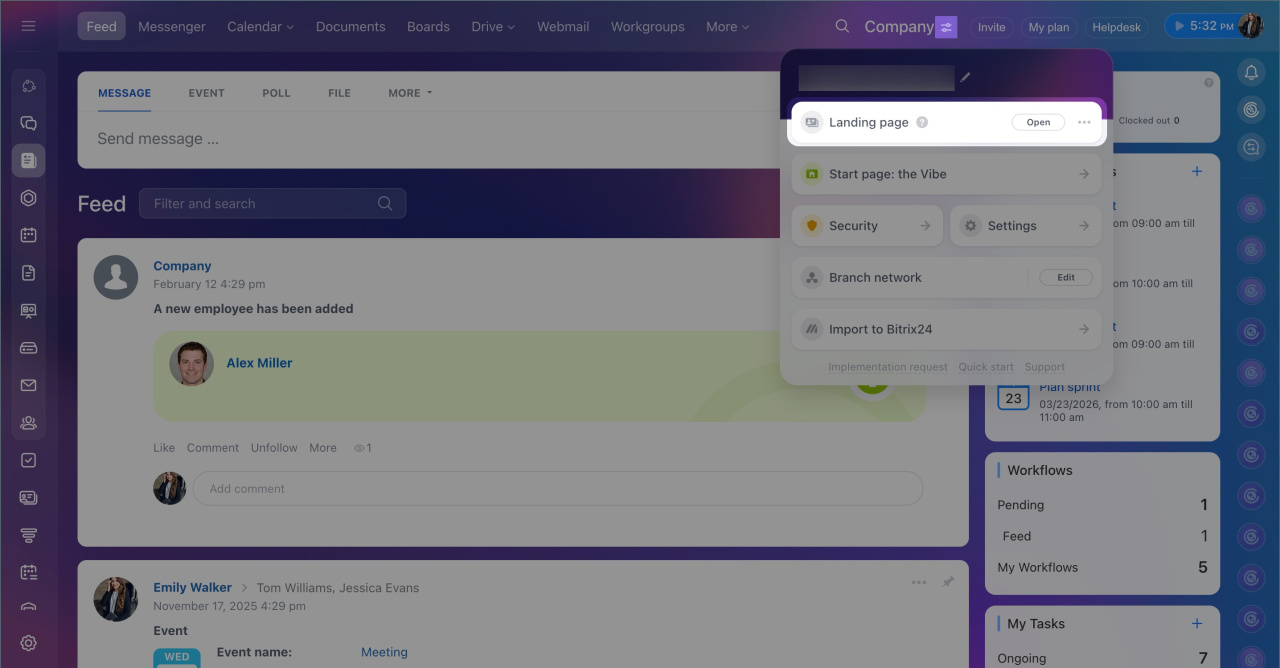
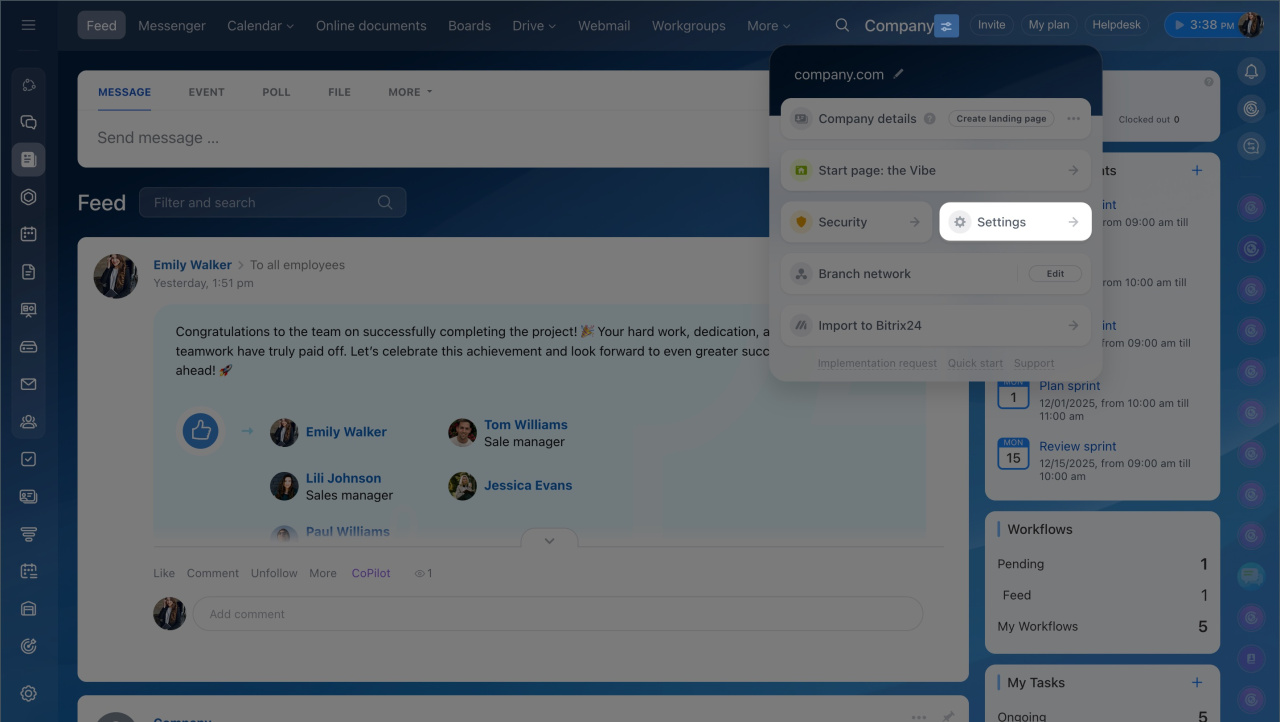
- Click Settings next to your company name.
- Click Landing page.
- Click Open to view it.
- Click Menu (≡) > Edit company details to make changes.
If you have multiple companies, you can create a separate landing page for each:
- Click Settings next to your company name.
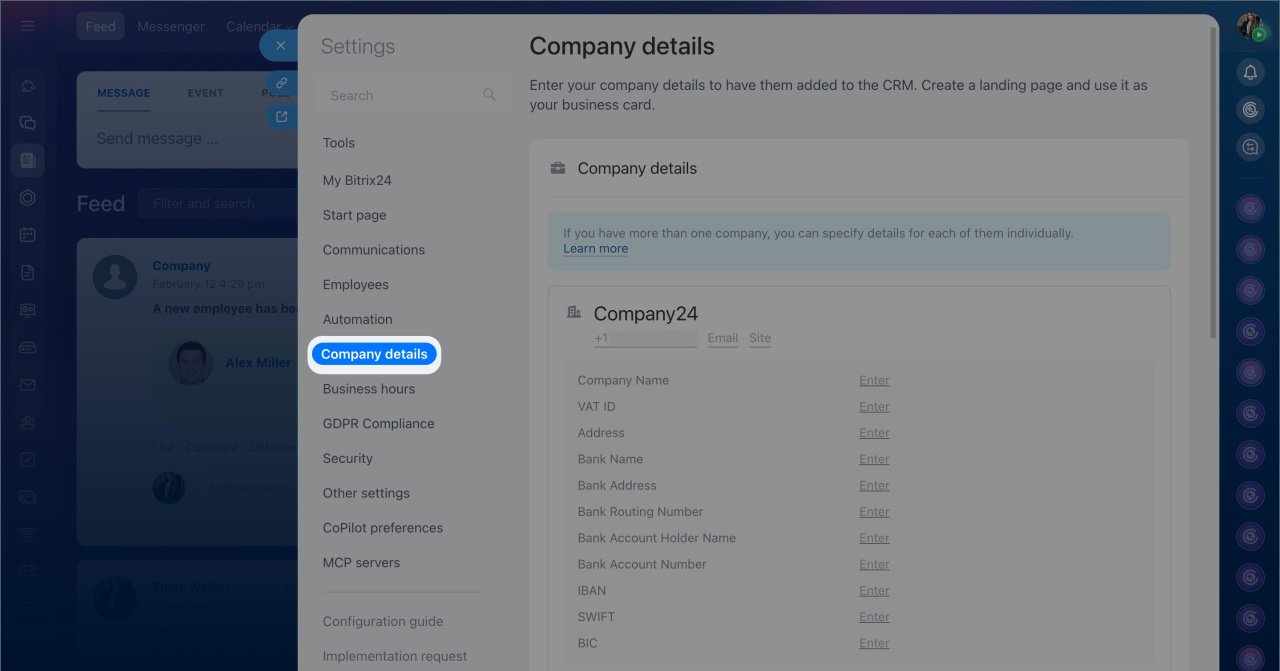
- Go to Settings (⚙️) > Company details.
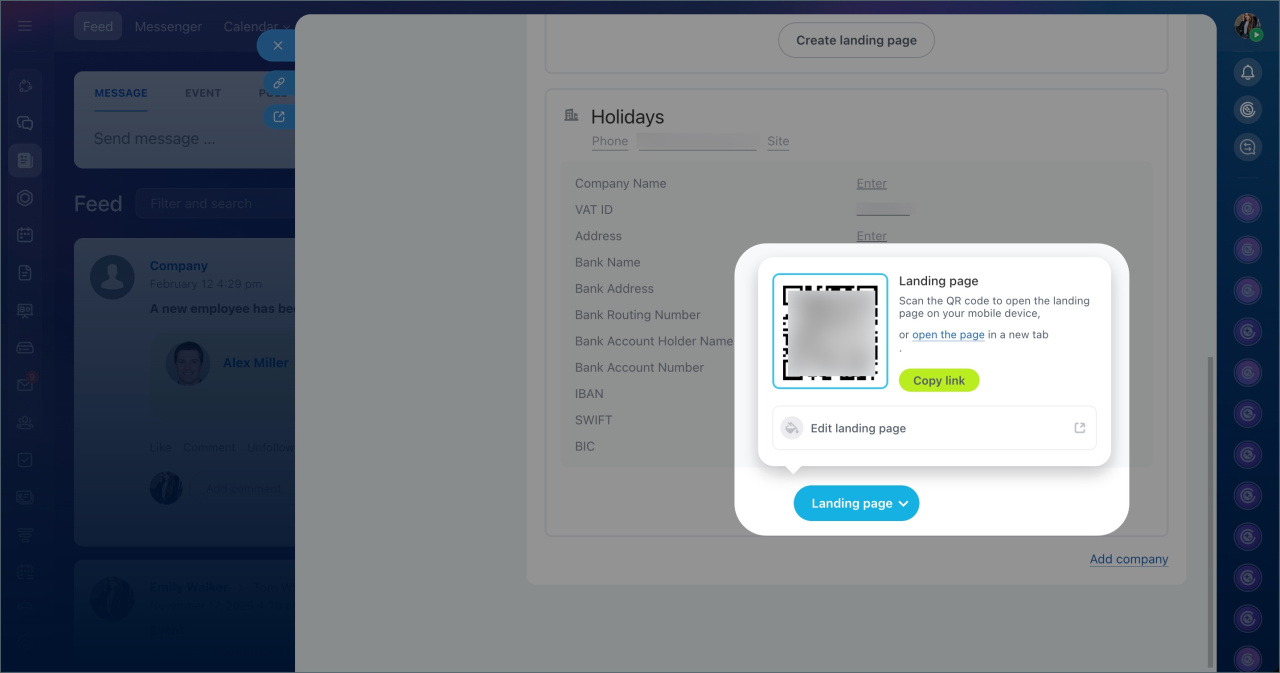
- Click Create business card site next to the company.
In brief
- Add company details once and reuse them in documents and pages.
- By default, Bitrix24 uses the primary company details.
- Standard templates fill in details automatically.
- Custom templates require symbolic codes.
- You can select different company details when editing a document.
- You can create and share a landing page for each company.