This scenario involves booking multiple resources that work together. This approach is convenient when a service requires a combination of resources, like a specialist and a room, a technician and equipment, or multiple specialists.
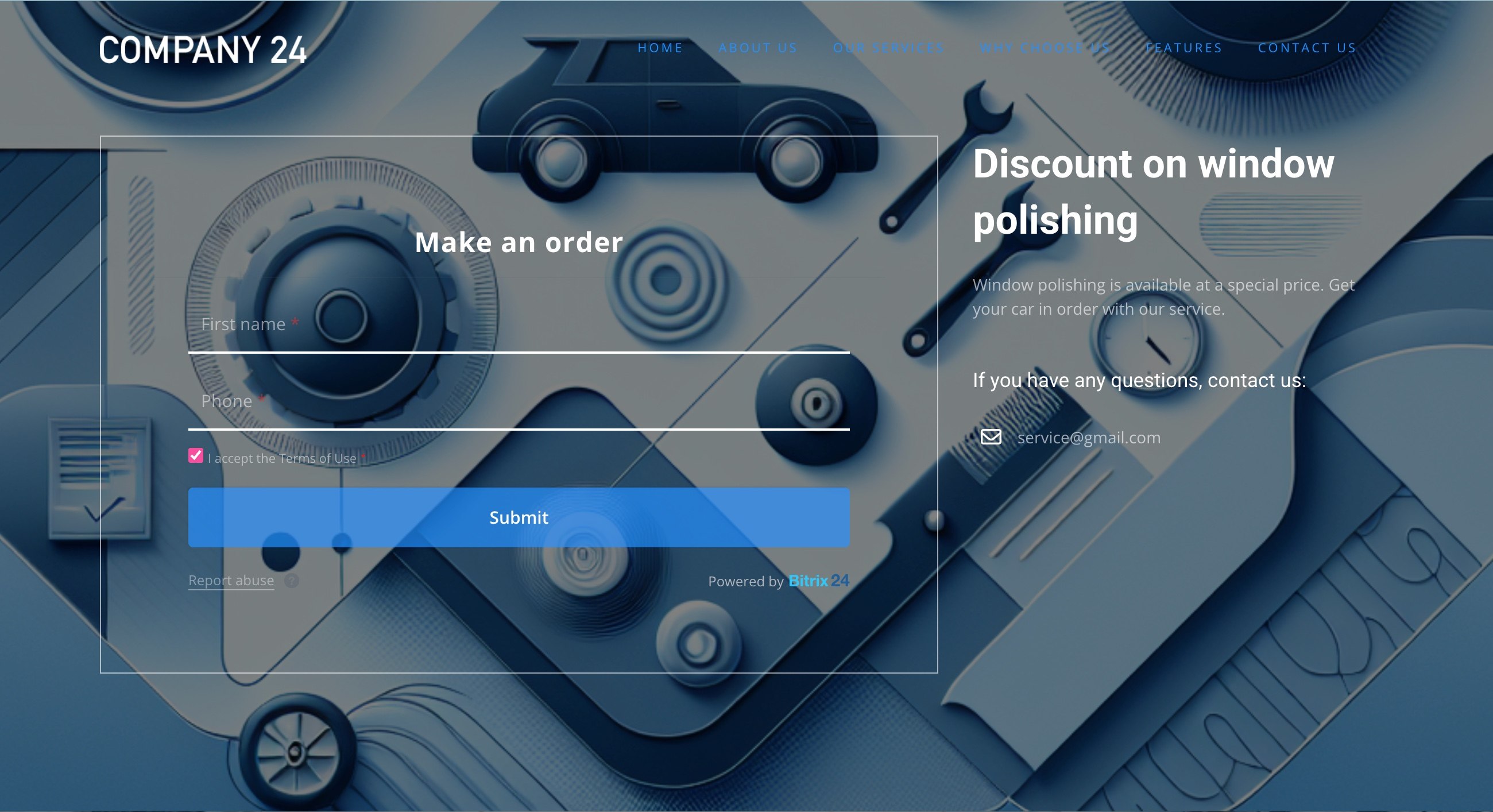
As an example, an auto repair shop runs a promotion for glass polishing. A car owner submits a request through the website, providing their contact details. The agent contacts the customer to confirm a convenient time and books the appropriate slot in the schedule, reserving both the technician's time and an available service bay.
Settings
To set this up, follow these steps:
- Create two types of resources: primary (technicians) and additional (service bays).
- Create a CRM form to collect requests.
Configure the primary resource – technician
- Specify the name, type, working hours, and default slot duration.
- Select "Show as grid column header" in the "View mode" section, since the technician is the primary resource.
- Since there are multiple technicians, check the box next to "Apply these preferences to this and all subsequently created resources" to configure automatic messages for all of them. Save the settings.
Configure the additional resource – service bay
- Specify the name, type, working hours, and default slot duration.
- Select "Show as an auxiliary resource" in the "View mode" section. The resource will not appear on the schedule board and will only be available in the overlap section.
- Repeat these steps if there are multiple service bays.
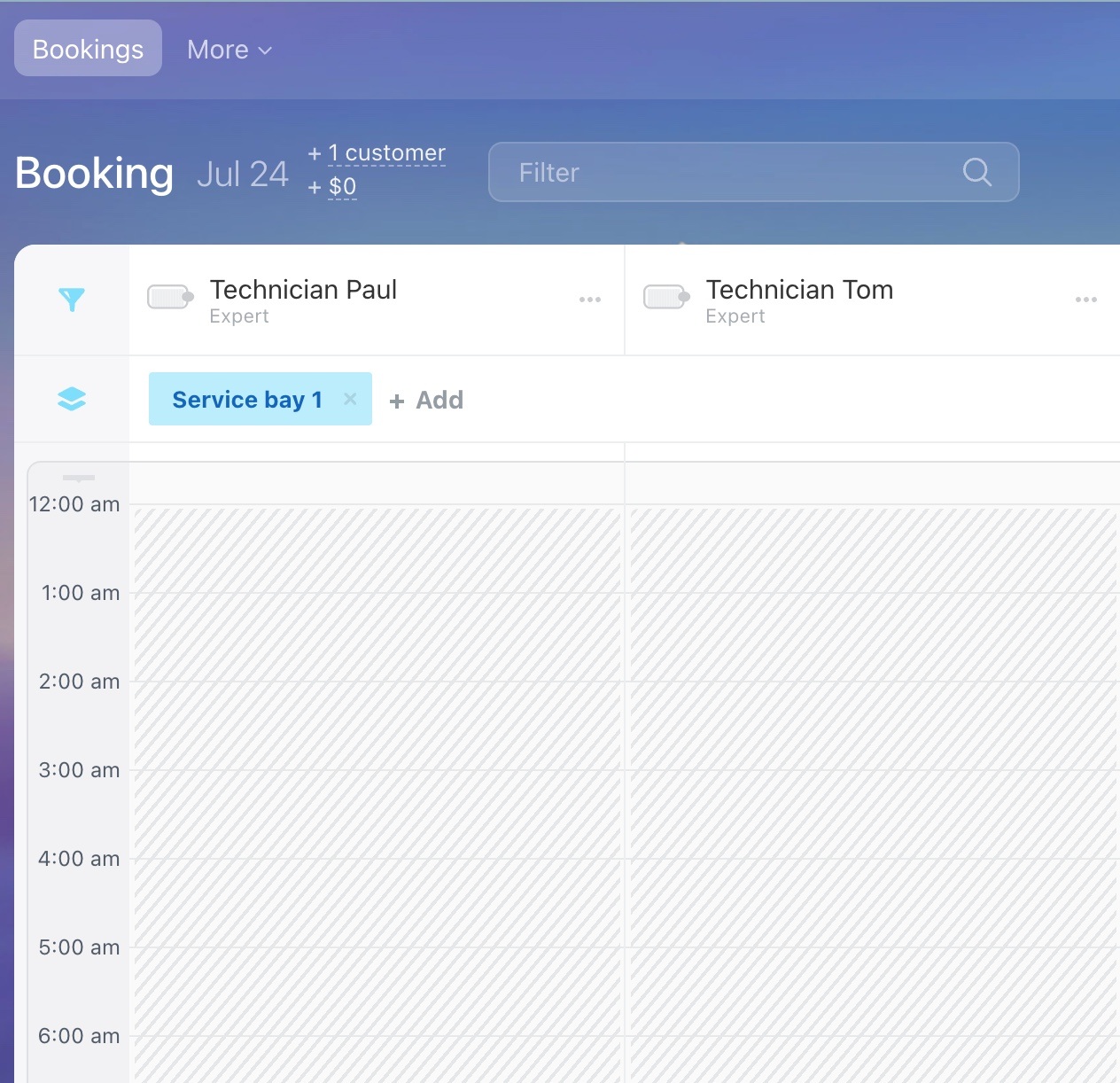
To book two resources simultaneously, click + Make resource bundle, add the additional resource, and create a booking in the primary resource column.
Tip
If needed, you can display the additional resource on the schedule board by clicking the funnel icon. This will create a personalized view for the agent.
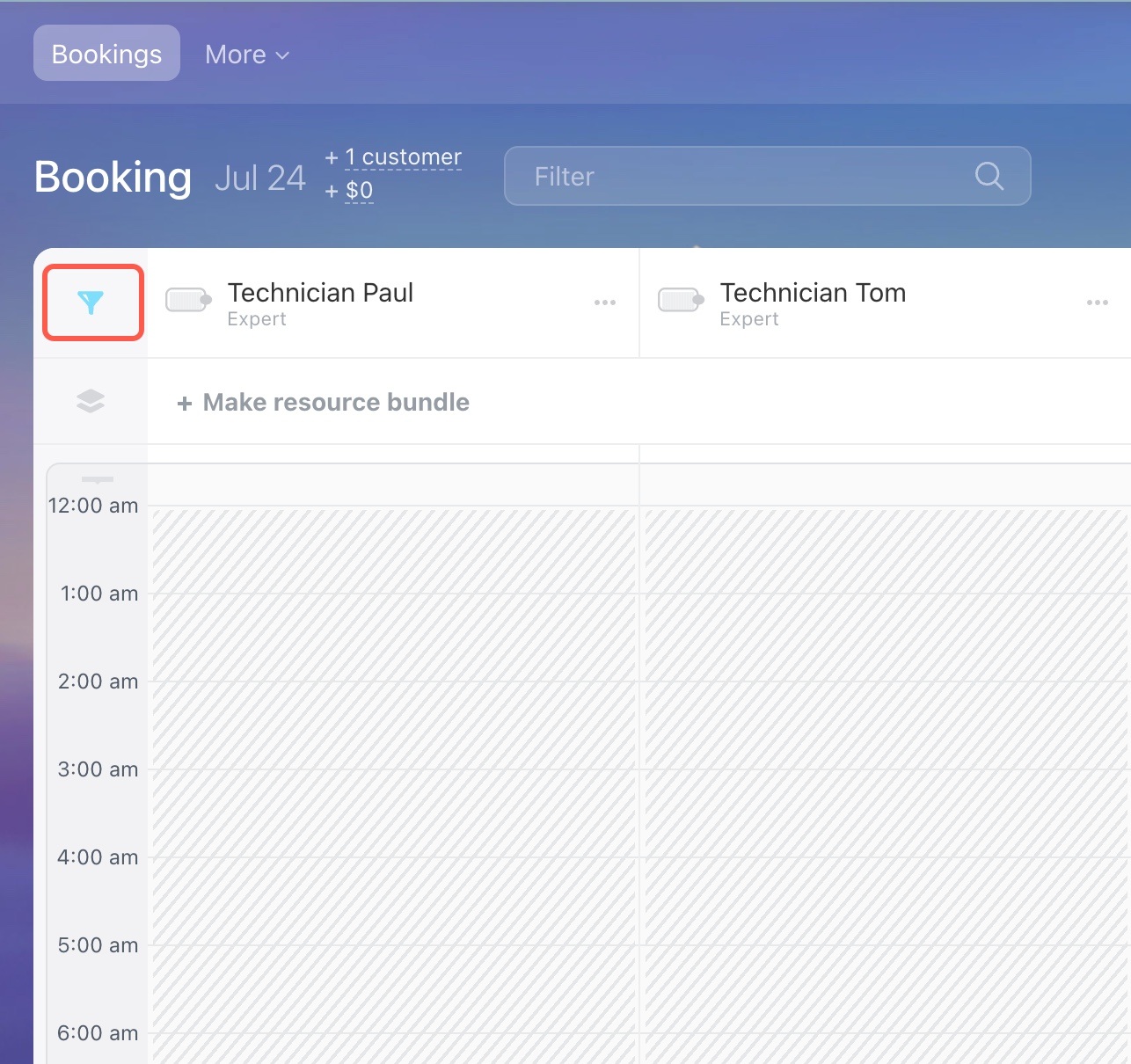
To display it for everyone, change the resource settings and set the view mode to "Show as grid column header".
Create a form
Create a CRM form for requests. This can be a callback form or a simple form to collect contact details.
Once the booking form is ready, publish it on your website so customers can submit their requests.