Let's see how a single-resource booking works using a fitness club as an example.
At the fitness club, customers can book personal training sessions with a coach. Since many people prefer one-on-one sessions, it's important to organize the schedule clearly to prevent potential overlaps. This is where online booking can help.
Settings
To set this up, follow these steps:
- Create a resource for each coach.
- Configure the online booking form.
- Publish the form on the site.
Create and configure resources
Create a separate resource for each coach:
- Name: Coach's name.
- Type: A custom type like "Coach".
- View mode: Show as grid column header, as the coach is the main resource.
- Message settings: Since there are multiple coaches, check the box "Apply these preferences to this and all subsequently created resources". This will automatically copy the settings to new resources.

Create a form
Create a form with the type "Select from all resources". In the form settings, specify the created resources in the "Select resource" field.
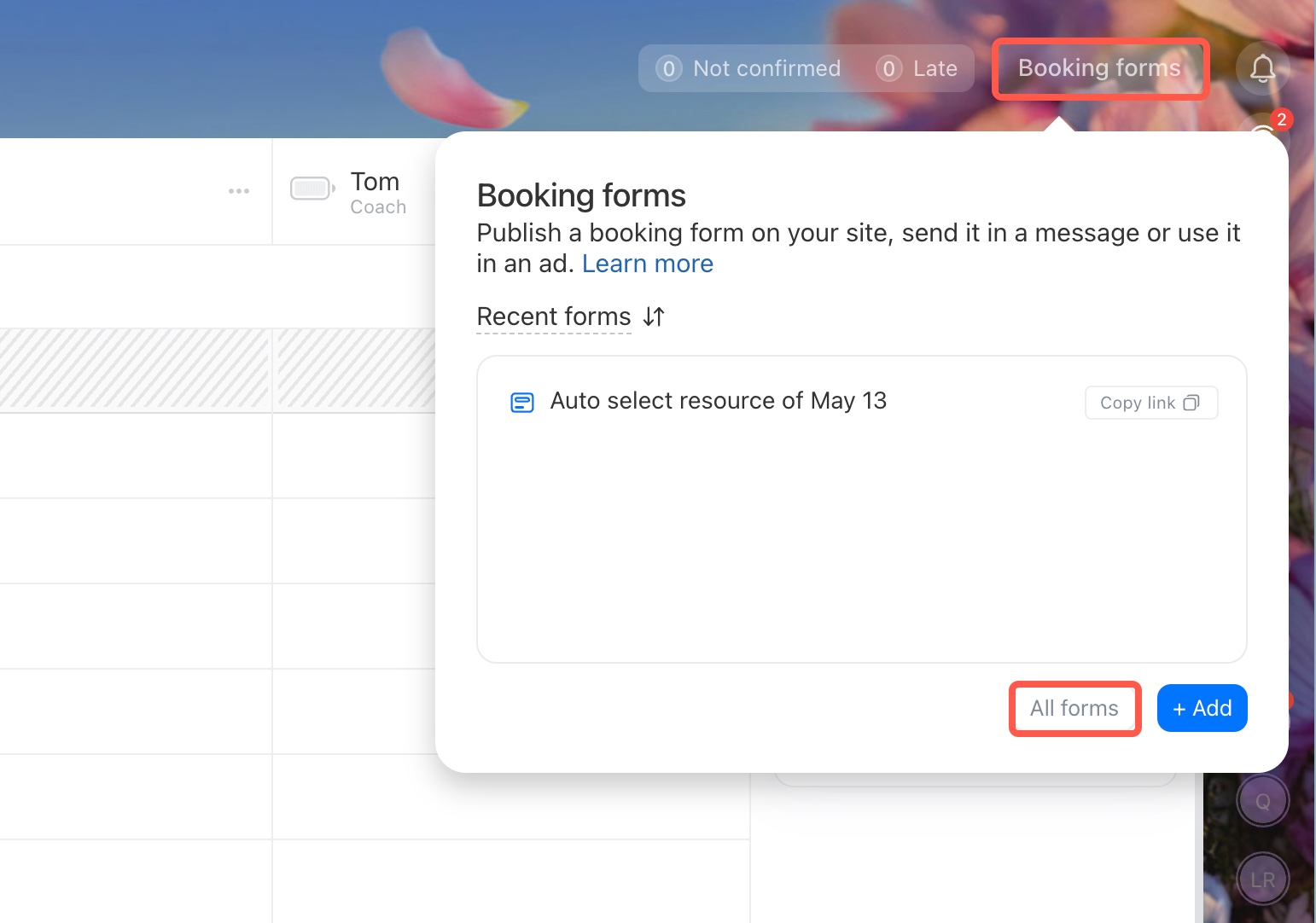
Publish the form on the site
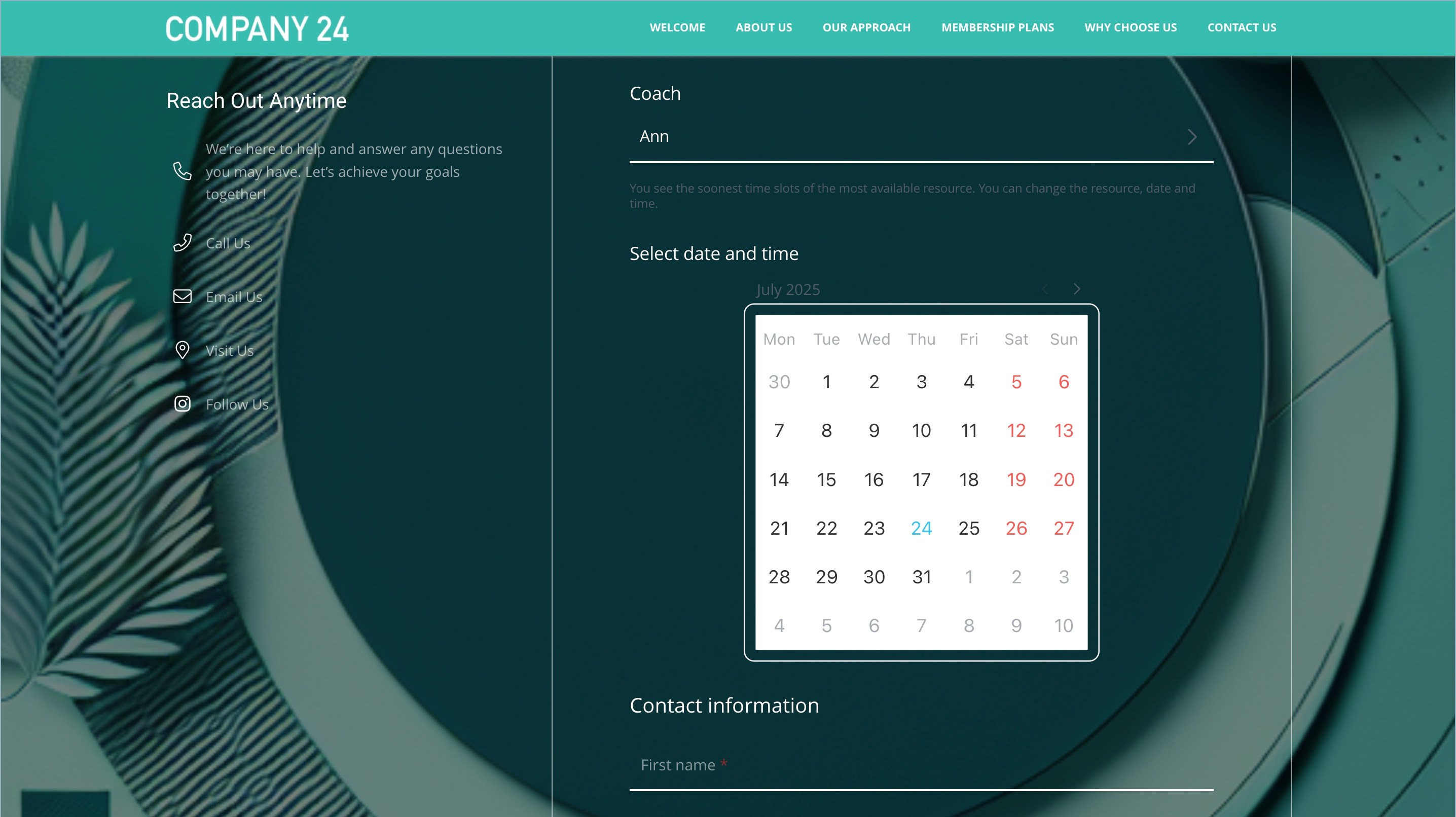
Once your booking form is ready, publish it on the site so customers can start booking appointments.
Tip
Create a site with CoPilot
CoPilot is an AI assistant that generates sites based on a given theme. Describe the parameters, select the design and images, and write the text.