
Short answer:
- For Windows: About program - Check for updates.
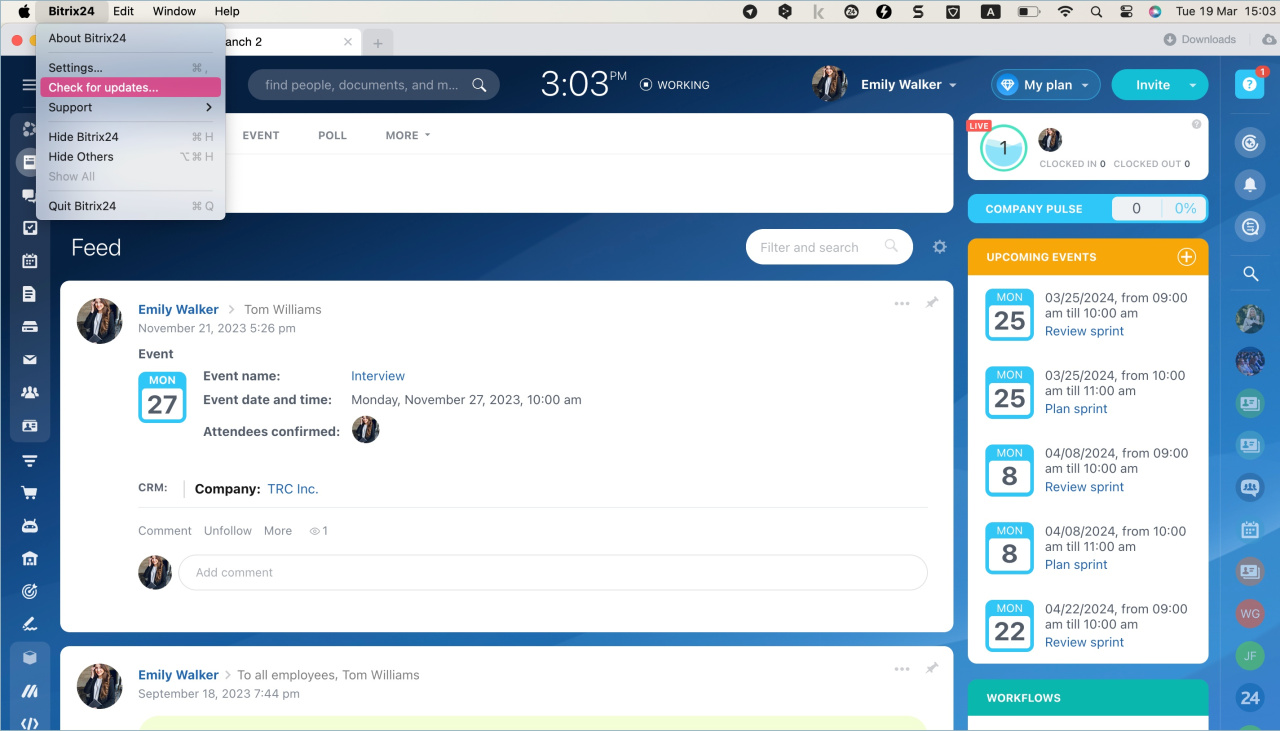
- For macOS: Bitrix24 - Check for updates.
If there are updates, Bitrix24 will offer to install the new version.
Detailed information
Every time you launch the Bitrix24 application, there is a check for updates. If you miss the offer to install a new version, you can do it manually.
Windows. Right-click the Bitrix24 icon in the notification window. Click on the dots icon. Select About - Check for updates. If the version is outdated, Bitrix24 will offer to download a new one.
.png "Windows")
macOS. Click Bitrix24 and select Check for updates in the menu. If there are no updates, you will see the corresponding message. Otherwise, Bitrix24 will offer to install the new version.
Read also: