
Sync your Bitrix24 calendar with your Android device to keep all meetings and events in one place.
Sync using a QR code
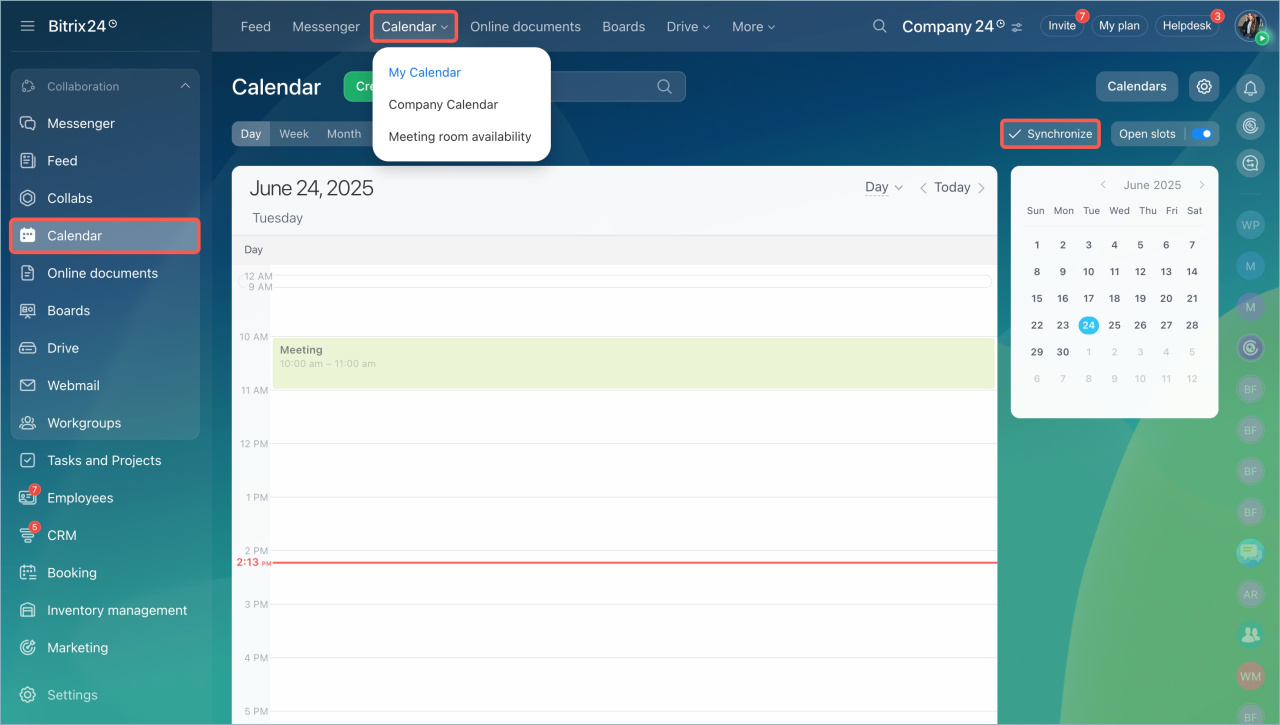
- Open Calendar in Bitrix24.
- Click Synchronize.
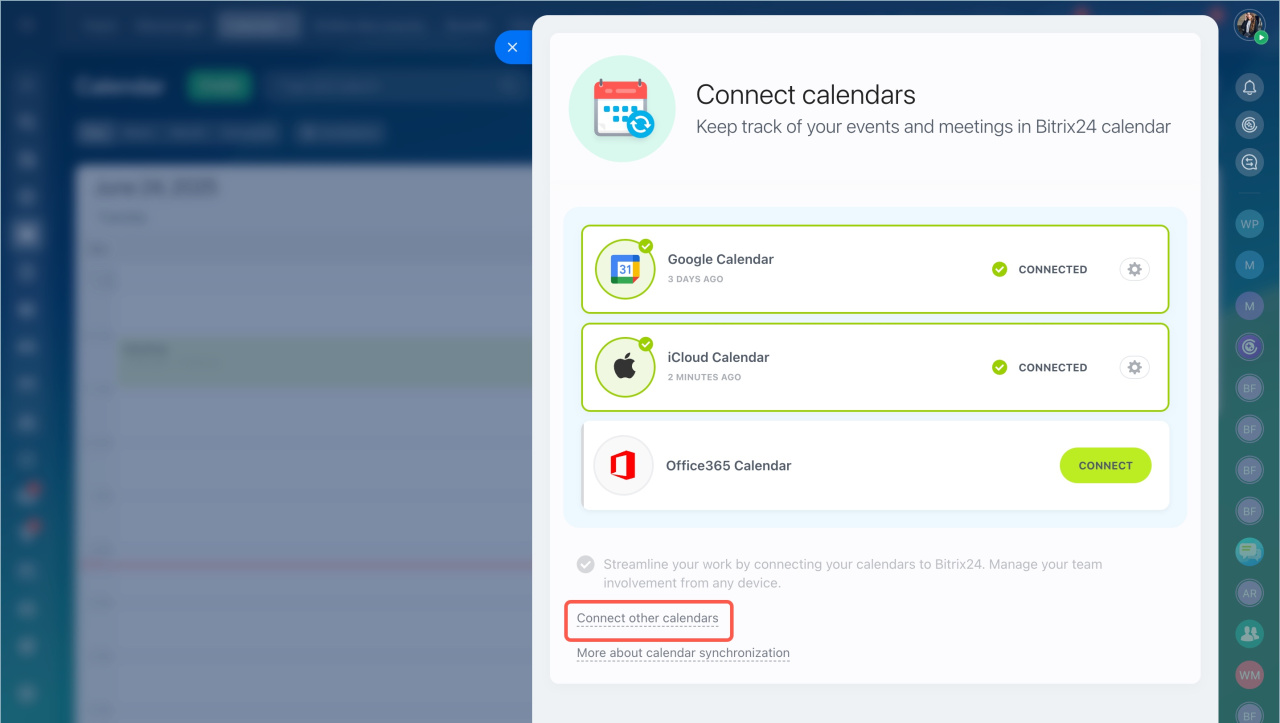
- Select Connect other calendars.
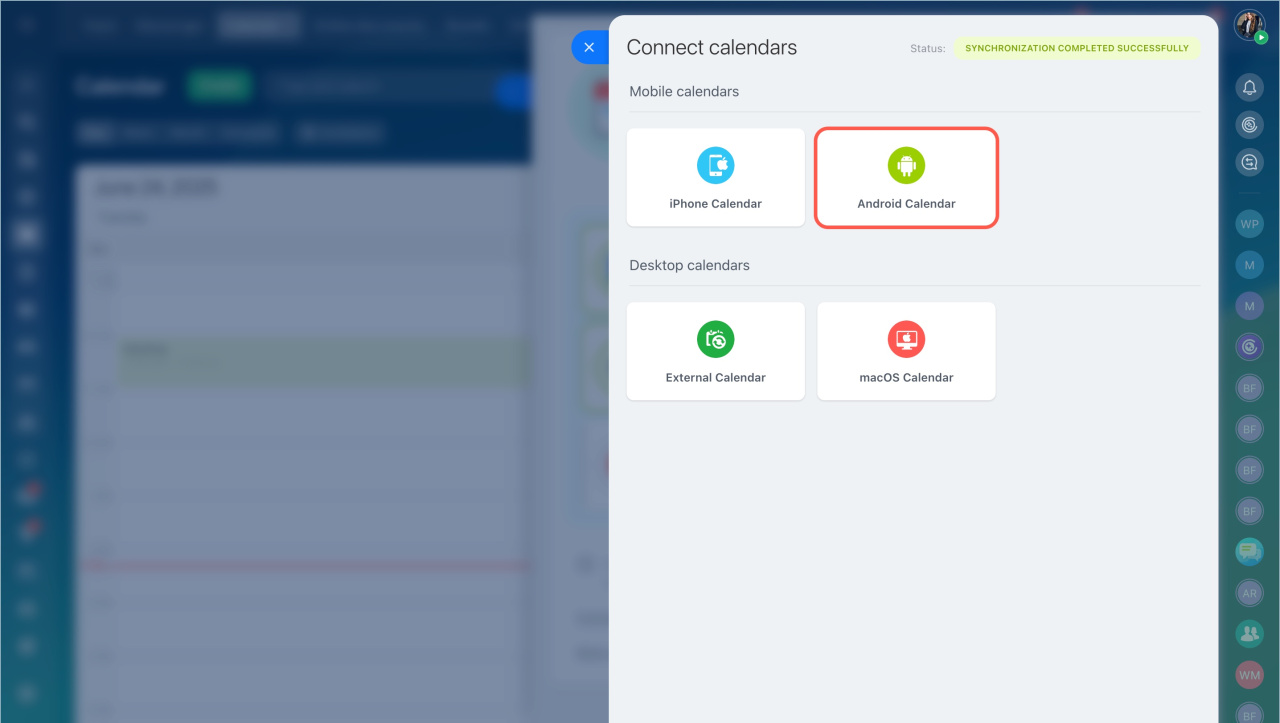
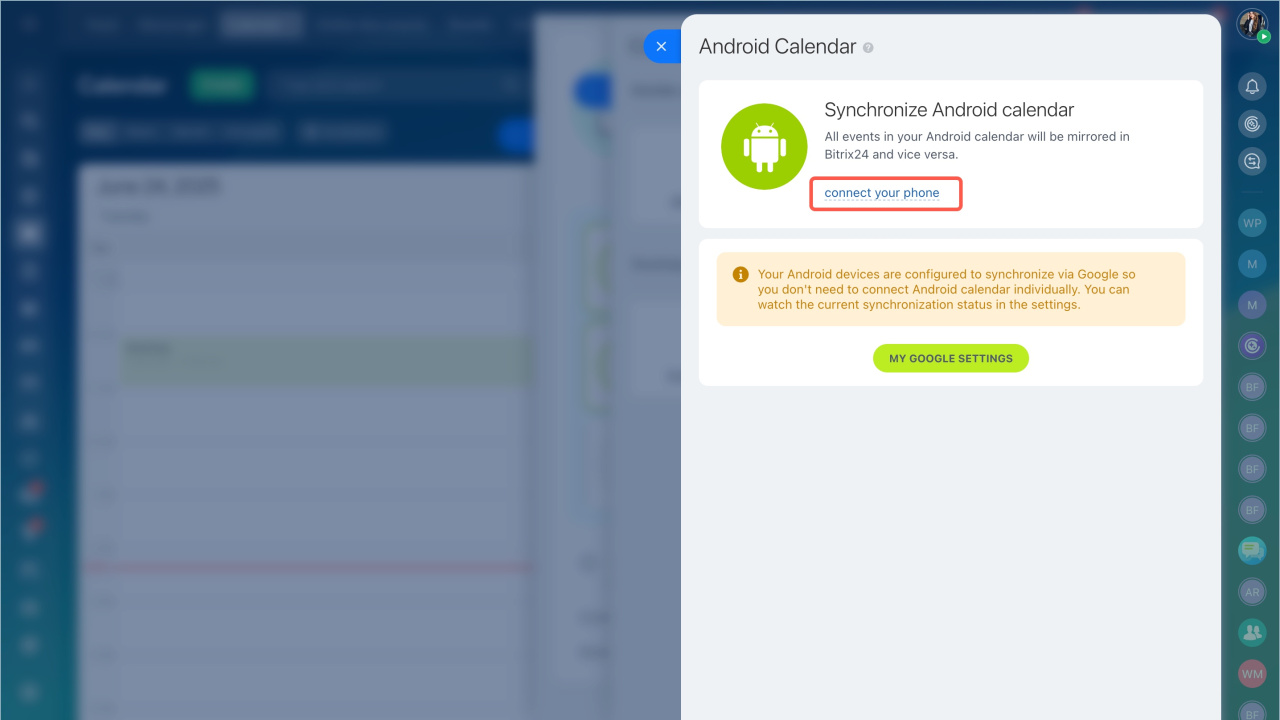
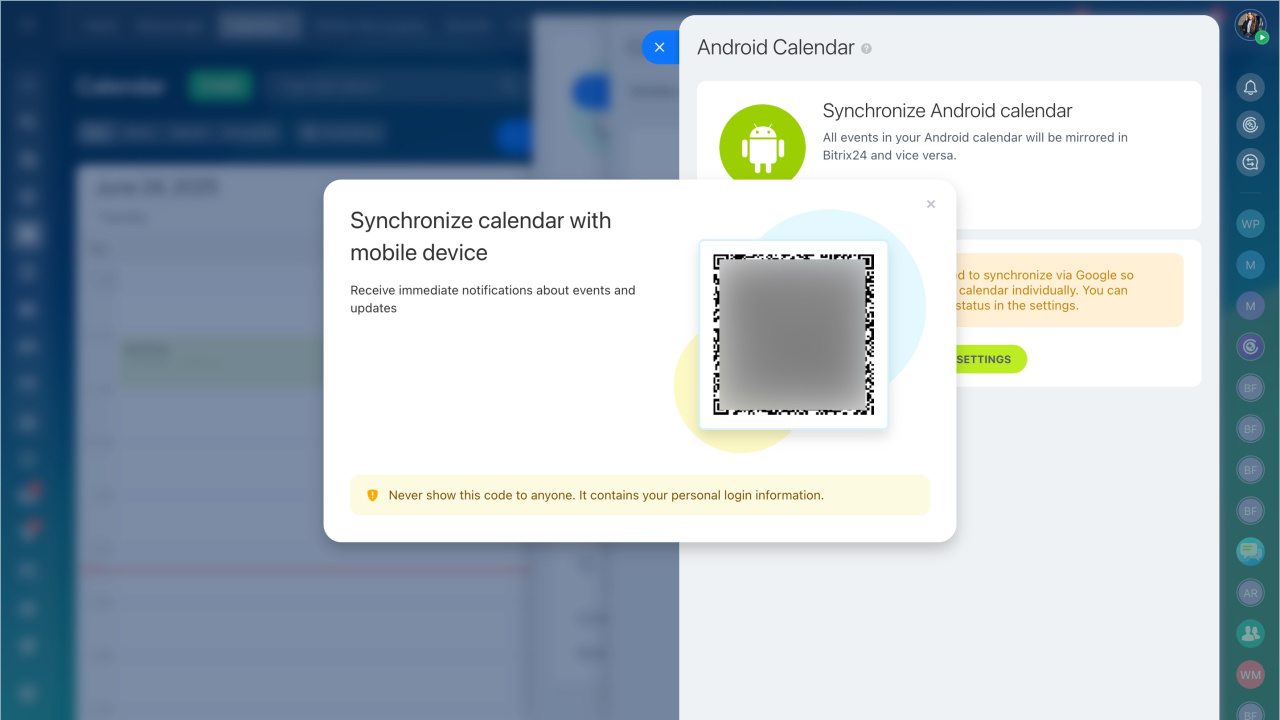
- Choose Android Calendar > Connect your phone.
- Scan the QR code with your phone camera.
- Allow the Bitrix24 app to access your device calendar.
Your calendars sync automatically. The status updates in Bitrix24.
Some Android devices require a QR scanner app. You can download one from Google Play.
Fix sync issues on Xiaomi devices
If sync does not work on a Xiaomi device:
- Go to Settings > Apps > Manage apps > Bitrix24.
- Turn on Autostart.
- Open App permissions and allow access to Calendar and Contacts.
- Go to Settings > Accounts > Sync > Bitrix24.
- Tap More > Sync now.
Sync manually
- Open Settings > Cloud and Accounts.
- Go to Accounts.
- Tap Add account.
- Select Bitrix24.
- Enter your Bitrix24 account URL, login, and password.
After you sign in:
- Open the Bitrix24 account in the list.
- Tap Sync is off.
- Under Sync settings, select Calendars.
To view your calendar:
- Open your phone’s Calendar app.
- Go to Manage calendars.
- Turn on the Bitrix24 calendar.
Disable calendar sync
- Open Settings > Accounts.
- Select your Bitrix24 account.
- Delete the account.
Events will stop appearing on your device. The sync status in Bitrix24 may remain unchanged for up to 7 days.
In brief
- Sync your Bitrix24 calendar to view all events in one place.
- Use a QR code or connect the account manually.
- Turn off sync anytime in your device settings.