
Connect Google Calendar to Bitrix24 to keep all your events in one place: your Bitrix24 account, the Bitrix24 mobile app, and Google Calendar.
Connect Google Calendar
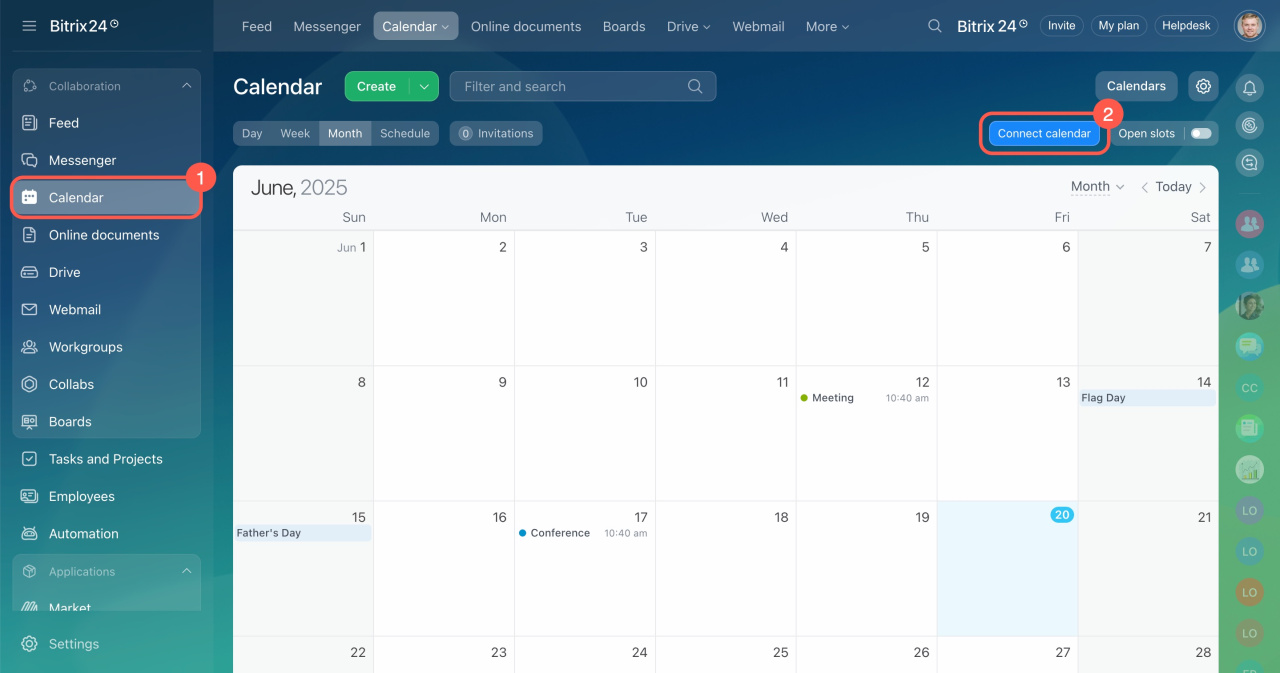
- Go to Calendar.
- Click Connect calendar.
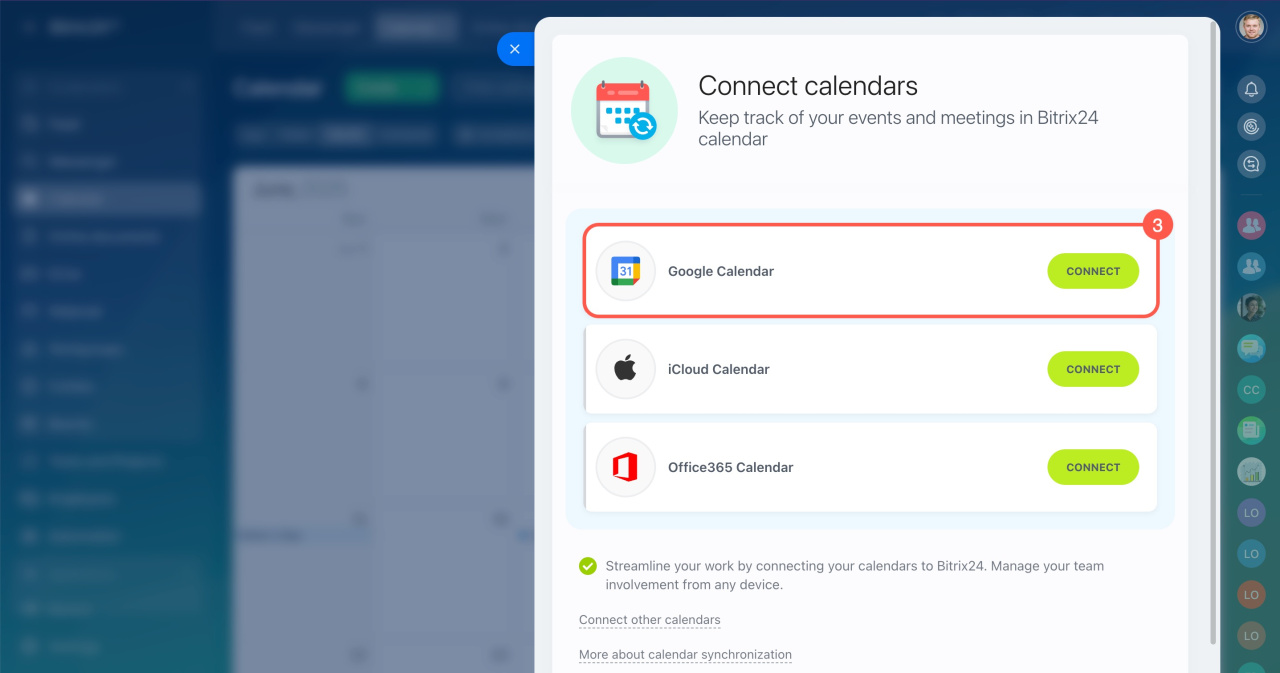
- Select Google Calendar and click Connect.
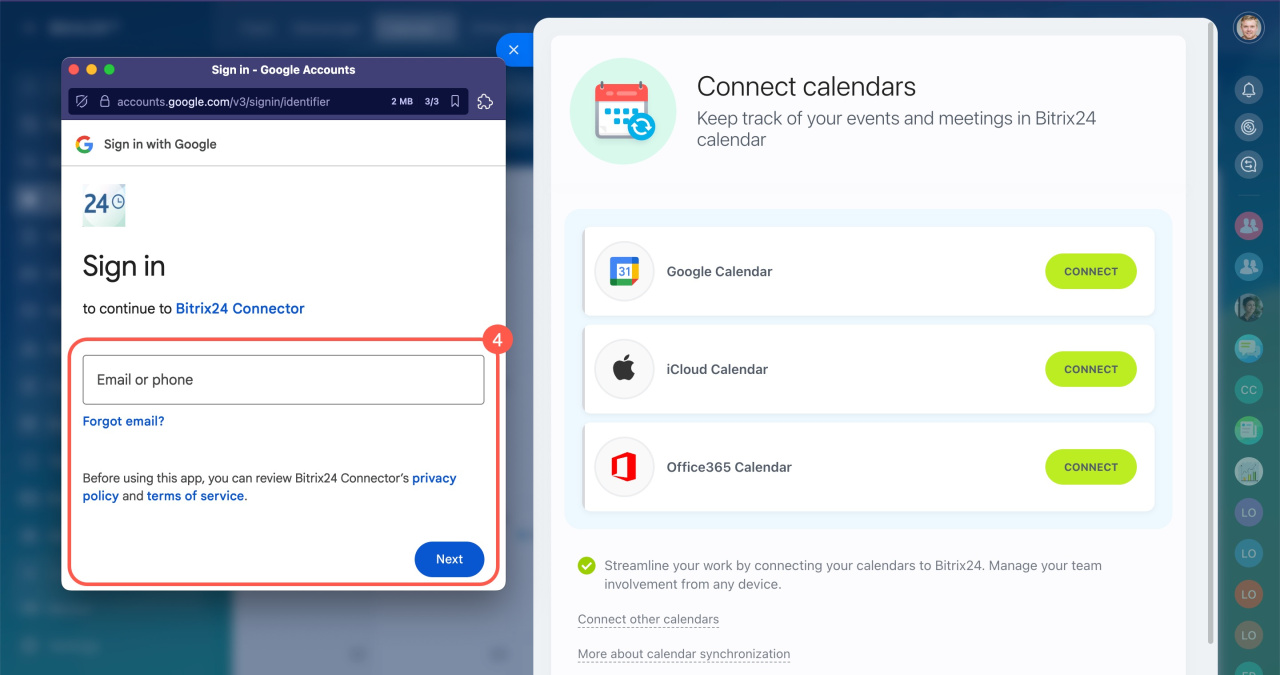
- Sign in to your Google account.
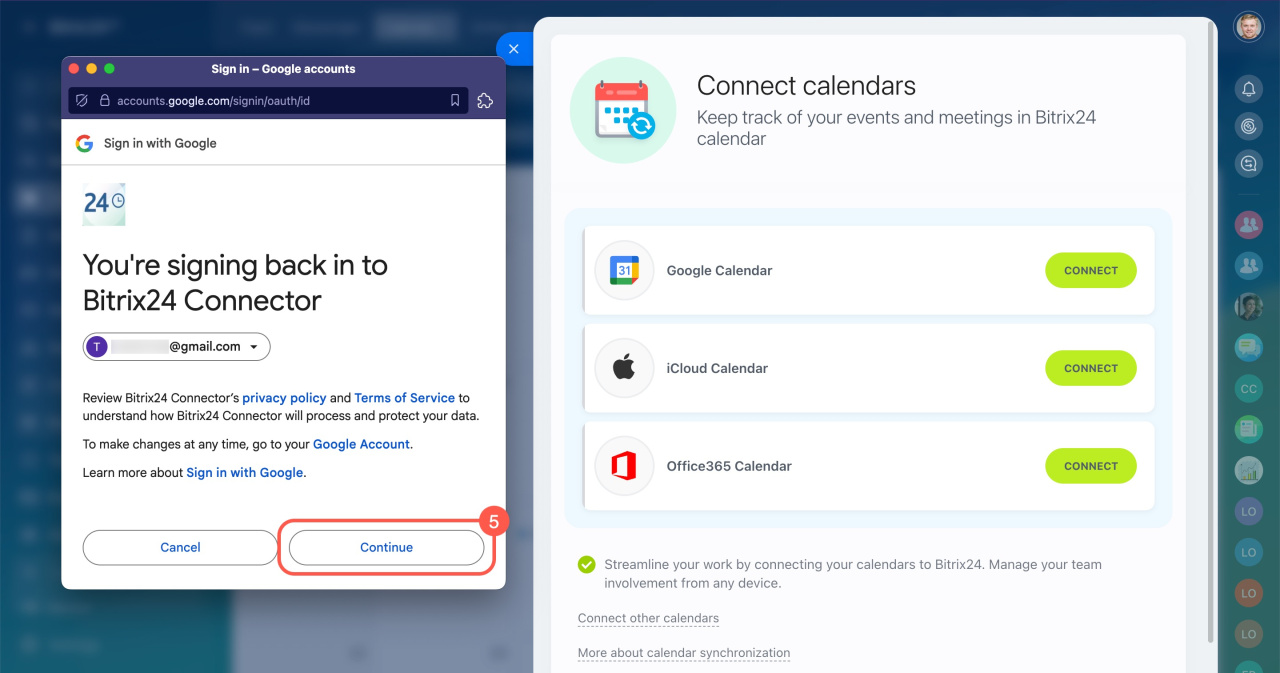
- Allow the Bitrix24 Connector app to access your Google Calendar.
- After the connection is set up, click Continue.
- Once the connection is set up, click Continue.
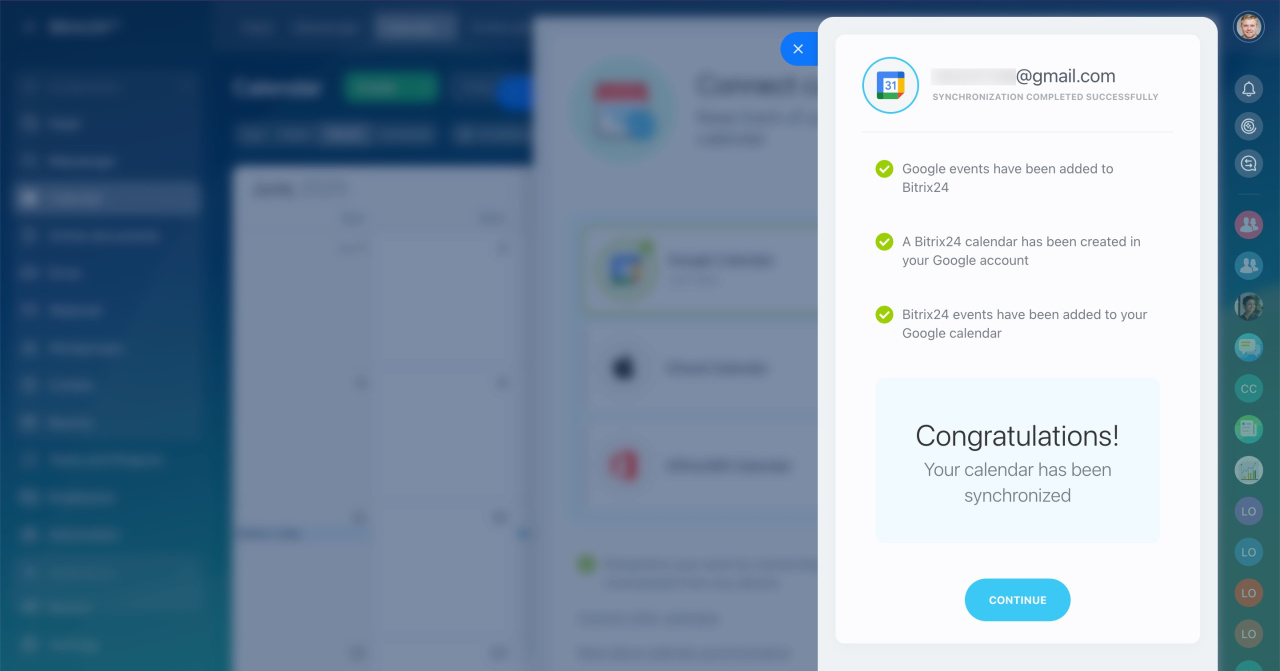
How it works
Bitrix24 creates a separate calendar in Google Calendar and copies your employees’ Bitrix24 events to it. Sync works in real time and in both directions: from Google Calendar to Bitrix24 and from Bitrix24 to Google Calendar.
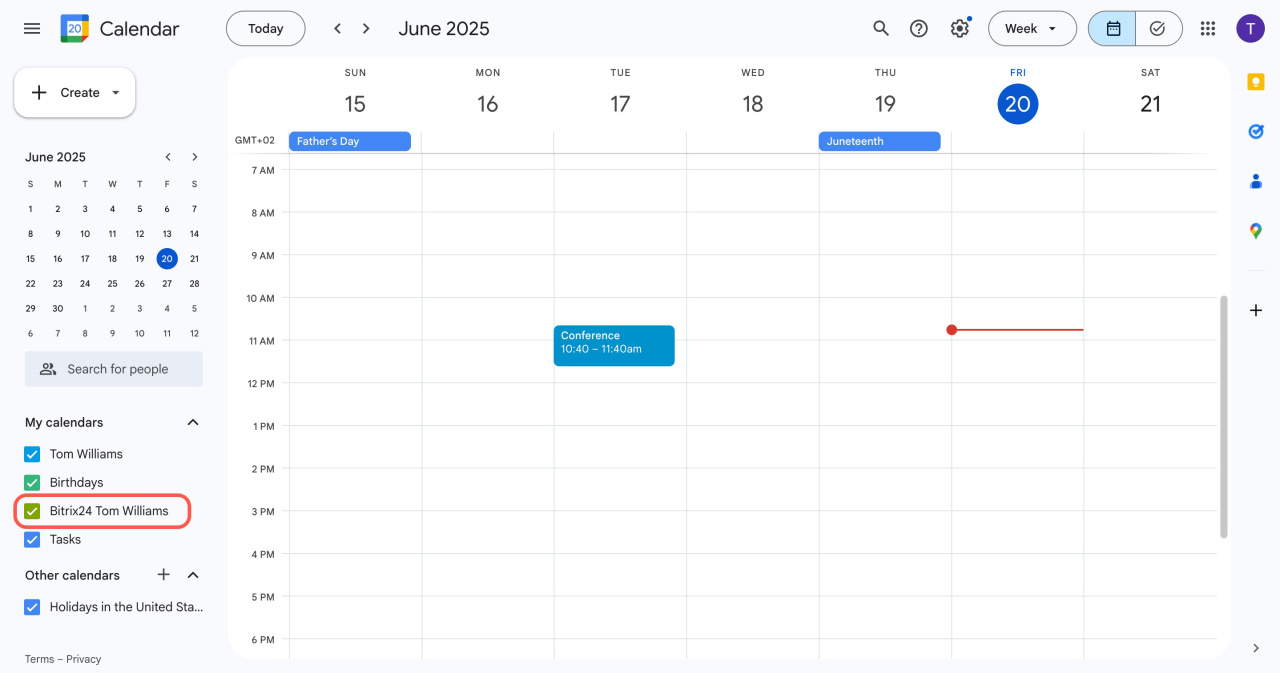
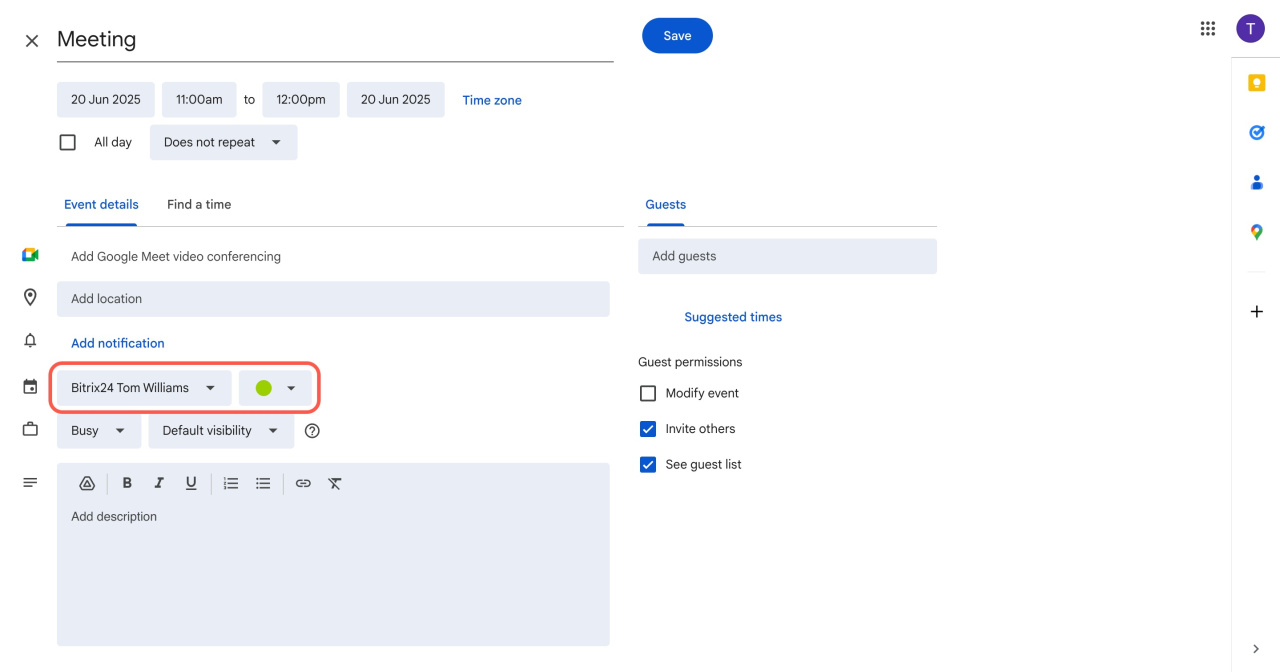
When you create an event in Google Calendar, select the employee’s Bitrix24 calendar.
How it works in the mobile app
If you use Google Calendar on your phone, your phone calendar can sync with Bitrix24. You can create events on your phone and see them in Bitrix24, and the other way around.
To see all calendar events on your phone, sync Google Calendar with your phone calendar.
Synchronize Google Calendar with Bitrix24 on mobile devices
Synchronize Google Calendar with Bitrix24 on mobile devices
Disable sync with Google Calendar
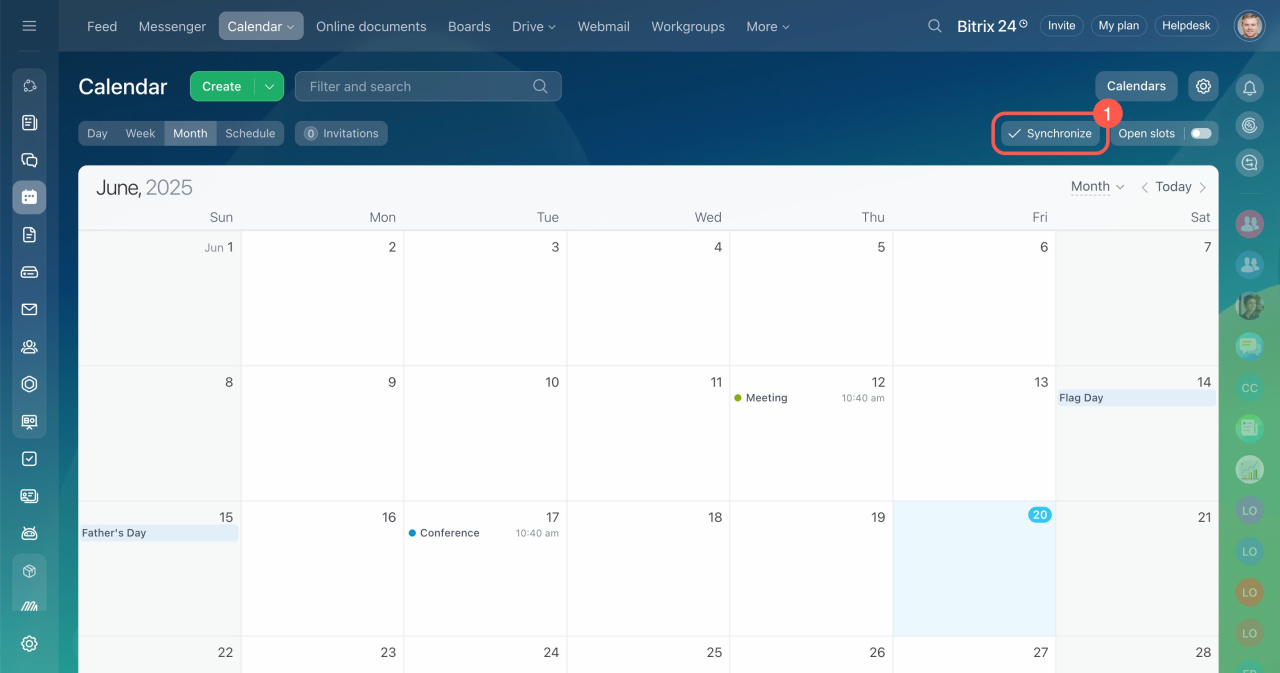
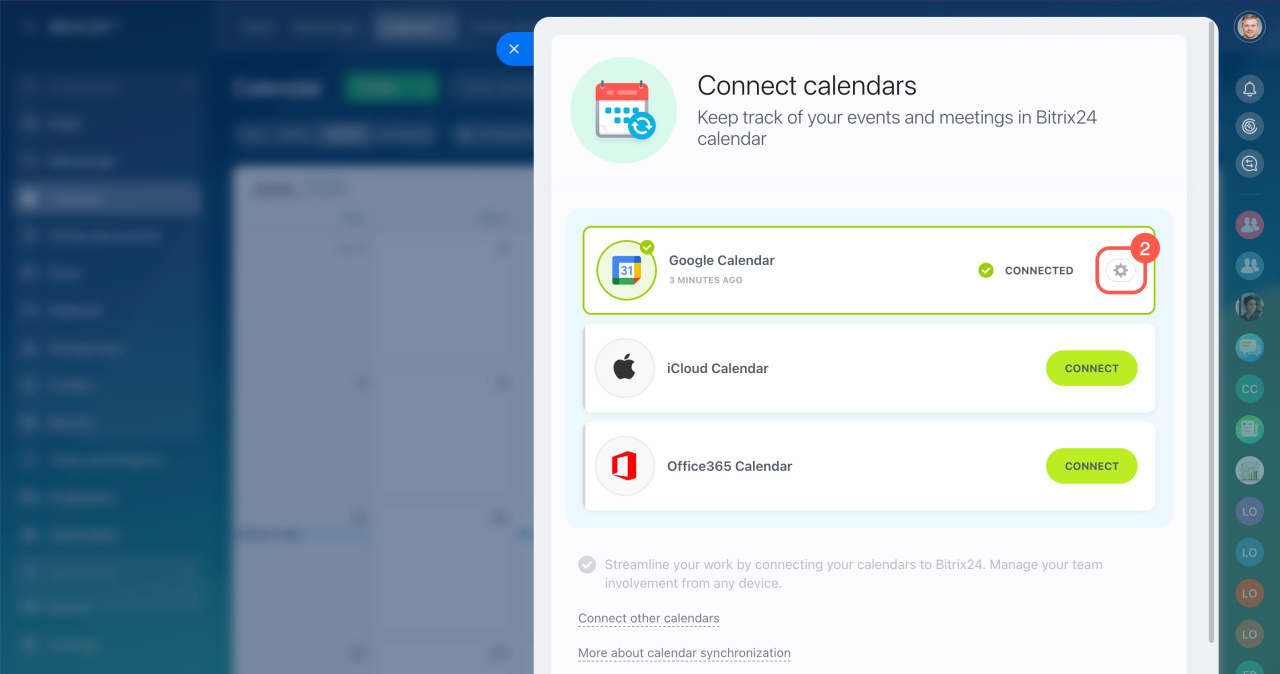
- In Bitrix24 Calendar, click Synchronize.
- In the Google Calendar block, click the settings icon.
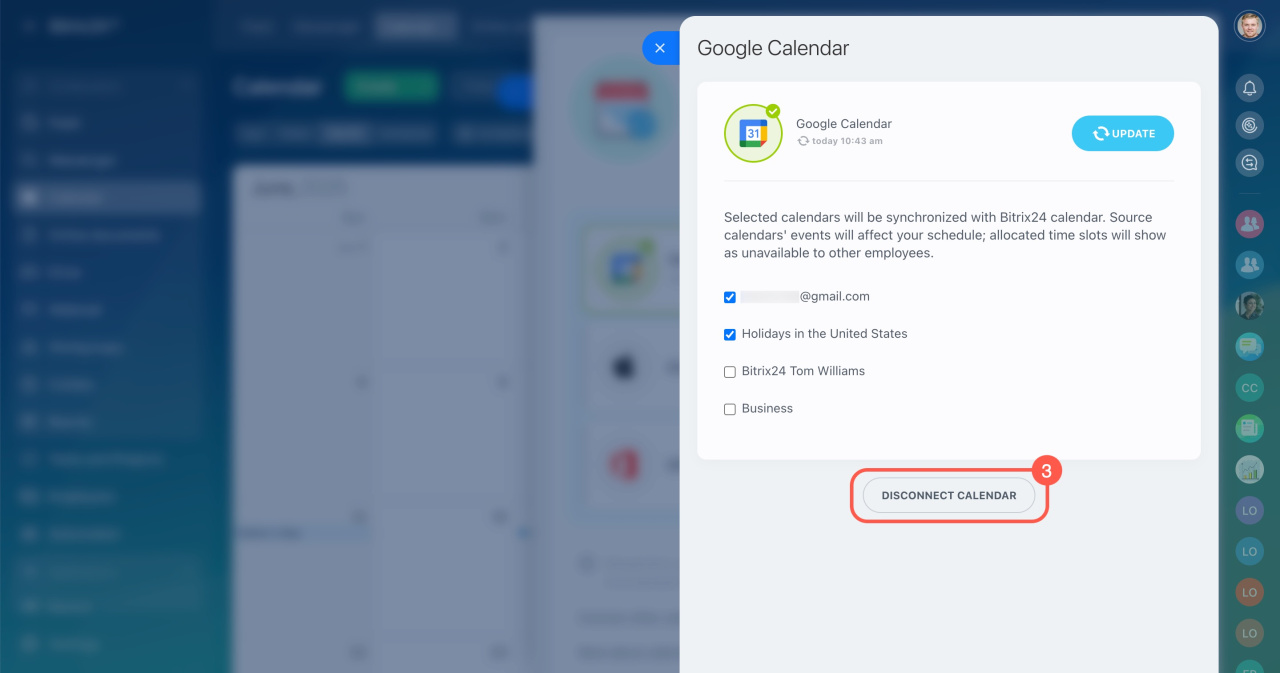
- Select Disconnect calendar on the next page.
In brief
- Open Calendar and click Connect calendar.
- Select Google Calendar, then click Connect.
- Sign in to your Google account and allow the Bitrix24 Connector app to access your Google Calendar.