
An invoice is the final step in working with a customer. In Bitrix24, it is a CRM entity. You usually create an invoice from a deal or an estimate.
Create CRM entities from source
Create an invoice
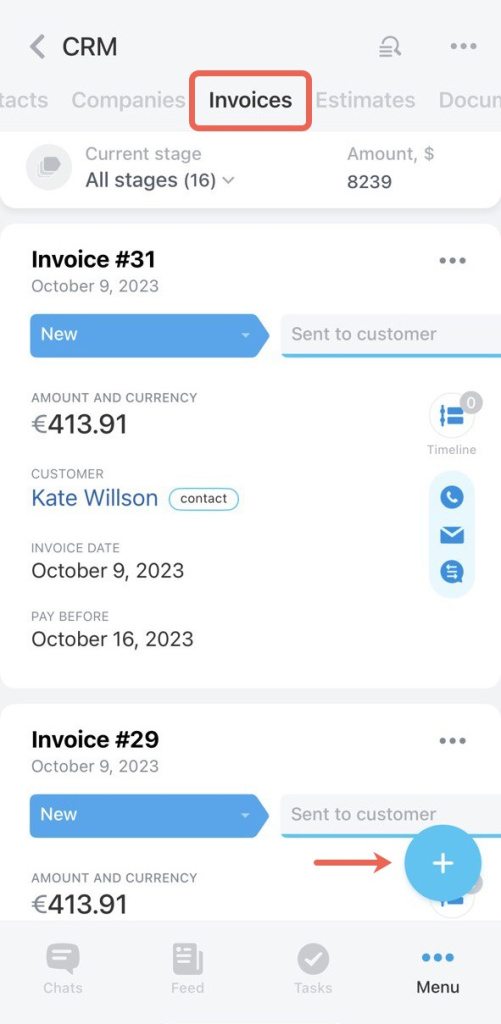
Start by creating a new invoice in the CRM. Go to any CRM section, tap the + button, and select Invoice.
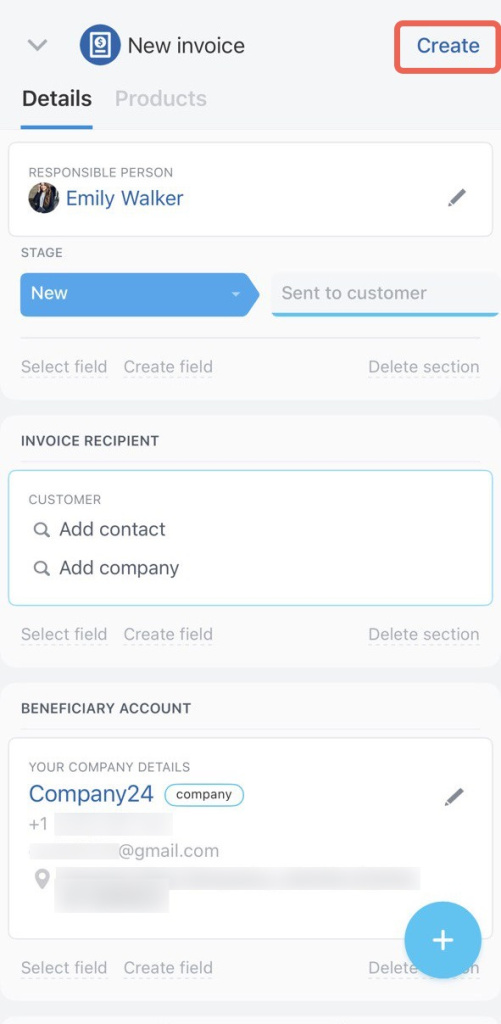
Fill out the form:
- Add products.
- Select the customer in the Client field.
- Complete the remaining fields.
Tap Create.
Track invoice status
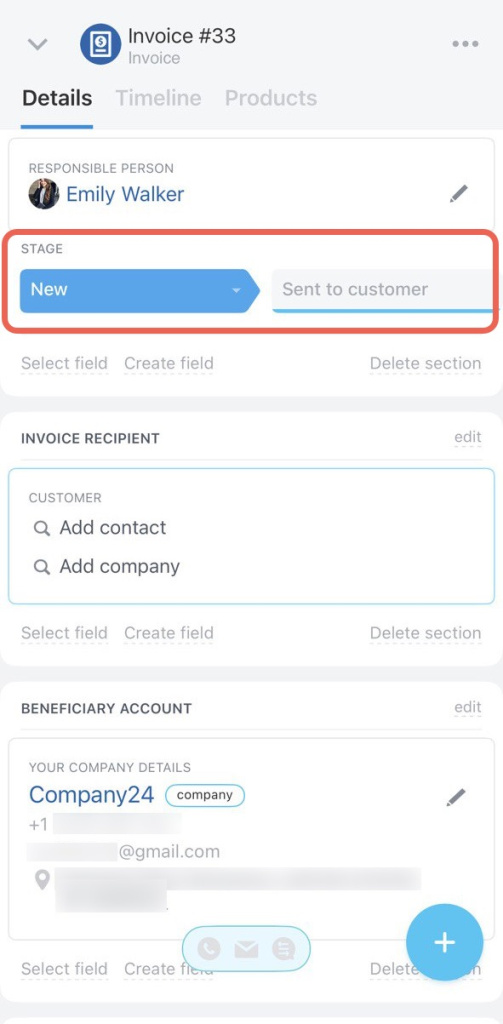
Use stages to track progress:
- New
- Sent to customer
- Paid
- Unpaid
Update the stage as the invoice moves forward.
Create and send a document
Next, generate the document the customer will use to pay.
- Open the invoice.
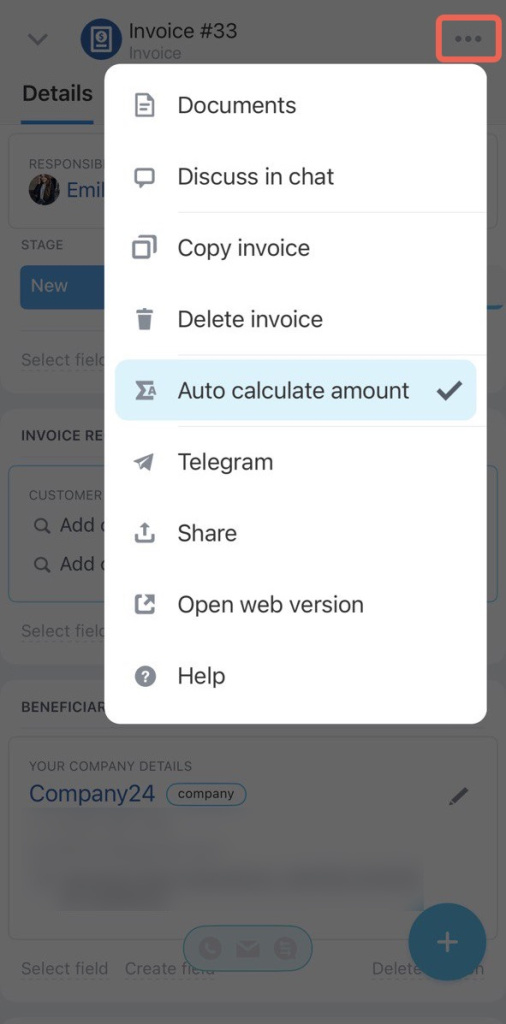
- Tap Three dots (…) > Documents > Create Document.
- Use an invoice template.
- Send the document to the customer.
Create and send document to customer
Additional actions
You can also:
- Discuss the invoice with your team. Bitrix24 creates a chat with users listed in the Observers field.
Observers in CRM: give access to entity forms and create a chat for discussion - Contact the customer via Telegram. Invite the customer and discuss details.
Invite a customer to Telegram chat - Share the invoice link. Send it from the mobile app. The recipient must have access to your Bitrix24 account.
Send the document using any channel. When the customer pays, update the invoice stage.
If the invoice is linked to a deal, you can close the deal.
