
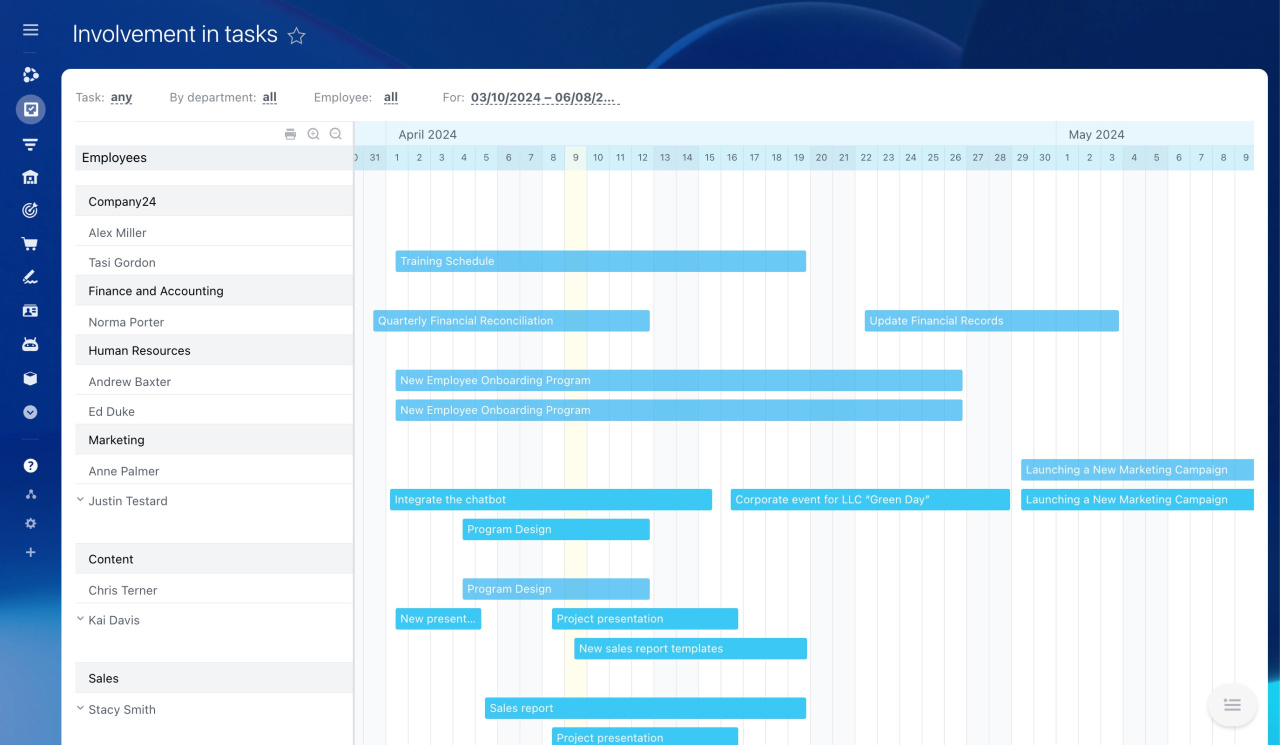
The Involvement in tasks section is designed for easier workload management. It shows a chart of the task schedule, making it easy to see everyone's workload.
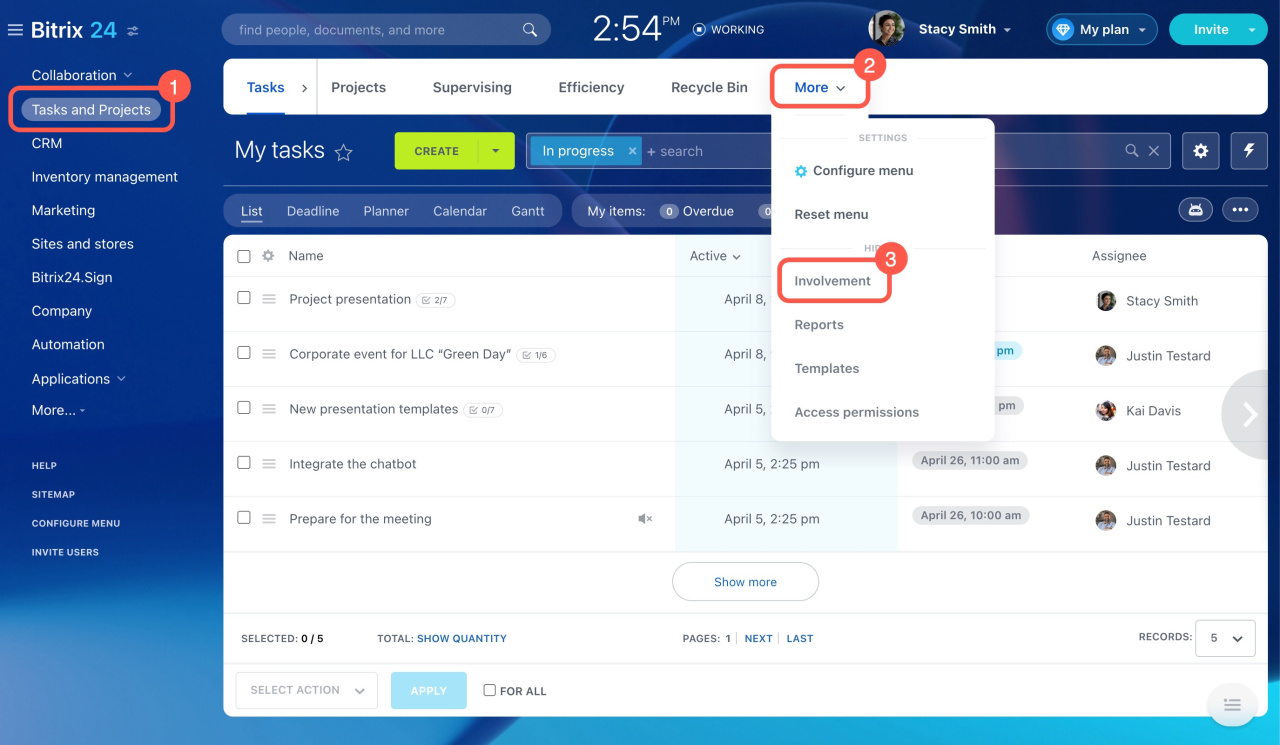
To find it, go to the Tasks and Projects section > More > Involvement.
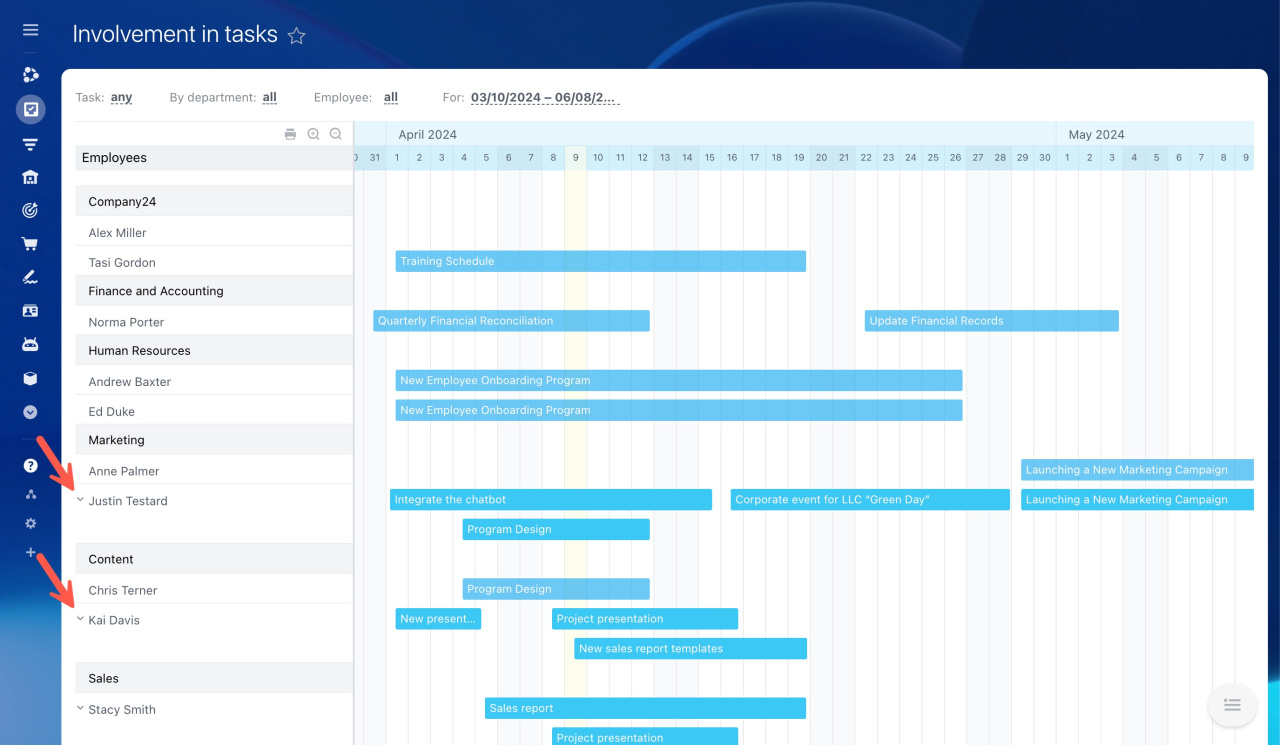
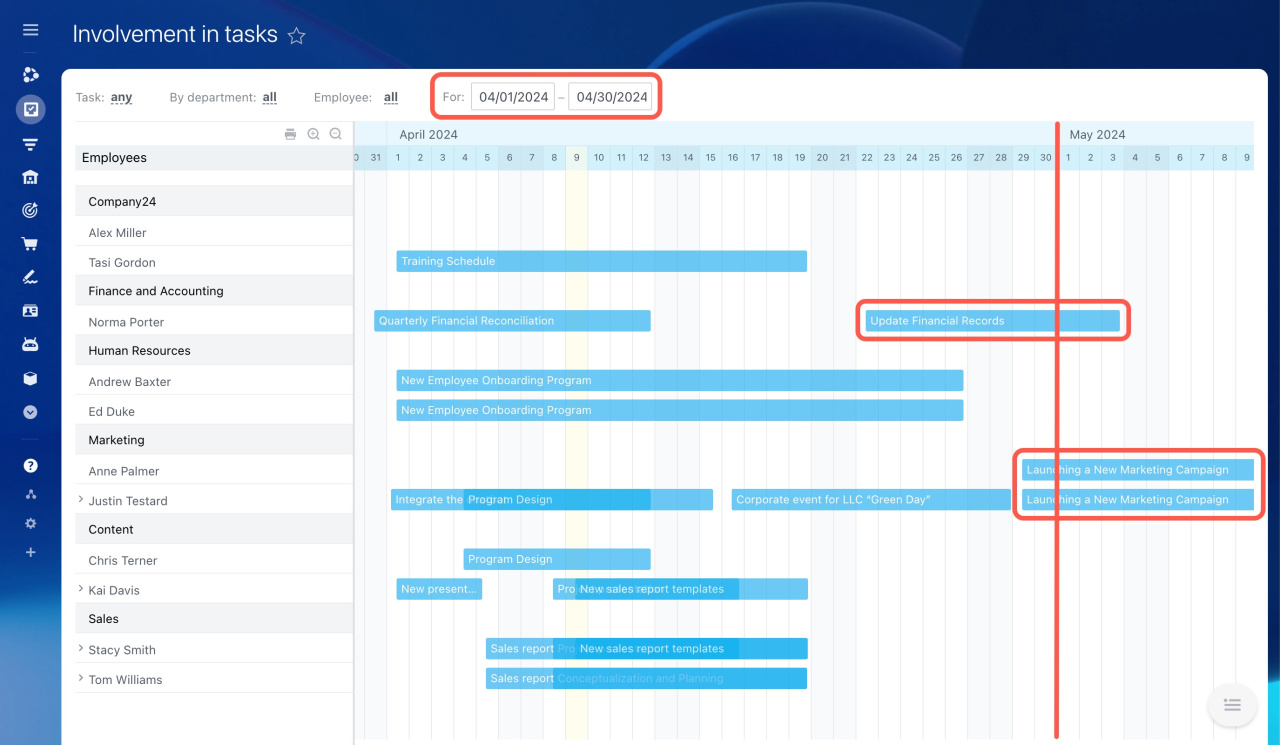
You'll see a chart of tasks. If an employee has tasks that overlap, you can click a small arrow next to their name to see all their tasks.
Use filters above the chart to view only those tasks that you need.
-
Task status: Filter by any status, like pending, in progress, pending review, completed, or deferred.
-
Department: Choose tasks from your department or any other in your company.
-
Employee: View tasks for a specific user or everyone.
-
Time range: Indicate the time period for which you want to view the workload.
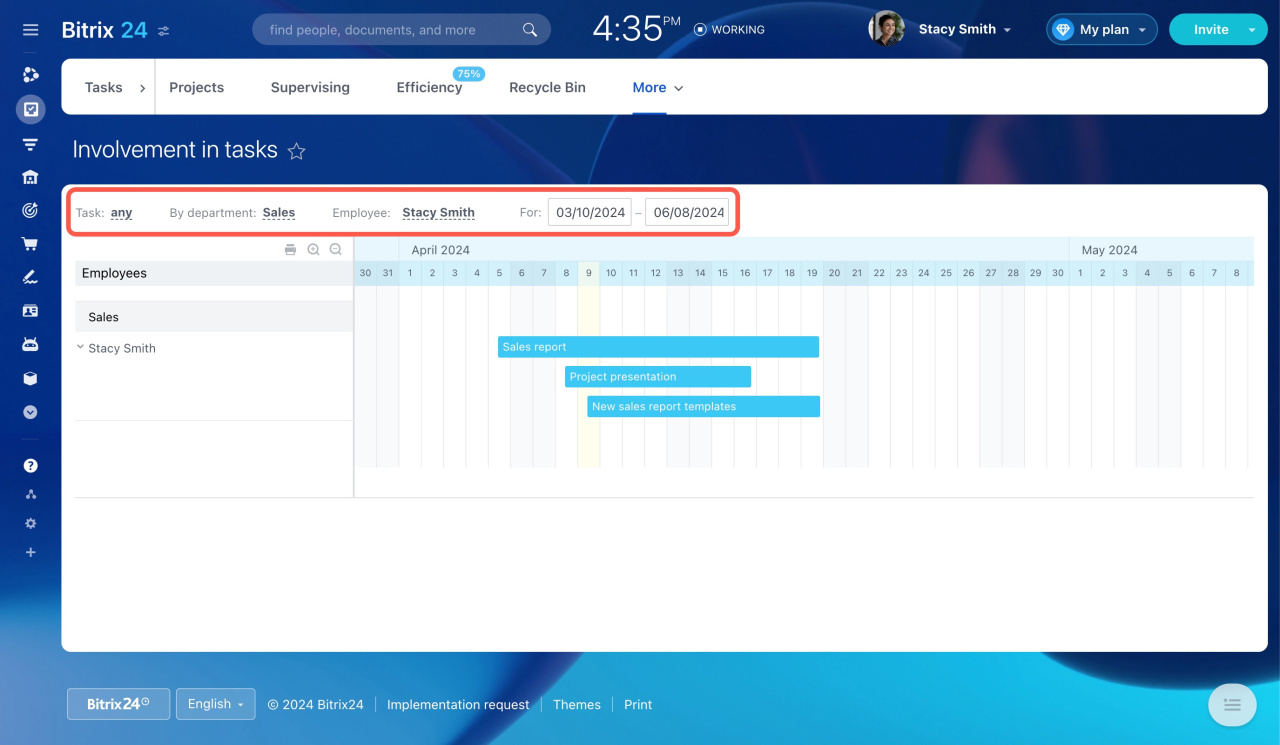
You can view data for any period: day, week, or month. However, it should not exceed 90 days. If you set a longer period, Bitrix24 will automatically reduce it to 90 days.
If you set the time range for a specific month, the chart will also include tasks that start in that month but finish later.
In brief
-
The Involvement in tasks section shows a chart of the task schedule, making it easy to see everyone's workload.
-
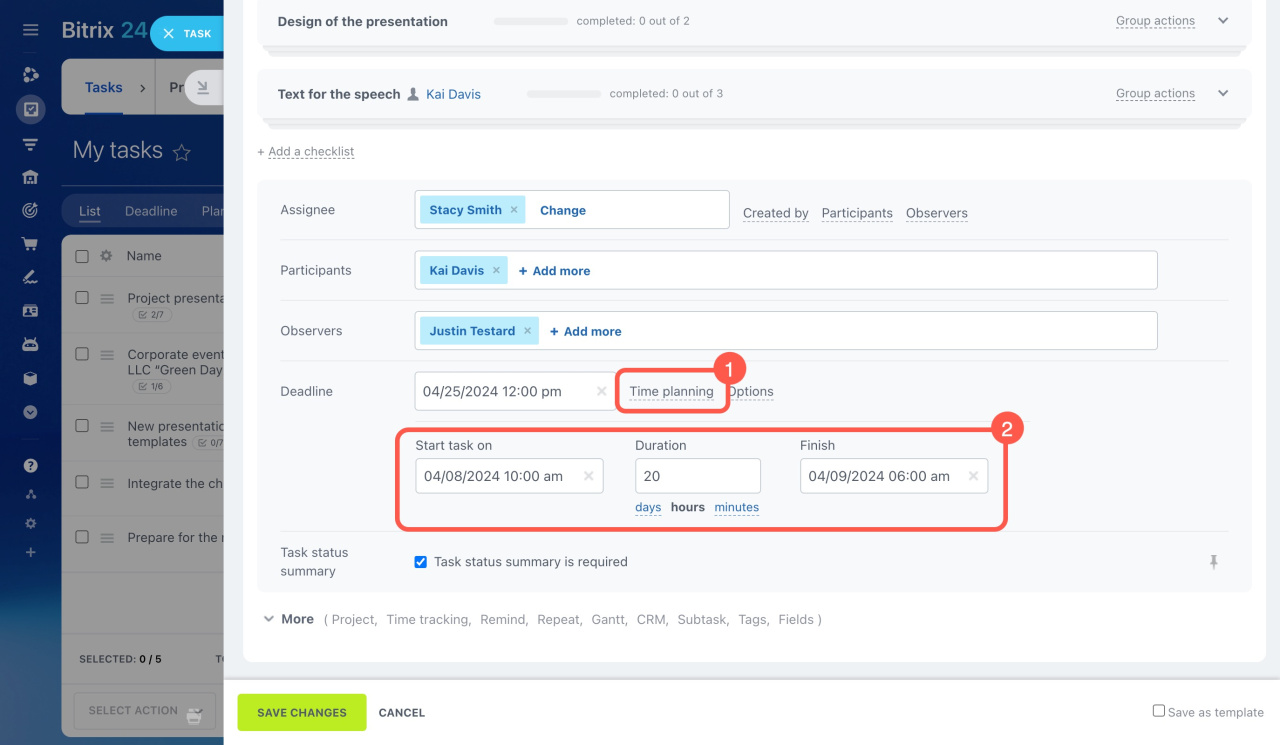
It only shows tasks that have start and finish dates set in the Time planning section of the task settings.
-
You can view data for any period: day, week, or month. However, it should not exceed 90 days.