
When your Bitrix24 Drive runs out of space, you can’t upload new files. To free up space, use the Drive cleanup tool. It scans your files and helps you remove items you no longer need.
Drive storage space depends on your Bitrix24 plan.
Free up drive space
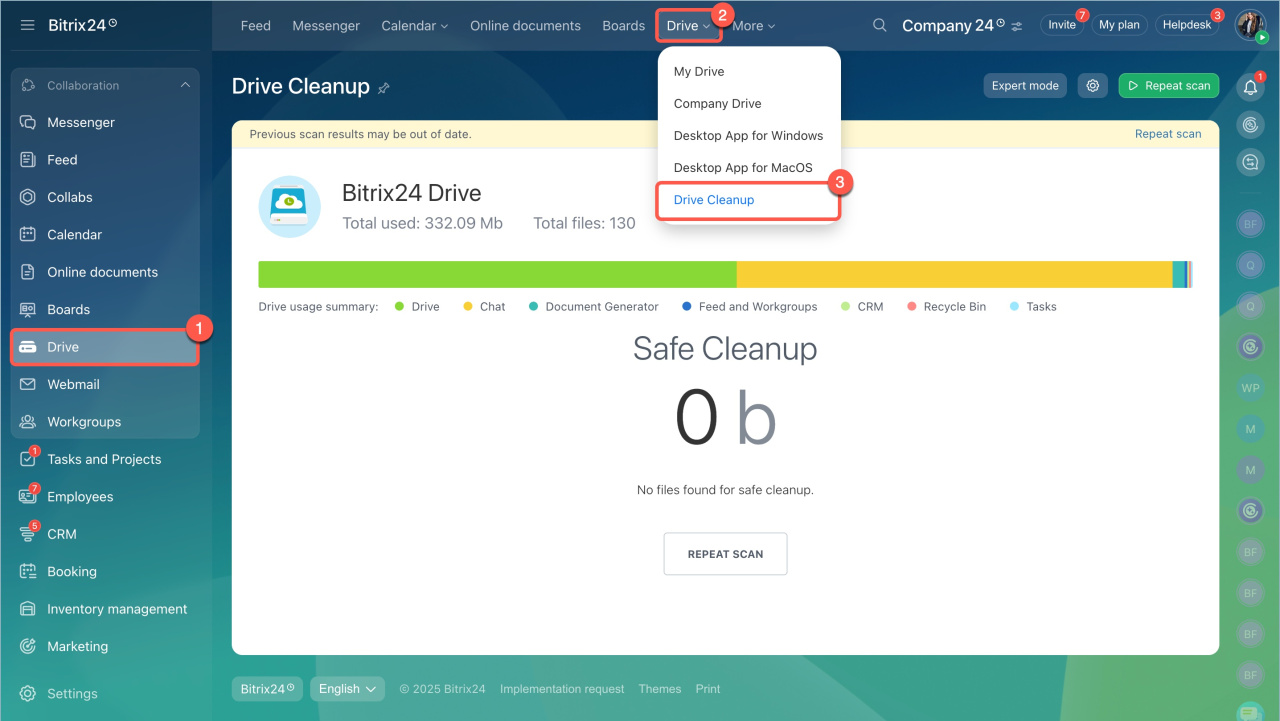
- Go to the Drive section.
- Open the Drive Cleanup tab.
- Click the button to start scanning.
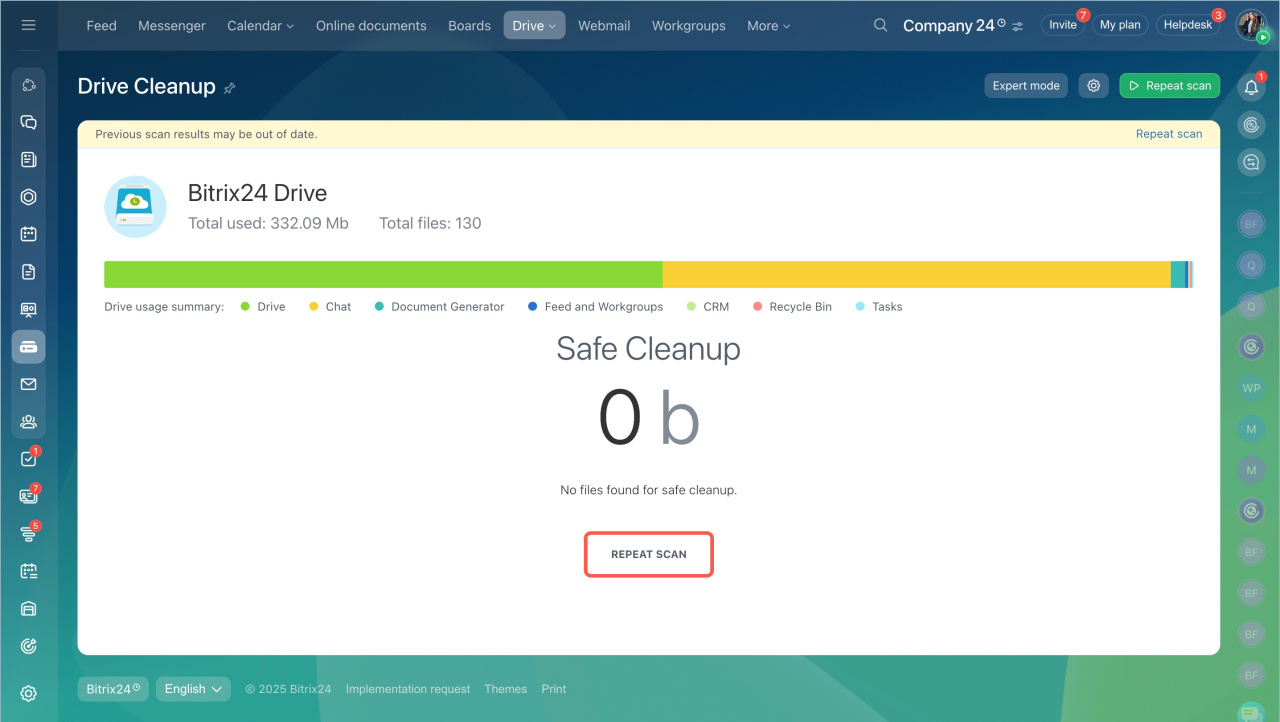
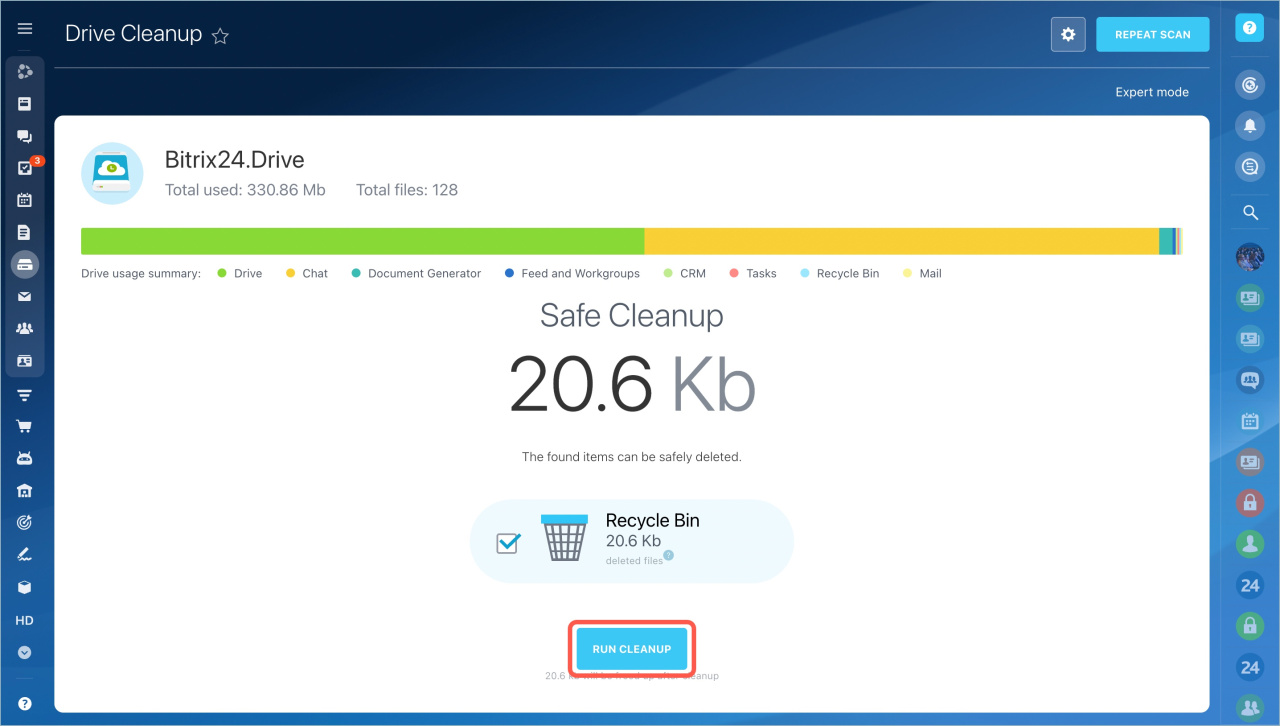
After the scan, the system reviews your Drive and suggests files you can safely delete without losing data.
- Recycle bin — Empty it if you no longer need the files.
- Unused — These are backup files.
Check the boxes and click the Run Cleanup button.
Check what is stored on the drive
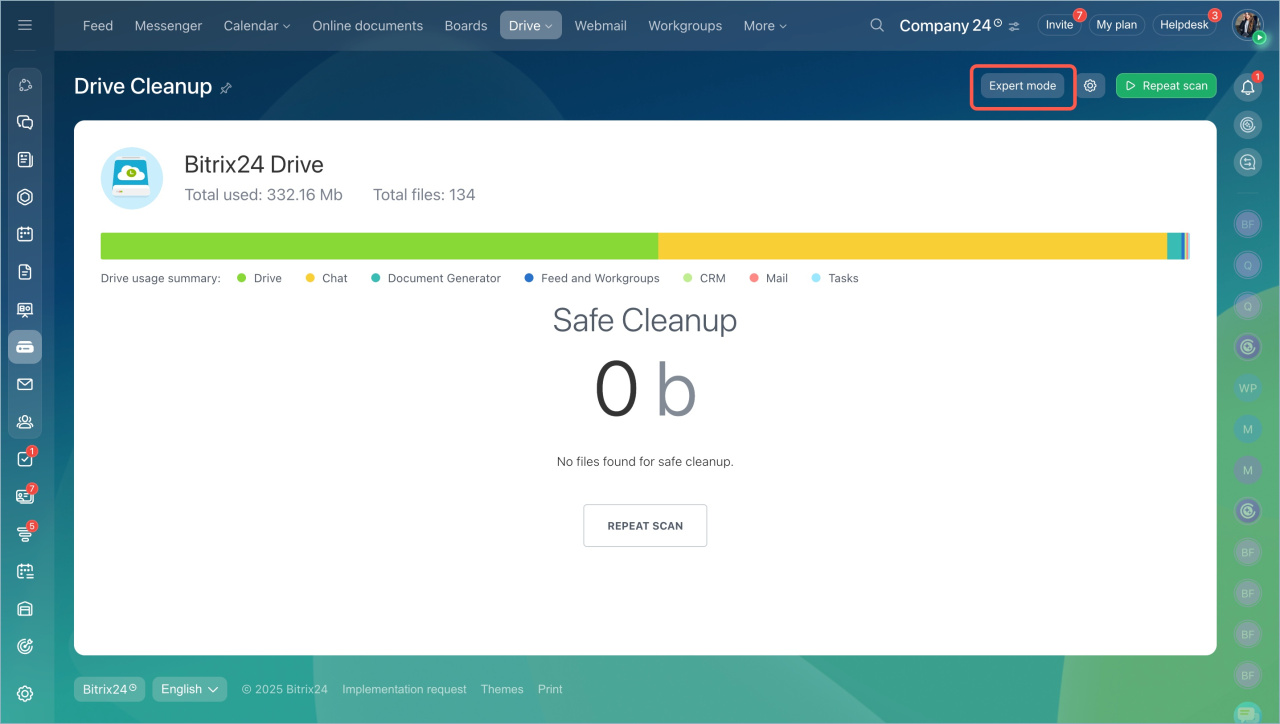
To review files before deleting them, turn on Expert Mode.
Employees can only see their own Drive. The Bitrix24 account administrator can access files from all employees and workgroups.
The administrator can delete files from web messenger storage only. They cannot access messages or view file contents.
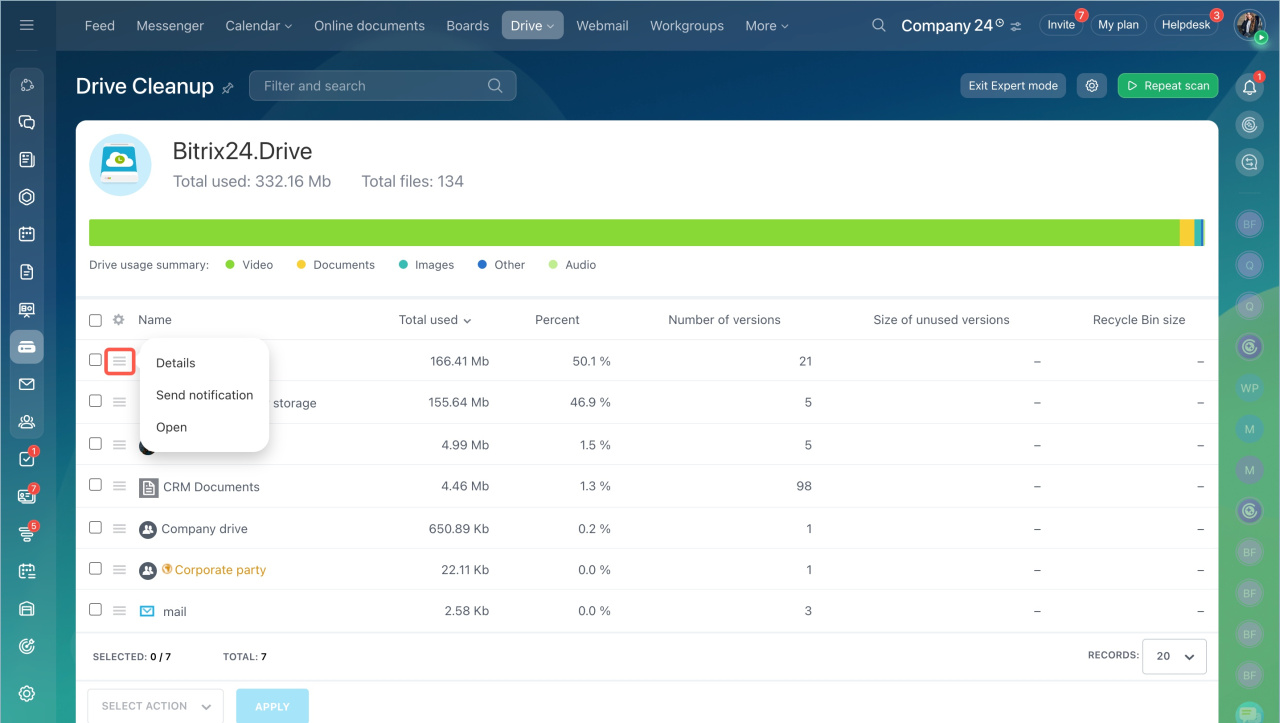
To manage files and folders:
- Click the menu icon.
- Select the checkbox next to an employee’s name.
You can then:
- View file details
- Send a notification to the employee
- Open the Drive
After you review the content, you can delete files without affecting system or personal data.
In brief:
- Drive storage depends on your Bitrix24 plan.
- Use the Drive cleanup tool to free up space.
- The system suggests files you can safely delete.
- Turn on Expert Mode to review files before deleting.
- Employees see only their own Drive. Administrators can access all Drives.