
Stock receipts help you track products received at your warehouse. They show what arrived, in what quantity, and from which vendor.
This article explains how to create a stock receipt in the Bitrix24 web version and mobile app.
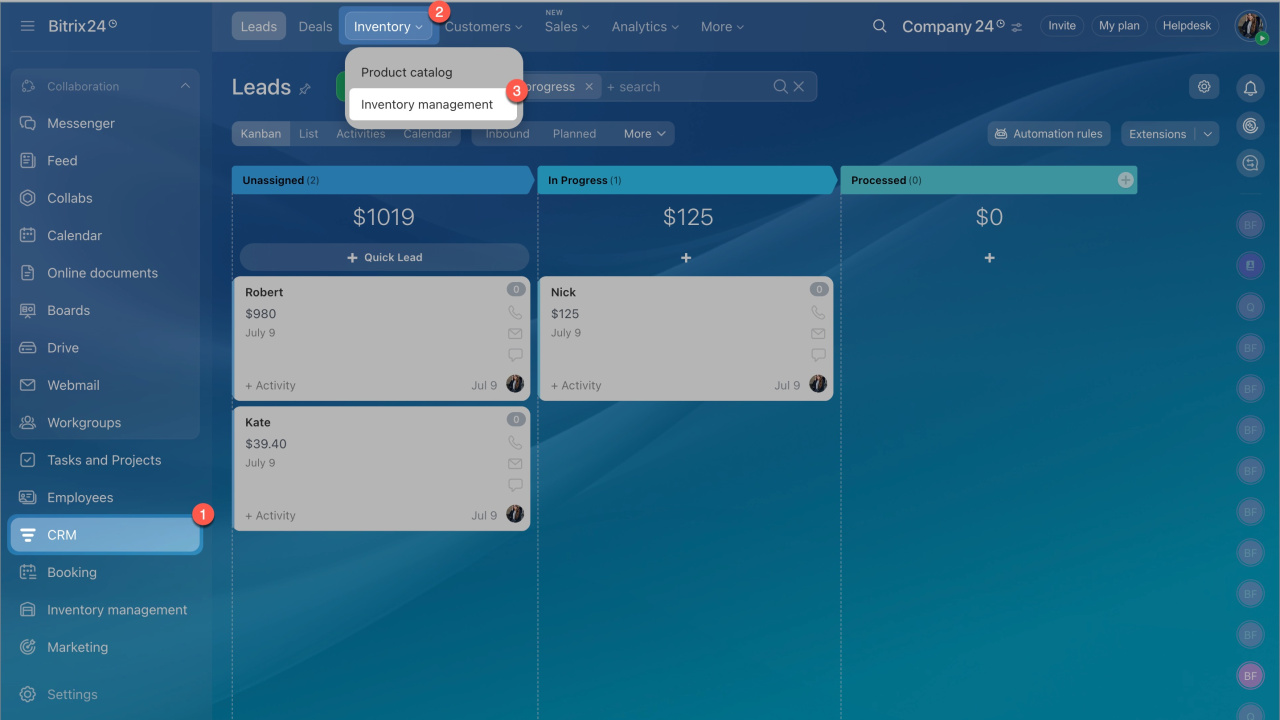
- Go to CRM.
- Open Inventory > Inventory management.
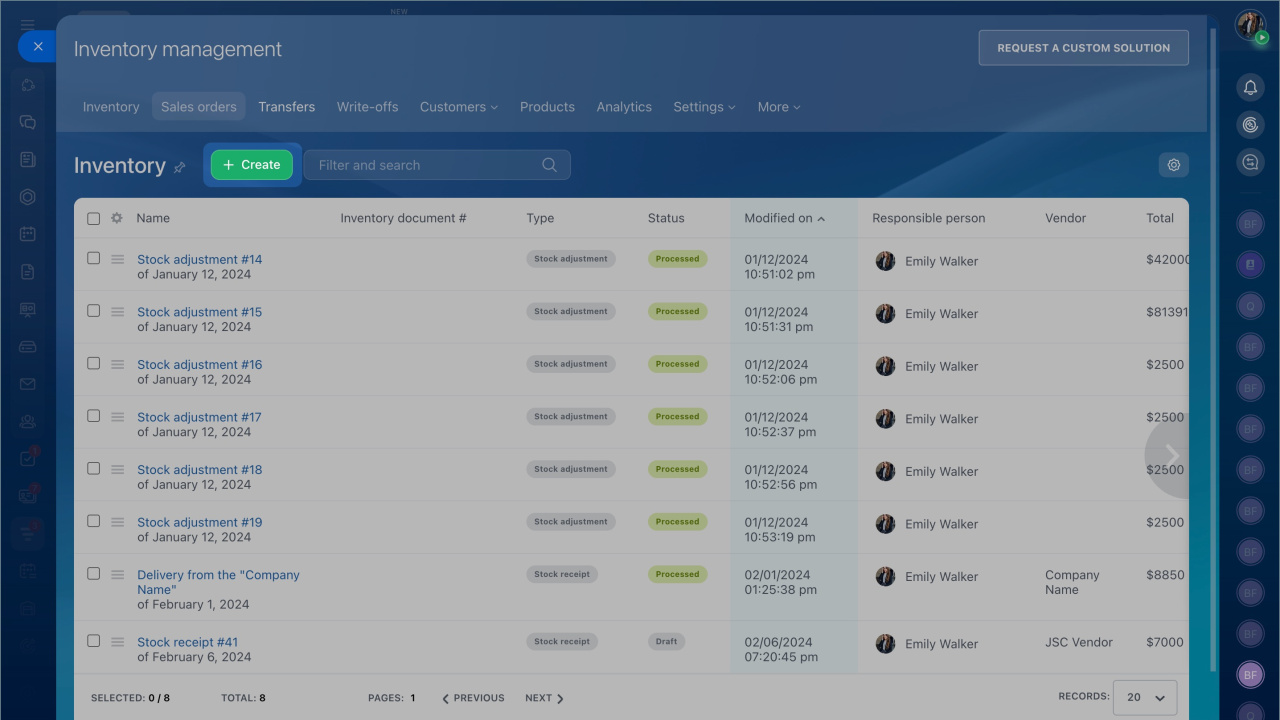
- Click Create.
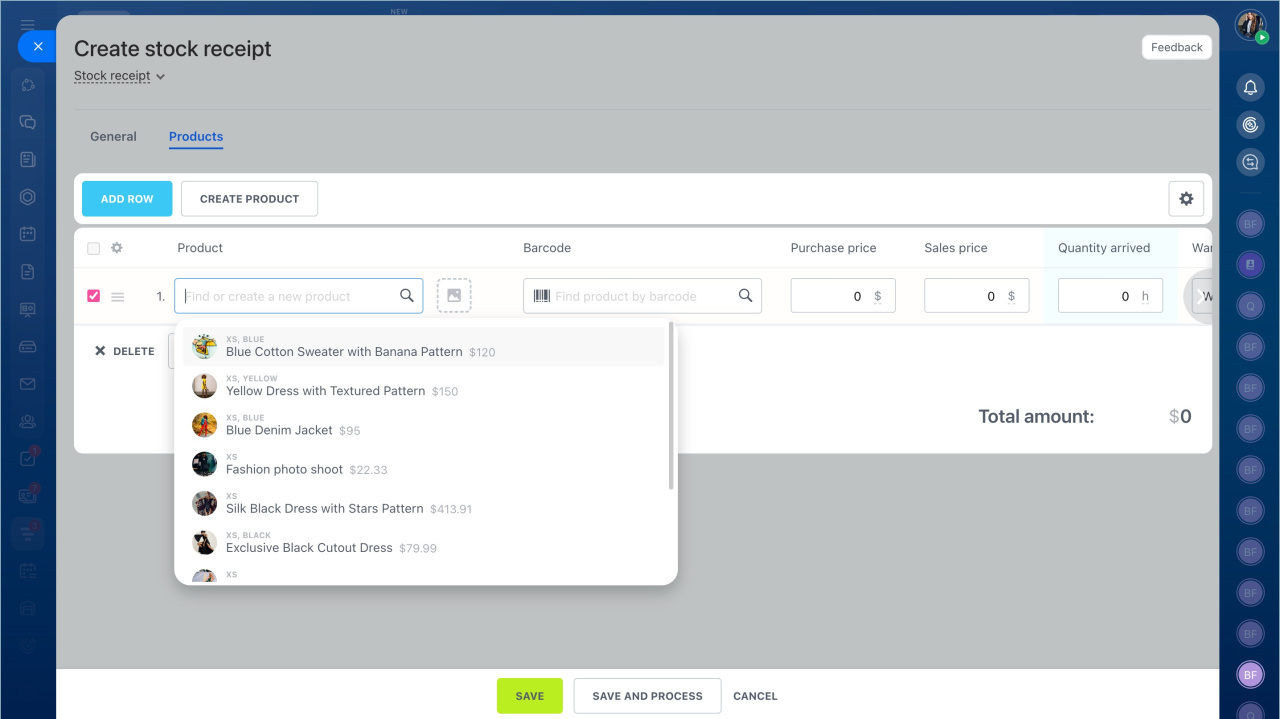
Add products to the document. Specify the warehouse, quantity, and price.
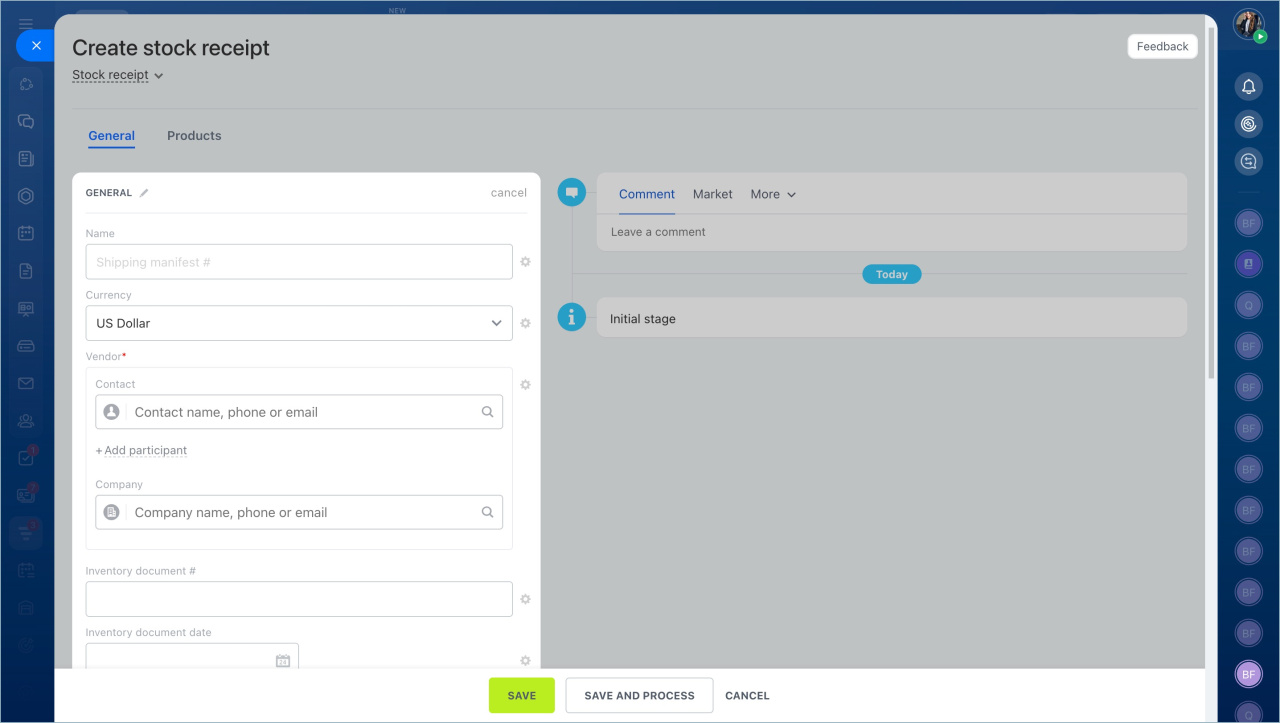
Open the General tab and fill in these fields:
- Name: Enter a name for the stock receipt. If you leave it blank, the system assigns a default name like “Stock receipt #123”.
- Currency: Select the currency.
- Vendor: Specify the supplier. This helps track deliveries from different vendors.
- Inventory document #: Enter the document number. This helps prevent errors and supports audits.
- Inventory document date: Enter the document date to track delivery timelines.
- Stock receipt date: Enter the date when the products arrived at the warehouse. Use this to analyze delays and plan future deliveries.
- Inventory document: Upload a photo or PDF for reference.
To add the products to inventory right away, click Save and process.
If the products have not arrived yet, click Save to create a draft. You can complete it later after the warehouse manager checks and receives the products.
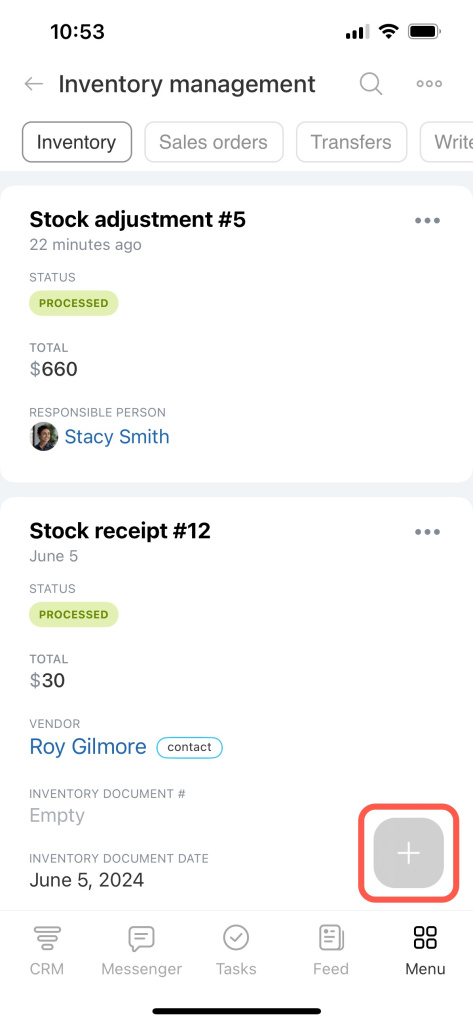
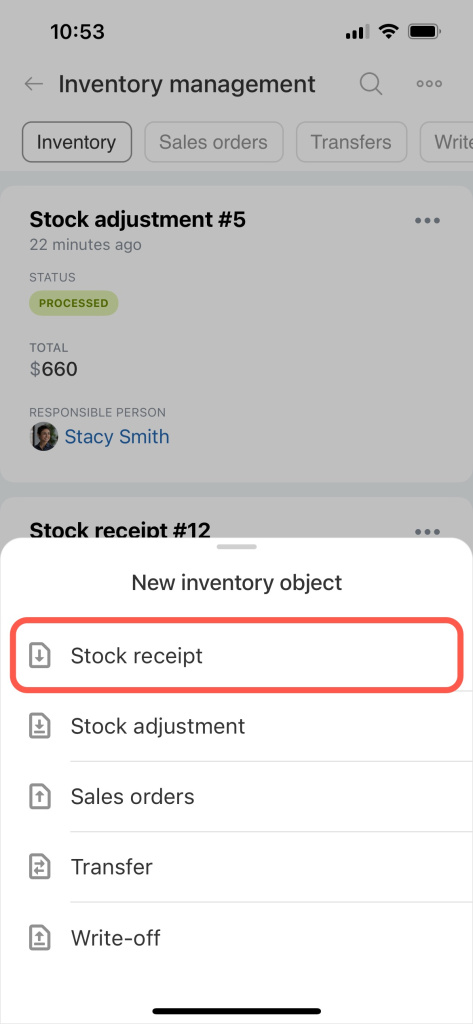
Tap the plus (+) button in the bottom-right corner and select Stock receipt.
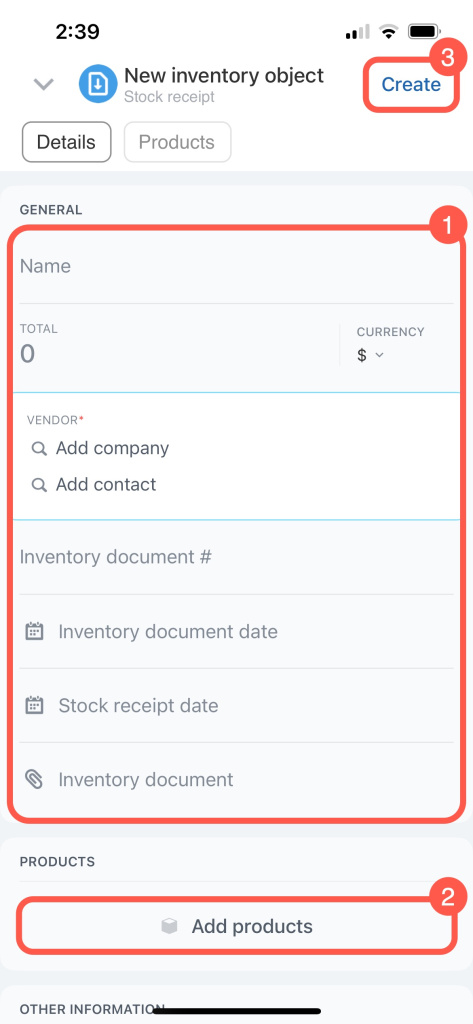
Fill in the same fields as in the web version:
- Name
- Currency
- Vendor
- Inventory document number
- Inventory document date
- Stock receipt date
- Inventory document
Add products and specify the warehouse, quantity, and price. Then tap Create.
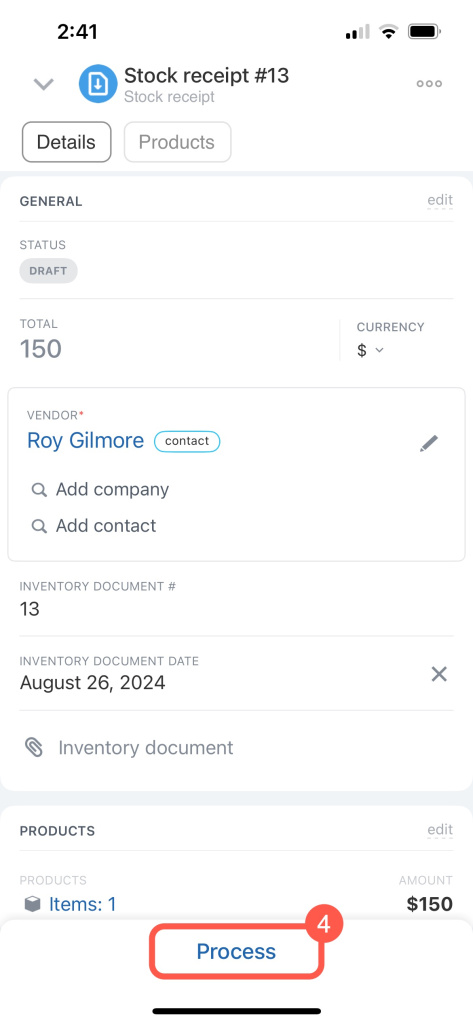
The document is saved as a draft. Products are not added to the warehouse yet. When the products arrive, process the document to update inventory.
In brief
-
Stock receipts track products received at your warehouse.
-
Go to Inventory management and click Create to start.
-
Add products, quantities, prices, and warehouse details.
-
Process the document to update inventory.
-
You can save a draft and process it later when the products arrive.