
Recurring tasks in Bitrix24 are a tool that automatically creates repeat assignments on a schedule. This helps ensure important tasks are not forgotten and eliminates the need for manually setting up repetitive tasks.
You only need to set the parameters once — description, assignee, frequency — and Bitrix24 will create new tasks based on these rules. For example, an accountant can have a task like "Submit reports" automatically created on the 25th of each month, while a marketer can receive a task like "Review ad campaigns" every Friday. This ensures employees don’t forget their responsibilities, and managers can trust that critical processes are completed on schedule.
Recurring tasks are created based on a template. You can modify or pause the template at any time — for instance, if the assignee or task schedule changes.
Bitrix24 plans and pricing
In this article:
Create a recurring task
To make a task recurring, configure a template:
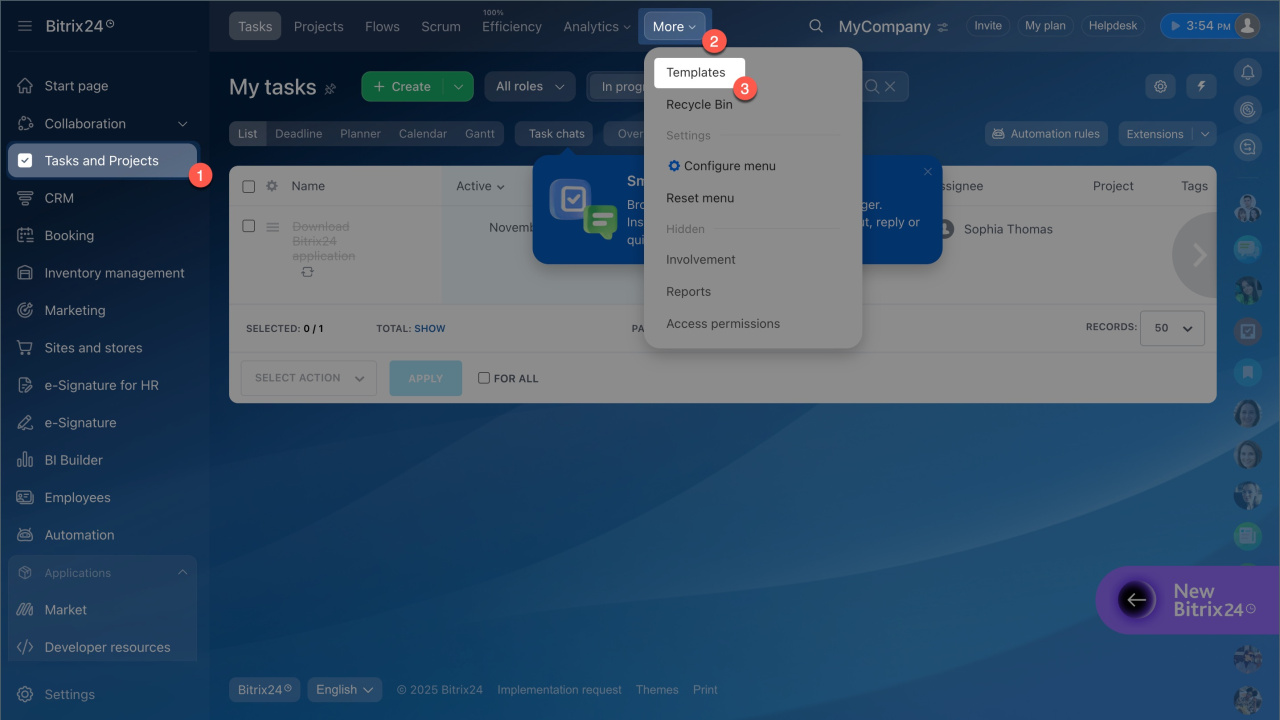
- Go to the Tasks and Projects > Templates section.
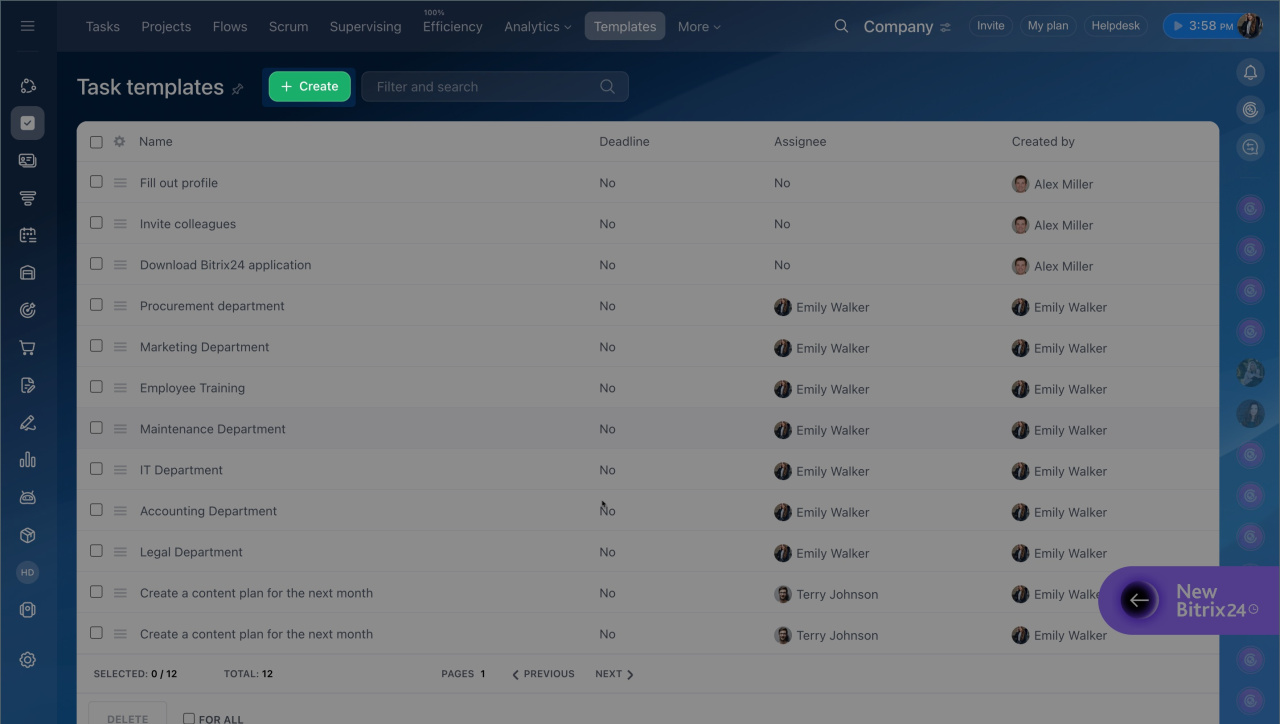
- Open an existing task template or click Create.
- When creating the template, fill in the main fields — title, description, assignee, deadline, and others. Add additional elements if needed, like files, checklists, and reminders.
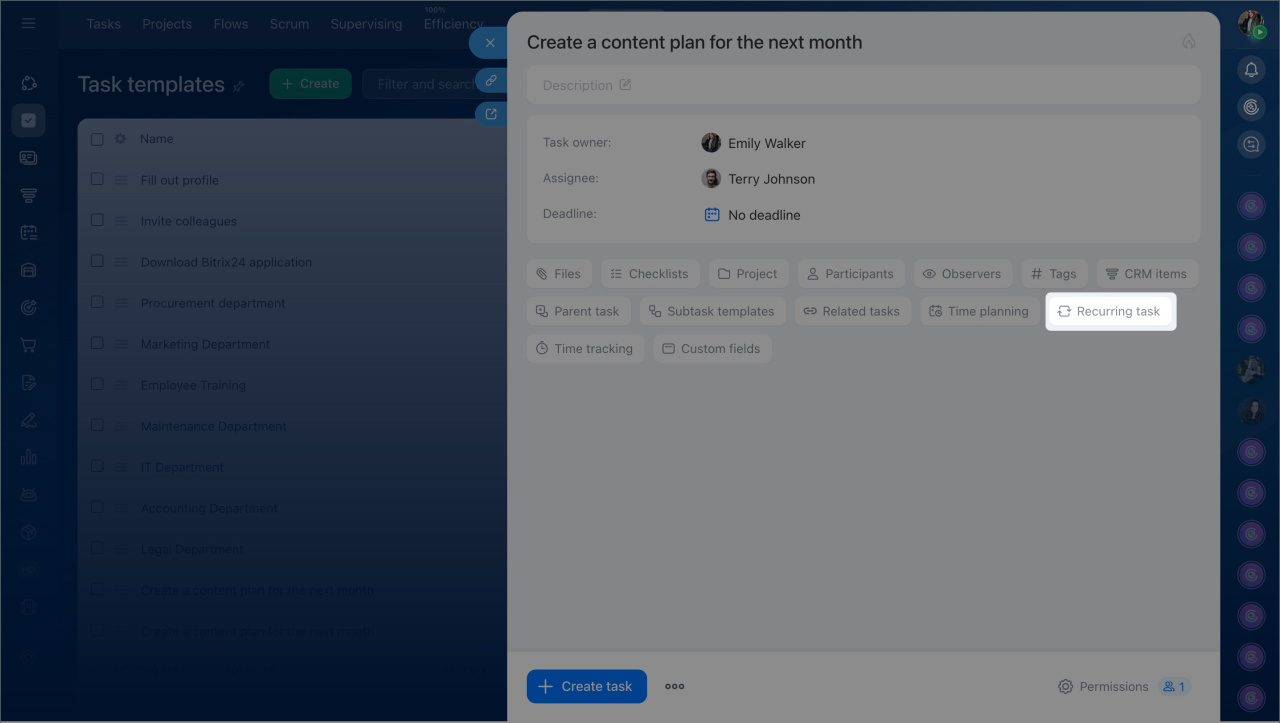
- At the bottom of the template, enable the Recurring task option. A recurrence settings block will appear.
Set up task recurrence
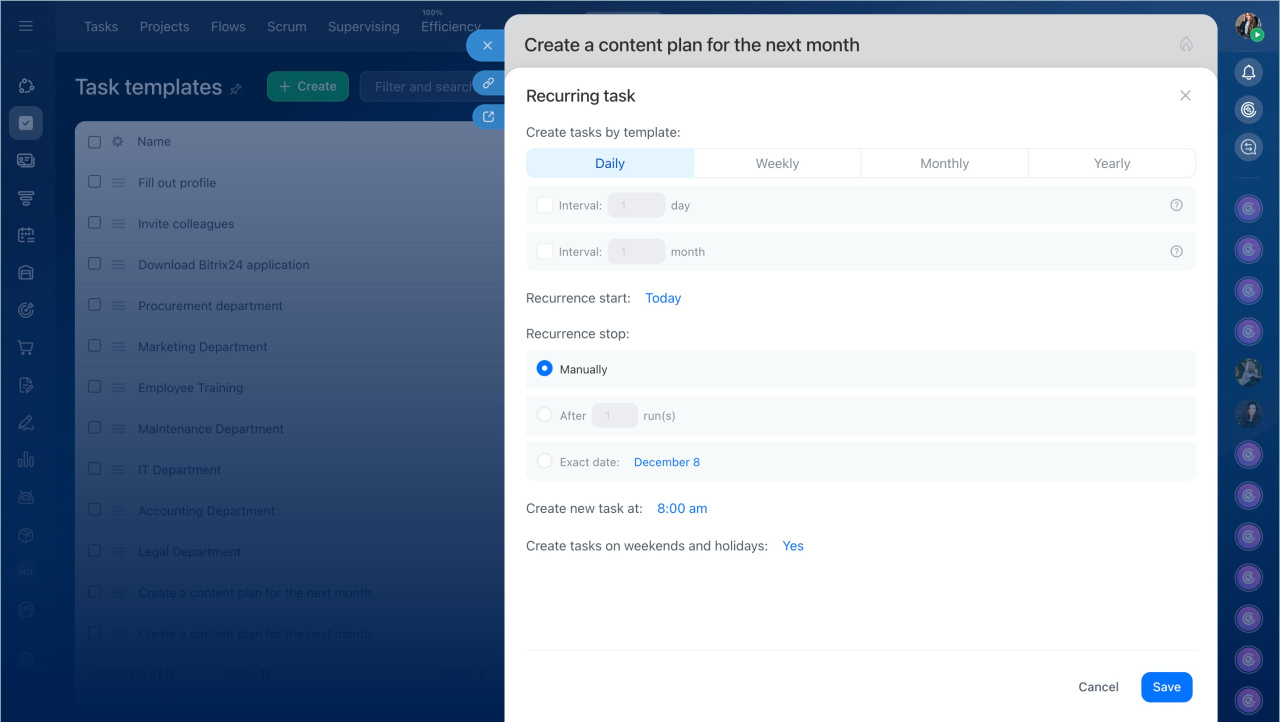
Recurring task settings allow you to specify exactly how and when new assignments will be created.
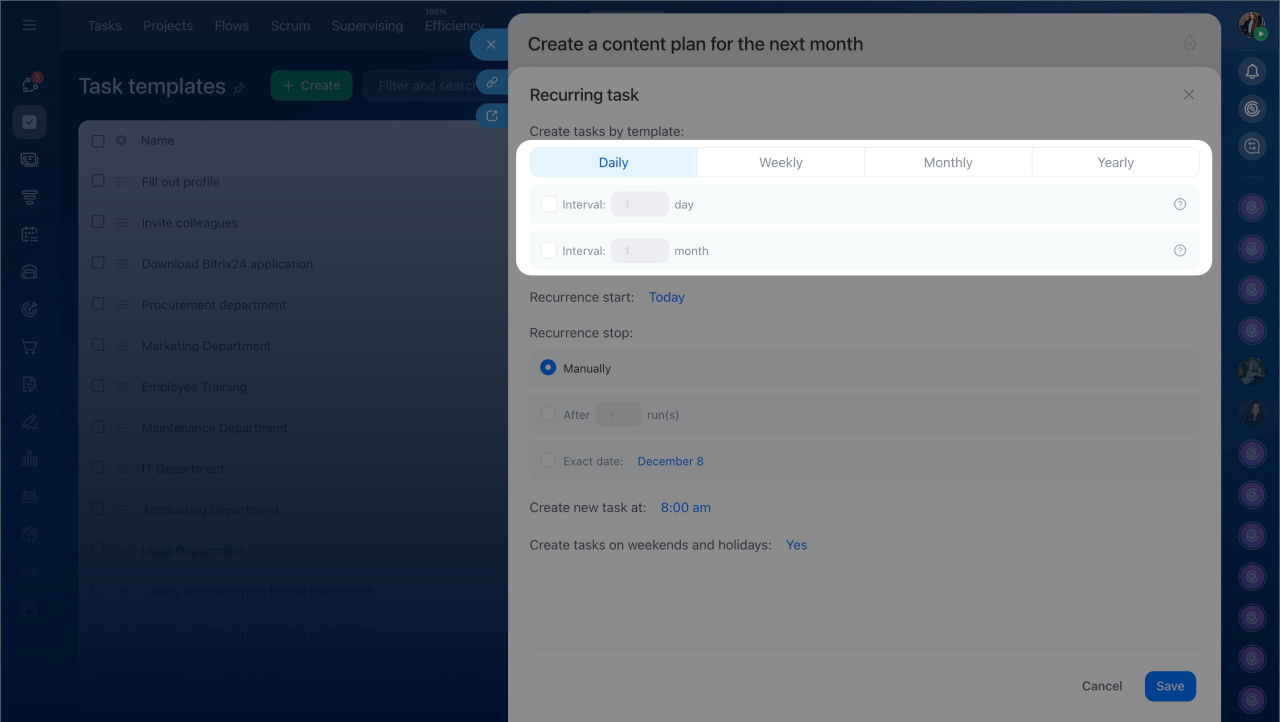
Select the frequency — how often new tasks will be automatically created.
- Daily — ideal for daily tasks that need regular attention, like reviewing sales reports, processing customer inquiries, or checking inventory levels.
- Weekly — choose specific days of the week for new tasks. For example, every Tuesday, the sales manager receives a task like "Review weekly plan progress," while the marketer gets a task like "Update ad campaign metrics" every Friday.
- Monthly — select a specific date or day of the week for new tasks. For instance, every 15th of the month or every second Monday. This is suitable for monthly processes like submitting reports or issuing invoices.
- Yearly — choose a specific date and month or a day of the week and month. This works for rare but essential tasks like annual reports, audits, or license renewals.
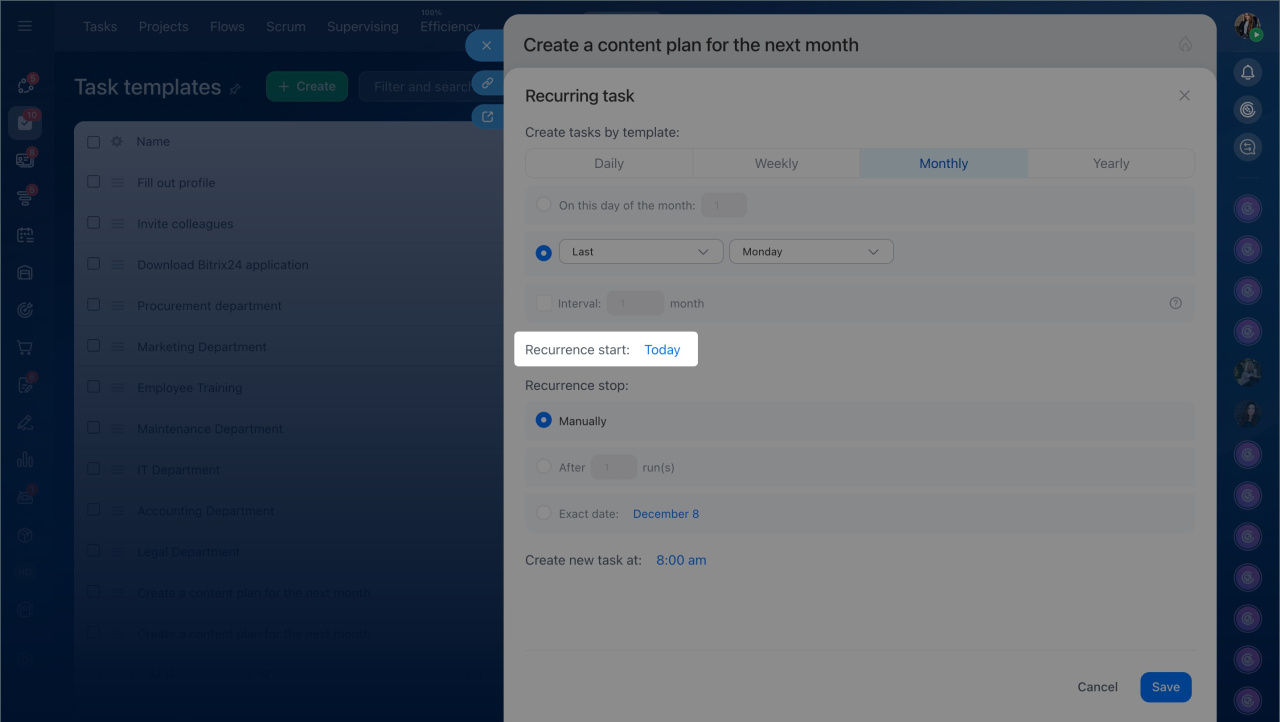
Recurrence start — the day when tasks will begin to be created according to the schedule. By default, recurring tasks are created immediately after setup, but you can choose a specific start date.
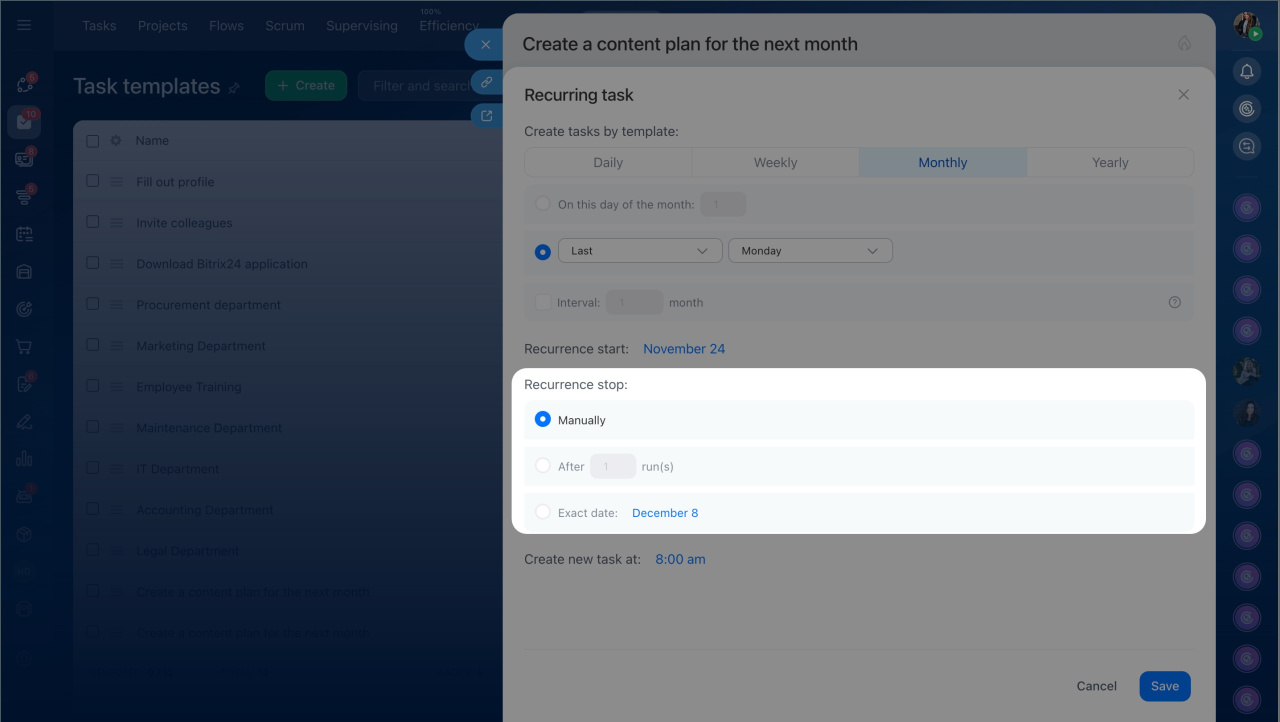
Recurrence stop — to avoid unnecessary tasks, specify when recurrence should stop. There are three options:
- By date — tasks are created until the specified day.
- By number of recurrences — tasks are created a set number of times, then recurrence stops.
- No limits — tasks continue to be created until you manually disable recurrence.
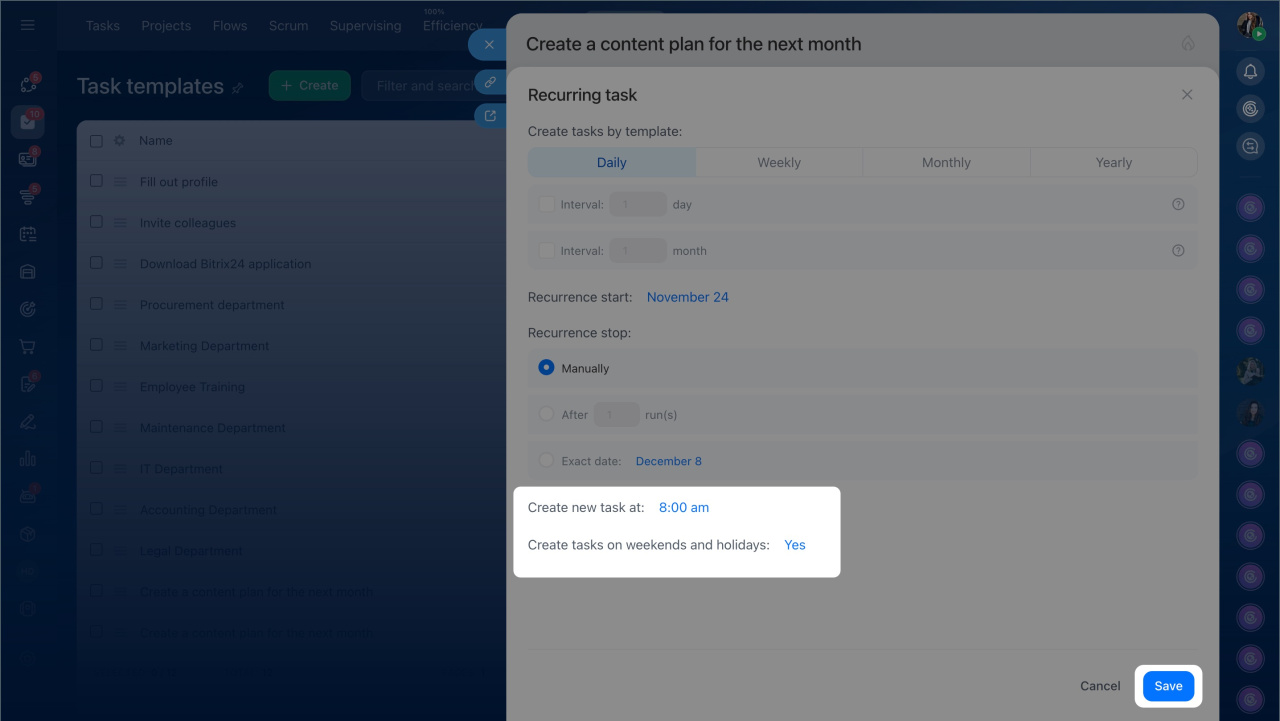
Choose the time for new task creation—when the new task should appear. By default, tasks are created at the start of the workday, as specified in Bitrix24 settings. This option ensures tasks appear when employees are available to start working on them.
Decide whether to create tasks on weekends and holidays—if the recurrence date falls on a non-working or holiday, the task will be created on that day by default. To have it appear on the next working day, select "Do not create."
Once all recurrence parameters are set, click Save.
Modify or stop a recurring task
Recurring task settings can be modified by the template creator, Bitrix24 administrator, or employees with "Full access" rights in the template settings. If an employee has view-only rights, editing depends on their role: in the "Tasks and Projects" section, rights to edit templates for their department or others must be enabled.
Tasks: Access permissions
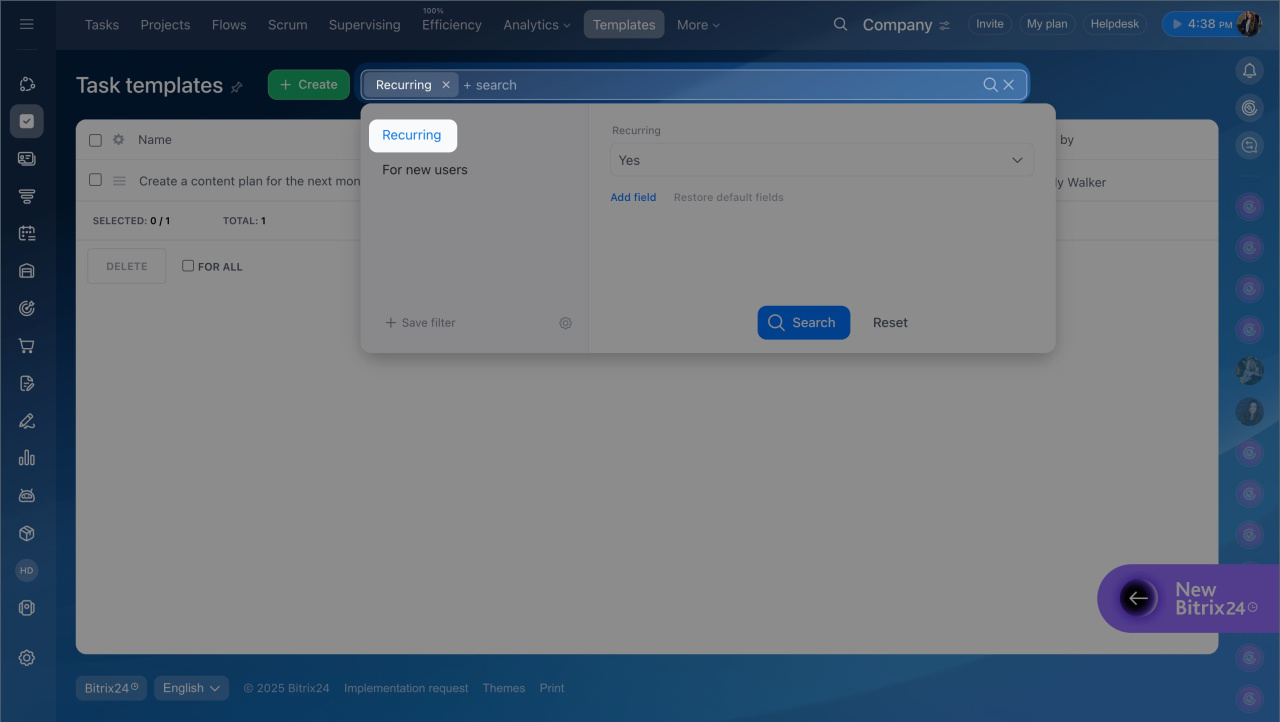
- Go to the Tasks and Projects > Templates section.
- Click the filter and select Recurring.
- Open the required task template.
- Click the recurrence condition to modify the parameters. To delete recurrence, click the Cross icon next to it.
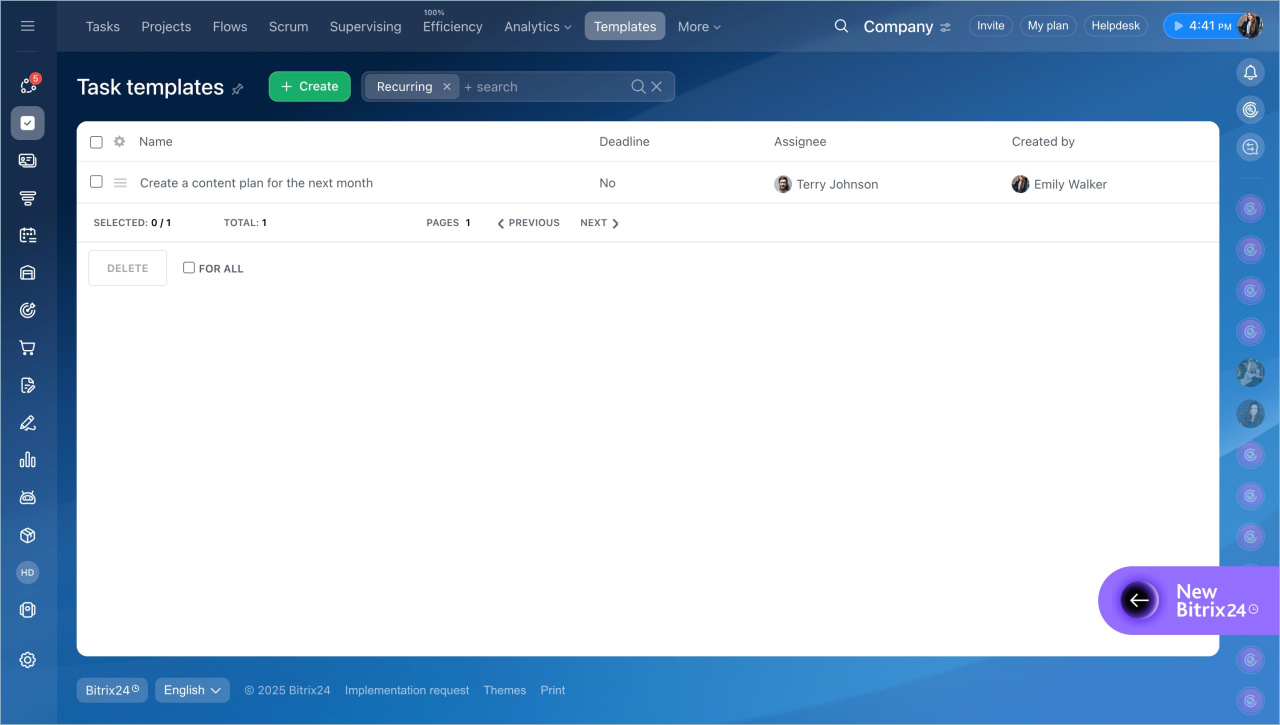
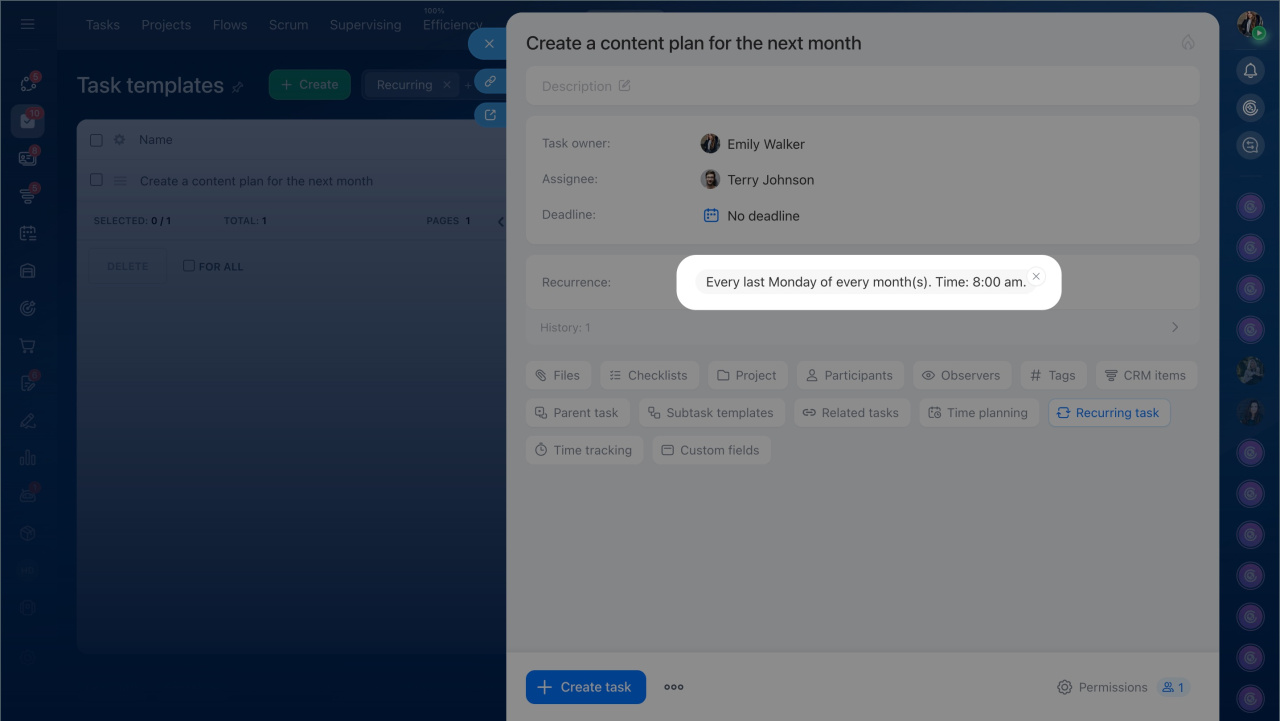
After modifying the settings, new tasks will be created based on the updated conditions. If recurrence is disabled, task creation will stop.
Manage recurring tasks
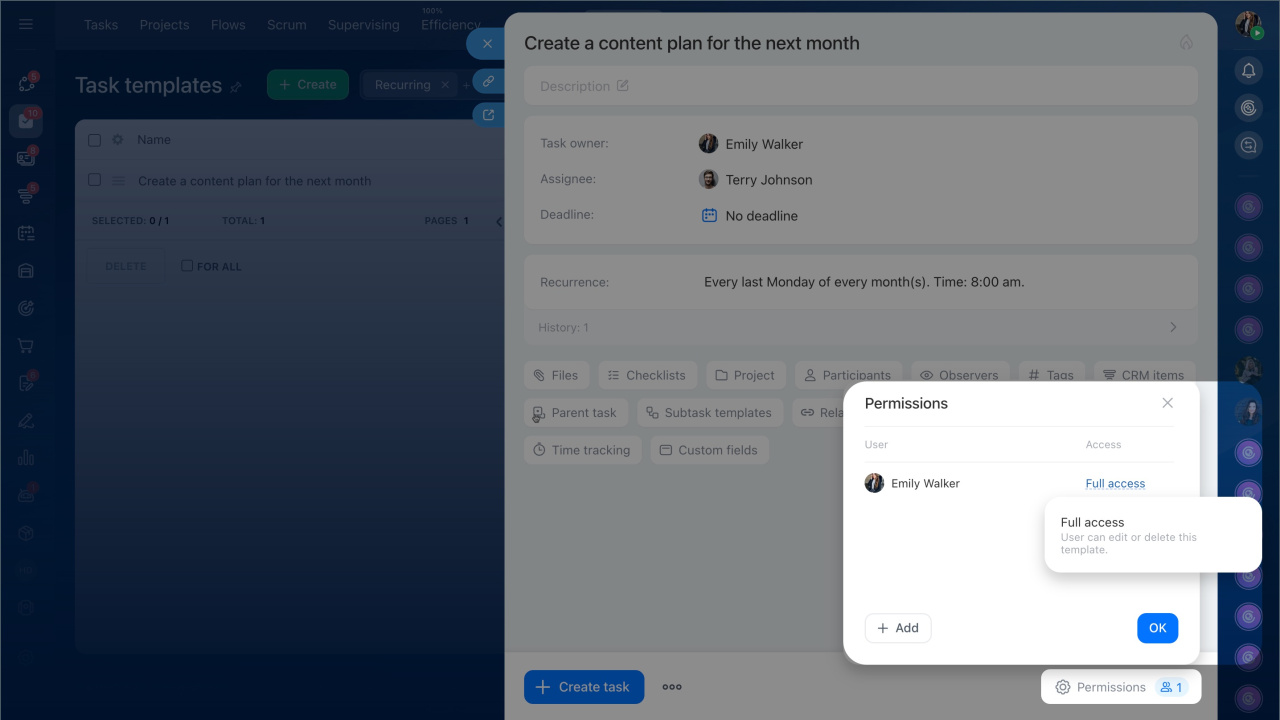
After setting up a template, you can manage recurring tasks — view their creation history and configure access permissions.
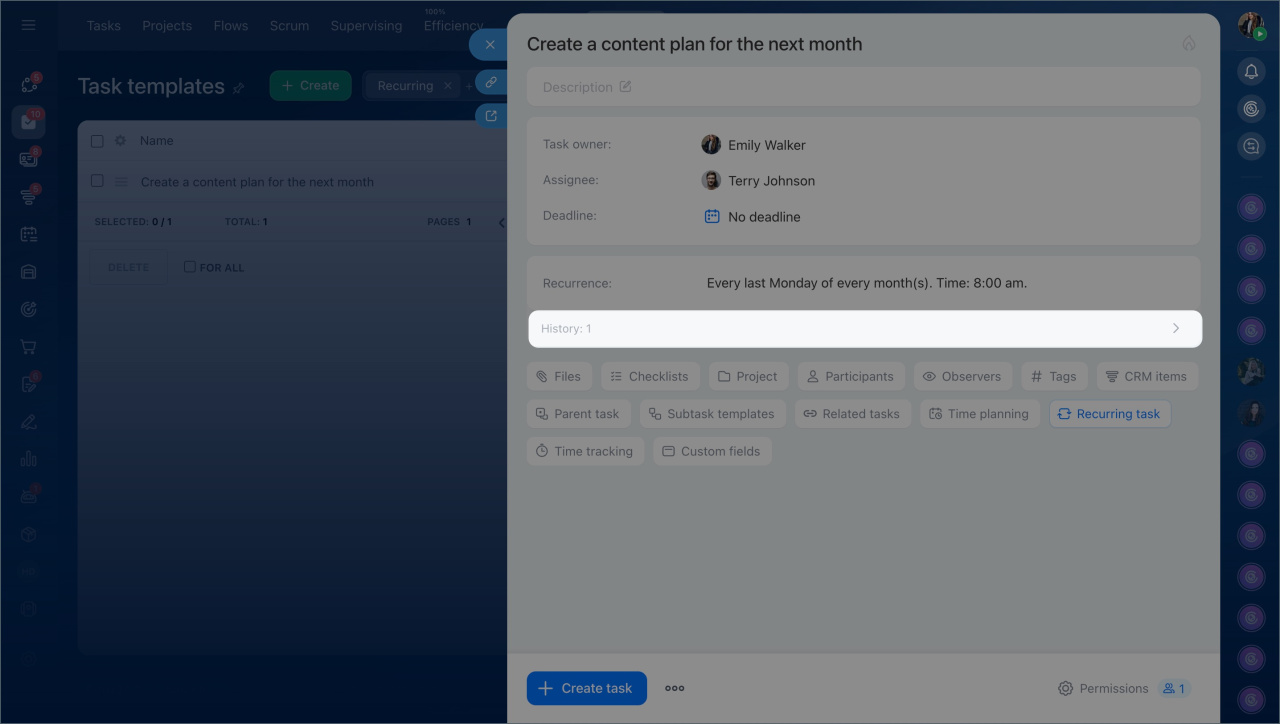
View the creation history of recurring tasks — the History section stores a list of all tasks automatically created from the template. This helps verify when the last task was created and ensures recurrence is working correctly.
Configure access permissions — determine who can view, modify, and delete the template.
The template can be edited by:
- The template creator
- The Bitrix24 administrator
- Employees with full access to the template
- Employees with access permissions to "Edit templates for their department" or "Edit templates for other departments" in the "Tasks and Projects" section
If an employee has view-only rights, they can open the template but not modify it.
Task templates
In brief
- Recurring tasks automatically create repeat assignments on a schedule: daily, weekly, monthly, or yearly.
- Recurring tasks are based on a template: you set the parameters once, and Bitrix24 creates new tasks according to these rules.
- You can specify the start date, time for new task creation, and end conditions for recurrence.
- Recurrence settings can be paused or modified in the template—new tasks will follow the updated parameters.
- The template stores the history of created tasks.
- Access permissions in the template allow restricting its viewing, deletion, and editing.
