
In the Bitrix24 Messenger, you can use stickers to react to messages and add emotions to the chat.
Bitrix24 offers ready-made sticker packs. You can use them or add your own.
Send stickers
By default, all employees have access to standard sticker packs. You can use them in Bitrix24 on both desktop and mobile apps.
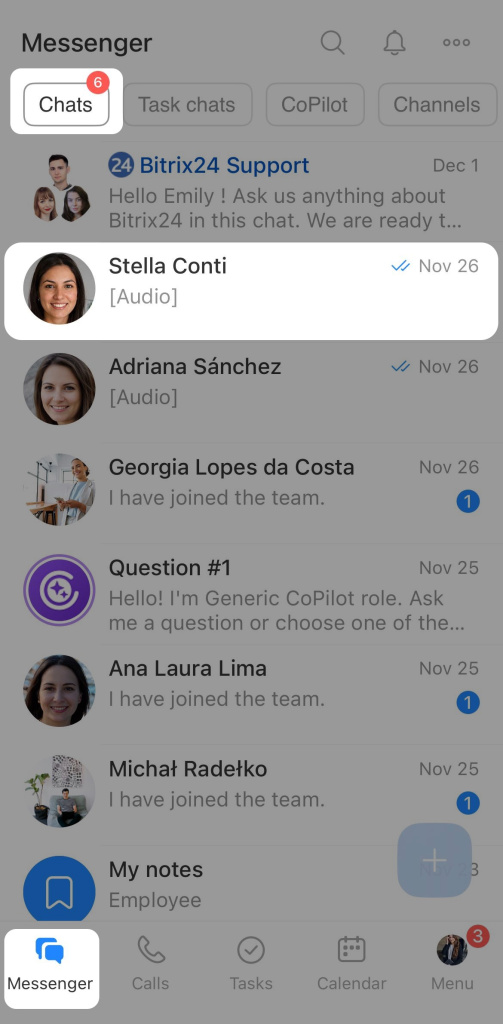
1. Open the chat, channel, or collab.
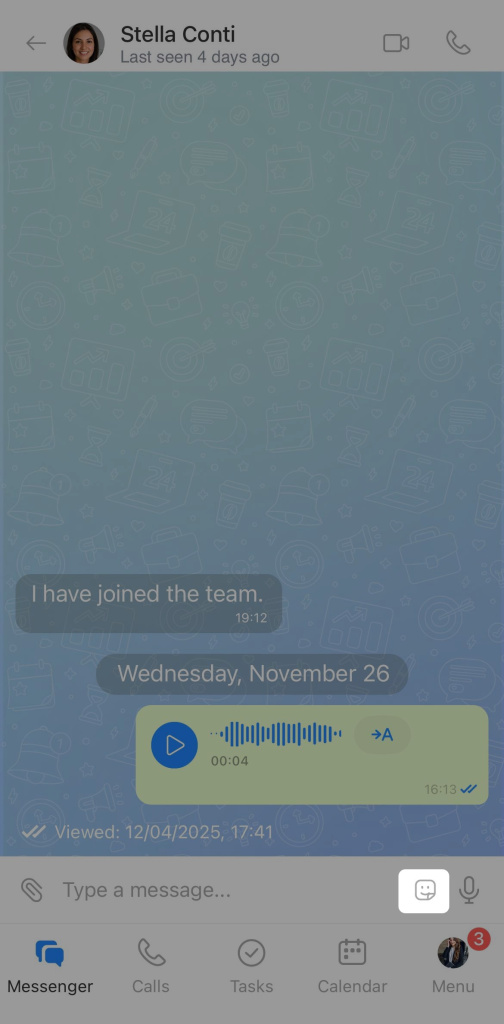
2. Tap the Stickers icon in the input field.
3. Select a sticker.
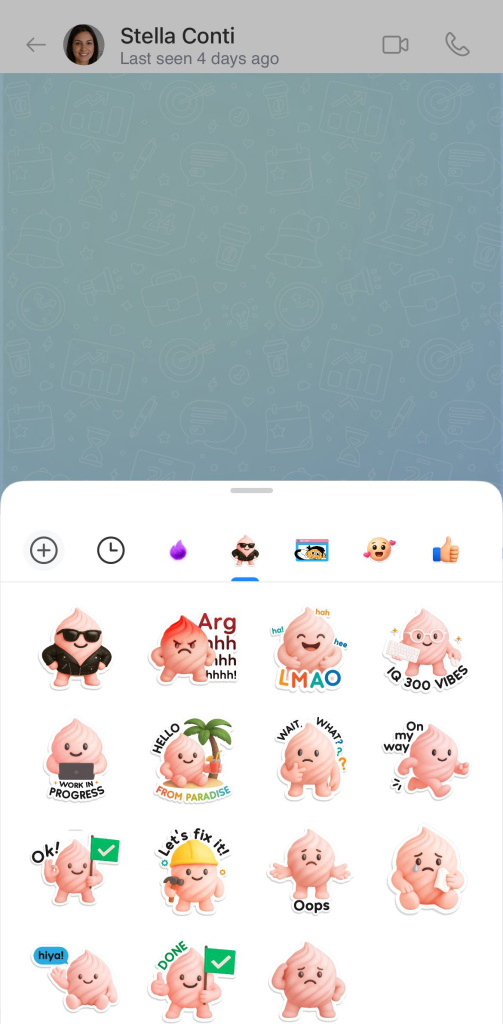
4. Tap it to send it to the chat.
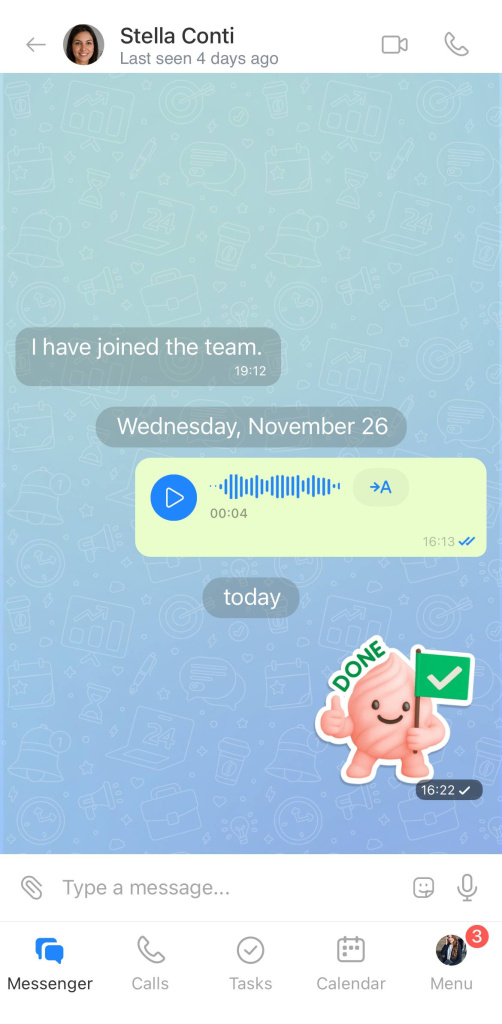
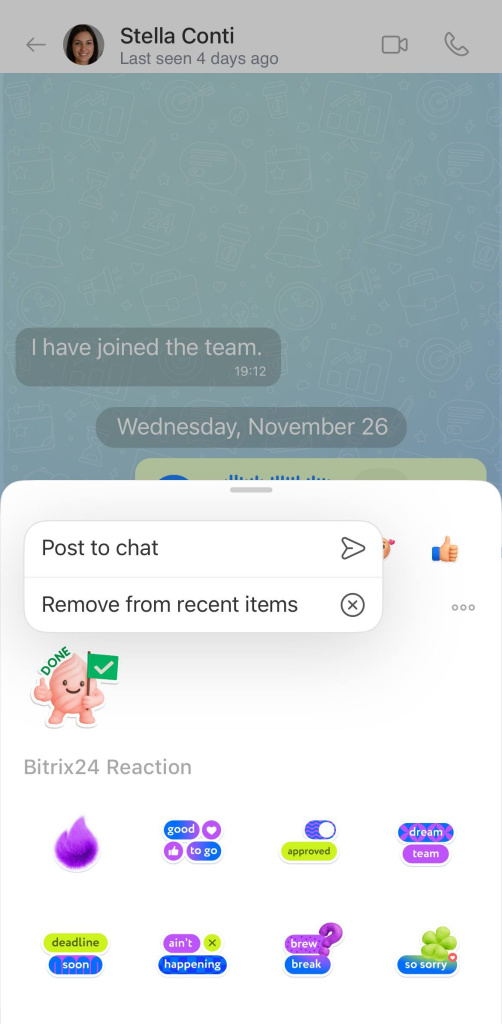
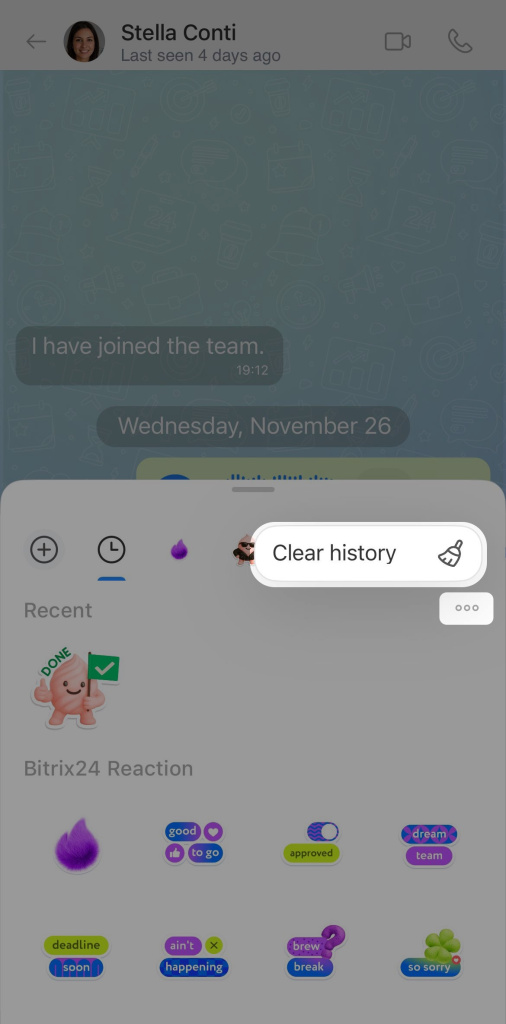
Sent stickers are saved in the Recent section. The system keeps the last 12. You can:
- Send a sticker — click on it.
- Delete a specific sticker — right-click it and select Remove from recent.
- Clear all stickers — click Three dots (...) > Clear all recently used stickers.
Create your own sticker pack
In Bitrix24, you can create custom sticker packs. Once created, send a sticker to a chat, and participants can add the entire pack to their collection.
- Open a chat, channel, or collab.
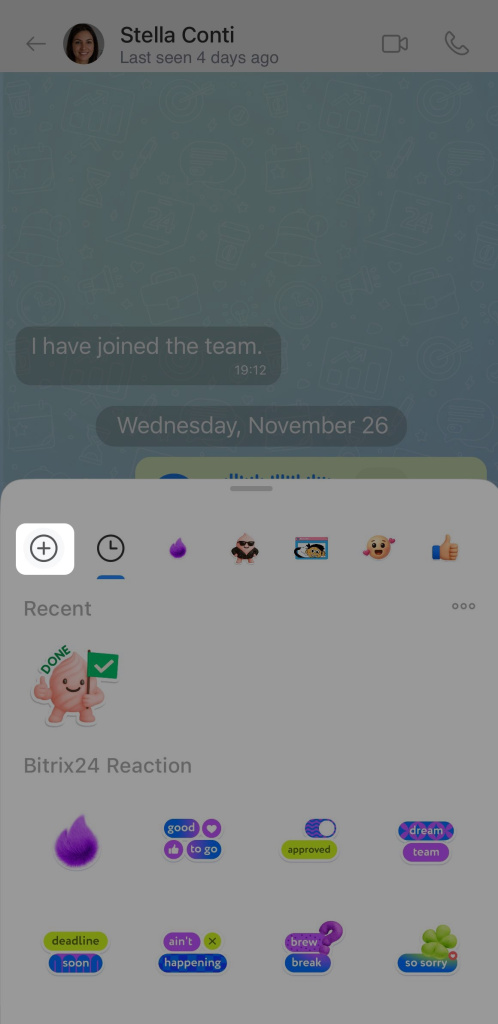
- Tap the Stickers icon.
- Tap Plus (+).
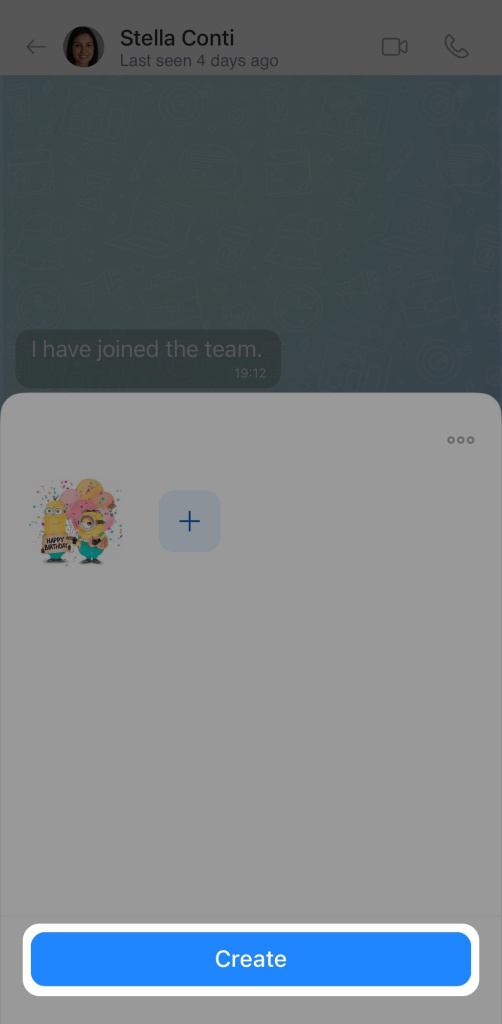
- Select images from your phone's gallery—mark them with checkmarks.
- Tap Send files.
- Enter a name for the pack and tap Continue. If you don't, a name will be generated automatically.
The first uploaded sticker becomes the pack's avatar.
Add colleagues' stickers
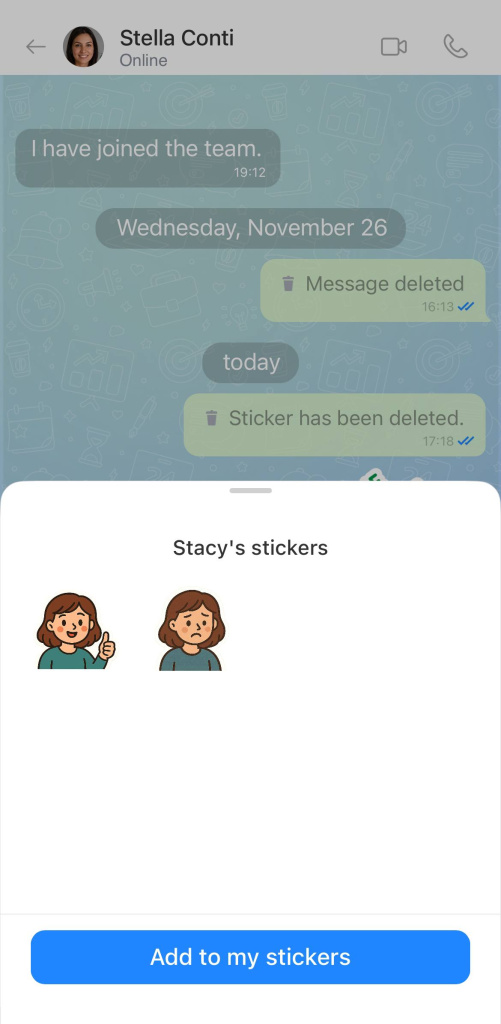
If a colleague sends a sticker to the chat, you can add the entire pack to your collection.
- Click on the sticker—the entire pack will open.
- Click Add pack.
- The pack will appear in the Stickers tab.

Manage sticker packs
Your packs. You can edit, rename, or delete sticker packs you created for all users.
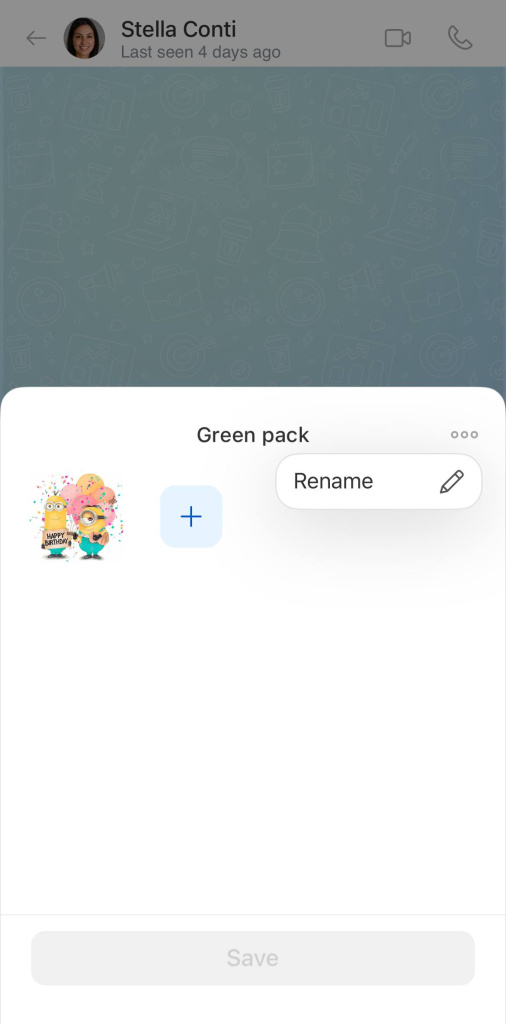
To edit a pack, tap Three dots (...) > Edit and choose an action:
- Add new stickers—tap Plus (+).
- Delete a specific sticker—tap and hold it, then select Remove from pack.
- Rename the pack—tap Three dots (...) > Rename and change the name. It will be visible to all users.
To delete a pack, tap Three dots (...) > Delete for all. The stickers will disappear for all users.
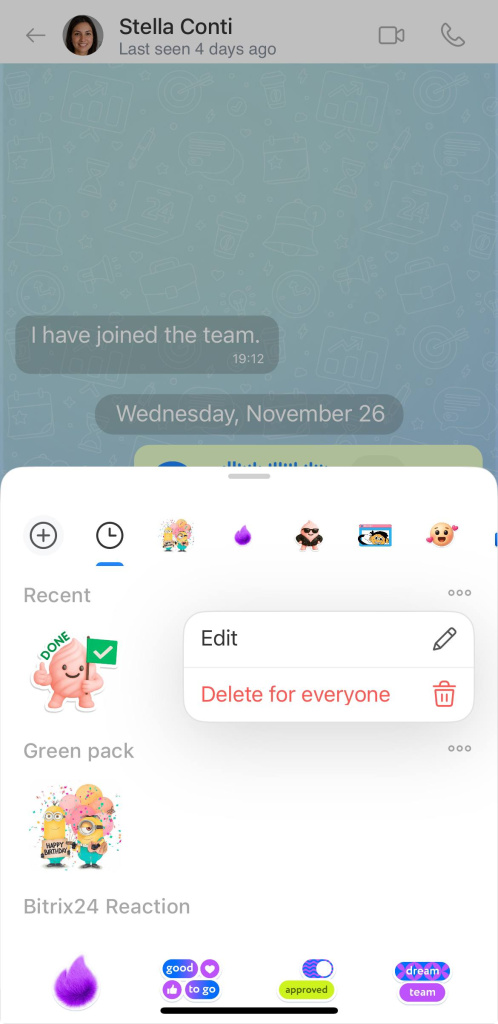
Colleagues' packs. If you added sticker packs from colleagues, you can remove them from your collection—tap Three dots (...) > Remove from my collection.
