
Task reminders in Bitrix24 help you stay on top of important work stages. They notify you when to start a task, request information, monitor results, and close the task.
For example, an assignee can set a reminder two days before the deadline to return to the task on time, while the creator can set one day before to assess progress.
Adding a reminder to a task
Any participant can add a reminder for themselves or colleagues — the assignee, creator, or participants. This can be done when creating or editing a task.
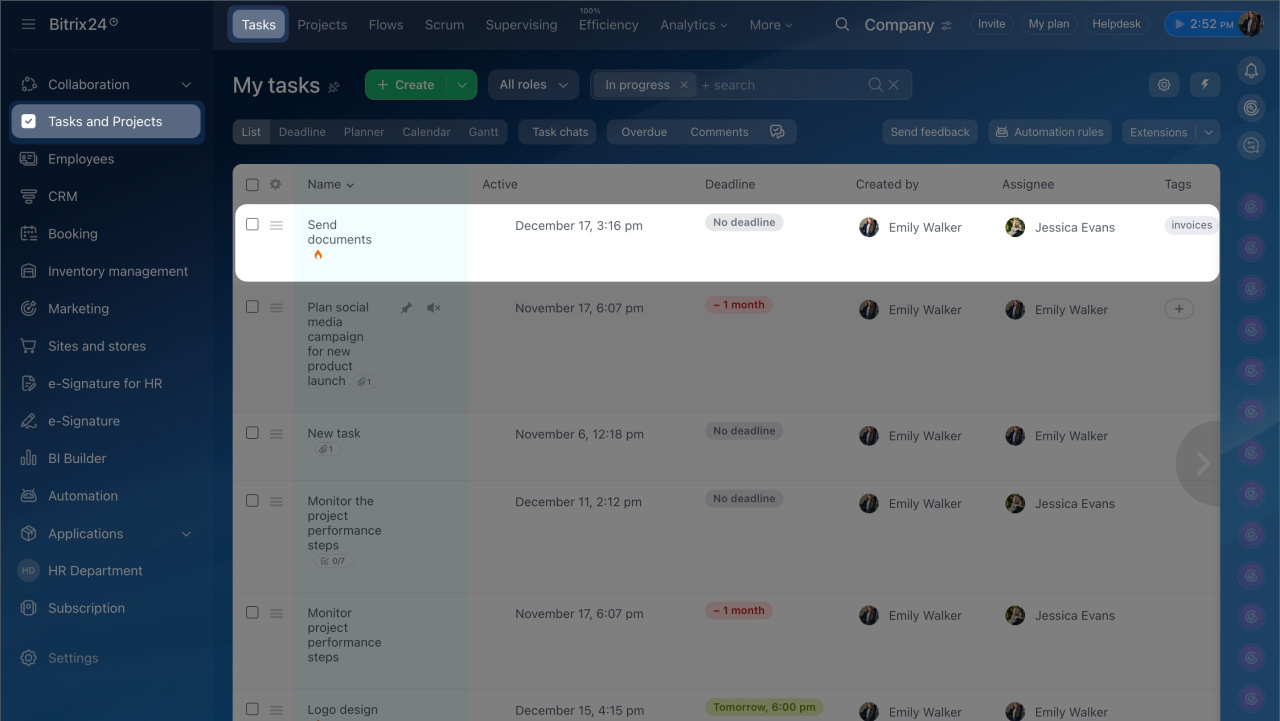
- Go to the Tasks and Projects section.
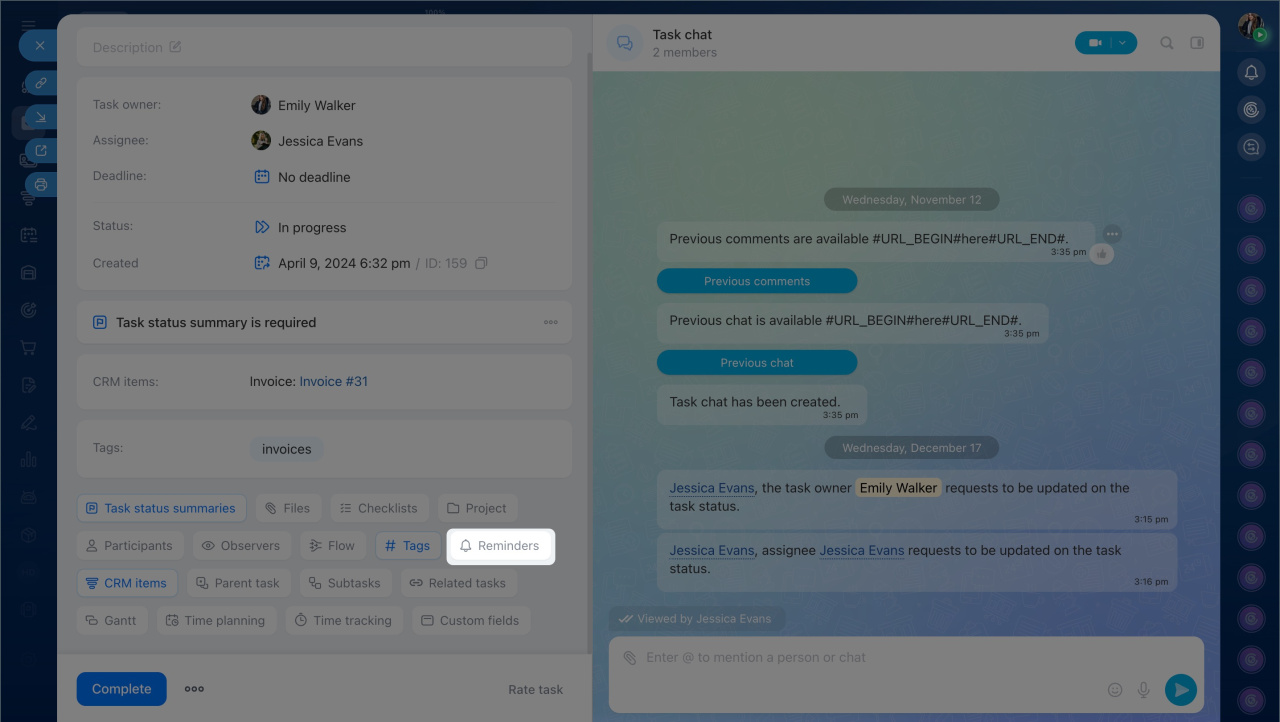
- Open the task form or create a new one.
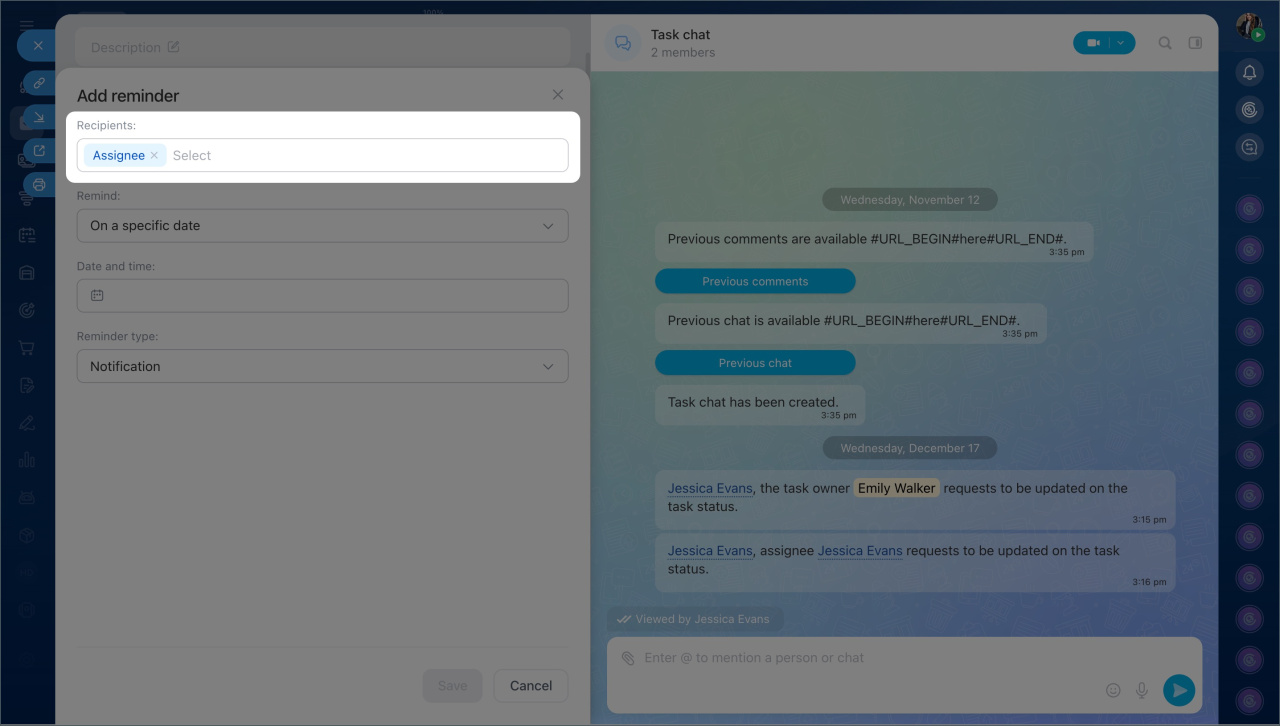
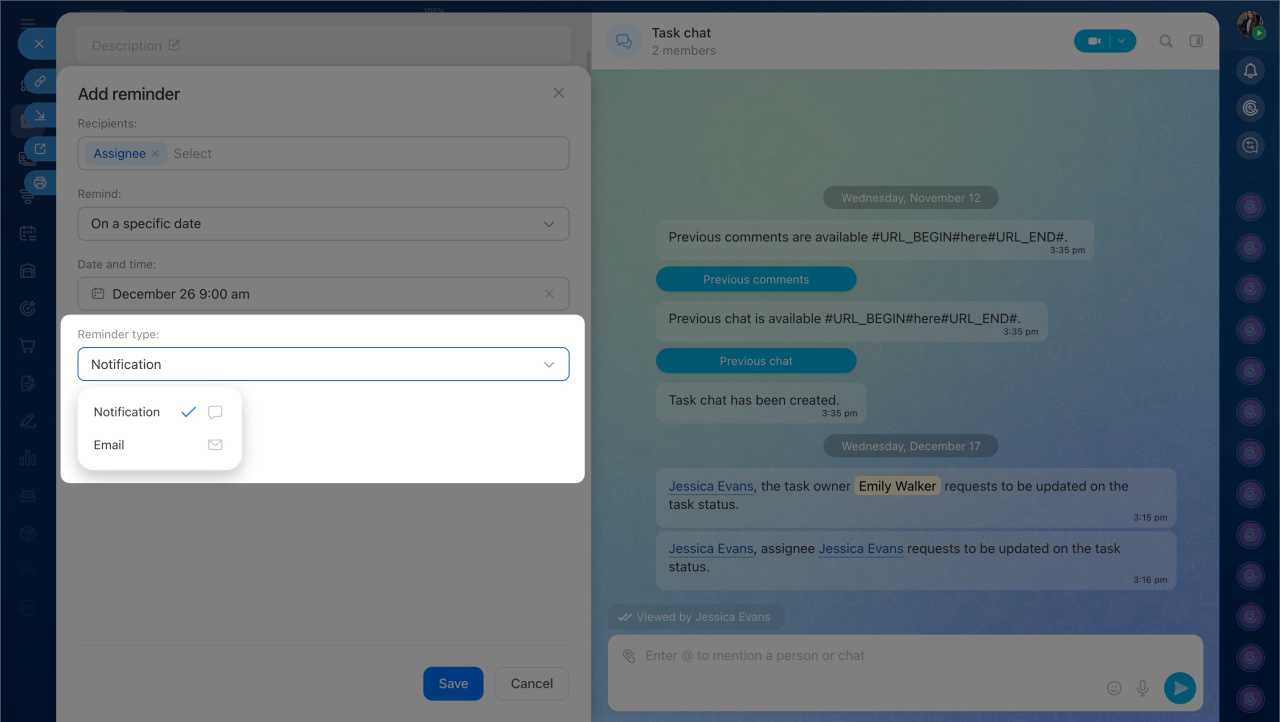
- Choose who will receive the reminder: the assignee, creator, participants, or yourself.
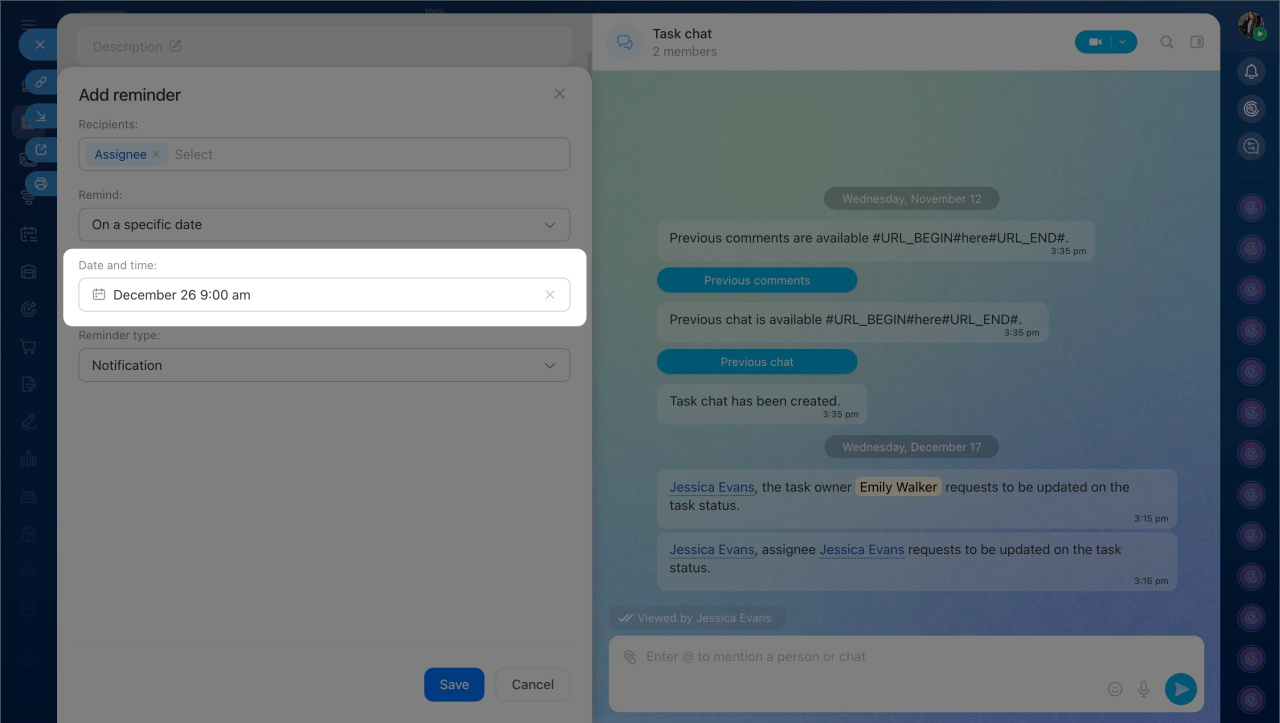
- Specify when to send the reminder:
- On a specific date — set the day and time for the notification.
- Before the deadline — define how much time before the deadline the reminder should be sent.
Select the type of notification the user will receive:
- A notification in Bitrix24.
- An email.
Click Save.
Change profile details and layout in Bitrix24
Viewing and editing reminders
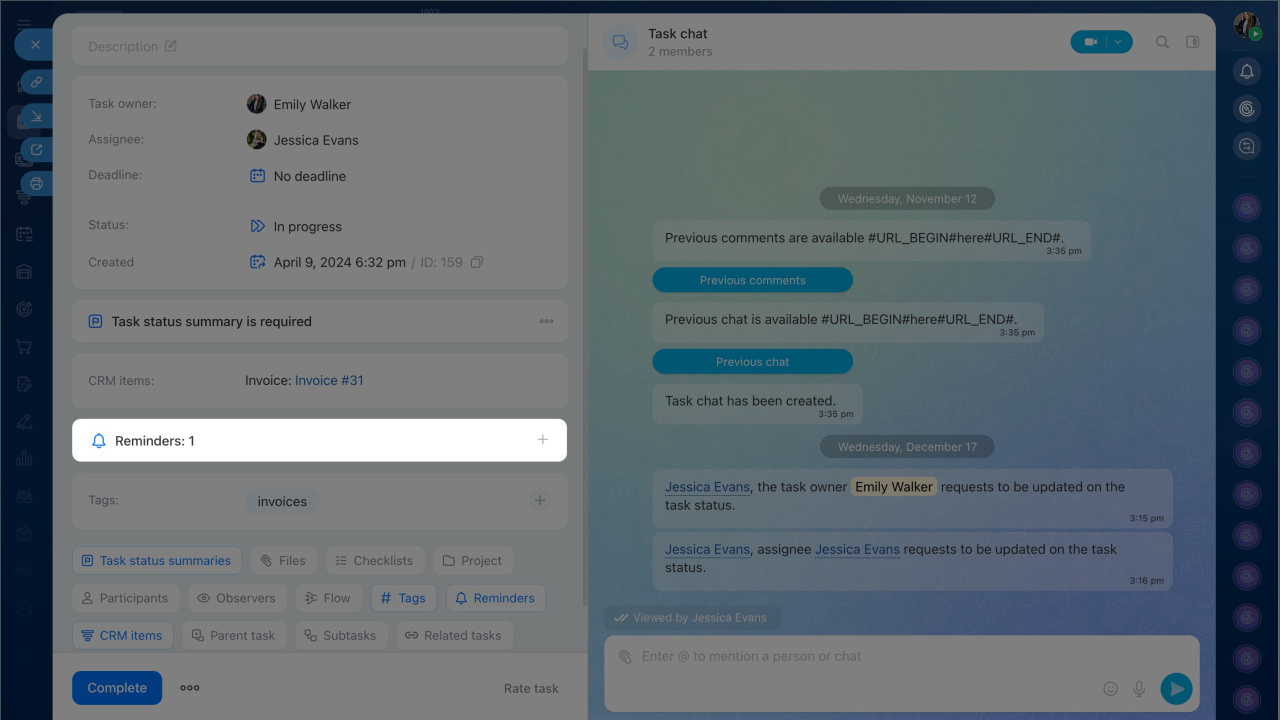
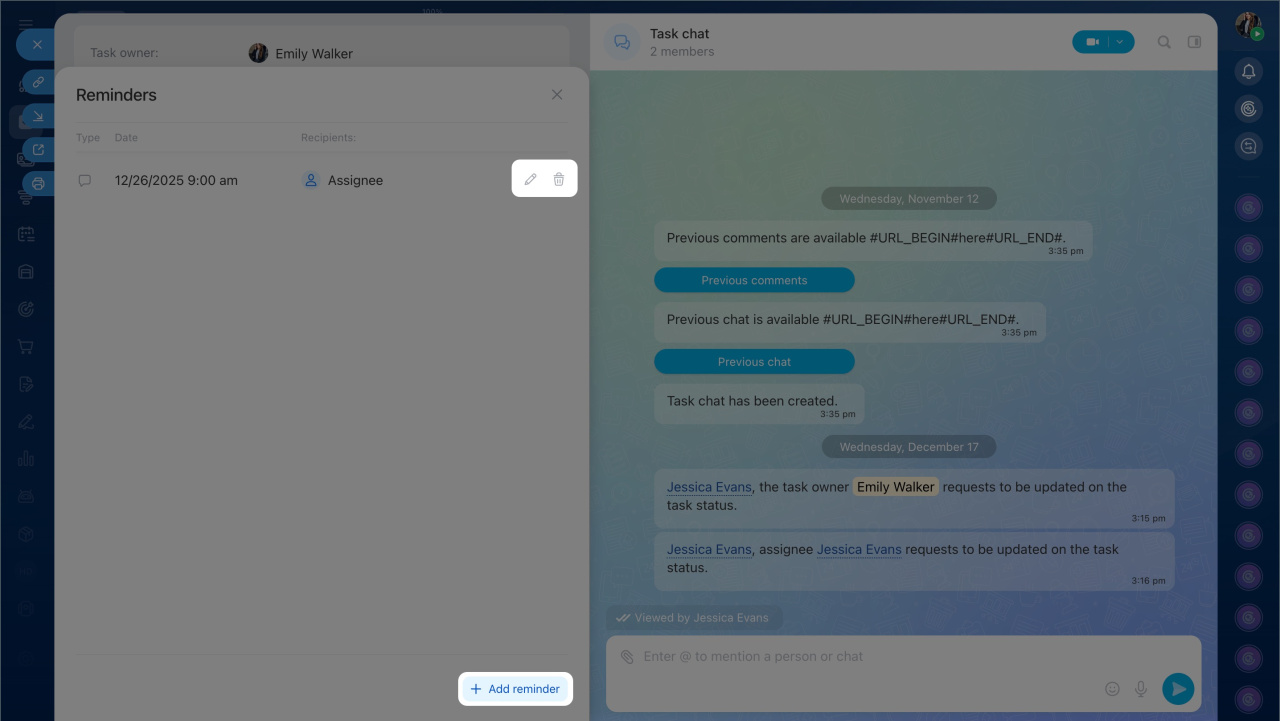
All reminders set by an employee are collected in a separate block within the task and are visible only to them. If a reminder is set for another participant, the colleague will not see it in their list but will receive the notification.
- Click the Reminders block to open the list.
- Hover over the desired reminder and click to delete it.
- Click the Reminders block to open the list.
- Click Add reminder if you want to add another entry. There is no limit to the number of reminders.
In brief
- Task reminders in Bitrix24 help you stay on top of important work stages. They notify you when to start a task, request information, monitor results, and close the task.
- Any participant can set a reminder for themselves or colleagues: on a specific date or a set time before the deadline.
- Notifications are available in Bitrix24 or via email.
- To add a reminder, go to the Tasks and Projects section, open the required task or create a new one. Click the Reminders button, set the parameters, and click Save.
- All reminders set by an employee are saved in the task form. Click the Reminders block to expand the list, edit, delete, or add a new reminder.
