
If an incoming call through Bitrix24 telephony does not reach the mobile app or arrives without sound, the issue is usually related to your phone settings. Your mobile operating system may restrict background activity or block notifications. To fix this, check the Bitrix24 app permissions in your phone settings.
In this article:
Check permissions on Android
Review these permissions for the Bitrix24 app. Menu names and permission labels may vary by device model and Android version. If you do not see the exact option, look for a similar setting.
Notifications. Make sure notifications are turned on for the app. Also confirm that sound and vibration are enabled for Bitrix24 notifications. On some devices, these are separate settings.
Lock screen. Allow the Bitrix24 mobile app to show notifications on the lock screen. Without this permission, calls may not show when your phone is locked. This setting may appear as On lock screen, Show content on lock screen, or something similar.
Pop-up windows and display over other apps. These permissions allow Bitrix24 to show the incoming call screen while you use another app. Without them, the call may arrive, but the Bitrix24 app will not open. To find it, search your phone settings for keywords such as “over” or “pop-up windows.”
Background activity. Make sure the app can run in the background. Otherwise, Android may restrict the app, which can delay calls or block them completely. In your phone settings, open the battery or power management section and remove any restrictions for Bitrix24. Depending on the device, this setting may appear as Don't optimize, Allow background activity, Unrestricted, or something similar.
Autostart. On some devices, you also need to allow the app to start in the background. This setting may appear as Autostart, Background activity, App launch, or something similar.
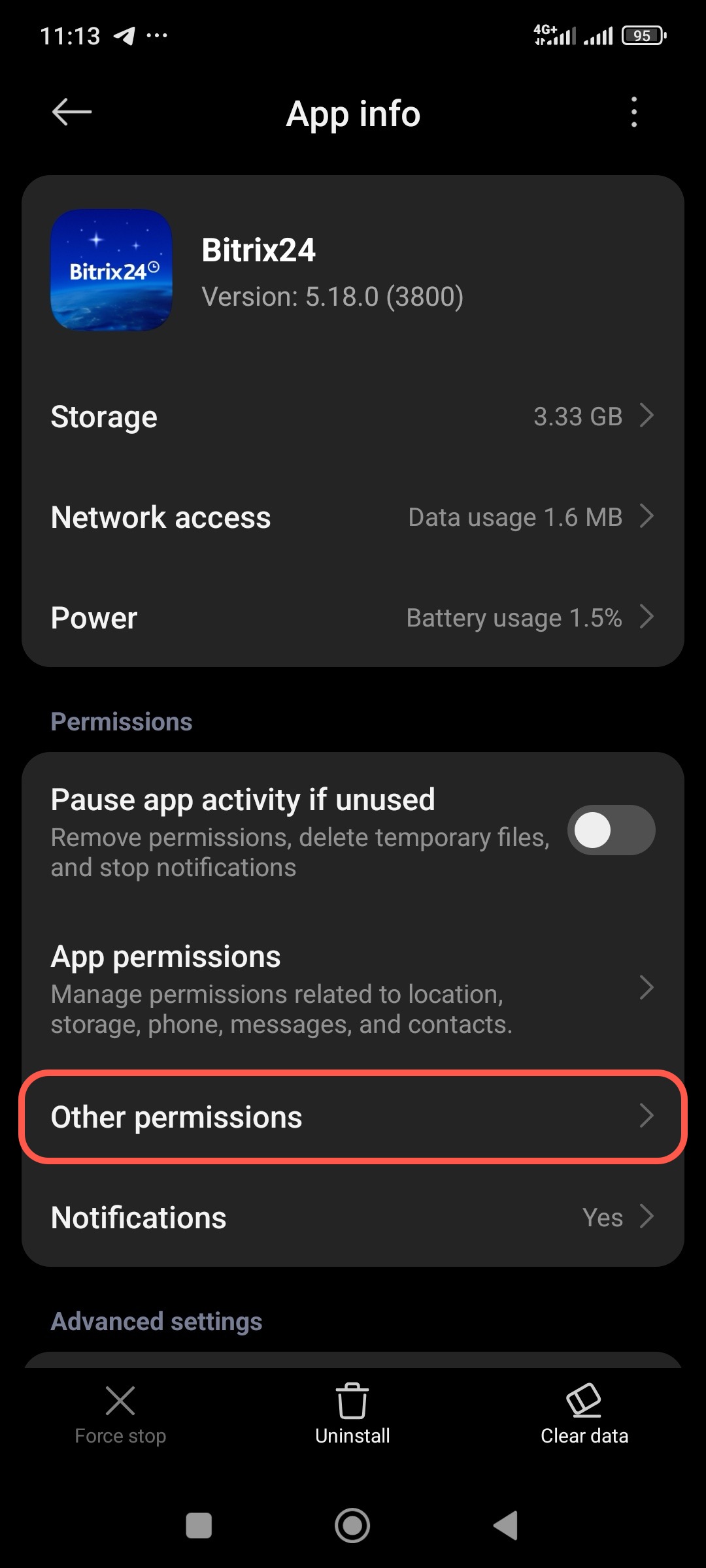
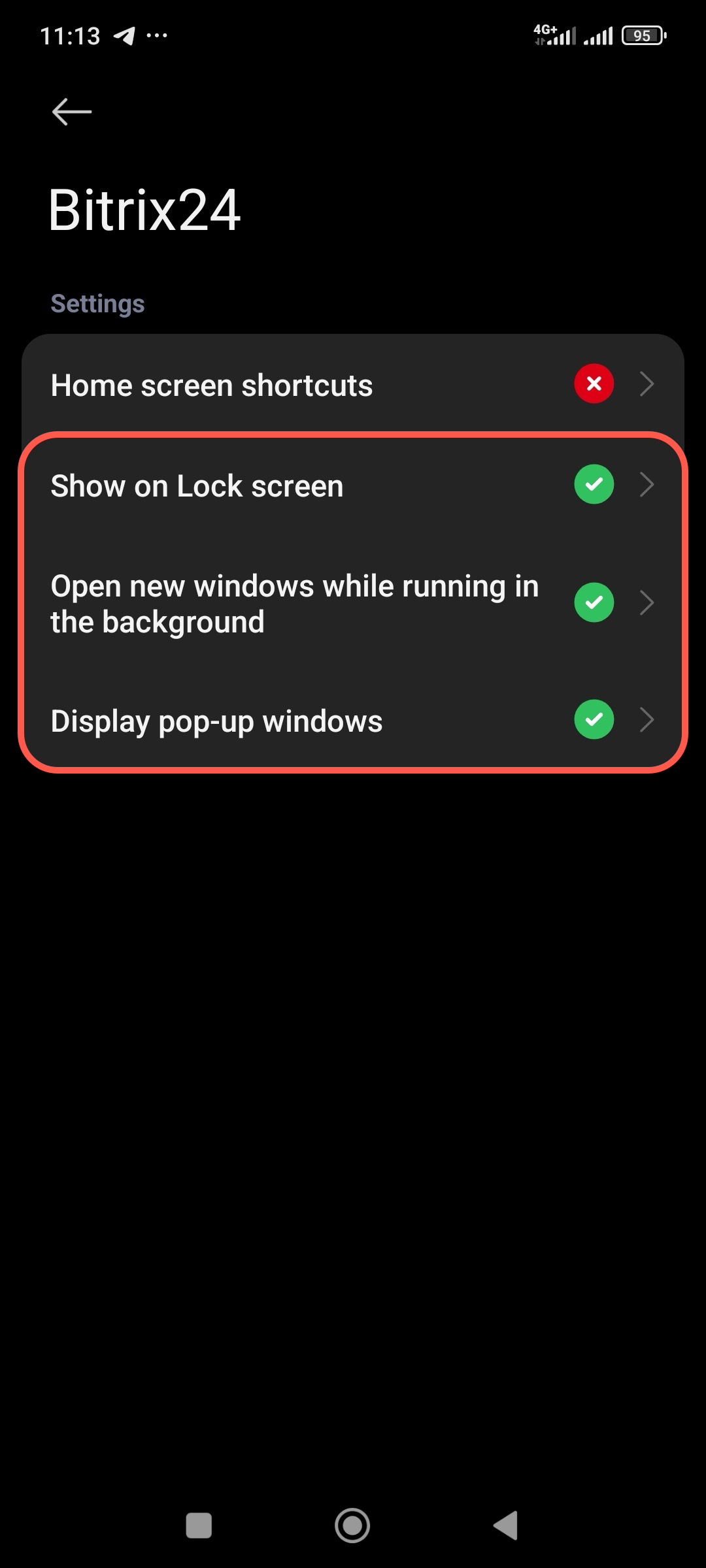
Example: Xiaomi devices running HyperOS. Additional permissions are available in the Other permissions section. Go to Settings > Apps > Bitrix24 > Other permissions and make sure these options are enabled:
- Show on Lock screen: Allows the call screen to show over the lock screen.
- Open new windows while running in the background: Allows the call screen to open when the app is not active.
- Display pop-up windows: Allows the incoming call screen to show over other apps.
Check permissions on iPhone
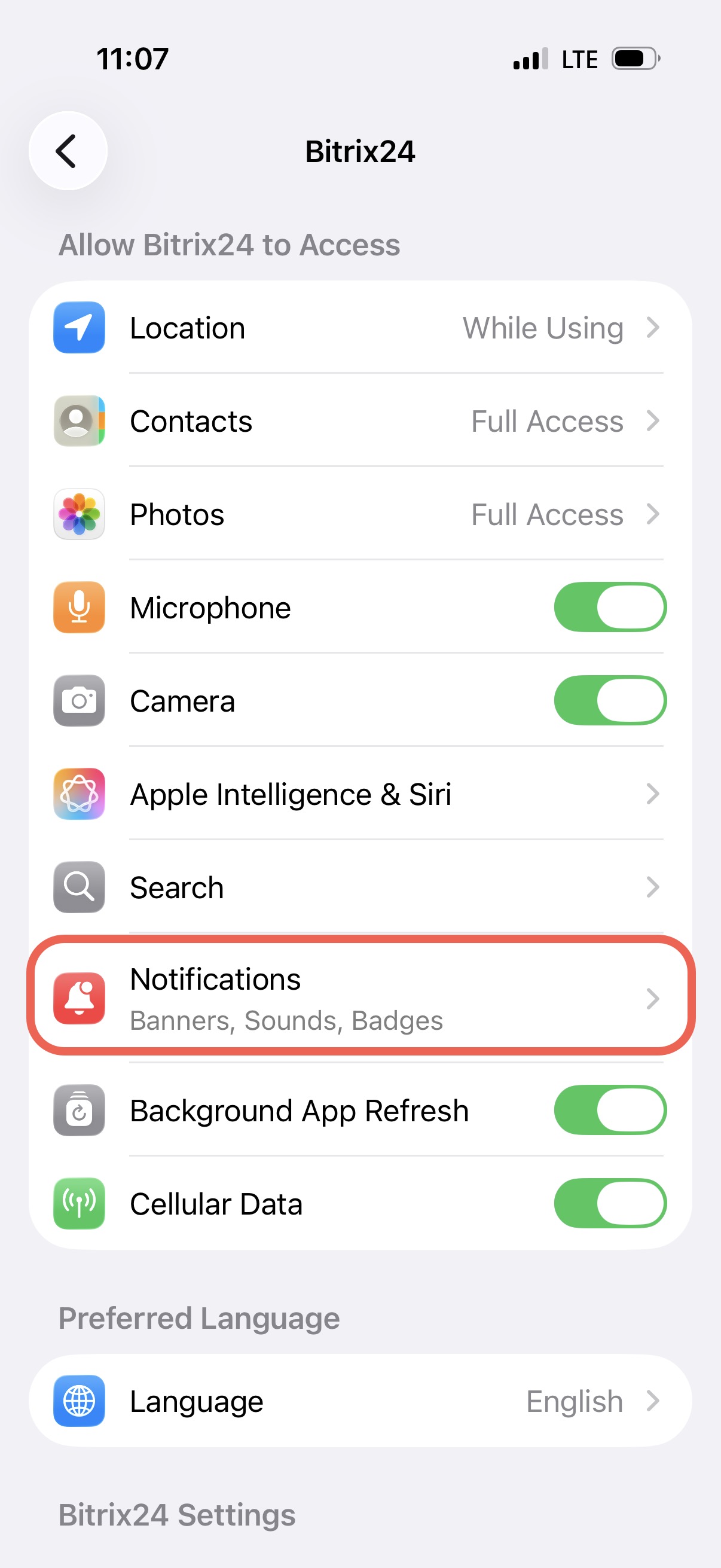
Compared to Android, iOS requires fewer additional permissions. Check the notification settings for the Bitrix24 app.
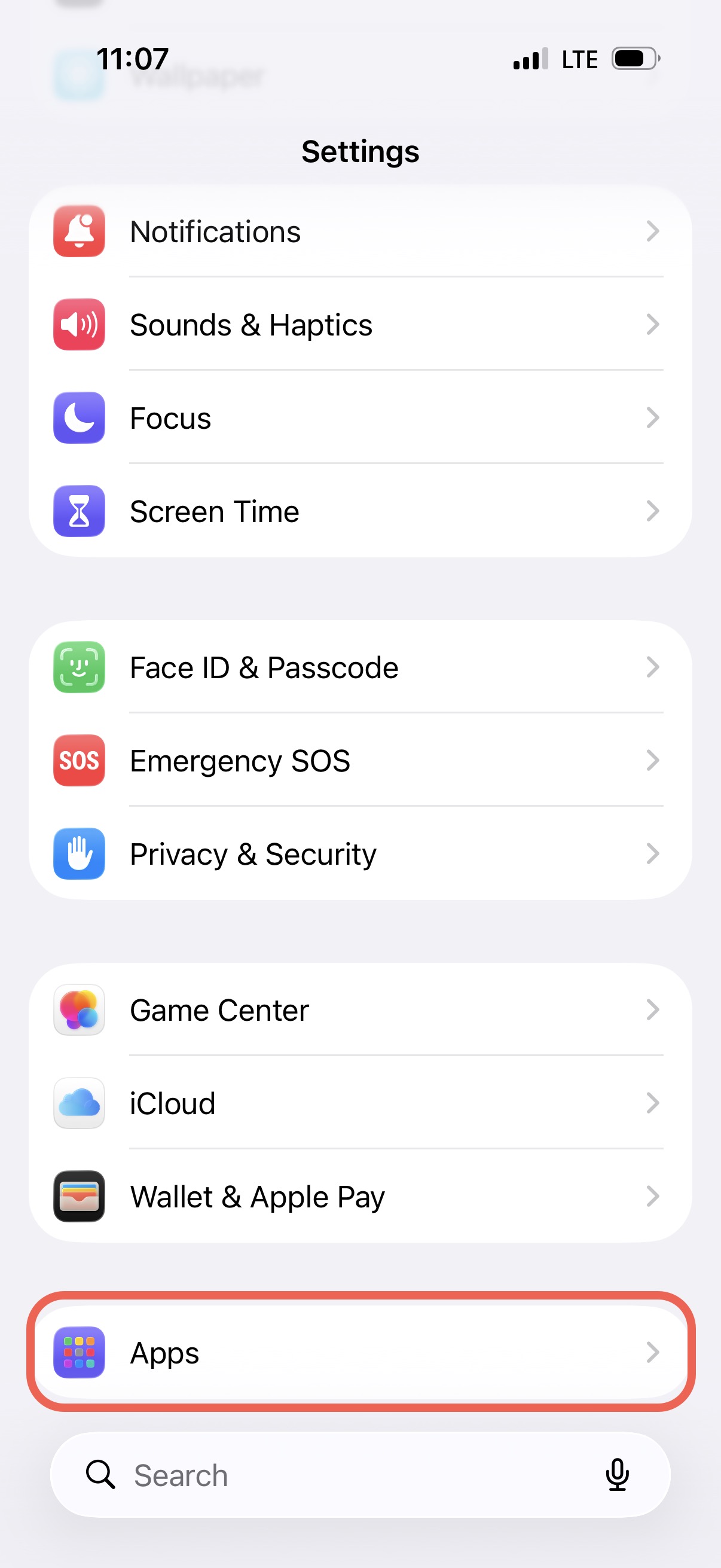
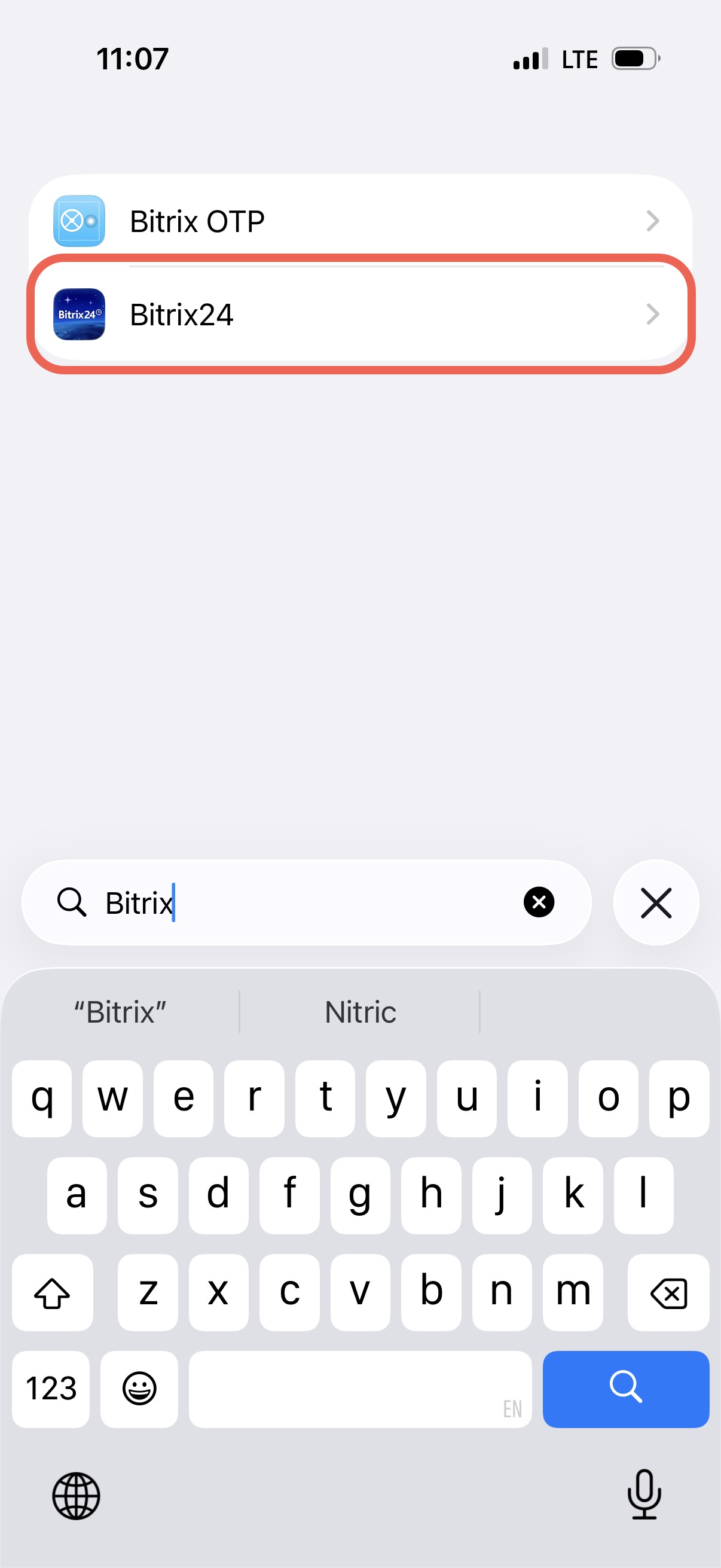
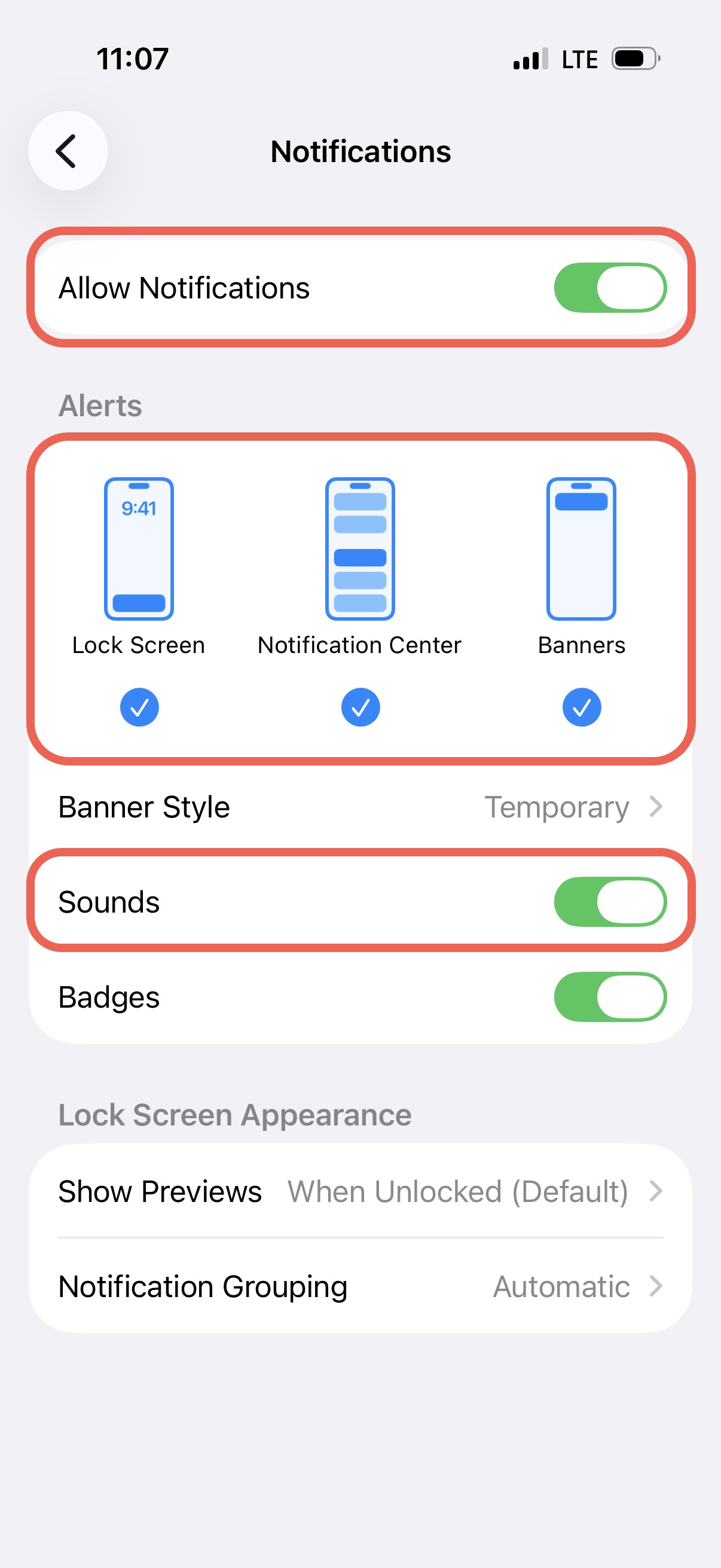
Go to Settings > Apps > Bitrix24 > Notifications and enable:
- Allow Notifications
- Lock Screen
- Notification Center
- Banners
- Sounds
After checking the permissions, restart the Bitrix24 mobile app. If calls still do not arrive, contact Bitrix24 Support.
Contact Bitrix24 Support