
Automation rules help you manage orders, keep customers informed, and automate communication.
Types of automation
Automation tools include three groups:
They are divided into three groups:
- Automation rules for employees – update order data, run workflows, create tasks, and notify team members.
- Client communications automation rules – send emails, SMS messages, or automated calls.
- Triggers – update order status automatically.
Bitrix24 plans and pricing
Set up automation rules
- Go to Online Store → Orders.
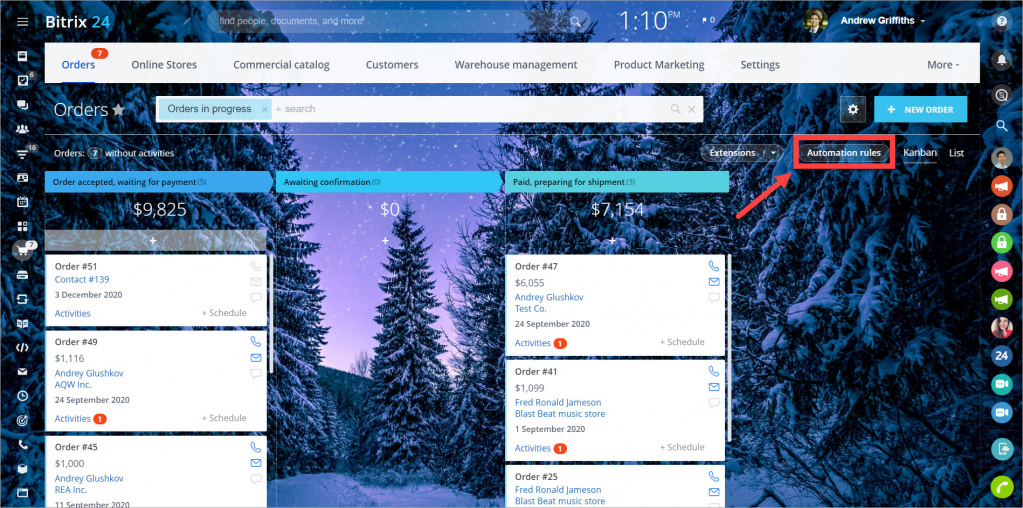
- Click Automation rules.
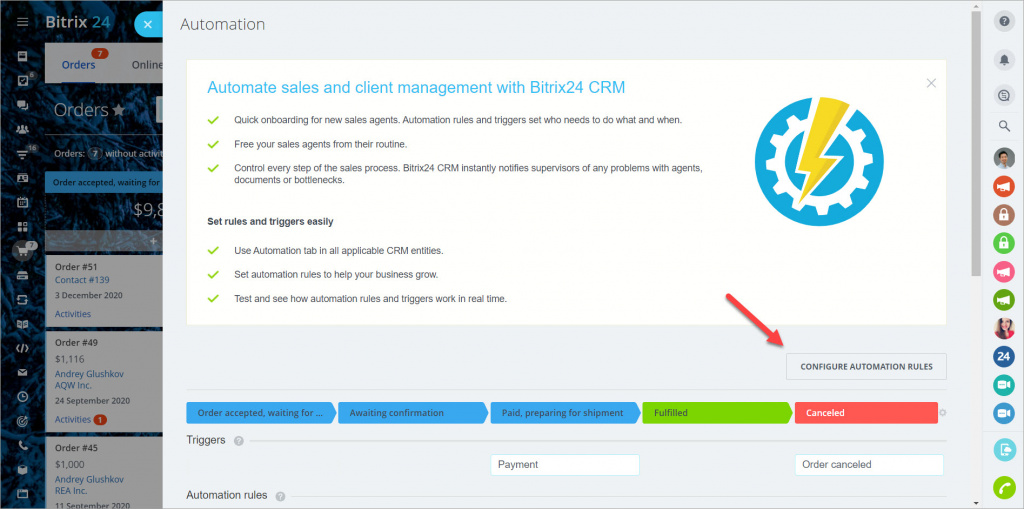
- Select Configure automation rules.
How automation rules work
A rule runs when an order enters the stage where the rule is set.
- When the order moves to a new stage, rules from the previous stage stop running.
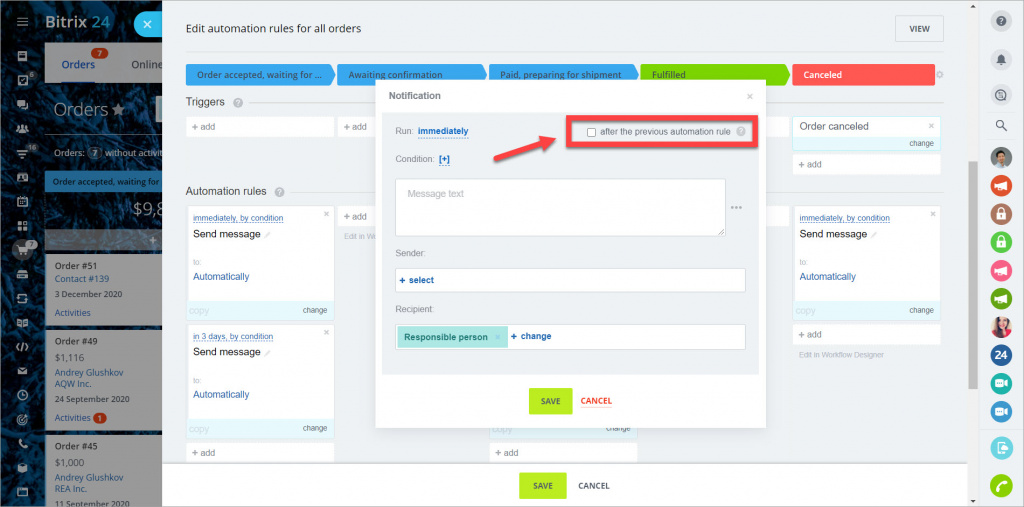
- Use Run after previous rule to control the order of actions.
Enable this option to run actions one after another. For example, generate an order number and then send it to the customer.
If you disable it, all rules in the stage run at the same time.
Available automation rules
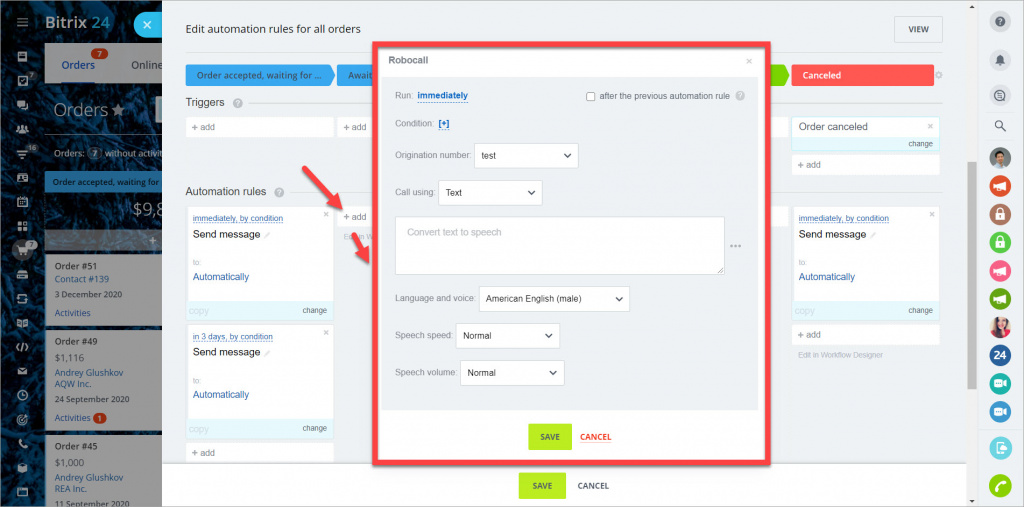
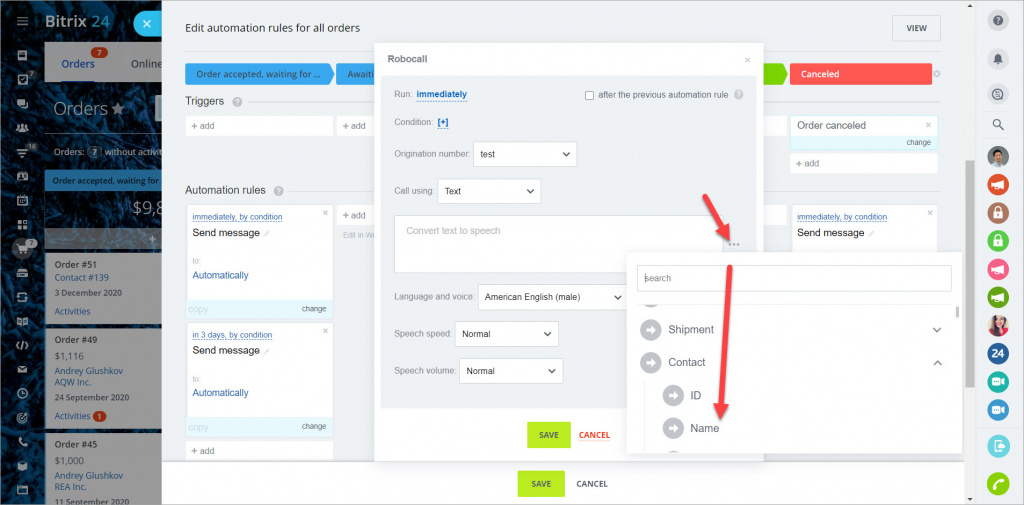
Use this rule to call a customer automatically. You must connect telephony first.
Settings:
- Origination number — the number used for the outgoing call.
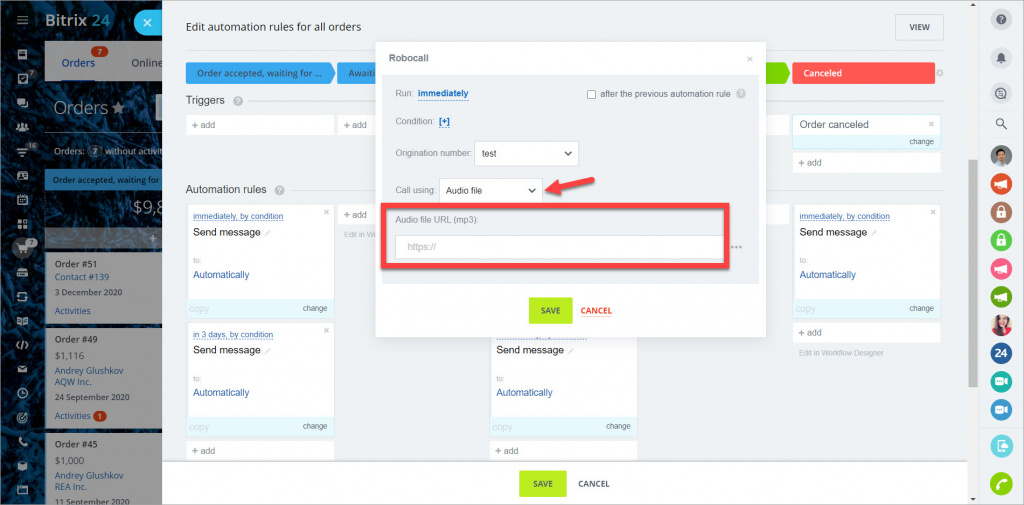
- Call using — choose what the customer hears:
- Text — the system reads your message.
- Audio file — plays an .mp3 file.
For text calls, set the language, voice, speed, and volume. You can insert dynamic values, such as the customer name or order number.
For audio calls, provide a public link to an .mp3 file.
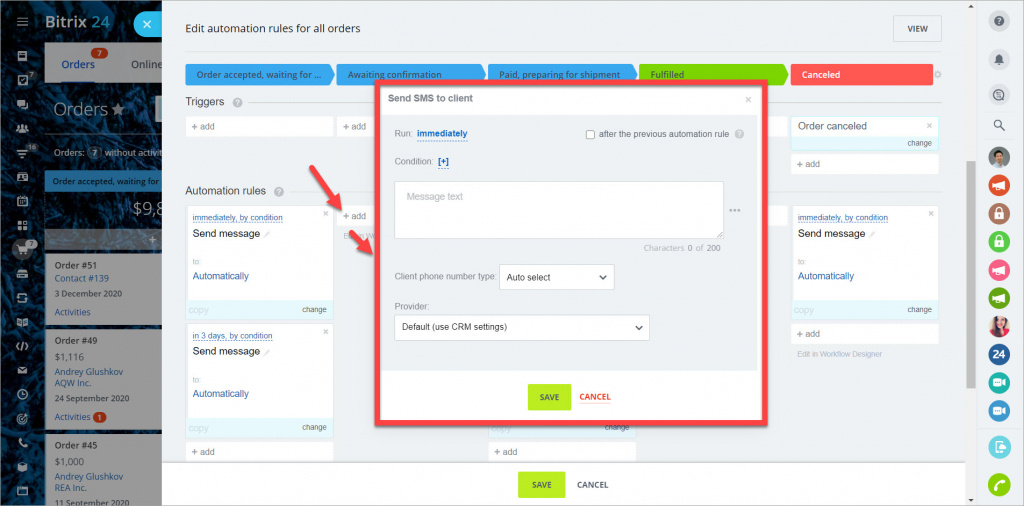
Use this rule to send text messages to customers. Configure an SMS provider first (for example, Twilio).
Key points:
- Message length should not exceed 200 characters.
- Pricing and limits depend on your provider.
Settings:
- Phone number type — select which number to use.
- If not available, the rule will not run.
- Auto select uses the first number in the contact or company record.
- Provider — select your SMS provider.
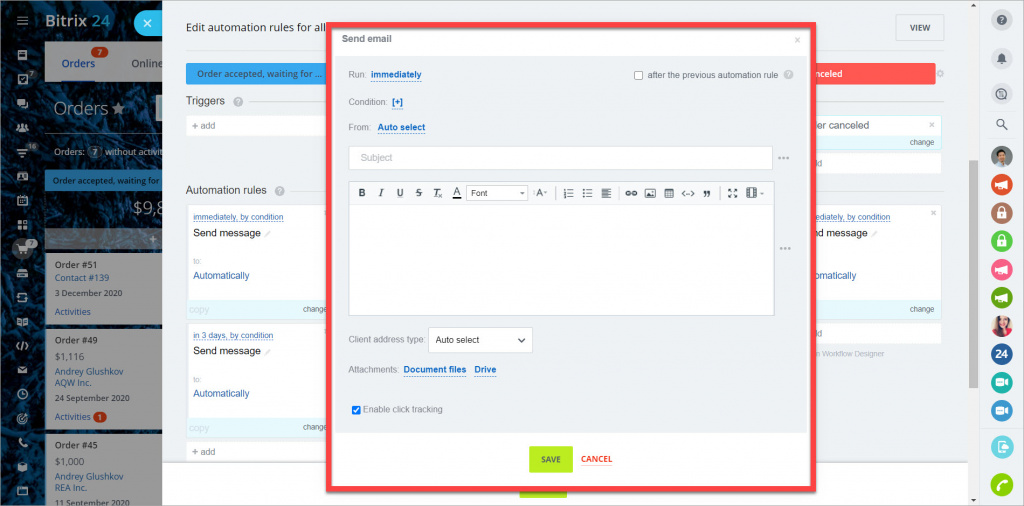
Use this rule to send emails from a connected mailbox.
Settings:
- From - select the mailbox.
- Auto select uses the last used mailbox.
- Subject and text - enter your email content.
- You can insert CRM or order fields.
- Client address type - select which email address to use.
- If not available, the rule will not run.
- Auto select uses the first available address.
Sends a message through the last channel the customer used to contact you.
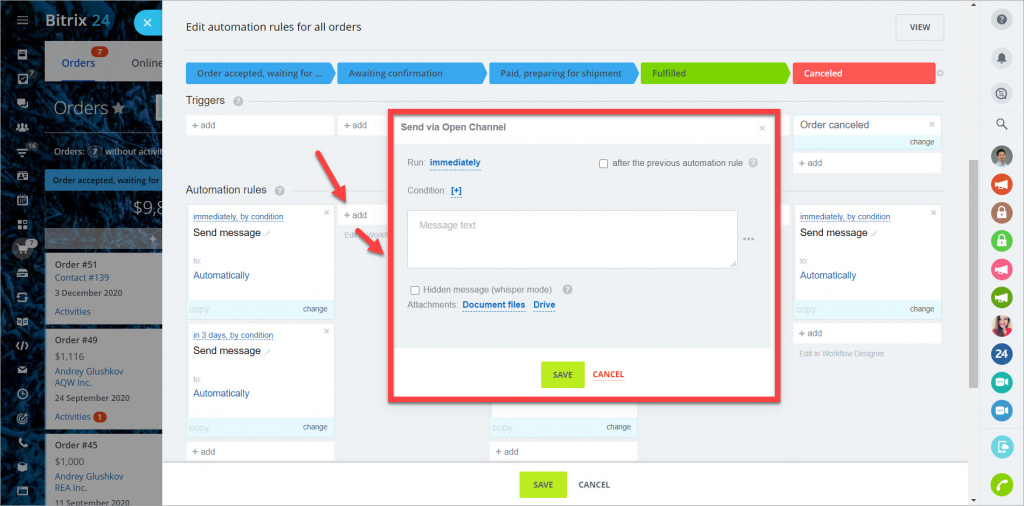
Hidden message (whisper mode)
Enable this option to send an internal message. The customer will not see it, but your team will.