
The Planner is a visual task view similar to a kanban board. It helps you organize tasks by stages and manage your work more easily. Planner is your personal workspace, so you can customize it the way you want.
Open the Planner view
To open Planner:
- Go to the Tasks section.
- Switch to the Planner view.
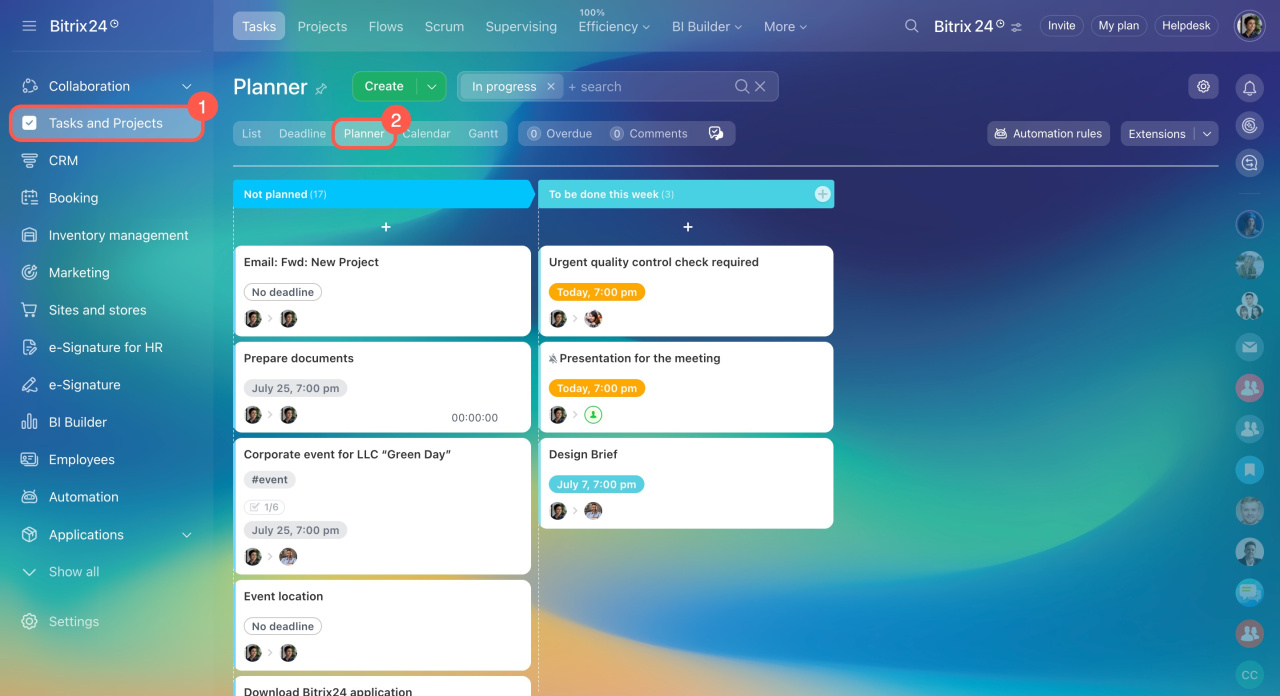
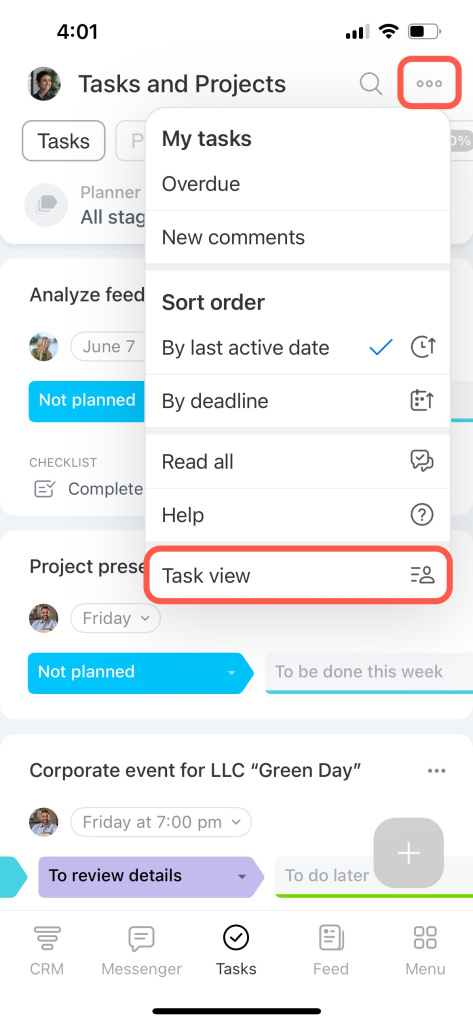
To open Planner:
- Go to the Tasks section.
- Open the three-dot menu (...).
- Select Task views.
- Choose Planner.

By default, Planner includes two stages:
- Not planned
- To be done this week
You can rename these stages or create your own. Existing tasks automatically appear in the Not planned stage.
Add a custom task stage
Create stages to organize tasks by priority, workflow, or any other system you prefer.
To add a stage:
- Hover over an existing column.
- Click the Plus (+) icon on the right.
- Enter the stage name and select a color.
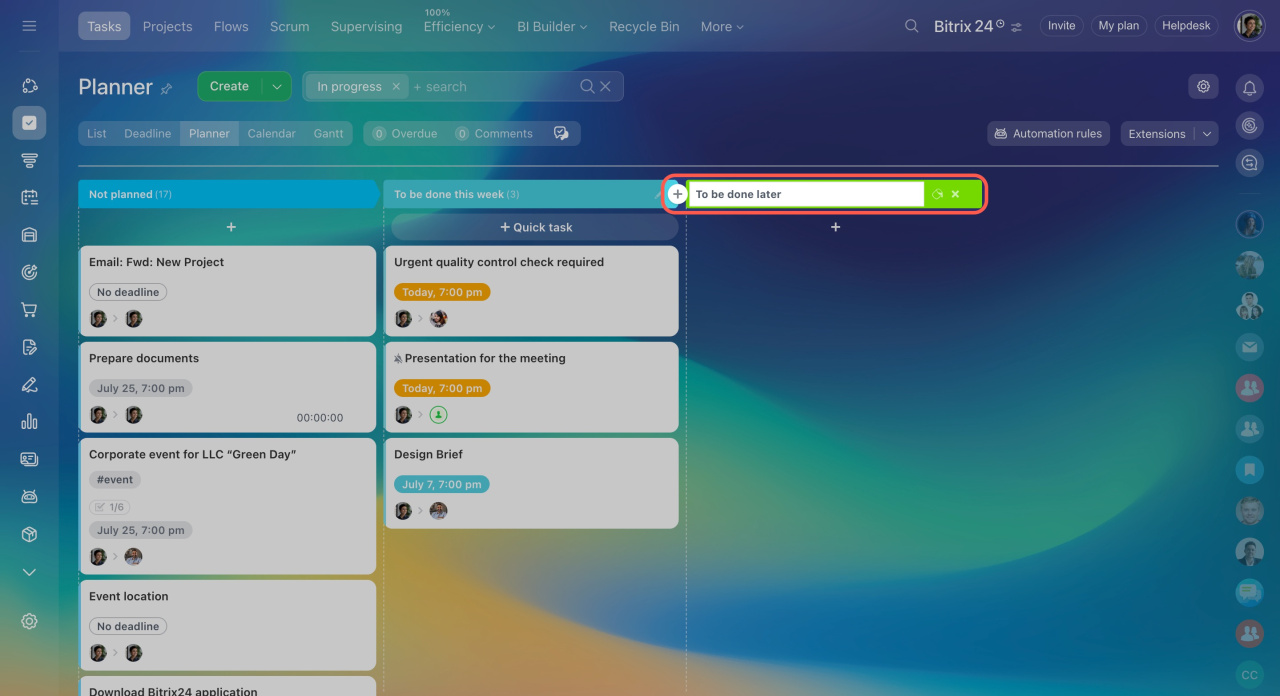
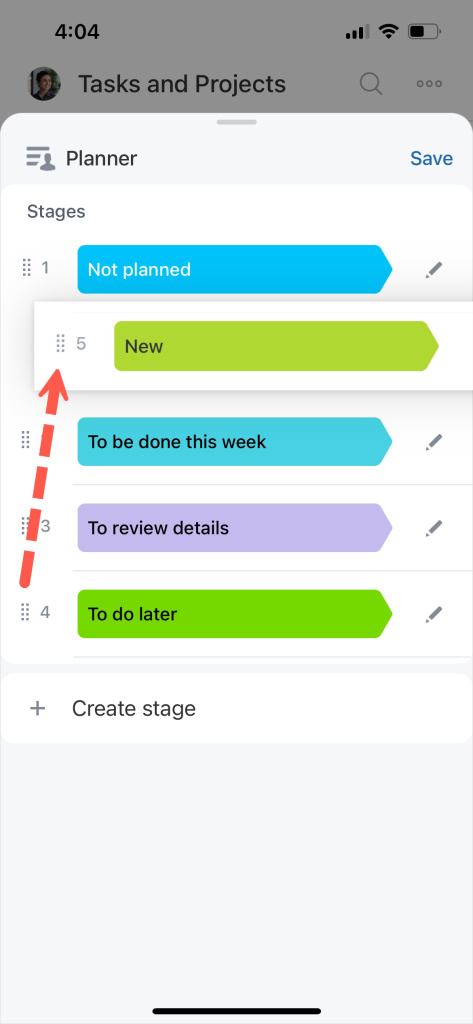
To move a stage, drag it to a new position.
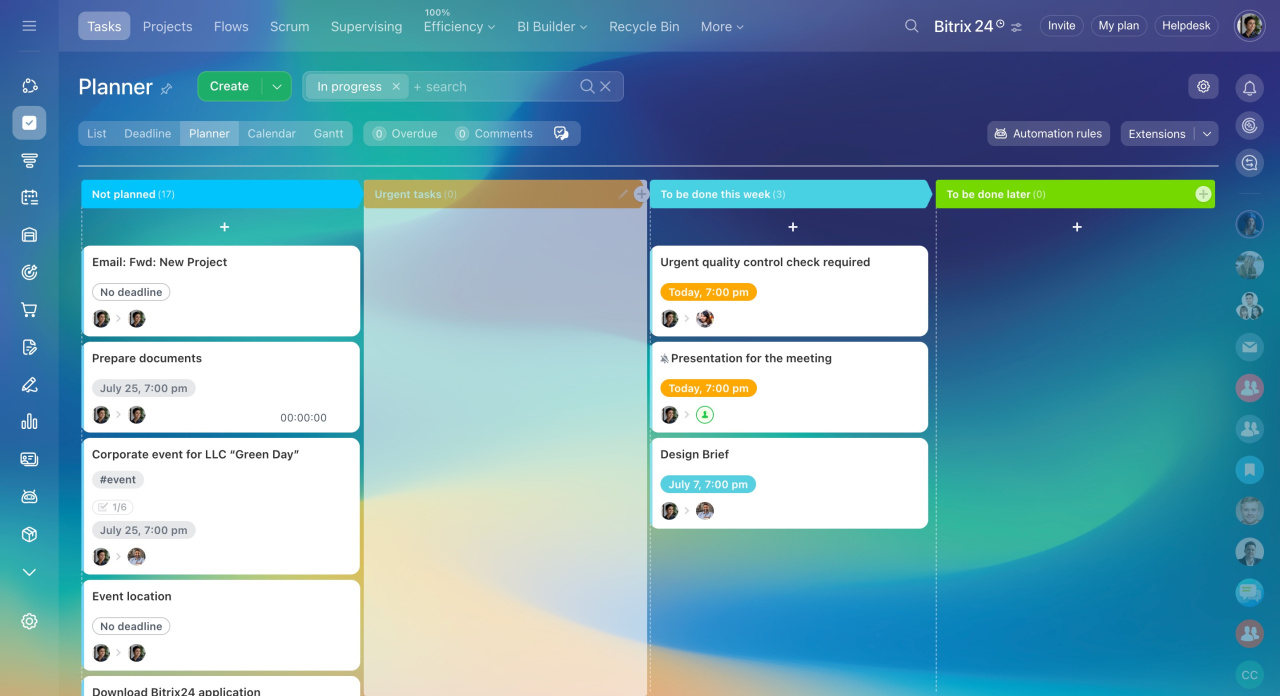
To add a stage:
- Open the list of stages.
- Tap the pencil icon in the top right corner.
- Tap + Create stage.
- Enter the stage name and select a color.
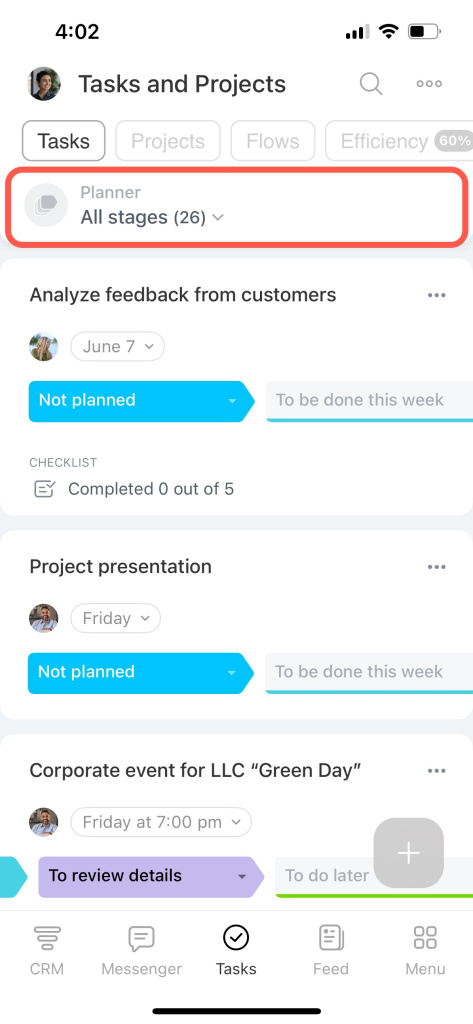
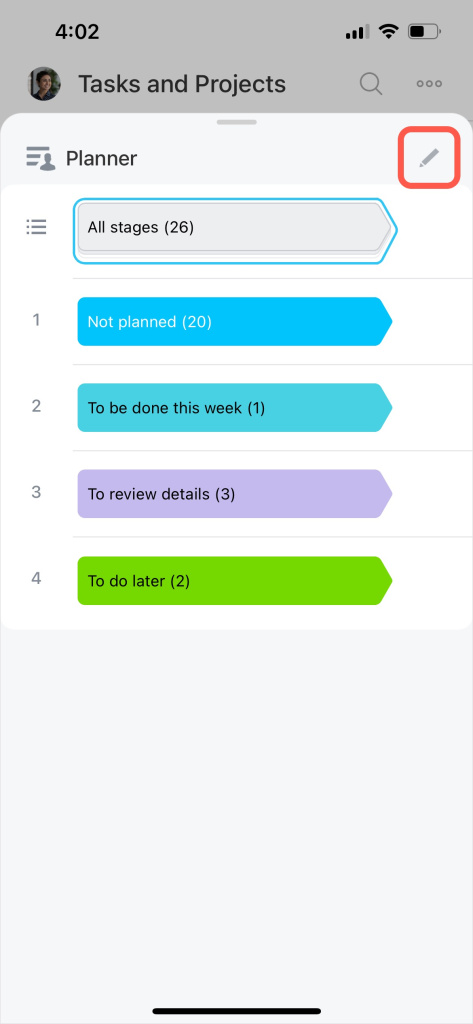
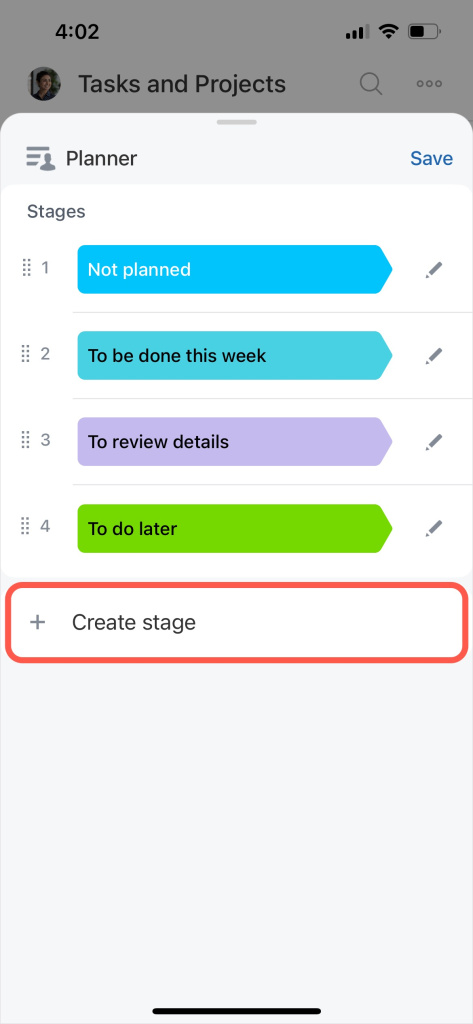
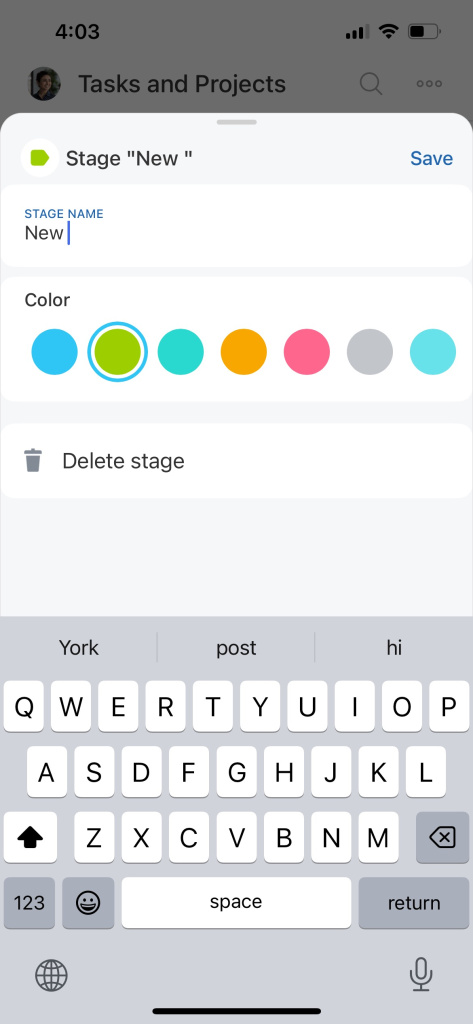
To move a stage, drag and drop it to a different position.
Moving a task to another stage does not affect its deadline. Other employees will not receive notifications about stage changes.
Move a task to another stage
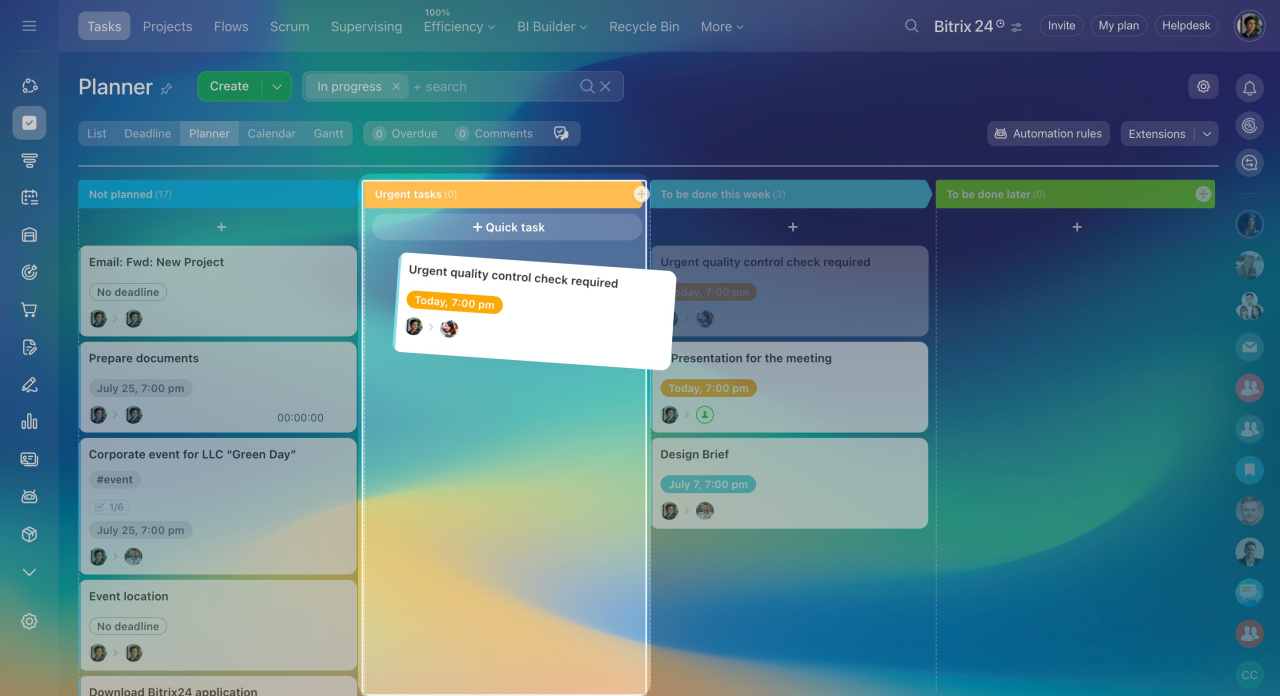
Drag a task card to a different column to change its stage.
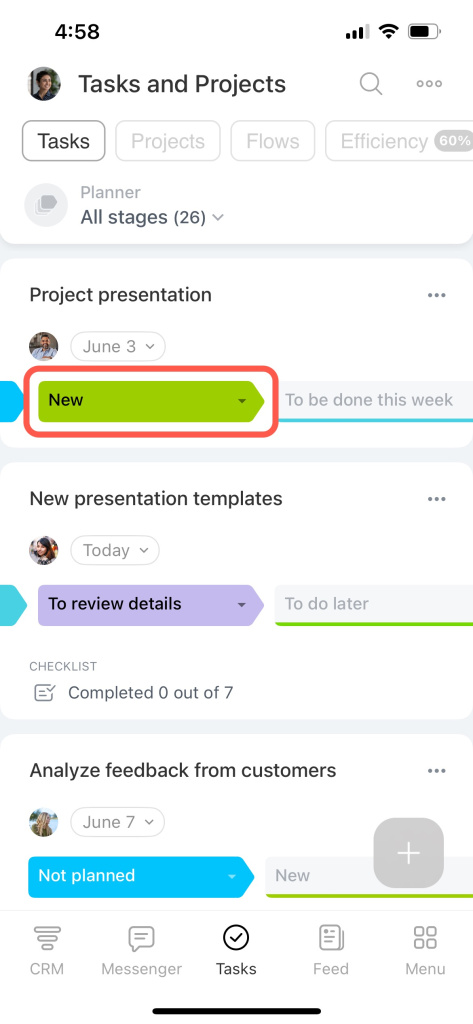
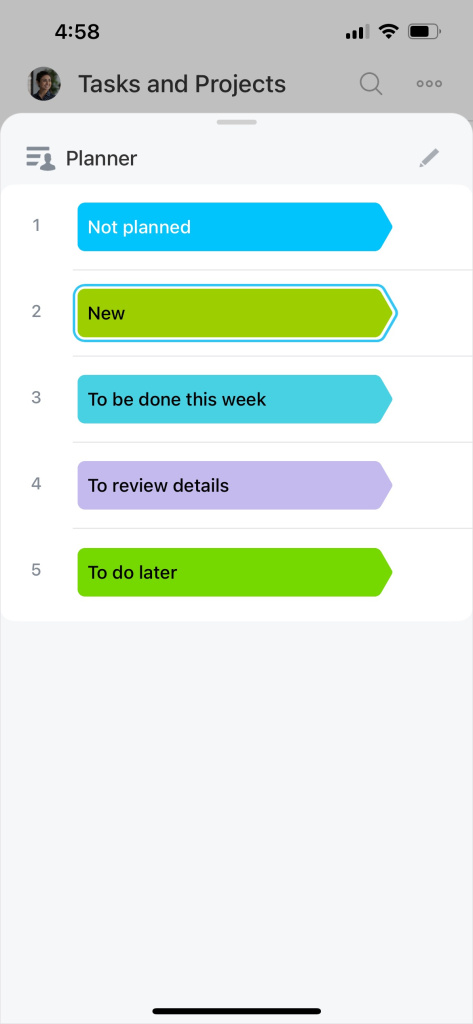
Tap on the stage name on a task card and select another one from the list.
Edit or delete task stage
Rename the stages and change their colors to distinguish them visually.
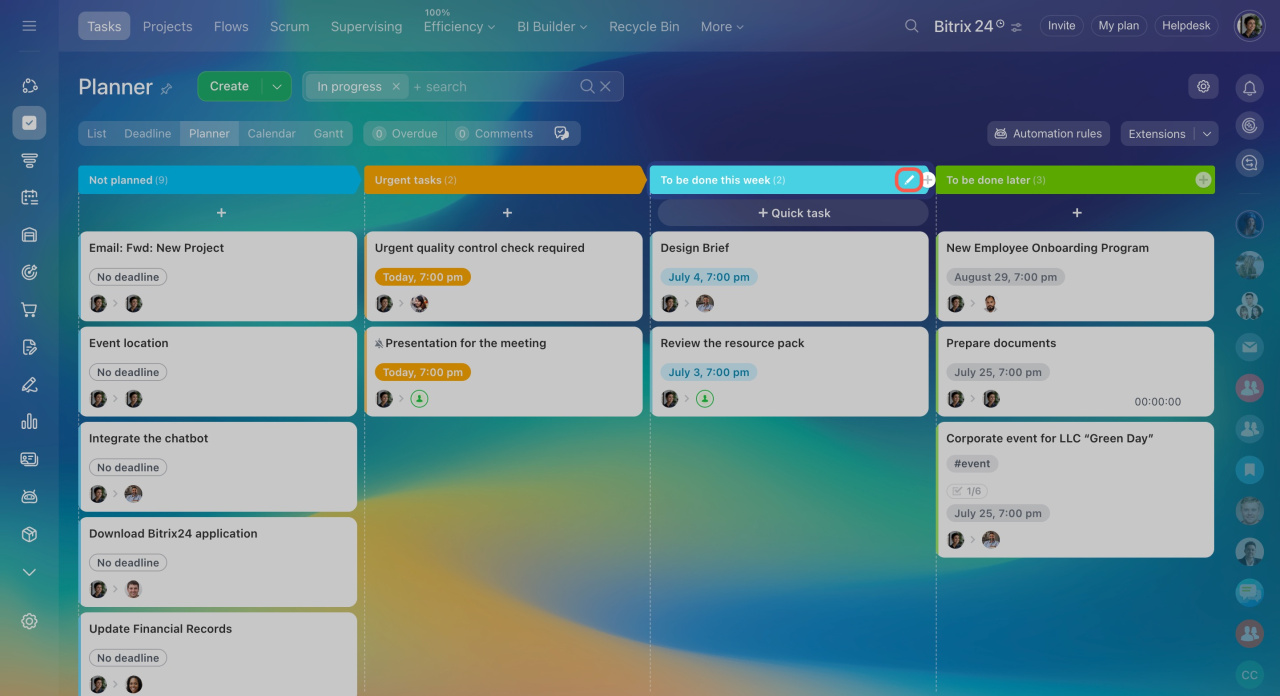
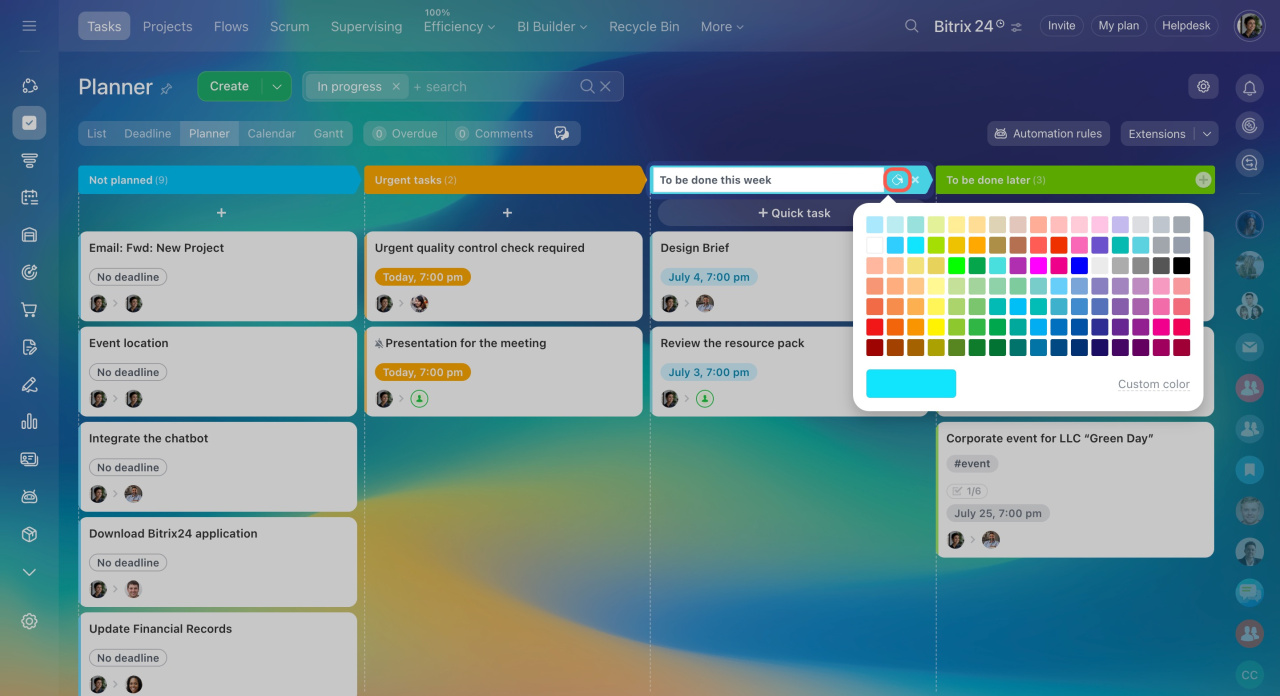
To edit or delete a stage:
- Hover the cursor over an existing column.
- Click the pencil icon on the right.
- Rename the column and change its color.
- To delete the stage, click the cross icon (X).
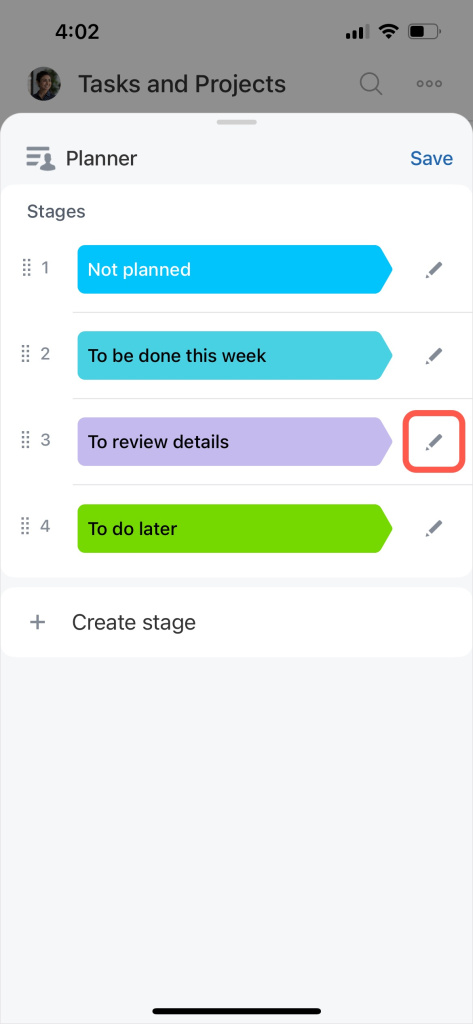
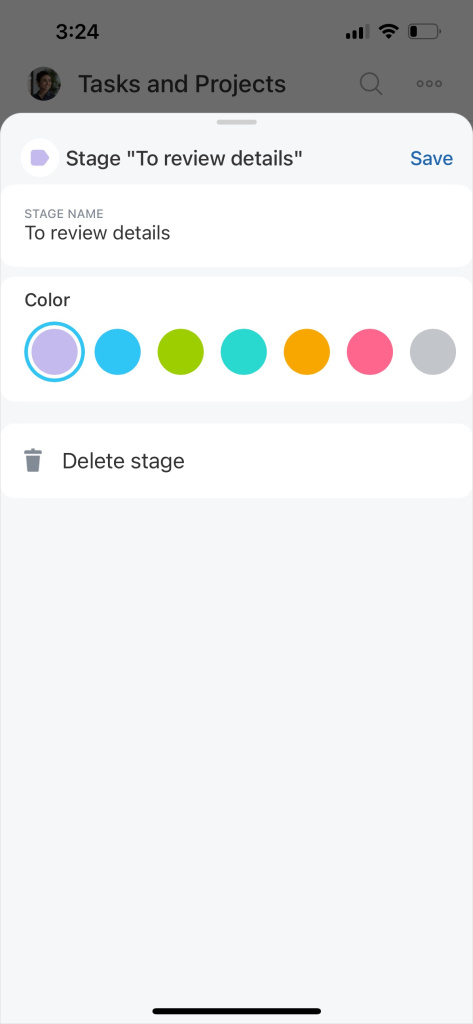
To edit or delete a stage:
- Open the list of stages.
- In the top right corner, tap the pencil icon.
- Tap the pencil icon next to the stage you want to edit.
- Rename the column, change its color, or delete it.
Create a quick task
To quickly add a task in the Planner view:
- Hover the cursor over the Plus (+) sign under the stage title.
- Click the + Quick task button.
- Fill out the quick task creation form.
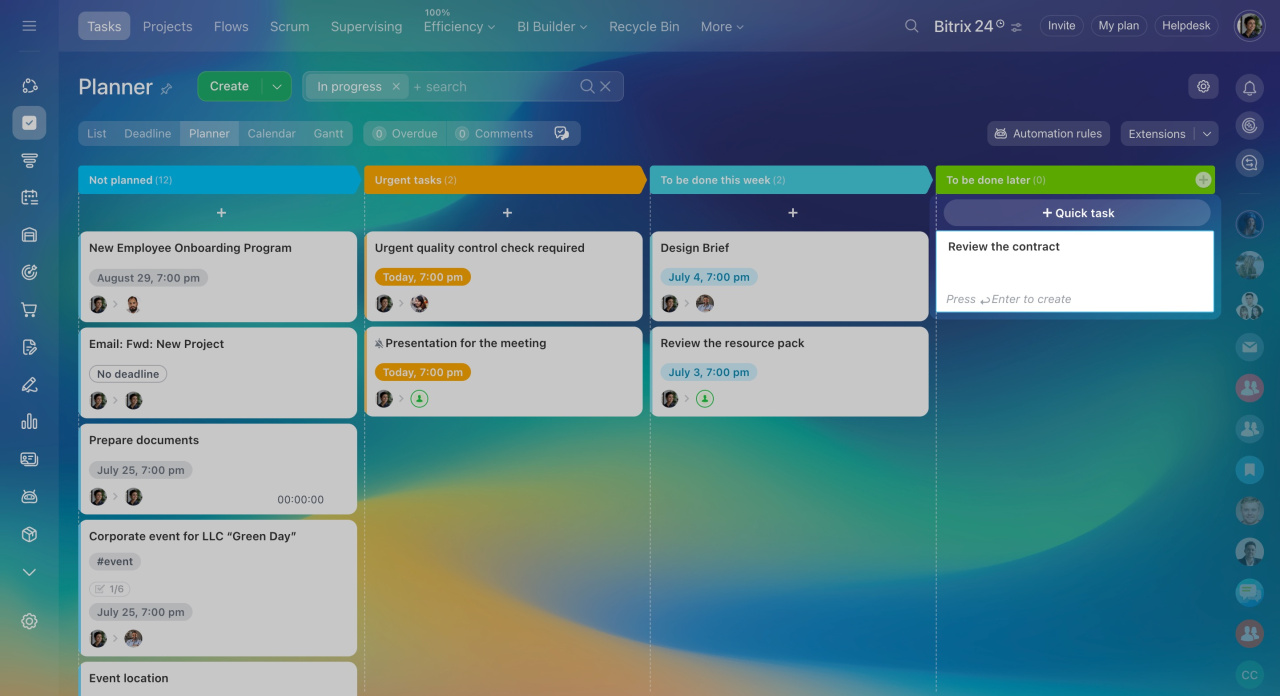
If you create a task in its full form, it will be added to the first stage of the planner. Move it to another column, if needed.
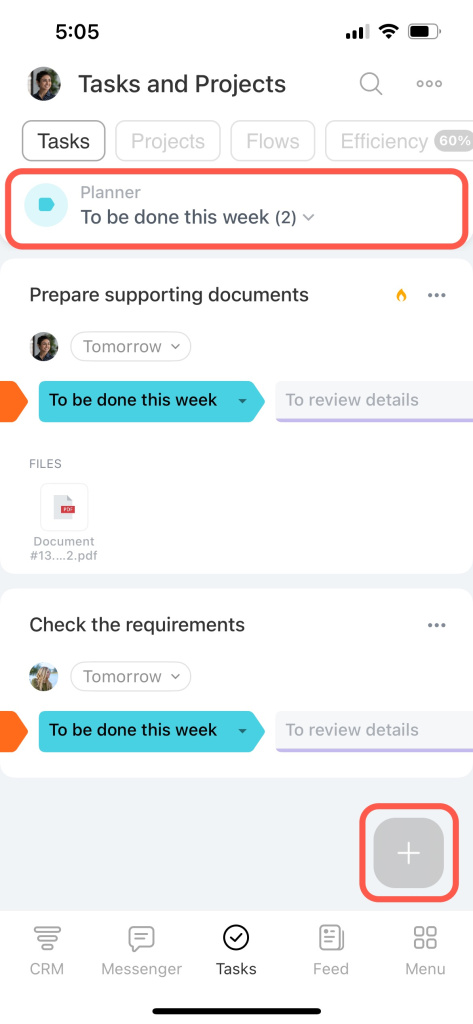
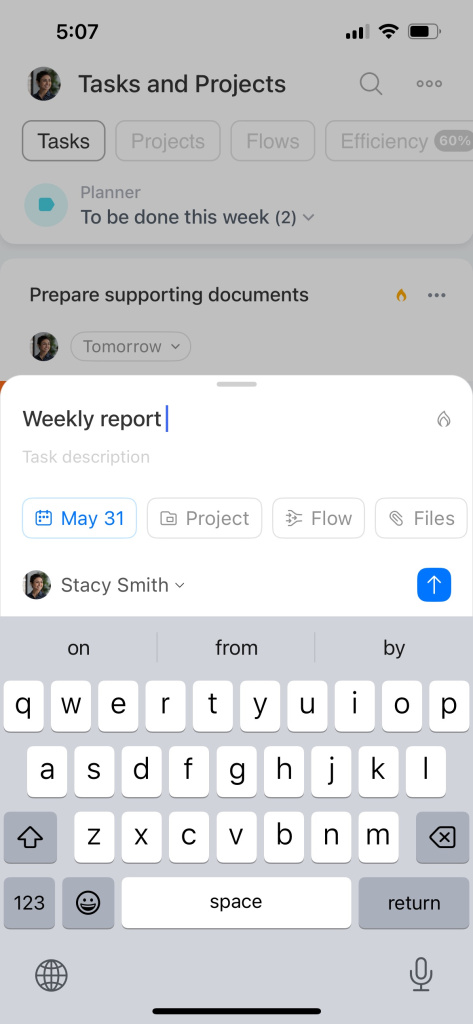
To quickly add a task in the Planner view:
- Select the stage at the top.
- Tap the Plus (+) icon.
- Specify the task name and complete the fields.
- Tap the arrow icon, and the task will be added to the chosen stage.
In brief
-
The Planner view is your visual task board that consists of different stages.
-
It is available on the web version of Bitrix24 and in the mobile app.
-
Moving a task to another stage does not affect its deadline.
