
In Bitrix24, you can run workflows directly from the Feed. For example, you can request leave or submit an expense report. You can also create new workflows or edit existing ones.
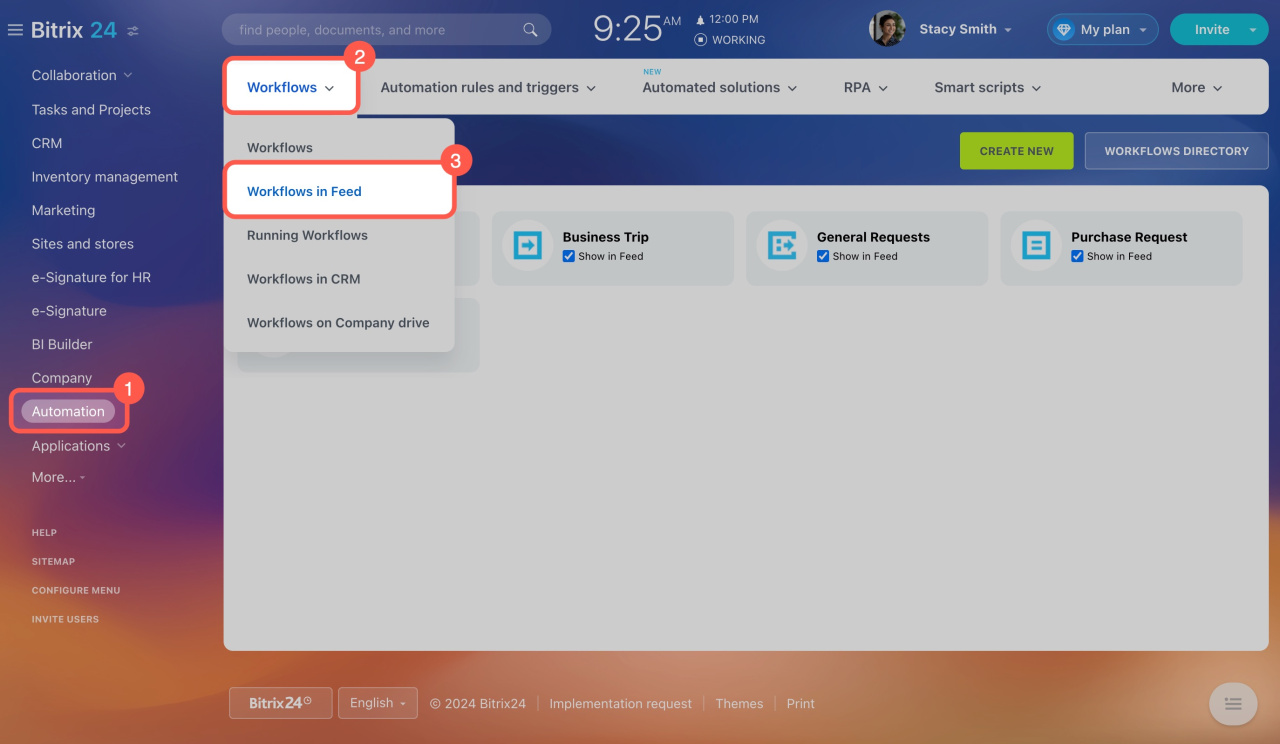
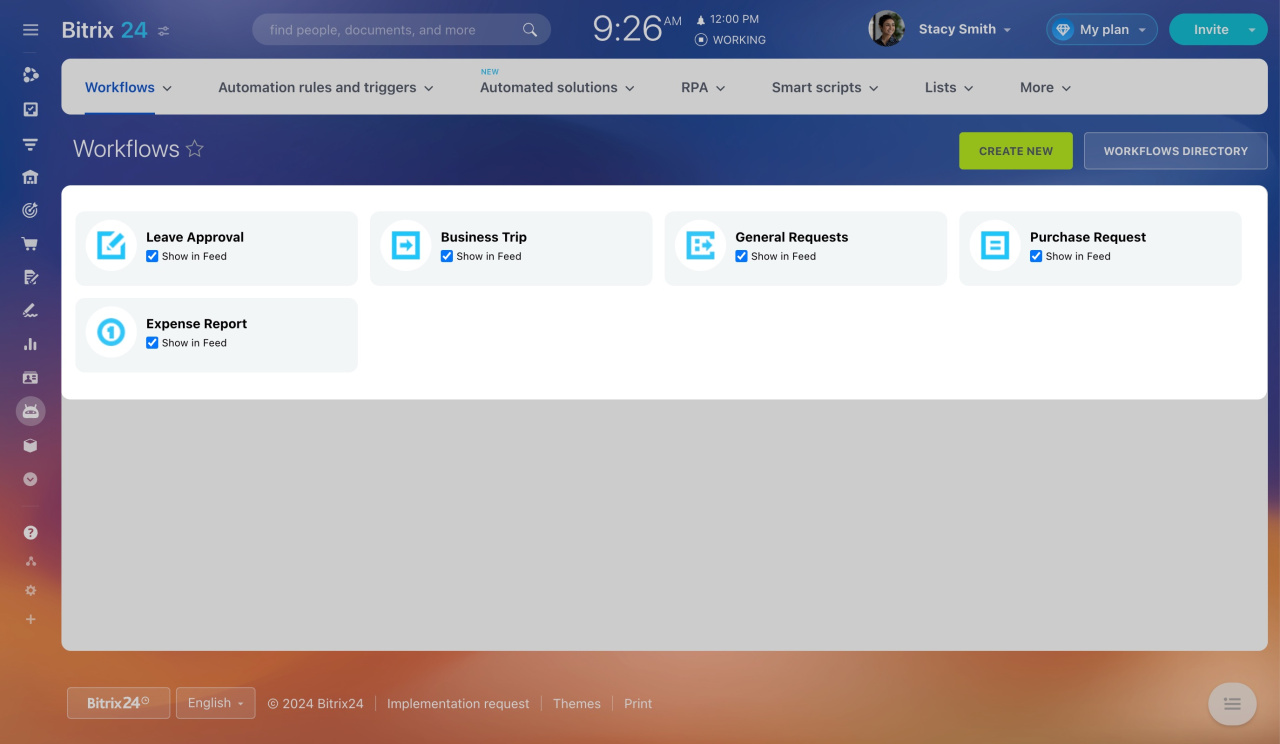
Go to Automation > Workflows > Workflows in Feed. By default, you will see five workflows:
- Leave Approval
- Business Trip
- General Requests
- Purchase Request
- Expense Report
Create a workflow
1. Create a workflow form
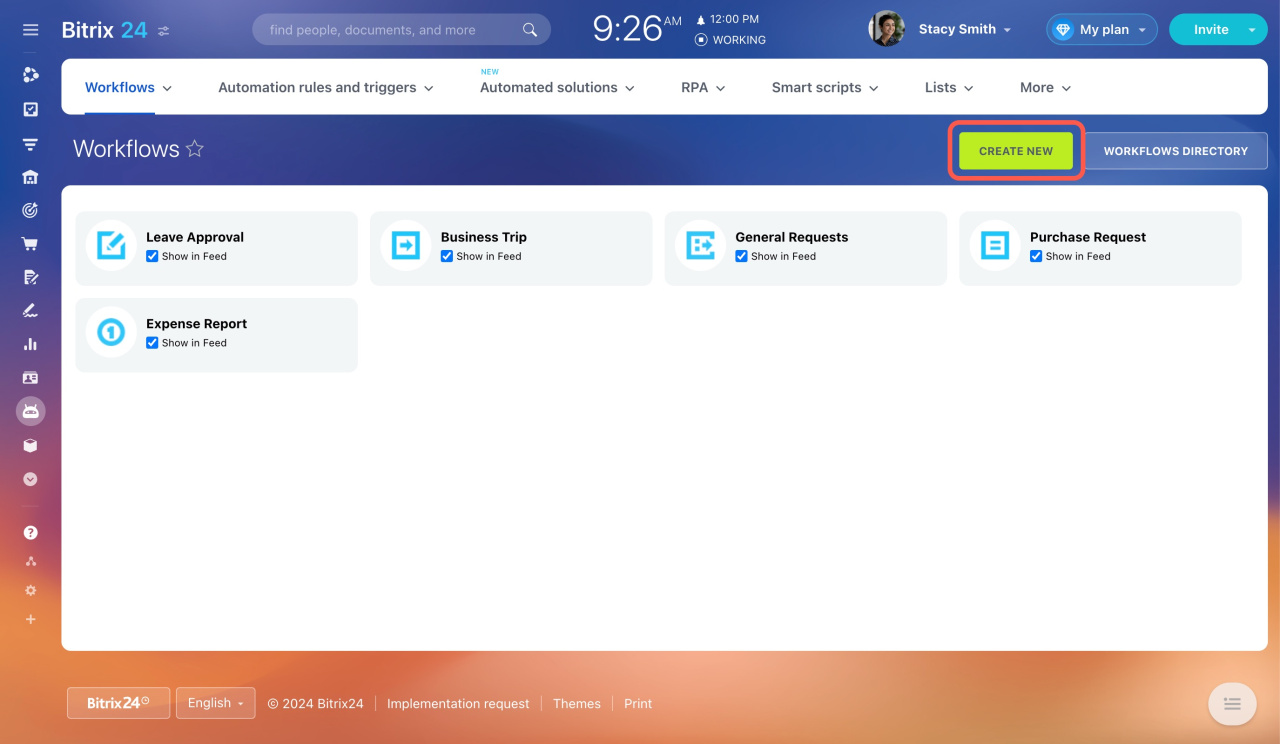
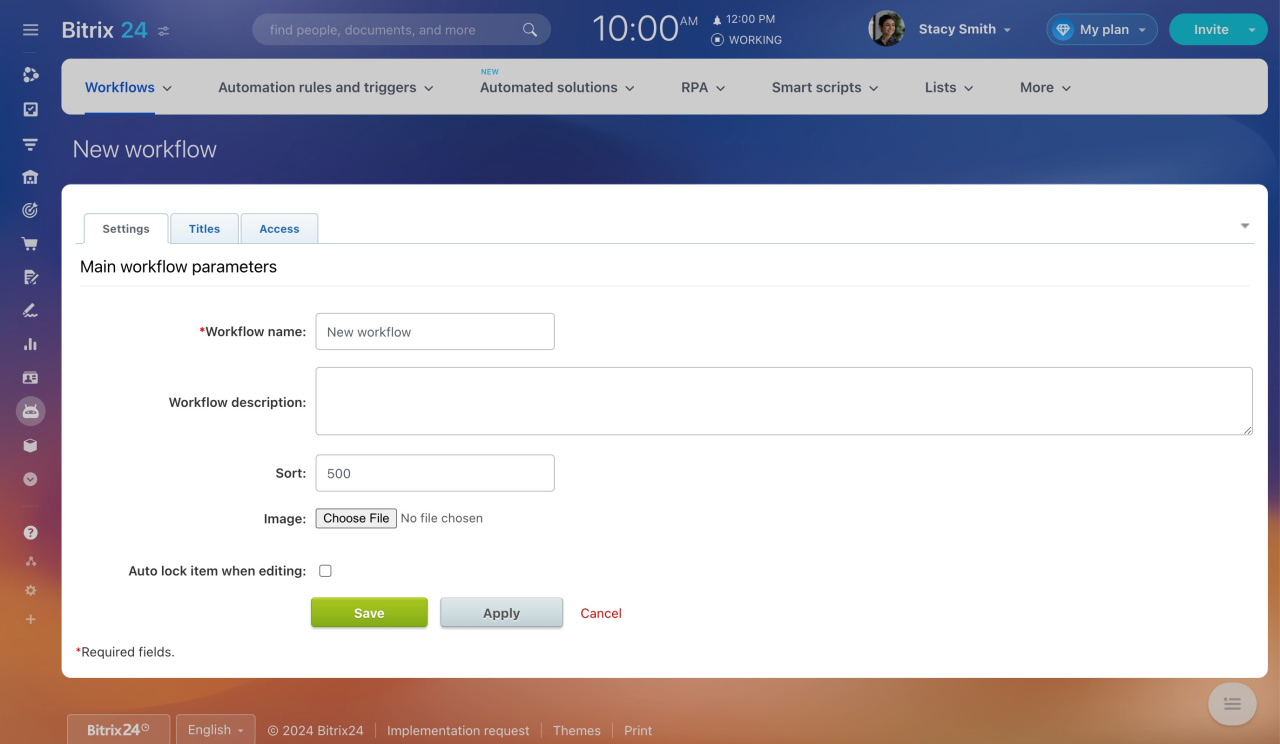
Click Create new and enter the workflow details.
- Settings: Add basic info and set the sort order. Turn on auto-lock to prevent multiple users from editing at the same time.
- Titles: Rename elements and sections. For example, change Add element to Add leave request.
- Access: Set permissions for employees who will use the workflow.
2. Add workflow fields
Each workflow includes fields that users must complete before starting it.
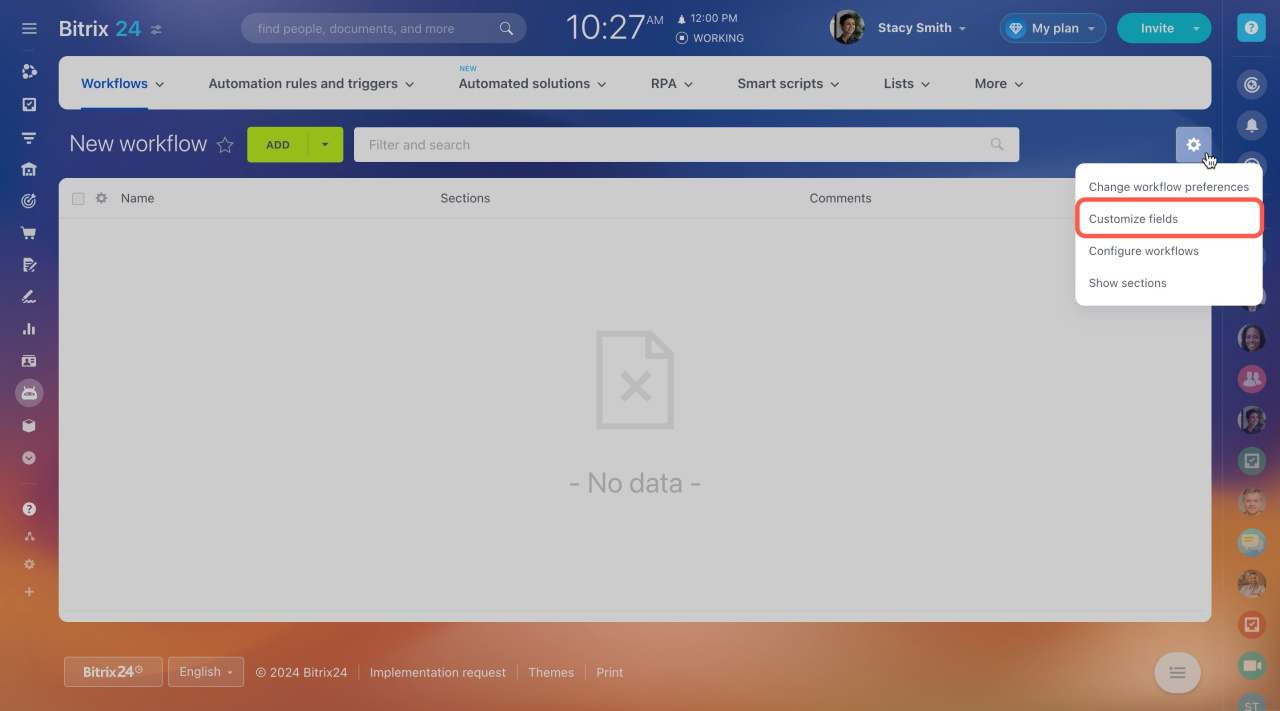
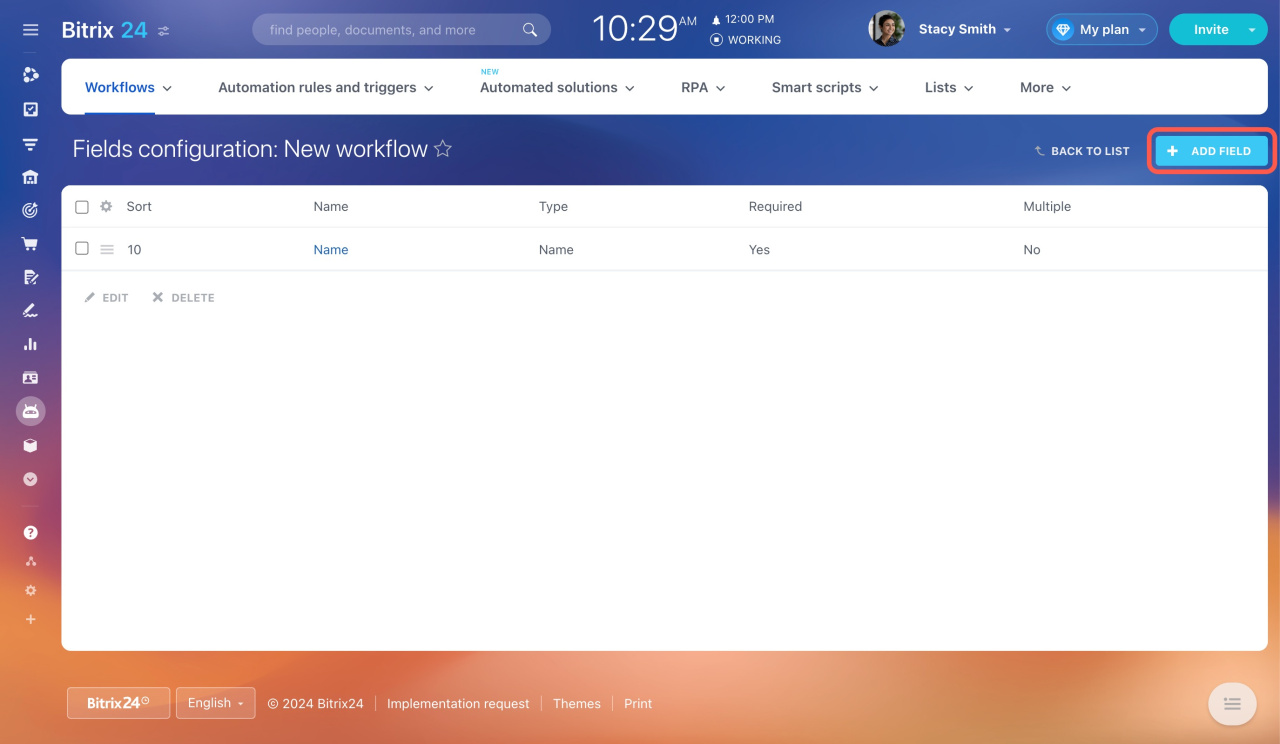
Open the workflow form and go to Settings (⚙️) > Customize workflow fields. Click Add field and configure it.
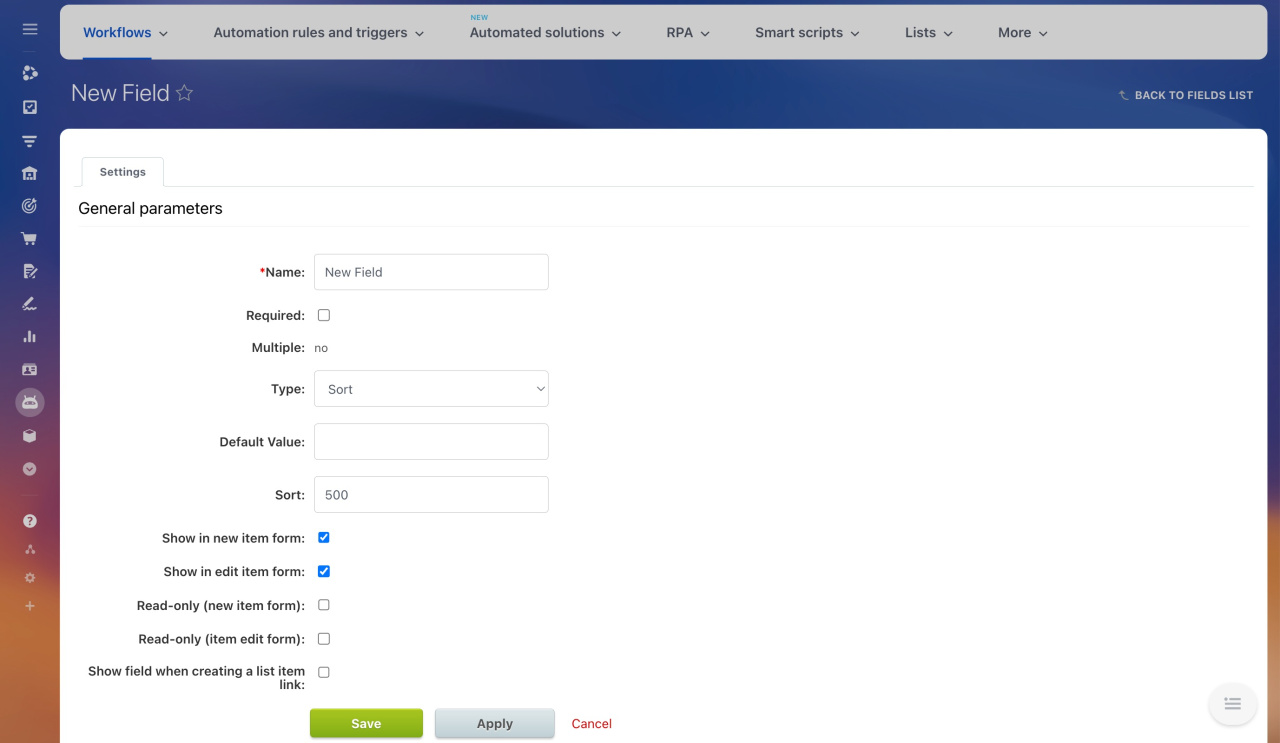
- Select a field type and define its settings. For example, the Money field requires an amount and currency.
- Enable Show in new item form and Show in item edit form so users can fill in the field.
- Use Read-only to prevent editing if needed.
- Enable Show field when creating a list item link if required.
3. Configure the workflow
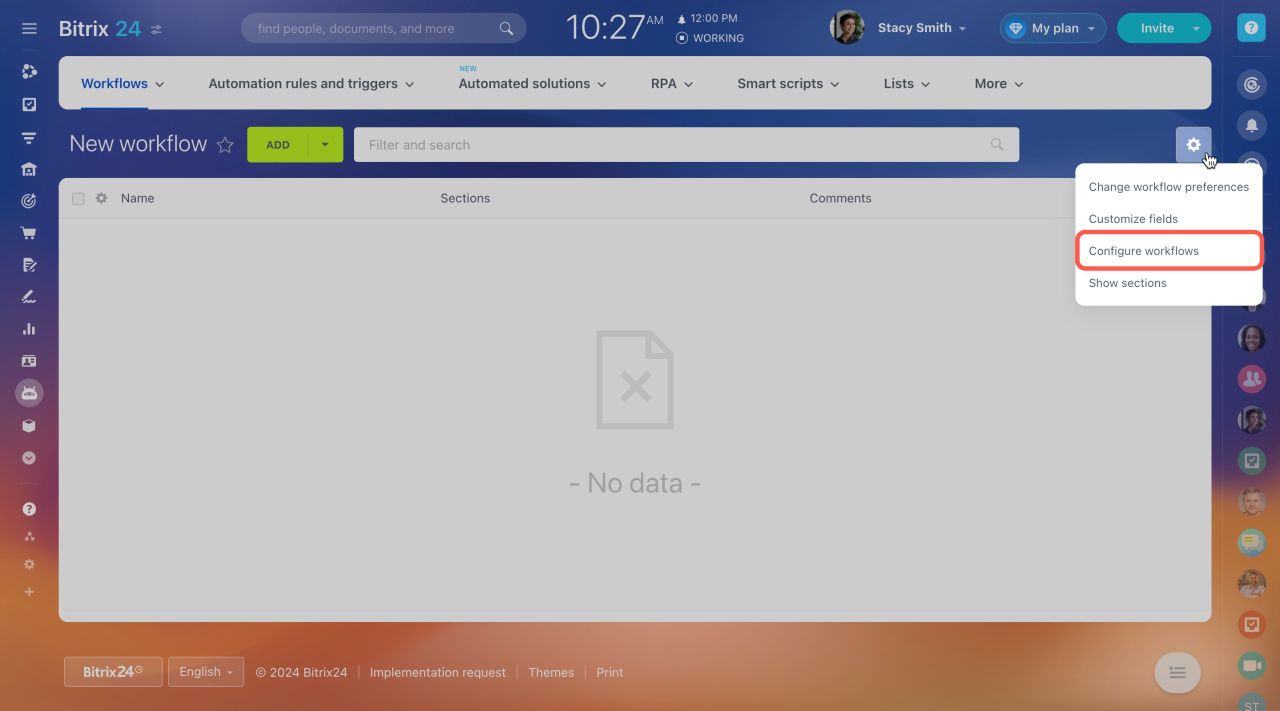
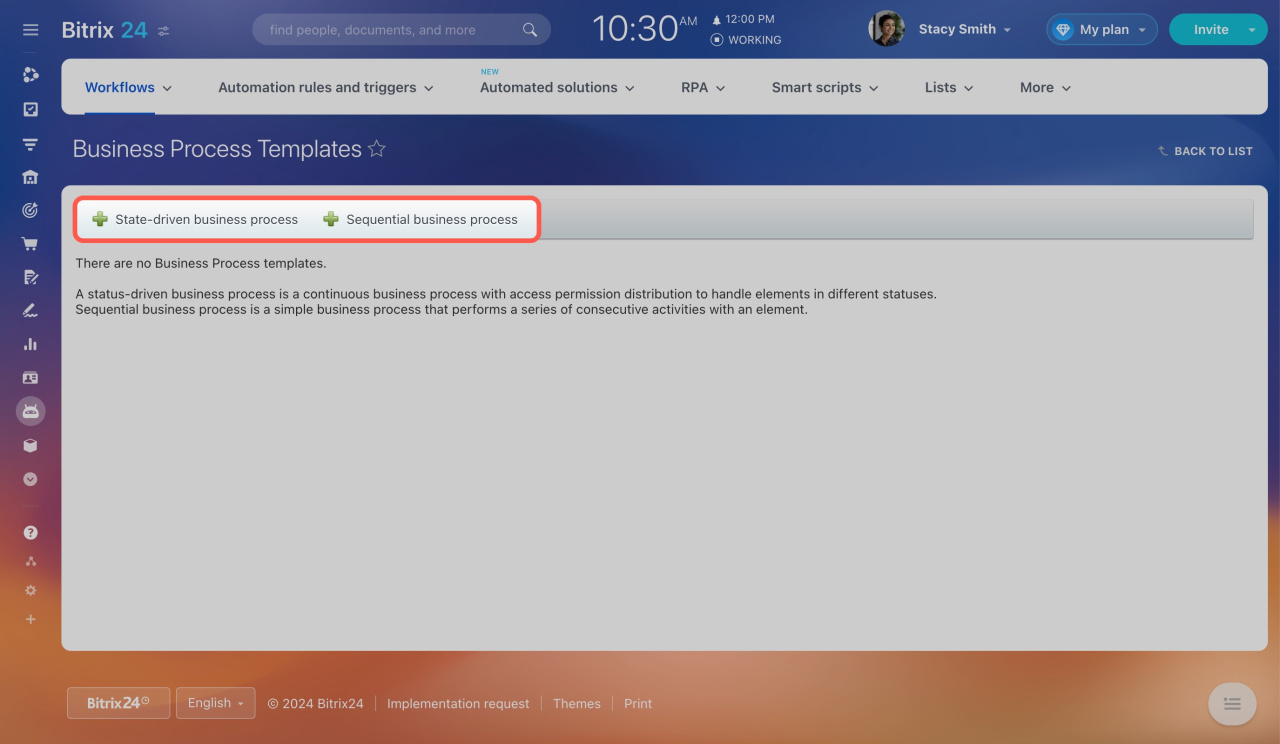
Open the workflow form and go to Settings (⚙️) > Configure workflows. Add a business process:
- Status-driven: A continuous process with different statuses and permissions (for example, document approval).
- Sequential: A simple step-by-step process (for example, leave approval).
Edit a workflow
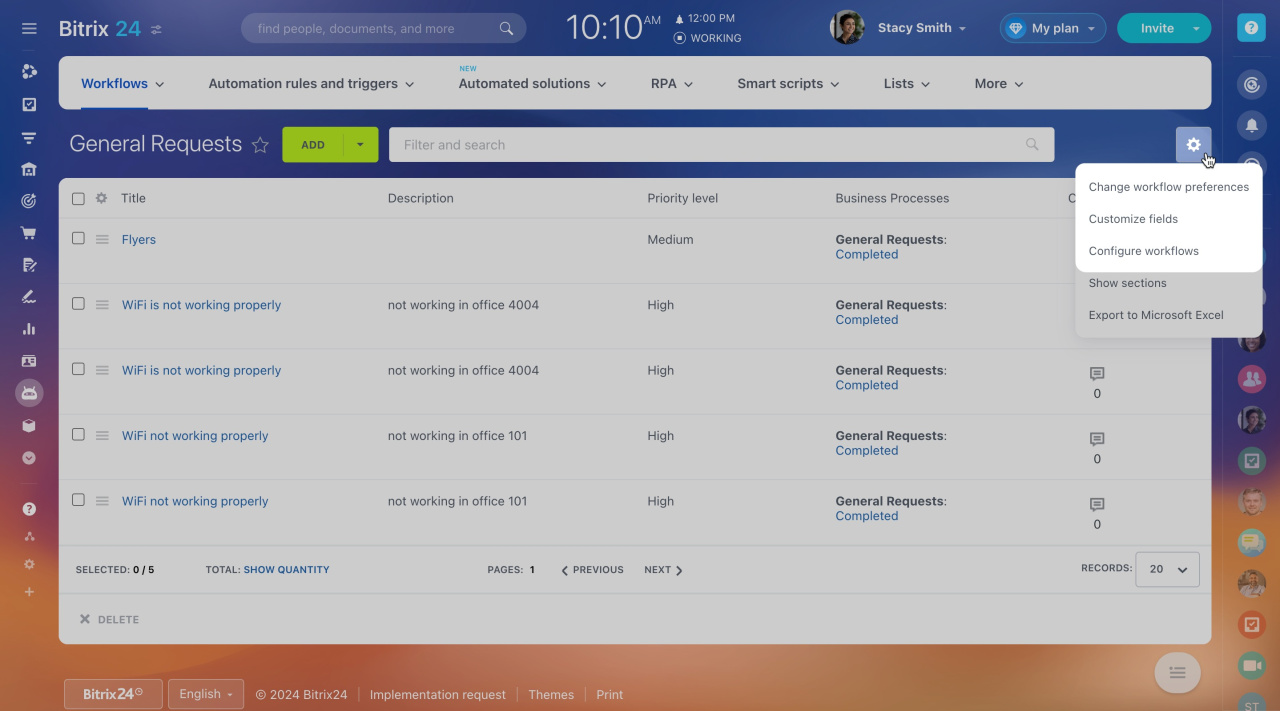
Open the workflow form and click Settings (⚙️). Choose an option:
- Configure workflow preferences: Update workflow settings.
- Configure fields: Edit fields users fill out.
- Configure workflows: Change the process template.
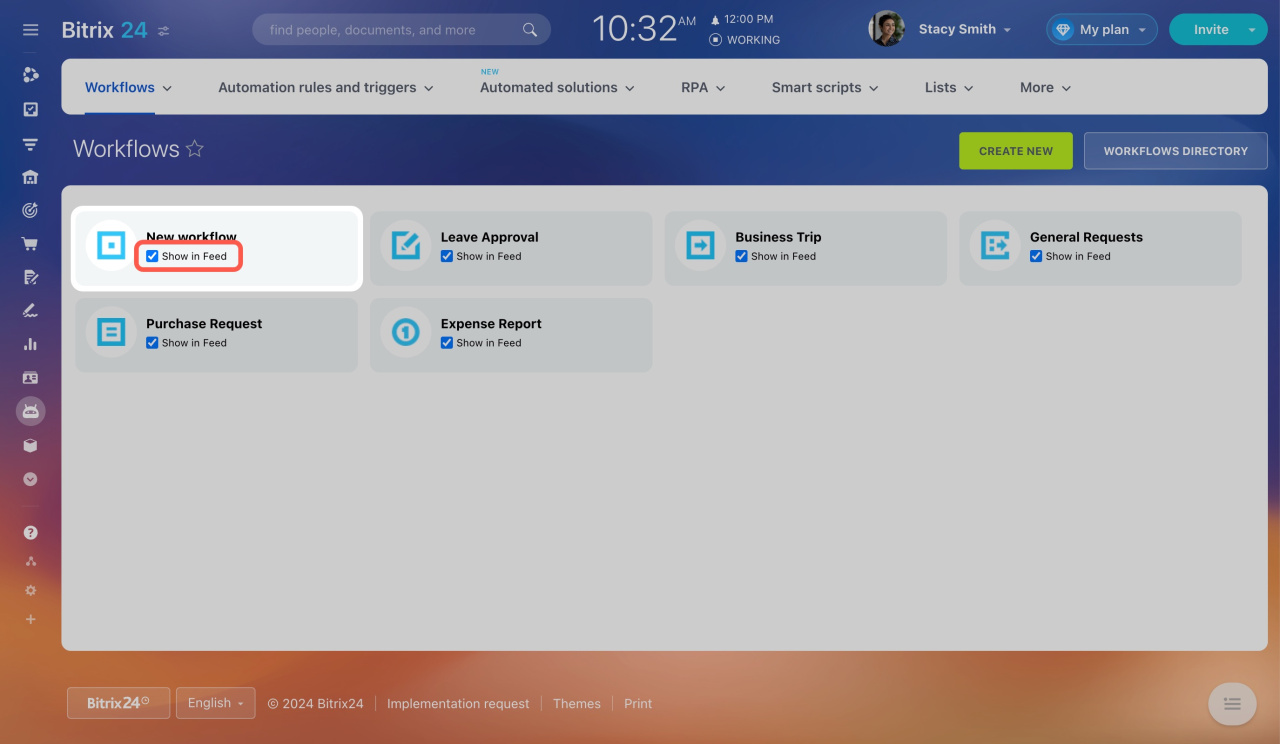
To allow users to run the workflow from the Feed, enable Show in Feed.
Check the box so that employees can start the workflow in Feed.
How to start a workflow
Delete a workflow
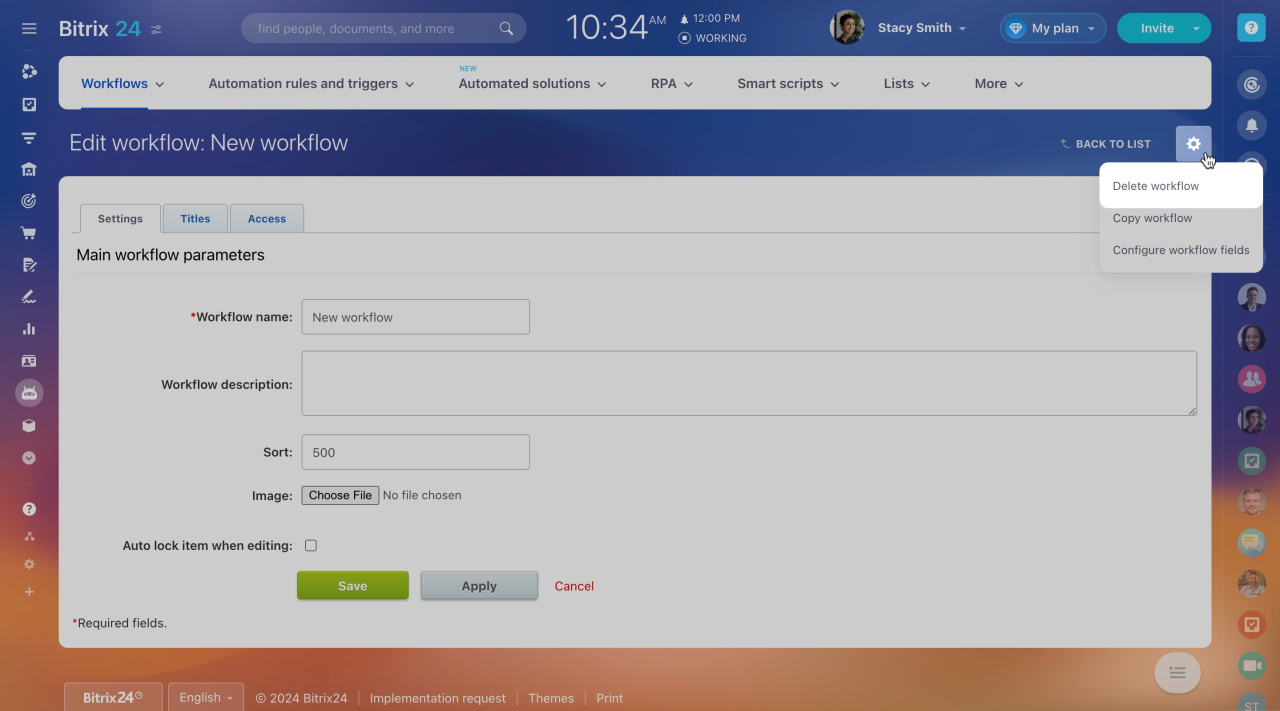
- Open the workflow form.
- Go to Settings (⚙️) > Configure workflow.
- Click Settings (⚙️) > Delete workflow.
In brief
- You can run workflows directly from the Feed.
- Go to Automation > Workflows > Workflows in Feed to manage them.
- To create a workflow, set up a form, add fields, and configure the process.
- You can edit or delete workflows at any time.