
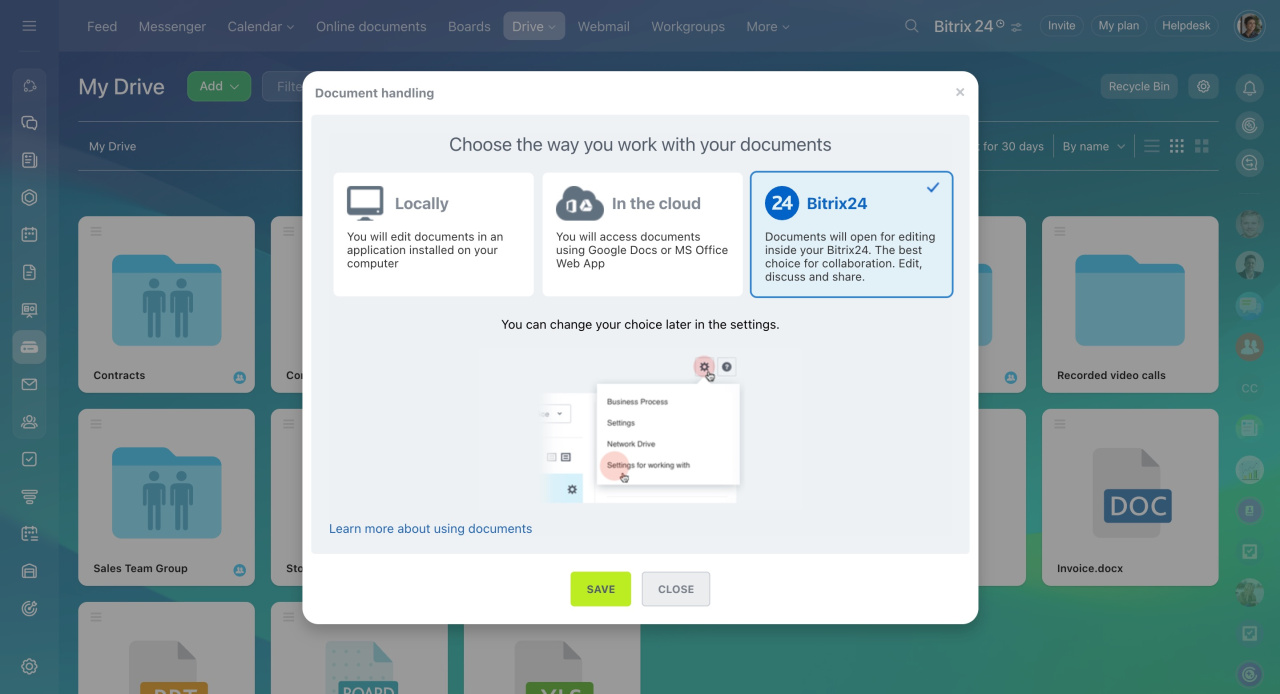
You can work with text documents, spreadsheets, and presentations in the My Drive section. Each Bitrix24 user can choose how to work with documents:
- Locally: Use desktop applications installed on your computer. To view and edit documents, install Bitrix24 Messenger.
- In the cloud: Work with documents through cloud services such as Google Docs.
- Bitrix24: Use the built-in online editor to create, edit, and share documents directly in Bitrix24.
This article explains how to manage documents with Bitrix24.Docs.
- Go to Drive and click Settings (⚙️).
- Select Settings for working with documents.
- Choose Bitrix24.
- Click Save.
Create and edit documents
You can create and edit text documents, spreadsheets, and presentations in supported formats.
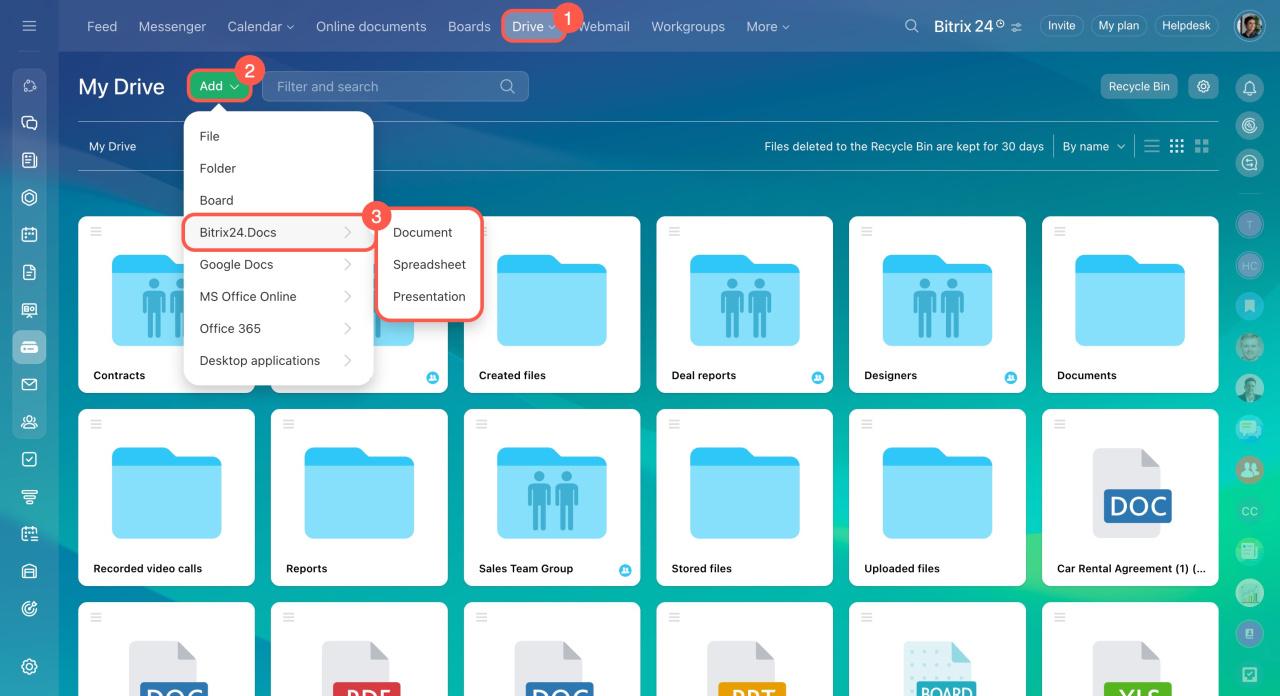
Create a document
- Click Add.
- Select Bitrix24.Docs.
- Choose a document type.
Edit a document
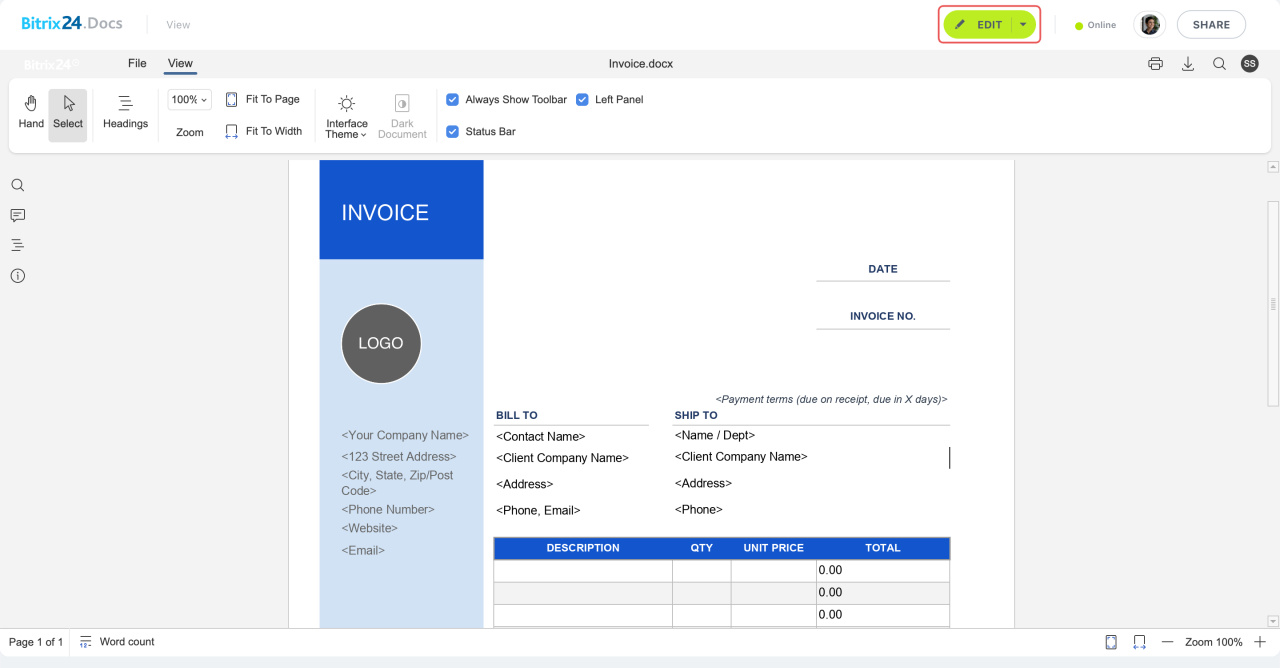
- Open the document.
- Click Edit.
- Close the document when you finish working.
Changes save automatically.
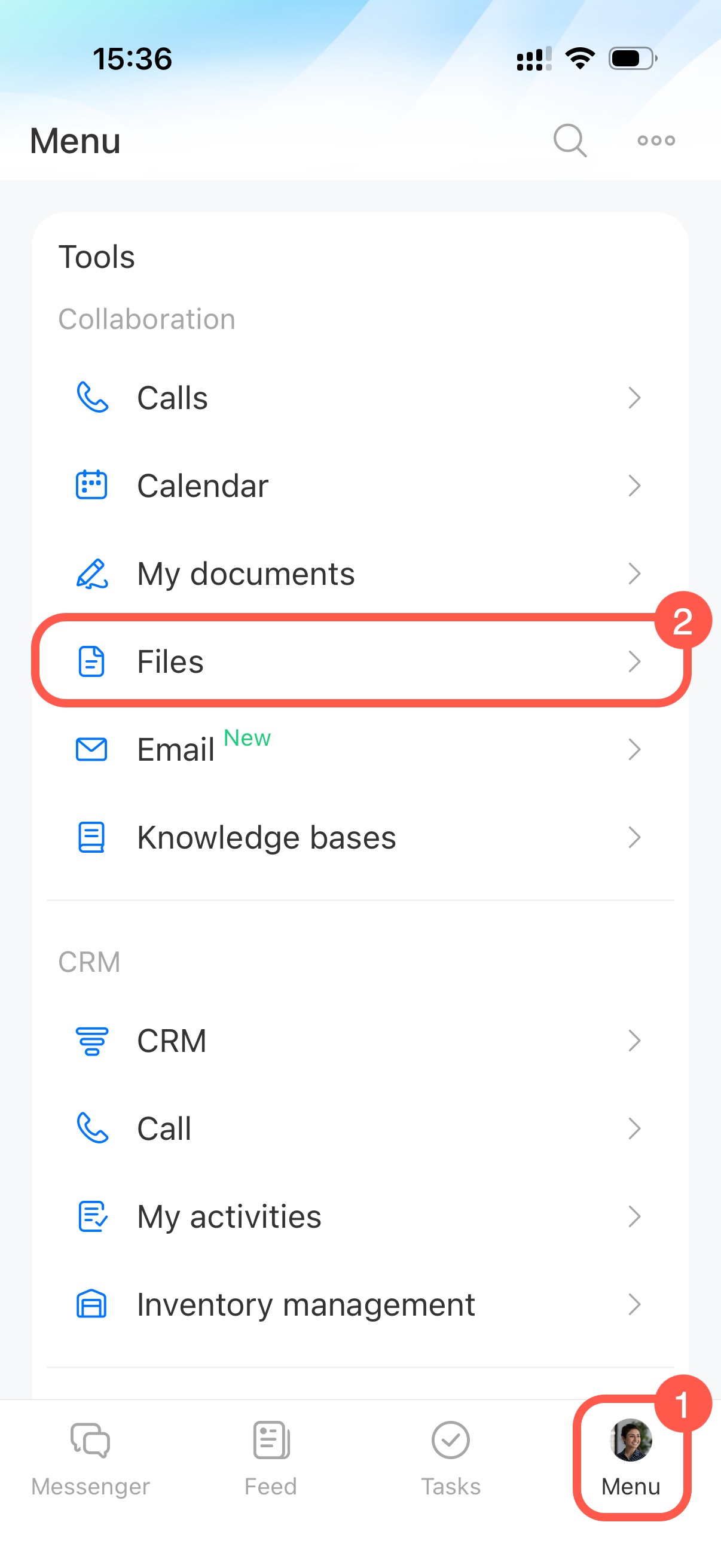
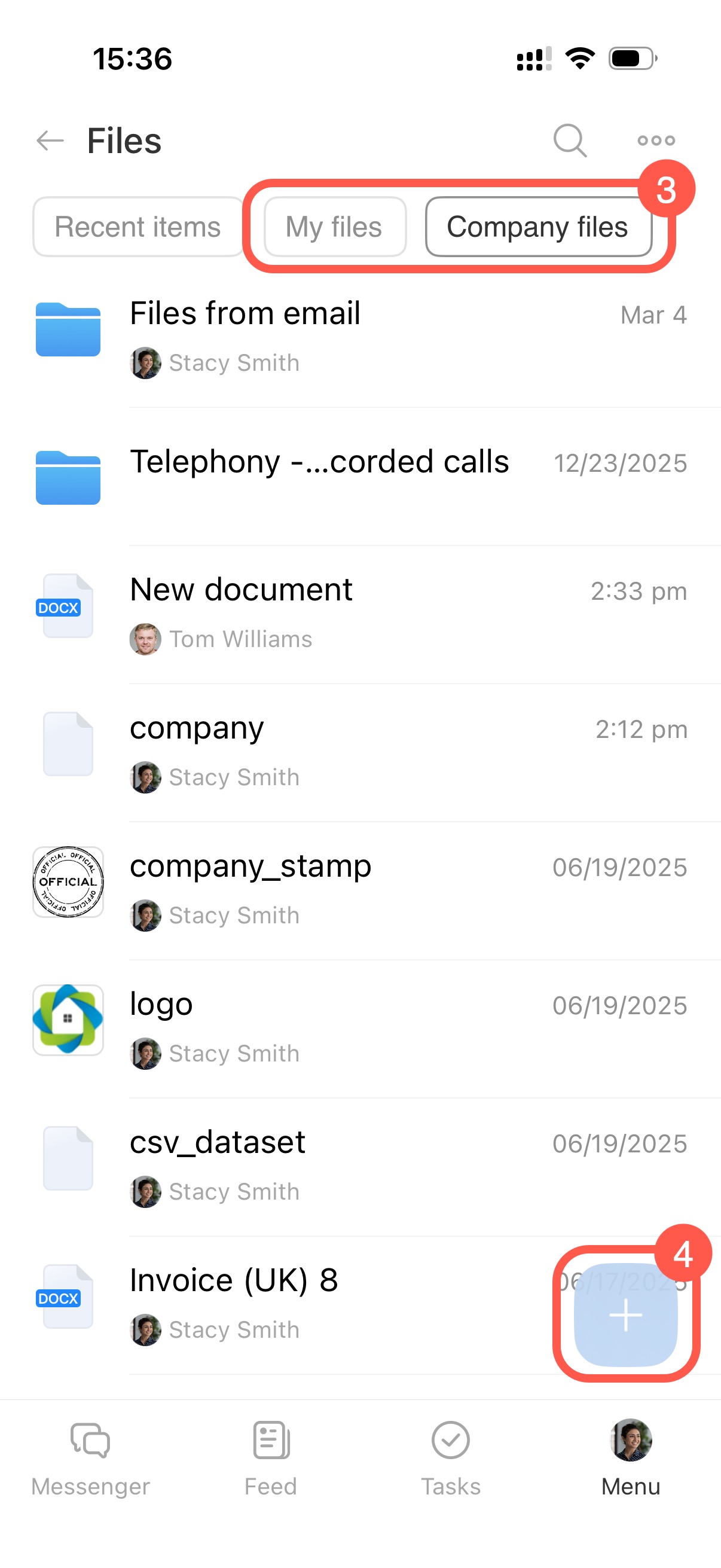
To upload a new document in the Bitrix24 mobile app:
- Tap Menu > Files.
- Open the My Files tab to upload a document to your personal drive, or open Company Files to upload it to the Company Drive.
- Tap the Plus button and select a document from your device storage.
Configure access to documents
In Bitrix24, you can work on documents together with colleagues or external users. Use access permissions to control who can view or edit documents.
You can configure access permissions from the document list or while viewing or editing a document.
Configure access from the document list
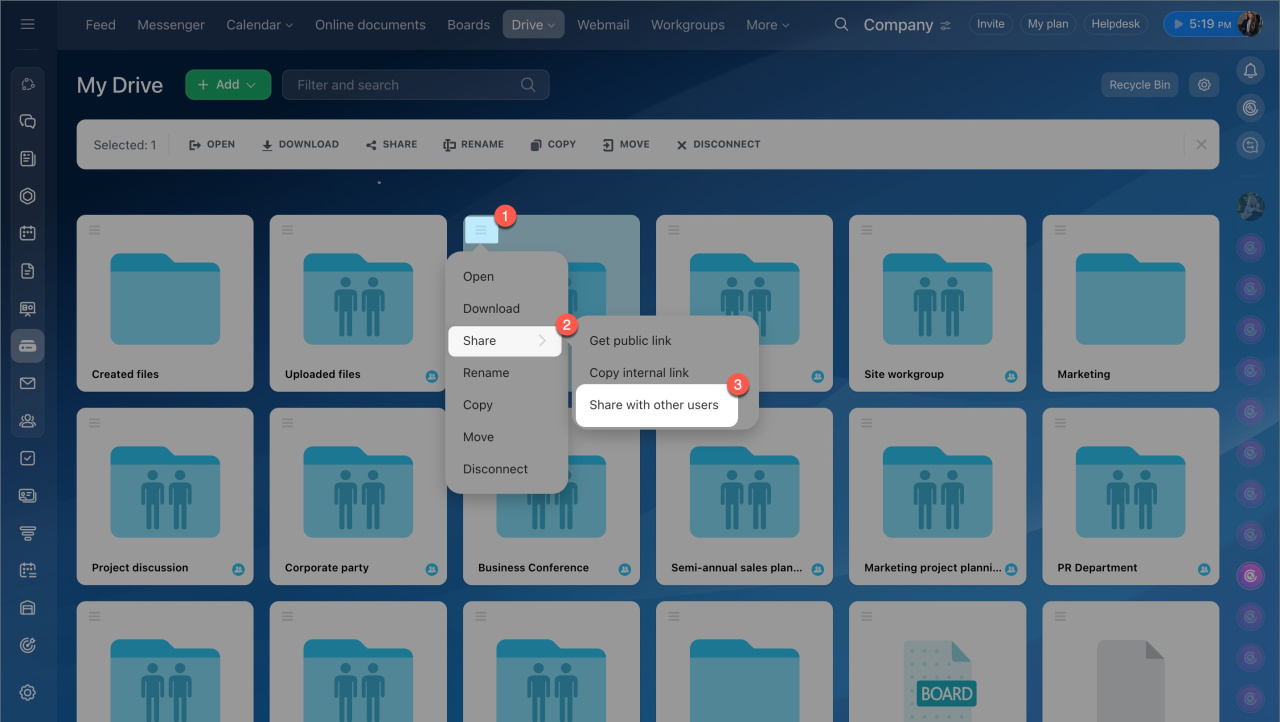
- Select files and click Share > Share with other users.
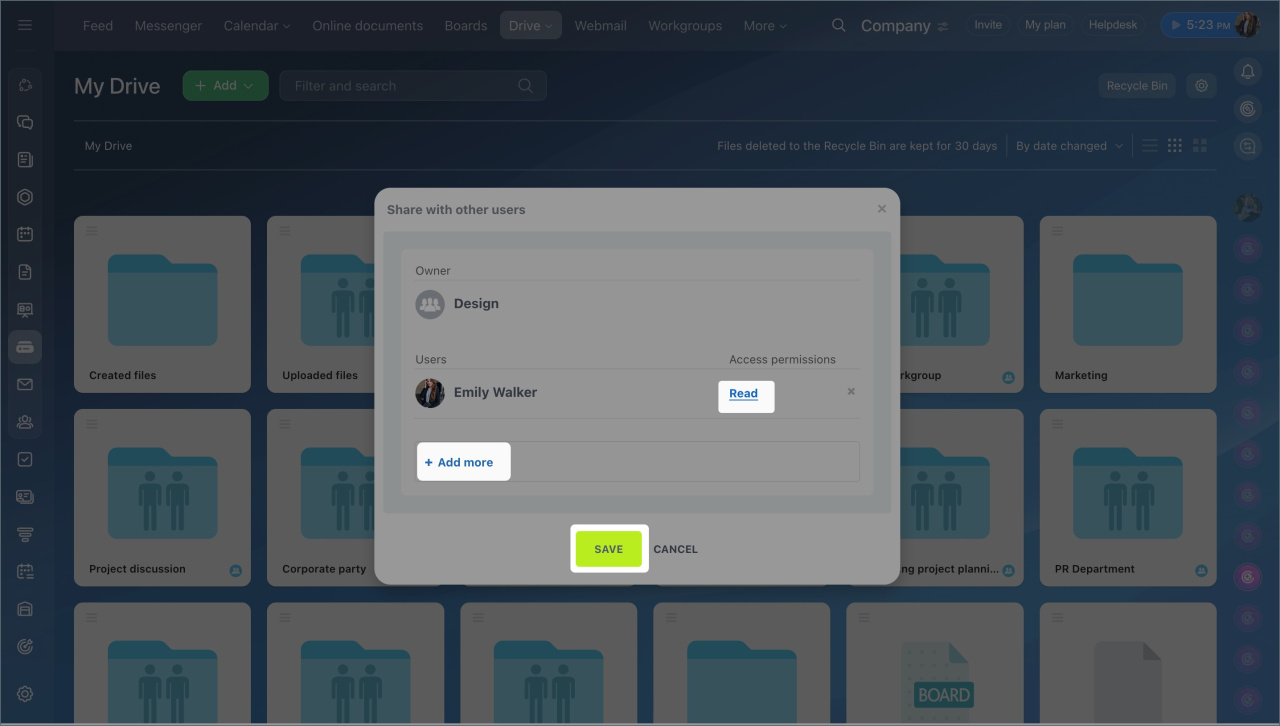
- Add employees.
- Set access permissions.
- Save the changes.
Configure access permissions to personal drive
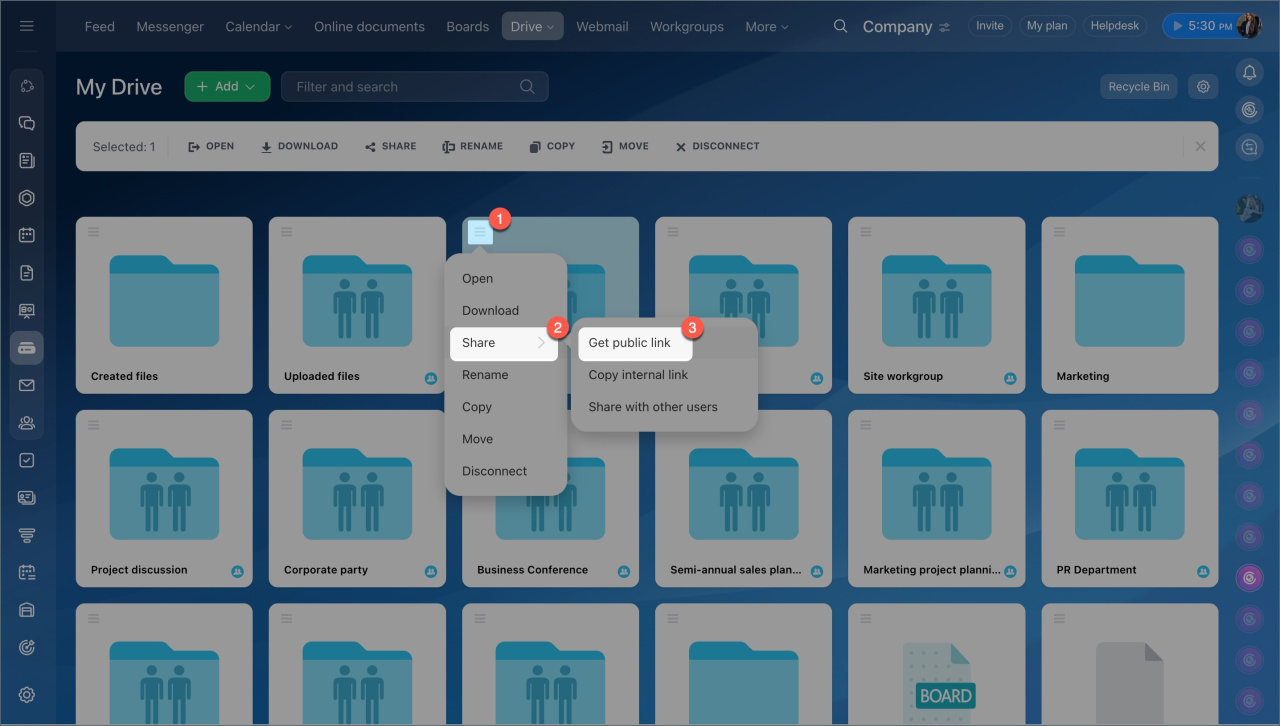
Use a public link to share a document with external users.
Share files and folders using public and internal links
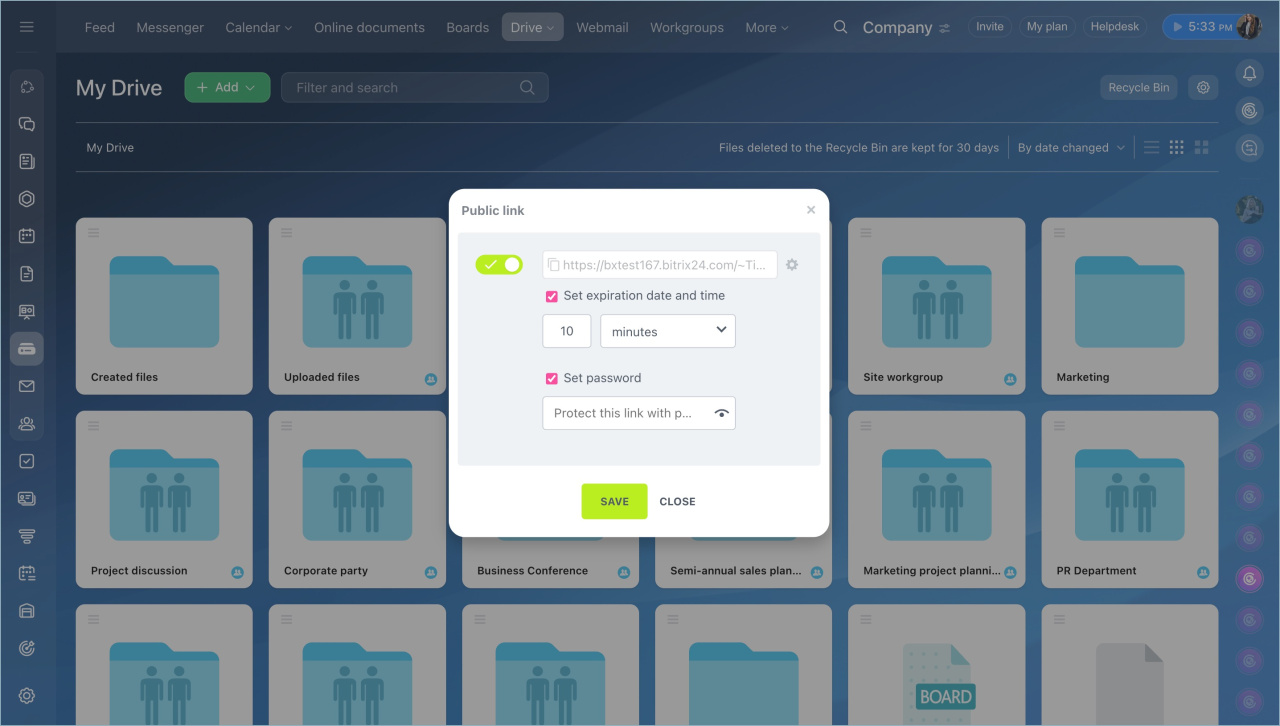
Configure access while viewing or editing a document
- Click Share.
- Select Get public link or Share with users.
- Configure access permissions.
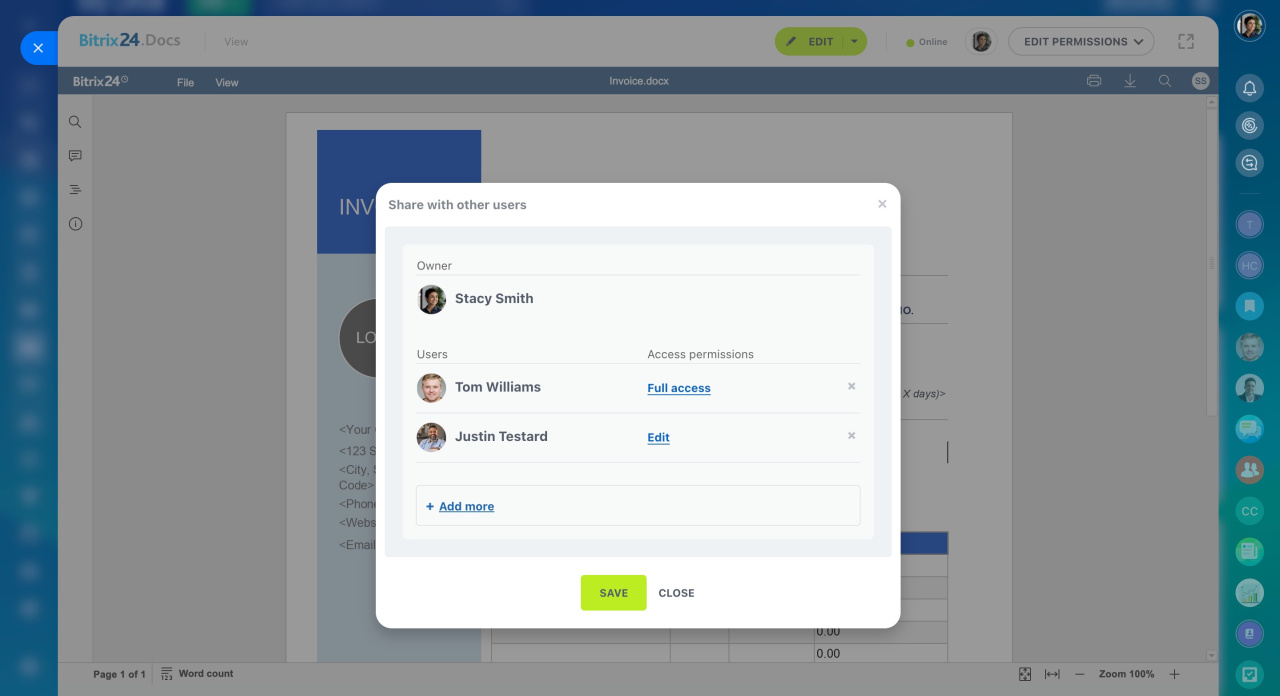
To work on a document together with colleagues:
- Select Collaborate.
- Add employees or departments.
- Configure permissions.

Save documents and manage versions
To save a document, click Save or close the document. Bitrix24.Docs saves changes automatically.
Version history works differently depending on how users edit the document:
- If multiple users edit a document at the same time and save changes within five minutes, Bitrix24 creates one shared version.
- If users edit the document one after another, Bitrix24 creates a separate version for each user.
- Renaming a file does not create a new version.
- When users edit documents through Google Docs or MS Office, Bitrix24 creates a separate version for each user after saving.
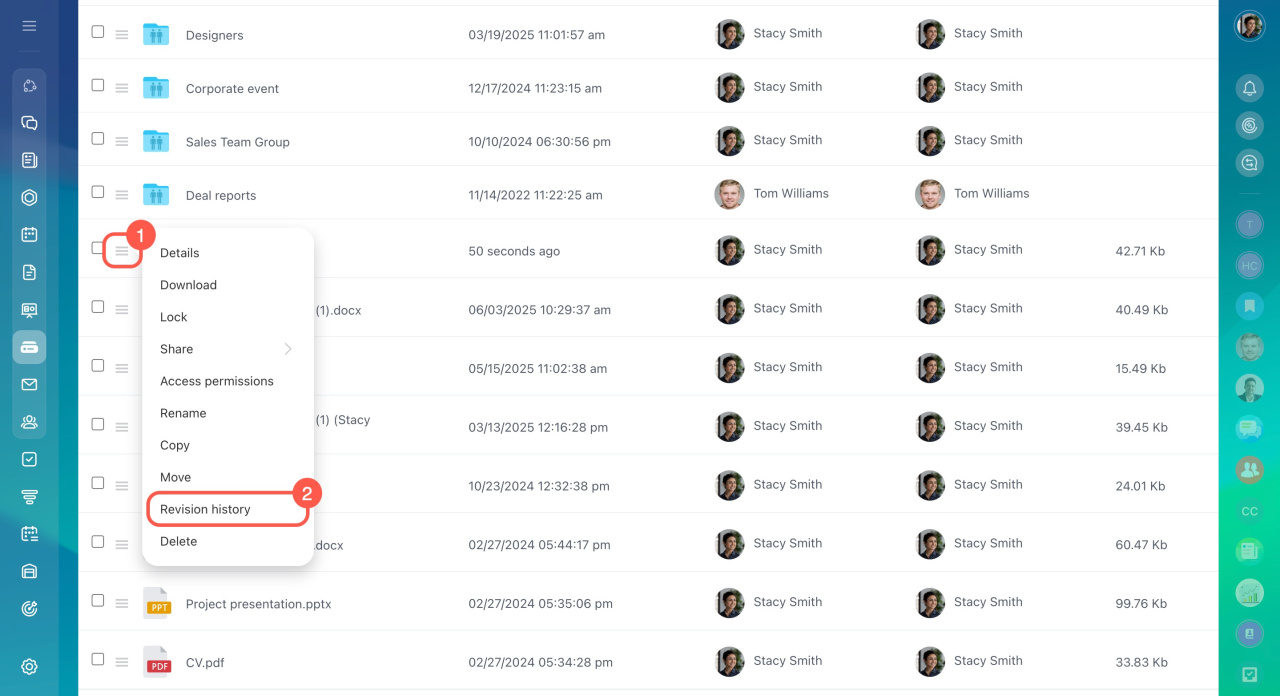
View document versions
- Click Menu (≡) next to the document.
- Select Revision history.
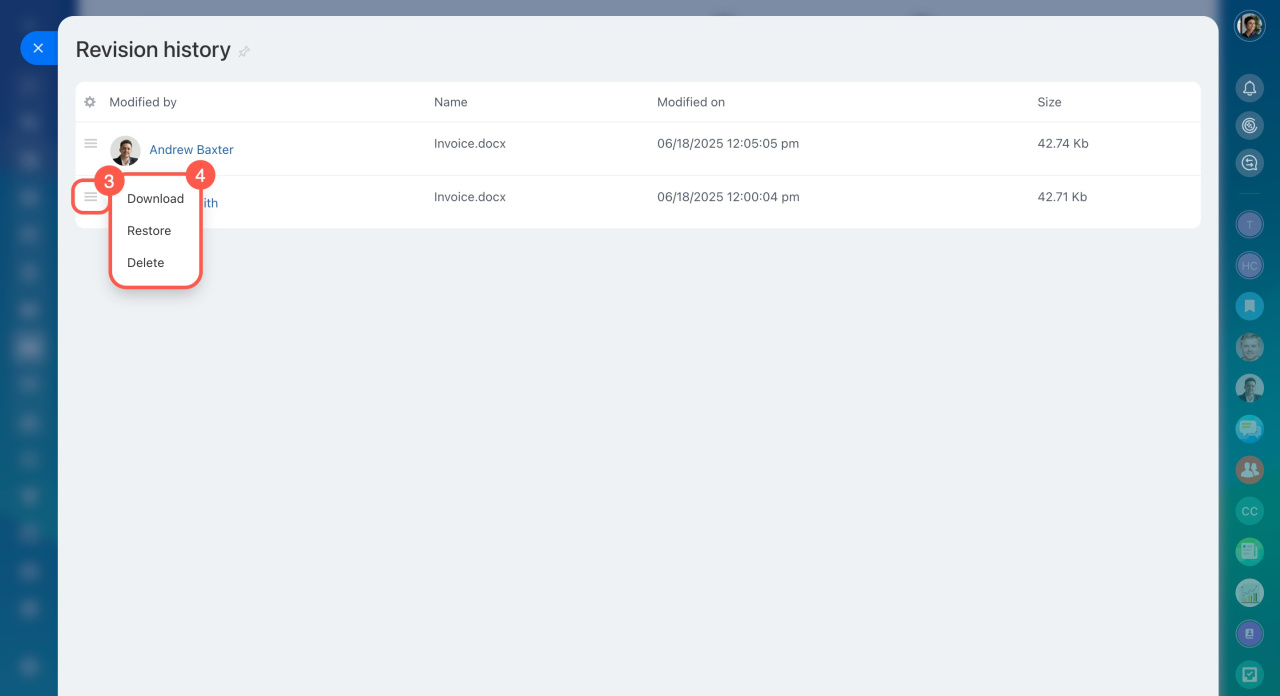
- Click Menu (≡) next to a version.
- Choose an action:
- Download
- Restore
- Delete
Delete a document
- Select a document.
- Click Delete.
You can permanently delete the document or move it to the recycle bin. Deleted files stay in the recycle bin for 30 days and can be restored during that time.
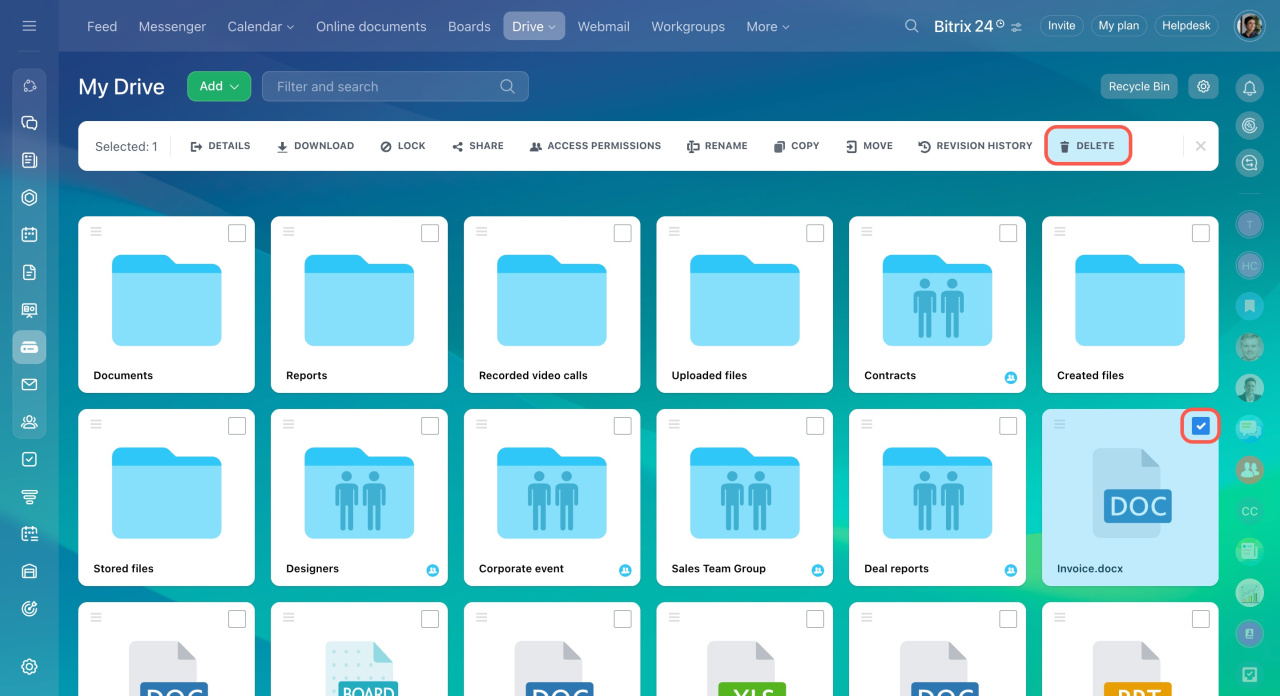
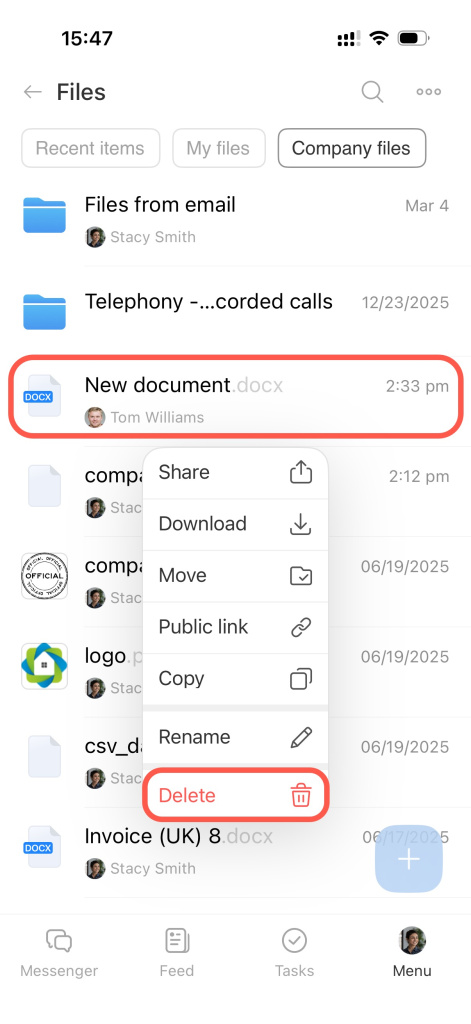
When you delete a file, Bitrix24 moves it to the Recycle Bin for 30 days. During this time, you can restore the file in Bitrix24 on your computer.
- Press and hold the file, then in the menu, tap Delete.
- Confirm the action.
In brief
- You can work with text documents, spreadsheets, and presentations in the My Drive section.
- Users can work with documents locally, in the cloud, or in Bitrix24.
- You can create, edit, share, and delete documents in Drive.
- Use access permissions to control who can view or edit documents.
- Use public links to share documents with external users.