
When you delete a file from My Drive, you can:
- Move it to the Recycle Bin (default option)
- Delete it permanently
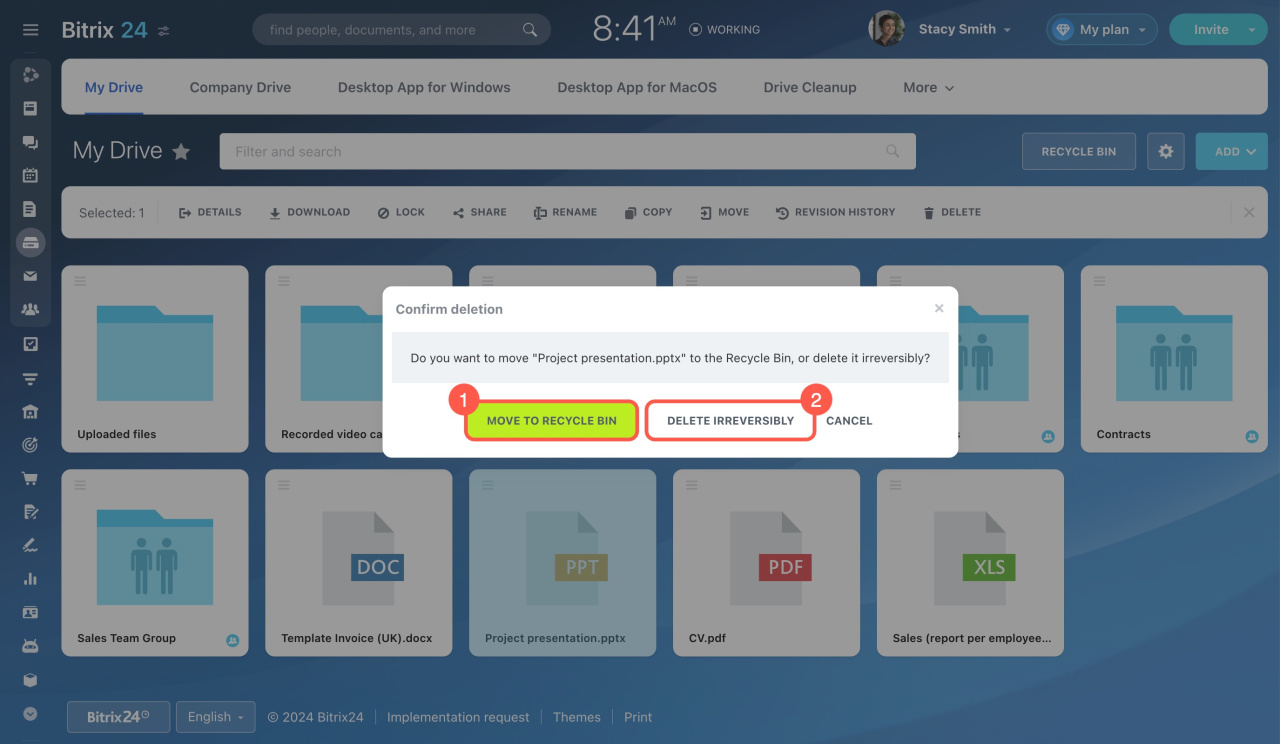
Files moved to the Recycle Bin can be restored by the file owner or a Bitrix24 administrator.
Permanently deleted files cannot be restored. Use this option only if you no longer need the file.
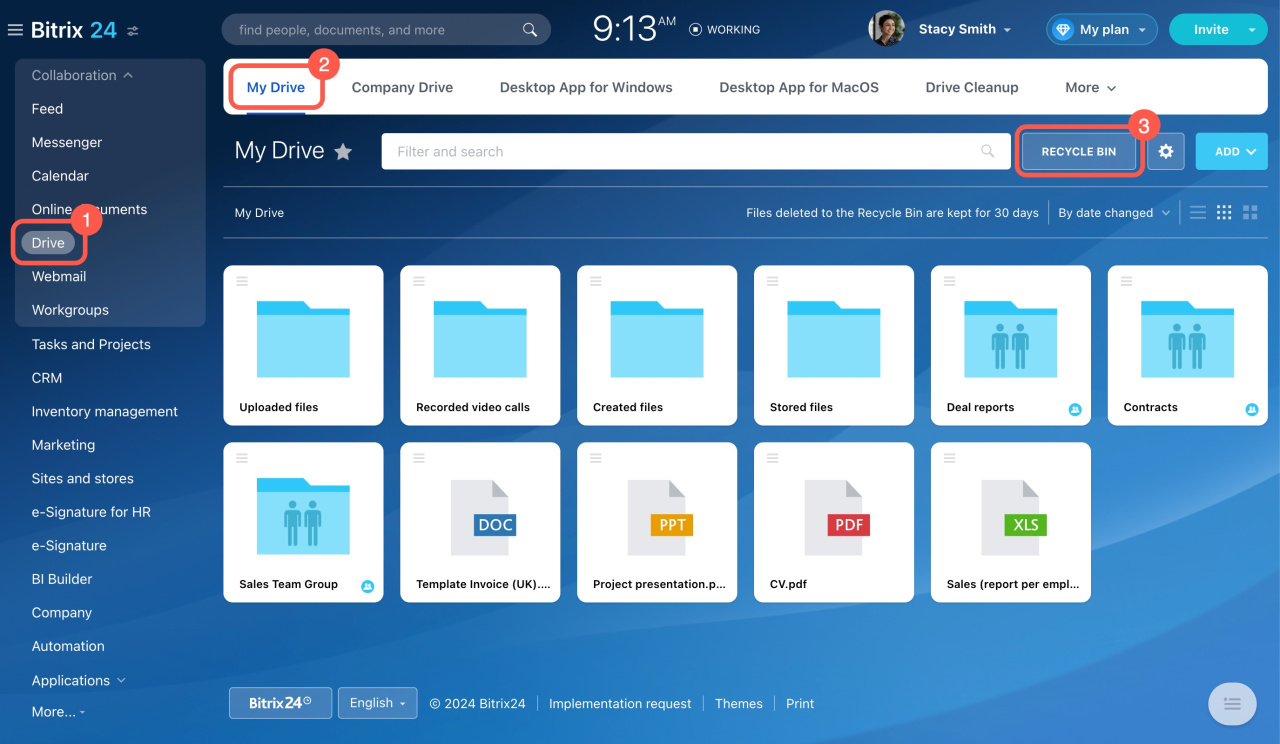
If you are the file owner:
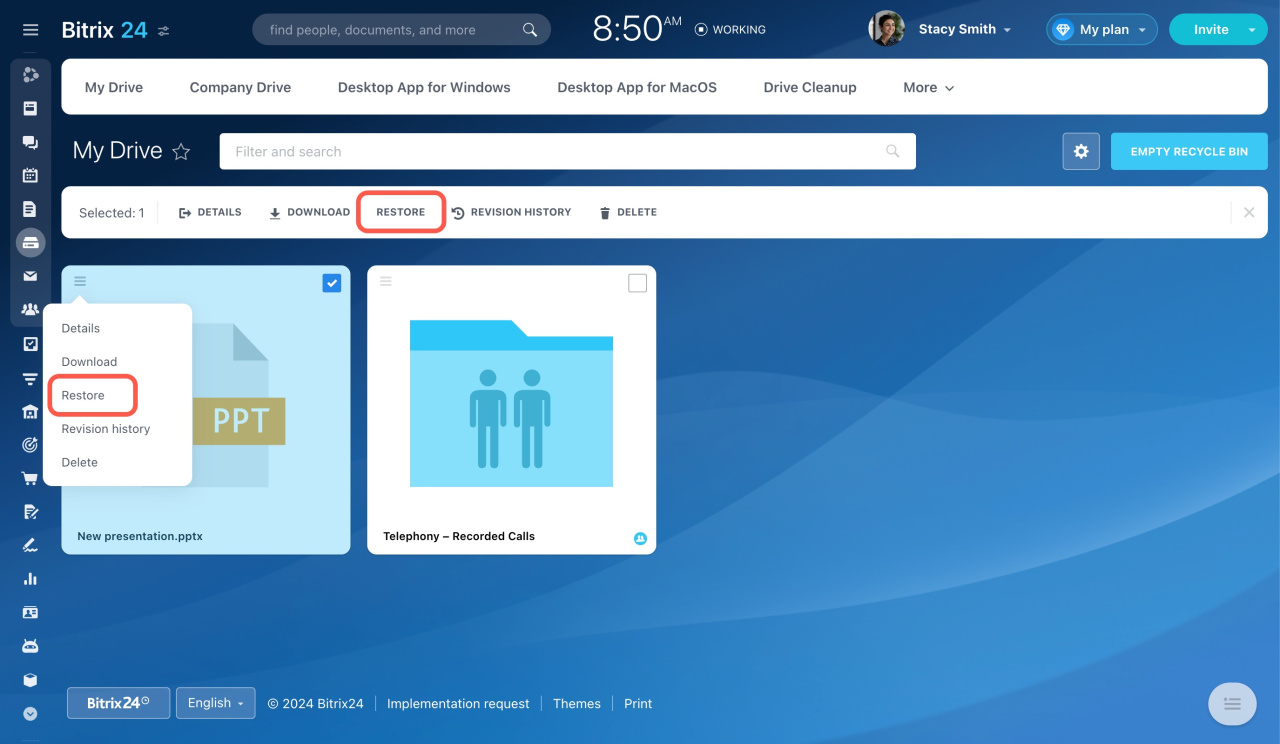
- Go to Drive > My Drive > Recycle Bin.
- Open the file menu (☰).
- Select Restore.
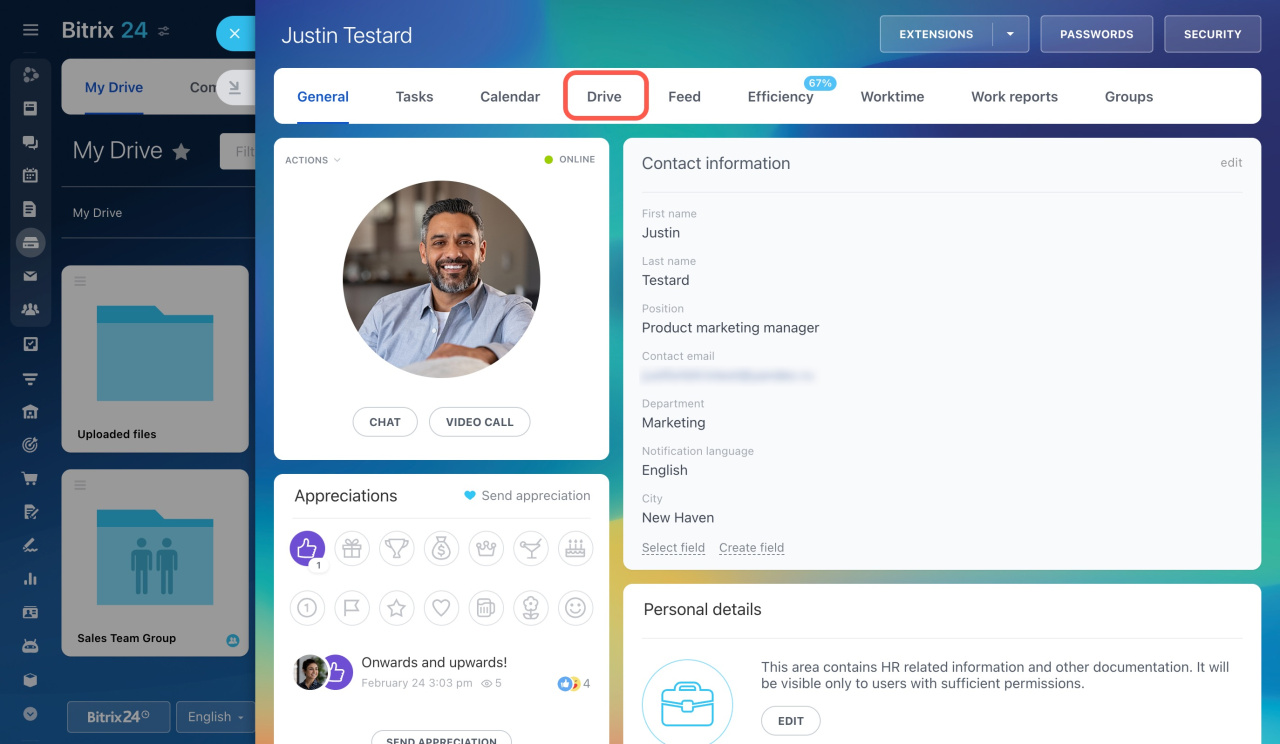
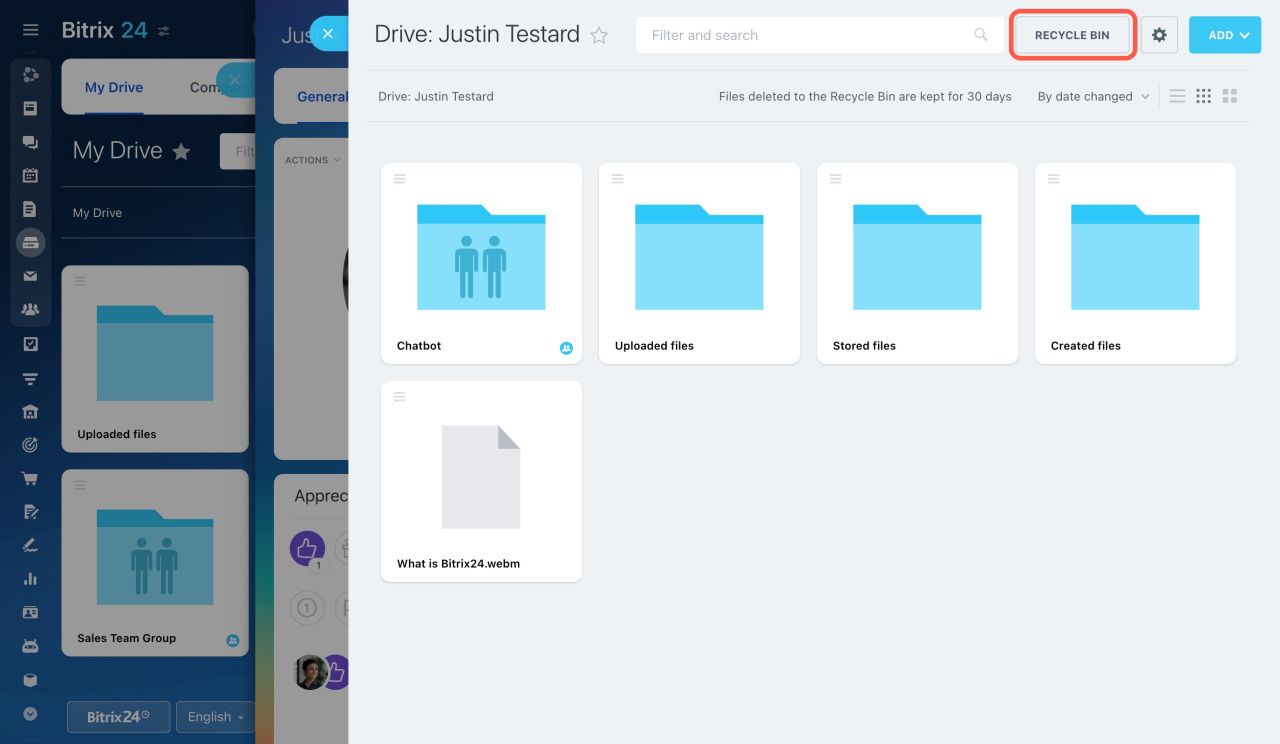
Administrators can also restore files deleted by other users.
- Open the user's profile.
- Click Drive in the top menu.
- Open Recycle Bin.
- Restore the required files.
You can also restore multiple files at once:
- Select the files.
- Click Restore in the top menu.
Delete files from Company Drive
Shared files in Company Drive are protected from accidental deletion through local computer folders.
If a user deletes a shared file from their local Bitrix24 folder:
- The file remains available to other users.
- The file stops syncing for the user who deleted it.
If a shared file is deleted from Company Drive in the web version, it is removed for all users. If a shared file is moved to the Recycle Bin in the web version, all users lose access to it.
Files remain in the Recycle Bin for 30 days. After that, Bitrix24 permanently deletes them.
Recycle bin in CRM and Bitrix24 Drive: files are stored for 30 days