
Cloud storage limits depend on your Bitrix24 plan. When your storage is full, you cannot upload new files to Bitrix24.
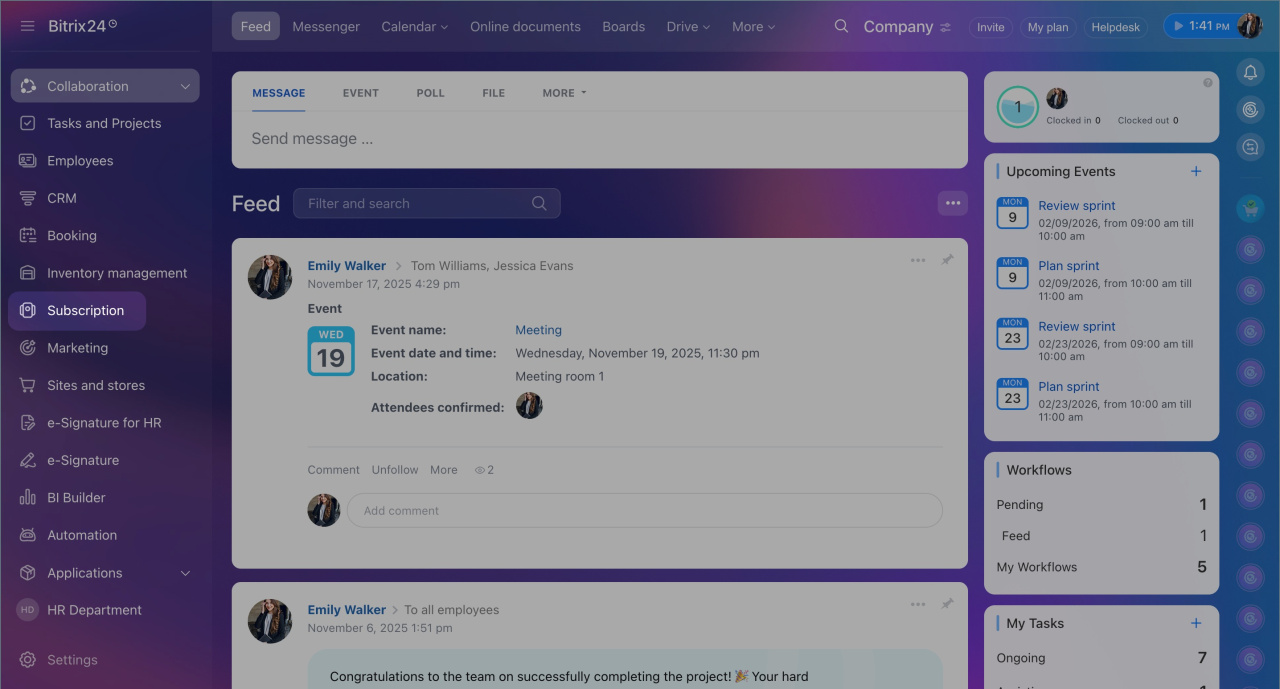
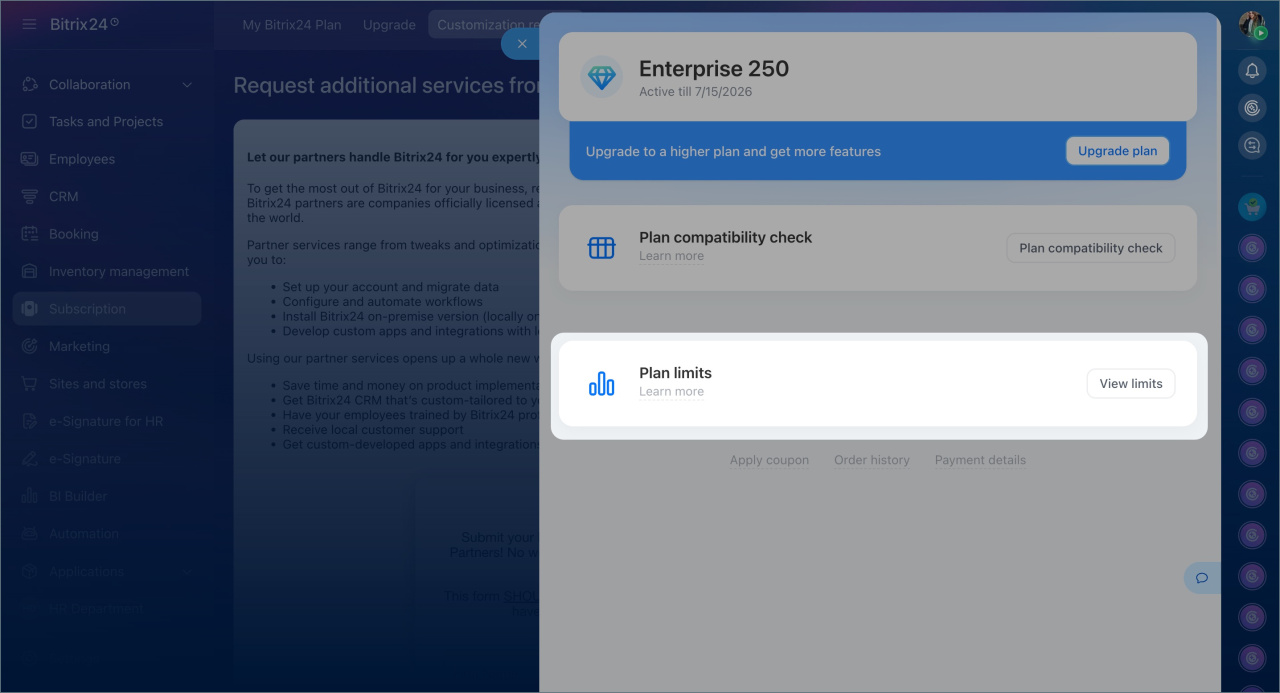
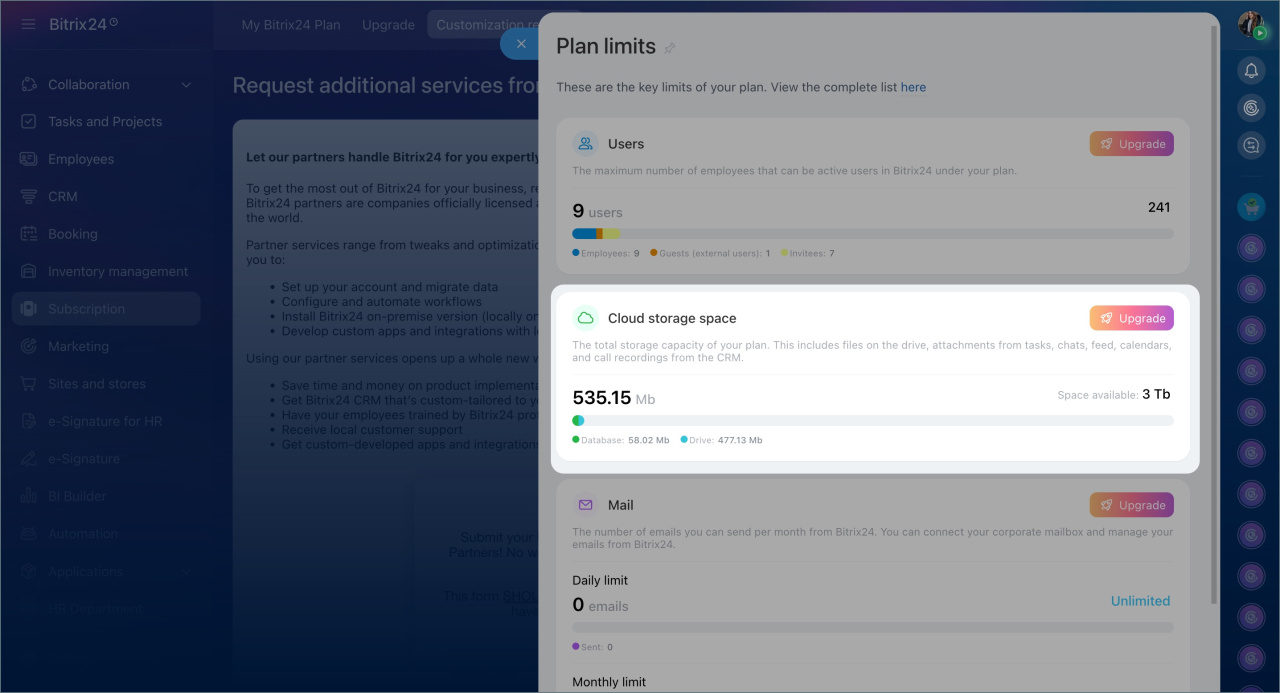
To check available space, go to Subscription > Plan limits > View limits > Cloud storage space.
Database size
Every action in Bitrix24 creates or updates data. This data is stored in the database.
The sections below usually take up the most database space:
- CRM: leads, contacts, companies, deals, invoices, and smart processes. This also includes history, activities, and the recycle bin.
- Automation: automation rules, workflows, and logs.
- Mail: incoming and outgoing emails and CRM marketing campaigns.
- Chats: messages from internal chats and open channel conversations.
The easiest way to free up database space is to clean up CRM data. Delete old records, irrelevant activities, change history, and items in the recycle bin.
CRM Cleanup
If the database size does not decrease significantly after cleanup, contact Bitrix24 Support. Support specialists can check which data uses the most space in the database.
Contact Bitrix24 Support
Drive space used
This section includes all files employees use in Bitrix24:
- Drive files: files employees upload to My Drive, Company Drive, and project or workgroup drives.
- Files from tasks, events, and Feed: these files are stored in My Drive > Uploaded Files. Each employee has a personal folder that stores only the files uploaded by that user.
- Files from chats: chat attachments are stored in Drive > Drive Cleanup > Expert mode > Instant Messenger storage.
- Recordings of phone conversations with customers: recordings of customer phone calls are stored in Company Drive > Telephony - recorded calls.
Call recordings storage - Files from emails: if mailboxes are connected to the CRM, email attachments are stored in Company Drive > Files from emails.
- Files from custom fields: attachments added to File-type fields in CRM, lists, and workflows.
To free up drive space, delete unnecessary files and empty the recycle bin.
Ways to clean up Bitrix24 Drive
Drive Cleanup
In brief
- You can check cloud storage usage in Subscription > Plan limits > View limits > Cloud storage space.
- Database size shows the size of all account data except files.
- Drive space used shows the total size of all files stored in the account.
- To free up cloud storage space, delete unnecessary records and files.