
Learn how to prevent coworkers from editing the same document at the same time.
- Enable document locking in settings
- Lock a specific document
- See how a locked document appears to others
Before you start
Document locking works only if:
- The Allow to lock document while editing option is enabled
- You edit documents in cloud services like Google Docs or Microsoft Office
Work with Bitrix24 Drive documents
Enable document locking
Only an account administrator can enable this option.
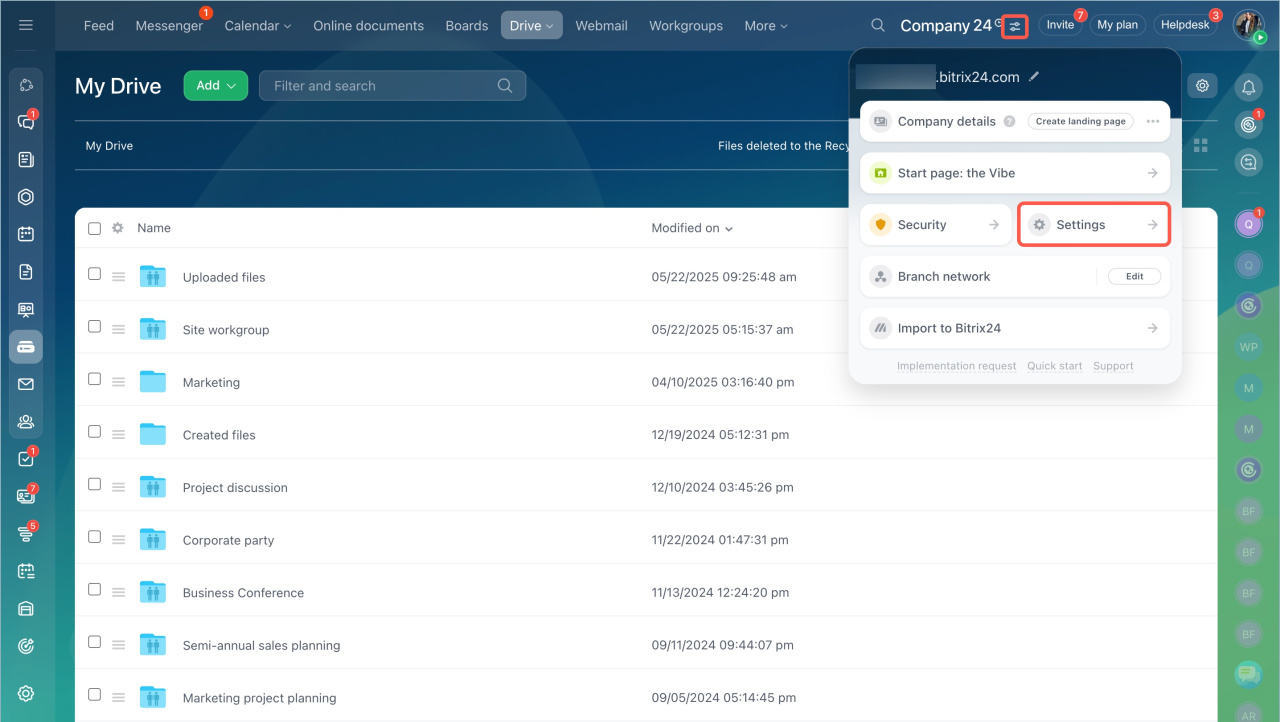
- Go to Settings.
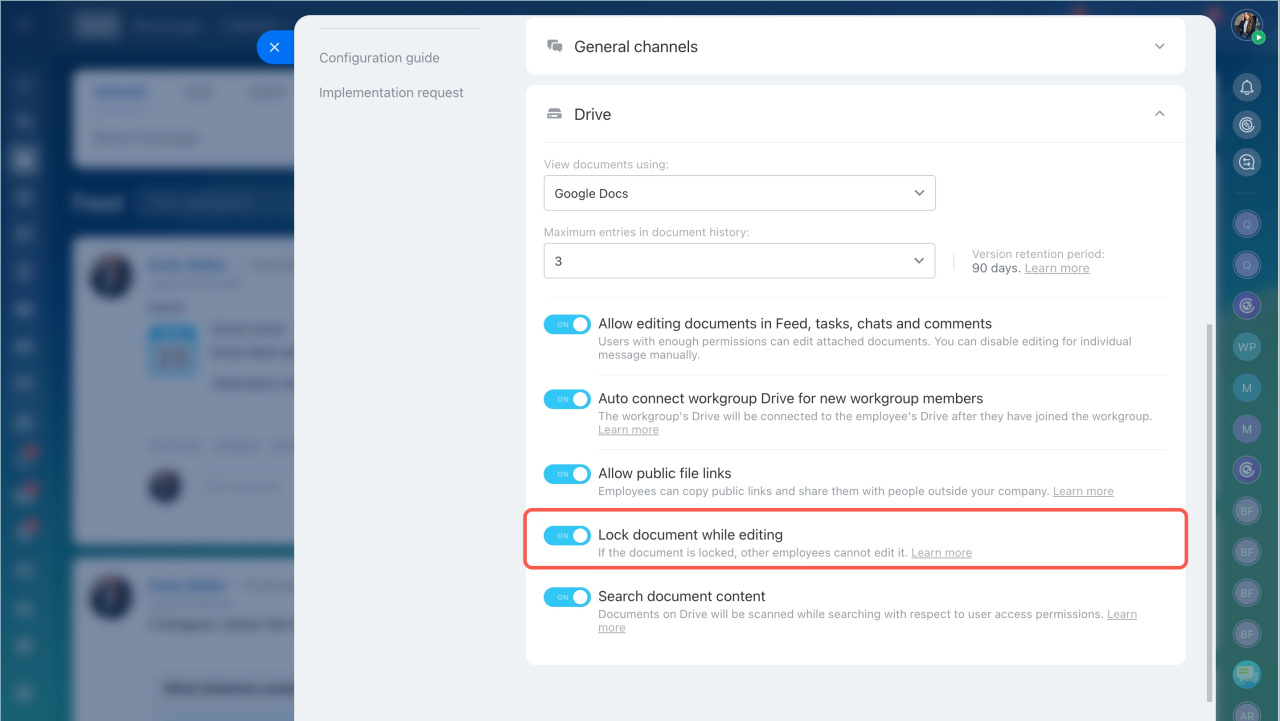
- Open Communications > Drive.
- Enable Lock document while editing.
- Save the changes.
Lock a document
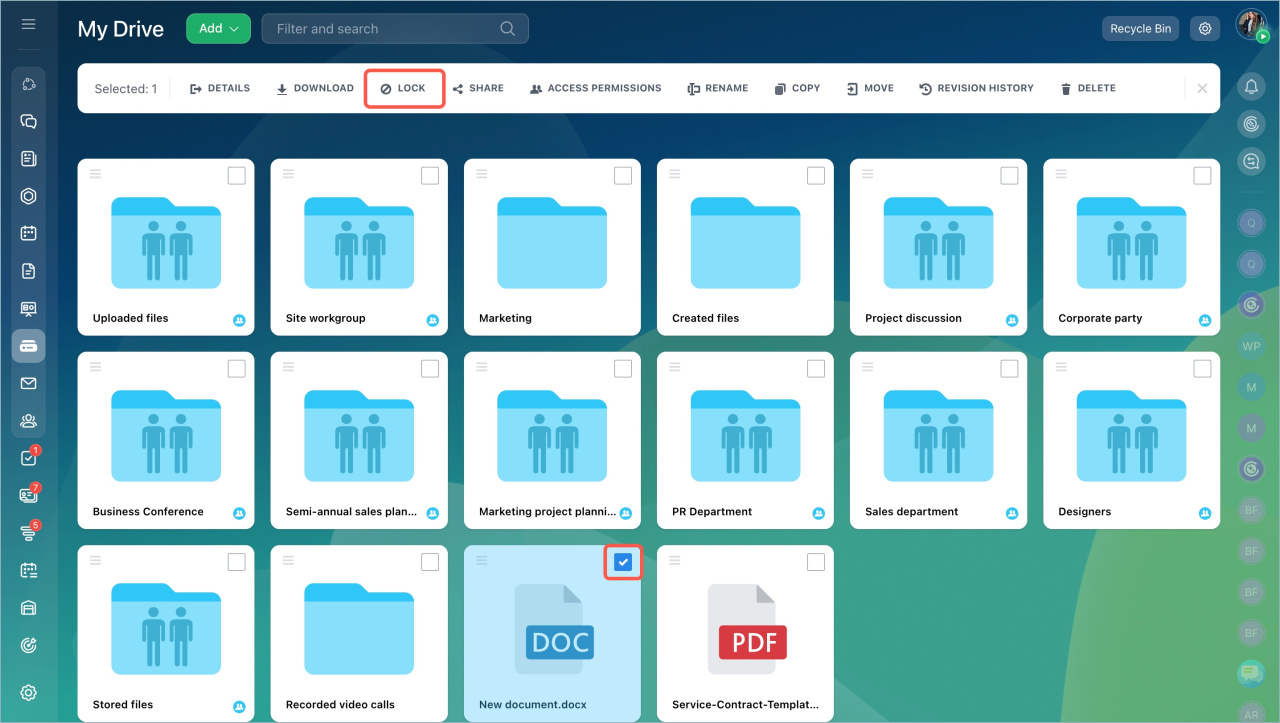
Go to Drive, click the file, and select Lock on the menu panel.
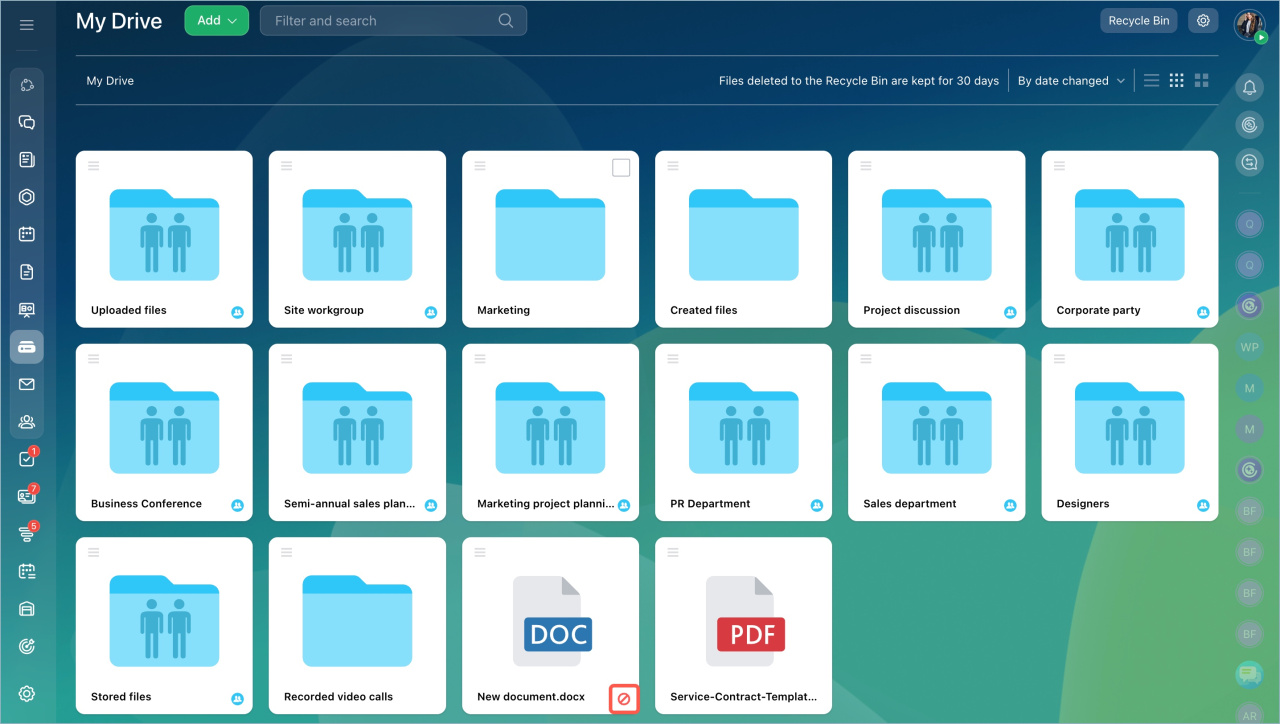
A locked file is marked with a special icon. Only the person who locked the file can edit it.
How the locked document is displayed
Employees with access to the locked file can open, view, and download it.
File preview in Bitrix24: quick access and possible actions
When another user tries to edit the document, they will see a notification that the file is locked.
If the document is locked while another employee is editing it, that user will see a notification that the document was not saved.
The changes will be saved as a new file. The file will be available in their personal Drive in the Stored Files folder.
In brief
- Use document locking to prevent simultaneous edits.
- Document locking works only when the option is enabled.
- It applies only to documents in cloud editors.
- Only the user who locks the file can edit it.
- Other users can view and download the file.