
When you set up a workflow, use the Insert Value form to add macros and auto-generated values. These can include document fields, system variables, date and time, and more.
To add a macro:
- Click the ellipsis button (...) next to the target field.
- Select a macro in the Insert Value form.
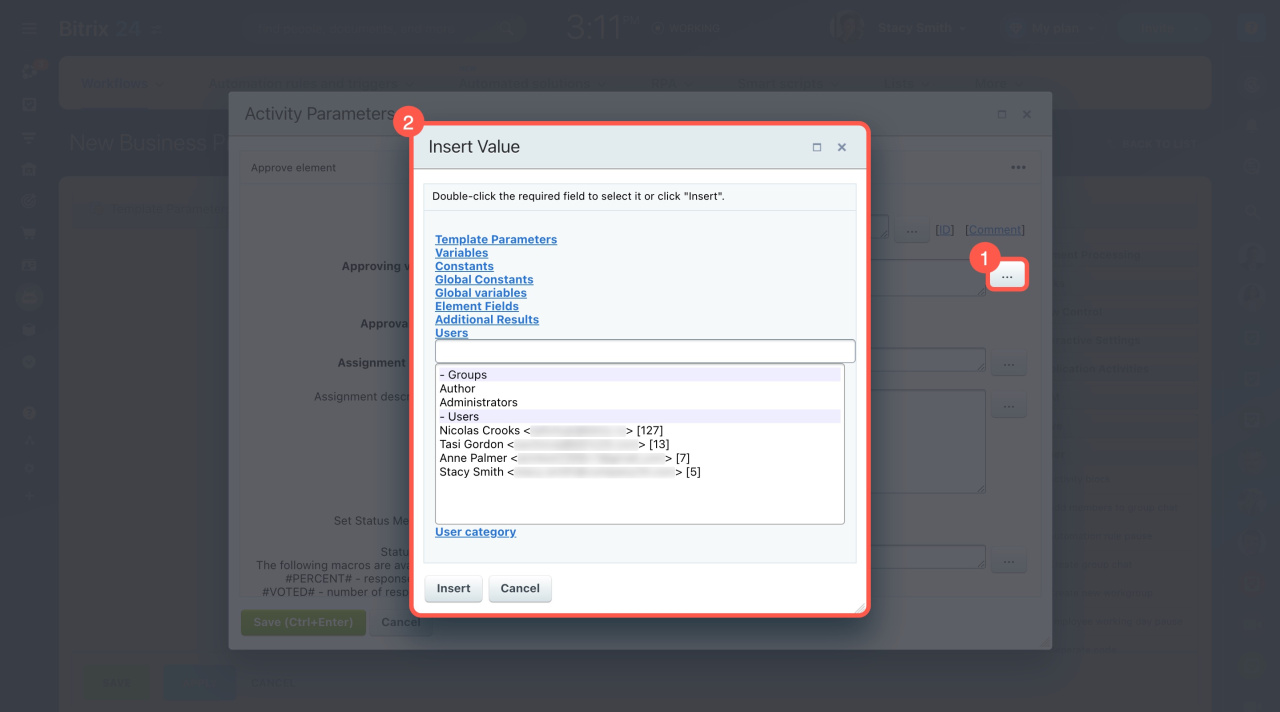
The form shows all macros, grouped by type:
- Template Parameters: Values you define in the workflow designer. Users can fill in some of them when they start the workflow.
- Variables: Values that can change during the workflow. For example, a number field a user enters during execution.
- Constants: Fixed values that do not change. You set them in the template parameters. Users without edit access cannot change them.
- Document Fields: Values from the document where the workflow runs, such as Created on or Created by.
- Additional Results: Outputs from workflow activities. The list includes only activities in the current template that return values.
- Users: Specific users or user groups. If you select multiple users, separate them with a semicolon.
- User categories: Departments or social network groups.
These macros are not listed in the Insert Value form, but you can still use them in workflow templates:
-
{=Workflow:ID}: Inserts the current workflow ID. -
{=User:ID}: Inserts the current user ID in the formatuser_[system_user_ID]. -
{=Template:TargetUser}: Inserts the ID of the user who started the workflow in the formatuser_[system_user_ID]. -
{=System:Now}: Inserts the current date and time. -
{=System:NowLocal}: Inserts the client's current date and time (time zone is taken into account). -
{=System:Date}: Inserts the current date. -
{=Document:DETAIL_PAGE_URL}: Inserts the document page link (works only if the details page URL is set correctly).
The "printable" modifier
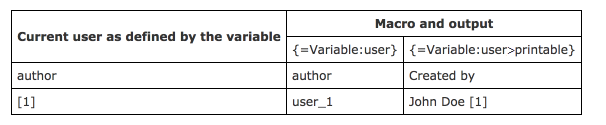
Add the printable modifier to make the output easier to read. If the macro supports it, the value appears in a user-friendly format. If not, it shows the default value.
Example:
Macros with this modifier are also available in the Insert Value form.