
A domain is a unique website name that people use to open your site online. In Bitrix24, you can connect your own domain to a site or online store on any plan. First, buy a domain from a domain registrar.
Check domain availability
- Go to Sites and stores.
- Select your site.
- Click Configure site.
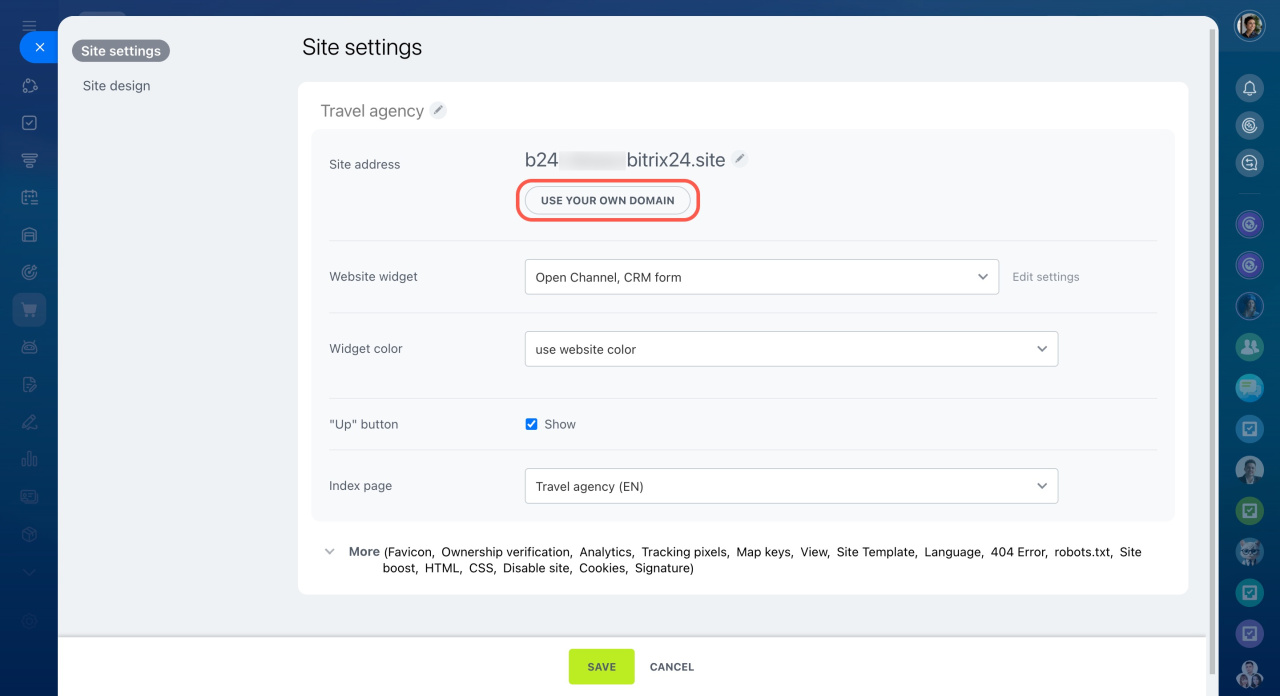
- Click Connect your domain.
- Enter the domain in the Site address field.
Do not include http, https, or www.
bitrix in the domain name. You cannot connect domains that include this word.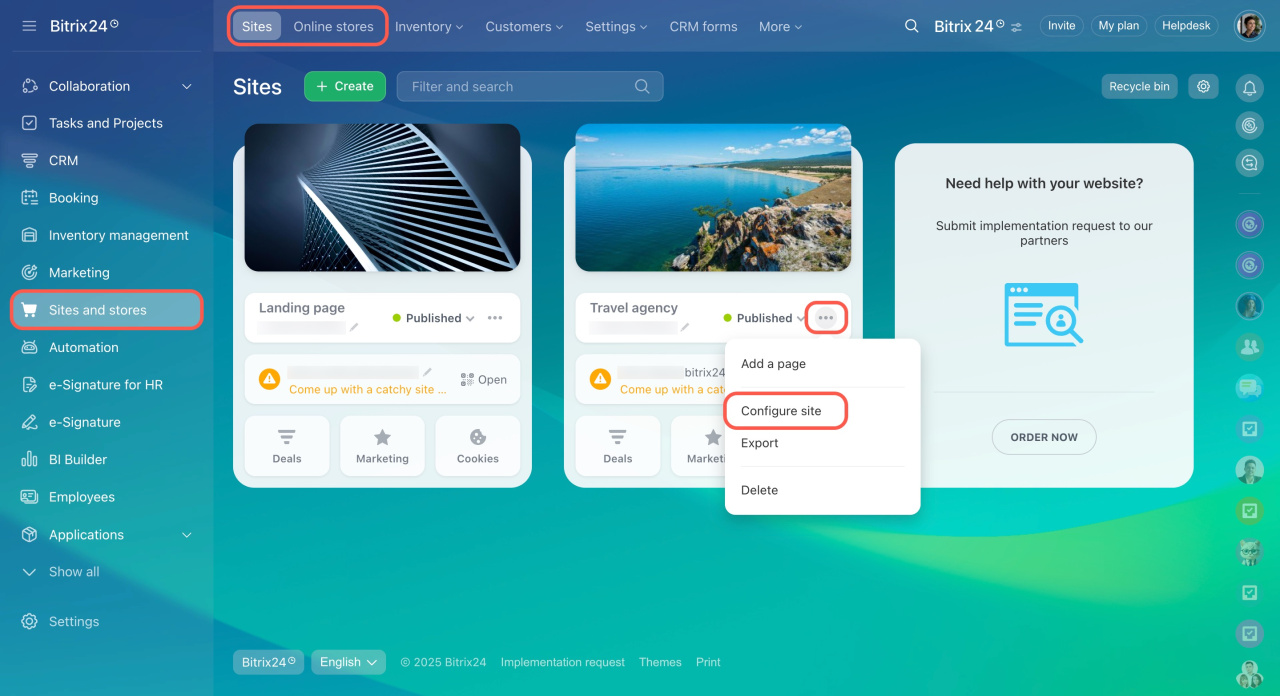
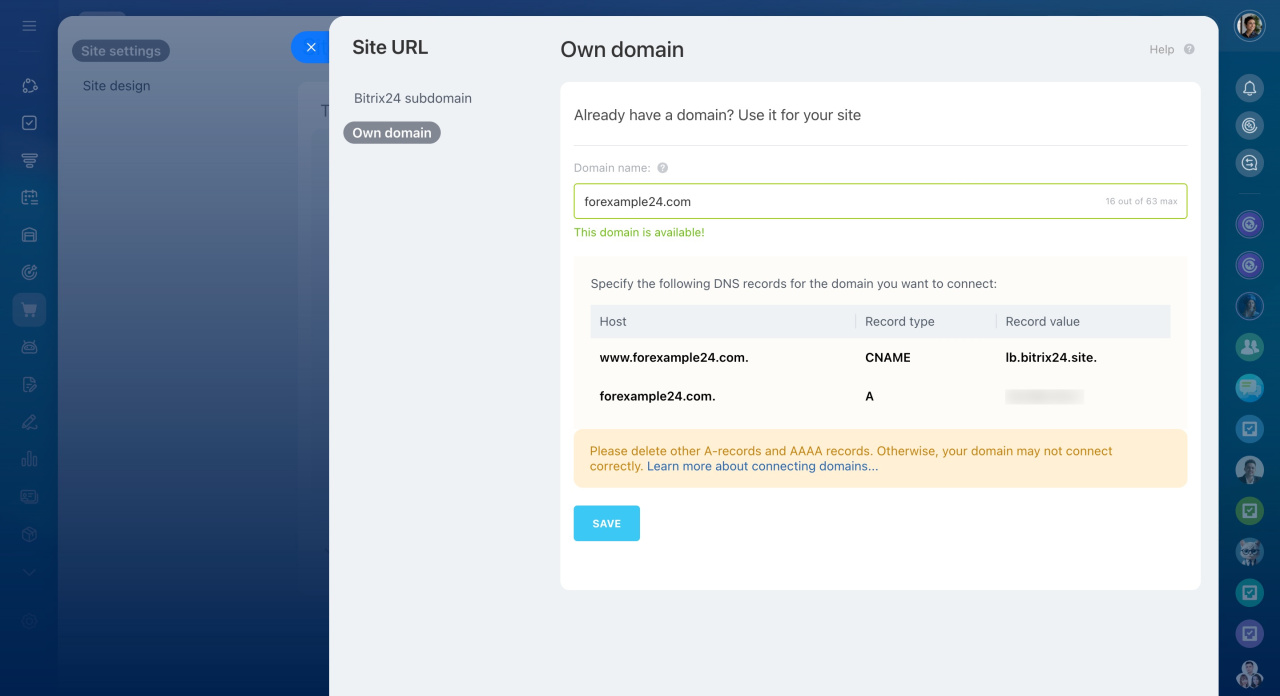
After you enter the domain, Bitrix24 shows the required DNS records: A and CNAME. Keep this page open, then go to your domain registrar settings.
Configure DNS records
DNS records help browsers find your site. In most cases, you only need to add A and CNAME records.
Update or remove A and CNAME records only for the domain you want to connect. If the domain has an AAAA record, delete or replace it.
Resource record fields depend on the domain level. Domains include parts separated by dots. For example, in for.example.com:
comis the first-level domainexampleis the second-level domainforis the third-level domain
A record
Specify these values:
- Subdomain: The part of the domain to the left of the higher-level domain. For example,
testintest.forexample24.comis a subdomain of the main domain. Forforexample24.com, enter@. - IP address: A unique numeric address that identifies devices on the internet. Copy the address from the Record Value field in Bitrix24.
CNAME record
Specify these values:
- Subdomain: Enter
wwwfor a site with a second-level domain. For a third-level domain, enter the subdomain. - Canonical name: A record that links subdomains. Copy
lb.bitrix24.sitefrom the Record Value field in Bitrix24.
TTL
TTL sets the time, in seconds, after which DNS changes take effect. We recommend setting TTL to 3600 seconds. This way, servers check whether the records are up to date every hour.
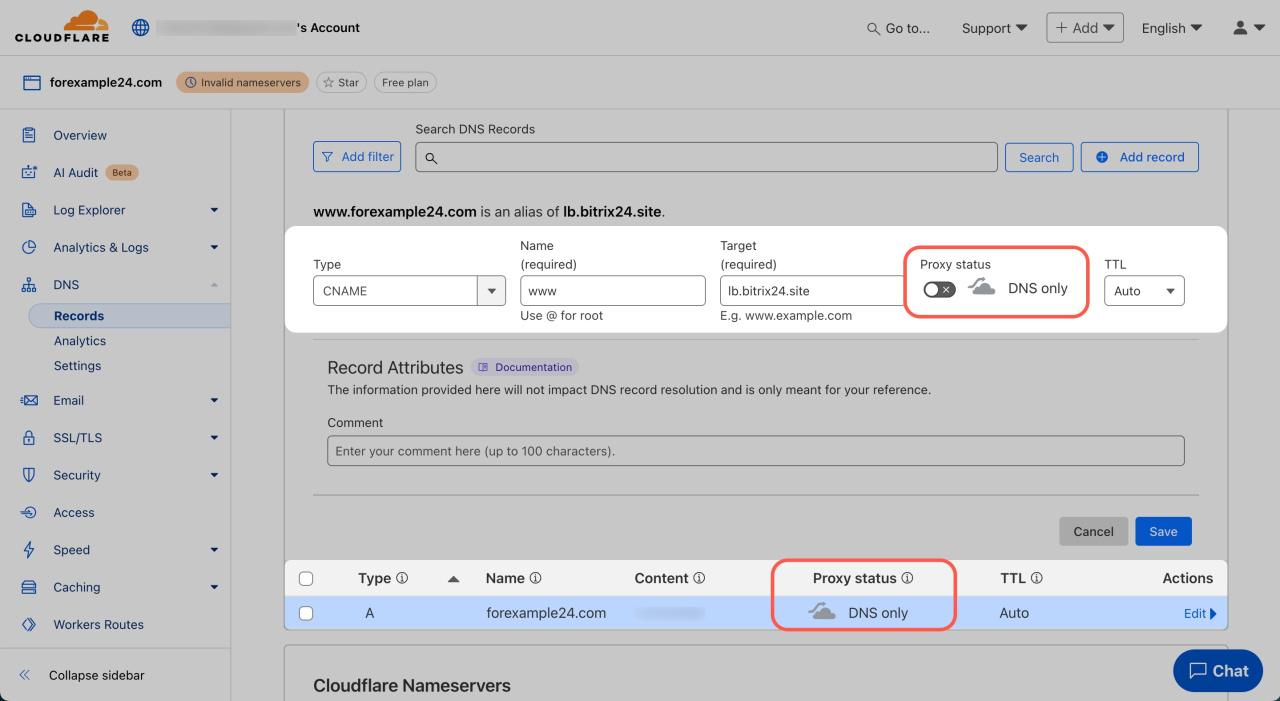
Bitrix24 sites and stores do not work with domains that use DNS proxying from Cloudflare. If you use Cloudflare, turn off DNS proxying before you connect the domain to Bitrix24. The Proxy status column should show DNS only.
*.bitrix24.site or *.bitrix24.shop address, and you will need to connect the domain again. After you add the DNS records, return to Bitrix24 and save the domain connection settings. Switching to a new domain can take up to three days. When the domain is active, publish the site. It will be available at the new address.
In brief
- Buy a domain from a registrar.
- Connect it in Sites and stores.
- Add A and CNAME records using the values from Bitrix24.
- Turn off Cloudflare proxying if you use Cloudflare.
- Wait for DNS propagation, then publish the site.