
Tasks in Bitrix24 help plan work, assign responsibilities, and monitor deadlines. To make a task clear, simply specify the title, description, and assignee. For more details, you can add stages, attach files, or link the task to a project. This ensures the team works cohesively and nothing is overlooked.
For example, when preparing a marketing campaign, you can create a task, specify the description and deadlines, attach necessary materials, and add a checklist. This way, the team will see the work plan and track progress for each item.
In this article:
Set a deadline
Deadlines help employees plan their work and understand when a task needs to be completed. In advanced settings, you can specify how to handle deadlines: allow or restrict date changes, automatically set deadlines for new tasks, or require mandatory result verification before completion.
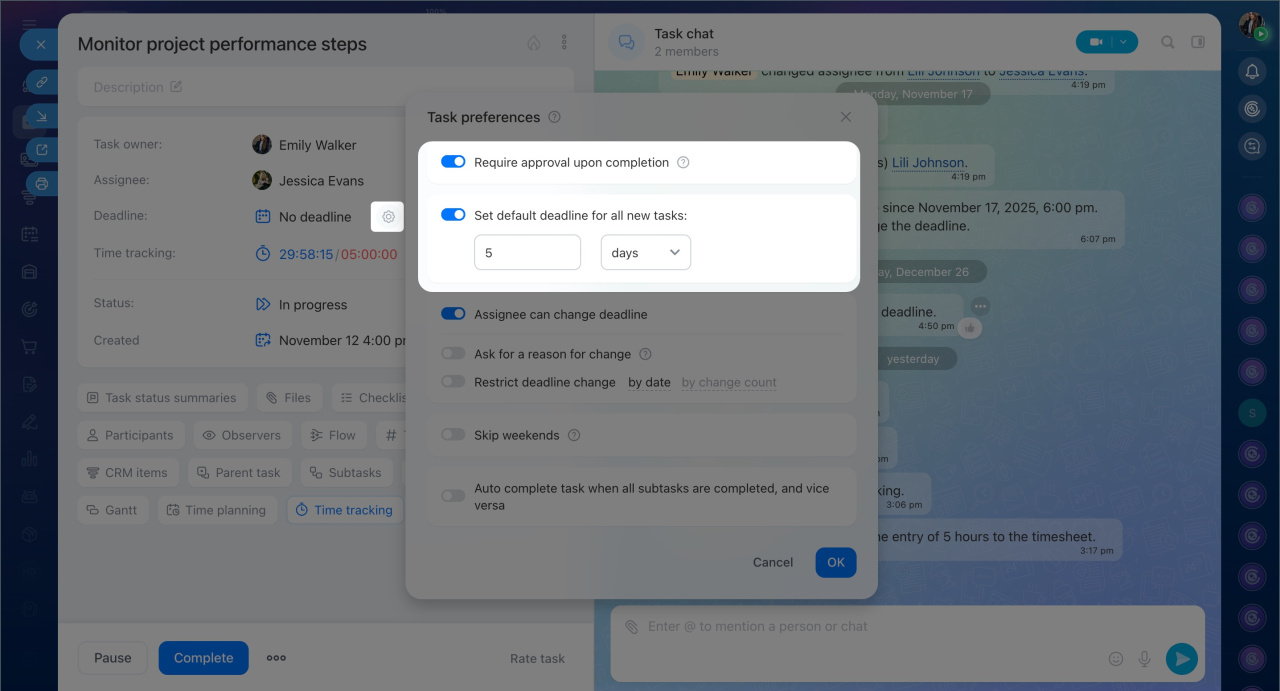
Click Settings (⚙️) next to the deadline and enable the necessary options.
Check task upon completion — when the assignee completes the task, it goes to the creator for review. They check the results and decide whether to confirm completion or send the task back for revision.
Check task upon completion
Set default deadline for all new tasks — specify how many days after creation the task should be completed. This deadline will automatically apply to all new tasks. This is useful if the department frequently creates similar tasks with the same deadlines.
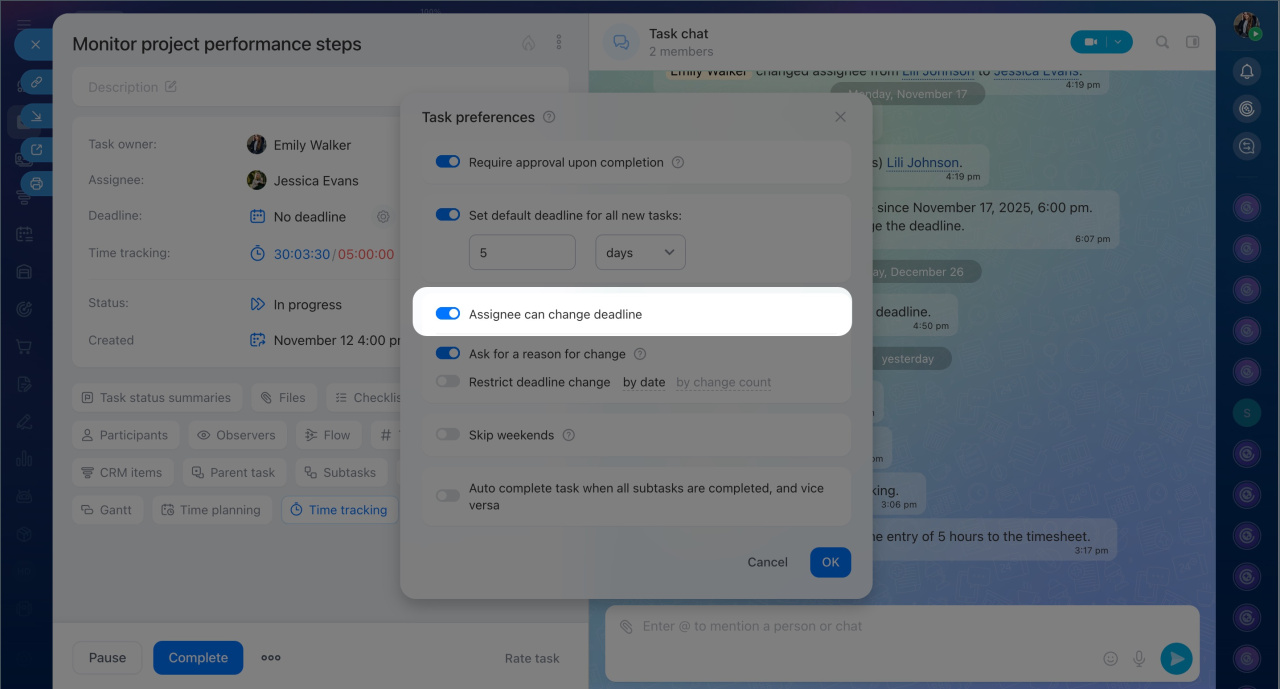
Assignee can change deadline — enable this option so employees can reschedule the task's completion date. To control changes, you can set restrictions:
- Ask for a reason for change — the employee must specify why the deadline is being moved.
- Restrict deadline change — specify until what date the deadline can be moved or how many times it can be changed.
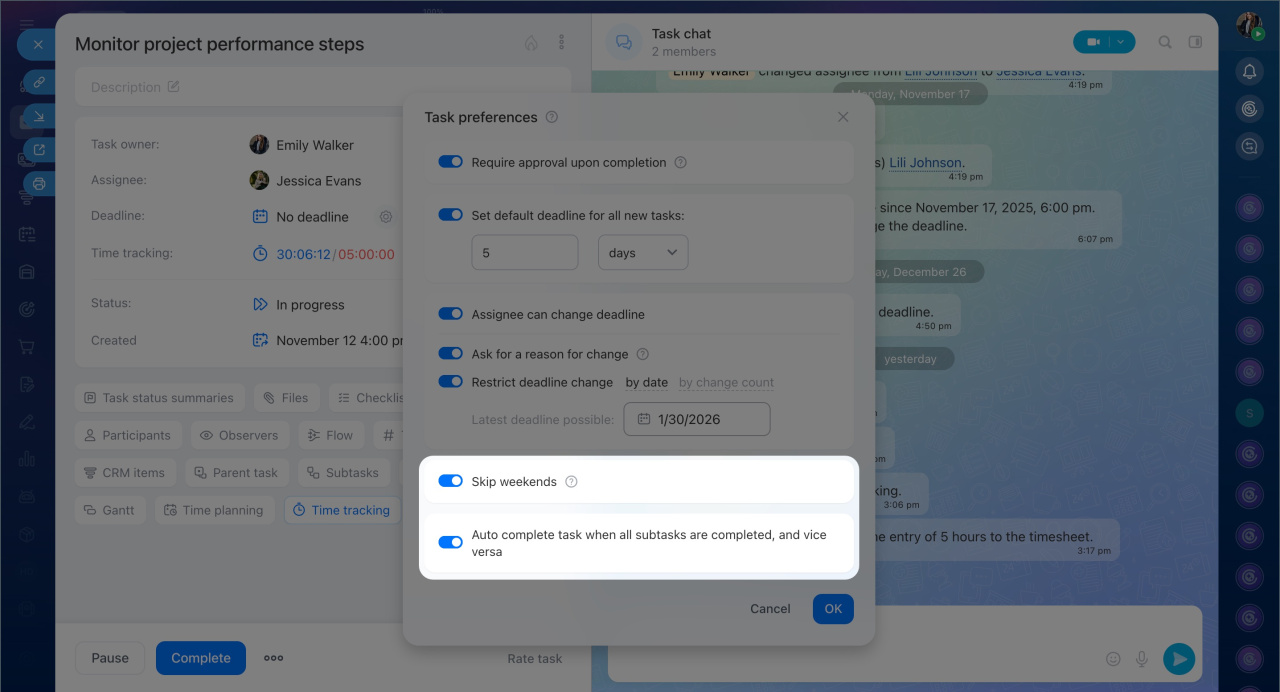
Skip weekends — enable this option to automatically move the deadline to the next working day if it falls on a weekend or holiday.
Auto complete task when all subtasks are completed, and vice versa — when all subtasks are completed, the main task will automatically be marked as completed. Similarly, completing the main task will mark all its subtasks as completed.
Attach files and documents
Tasks can store all related materials: layouts, instructions, documents, and other files. For example, in the task "Review the contract," an employee can attach the document, and colleagues can open it directly from the task form. This ensures the team works with the latest version without emails or file transfers. If something needs quick discussion, the file can be sent directly in the task chat.
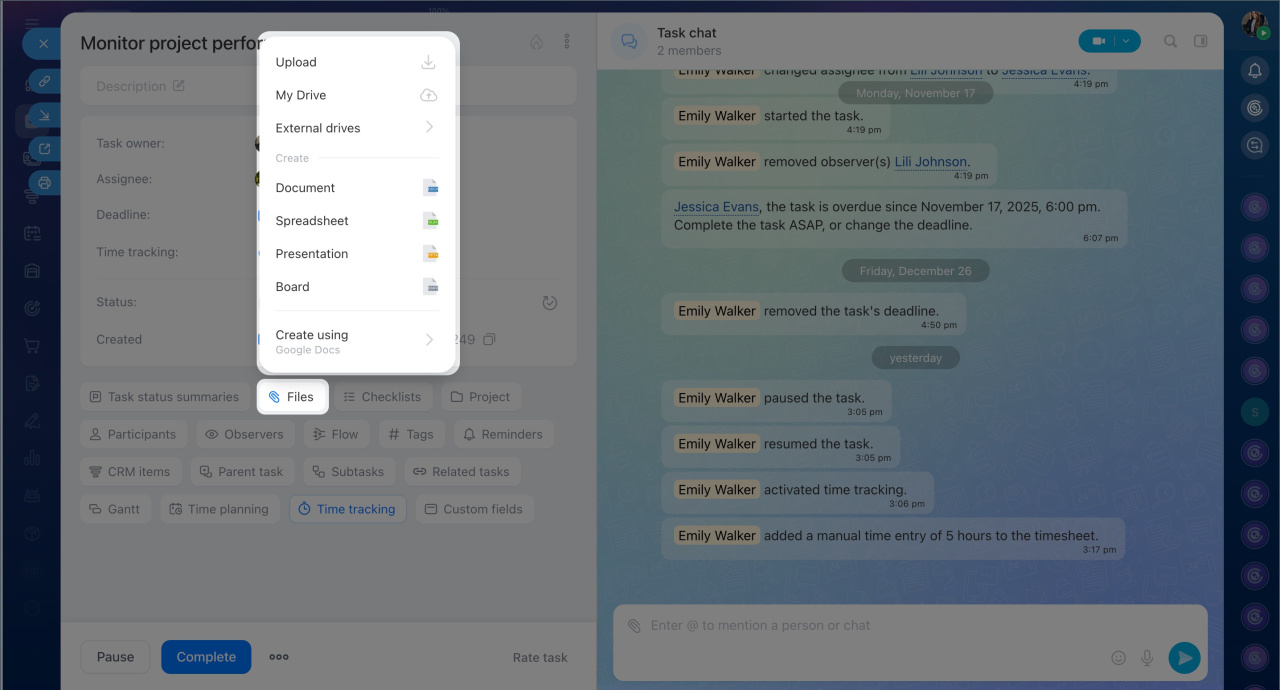
Click "Files" to upload materials or create a document directly from the task form. Any task participant can do this. If you attach a file created in Bitrix24, it will be available in other tools like the Drive or project. Changes made to the file in the Drive will immediately reflect in the task and vice versa. Files can be shared with colleagues or external partners.
Online Documents: Getting Started
Mark a task as important
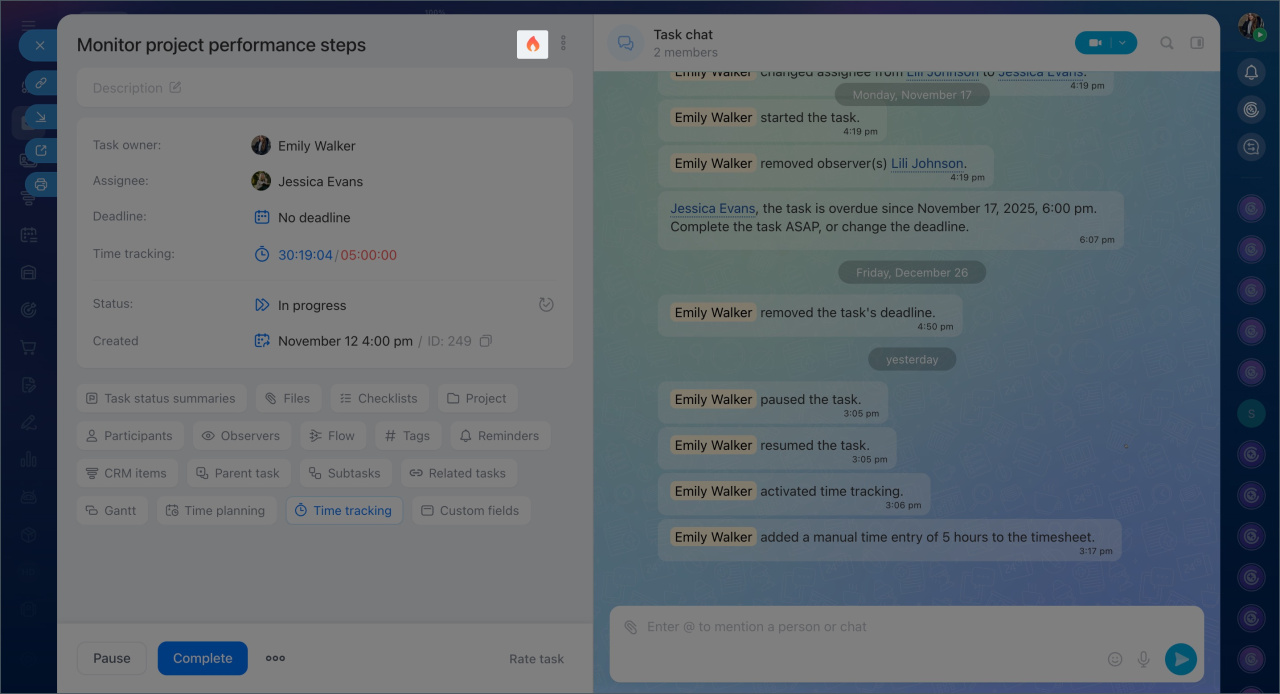
If a task requires extra attention, you can mark it as important. For example, preparing an estimate for a customer by the evening or urgently updating prices in the online store by morning. To do this, click a special icon — this task will stand out in the list and be more noticeable. This helps assignees prioritize their work.
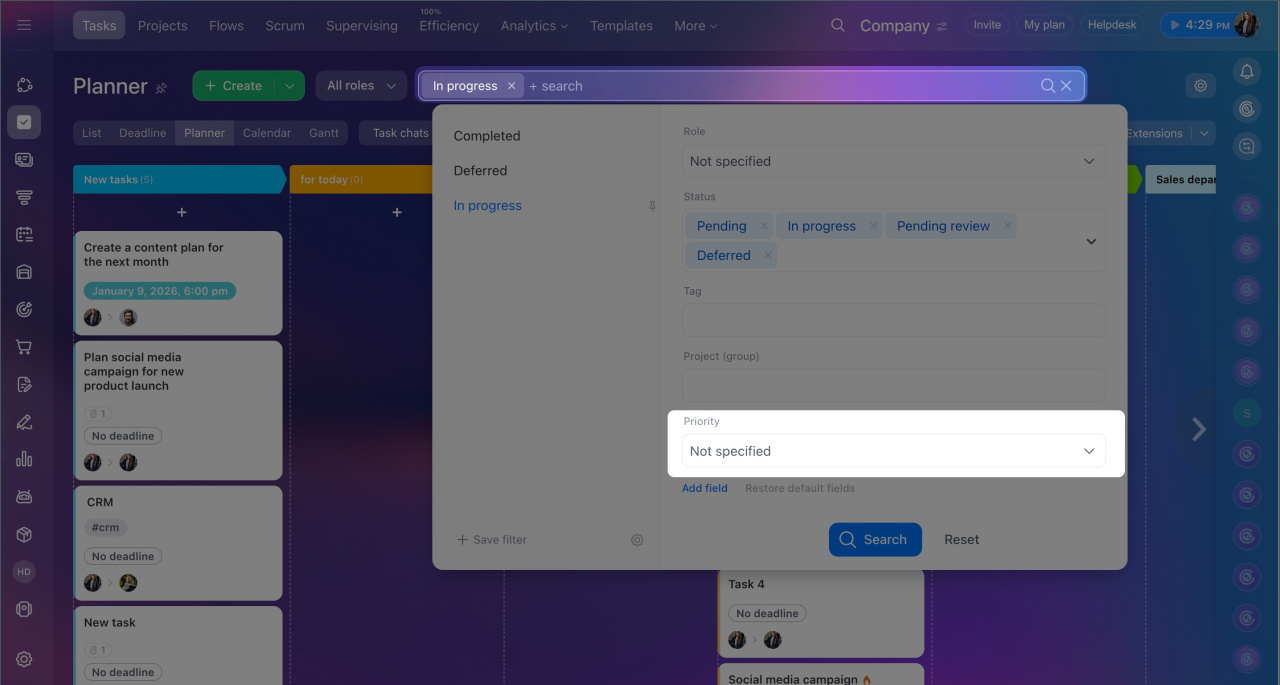
To display only important tasks in the list, select the "Priority" filter.
Add a checklist
Checklists help break tasks into clear steps and monitor their completion. They show what has been done and what is still in progress. Checklists are useful for:
- Step-by-step task execution. For example, in the task "Update website information," a checklist can break the work into stages: gather new data, edit text, update images, and check the website display.
- Distributing small assignments among participants. For example, in the task "Prepare a workspace for a new employee," you can list items like setting up the computer, granting access, and preparing documents. Different employees can handle different items, ensuring everyone knows their part, and the supervisor sees overall progress.
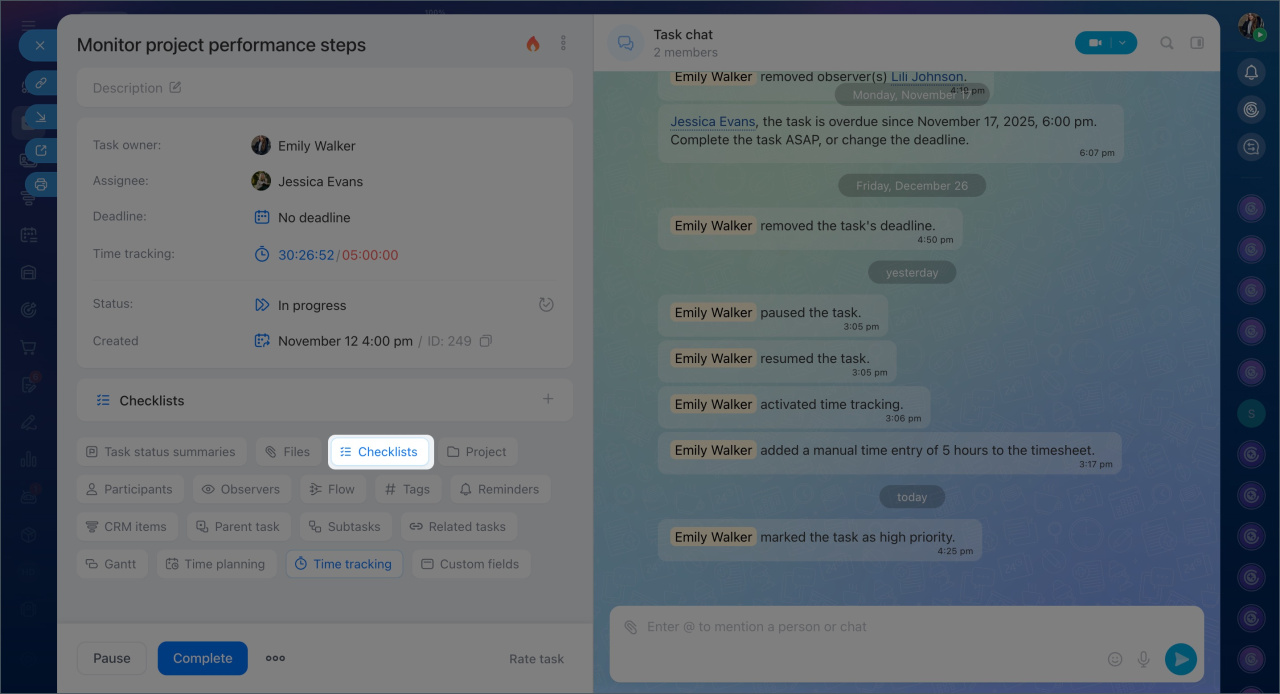
Click Checklists and add the items to be completed.
Checklists in tasks
Set reminders
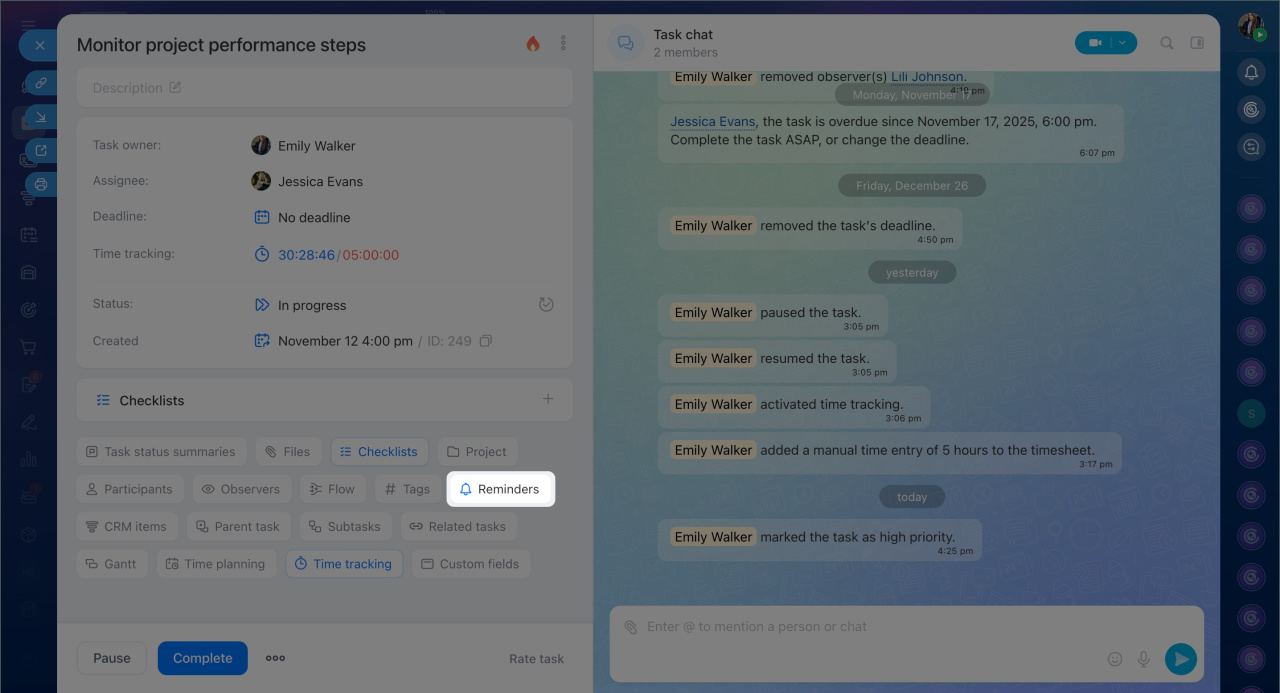
Reminders help ensure important work stages are not missed and deadlines are met. They can be set for each participant. For the assignee, reminders indicate when to start or return to a task, while for the creator, they signal when to review the results.
Task reminders
Enable time tracking for a task
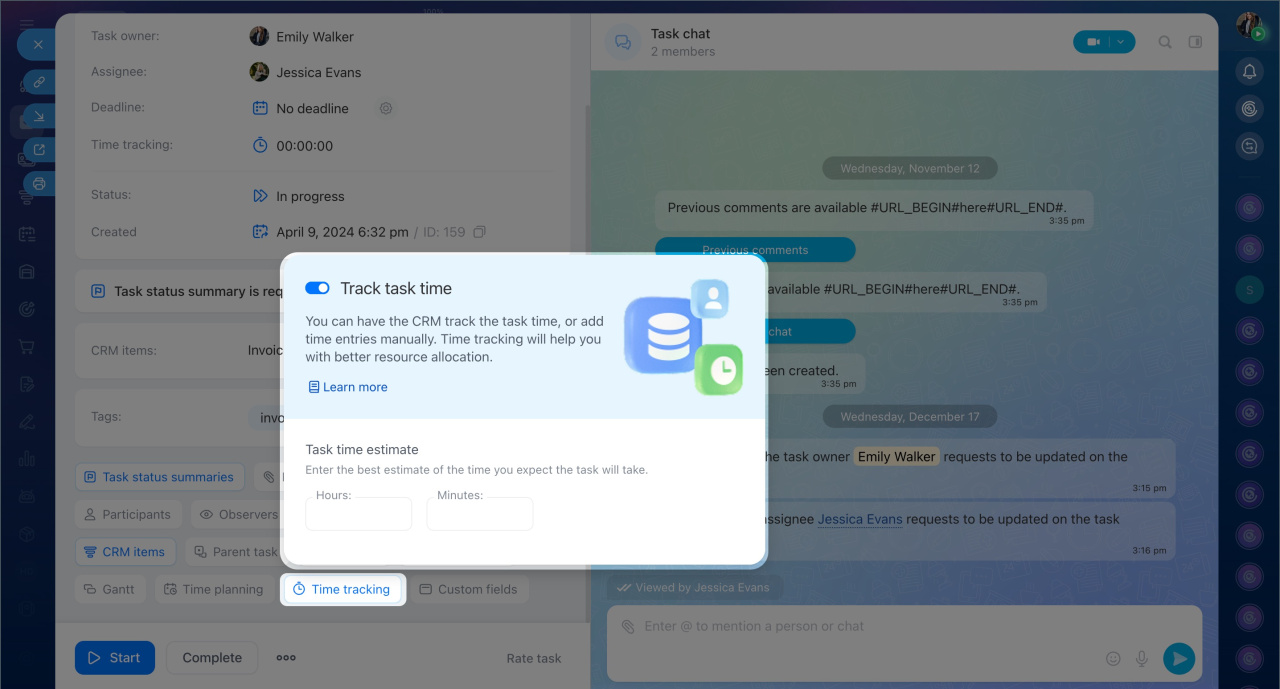
Bitrix24 makes it easy to track how much time is spent on a task. Using the built-in timer, employees can record periods when they work on a specific assignment. For example, they can start it in the morning and pause it during meetings or lunch.
All data is automatically saved in the task form. Participants don’t need to track time manually, and the creator can easily see how long the team works on a task and evaluate each participant’s contribution.
Click Time tracking and specify the time frame for completing the task. This helps the assignee plan their work and the creator compare planned versus actual time.
Time tracking in tasks
Record results
Results help document the outcomes of a task and keep them in one place. The assignee can attach a file, report, or briefly describe the actions taken.
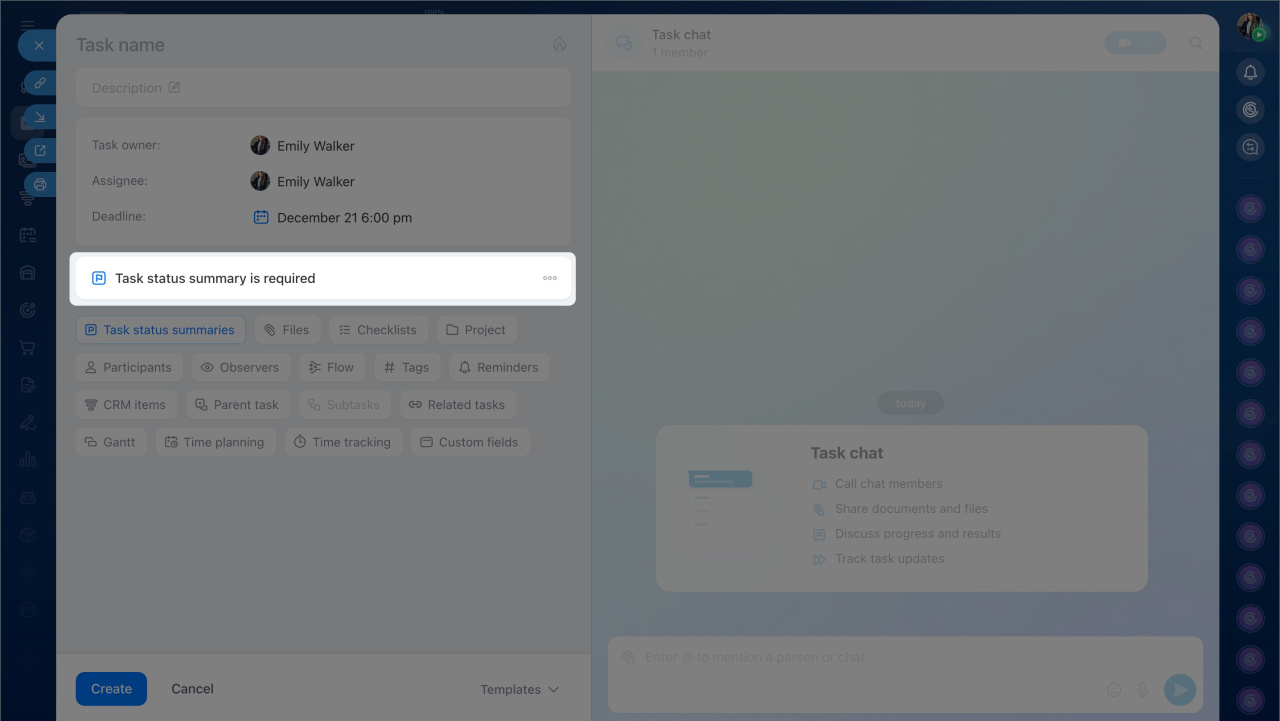
If the "Task status summary" option is enabled for a task, Bitrix24 will remind the assignee to add the outcome and won’t allow the task to be completed until it’s provided. This helps maintain a work history and simplifies task review.
Results can include not only the final outcome but also important intermediate stages. You can add the outcome in the "Task status summary" block or send a message in the chat and mark it as a result.
Task status summary
In brief
- Bitrix24 tasks include additional tools to help the team see the work plan and track progress for each item.
- Deadline settings allow you to specify: whether to allow or restrict deadline changes, automatically set deadlines for new tasks, or require mandatory result verification before completion.
- Tasks can store all related materials: layouts, instructions, documents, and more. Files can be added to a separate block in the task form or sent in the task chat.
- If a task requires extra attention, you can mark it as important.
- Checklists help break tasks into clear steps and monitor their completion.
- Reminders ensure important task stages are not missed and deadlines are met.
- Time tracking records how many hours employees actually spend on a task.
- Results help document the outcomes of a task and keep them in one place.
